What is Scribe Animator?

Scribe Animator is a whiteboard and explainer animation studio for building visual explanations as editable scenes, objects, drawings, video, narrative beats, camera decisions, and audio—not as one flattened recording. It can turn a recorded software walkthrough into editable scenes, organize related timing with StoryBeats, explain imported footage on the canvas, generate local voiceover, and let compatible AI agents assist through WebMCP Site tools.
The short version is simple: use Scribe when the audience needs to see an idea develop. Capture the source, structure the story, explain each important moment, and automate supported editing work without giving up the real project underneath.
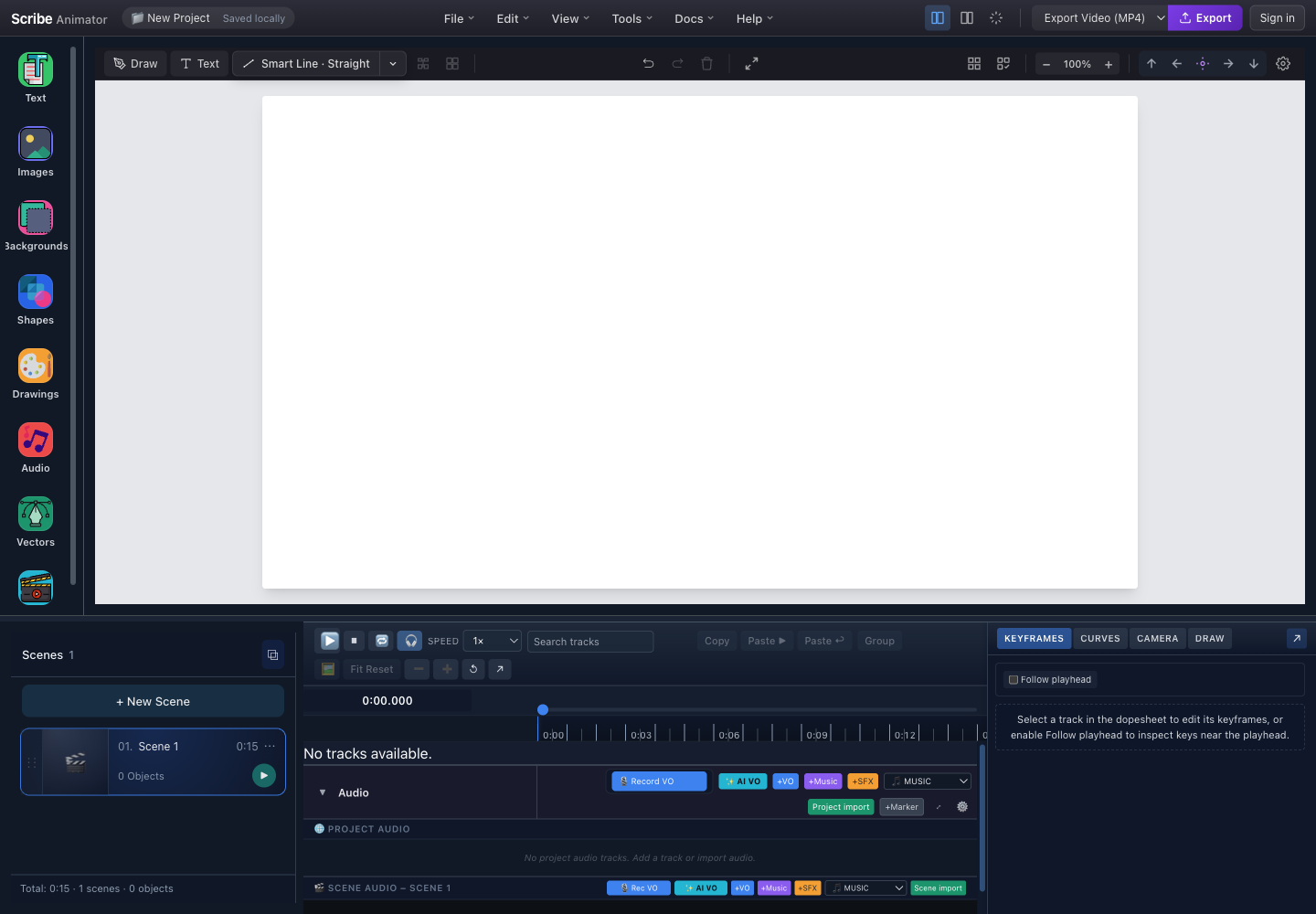
What Scribe Animator is built for
Scribe is most useful when order matters. A finished infographic shows every relationship at once. A Scribe project can reveal those relationships in the order the audience needs them.
That production model fits:
- product and service explainers;
- lessons that build a mental model;
- onboarding and process training;
- narrated diagrams and visual essays;
- internal policy or workflow communication;
- reusable scene-based content for a course or series; and
- short social or presentation videos where a drawn explanation is more useful than live footage.
A project is divided into scenes. Each scene owns objects, duration, animation state, camera state, and scene-level audio relationships. Project audio can continue across scenes. The result is still a video when exported, but the source remains structured enough to revisit.
This distinction matters on ordinary production days. If legal asks for a label change, you should not have to record a complete drawing again. If narration becomes four seconds longer, you should be able to inspect the affected scene and timing source instead of guessing where a flattened recording drifted.
One workflow: capture, structure, explain, and automate
Scribe's newer tools extend the same editable project model rather than creating separate, flattened content modes.
Capture: Screen Recording and Video on Canvas
On Desktop web, Screen Recording is Beta. The browser-owned chooser controls whether you share a tab, window, or screen, and microphone permission remains separate and optional. You can mark meaningful steps while recording, review them, and turn every accepted step into an ordinary scene with an editable video object.
If you already have user-owned footage, Video on Canvas lets you import it, trim or split it, pause on an exact frame with Freeze and Explain, add annotations and camera moves, mix its audio with narration, and export the result through the normal scene timeline.
Explore Screen Recording, follow the recording guide, or learn Video on Canvas.
Structure: scenes and StoryBeats
Scenes divide the project into editable sections. StoryBeats add scene-local narrative metadata above that timeline: one named idea can reference its related objects, Draw Steps, property keys, camera keys, and optional narration without becoming a physical canvas group or copying the authored animation values.
A supported StoryBeat move translates the timing it owns while preserving authored durations and relative spacing. When ownership is ambiguous or a proposed range is too short, Scribe reports an explicit conflict instead of silently stretching the motion. Deleting the beat removes its metadata, not the underlying content.
See StoryBeats for explainer timing or use the maintained StoryBeats guide.
Explain: drawings, footage, camera, and voiceover
An explanation can combine SVG Draw Steps, text and shapes, smart connectors, preset or keyframed motion, imported video, scene camera actions, music, effects, and narration. On supported Desktop setups, local AI voiceover can generate narration on the device, after which the WAV remains normal editable project audio. Custom scene backgrounds and board surfaces help the same content fit whiteboard, chalkboard, paper, blueprint, or branded visual styles.
Automate: AI-assisted editing through WebMCP
WebMCP is Experimental and requires a compatible browser client. Where available, the client can discover Scribe's semantic Site tools, inspect the visible project, and execute supported canonical editor actions. Scribe does not host the LLM, and the agent does not bypass authentication, entitlements, locks, validation, Undo behavior, or human-controlled browser and account decisions.
The current validated build exposed 41 Site tools—17 read and 24 write—but that number is build-specific evidence, not a permanent contract.
Explore AI-assisted WebMCP editing or start with the Site tools quickstart.
What the editor offers
A real object canvas
Text, shapes, images, vectors, drawings, video, smart lines, and arrows remain selectable project objects. You can position, resize, rotate, arrange, group, lock, and connect them rather than treating the canvas as a passive slide. Scene-level and custom backgrounds remain editable project choices too.
The Desktop workspace keeps the asset library, canvas, scene manager, timeline, audio, and inspector visible together. Mobile Lite presents the same project through focused sheets and touch actions so a phone-sized screen does not pretend to be a compressed desktop monitor.
Learn how selection and arrangement work.
Vector intake and authored drawing
Scribe can import SVG artwork and process supported raster artwork into drawable vector paths. Draw Steps let you decide which paths reveal together, their order, timing, hand or tool, and optional step camera behavior.
That is different from placing a completed illustration on screen and adding a generic wipe. The drawing plan is part of the project. You can revise the order when the narration changes, isolate a meaningful path, or leave detail visible without pretending every object was drawn by hand.
See the SVG and vector workflow and drawing-hand controls.
More than one kind of motion
Not every object should use a drawn reveal. Scribe also supports preset animation, Draw In behavior, object timing, and keyframed changes. These systems can share one object, which is powerful but requires a clear timing decision.
The timeline makes that decision inspectable. It provides scene timing, tracks, keyframes, curves, Draw Steps, camera actions, and playback against a shared playhead. A complex object can therefore use a drawn construction for its main artwork, a keyframed move for emphasis, and a preset exit without those controls becoming an invisible automation recipe.
Understand timing-source combinations.
Camera choices tied to the explanation
Scribe's camera is not only a pan-and-zoom effect added after editing. You can author a fixed view, manual camera track, hand follow, object follow, object-owned camera action, or Draw-step Camera action.
Those choices resolve through one scene camera during preview and export. The camera drawer reports where actions came from so overlapping manual, object, and draw-step decisions can be corrected rather than silently fighting.
Use a fixed view when the composition already reads clearly. Use Track for deliberate reframing, Follow Hand when the drawing motion is the subject, Follow Object when a moving object must remain visible, and Draw-step Camera when one part of a vector deserves a temporary close view.
Narration, music, effects, and binding
Audio is part of the editing model. Scribe separates project and scene audio, and provides track roles for voiceover, music, sound effects, and general audio. Narration can be recorded, imported, or generated locally on supported Desktop setups, then become the reference around which scene duration and object timing are planned.
Audio binding can connect a segment of a clip to an object timing strategy. It does not merely place a sound under the video; it creates an explicit relationship that can be reviewed when Draw Steps, presets, or keyframes change.
Plan voiceover and audio binding.
Scenes and reusable templates
Scenes keep one project from becoming an endless canvas. They can be reordered, duplicated, timed, and combined into a larger explanation. Templates can preserve useful object, scene, or project structures for repeated production.
This is especially valuable for a course, product series, or organization with a recurring visual language. A title scene, comparison scene, process scene, and closing scene can remain editable building blocks instead of reference screenshots that every author must imitate.
Work with scenes and templates.
Editable project packages and final exports
A rendered video is for watching; a .scribe package is for continuing the work. Scribe keeps those outputs separate. Save or package the editable project before relying on a final export.
Video export includes supported scene motion, drawing, camera, and mixed audio. Public static SVG export is unavailable; SVG import and drawing remain supported. Export capabilities and encoding paths vary by platform, so the final check should happen on the target device.
Choose and verify an export and protect the editable project.
Desktop, mobile web, iOS, and Android
Scribe has a full Desktop editing composition and a constrained Mobile Lite composition. Mobile Lite is not a separate animation domain: it operates on the same kinds of project, scene, object, timeline, audio, and camera state through touch-oriented sheets and adapters.
The mobile experience is useful for creating or revising a focused project, recording voiceover or importing media, arranging scenes, previewing, and exporting on a device. Desktop remains the better choice for dense timeline work, detailed path planning, advanced inspector controls, Screen Recording, and long sessions where several panels need to stay visible.
Scribe Animator is available through its web application, the Apple App Store, and Google Play.
Review the exact Mobile Lite controls and differences.
How Scribe is different
The useful differences are not a claim that one application should replace every video tool. They come from Scribe's editing model.
| Difference | Why it matters in production |
|---|---|
| Draw Steps are authored project data | You can revise vector reveal order, grouping, timing, hand behavior, and step cameras |
| Screen Recording creates ordinary video scenes | Accepted software-walkthrough steps remain editable instead of becoming one long flattened capture |
| StoryBeats name narrative timing relationships | Related drawing, object, camera, keyframe, and narration timing can move safely or return an explicit conflict |
| Video on Canvas shares the normal timeline | Real footage can be trimmed, frozen, annotated, reframed, narrated, and combined with drawn explanation |
| Canvas, timeline, camera, and audio share scene state | A timing change can be inspected across the systems that will actually play it |
| Camera actions keep their source identity | Manual, object, and draw-step camera decisions are easier to diagnose |
.scribe packages preserve editability | Delivery video and recoverable project source have different jobs |
| Desktop and Mobile Lite use the same project concepts | Mobile is a focused surface, not an unrelated template generator |
| Local workflows do not require every action to become a cloud upload | Local files, processing, saves, preview, and supported export can remain device-oriented |
| Local voiceover becomes normal project audio | Generated narration can be previewed and edited without turning the project into a remote black box |
| WebMCP operates through semantic editor actions | Compatible agents can help in the visible project while existing permissions and validation stay authoritative |
| Creator surfaces extend beyond finished videos | Templates, structured AI JSON intake, plugins, and reusable processing pipelines support repeatable systems |
Some competitors prioritize instant templates, avatar-led presentations, broad social-video libraries, or automatic generation. Those can be the right choice when speed and stock content matter more than path-level drawing control. Scribe's advantage is strongest when the visual explanation itself needs to remain inspectable.
When Scribe is the right choice
Choose Scribe when:
- the drawing order carries meaning;
- narration, object motion, camera, and draw timing must stay coordinated;
- a software walkthrough should become short editable scenes instead of one long recording;
- one narrative idea needs to move without stretching its internal animation timing;
- real footage needs drawn annotations, camera framing, narration, or Freeze and Explain;
- the team expects revisions after the first preview;
- imported SVG or custom artwork should remain part of the visual language;
- you need both a watchable export and an editable project package;
- the same project may move between a large and small editing surface; or
- reusable scenes and templates matter more than producing one disposable clip.
Choose another format or use Scribe as one part of a larger workflow when:
- human performance or physical product footage is the evidence;
- the lesson must reproduce exact interface clicks, where a short Scribe screen-recording step or imported recording is clearer;
- you need skeletal character animation or a character-performance system;
- real-time multi-author collaboration is the central requirement; or
- a single prebuilt social template is sufficient and deeper editing would add no value.
An honest tool choice starts with the communication job. Scribe can sit beside a camera recording, screen capture, audio editor, or publishing platform rather than competing with every one of them.
A practical first project
- Write one outcome the viewer should understand.
- Choose the right source: build on the canvas, record a short Desktop workflow in steps, or import user-owned footage.
- Divide the script into scene-sized ideas and use StoryBeats when related timing should stay together.
- Build a representative finished frame before adding motion.
- Import or create only the objects required for that idea.
- Choose Draw Steps, preset motion, keyframes, or Video-on-Canvas timing according to each object's job.
- Record, import, or locally generate narration and adjust scene timing around the spoken result.
- Add camera movement only where the frame truly needs help.
- Optionally use a compatible WebMCP client for a small, reversible editing task, then verify the visible result.
- Preview across scene boundaries, save a
.scribepackage, and test the final export.
The Create your first animation guide walks through that sequence with the real editor.
Frequently asked questions
Is Scribe Animator only for the classic drawing-hand look?
No. Drawing hands and Draw Steps are important, but text, images, shapes, connectors, presets, keyframes, camera moves, and audio can carry parts of the story that should not look hand-drawn.
Is Mobile Lite a viewer or an editor?
It is a constrained editor composition. It exposes real project actions through touch-friendly sheets, while some detailed Desktop controls remain richer on a larger screen.
Does AI create the complete finished animation?
Scribe can accept structured AI JSON through a validated import path, includes local AI voiceover capabilities where supported, and exposes experimental WebMCP Site tools to compatible clients. Scribe does not host an LLM for WebMCP. The project model, editor, permissions, preview, and export remain authoritative, and generated or agent-assisted input still needs human review.
Can I combine whiteboard animation with recorded video?
Yes. Screen Recording can turn accepted Desktop walkthrough steps into editable video scenes, while Video on Canvas can import user-owned footage for trimming, Freeze and Explain, annotations, camera work, narration, and export. Neither workflow turns Scribe into a long-form nonlinear video editor.
Can a rendered video be edited later?
Not as Scribe objects. Keep or export the .scribe package when continued editing matters.
Does Scribe replace live-action and general screen-recording software?
Not in general. Scribe can record supported Desktop screens into short editable steps, but it is not a long-form recorder or nonlinear video editor. Use live action for human or physical evidence, use Scribe's structured recording for concise software steps, and import existing footage when the story needs another capture workflow.