Choose whiteboard animation software for a real project

The right whiteboard animation software is the one that preserves the part of the project you expect to revise. A tool can produce an attractive first preview and still become painful when narration changes, a scene moves, or one imported asset needs to be replaced.
Do not choose from a feature-count screenshot alone. Start with your actual production path: script, storyboard, assets, animation, audio, review, export, and future updates. Then test the risky parts using a small representative project.
Think in tool roles, not one magic application
A whiteboard production usually touches several kinds of tools:
- a writing or collaboration surface for script approval;
- a storyboard method, which may be cards, a table, or rough sketches;
- an asset editor for cleaning logos and vector illustrations;
- the animation editor where scenes, objects, timing, and drawing behavior live;
- recording equipment and an audio editor when narration needs cleanup;
- a review channel for comments and approvals; and
- a publishing or learning platform that owns delivery and measurement.
Scribe Animator is the animation editor in that chain. It can also handle text, vector intake, scene planning, voiceover placement, camera behavior, preview, and supported exports, but it does not remove the need for content approval or distribution planning.
Evaluate the features that affect revisions
Project and scene structure
Ask whether the project is a single long canvas or a sequence of independent beats. Scribe uses ordered scenes on a global timeline. A scene carries its own objects, duration, timing, camera state, background override, and audio relationships. That makes it possible to move or duplicate a narrative beat, but changing an earlier duration also moves later global start times.
Asset intake
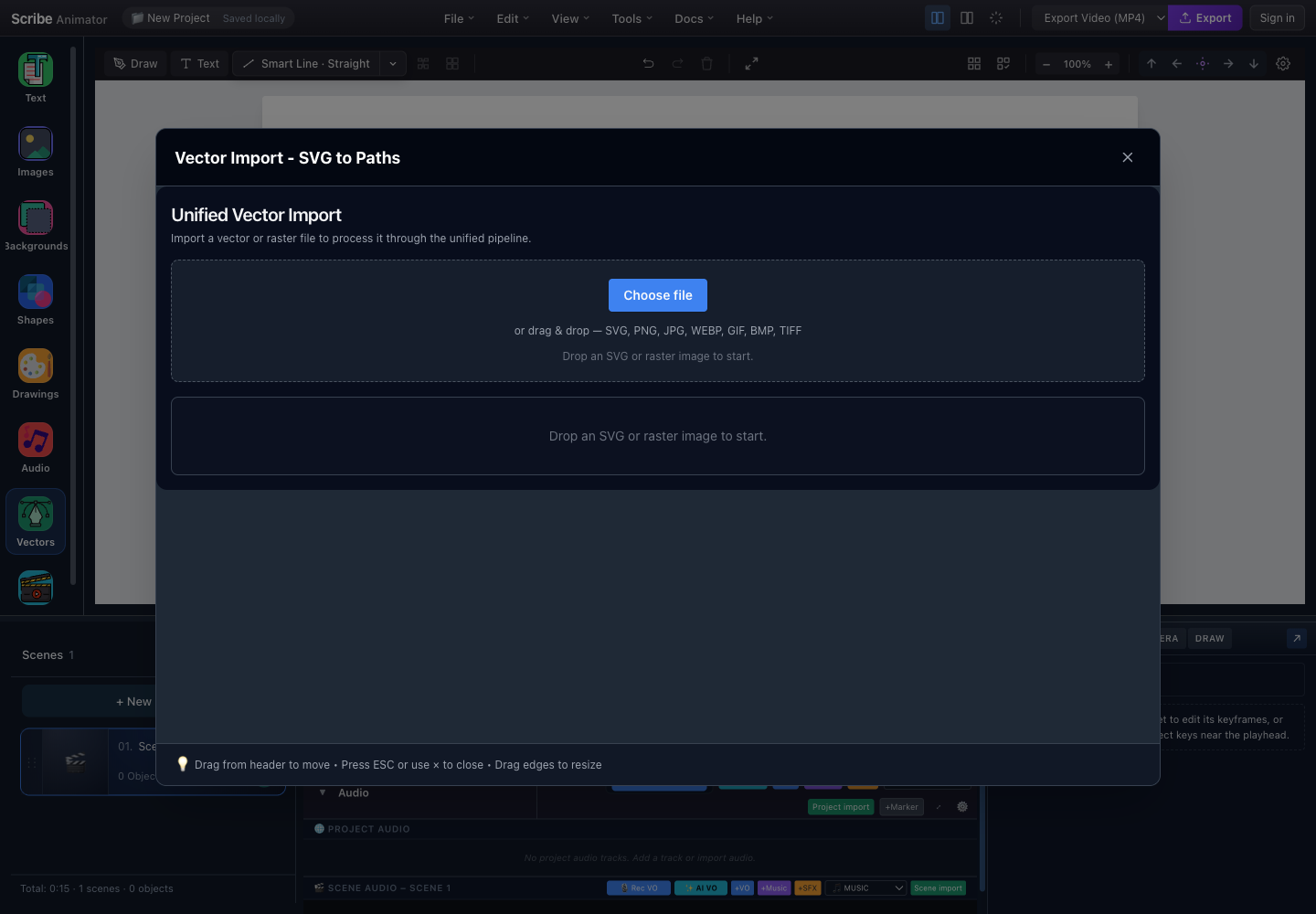
List what you really receive: editable text, SVG logos, diagrams, photos, screenshots, or raster line art. Scribe can sanitize and import static SVG, trace supported raster formats into vector paths, and place ordinary images without tracing.
The distinction matters. A photograph that only needs to appear should remain an image. A clean SVG is preferable when the art must scale or reveal along paths. Test a difficult real asset before committing to a workflow; the vector import guide explains supported paths and caveats.
Drawing and animation control
Look beyond “hand drawing available.” Can you choose meaningful stroke order? Can one object use ordinary motion while another reveals as a path? Can the drawing hand change at project, scene, or step scope?
In Scribe, Draw Steps own reveal targets and timing. Property keyframes own values such as position, scale, rotation, and opacity. A preset provides a quick object-level effect. These systems can coexist, but they do not simply blend into one anonymous animation. If your sample depends on several timing sources, test that combination early with the timeline and motion guide.
Audio workflow
Verify more than import. Check project-level versus scene-level tracks, recording permissions, clip placement, gain, mute, waveform readiness, markers, and the way narration edits affect visual timing.
Scribe supports project and scene audio roles including voiceover, music, and effects. Object-to-segment audio binding is explicit; importing a clip alone does not bind artwork. Read voiceover and sync before choosing audio as the master clock for a large project.
Export and editable transfer
Decide what the recipient needs:
- a rendered video for viewing;
- or an editable
.scribepackage for backup and transfer.
These outputs are not interchangeable. A video does not preserve editable objects; a project package is not a public player. Verify supported settings on the device and plan you will actually use.
Compare cost without relying on a stale price table
Subscription figures and plan limits change, so confirm current terms in the product's official plan and export surfaces before purchase. More importantly, estimate total production cost:
- time to prepare compatible artwork;
- voiceover recording and revision;
- effort required to reorder scenes after feedback;
- export limits relevant to the destination;
- storage or collaboration steps outside the editor;
- training for the people who will update the project; and
- the cost of rebuilding if the editable source is lost.
A low entry price does not help if the critical asset cannot import cleanly. A broad feature list does not help if the team only needs a reliable diagram-and-narration workflow.
A practical selection scorecard
Score each item against one representative project:
| Criterion | Question to test |
|---|---|
| Story structure | Can we name, duplicate, reorder, and retime beats without flattening them? |
| Asset fidelity | Do our real SVGs, images, and fonts survive intake? |
| Draw order | Can we make the explanation—not file layer order—determine what appears first? |
| Timing | Can we scrub, preview, and edit the required precision? |
| Audio | Can narration be placed and revised at the right scope? |
| Camera | Can framing change without moving the source objects? |
| Recovery | Is there an editable backup and a tested reopen path? |
| Delivery | Does the allowed export match the destination? |
| Platform fit | Can the people doing the work use the required Desktop or Mobile Lite controls? |
Weight the criteria. A training team may care more about narration revisions than camera movement. A diagram-heavy product demo may put vector intake first.
Build a representative proof in Scribe
Use a 20–30 second proof rather than a polished sample that avoids your hard requirements.
- Create a blank project and name the first scene by purpose.
- Add one editable heading and style it.
- Import one real SVG or representative line-art asset.
- Add a second scene and duplicate one visual element to test continuity.
- Create a simple Draw plan and review its order.
- Add one ordinary preset or property change to a different object.
- Place a short temporary narration clip on the intended project or scene scope.
- Preview across the scene boundary.
- Export a lightweight test video.
- Export a
.scribepackage, reopen a copy, and confirm local assets resolve.
The create your first animation tutorial covers the editor loop. Use the workspace tour if selection, scenes, timeline, and properties are unfamiliar.
When Scribe is a sensible fit
Scribe is a strong candidate when the project depends on editable scenes, vector-based drawing, text and diagram objects, controlled timing, narration alignment, and local export. It is also useful when a creator wants Desktop depth with a constrained Mobile Lite composition surface for supported tasks.
Scribe can record supported Desktop screens into short editable steps. Choose another production path—or combine tools—when the core material is live-action footage, advanced 3D, a faithful long-form screen recording, or another medium that the scene-based explainer workflow does not serve. Good tool selection is not loyalty to one interface. It is an honest match between the message, revision path, and delivery format.