Create camera moves in whiteboard animation

Good camera choreography is not constant motion. It moves toward the active idea, pauses long enough to read it, and pulls back when the relationship between ideas matters more than any single detail.
This tutorial deconstructs two built-in Scribe Animator templates, then reproduces Fixed, Track, Object Camera, Draw-step Camera, Follow Hand, and Follow Object behavior in the real Desktop editor. The proof includes authored controls, timestamped runtime frames, and H.264 MP4 files exported by Scribe—not a simulated camera animation.
The workflows below were tested in the Desktop web editor on macOS with frontend@2.0.0. Cinematic Camera Journey and Doodle Friendly Vertical Title Card were applied from the real Templates UI, previewed at 1×, exported through Scribe, and inspected with ffprobe. Follow Hand and Follow Object were also sampled during evaluated playback.
For every control and precedence edge case, keep the Camera and path following reference open beside this outcome tutorial.
Which camera feature should you use?
| Feature | Meaning | Best use |
|---|---|---|
| Fixed Scene Camera | One saved scene-wide shot | A readable overview that does not need motion |
| Manual Track key | An exact camera pose at a chosen time | Deliberate pan, zoom, hold, or pull-back choreography |
| Object Camera | A bounded, timed Track shot generated around one object | A temporary close-up on a title, image, shape, or static vector |
| Draw-step Camera | A generated Track shot tied to one Draw Step | Framing a particular drawing phase or reveal region |
| Follow Hand | Continuous runtime tracking of the active drawing hand | Staying with a long drawing route as the hand travels |
| Follow Object | Continuous runtime tracking of one selected moving object | Keeping a moving subject framed throughout evaluated motion |
Two similar names describe different behavior:
- Object Camera is not Follow Object. Object Camera authors a timed shot; Follow Object continuously evaluates the target's current position.
- Draw-step Camera is not Follow Hand. Draw-step Camera creates a bounded Track action; Follow Hand continuously follows active hand data.
Case study: Cinematic Camera Journey
Open Templates, search for Cinematic Camera Journey, choose Select, then Create from selected and Apply Template. Its first-party definition is the built-in scene-cinematic-camera-journey.json template shipped with Scribe.
The built-in template contains this 12-second Track choreography:
| Time | X | Y | Zoom | Source easing |
|---|---|---|---|---|
| 0.0s | 960 | 540 | 1.80 | Ease Out (Cubic) |
| 2.5s | 960 | 540 | 1.80 | Ease In-Out (Cubic) |
| 5.0s | 2400 | 400 | 1.60 | Ease In-Out (Cubic) |
| 6.5s | 2400 | 400 | 1.60 | Ease In-Out (Cubic) |
| 8.5s | 2400 | 1200 | 1.60 | Ease In-Out (Cubic) |
| 9.5s | 2400 | 1200 | 1.60 | Ease In-Out |
| 11.5s | 1600 | 700 | 0.65 | Ease In-Out (Cubic) |
The storytelling pattern is more useful than the numbers:
CLOSE TITLE → HOLD → PAN TO POINT 1 → HOLD → PAN TO POINT 2 → HOLD → WIDE CONTEXT
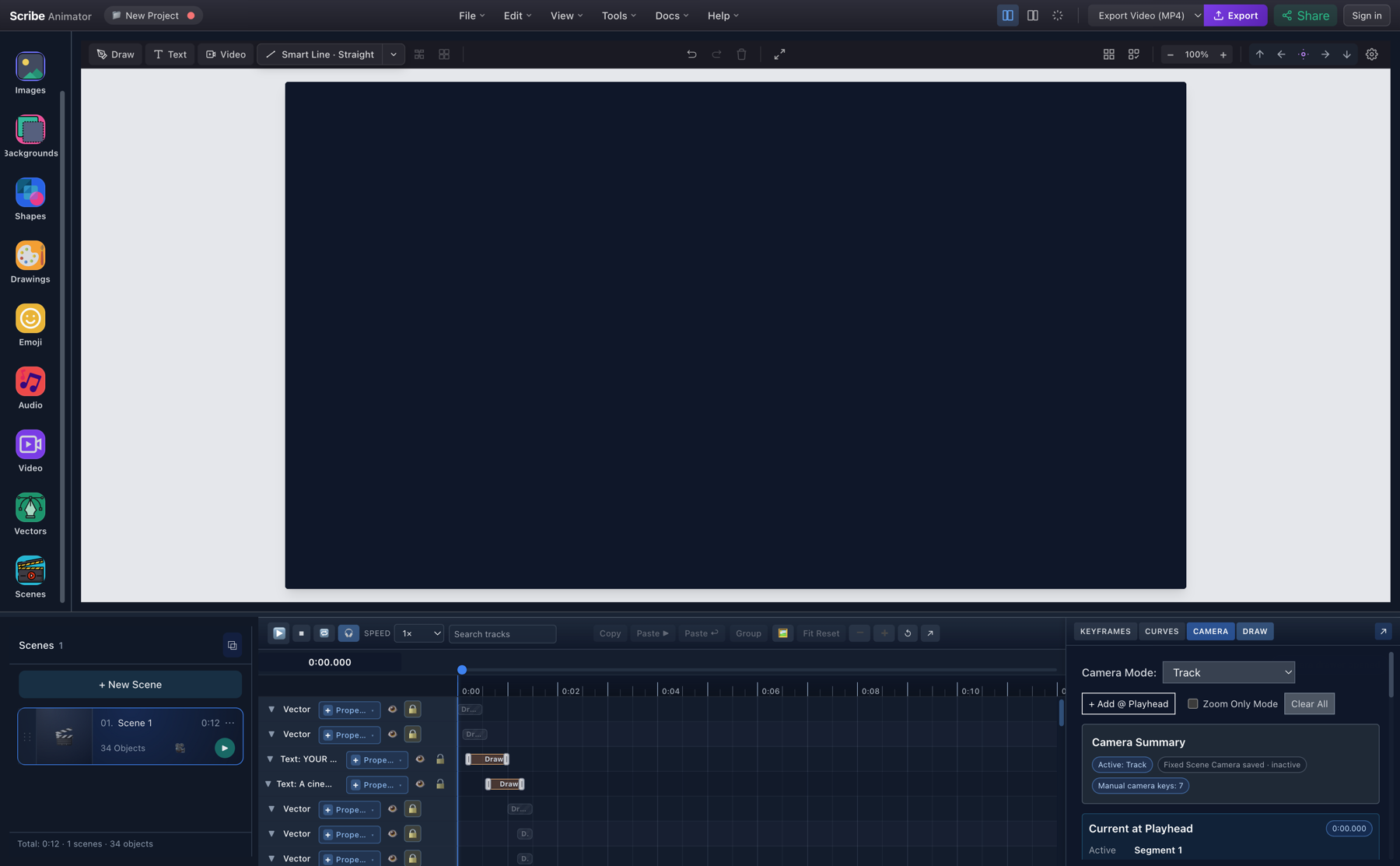
- Track modeManual camera keys run while Track is the active scene camera mode.
- Seven M keysM identifies camera poses authored directly in CAMERA.
The checked-in JSON retains the cubic easing names shown in the table. In the tested build, applying the template preserved the seven times, positions, and zooms, but normalized the cubic aliases to Linear in the Camera drawer; the non-cubic 9.5-second ease-in-out key remained Ease In-Out. The video below is the actual result from that imported state. Until template easing normalization is fixed, review imported easing before final export.
Timestamped export evidence
| 0.0s — close opening | 5.0s — first destination | 8.5s — second destination | 11.5s — wide context |
|---|---|---|---|
 | 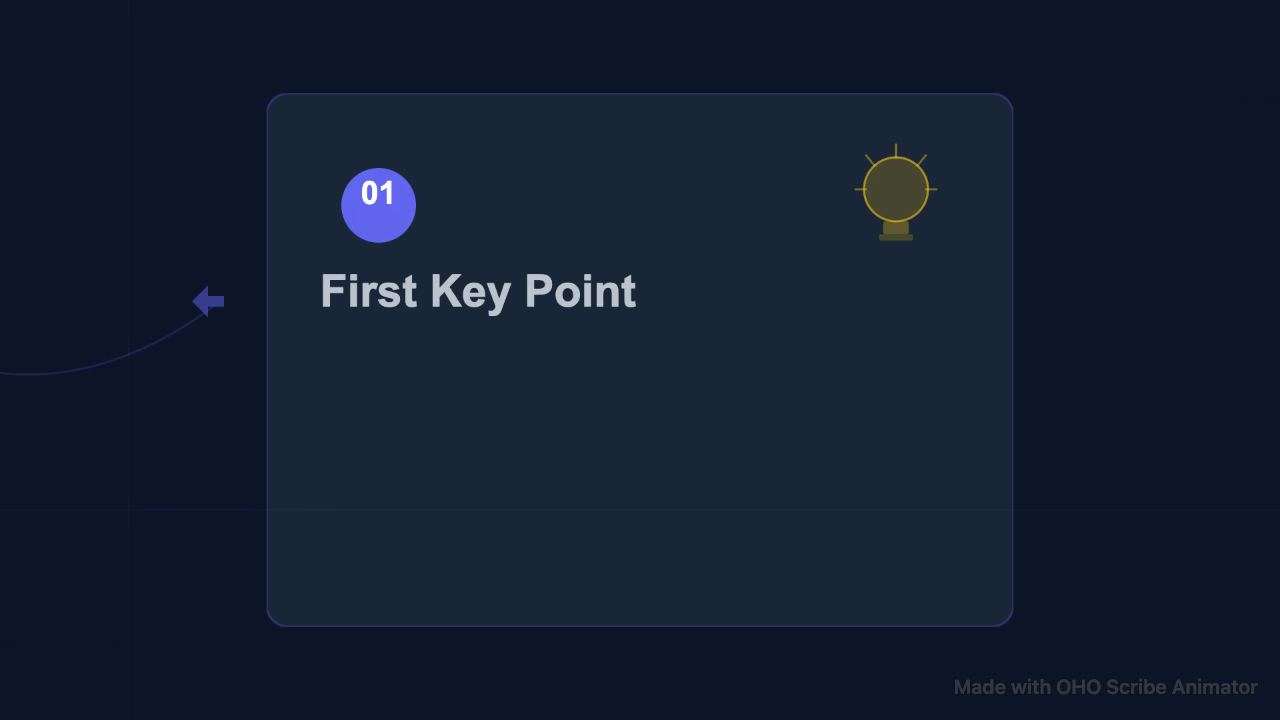 | 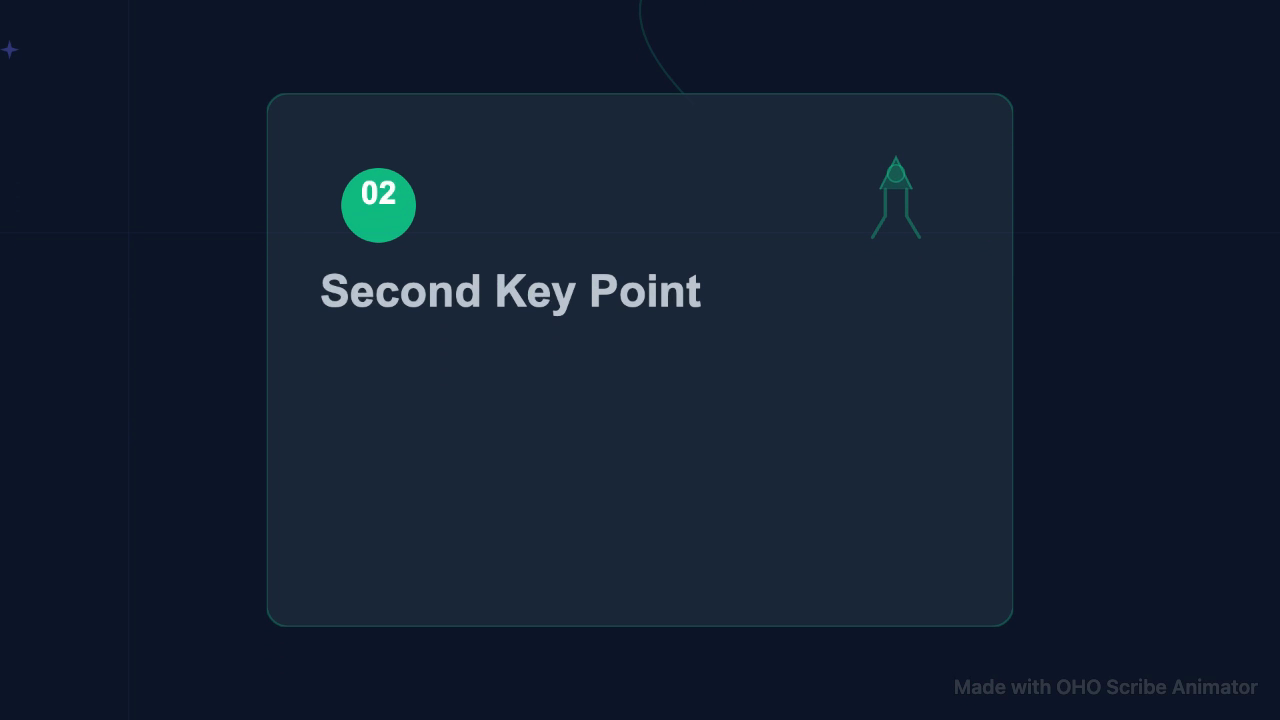 | 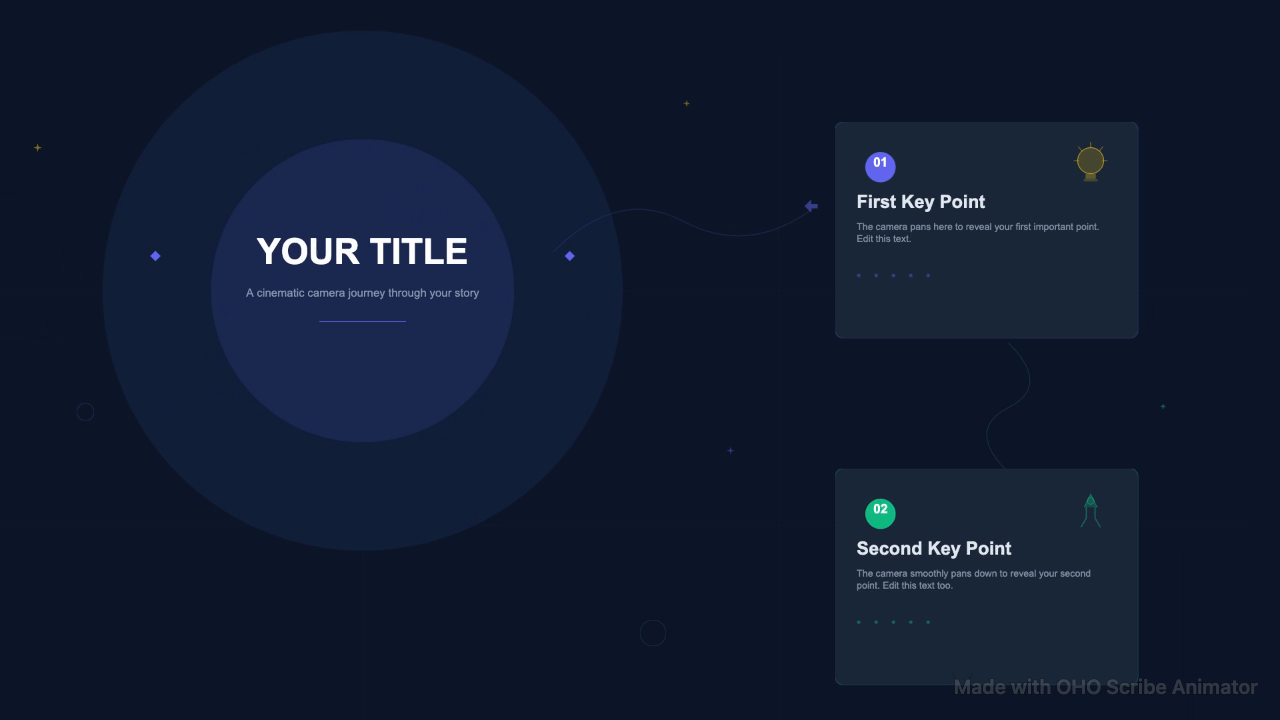 |
Build a manual camera move yourself
- Open CAMERA and choose Track.
- Move the playhead to the first beat, position the canvas camera, and choose + Add @ Playhead.
- Move to the next beat, pan or zoom to a genuinely different pose, and add another key.
- Add a duplicate-position key later when the viewer needs reading time.
- Edit the exact Time, X, Y, Zoom, optional rotation, and Easing in the key row.
- Preview from before the first key. Scrubbing only one pose does not prove the transition.
Use a wide shot when relationships matter and a close shot when one detail owns the narration. If the entire scene is reading-heavy, a Fixed Camera is often the better decision.
Why camera holds matter
Two keys with the same pose but different times create a hold. They separate movement time from attention time:
0.0s pose A ───── 2.5s pose A   hold the title
2.5s pose A ───── 5.0s pose B   move to point 1
5.0s pose B ───── 6.5s pose B   let point 1 be read
Without those duplicate-position keys, the camera can drift while the viewer is still trying to read. Continuous motion is not automatically cinematic.
Case study: camera choreography in 9:16
Apply Doodle Friendly Vertical Title Card from Templates. Its built-in 11-second camera track is:
| Time | X | Y | Zoom | Easing |
|---|---|---|---|---|
| 0.0s | 540 | 520 | 1.04 | Ease In-Out |
| 2.5s | 540 | 620 | 1.02 | Ease In-Out |
| 5.6s | 540 | 960 | 1.00 | Ease In-Out |
| 8.9s | 540 | 1450 | 1.03 | Ease In-Out |
| 11.0s | 540 | 960 | 1.00 | Ease In-Out |
| 0.0s — top | 5.6s — middle | 8.9s — bottom | 11.0s — overview |
|---|---|---|---|
 | 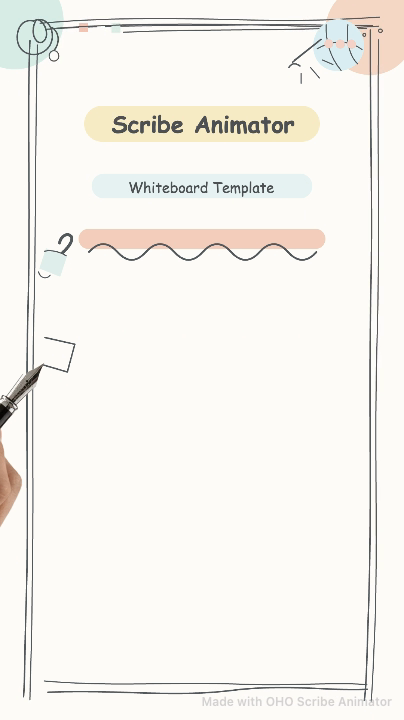 | 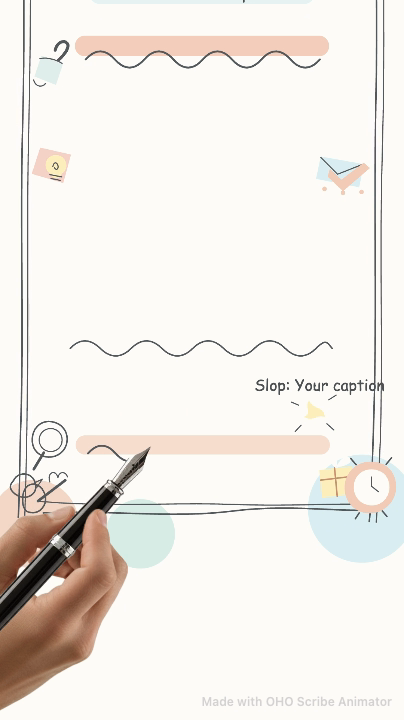 | 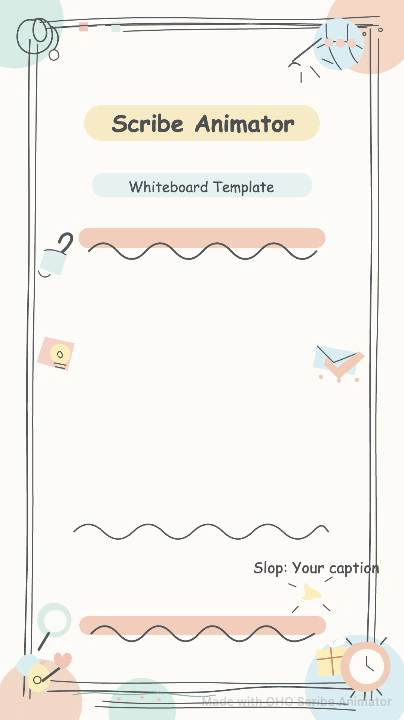 |
In 9:16, keep horizontal travel restrained unless the content truly requires it. This template preserves edge safety by holding X at the center, travels mainly on Y, and gives the title, body, and footer distinct attention windows. The Scribe export remained vertical at 404 × 720 under the tested free-plan 720p limit.
Save a Fixed Scene Camera
Choose Fixed Scene Camera, place the viewport, and choose Save View. Move the editor viewport elsewhere, then use Jump to View. In the controlled test, Jump returned to the saved pose x 960, y 540, zoom 1.80, rotation 0.
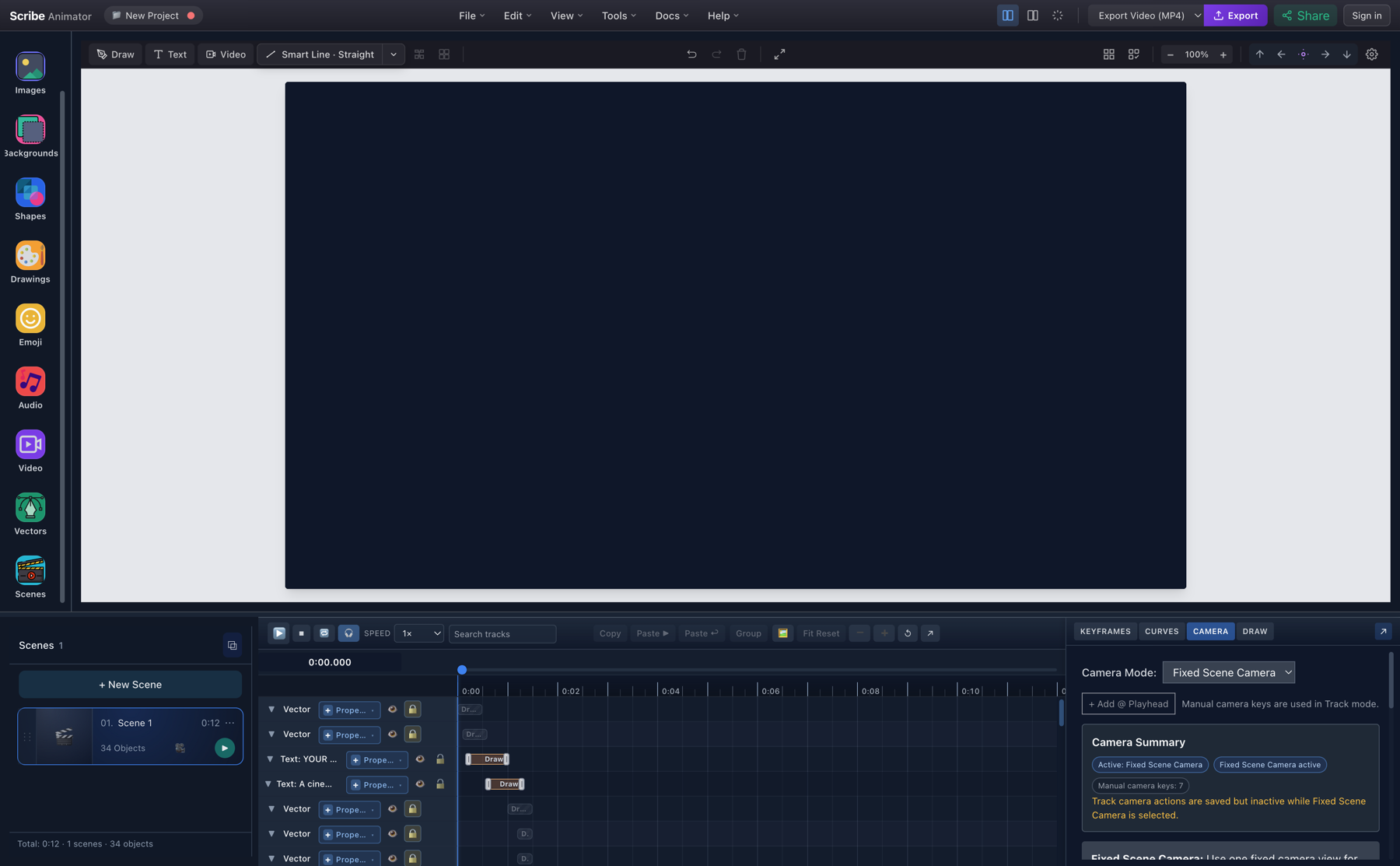
Use Fixed Camera for an overview, a dense diagram, or a scene where motion would compete with reading.
Focus one object with Object Camera
Object Camera lives on an eligible object, not in a separate scene mode:
- Switch the scene to Track.
- Select a text, image, shape, or eligible static vector.
- Open Properties → Object Camera.
- Choose Tight, Medium, or Wide framing.
- Set the start, move duration, and Continue or Revert behavior.
- Choose Add Camera.
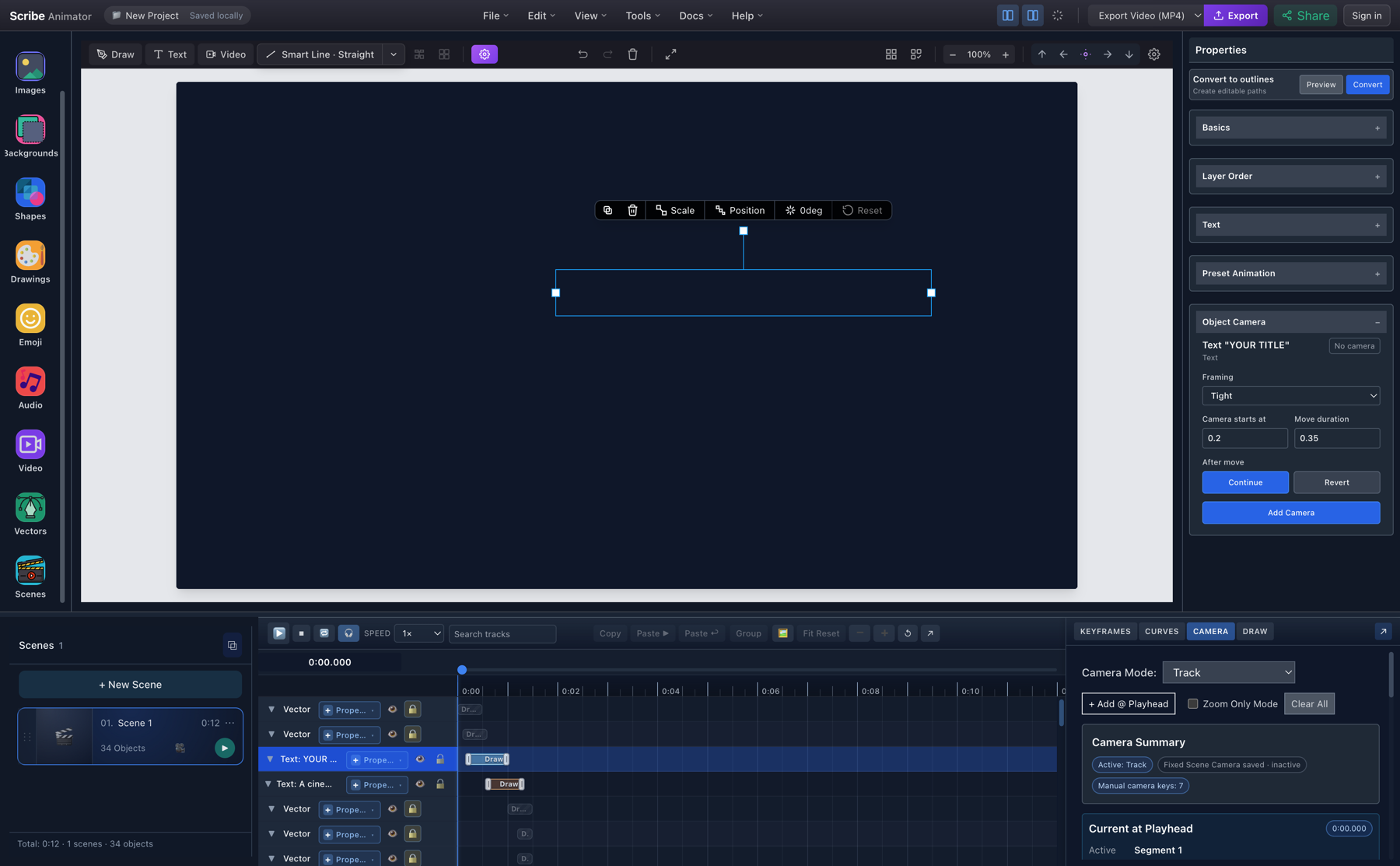
The generated rows carry an O source badge. Edit the recipe back in Properties → Object Camera, where its target and framing intent live.
Frame one drawing phase with Draw-step Camera
For drawable artwork, open DRAW, expand the relevant Draw Step, then open its Camera section. Choose framing, start offset, move duration, and Continue or Revert before choosing Add Camera.
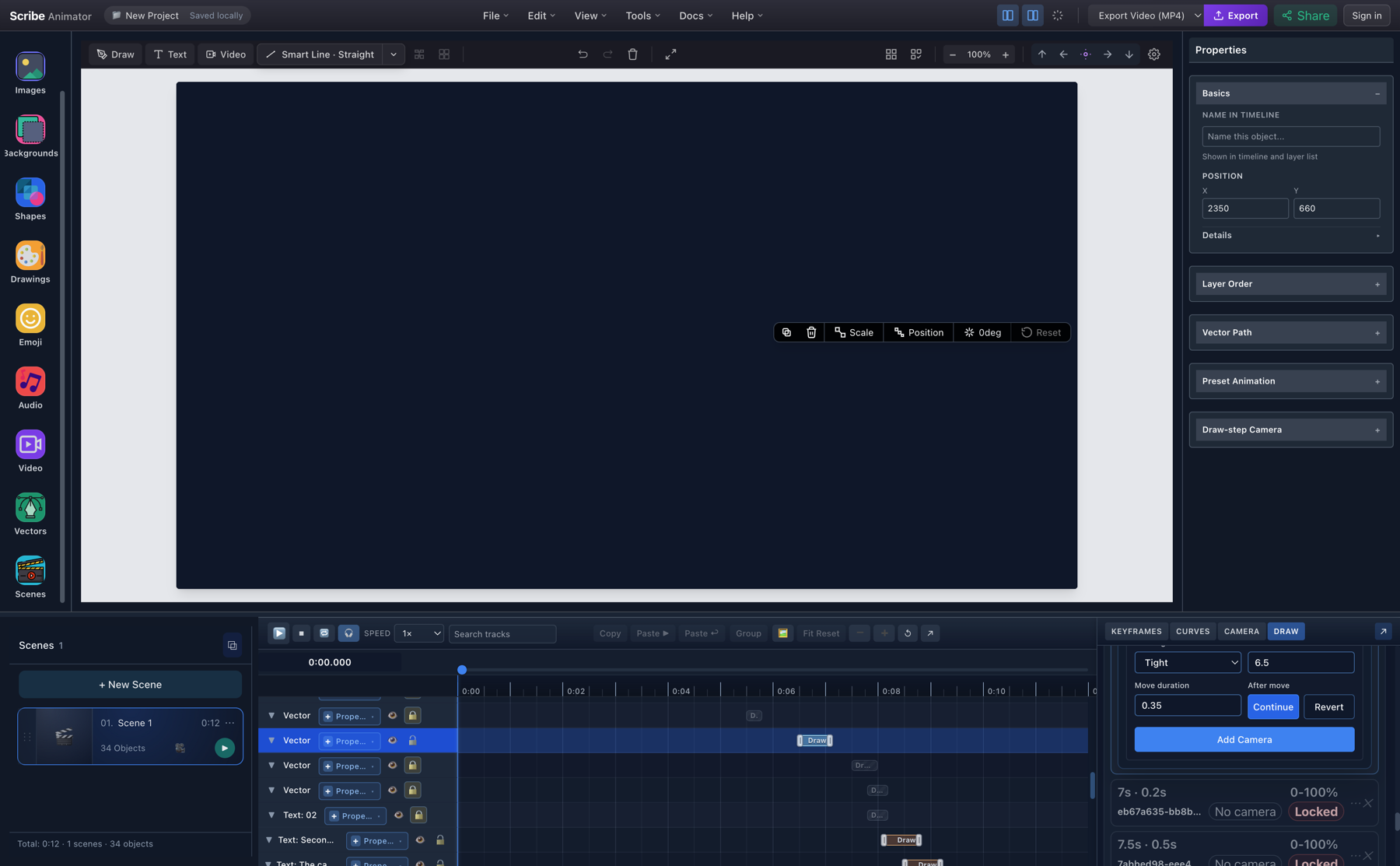
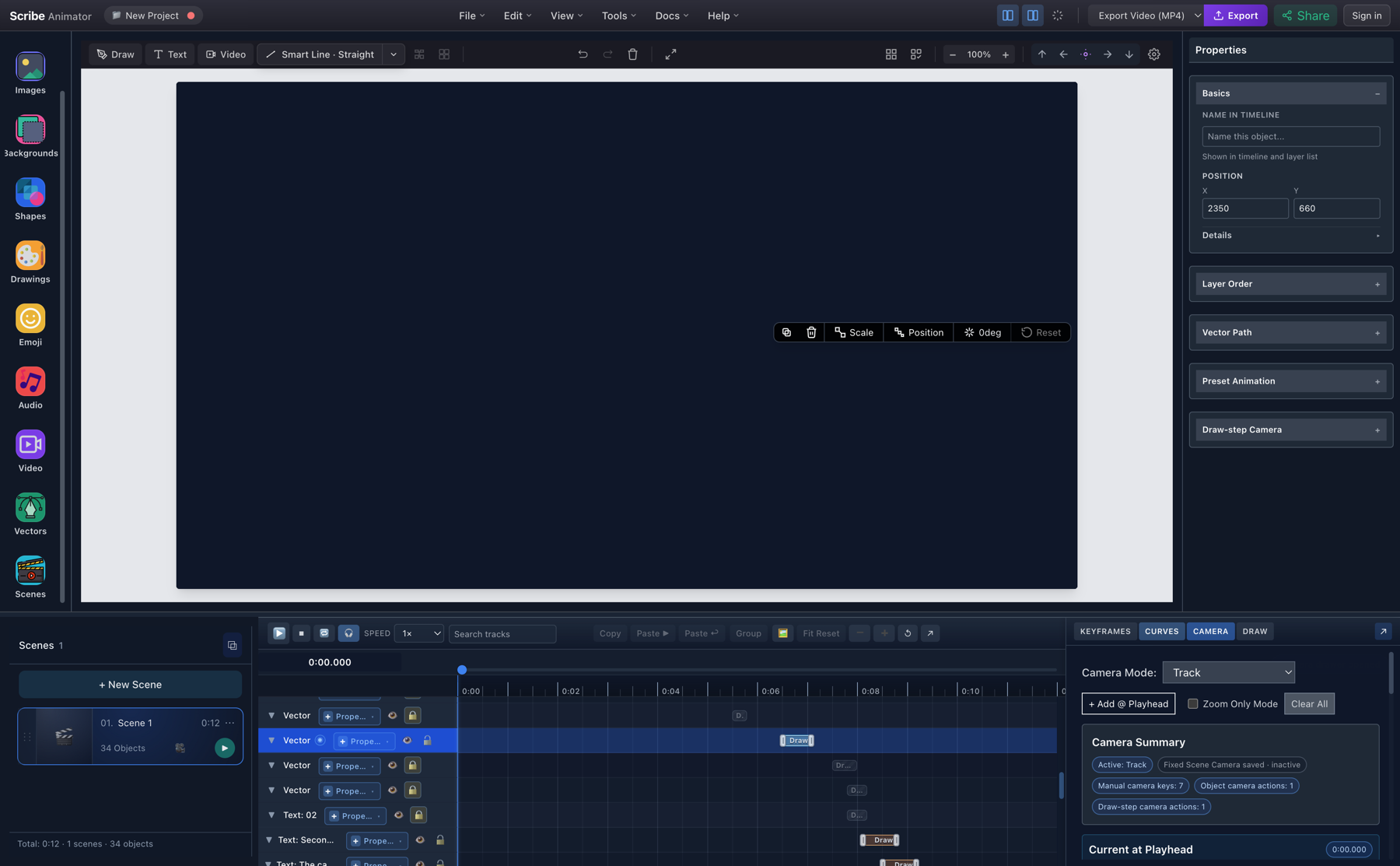
The first test generated a D action at 6.50 seconds with a 0.35-second move. An existing manual Track segment occupied that interval, so the runtime status correctly reported the manual segment as camera owner. In a clean Track test with no manual keys, the Doodle page-frame step generated D keys at 0.10 and 0.45 seconds. Playback at 0.915 seconds held the second D pose at approximately X 539, Y 958, and 85% zoom while the hand continued drawing.
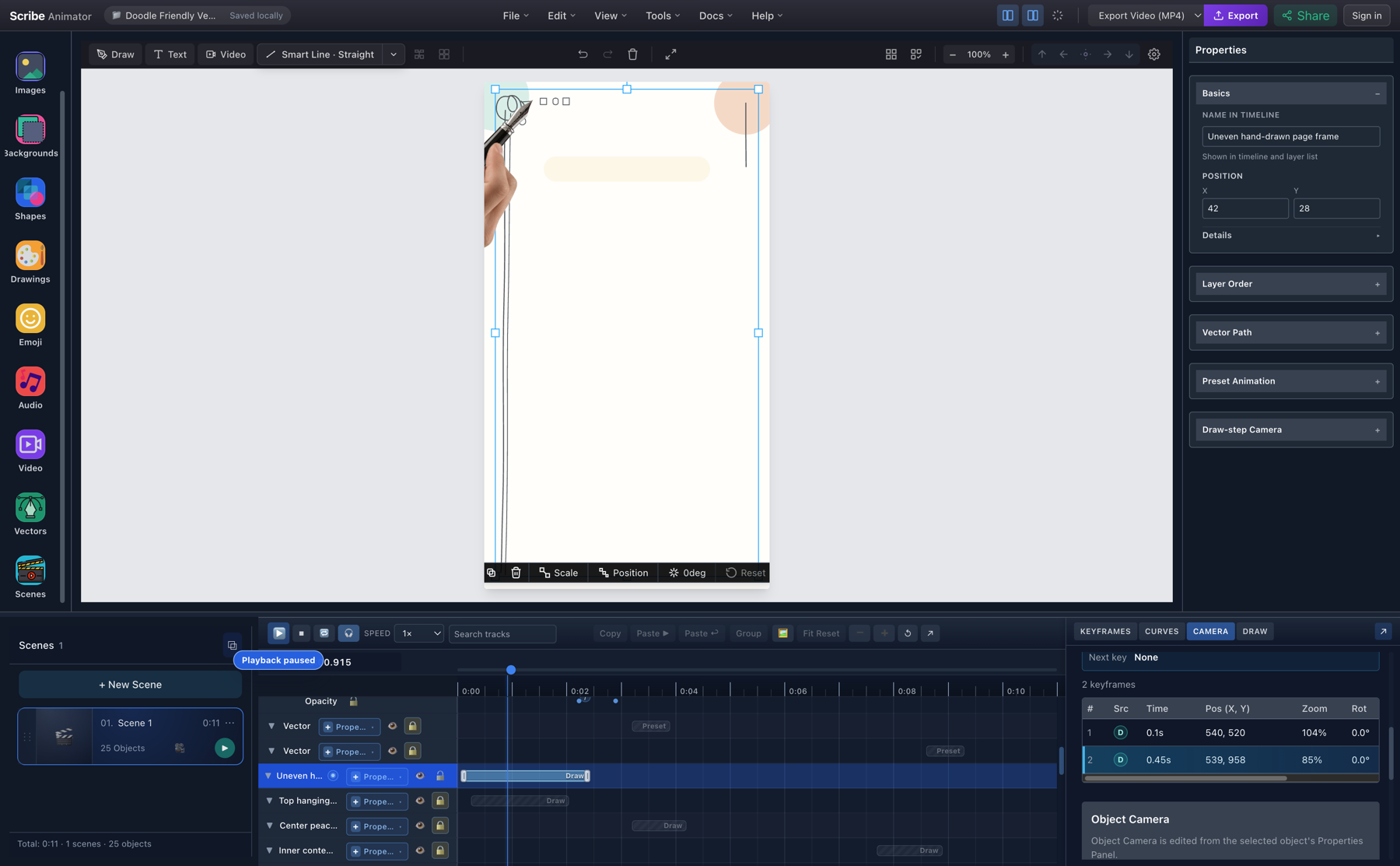
The contrast is intentional: generated camera recipes work when their interval is clear, but you should still check Camera Summary rather than assume that the latest-authored recipe owns the final camera.
Understand M, O, and D
- M: manualEdit manual poses directly in CAMERA.
- O: objectEdit the generated shot from Properties → Object Camera.
- One summaryThe drawer reports every authored source and the currently evaluated owner.
| Badge | Owner | Edit at |
|---|---|---|
| M | Manual camera key | CAMERA |
| O | Object Camera action | Properties → Object Camera |
| D | Draw-step Camera action | DRAW → step → Camera |
Follow the drawing hand
Choose Follow Hand when the active hand travels through a large drawing and a fixed shot would make the action too small. It requires real Draw Steps and valid hand-follower data.
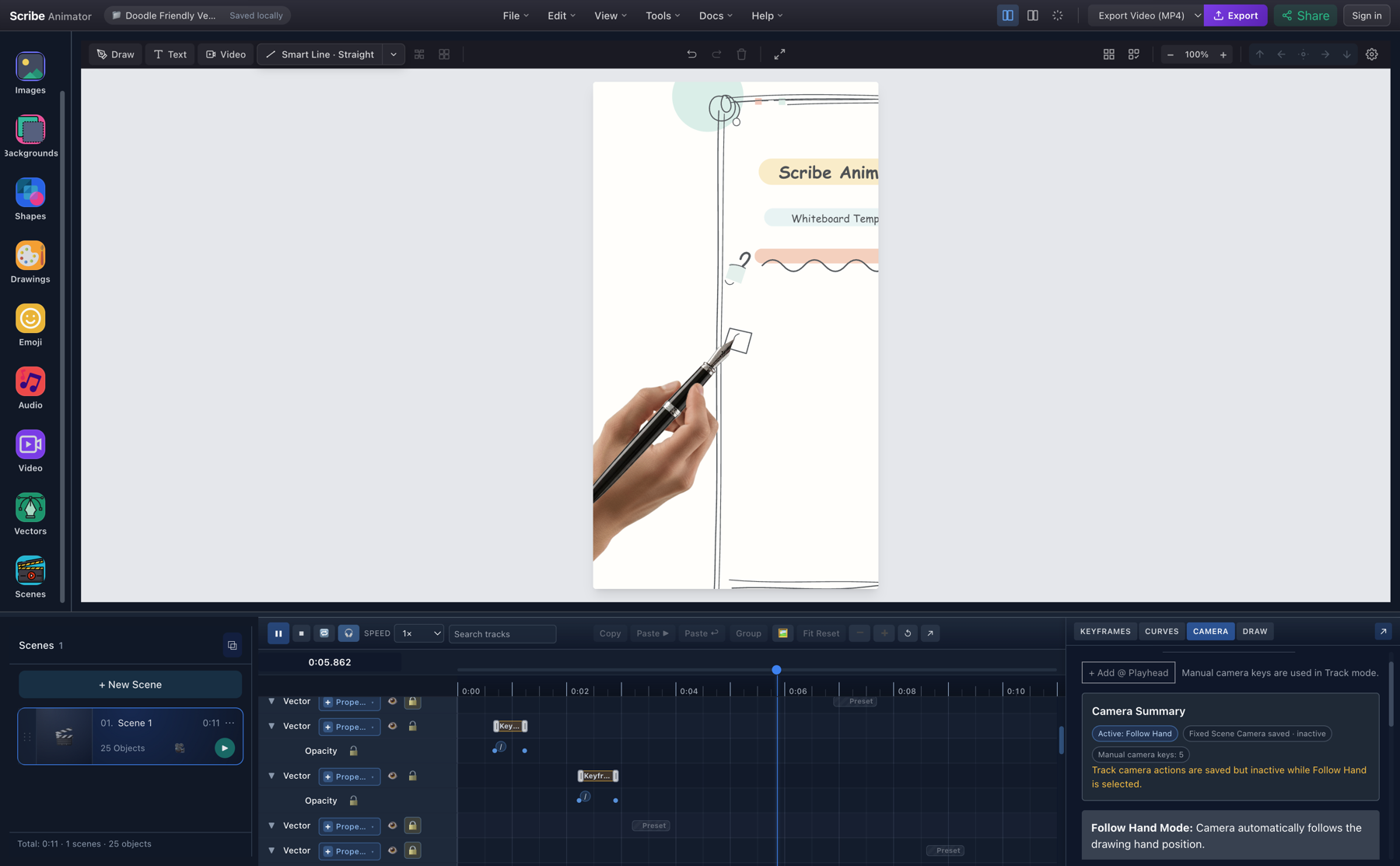
The 1.2- and 5.9-second samples showed different camera regions with the visible hand at each active route. An extracted 5.6-second export frame matched the live preview's pose and hand location.
Follow a moving subject
Follow Object continuously evaluates a selected target. In the controlled test, a title had Position.X keys from 560 at 0.20 seconds to 1600 at 12 seconds. Follow Object targeted that title, and runtime frames were sampled near 1.1, 6.2, and 11.4 seconds.
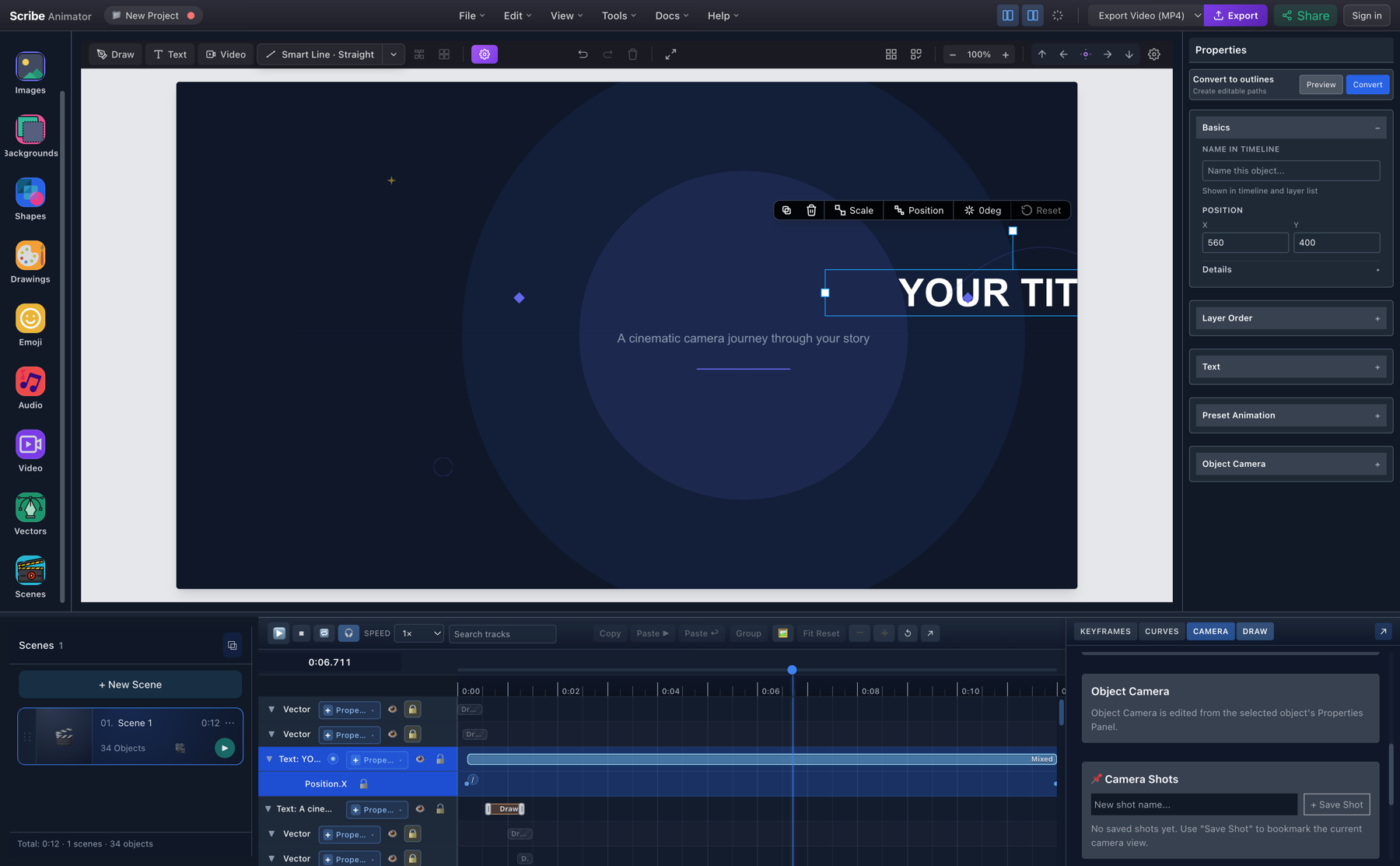
| 1.1s — start | 6.2s — middle | 11.4s — end |
|---|---|---|
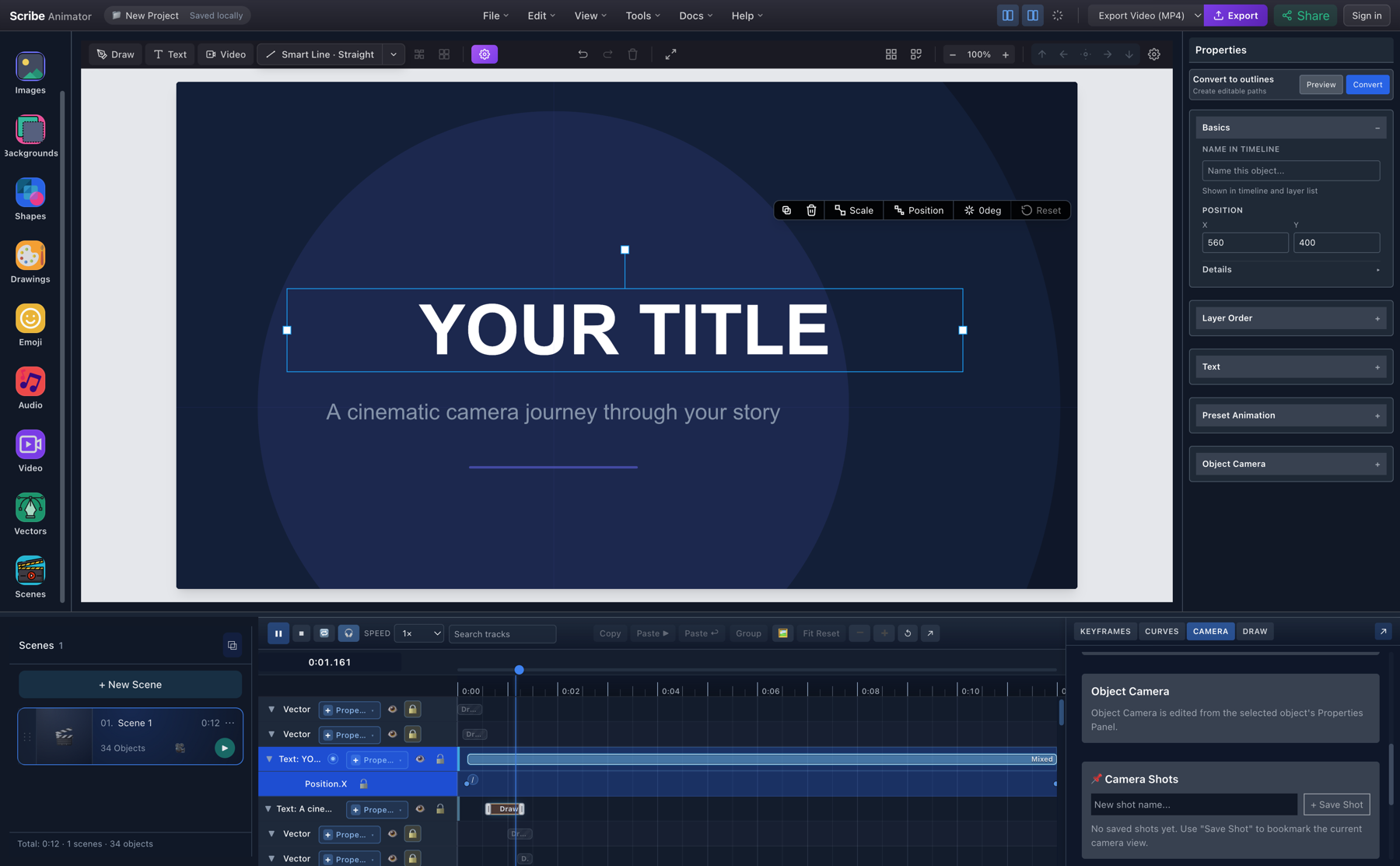 | 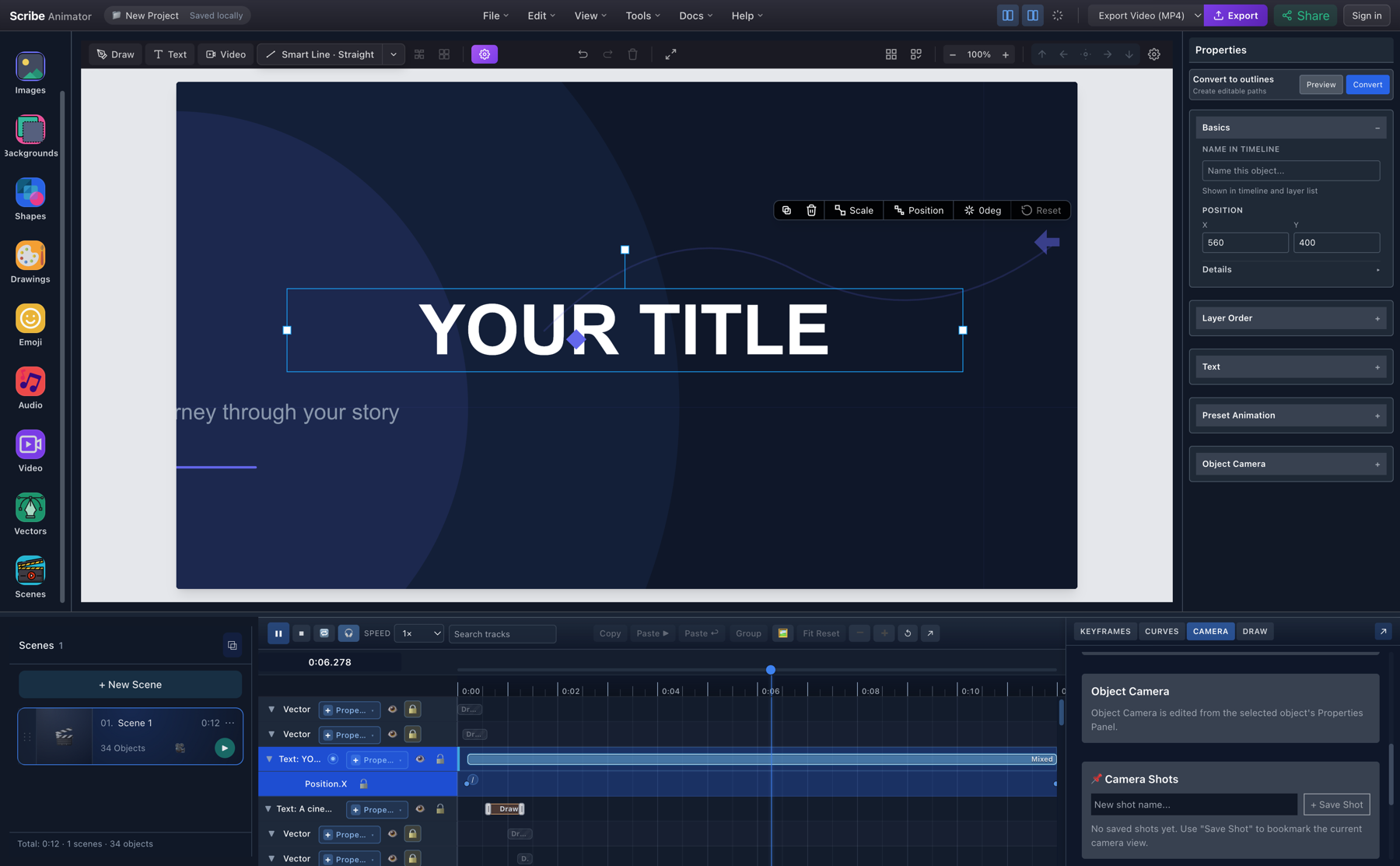 | 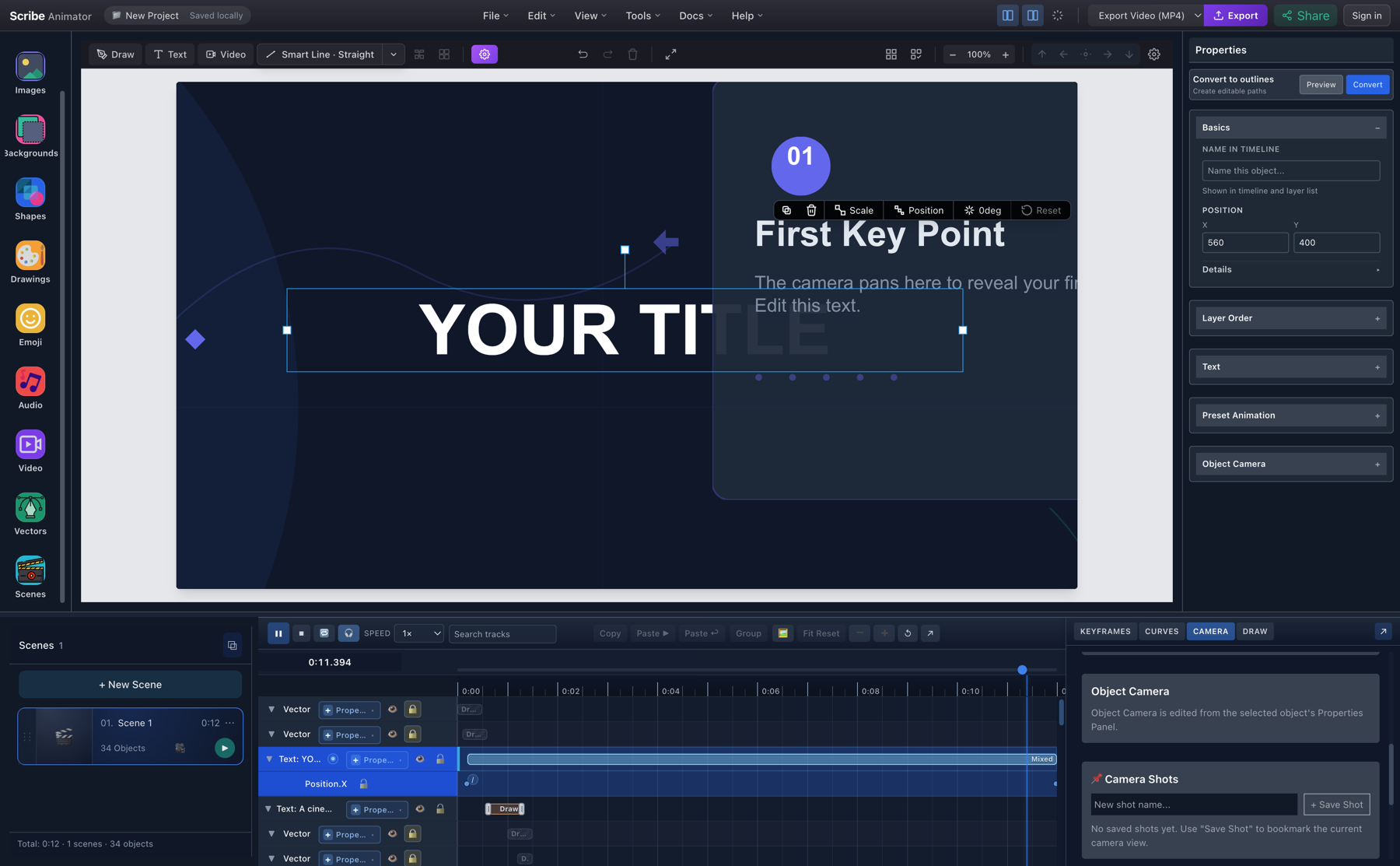 |
The title stayed framed while its evaluated X position changed. That is continuous tracking, not a one-time Object Camera shot.
Resolve camera ownership and overlaps
Generated Object Camera and Draw-step Camera recipes should not silently fight for incompatible framing. In the clean D-only fixture, an attempted Object Camera from 0.20 to 3.40 seconds intersected the page-frame Draw-step Camera from 0.10 to 2.40 seconds. Scribe blocked the add and named both owners and ranges.
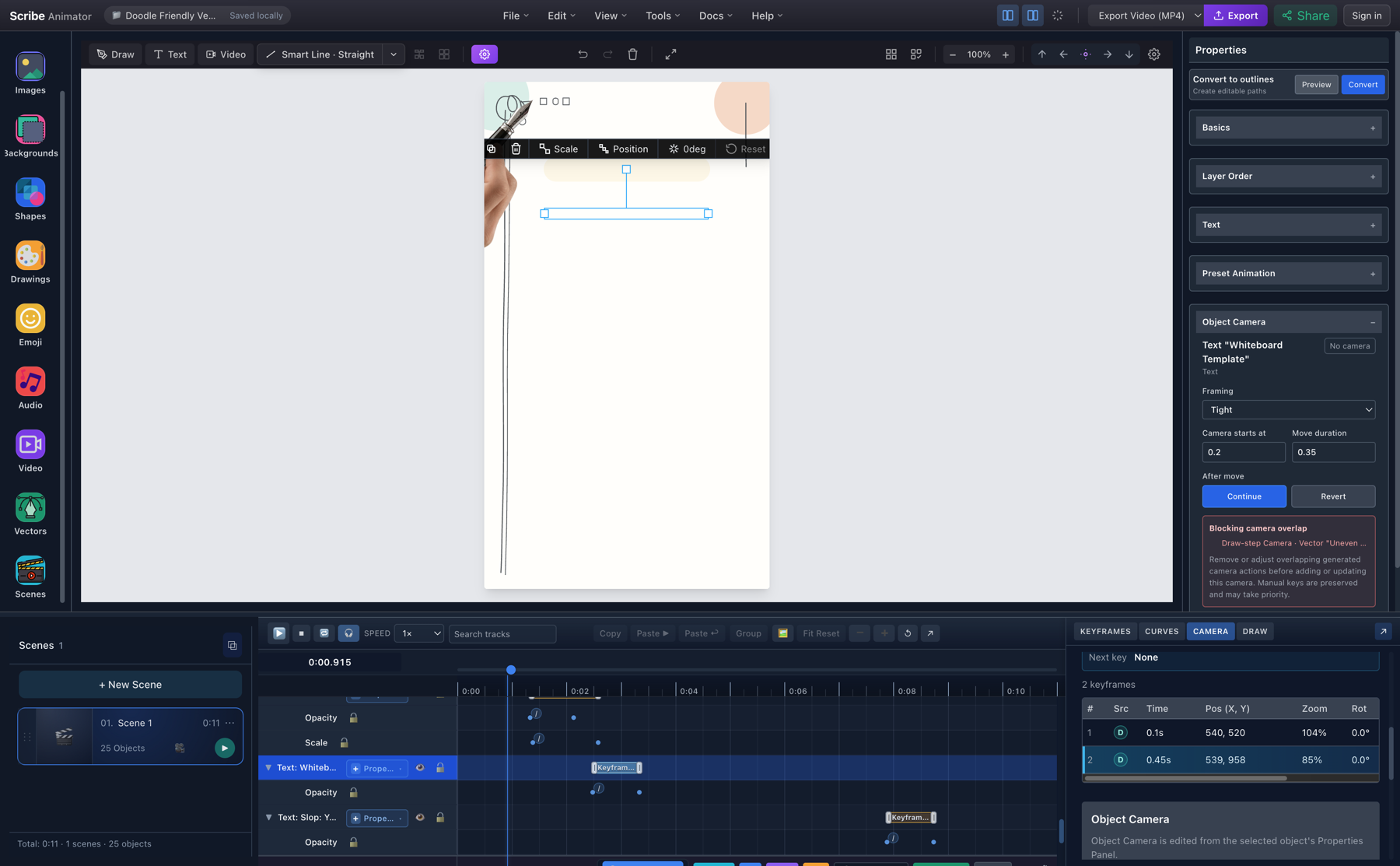
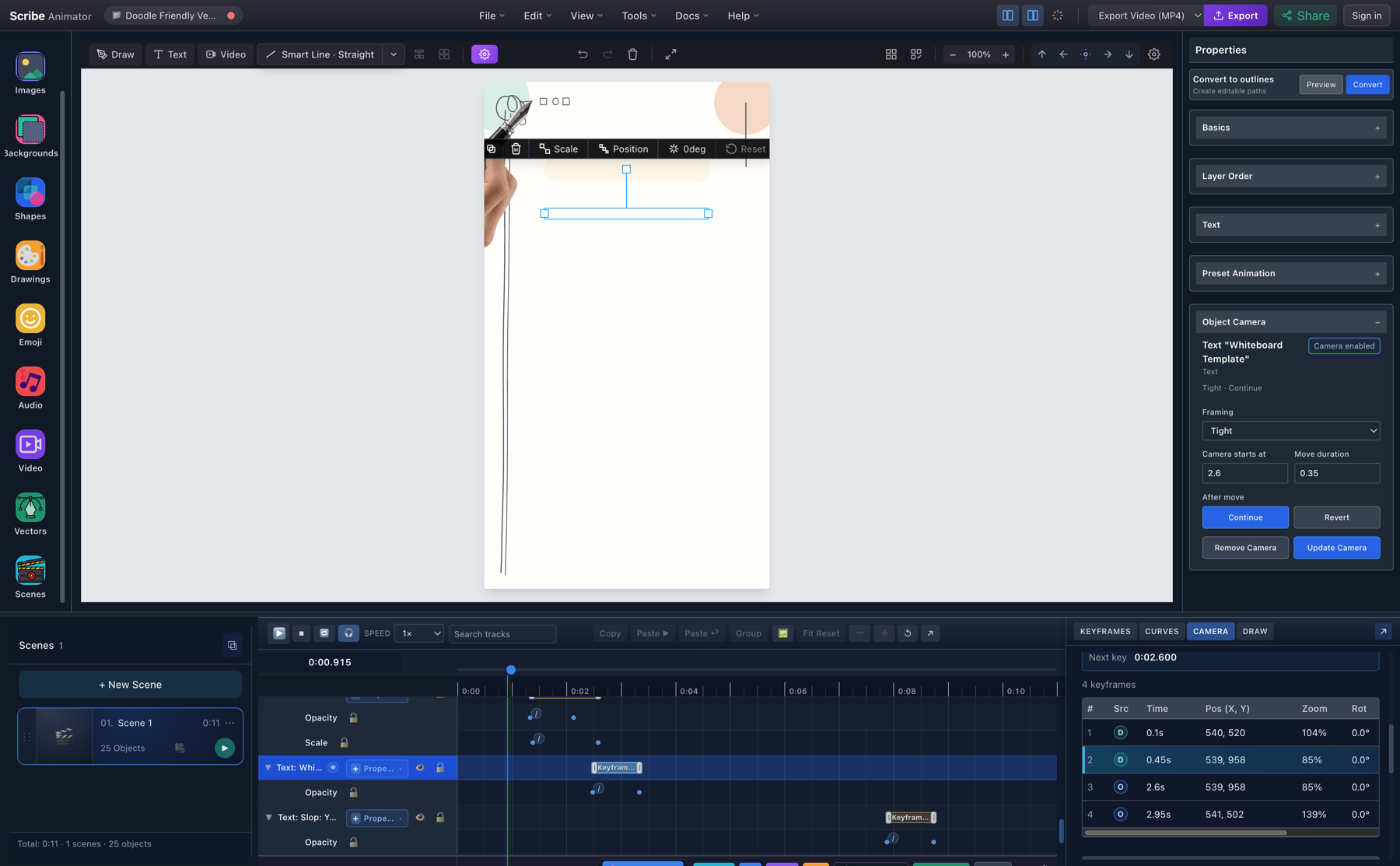
Moving the Object Camera start to 2.60 seconds put it after the Draw-step interval. Add Camera then succeeded and the Camera table contained two D rows followed by two O rows.
A manual key inside a generated interval is a different case: the Camera drawer may report manual ownership or a warning rather than the same generated-action block.
The camera conflict and precedence table remains the detailed source for every source combination.
Camera choreography checklist
- Start with Fixed Camera. Add movement only when it improves attention.
- Move toward the active idea, not merely toward empty canvas space.
- Separate travel time from reading time with deliberate holds.
- Pull back when relationships matter more than a close detail.
- Keep 9:16 travel mainly vertical when the composition reads top to bottom.
- Preview from before the move and through the following hold.
- Keep generated O and D actions in intentional, non-blocking intervals.
- Check the Camera Summary instead of assuming which saved source owns runtime.
- Compare an exported frame with live preview before publishing.
Export and verify the result
The three camera exports used in this audit were:
| Project/state | Codec | Size | FPS | Duration | Frames | Bytes |
|---|---|---|---|---|---|---|
| Cinematic Camera Journey, imported Track | H.264 | 1280 × 720 | 30 | 12.000s | 360 | 1,686,869 |
| Doodle Friendly Vertical Title Card, imported Track | H.264 | 404 × 720 | 30 | 11.000s | 330 | 5,661,215 |
| Doodle Friendly Vertical Title Card, Follow Hand | H.264 | 404 × 720 | 30 | 11.000s | 330 | 6,933,862 |
All were created by Scribe's Export Video (MP4) workflow and then inspected independently. The embedded Follow Hand copy was recompressed with H.264 CRF 26 and faststart; it remains 404 × 720, 30 fps, 11 seconds, and 330 frames.
Current limitations
- A scene has one active mode: Fixed, Track, Follow Hand, or Follow Object.
- Fixed Camera is static for that scene; editor pan is not automatically the saved view.
- Track movement needs meaningfully different camera poses. Duplicate poses create holds.
- Follow Hand needs active drawable hand data. A Draw Step without a valid visible hand cannot prove the mode.
- Follow Object needs a valid target and follows its evaluated position; deleting the target requires reselection.
- Object Camera is timed, not continuous. Draw-step Camera depends on the step's timing and bounds.
- M/O/D actions run in Track mode and remain saved but inactive in Fixed or Follow modes.
- A manual Track segment can own runtime where a generated action overlaps it; author generated actions in clear intervals and always read Camera Summary.
- The current template apply path normalized Cinematic's cubic easing aliases to Linear in this tested build.
- Public SVG export is unavailable. Use MP4 for camera movement and
.scribefor editable timing. - Dense camera authoring is easier on Desktop; Mobile Lite exposes a more constrained camera workflow.
- Excessive zoom or nonstop movement reduces readability even when technically valid.
Try these camera workflows in Scribe Animator
Open Scribe Animator and search Templates for Cinematic Camera Journey. Inspect its holds first, then build one manual move of your own. When you need every control, source rule, bookmark, scene transition, and path-follow edge case, continue with Camera and path following.
Related workflows: