How to make animated math explanation videos

A useful math animation does more than decorate a formula. It controls the order in which the learner sees the diagram, the relationship, and the finished statement. Scribe Animator can keep those parts editable as vector objects and time their reveals independently.
This tutorial builds one concrete mini-lesson: a right triangle draws first, a² + b² = c² draws second, and the completed proof frame holds for reading. Every shown step was reproduced in the running desktop editor, then exported as MP4.
Verified on 9 August 2026 in the desktop web editor on macOS with frontend@2.0.0. The test project used one four-path first-party SVG, one equation object, two sequential Draw Steps, fixed framing, and Blackboard + Chalk. It completed a 1280 × 720 H.264 export at 30 fps and 15 seconds. The tested project was silent; narration is discussed as a follow-on, not claimed as part of this export.
Download the exact geometry
Download pythagorean-triangle-practice.svg
The file is intentionally small: three paths make the sides and one path makes the right-angle mark. It contains no text, script, embedded image, filter, external CSS, or SVG animation markup. The equation is created separately in Scribe so it remains identifiable and independently timed.
This separation mirrors the teaching sequence:
- Establish the right triangle.
- Let the learner inspect the legs and hypotenuse.
- Introduce the relationship
a² + b² = c². - Hold the complete frame before moving on.
1. Establish the teaching surface
Open Canvas Settings and choose Project → Blackboard → Chalk. The semantic Blackboard supplies charcoal grain and erased-chalk residue; Chalk supplies the textured deposition on eligible vector paths. A flat dark custom color would not provide both layers.
Use warm white #f5f0dc for this project. It gives both the geometry and equation enough contrast without turning the entire frame into high-intensity white.
The deeper board-surface and material guide explains project versus scene scope and the material-precedence rules. The companion real Chalk workflow compares Blackboard, Green Chalkboard, Paper, and Blueprint pairings.
2. Create the equation as drawable content
Choose Tools → Add Equation and enter:
a^2 + b^2 = c^2
Set the color to #f5f0dc. Add the accessibility label Pythagorean theorem: a squared plus b squared equals c squared, leave Display layout selected, and choose Add and draw.
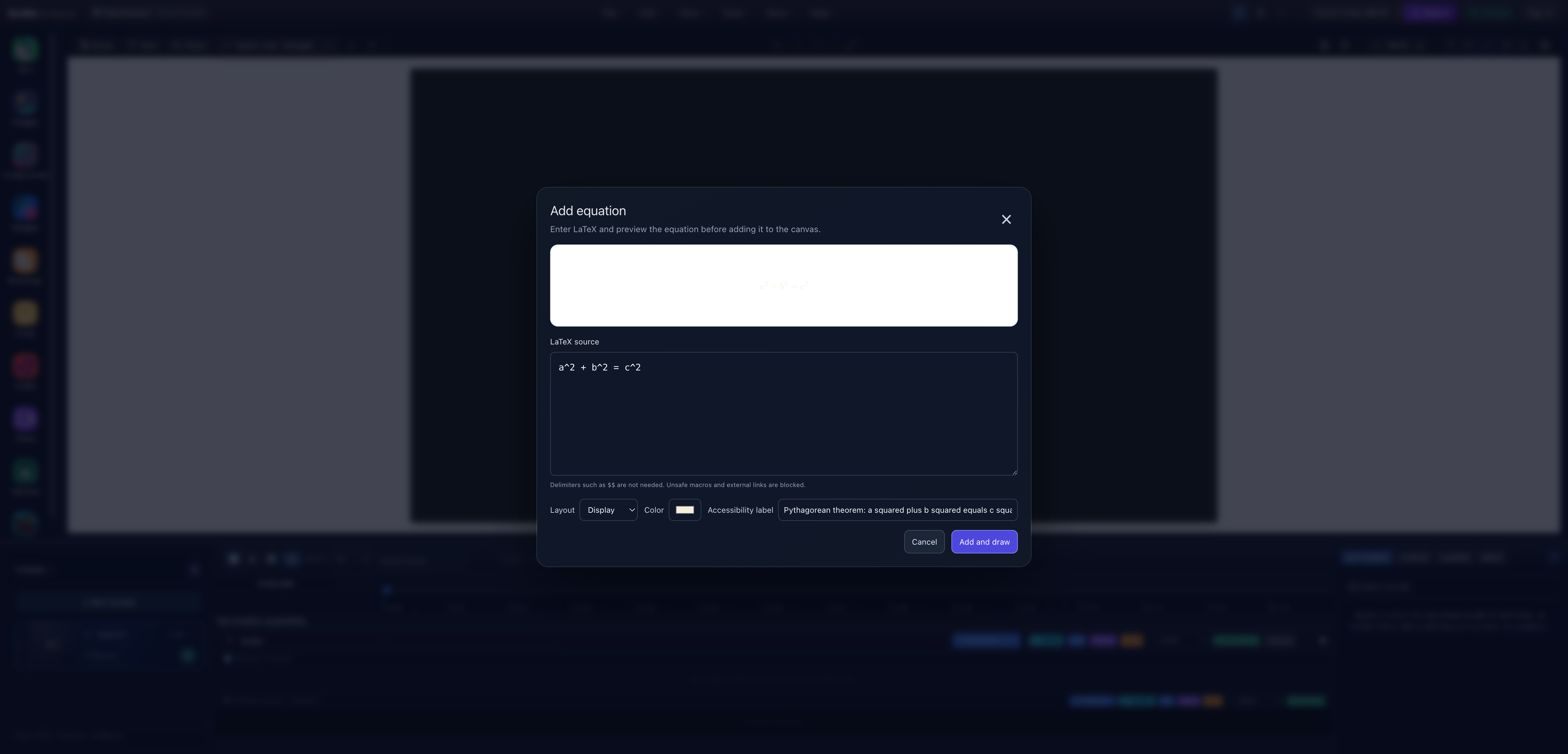
- Rendered equationInspect symbol shape and spacing before adding the result to the lesson.
- Tested LaTeXThe source is constrained mathematical input, not general HTML or a captured equation webpage.
- Spoken meaningThe label communicates the equation to readers who cannot infer it visually.
- Add and drawThe action creates scalable drawable content for the current scene.
Position the equation on the right side of the frame. In the tested scene its object position was changed to X 1050, Y 380 in the 1920 × 1080 project canvas, leaving a clear region for the diagram.
For supported syntax, size limits, metadata, and later editing behavior, see text, typography, and equations.
3. Import the triangle and verify its paths
Open Vectors, choose the practice SVG in Vector Import - SVG to Paths, and inspect the result before adding it.
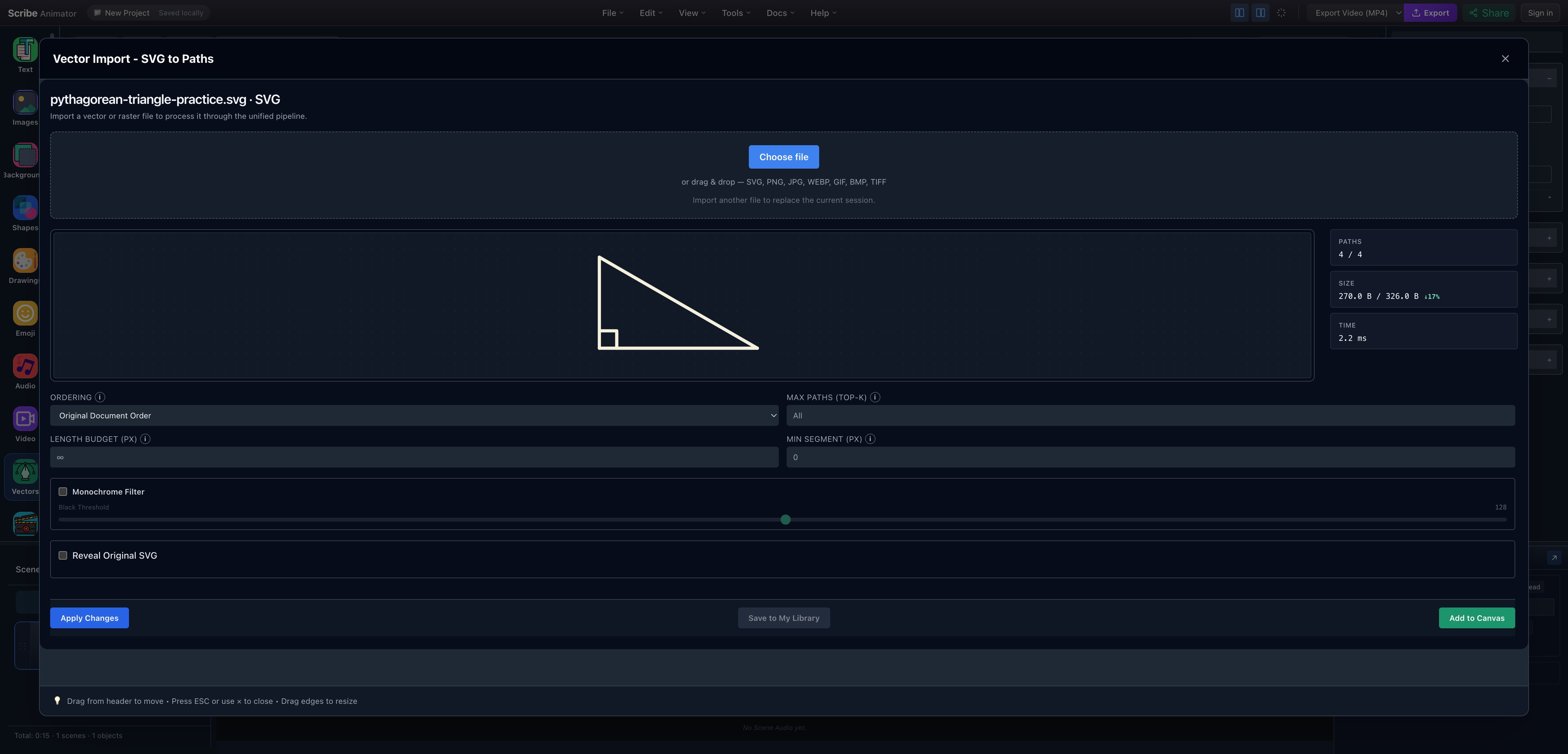
- Processed triangleConfirm that all sides and the right-angle mark remain present after sanitization and normalization.
- Four usable pathsThe reported path count matches the authored source rather than an unexpectedly fragmented trace.
- Document orderThe source paths are already ordered as two legs, hypotenuse, and right-angle mark.
- Add to CanvasThis places the normalized vector in the current scene without requiring a cloud-library save.
The import reported 4 / 4 paths, 270 B processed from 326 B, and Original Document Order. Those measurements describe this file and device; they are not general speed promises.
Choose Add to Canvas, close the importer, select the vector, and rename it Right triangle. The default placement already left the equation readable in this run.
Read SVG and vector import before replacing the practice geometry with an exported graph, diagram, or auto-traced image.
4. Apply Chalk to both vector objects
Selecting a project Drawing Style does not destructively restyle existing objects. The tested equation initially showed Solid at object level. Select the equation and triangle in turn, open Vector Path, and verify Stroke Material → Chalk for each.
Keep the warm-white path color. Material and color solve different problems: Chalk controls edge/deposition texture; the light authored color creates contrast against the dark board.
If only one reveal uses the wrong material, inspect its Draw Step. A step-level override wins over object and project defaults.
5. Make the reasoning sequential with Draw Steps
Select Right triangle, open the timeline's DRAW drawer, and choose AUTO-PLAN. Confirm the preview only when it reports one selected and one eligible vector. In this run, the resulting step started at zero and lasted three seconds.
Select Math equation from its timeline row and run Auto-plan again. Open that second Draw Step and change Start time (sec) from 0 to 3; keep Duration (sec) at 3.
The final teaching rhythm is:
| Time | Visual event | Teaching purpose |
|---|---|---|
0–3s | Right triangle draws | Establish the object before naming a rule |
3–6s | Equation draws | Connect the visible geometry to the relationship |
6–15s | Complete frame holds | Give the learner time to inspect and discuss |
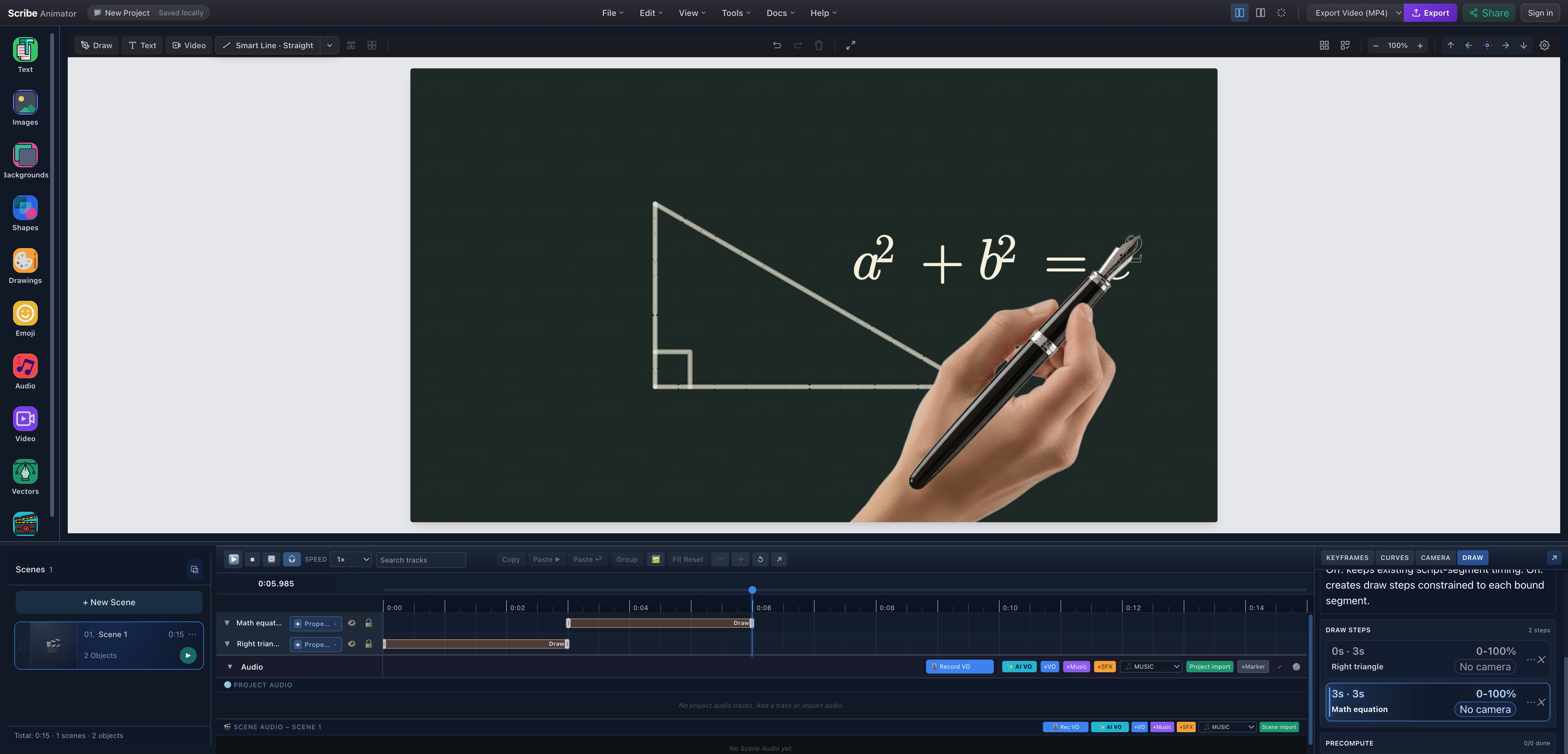
- First idea completeThe diagram is already visible before the rule finishes drawing.
- Second idea in progressThe equation reveal is close to 100 percent near the end of its three-second step.
- Path-following handThe hand follows the active equation path during live preview.
- Two-step sequenceThe DRAW drawer preserves the tested 0-second and 3-second starts.
Auto-plan cannot understand the mathematical importance of arbitrary geometry. It worked cleanly here because the SVG has four purposeful paths. Reorder or split source artwork when the hand jumps between unrelated marks.
6. Preview the completed teaching frame
Seek slightly beyond six seconds. The hand should disappear, the entire diagram and equation should remain visible, and the frame should hold.
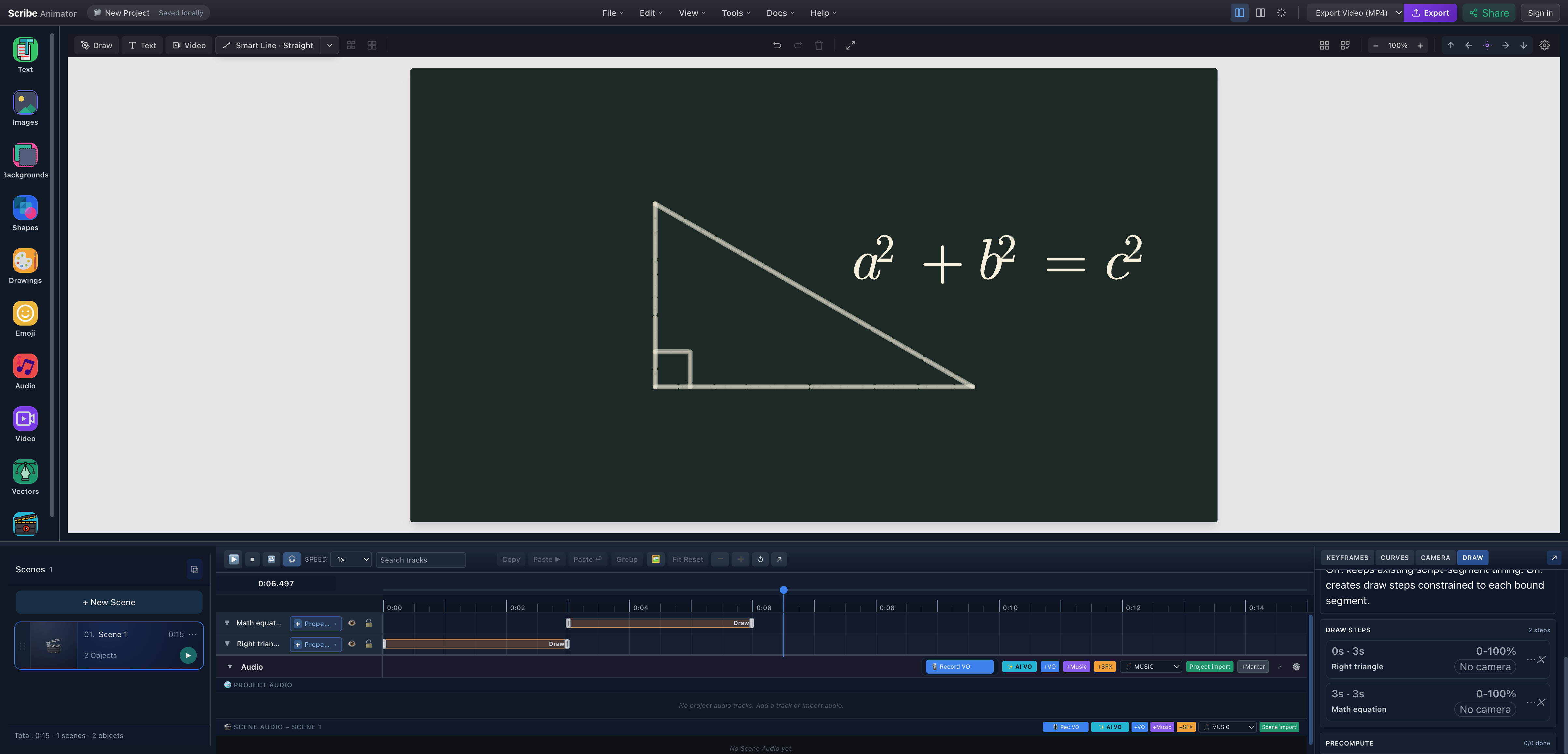
- Finished diagramAll four triangle paths are present, including the right-angle mark.
- Finished relationshipThe equation remains a separate vector object even though it now reads as one lesson frame.
- Reading holdThe playhead is beyond both six-second reveals while the 15-second scene continues.
This lesson intentionally uses fixed framing. Both ideas fit one composition, so camera movement would compete with comparison. For a longer proof spread across the canvas, use camera and path workflows and make sure the camera arrives before the next Draw Step begins.
7. Add narration only after the visual timing works
The exported verification project is silent. That is an evidence boundary, not a recommendation that every lesson should be silent.
A concise narration for this sequence could be:
Start with a right triangle. The squares of the two shorter sides add up to the square of the hypotenuse.
Record or import narration only after the visual order is stable. Then create meaningful script segments, bind or fit eligible visual timing where appropriate, and preview the mixed timing. Scribe audio binding is not automatic lip-sync and does not generate a mathematical animation from speech. Follow the tested controls in voiceover and synchronization rather than assuming this silent article proves them.
8. Export and inspect the MP4
Open Export Video (MP4), choose supported output settings, and keep the tab open. The tested run completed successfully with:
- 450 frames reported by Scribe;
- 1.44 MB reported by the completion dialog;
- H.264 video;
- 1280 × 720 dimensions;
- 30 fps; and
- 15.000 seconds by independent media inspection.
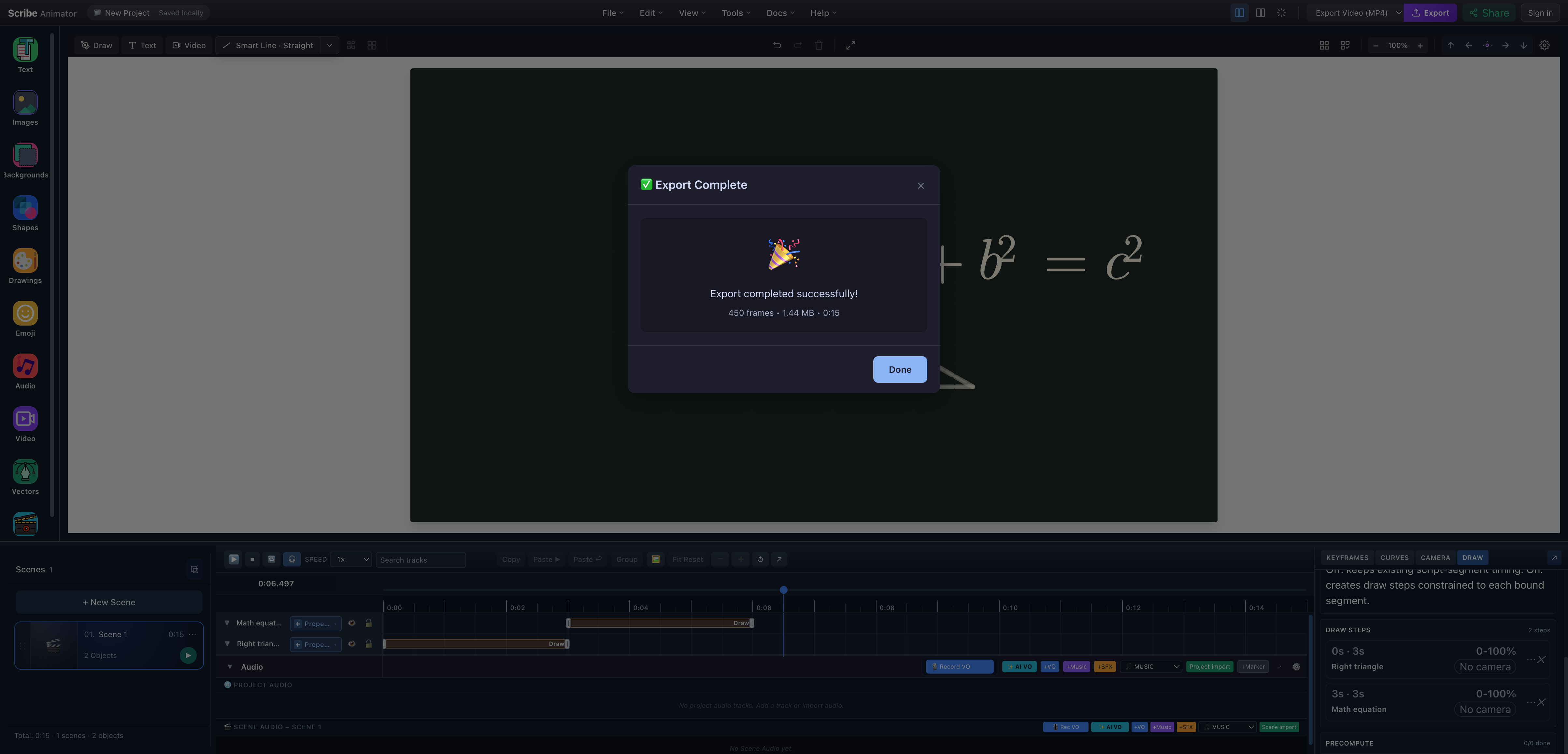
- Completed exportThe local exporter finished without closing or reloading the app tab.
- Measured resultThe completion dialog records the exact frame count, size, and duration of this run.
Current limitations
- The equation editor accepts constrained LaTeX, not arbitrary packages or a general document renderer.
- Equation SVG output has a size limit; split very complex expressions into meaningful stages.
- Auto-plan orders geometry, not mathematical reasoning.
- Existing objects are not automatically restyled when a project Drawing Style changes.
- Normal editable text does not automatically receive Chalk path texture.
- The tested scene uses no labels for
a,b, andc; add separate equation/text objects when the lesson requires them. - Camera and narration were intentionally absent from this verified export.
- Desktop equation creation was tested; this article does not claim a matching Mobile Lite control.
Troubleshooting
| Problem | Recovery |
|---|---|
| Equation is missing at time zero | Its reveal has not started; seek into the Draw Step or press Play. |
| Equation is rejected | Simplify unsupported LaTeX or split the expression into smaller equation objects. |
| Triangle draws in a confusing order | Reorder or split the source SVG paths; the practice file's document order is deliberate. |
| Chalk is invisible | Use a high-contrast path color and verify object/Draw Step material precedence. |
| Formula overlaps the diagram | Edit object position and scale before planning detailed timing. |
| Hand covers an important symbol | Change hand/tool, resize or move the content, or turn off hand following where appropriate. |
| Learners cannot read the final state | Add a longer hold before camera movement, scene change, or export end. |
Build this Pythagorean lesson in Scribe
Download the four-path practice SVG, then open Scribe Animator and reproduce the two-step sequence. Once the silent visual works, add only the narration, labels, or camera moves that improve the explanation.
For related teaching craft, see storyboarding a whiteboard animation and voiceover and sound design.