AI whiteboard animation with editable scenes

Most prompt-to-video tools return pixels: useful for playback, but difficult to revise when one sentence, color, or animation beat changes. A different workflow is to ask an AI assistant for structured Scribe JSON, validate that JSON in Scribe Animator, and apply it as normal project data.
The result is not magically perfect, and Scribe is not the language model. The useful difference is that a valid import can remain editable at the scene and object level instead of becoming one flat rendered clip.
This article's downloadable JSON was imported on 9 August 2026 in the desktop web editor on macOS with frontend@2.0.0. Scribe detected a project with two scenes, eight objects, and ten seconds duration. Both scenes previewed; text, fill color, and preset start time were changed after import and previewed again. Mobile import was not used for this run.
Understand which system does what
The workflow crosses two separate trust boundaries:
| Stage | Responsible system | What it does |
|---|---|---|
| Prompt and draft | ChatGPT, Gemini, or another approved assistant | Converts your brief and Scribe schema constraints into candidate JSON |
| Validation and normalization | Scribe Animator | Parses the candidate, checks the envelope and references, reports warnings, and offers type-specific actions |
| Editing and preview | Scribe Animator | Creates real scenes and objects that use the editor's timeline, properties, canvas, and playback |
| Final delivery | Scribe Animator | Saves the editable project or exports the supported final format |
Scribe's Create with AI helper opens public AI-assistant destinations. It does not silently send your project to an in-product LLM or guarantee the assistant's response.
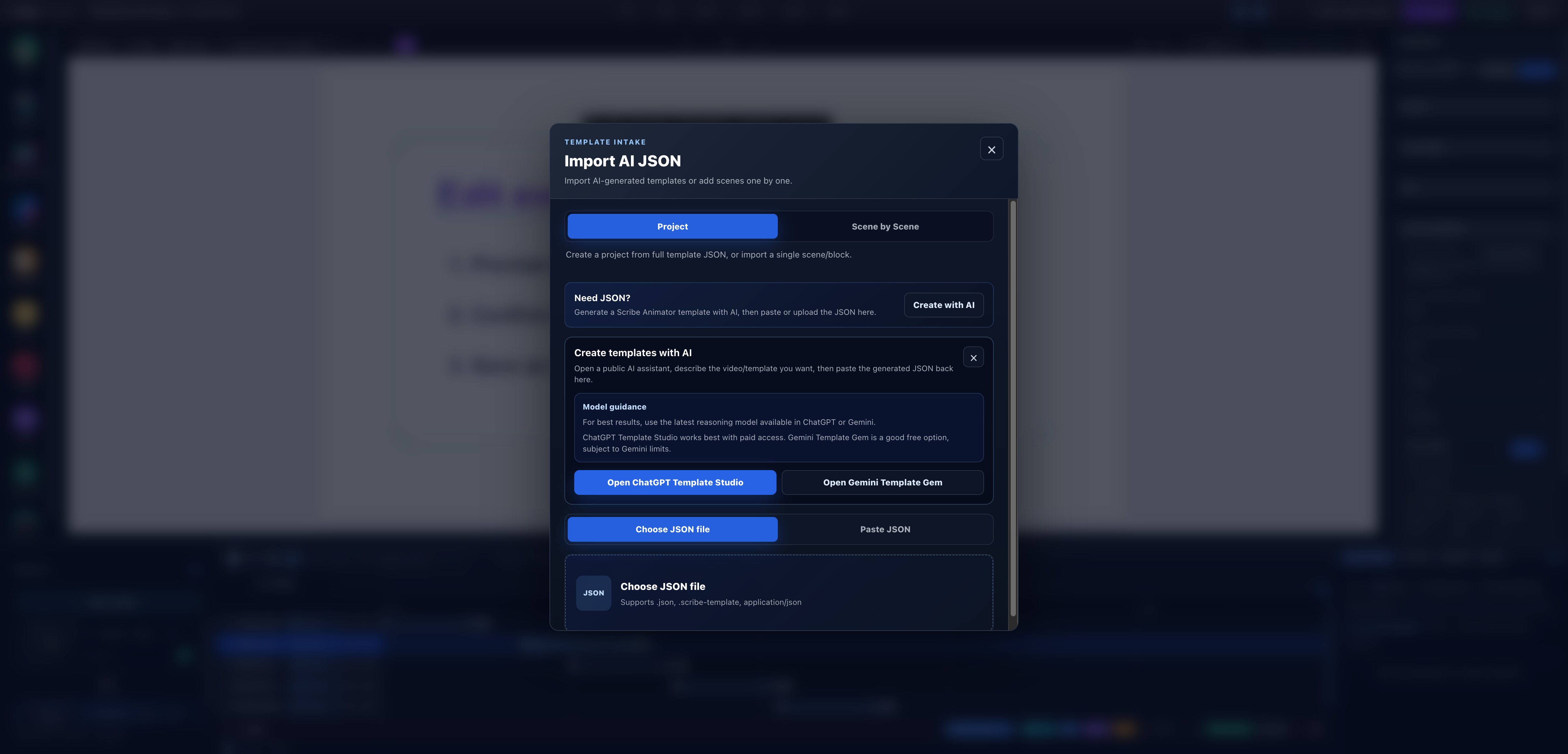
- Import scopeProject is selected because the tested envelope contains two complete scenes.
- External assistant boundaryThe helper says to describe the template in a public assistant and paste the generated JSON back into Scribe.
- Assistant choicesThe current helper exposes ChatGPT Template Studio and Gemini Template Gem links; their access and limits are separate from Scribe.
- Return JSON hereChoose a file or paste text only after reviewing the generated response.
Do not put confidential scripts, customer data, credentials, private URLs, or production assets into an assistant that your organization has not approved.
Download the exact tested project
Download scribe-first-party-workflow.json
The sample is deliberately asset-free. Its first five-second scene contains an amber accent, a heading, and supporting copy. Its second five-second scene contains a review card, a heading, and three checklist lines. All eight objects are text or shapes with scene-local preset timing.
This narrow scope makes the import repeatable. It does not pretend to verify every field available in Scribe's template schema.
Use a constrained prompt
The following brief matches the downloadable example's intended result. It has been checked against the sample and the current schema rules. Model responses vary, so the checked-in JSON—not a future raw response—is the artifact verified in this article.
Return JSON only, with no Markdown fences or commentary.

Create a Scribe TemplateEnvelopeV1 project using:
- schemaVersion: 1
- meta.type: project
- meta.timingSemantics: scene-local-v1
- project name: Scribe First-Party Workflow
- canvas: 1280 x 720 at 30 fps
- two ordered scenes, each exactly 5000 ms
- no external assets, URLs, scripts, event handlers, or data URLs

Scene 1 should communicate "Explain one idea at a time" with:
- one amber vertical rectangle
- one dark heading
- one supporting sentence
- scaleIn, fadeIn, and slideIn preset entrances

Scene 2 should communicate "Verify before you export" with:
- one white rounded review card on a pale green background
- one teal heading
- three editable checklist text objects
- staggered preset entrances that all finish within the scene

Use unique IDs, finite coordinates, supported text/shape object types,
explicit colors, and millisecond scene-local timing. Include requiredAssets: [].
Ask the model to correct its JSON when it violates a constraint, but do not treat confident prose as validation. Save the response as plain .json, or copy only the JSON object for Paste JSON.
1. Validate before creating anything
Save your current project or export a .scribe recovery copy. Then choose File → Import AI JSON, keep Project selected, choose the downloaded file, and read the preview.
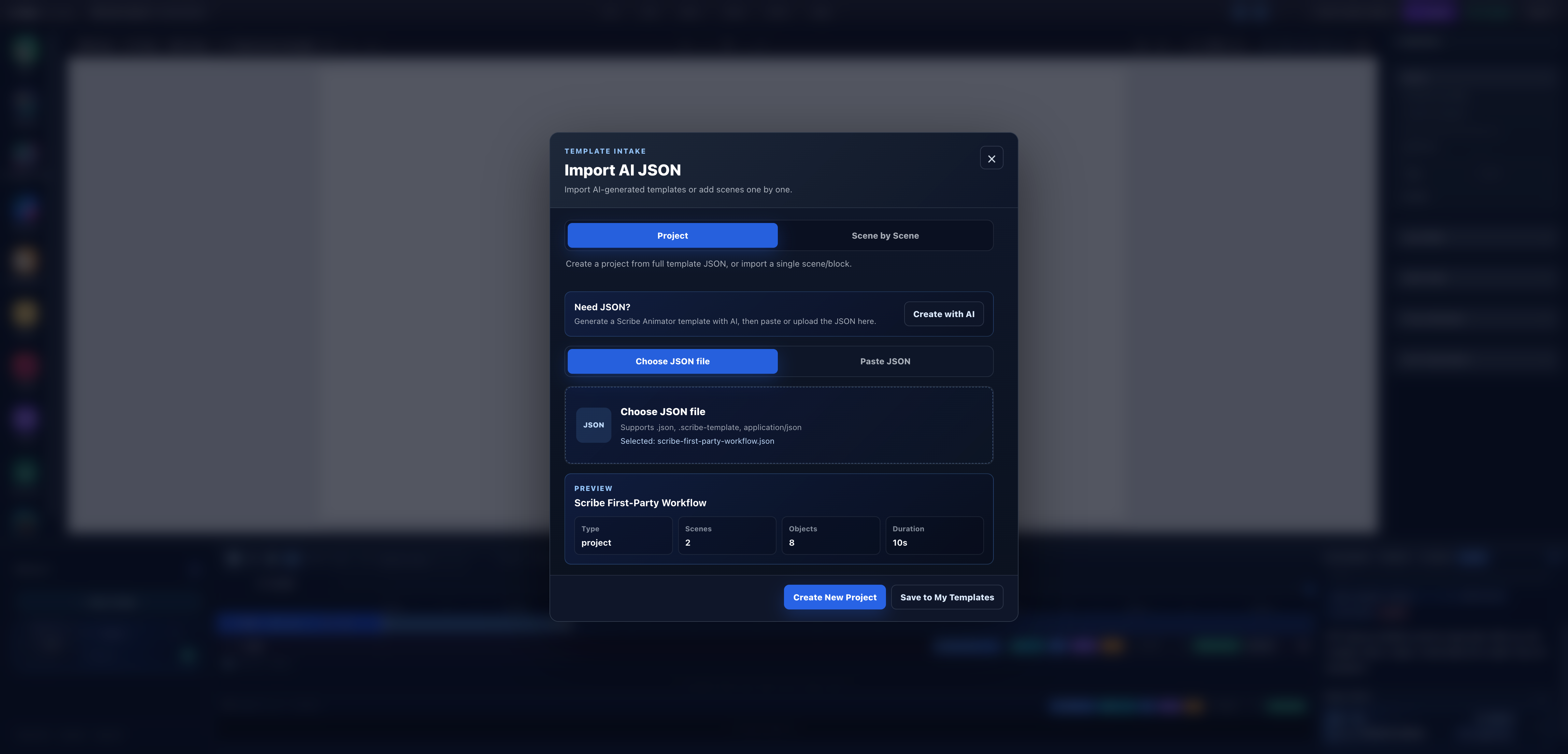
- Project modeA project envelope can replace the working context with all of its ordered scenes.
- Selected sourceThe exact first-party JSON filename is visible before apply.
- Validation summaryType, scene count, object count, and duration match the expected project contract.
- Create New ProjectThis replaces the current working context, so a recovery copy matters.
For this run, the preview reported:
- Type:
project - Scenes:
2 - Objects:
8 - Duration:
10s
Do not continue if the assistant returned the wrong scope, an implausible object count, missing scenes, warnings you cannot resolve, or external assets you did not request.
2. Create and preview the structured project
Select Create New Project. At time zero, preset-animated objects may be invisible because their entrances have not begun. Press Play instead of diagnosing that first frame as a failed import.
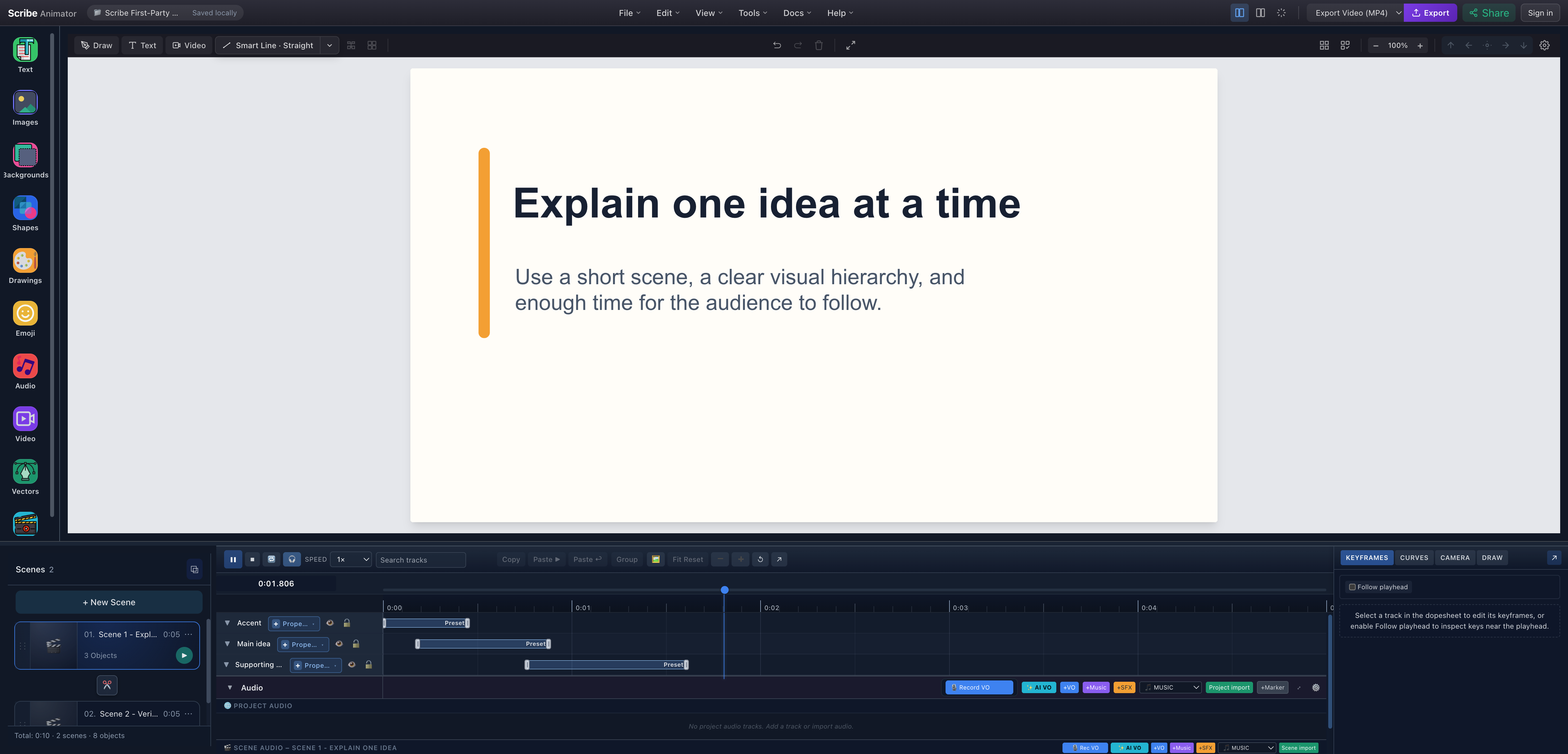
- Normal scene objectsThe accent, heading, and paragraph are rendered by the Scribe canvas rather than baked into a video frame.
- Two-scene projectThe scene manager shows both imported five-second scenes.
- Separate timingAccent, heading, and supporting copy retain independent preset ranges.
- Live previewThe playhead readout records the actual running state used for verification.
Continue across the five-second scene boundary. The second scene should replace the first, reveal its card and title, then stagger the three checklist lines. That full ten-second transition was reproduced for this article.
3. Prove that the result is editable
A structured import earns its value only when revisions work. In the tested second scene, the heading was changed from Verify before you export to Edit every object after import, its fill changed from #0f766e to #7c3aed, and its preset start changed from 0.42 to 0.75 seconds.
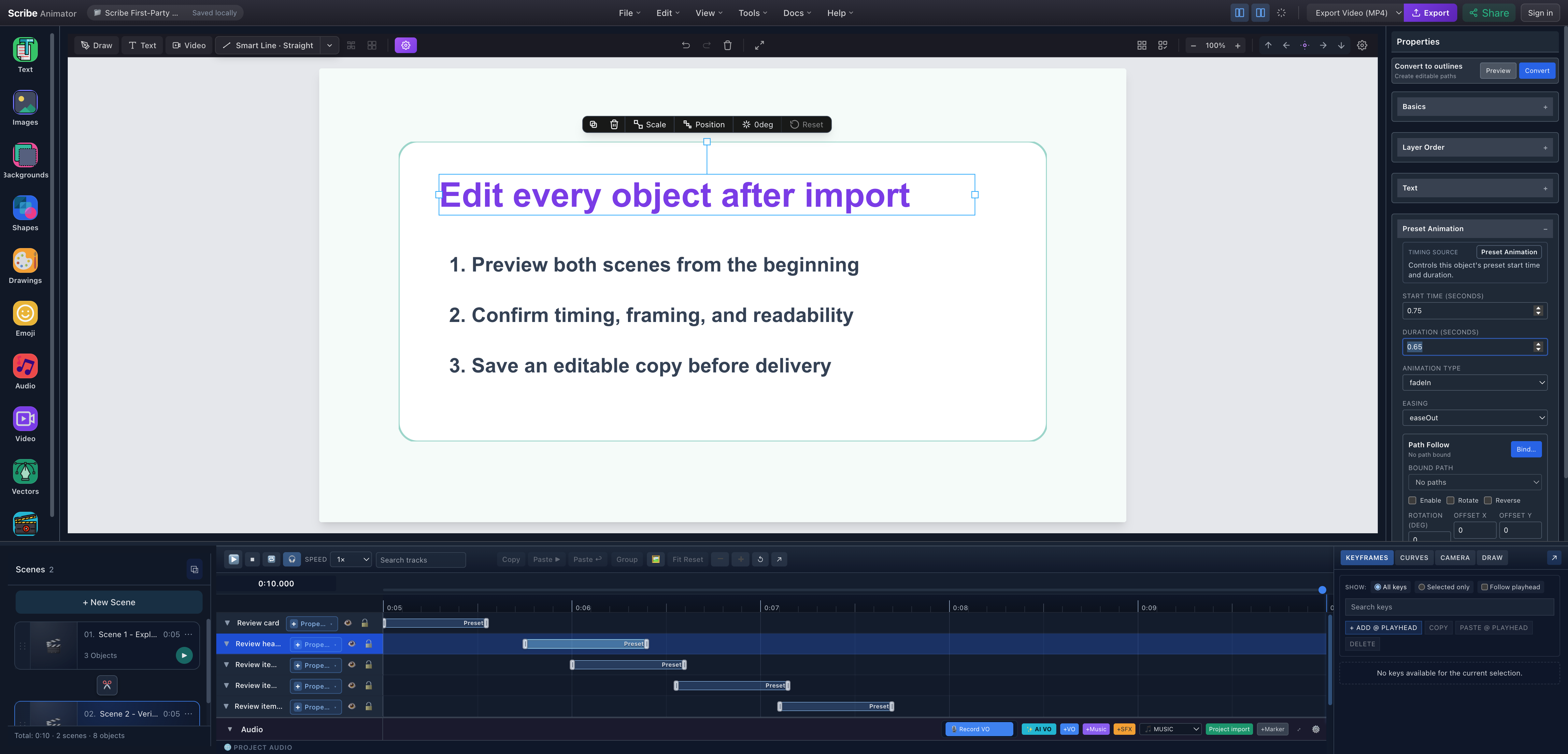
- Edited objectThe new wording and purple fill are visible directly on the canvas.
- Preset AnimationScribe identifies the active timing source instead of flattening it into frames.
- Changed start timeThe verified revision moves the heading entrance to 0.75 seconds while retaining a 0.65-second duration.
- Editable timeline rangeThe heading's preset bar moved with the property edit and was previewed again.
After changing the values, seek before the edited entrance and preview again. Confirm the title appears at the new time and the later checklist items still fit inside their scene.
What can be represented—and what this sample proves
The Scribe template contract can represent more than this example, but evidence should stay specific:
| Capability | In this tested sample? | Practical boundary |
|---|---|---|
| Text and shape objects | Yes | Eight independently selectable objects were imported and previewed |
| Colors | Yes | Text fill was changed after import and previewed |
| Preset timing | Yes | Start, duration, animation type, and easing remained editable |
| Multiple scenes | Yes | Two ordered five-second scenes played across one project timeline |
| SVG/vector objects | No | Add only when the JSON contains supported self-contained vector data; use the tested SVG workflow for source preparation |
| Draw Steps | No | The sample intentionally uses presets; add Draw Steps only to eligible drawable artwork |
| Camera | No | The sample uses fixed framing; camera data can be authored separately and must be previewed against draw timing |
| Editable slots | No | Optional authoring metadata can define slots, but this sample proves direct object editing rather than a slot-driven form |
| External assets | No | requiredAssets is empty so the result has no hydration or CORS dependency |
This distinction prevents a common documentation failure: listing every schema feature as though one screenshot proved all of them.
Choose block, scene, or project deliberately
- A block inserts a reusable object group into the current scene. It is useful for a callout, diagram fragment, or repeated card.
- A scene carries one complete canvas state and scene-local timing. Use Scene by Scene when each generated scene needs separate approval.
- A project carries ordered scenes and project settings. Create New Project can displace the active workspace.
The outcome-oriented workflow above uses a project. For field-level details, validation rules, references, and optional authoring metadata, read Create and import AI JSON, the template schema reference, and template authoring guidance.
Current limitations
- A model can return syntactically valid JSON that is visually poor or semantically wrong.
- Validation cannot decide whether copy is accurate, readable, or appropriate for the audience.
- Normalization can repair some envelope shapes; it does not make unsupported object types safe.
- Imported project, scene, and block actions have different replacement and insertion risks.
- External assets add availability, licensing, privacy, CORS, and packaging work.
- Camera, Draw Steps, paths, audio references, and editable slots need their own end-to-end tests when used.
- Assistant availability, account requirements, model quality, and usage limits are controlled by the external provider.
Troubleshooting
| Problem | Recovery |
|---|---|
| JSON appears inside a Markdown fence | Copy only the outer JSON object, without backticks or commentary. |
| Project JSON is rejected in Scene by Scene | Switch to Project; the narrow tab accepts one scene envelope. |
| Counts do not match the brief | Stop, inspect the payload, and regenerate or correct it before apply. |
| Objects are blank at time zero | Preview past their preset start times before assuming import failed. |
| Text overlaps or clips | Edit object bounds, font size, copy, or scene layout after import. |
| A timing edit breaks the sequence | Check every object against scene duration, then preview through the boundary again. |
| An asset is missing | Resolve the declared asset safely or remove the dependency; do not replace it with an unreviewed URL. |
Import the sample JSON in Scribe
Download the checked example, save your current project, then open Scribe Animator and choose File → Import AI JSON → Project → Choose JSON file. Treat the imported project as a draft you can inspect and improve—not as a finished video simply because AI helped structure it.
For related strategy, see what Scribe Animator is and how to avoid common whiteboard production mistakes.