Voiceover and sound design for whiteboard animation

In a strong whiteboard animation, sound is not a finishing layer. Narration establishes the pace, drawing directs attention within that pace, and music or effects support the emotional contour without obscuring the message.
That is why recording a voiceover after every visual has been timed often creates unnecessary rework. If speech is the main carrier of information, it should usually become the timing reference before detailed animation begins.
Give each part of the soundtrack one job
Separate the soundtrack into clear roles:
- Voiceover explains, guides, or tells the story.
- Music establishes energy and continuity.
- Sound effects mark a small number of meaningful events.
- Silence gives an important line or visual room to land.
Scribe Animator makes these roles explicit with VOICEOVER, MUSIC, SFX, and GENERIC tracks. It also separates Project Audio, which can continue across scenes, from Scene Audio, which belongs to the active scene.
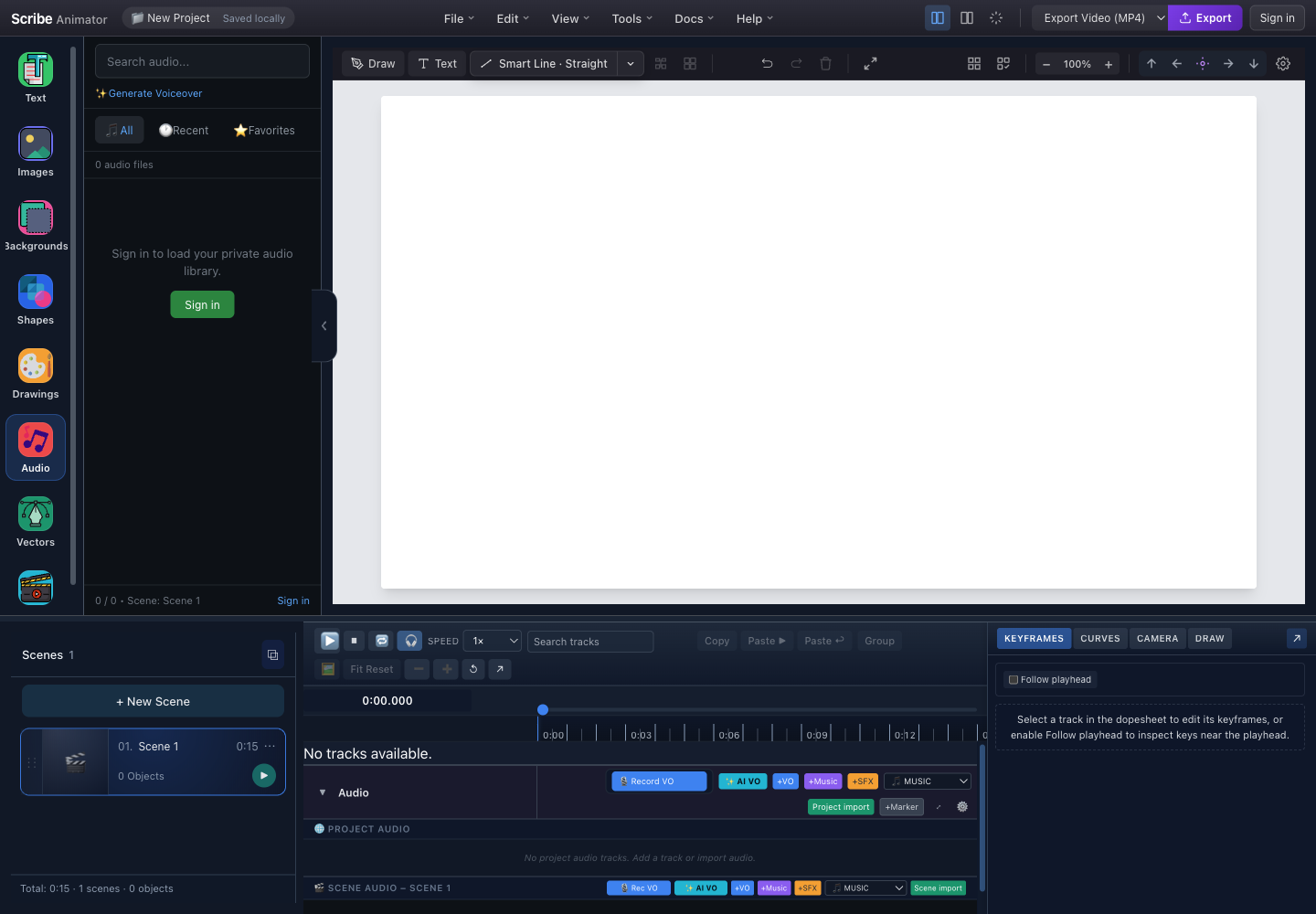
Use project scope for a continuous narration or music bed. Use scene scope for a sound that should travel with one scene when scenes are duplicated, reordered, or removed. Keeping those responsibilities clear makes later edits far less surprising.
Prepare the script for a human voice
A script that reads well silently may still sound awkward. Before recording:
- Replace formal constructions with phrases a person would naturally say.
- Break long sentences where the visual idea changes.
- Spell out abbreviations that a speaker could misread.
- Mark pauses where the viewer needs to inspect the canvas.
- Read every number, URL, and product name aloud.
- Cut any line that only repeats what is already obvious on screen.
Format the script in short segments rather than one dense paragraph. In Scribe, those segments can become useful synchronization markers and binding targets. Give them stable names such as problem, three-steps, and result, not segment-1-final-final.
Choose the voice and recording approach
The right voice is the one that fits the audience, language, subject, and desired pace. “Energetic” is not always better. A compliance lesson may need calm precision; a short product introduction may tolerate more lift.
When working with a voice artist, provide:
- the approved script;
- pronunciation notes;
- the intended audience;
- reference pacing;
- instructions for pauses and emphasis;
- separate takes for difficult lines; and
- the delivery format you can reliably decode and import.
When recording yourself, use headphones, reduce hard reflective surfaces where practical, keep microphone distance consistent, and record a short test. Listen for room noise, clipping, mouth noise, and changes in level before completing the full script.
Scribe's voiceover recorder requires browser or operating-system microphone permission. Denied permission must be changed at the browser or OS level; repeatedly choosing Record does not bypass it.
Build the audio timeline in Scribe
The voiceover and synchronization guide documents the complete controls. A reliable working order is:
- Create or select the correct project or scene Voiceover track.
- Import, record, or locally generate the narration.
- Place the clip at the intended playhead position.
- Trim and move it before doing detailed visual timing.
- Rename tracks and clips so later revisions remain identifiable.
- Add markers at major narrative turns.
- Preview scene boundaries, not only individual clips.
- Add music and effects after speech timing is stable.
An empty track is valid. It becomes audible only when it contains a playable clip. Muting a track is useful for comparison; deleting it removes its placed clips from that track.
Let narration drive the pictures
Begin each visual action when the corresponding idea is introduced, but do not mechanically draw every noun at the exact instant it is spoken. That can make the viewer split attention between listening and decoding a busy reveal.
Three useful relationships are:
- anticipation: a simple context shape appears just before the line;
- synchronization: the key mark lands with an emphasized word; and
- response: a consequence appears just after the statement.
Use Scribe markers for editorial reference. Use audio binding when a particular object should be constrained to a script segment.
What audio binding actually does
Audio binding does not create a new visual animation. It associates an object with a segment and fits or constrains the animation sources the object already has. Depending on the chosen action, Scribe can fit existing timing, create draw steps for drawable artwork, or create a preset for an eligible object.
That distinction matters. If an object already has property keyframes, Draw Steps, or Draw In timing, binding does not blend them into a mystery effect. It changes the permitted timing range according to the selected fit operation. Review the bound-object summary and preview after every binding change.
Add music without losing the words
Music should survive a simple test: mute it, confirm the explanation still works, then unmute it and ask whether it adds a useful tone or transition. If the music draws attention to itself during a dense line, reduce its gain, simplify the arrangement, or remove it from that section.
Avoid using volume as the only fix. A track with constant mid-range activity can mask speech even when it is not obviously loud. Choose material with space for narration and review on ordinary laptop or phone speakers as well as headphones.
Put a continuous bed in Project Audio. Put a cue that belongs to one beat in Scene Audio. After reordering scenes, review project-level music against the new global timing.
Use effects as punctuation
Sound effects work best when they clarify an event: a card lands, a connection completes, or a final check appears. A sound on every stroke quickly becomes exhausting and competes with the drawing-hand metaphor.
Place effects only after the main motion is stable. Align the audible transient with the meaningful visual moment, not simply with the start of the object's animation range. Leave room for narration and avoid stacking several effects around the same word.
Worked Scribe scenario: a three-step process
This is a hypothetical exercise rather than a published campaign example.
The narration says: “Collect the request. Assign an owner. Confirm the outcome.”
In Scribe:
- Put the complete narration on a Project Audio Voiceover track.
- Add markers at the beginning of each sentence.
- Create three scenes or three clearly separated visual beats.
- Bind each key icon to its corresponding script segment.
- Use a short drawing reveal for the first two icons and a check-mark Draw Step for the result.
- Add one restrained effect when the final check completes.
- Keep the music bed below the speech and remove it briefly if the final line needs emphasis.
The soundtrack now has hierarchy: voice carries meaning, drawing organizes attention, and the single effect marks completion.
Review like an editor, not an operator
Before export, listen once without watching. Are edits audible? Are words clipped at scene boundaries? Does music change unexpectedly? Then watch once with the audio very low. Can the visual sequence still be understood? Finally, review the complete animation at normal speed.
Check that:
- no required track is muted;
- every source is available and hydrated;
- scene and project clips begin where intended;
- visual holds leave reading time;
- bindings still point to the correct segments;
- music does not mask speech; and
- the exported test contains the same audio you heard in preview.
Audio capability can vary by browser, native WebView, provider assets, language, permission, memory, and file decoding support. Keep an editable .scribe backup and the original recordings. The goal is not to fill every second with sound; it is to make the explanation easier to follow.