Create chalkboard animations with real chalk effects
A dark background does not automatically make an animation behave like chalk on a board. A convincing result needs two independent decisions: a board surface that supplies the classroom texture, and a stroke material that changes how drawable paths are rendered.
This tutorial builds a small Pythagorean-theorem scene with Scribe Animator's real Blackboard and Chalk controls. The scene was previewed through two sequential Draw Steps and exported as a real MP4.
This workflow was reproduced on 9 August 2026 in the desktop web editor on macOS with frontend@2.0.0. The primary Blackboard + Chalk scene was previewed with a drawing hand and exported at 1280 × 720, 30 fps, and 15 seconds. Green Chalkboard + Chalk, Paper + Pencil, and Blueprint + Marker settings were also selected in the running app. Mobile controls were not used.
Surface, color, and material are different
Scribe keeps three concepts separate:
| Choice | What it changes | What it does not change |
|---|---|---|
| Board surface | The canvas environment: grain, fibers, erased residue, grid, or glass treatment | The authored colors and material of existing objects |
| Background color | A flat custom color | The semantic texture and behavior of a named board |
| Stroke material | The deposition and edge treatment of eligible vector paths | Normal text, photographs, video, and unrelated fills |
That separation is useful. A Blackboard can retain clean text or colored diagrams, while only selected drawable paths receive Chalk. It also means that choosing a board is not a one-click restyle of every object already in the project.
Read the reference guide to board surfaces and stroke materials when you need the complete precedence and compatibility rules.
1. Choose Blackboard at project scope
Open Canvas Settings, leave Project selected, and choose Blackboard under Boards. Then choose Chalk under Drawing Style.
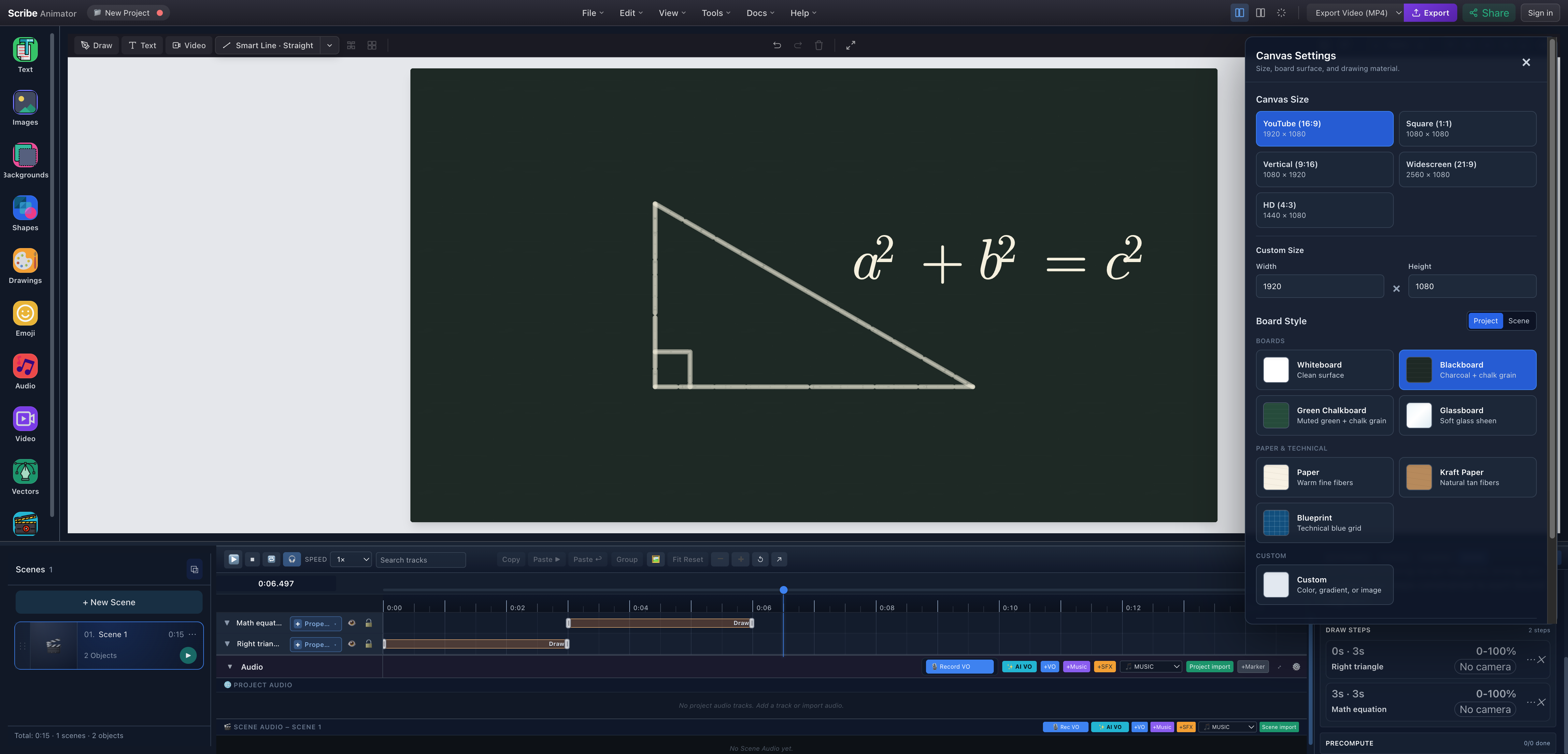
- Project scopeThe surface becomes the project default unless a scene-level override takes precedence.
- Semantic BlackboardThe selected named surface adds deterministic charcoal and chalkboard texture rather than only a dark fill.
- Chalk defaultThe drawing style applies to new eligible drawings. The panel explicitly says existing artwork is preserved.
- Live board resultThe canvas behind the settings panel is the running Blackboard scene, not a simulated background.
For a multi-scene lesson, project scope is a practical starting point. Use Scene only when one scene deliberately needs another surface. A scene override wins until it is returned to the project setting.
2. Use warm, readable path colors
Pure white can look clinical on a textured dark board. The tested artwork used warm white #f5f0dc for the equation and triangle. It stays readable while letting the material texture remain visible.
Open Tools → Add Equation, enter a^2 + b^2 = c^2, choose the warm-white color, and add a meaningful accessibility label. The tested label was Pythagorean theorem: a squared plus b squared equals c squared.
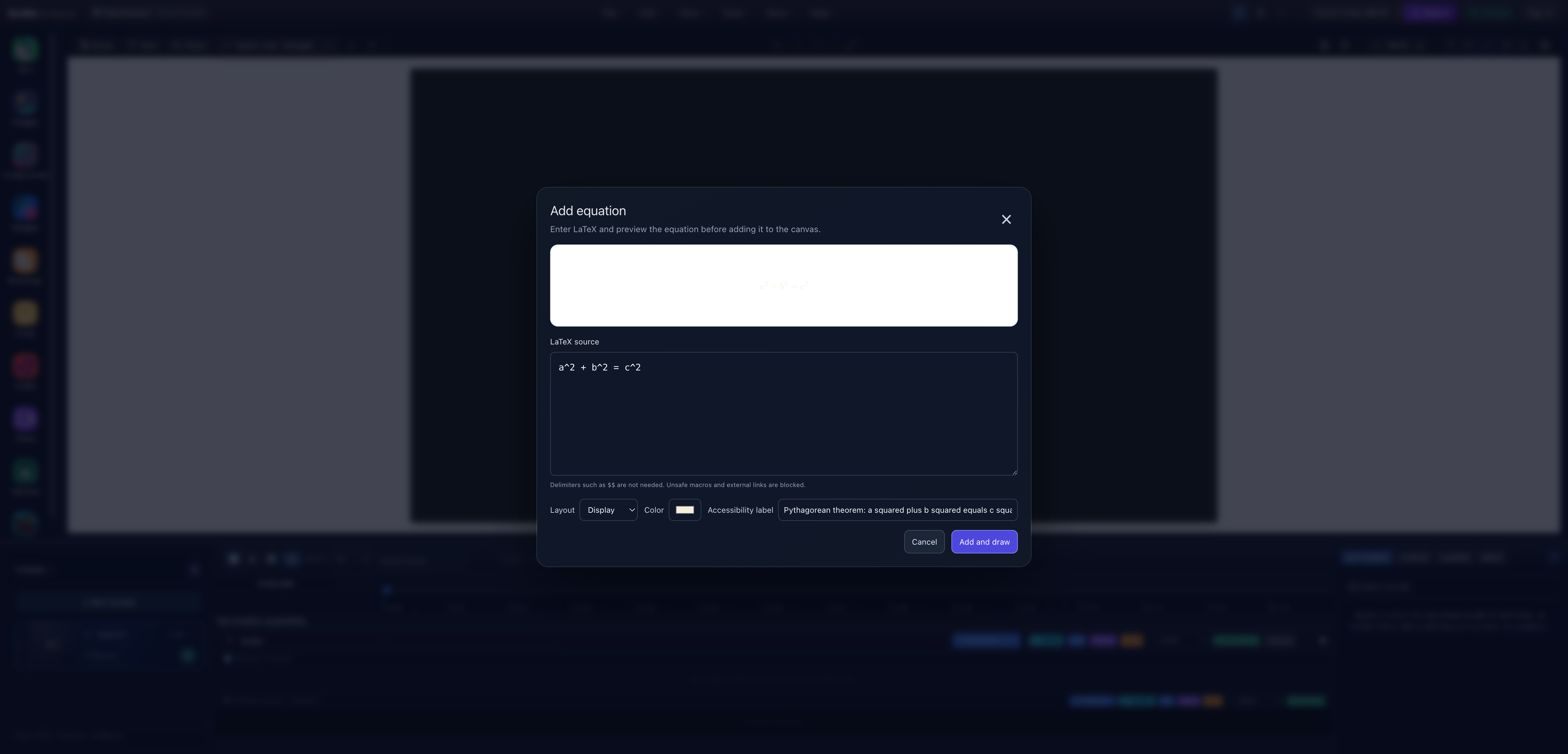
- Constrained LaTeXThe exact tested source is visible below the rendered equation preview.
- Warm-white strokeUse a high-contrast path color that suits the dark surface.
- Accessible meaningDescribe what the equation means instead of repeating raw LaTeX punctuation.
- Add and drawThe final action creates editable vector content in the active scene.
Normal editable text is intentionally clean. If you need lettering itself to receive path material and reveal behavior, use supported outlined/vector content rather than assuming Blackboard textures every glyph.
3. Confirm material on existing objects
The tested equation initially reported Solid in its object-level Vector Path properties even though the project Drawing Style was Chalk. That behavior is deliberate: project defaults do not silently rewrite existing artwork.
Select each existing drawable object, open Vector Path, and set Stroke Material → Chalk when that is the intended treatment. Draw Steps can also carry their own material override, so inspect the step if only one part of a reveal looks different.
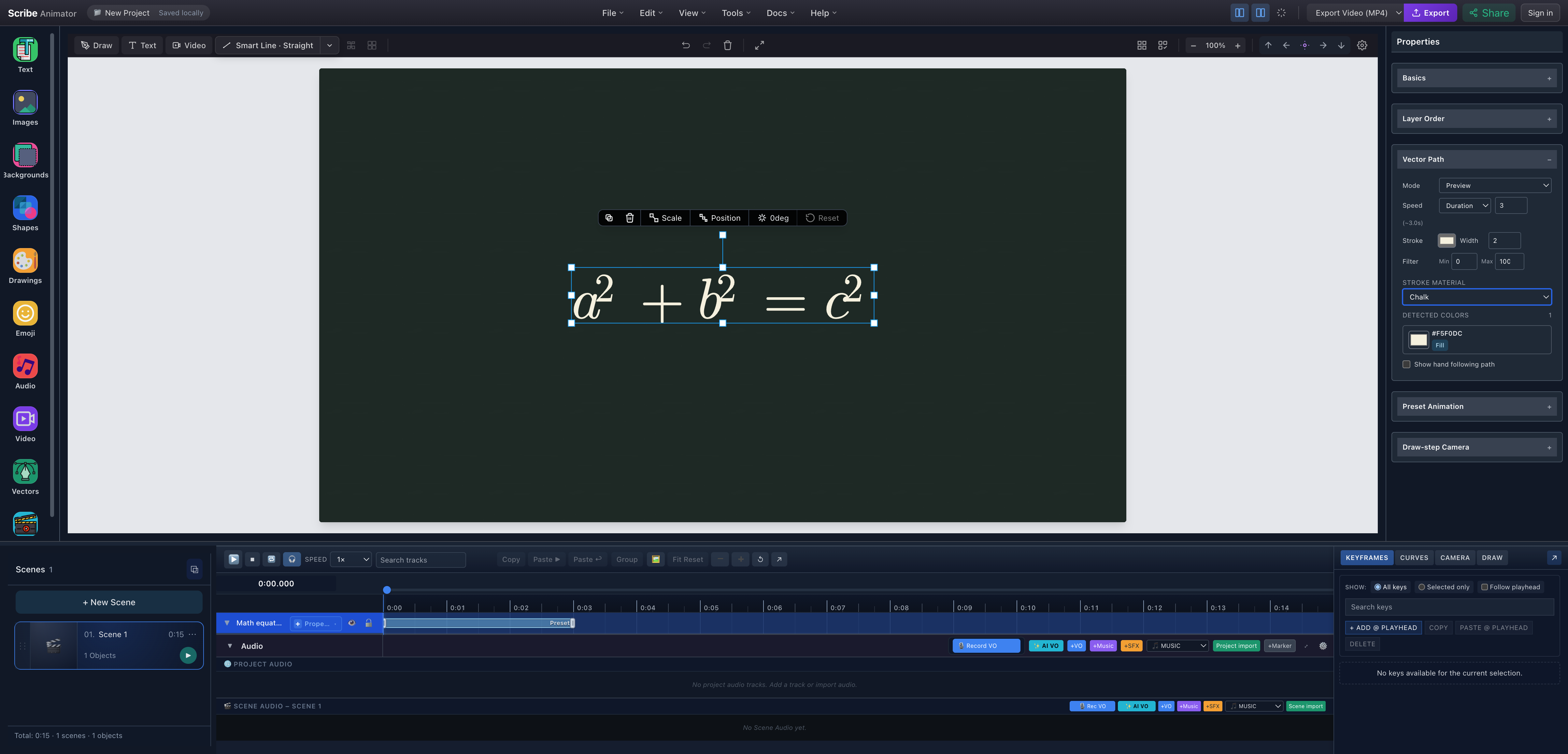
- Drawable equationThe equation is a selected vector object, not a flattened bitmap.
- Object-level ChalkThis verified selection affects the equation's drawable path rendering.
- Detected colorThe warm-white path color remains independent from the material.
4. Plan and preview the reveal
The example uses two sequential Draw Steps:
- The four-path right triangle reveals from
0sfor3s. - The equation starts at
3sand reveals for3s. - The completed scene holds from
6sto the 15-second scene end.
The drawing hand is independent from Chalk material. In this run, the project hand still held a fountain pen while the vector paths rendered with Chalk. Selecting Chalk does not invent or force a chalk-stick sprite.
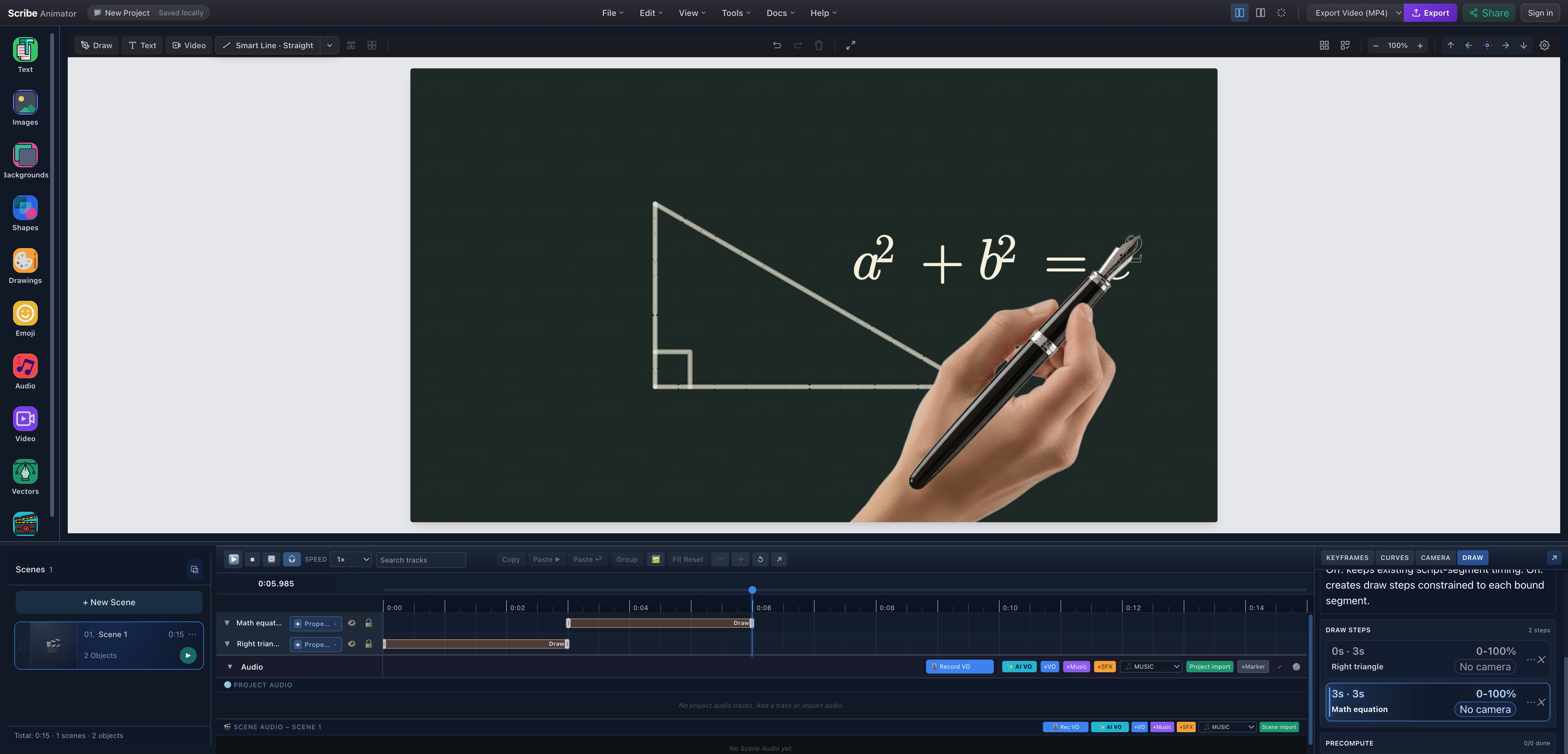
- Completed Chalk geometryThe grain and small gaps belong to the stroke material rather than a filter placed over the whole canvas.
- Live path followerThe hand follows the active equation path near the end of the second Draw Step.
- Sequential stepsThe drawer records triangle 0–3 seconds and equation start 3 seconds with a 3-second duration.
When the equation finishes, hold the frame long enough to read it. Camera motion was intentionally omitted here: the whole proof fits one frame, so a pan or zoom would add movement without improving understanding.
Tested pairings and what they mean
The following pairs were selected in the running Canvas Settings panel:
| Pair | Useful for | Verified caveat |
|---|---|---|
| Blackboard + Chalk | Mathematics, science, classroom proofs | Existing dark artwork may need a lighter authored color |
| Green Chalkboard + Chalk | Traditional classroom and language lessons | Green foreground accents can lose contrast |
| Paper + Pencil | Sketch notes, planning, rough derivations | Selecting the default preserves existing Chalk objects |
| Blueprint + Marker | Technical diagrams and process layouts | Use a light, high-contrast marker color on the blue grid |
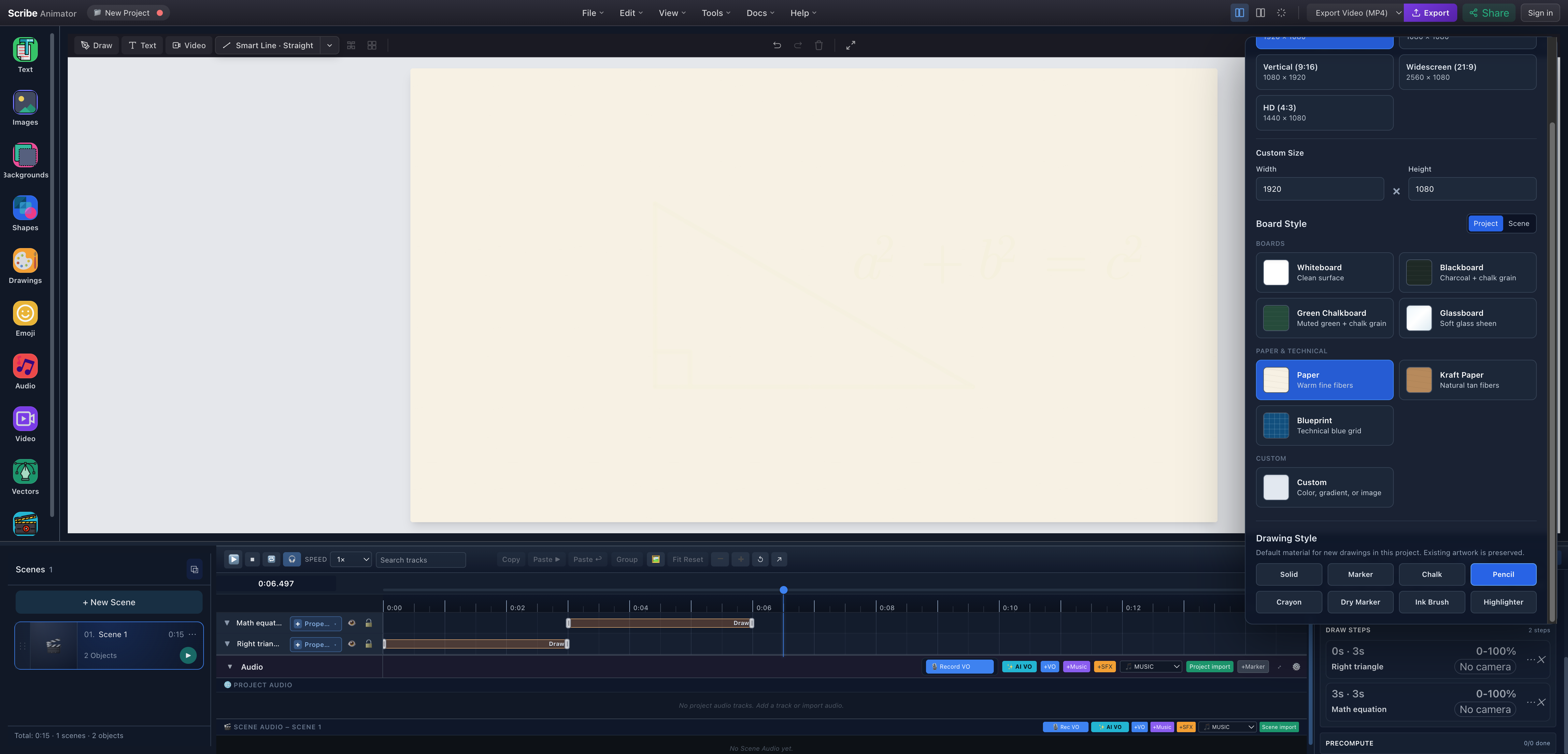
- Paper surfaceThe semantic board supplies warm fine fibers instead of a plain off-white fill.
- Pencil defaultThe selected material is a default for new eligible drawings, not a destructive batch conversion.
Export and verify the result
Open Export Video (MP4) and keep the tab open. The tested scene completed 450 frames and the app reported 1.44 MB and 0:15. Independent media inspection reported H.264, 1280 × 720, 30 fps, and 15.000 seconds.
Current limitations
- Named boards do not recolor existing paths, fills, text, images, or video.
- Drawing Style is a default for new eligible artwork; object and Draw Step overrides can take precedence.
- Normal editable text stays clean rather than automatically gaining Chalk texture.
- The material changes rendering, not the semantic stroke order of an imported SVG.
- A Chalk material does not select a chalk hand/tool asset.
- Fine light strokes can disappear against textured boards at small output sizes.
- Desktop and Mobile Lite share stored board/material values, but this article only verifies the desktop controls.
Troubleshooting
| Problem | What to inspect |
|---|---|
| Blackboard selected but another surface remains | Check the Scene scope for an override and return it to the project surface. |
| Existing vector still looks solid | Select it and inspect Vector Path → Stroke Material, then inspect Draw Step overrides. |
| Chalk is difficult to read | Use a high-contrast authored path color and preview at the delivery size. |
| Text does not look chalky | Use supported outlined/vector lettering when the glyph itself must receive a path material. |
| Material changes only during one reveal | A Draw Step override is probably winning; choose Inherit where appropriate. |
| Hand looks like a pen | Hand/tool assets are separate from material; choose the visual hand deliberately. |
Create this Blackboard + Chalk scene in Scribe
Open Scribe Animator, select Canvas Settings → Project → Blackboard, and use Chalk only on the drawable paths that need it. For the complete educational build, continue with the tested animated math lesson or review how drawing hands and Draw Steps work.