Build editable AI explainers with smart connectors

Most generative-video workflows make the rendered clip the first durable artifact. That is useful when you want pixels immediately, but awkward when a reviewer asks you to move one box, rewrite one label, reroute an arrow, or change the order of two explanations.
Scribe supports a different boundary: an external AI assistant can draft structured TemplateEnvelopeV1 JSON, then Scribe validates and imports that structure as native scene objects. The AI proposes the arrangement; Scribe remains the editable authoring, playback, and export environment.
The canonical scene in this article was imported through File → Import AI JSON in the Desktop web editor on macOS with frontend@2.0.0. Its two rectangles remained stationary while the attached Smart Arrow revealed, backward and forward scrubbing stayed stable, and moving either rectangle recomputed the corresponding endpoint. Focused parser, template-remapping, connector-runtime, rotation, anchor, and Authoring API tests also passed. This run verified editable scene behavior; it did not validate a particular encoded video file.
Structured animation changes the handoff
The important choice is not “AI or manual.” It is what the AI hands to the editor.
| Stage | Typical prompt-to-video workflow | Structured Scribe workflow |
|---|---|---|
| AI output | Rendered frames or a video clip | Candidate TemplateEnvelopeV1 JSON |
| Product boundary | The video is already flattened | Scribe parses, normalizes, and validates the envelope |
| Scene content | Pixels | Native text, shapes, vectors, paths, and relationship objects |
| Revision | Regenerate, mask, or edit around the clip | Select and edit individual objects, timing, and attachments |
| Motion and framing | Mostly determined during generation | Refine animations, Draw Steps, and camera behavior in Scribe |
| Delivery | Exported clip | Editable project first, supported export second |
This is not a claim that Scribe currently runs a fully autonomous public AI video agent. Today, ChatGPT or another approved assistant can generate a candidate structure; the human brings that JSON into Scribe, reviews the validation result, edits the native scene, and decides when it is ready to export.
That distinction matters for explainer work. The text may change after subject-matter review. A cause-and-effect arrow may need a different anchor. The camera may need to hold longer over a diagram. Keeping structure alive makes those normal revisions local instead of requiring a new video generation.
What makes a Smart Connector different from an SVG arrow?
A flattened SVG arrow describes marks. A Smart Connector also describes a relationship.
| Layer | Portable field | Responsibility |
|---|---|---|
| Native object | type: "smartArrow" | Tells Scribe this is an editable Smart Stroke with directional meaning |
| Semantic geometry | props.smartLine | Stores start, end, route mode, controls, elbow data, route points, and arrowheads |
| Attachments | top-level connector | Binds the start and/or end to another template-local object and anchor |
| Drawable geometry | props.paths | Supplies the vector paths rendered on the canvas |
| Reveal | animationType: "drawIn" or Draw Progress | Changes visible progress without moving the semantic attachments |
This separation is what allows the line to stay attached after import. When a target really moves or rotates, Scribe resolves the named anchor against the target's evaluated bounds and updates the endpoint. When both targets are stationary, a draw reveal can advance without changing the semantic world start or end.
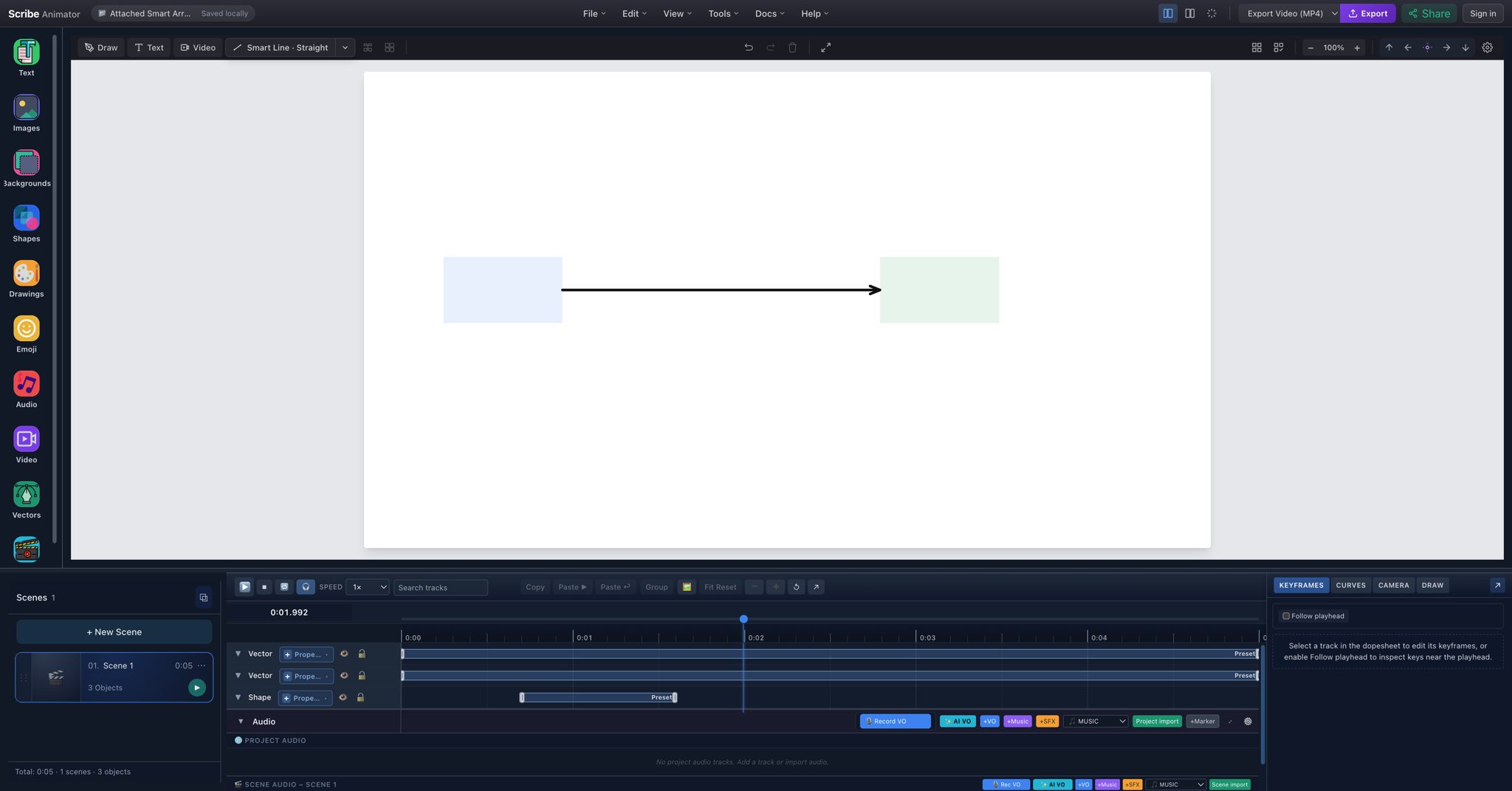
The canonical scene in the Desktop editor at 1.992 seconds. The native arrow resolves from the blue rectangle's right anchor to the green rectangle's left anchor.
Start from the canonical attached Smart Arrow
Download the complete tested scene JSON. It is an asset-free schema-v1 scene with deterministic IDs, two rectangles, explicit right to left attachments, and one Draw In Smart Arrow.
The following valid JSON fragment is the fixture's payload.objects core. Use the downloadable file for the complete TemplateEnvelopeV1 metadata and scene timing:
{
  "objects": [
    {
      "id": "box-a",
      "type": "shape",
      "x": 120,
      "y": 280,
      "width": 180,
      "height": 100,
      "props": {"shapeType": "rectangle", "fill": "#E8F0FE"}
    },
    {
      "id": "box-b",
      "type": "shape",
      "x": 780,
      "y": 280,
      "width": 180,
      "height": 100,
      "props": {"shapeType": "rectangle", "fill": "#E6F4EA"}
    },
    {
      "id": "arrow-a-b",
      "type": "smartArrow",
      "x": 300,
      "y": 330,
      "width": 480,
      "height": 1,
      "connector": {
        "start": {"targetObjectId": "box-a", "anchor": "right"},
        "end": {"targetObjectId": "box-b", "anchor": "left"}
      },
      "props": {
        "smartLine": {
          "routeMode": "straight",
          "start": {"x": 0, "y": 0},
          "end": {"x": 480, "y": 0},
          "endHead": {"type": "arrow"}
        },
        "paths": [
          {
            "id": "arrow-a-b-path",
            "d": "M0 0 L480 0",
            "stroke": "#111111",
            "strokeWidth": 4,
            "fill": "none"
          }
        ],
        "strokeColor": "#111111",
        "strokeWidth": 4
      },
      "animationStart": 700,
      "animationDuration": 900,
      "animationType": "drawIn"
    }
  ]
}
The x, y, and Smart Stroke points agree: the arrow's local line runs from (0, 0) to (480, 0), while the object's world origin places it between the rectangles. The attachment metadata is still authoritative at runtime, so later target edits can recompute those world endpoints.
Template application remaps box-a, box-b, and arrow-a-b to collision-safe runtime IDs. It also remaps both targetObjectId references as part of the same graph; the imported connector does not retain dangling references to the template-local names.
Choose anchors deliberately
Every attached endpoint accepts one of six anchors:
| Anchor | Resolved point |
|---|---|
auto | Chooses a side from the relative target or opposite endpoint |
top | Center of the target's top edge |
right | Center of the target's right edge |
bottom | Center of the target's bottom edge |
left | Center of the target's left edge |
center | Target center |
Named anchors rotate with the target. Use auto when a generated layout may rearrange and the nearest sensible side should be selected. Use an explicit anchor when the relationship has a stable visual grammar—for example, inputs on the left and outputs on the right.
The canonical attachment is intentionally compact:
"connector": {
  "start": {
    "targetObjectId": "box-a",
    "anchor": "right"
  },
  "end": {
    "targetObjectId": "box-b",
    "anchor": "left"
  }
}
For curved routes, elbow semantics, standalone endpoints, and arrowhead options, keep the deeper AI JSON Smart Connector reference and Smart Lines and Arrows guide beside your generated scene.
Draw In reveals the relationship; it does not relocate it
drawIn is a presentation layer over drawable path progress. It makes the visible draw front advance toward the final endpoint, but it must not rewrite the connector's semantic start or final end.
For stationary targets, these facts should remain true at the beginning, middle, and end of the animation:
- the source anchor resolves to the same world point;
- the destination anchor resolves to the same world point;
props.smartLinekeeps the same semantic route;- only the visible amount of
props.pathschanges; and - seeking backward and replaying produces the same result.
When a rectangle genuinely moves or rotates, the corresponding anchor should move and the connector should follow. Preventing that recomputation would make the connector look stable only by breaking its defining behavior.
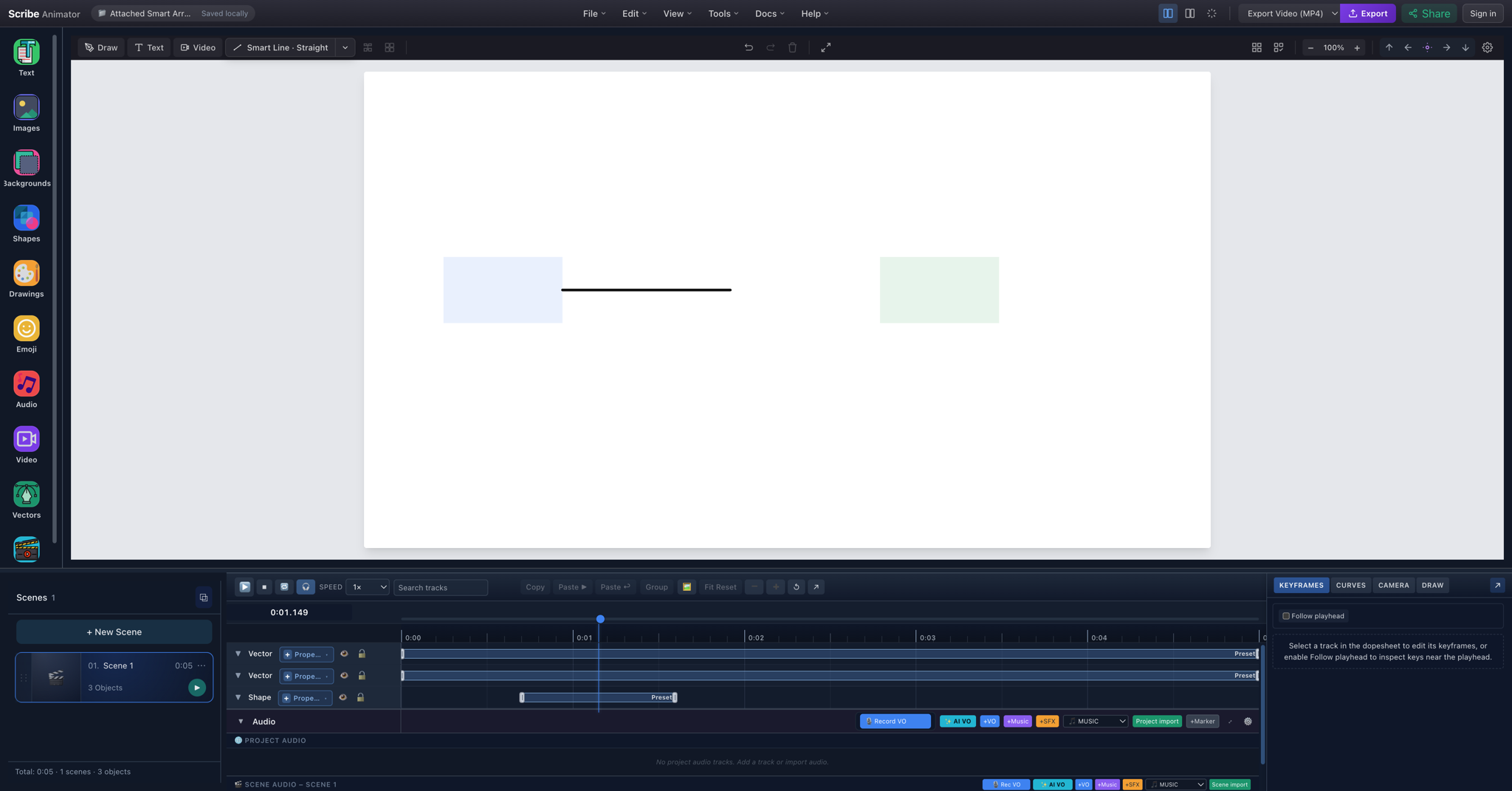
At 1.149 seconds, only part of the path is visible. Compare it with the completed capture above: both target rectangles and the connector's semantic endpoints remain fixed while reveal progress changes.
Do not paste a .scribe runtime object into Template JSON
Portable Template JSON and a saved .scribe project's runtime representation are related, but not interchangeable.
A runtime-shaped object commonly contains:
{
  "type": "smartArrow",
  "properties": {"smartLine": {}}
}
A portable TemplateEnvelopeV1 ObjectDTO uses:
{
  "id": "portable-arrow",
  "type": "smartArrow",
  "x": 100,
  "y": 100,
  "props": {"smartLine": {}}
}
The importer does not silently reinterpret arbitrary runtime objects. If a smartLine or smartArrow uses properties without portable props, it now reports an actionable diagnostic explaining the required field and warning against pasting a .scribe runtime object directly.
Run the real AI JSON workflow
- Plan one explanatory job. Ask the model for a scene plan before asking for coordinates. Define the claim, labels, relationship direction, duration, and aspect ratio.
- Request
TemplateEnvelopeV1JSON. Specify schema version 1,scene-local-v1timing, unique IDs, finite coordinates, supported object types, and JSON-only output. - Keep the first draft narrow. Start with one scene and no external assets. Add complexity after the first import is legible.
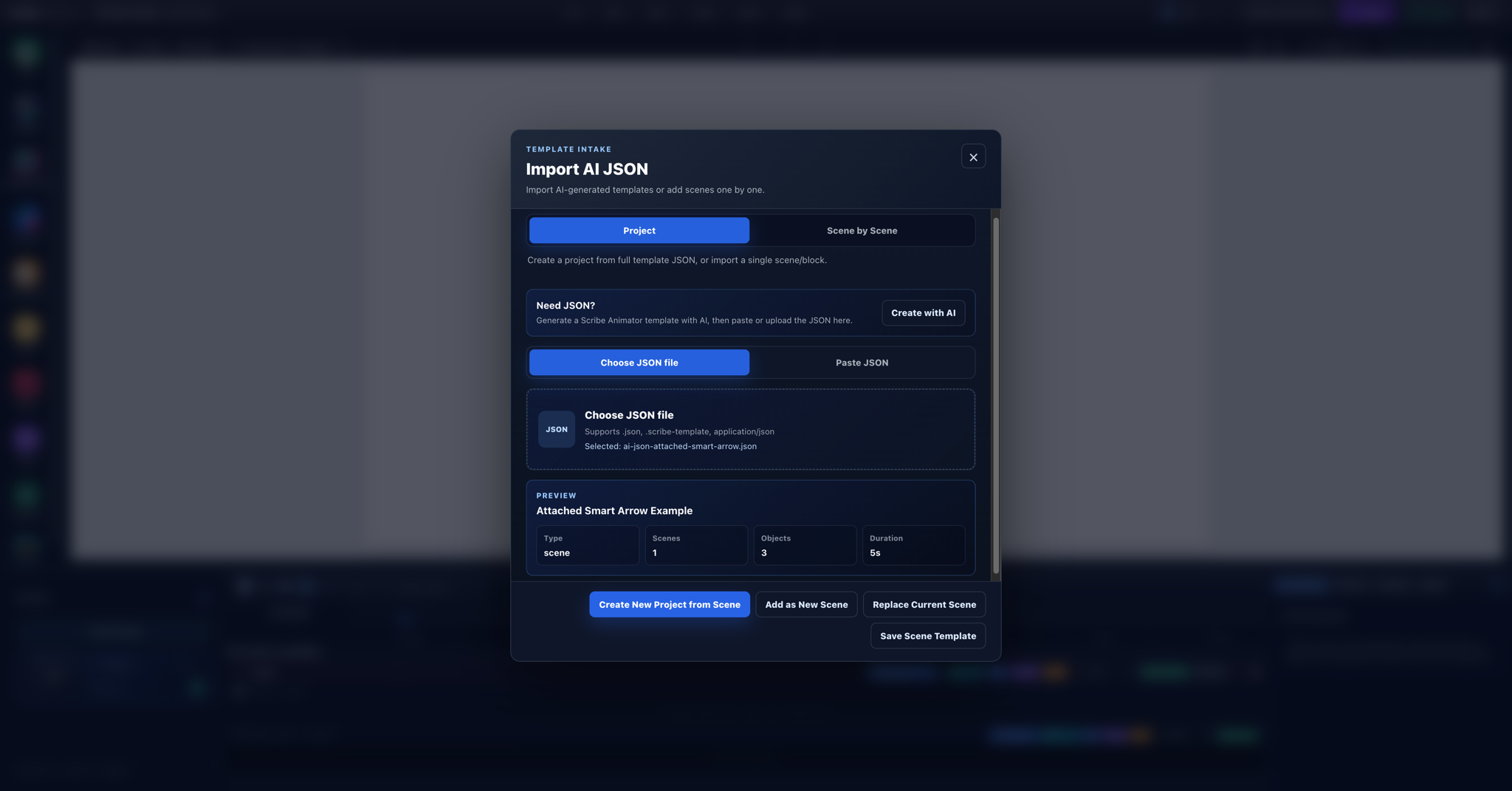
- Open File → Import AI JSON. Use the Desktop editor's file or paste path; do not import the candidate as a
.scribepackage. - Let Scribe validate it. Confirm envelope type, scene and object counts, duration, warnings, and reference errors before applying.
- Create or insert intentionally. A project, scene, and block have different replacement and insertion effects. Save current work before choosing an action that replaces context.
- Inspect native objects. Select the rectangles and Smart Arrow, verify both attachments, and confirm the arrowhead and route mode.
- Edit the draft. Improve labels, spacing, colors, connector anchors, and reading order. Structural acceptance does not guarantee good design.
- Refine motion and framing. Add or adjust animations, eligible Draw Steps, and camera behavior, then preview from before the first reveal through the final hold.
- Export only after review. Seek backward and forward, replay, check the final frame, save an editable project, and then choose the supported delivery format.
The complete Create and import AI JSON guide covers normalization, warnings, apply actions, recovery, and the difference between Project and Scene by Scene modes. The template schema reference is the field-level source of truth.
What can AI JSON describe today?
The current importer allowlist supports the following useful building blocks. “Supported” means the parser recognizes the object type; it does not mean every possible property or asset URL is safe, available, or visually successful.
| Capability | Portable representation | Practical note |
|---|---|---|
| Editable labels | text | Keep copy, bounds, font choice, and contrast reviewable |
| Basic boxes and cards | shape | Useful for deterministic first-pass layouts |
| Self-contained vector art | svg | SVG content is subject to intake safety and size checks |
| Raster art | image | Asset availability and provenance still need review |
| Freehand-style content | drawing | Use valid point and stroke data |
| Drawable vector routes | svgPath | Eligible geometry can participate in reveals and Draw Steps |
| Object collections | group | Nested children must remain valid portable objects |
| Relationships | smartLine, smartArrow, top-level connector | Preserves semantic geometry and attachment metadata |
| Simple entrances | object animation fields | Includes fade, slide, scale, Draw In, path-follow, typewriter, or none where compatible |
| Richer timing | timeline tracks, keys, and draw steps | All owners and references must resolve inside the envelope |
| Framing | scene camera mode and camera keys | Preview timing and target references in the actual editor |
There is no dedicated emoji or icon ObjectDTO type. An icon is represented as an svg object; vector emoji inserted through Scribe's Twemoji drawing path likewise becomes vector/SVG-backed content. A typed Unicode emoji may remain part of a text object's string and depends on the selected font and platform rendering.
This article intentionally makes no AI JSON video-import promise. The shared template type union and the current import allowlist are not identical: ordinary video is not accepted by the current AI JSON validator. Build the first automated workflow from the types documented and tested here.
Can this workflow be automated?
Yes, within the current boundary—but distinguish architecture from product availability.
Available today: an AI assistant can produce JSON, a person or controlled tool can submit it to Scribe's validated Desktop importer, and the result remains an editable scene. The codebase also contains programmatic authoring primitives and protected infrastructure used for trusted/internal template automation. Those surfaces demonstrate that the model is automation-friendly.
Not generally available today: Scribe does not currently advertise an unrestricted public write API or a public MCP server for arbitrary agents. Do not put private authoring credentials in browser code, prompts, public examples, or client-side automations.
Potential future boundary: a supported agent surface could accept constrained scene plans or template envelopes, validate them through the same contracts, and return editable Scribe content. MCP is a possible transport for that future work, not a currently published capability.
So the practical automation path today remains:
- generate candidate structure with an approved model;
- validate it through Scribe's importer;
- keep human review before applying or exporting; and
- save the editable project as the revision source.
A useful first experiment
Download the attached Smart Arrow fixture, open Scribe Animator, and import it through File → Import AI JSON. Add text labels, change the rectangle colors, move each target, switch one explicit anchor to auto, and preview the Draw In again.
Once that single scene remains readable and stable, extend it into a second scene rather than asking a model for an entire finished explainer at once. The related editable AI scenes workflow shows the same structured principle across a two-scene project, while the explainer-video planning guide helps turn the technical pipeline into a coherent story.
AI is most useful here when it accelerates structure without taking editability away from the person responsible for the explanation.