Author reusable templates
A Scribe template is a versioned TemplateEnvelopeV1: metadata plus reusable scene data, optional asset references, and optional authoring controls. The same envelope is consumed by the real template store and apply pipeline.
Author a template when people should reuse a proven layout, story beat, or complete project without rebuilding it. Do not use a template as a substitute for a one-off project file, and do not copy runtime object IDs from one live project into another.
Choose the smallest useful template type
| Type | What it contains | Use it when | What applying it can change |
|---|---|---|---|
block | A reusable set of objects, with optional timeline data | A title treatment, callout, diagram, or component belongs inside an existing scene | Adds objects to the active scene |
scene | One scene's canvas, objects, duration, background, camera, draw, and audio references | One complete story beat should be reusable | Creates or replaces one scene |
project | Project settings and one or more ordered scenes | The complete multi-scene structure is the reusable unit | Creates or replaces the complete project |
Prefer a block over a scene when the surrounding scene should remain. Prefer a scene over a project when the user should keep the rest of the project.
Prerequisites
Before editing JSON:
- Read the current Template System reference.
- Identify the template type and aspect ratio you need.
- Decide which text, colors, images, icons, or audio should be editable.
- Decide whether the template must work in Desktop, Mobile Lite, or both.
- Prepare deterministic assets and a representative preview.
- Plan how you will validate and apply the result in the real editor.
The current constants are:
TEMPLATE_SCHEMA_VERSION = 1
TEMPLATE_TIMING_SEMANTICS = 'scene-local-v1'
Do not guess future schema versions or timing semantics.
Understand the envelope
| Field | Type or role | Required |
|---|---|---|
schemaVersion | Selects the compatible template contract | Yes |
meta | Identity, template type, discovery data, preview, aspect ratio, and duration | Yes |
payload | One BlockDTO, SceneDTO, or ProjectDTO matching meta.type | Yes |
requiredAssets | Portable asset references the host must resolve | When the payload is not self-contained |
authoring | Editable slots, semantic object roles, and approved asset choices | Optional |
A minimal authored scene
This example is static reference JSON, not a simulated editor. It uses one real text object, scene-local millisecond timing, and one real editable text slot.
{
  "schemaVersion": 1,
  "meta": {
    "id": "scene-clear-title",
    "type": "scene",
    "name": "Clear title",
    "description": "A centered title with a short fade entrance.",
    "tags": ["title", "minimal", "editable"],
    "createdAt": "2026-07-26T00:00:00.000Z",
    "preview": {
      "path": "scene-clear-title.svg"
    },
    "aspectRatio": "16:9",
    "durationMs": 5000,
    "timingSemantics": "scene-local-v1"
  },
  "payload": {
    "name": "Clear title",
    "width": 1920,
    "height": 1080,
    "durationMs": 5000,
    "objects": [
      {
        "id": "title",
        "type": "text",
        "x": 240,
        "y": 420,
        "width": 1440,
        "height": 120,
        "props": {
          "name": "Editable title",
          "text": "A clear title",
          "fontFamily": "Noto Sans, Arial, sans-serif",
          "fontSize": 64,
          "fontWeight": "700",
          "fill": "#111827",
          "align": "center",
          "wrap": "word"
        },
        "animationStart": 0,
        "animationDuration": 600,
        "animationType": "fadeIn",
        "animationEasing": "easeOut"
      }
    ]
  },
  "requiredAssets": [],
  "authoring": {
    "primarySlotCount": 1,
    "editableSlots": [
      {
        "id": "title-copy",
        "kind": "text",
        "label": "Title",
        "objectIds": ["title"],
        "propKey": "text",
        "constraints": {
          "required": true,
          "maxChars": 80
        },
        "defaultValue": "A clear title",
        "order": 1
      }
    ],
    "objectRoles": [
      {
        "objectId": "title",
        "role": "content",
        "lockedByDefault": false
      }
    ]
  }
}
Metadata fields
Use metadata for discovery and compatibility, not for behavior that belongs in the payload.
| Field | Rule |
|---|---|
meta.id | Stable, unique, lowercase; use a-z, 0-9, hyphens, or underscores |
meta.type | Must match the payload: block, scene, or project |
meta.name | Human-readable and specific |
meta.description | Explain the result and intended use |
meta.tags | Use searchable purpose, style, and format terms; avoid duplicates |
meta.createdAt | Valid ISO 8601 timestamp |
meta.updatedAt | Optional valid ISO 8601 timestamp |
meta.preview.path | Preview reference resolved by the supported template store |
meta.aspectRatio | Discovery/filter metadata such as 16:9, 9:16, or 1:1 |
meta.durationMs | Summary duration; keep it consistent with the payload |
meta.timingSemantics | Exactly scene-local-v1 for the current schema |
The validator rejects a missing ID, name, type, unsupported schema, or incorrect timing-semantics value. Do not “fix” a validation failure by deleting useful metadata.
Author payloads with portable IDs
IDs inside the envelope form a closed reference graph. Template application remaps them to avoid collisions with the destination project.
Follow these rules:
- make object IDs unique within their scope;
- make project scene IDs unique;
- point draw steps, camera follow targets, connectors, keys, tracks, and authoring slots only to IDs inside the envelope;
- never point to an object that existed only in the authoring workspace;
- keep authoring slot defaults equal to the authored property value;
- keep all numeric coordinates and timings finite; and
- preserve object array order when it represents visual stacking.
Supported object DTO types currently include text, SVG, image, shape, group, drawing, video embed, SVG path, smart line, and smart arrow objects. A type name that merely looks plausible is not supported.
Timing, animation, camera, draw, and audio
Template DTO timing uses milliseconds.
For every scene, verify:
durationMsis positive.- Every object entrance ends before the scene ends.
- Every draw step references an existing object and has a non-negative start and duration.
- Every camera follow target exists.
- Camera keyframes are ordered and fall inside the scene.
- Audio references resolve and their intended start/duration fit the scene.
- The final state remains visible long enough to read.
Current object entrance types include fadeIn, slideIn, scaleIn, drawIn, pathFollow, typewriter, and none, with the exact supported variants defined in the shared type. Do not invent animation names from CSS or another animation library.
Draw-step easing is accepted in the DTO but ignored by the v1 apply mapping, which reports a warning. Author the visible behavior through supported draw timing and camera settings instead.
Native procedural objects and validation modes
Portable templates can contain editable procedural objects with positive
width/height and validated props: a canonical asset, optional playback,
Drawing Score, palette, and retained component source. Export an existing valid
object to obtain its exact representation. Do not invent digest values or copy
runtime properties, compiled paths, or caches into template data. The
procedural drawing guide explains these contracts.
Current template.validate_json version 2 supports canonical and
import-compatible modes. Request mode: "canonical" for new authoring; omitted
mode uses compatibility. Read runtimeOk, schemaOk, authoringOk,
canonicalOk, errors, and warnings separately. Compatibility success can include
legacy normalization and does not mean canonical authoring passed.
Scene/project/block imports remap supported object and timeline references. Use
pathFollower.t for canonical path progress, read unsupported-lane and spatial
ownership warnings, and recheck the applied result. Live shared scene membership
and Scene Pose are native project contracts; use .scribe for that handoff.
Add authoring controls without breaking structure
authoring.editableSlots describes what a template user may customize. A slot does not create a new object; it binds an input to one or more existing object properties.
Current slot kinds are:
text;image;color;icon; andaudio.
Each slot needs a unique ID, a useful label, at least one valid objectId, and a compatible propKey. Use constraints such as required, maxChars, minChars, multiline, and aspectRatio to keep substitutions inside the designed layout.
objectRoles classifies each target as content, decoration, structure, or background. Set lockedByDefault on structural objects that users should not move accidentally.
Keep the primary editing surface focused. Three to seven primary slots is a useful design target, not a schema limit. Large project templates may expose more, but should group and order them deliberately.
The validator reports Mobile Lite-specific warnings for unsupported audio slots, source-less visual replacements, some property bindings, template audio integration, and drawable camera combinations. Run validation with the Mobile Lite target when the catalog claims Mobile Lite support.
Package assets safely
requiredAssets can describe:
- builtin pack assets;
- imported/package assets; or
- explicit URL assets.
The apply pipeline resolves assets, rewrites environment-specific URLs, preloads available resources, and reports missing assets. A missing asset may produce a fallback and a warning rather than a hard apply failure, so a success: true result is not sufficient—also inspect assetResolution.missing.
Use packaged or builtin assets when possible. Avoid:
- temporary
blob:URLs; - author-machine filesystem paths;
- authentication-bound URLs;
- expiring signed URLs in permanent builtin content;
- unreviewed cross-origin assets; and
- large inline data URLs that make templates difficult to audit.
Embedded SVG must be treated as untrusted input and sanitized through the existing import/validation path. Do not embed scripts, event handlers, foreign objects, or remote executable content.
Create an accurate preview
A preview is a catalog promise. It should show the applied result clearly at card size.
- Use an SVG with a deterministic view box.
- Match the template's real aspect ratio.
- Show the most important content and color hierarchy.
- Do not include UI chrome that is not part of the template.
- Avoid remote fonts, external URLs, random values, and runtime blob references.
- Check the preview in light and dark documentation/application surroundings.
Publish through a supported template workflow
Built-in templates shipped by Scribe Animator are maintained and reviewed internally. For reusable content, author against the documented Scribe template schema, validate the envelope, and import or apply it through supported product surfaces rather than depending on Scribe's repository layout.
Where a supported catalog workflow accepts a separate manifest or preview, keep its ID, name, type, tags, aspect ratio, duration, and preview reference consistent with the envelope. Do not distribute a catalog entry until the same envelope succeeds in the real editor.
Complete authoring workflow
- Start with a valid envelope of the same type.
- Assign the final, stable
meta.id. - Replace metadata, then remove inherited tags that no longer apply.
- Replace the payload while preserving documented DTO field names.
- Assign deterministic, unique IDs.
- Finish object layout before adding slots.
- Add animation, timeline, draw, camera, and audio data.
- Add authoring slots and roles.
- Enumerate all non-self-contained assets.
- Create a representative preview.
- Validate the envelope and any catalog metadata accepted by your supported workflow.
- Import or apply the template through the real picker.
- Verify the resulting canvas, timeline, editability, assets, and playback.
- Save and reload a test project before distributing the template.
Verify the catalog result
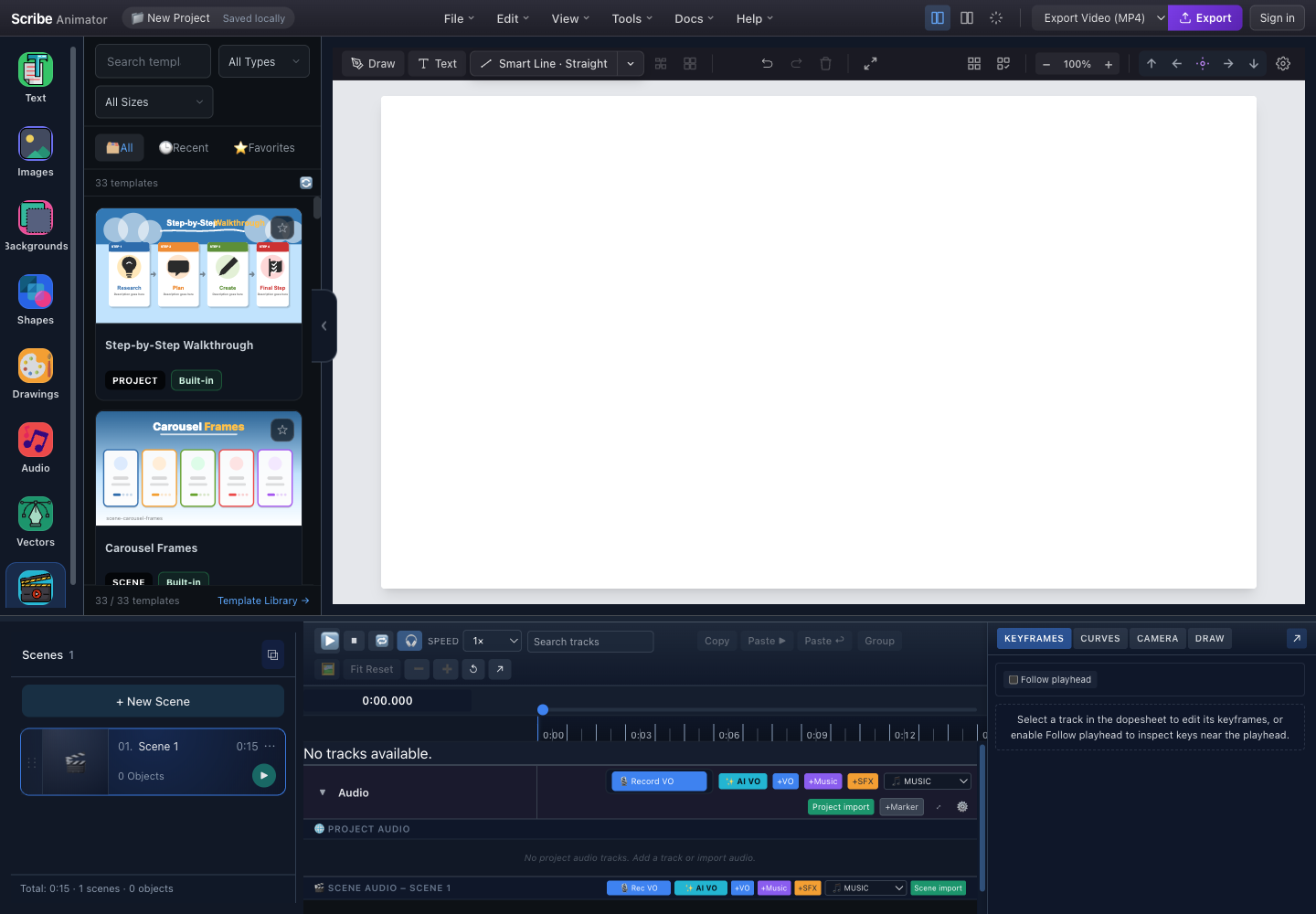
- SearchConfirm the final name and tags make the template discoverable.
- Type filterThe card must appear under the payload type declared by meta.type.
- Aspect-ratio filterVerify meta.aspectRatio places the template under the intended canvas size.
- Template preview cardsInspect the preview at real card size and read the type and source badges before applying.
- Real scene resultAfter applying a scene or project template, confirm scene count, duration, and object count in the actual editor.
Do not stop at a valid card. Apply the template and verify canvas rendering, selection, edit slots, timing, preview playback, undo/redo, asset availability, and reset/reload behavior.
Validation checklist
Validate the template with Scribe's current template validator and apply it in the real editor before publishing or distributing it. Then verify:
- no schema errors or unresolved references;
- no unexpected Mobile Lite warnings for a claimed Mobile Lite template;
- all slot targets and defaults are correct;
- all required assets resolve without production credentials;
- applying twice produces distinct runtime IDs;
- block insertion preserves existing scene content;
- scene application affects only the intended scene;
- project application creates the intended scene order;
- undo/redo restores the surrounding state where supported;
- the preview matches the applied result; and
- the template survives save, reload, and
.scribepackaging where relevant.
Limitations and security boundaries
- Schema version 1 is the only current envelope version.
- Template application is not arbitrary script execution; templates must remain data.
- Merge mode for scene application is not fully implemented in v1 and reports a warning.
- Some unavailable assets fall back instead of failing the whole apply operation.
- Audio authoring and some replacement slots have narrower Mobile Lite support.
- A valid envelope can still be a poor layout; structural validation cannot judge clipping, contrast, reading time, or narrative quality.
- Built-in templates are reviewed application content. Treat SVG, URLs, and large embedded payloads as untrusted data during authoring and validation.
Troubleshooting
| Symptom | Likely cause | Fix |
|---|---|---|
| Card does not appear | Catalog metadata is missing, the ID/type does not match, or the catalog has not refreshed | Compare catalog metadata with the envelope, then refresh the supported template surface |
| Preview is blank | Wrong preview filename, invalid SVG, or an external dependency | Open the SVG directly and replace remote dependencies with deterministic content |
| Apply reports dangling IDs | Slot, draw, camera, connector, or timeline reference points outside the envelope | Repair the reference graph; do not delete the feature to hide the error |
| Text slot changes nothing | Wrong objectIds, propKey, or object type | Bind the slot to the real property used by the target object |
| Applied object is missing media | Required asset was not declared or could not resolve | Add a portable asset reference and inspect assetResolution.missing |
| Template applies but timing is wrong | Seconds were authored where DTO milliseconds are expected | Convert all template timing to milliseconds and recheck scene bounds |
| Applying twice causes cross-links | A reference escaped ID remapping | Ensure every related ID is inside the DTO and handled by the remapper |
| Desktop works, Mobile Lite warns | Unsupported slot, audio, binding, or camera combination | Run Mobile Lite validation and either adapt the template or remove that platform claim |
Related workflows
Verification note
This guide was checked against the current documented template contract, ID remapping, asset resolution, apply behavior, validation rules, and the real template library. The screenshot is an annotated capture of the real application; this page contains no interactive template simulation.