Understand plugins and Plugin Manager
Plugins supply bounded Scribe capabilities such as processors, exporters, editor panels, inspectors, scene tools, and timeline surfaces. Plugin Manager is the user-facing place to inspect those capabilities and, where product policy allows, enable or disable them.
This guide documents the supported editor workflow. It does not describe Scribe's private repository layout or promise a general third-party plugin SDK.
When to use Plugin Manager
Open Plugin Manager when:
- an import, export, inspector, or timeline feature reports that a required capability is disabled;
- a plugin row reports a fault, warning, or unavailable state;
- you need to inspect a capability's current version, status, or requested permissions;
- you want to retry a failed capability through a supported Repair or Reload action; or
- support asks you to review the Diagnostics tab.
Do not toggle plugins during an active import or export. Disabling a capability can remove the product surface currently serving that operation.
Open Plugin Manager
On Desktop:
- Open Tools in the application header.
- Choose Plugin Manager.
- Use Installed for status and enablement.
- Use Diagnostics only when investigating a problem.
Availability can vary by build. If the menu item is absent, use the current editor release or contact support rather than attempting an undocumented workaround.
Read the Installed view
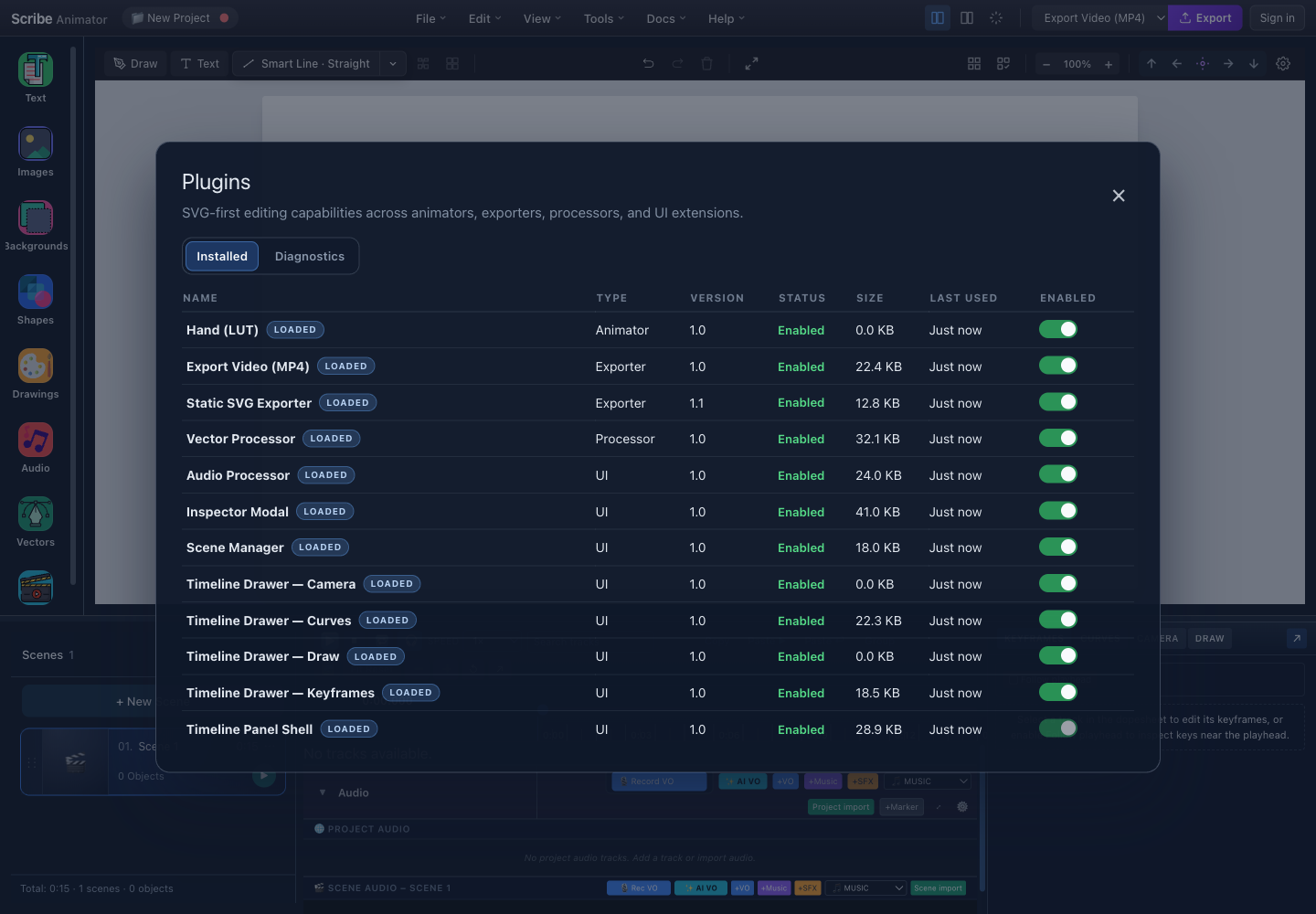
- InstalledShows the capabilities available in this build and their current status.
- DiagnosticsOpens product health information used to troubleshoot a capability.
- Identity and healthRead the name, type, version, status, size, and last-used value before changing state.
- Capability rowsSelect a row to inspect the user-visible details and available recovery actions.
- Enabled switchesEnable or disable an available, optional capability. Required or unavailable rows cannot be toggled.
Column meanings
| Column | Meaning | What to check |
|---|---|---|
| Name | Human-readable capability | Match it to the feature or error you are investigating |
| Type | Product area such as exporter, processor, animator, or UI | Understand which workflow can change |
| Version | Version supplied by the current build | Useful when reporting a problem |
| Status | Current availability and health | Resolve a fault or unavailable state before toggling |
| Size | Approximate package metadata where supplied | Diagnostic only, not total memory usage |
| Last Used | Most recent tracked use | Helps identify whether the capability is active |
| Enabled | Effective activation state | Some required capabilities are policy-locked |
Rows can also show user-visible state such as Missing, Revoked, Faulted, Pending, or a warning. Read the row details instead of guessing from the switch alone.
Enable a capability safely
- Pause playback and finish active imports or exports.
- Open Tools → Plugin Manager → Installed.
- Find the capability named by the feature or error.
- Read its status and select the row for details.
- Review any permission prompt in context.
- Turn Enabled on if the row is optional and available.
- Wait for the pending state to finish.
- Close Plugin Manager and retry the original action.
Enabling a capability may initialize isolated processing or reconnect an editor surface. The product handles that lifecycle; users should not need to know its private loading topology.
Disable a capability safely
- Save the project.
- Finish any operation using the capability.
- Identify which product surface depends on it.
- Turn Enabled off.
- Confirm the dependent feature becomes unavailable as expected.
- Re-enable it if another workflow needs it.
Disabling a capability does not convert or repair project content created with that feature. Re-enable it and preview the project before export.
Inspect details and permissions
Select a row, not its switch. Depending on the current build, the details view can show identity, version, type, description, status, declared permissions, health, and supported recovery actions.
When Scribe asks for permission:
- Confirm which capability is asking.
- Read the user-visible purpose.
- Deny access that is unrelated to the action you started.
- Allow only the minimum access needed for the documented workflow.
A feature failure is not a reason to grant broader permissions. If a decision can be revoked in the current UI, revoke only that permission, retry the action, and read the prompt again.
Repair, reload, and Diagnostics
| Action | Use it for | It does not do |
|---|---|---|
| Repair | A capability with a recorded recoverable fault | Install a missing package or bypass product policy |
| Reload | A stale or unresponsive managed capability | Migrate project data or grant denied permissions |
| Diagnostics | Health and warning information requested during troubleshooting | Prove that the visual result is correct |
After Repair or Reload, retry one small operation and inspect its real output. For an importer, check the canvas. For an exporter, inspect the exported file.
Public contract boundary
Plugin Manager is a supported product surface for managing capabilities included in the current Scribe build. The current public documentation does not promise a general plugin marketplace, unrestricted editor access, or stable private capability identifiers.
Plugins are subject to capability and permission boundaries. Scribe may isolate execution according to the capability type and requested access. Those security boundaries are product policy; external users do not need private source locations, service topology, resource thresholds, or security-log implementation details to use Plugin Manager safely.
Limitations and security guidance
- Plugin Manager can control only capabilities present in the current build.
- A toggle cannot install a missing package.
- Required, unavailable, faulted, pending, or policy-locked rows may not be toggleable.
- Repair is recovery, not reinstallation.
- Diagnostics may help support a bug report, but they do not replace visual verification of imported or exported content.
- Grant only permissions that match the feature you intentionally started.
- Do not paste account credentials, API keys, private project data, or secrets into diagnostics or support notes.
Troubleshooting
| Symptom | Likely cause | Recovery |
|---|---|---|
| Plugin Manager is absent from Tools | The current build does not expose it | Update Scribe or contact support |
| Switch is disabled | The row is required, unavailable, faulted, pending, or policy-locked | Read its status and details |
| Switch returns to its old state | Activation failed and rolled back | Read the inline error, then try Repair once if available |
| An importer or exporter remains unavailable | Its capability did not initialize or is not included in the build | Recheck status and report the visible error to support |
| A permission prompt keeps returning | The decision was not retained or was revoked | Review and answer the prompt again |
| Repair does not help | The package is missing or the fault is not recoverable in place | Update the app or contact support |
Related workflows
- Choose a supported import, processing, or export workflow
- Import SVG and vector artwork
- Choose and verify an export
Verification note
This guide was checked against the current Tools menu, Plugin Manager Installed view, user-visible details and recovery actions, permission prompts, Diagnostics surface, and the real application screenshot. Private repository paths and implementation-only security internals are intentionally outside the public contract.