Choose and verify an export
Export is the final rendering or transfer step. Choose the output from what the recipient needs: an MP4 video to watch or a .scribe package that another Scribe Animator session can reopen and edit.
Before you export
- Save the editable project or export a
.scribebackup. - Play the complete project from the beginning.
- Check every scene transition, object entrance, draw step, camera move, and audio cue.
- Confirm that the canvas aspect ratio matches the destination.
- Close unrelated dialogs and pause other CPU-heavy browser tabs or apps.
- Make a short, lower-resolution test before a long final render.
Export runs locally on the current device. Keep Scribe Animator open and in the foreground until the export finishes. Closing or reloading the page stops the render.
Pick the correct output
| Output | Use it when | What it preserves | Important limitation |
|---|---|---|---|
| Video (MP4/H.264) | The recipient only needs to watch or publish the animation | Rendered scenes, motion, camera, draw animation, and mixed audio | It is no longer editable as Scribe objects |
Scribe package (.scribe) | You need an editable backup or transfer | Project data plus package assets supported by the package exporter | Reopen it in a compatible Scribe Animator version |
| Template | You want reusable scene/block/project structure | Template-compatible project structure and referenced assets | It is an authoring resource, not a finished video |
Do not use a video as the only backup. Do not use a .scribe package as a public playback file.
Understand the video export dialog
Open the top-right Export action after previewing the project.
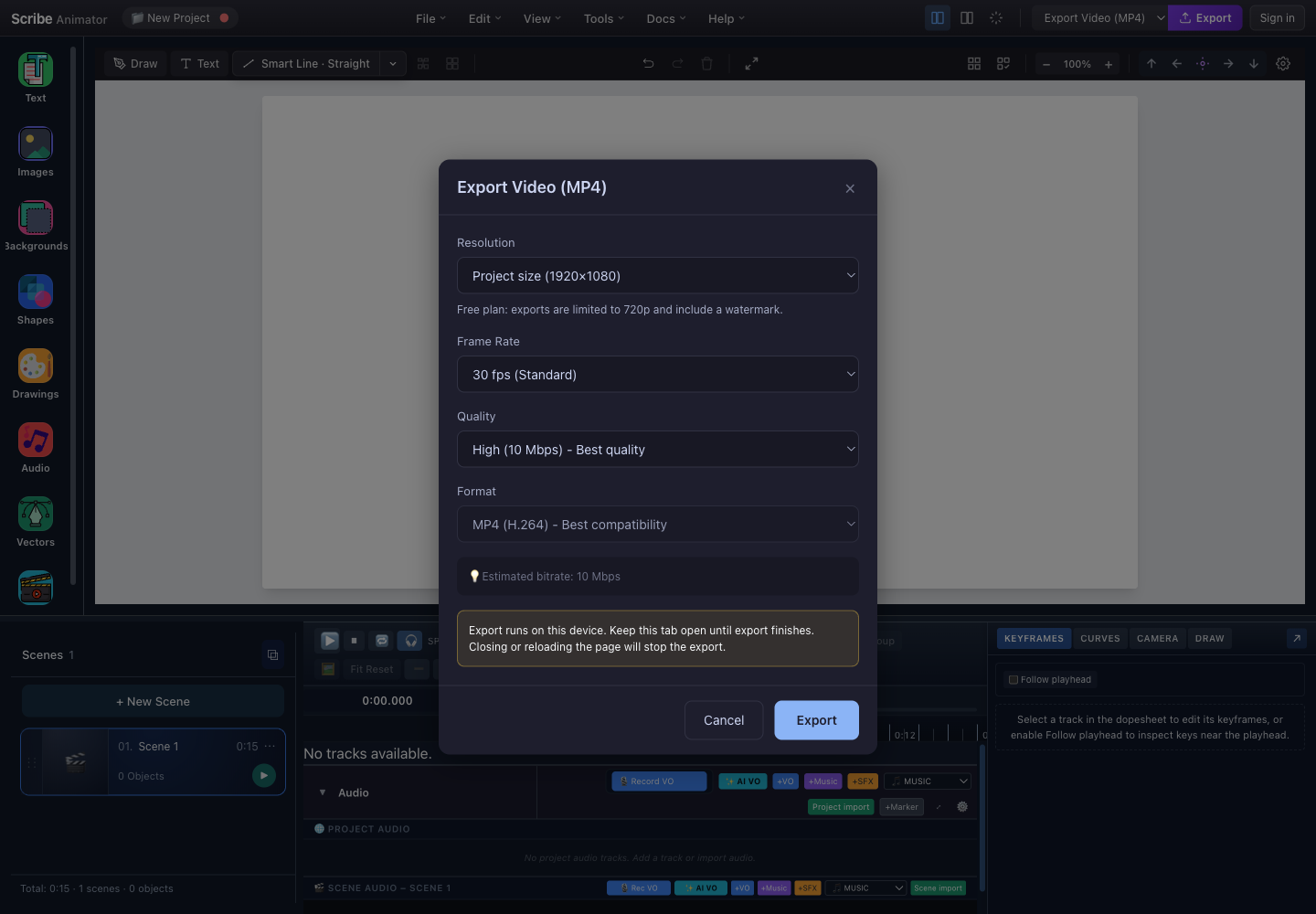
- ResolutionChoose project size, 1080p, 720p, or 480p. The active plan can clamp the final output.
- Frame rateChoose 24, 30, or 60 frames per second.
- QualitySelect the target bitrate: Low, Medium, or High.
- FormatThe current dialog exports MP4 using H.264 for broad playback compatibility.
- Estimated bitrateA quick indication of compression, not the final file size.
- Local-render warningKeep this tab open; navigating away interrupts export.
- ExportStarts rendering with the selected effective settings.
1. Resolution
- Project size uses the project canvas dimensions when the plan and exporter allow them.
- 1080p is a common final delivery size for presentations and full-screen web video.
- 720p is a good test or lightweight delivery size.
- 480p is useful for fast previews and bandwidth-constrained review.
The free plan is limited to 720p and includes a watermark in the current build. If the project is 1920×1080 but the effective output says 1280×720, the plan limit is being applied correctly.
2. Frame rate
- 24 fps gives a film-like cadence and produces fewer frames.
- 30 fps is the best default for most explainers and product demos.
- 60 fps can make fast movement smoother, but roughly doubles the frames compared with 30 fps and increases rendering work.
A higher frame rate cannot repair low-resolution assets or poor animation timing.
3. Quality
| Setting | Target bitrate shown by the editor | Best use |
|---|---|---|
| Low | 2 Mbps | Quick proof or messaging attachment |
| Medium | 5 Mbps | Most web reviews and drafts |
| High | 10 Mbps | Final delivery where text and fine lines must stay crisp |
Quality changes compression. Resolution changes pixel dimensions. Check both.
4. Format and estimate
The current video dialog exposes MP4 (H.264) for compatibility. The bitrate estimate helps compare quality settings, but duration, audio, scene complexity, and encoder behavior affect the final file size.
Export a video step by step
- Select Export Video (MP4) in the top bar if more than one exporter is available.
- Select Export.
- Choose the resolution and read the effective plan note.
- Choose 30 fps unless the destination specifically needs 24 or 60 fps.
- Choose Medium for a draft or High for a final.
- Confirm MP4 (H.264).
- Select Export in the dialog.
- Keep the tab open while the progress phase renders and encodes frames.
- When the completion action appears, download or save the file.
- Play the downloaded file from beginning to end—not only the first scene.
What success looks like
- The progress view completes without an encoder error.
- The downloaded video has the expected dimensions and duration.
- Every scene is visible inside the frame.
- Audio starts at the intended time and remains synchronized.
- Text, thin strokes, and imported images remain readable.
- The last frame is not cut off.
Practical setting recipes
| Destination | Resolution | Frame rate | Quality |
|---|---|---|---|
| Fast internal review | 480p or 720p | 24 or 30 fps | Low |
| Typical web or LMS video | 720p or 1080p | 30 fps | Medium |
| Presentation or product demo | 1080p | 30 fps | High |
| Fast motion that genuinely needs it | 1080p when available | 60 fps | High |
Platform upload services may recompress the video. Keep the original downloaded export.
Check an Android export on the destination device
In the Android app, Auto prefers the supported native encoder. A saved explicit WebCodecs, Native, or MediaRecorder choice remains in effect. Auto can use a supported browser fallback when native encoding is unavailable or the device cannot accept the input format; other native errors can still stop the export.
The native encoder prefers a supported hardware Surface path and keeps a bounded queue of frames in order. Audio is submitted in batches with sample-based timing. These are automatic encoder choices; the export dialog does not expose a Surface or queue setting.
This Android change does not describe the iOS encoder or the browser encoder. It also does not establish a speed improvement for every device. A practical verification uses the same project and final settings you intend to deliver:
- Include one drawing-hand reveal, one camera move, and a voice or music cue in a short representative project.
- Export at 720p, 30 fps, and Medium first.
- Open the saved MP4 in the device's video player. Check the first hand pose, scene transitions, audio start, and final frame.
- Repeat with the intended final settings, within the plan and device limits.
- Retain the working settings and a
.scribebackup before a longer render.
The renderer commits the authored hand pose before capturing a frame, so export should use the project-time pose rather than depend on how quickly the preview screen refreshes. If the hand or camera still differs, record the failing time and settings and follow export troubleshooting.
Verify automated preview, export, and cancellation
An agent can discover ui.project_frame_preview to show a selected scene at an
exact scene-local timeMs. Its overlay uses project pixel dimensions with
displayMode: "fit" or "actual". Inspect the displayed frame, then close it
with Close, Escape, or action: "hide". A metadata response is not proof that
the frame was visually reviewed.
For a running automated video export, inspect export.get_status and use
export.cancel with the returned operation ID when you need to stop it. Repeated
cancellation of a terminal operation preserves its recorded terminal status and
completion time. Check the status after requesting cancellation.
Keep three outcomes separate: the command response, the actual downloaded file,
and the client's download detector. A detector timeout alone does not establish
that no file arrived. Verify the actual MP4 and native .scribe reopen before
reporting delivery or editable persistence.
SVG export availability
SVG export is unavailable in the download menu and public automation/WebMCP API. Use MP4 for rendered output and .scribe for an editable backup. SVG import, vector artwork and drawing remain supported.
Create an editable backup
Use File → Export .scribe or the equivalent project-file action for an editable transfer. Store the package separately from the rendered video. Before relying on it:
- Finish the current save operation.
- Export the package.
- Check that it has a
.scribeextension. - Reopen a copy in a test session when the project is important.
- Confirm that locally imported images, audio, and fonts resolve as expected.
Never edit package internals manually unless you are diagnosing a copy and understand the schema.
Limits and safety boundaries
- Export is device-intensive; long projects, high frame rates, large images, and complex paths take longer.
- Web page visibility, browser memory pressure, and encoder support can interrupt a render.
- Native iOS/Android encoding can differ from web encoding.
- Plan limits can reduce effective resolution or add a watermark.
- An export cannot improve the resolution of a blurry source image.
- SVG export is unavailable; SVG import and drawing remain supported.
- The exporter does not replace an editable backup.
Troubleshooting
| Symptom | Safest recovery |
|---|---|
| Export stops partway | Keep the app foregrounded, close unrelated heavy apps/tabs, retry once at 720p and 30 fps |
| Output is blank | Return to the scene, stop playback, check object visibility and camera framing, then make a short test |
| Audio is absent | Confirm the track is not muted, the source is hydrated, and playback works before exporting |
| Audio drifts | Test at 30 fps, check scene/audio duration boundaries, and avoid changing the project during export |
| Video is soft | Use a larger allowed resolution and inspect source asset resolution; bitrate alone will not add detail |
| Thin lines break up | Try High quality and inspect the result at 100%; simplify extremely fine geometry if needed |
| Download never appears | Wait for the completion state, allow downloads for the site, and check device storage |
| 1080p becomes 720p | Read the plan note; the current free-plan policy intentionally clamps video to 720p |
The annotated dialog above was captured from the running Scribe Animator editor with browser-based UI review. Labels and plan warnings reflect the verified frontend@2.0.0 UI; encoding availability can still vary by browser and device.