Create and manage projects
A project is the editable boundary for one Scribe production. It contains canvas settings, scenes, objects, timeline state, camera data, audio references, and project metadata. Opening another project replaces that entire active boundary.
When to create a separate project
Create a new project when you need:
- a different deliverable or audience;
- an independent scene and audio structure;
- a safe variant before a broad redesign;
- a template-based starting point that should not affect existing work; or
- a clean file to hand to another editor.
Use a scene, not a second project, for another shot or beat in the same animation. Use Save As to Library (Complete)… or a .scribe package when you need a durable copy of existing work.
Before switching projects
Opening, importing, creating, or opening an example replaces the active project. Before doing so:
- Pause playback.
- Choose File → Save Locally.
- For important work, choose File → Export .scribe… too.
- Confirm the project name in the header no longer has an unsaved-change indicator.
Local recovery is helpful, but a .scribe package is the safer portable backup.
1. Choose the correct File action
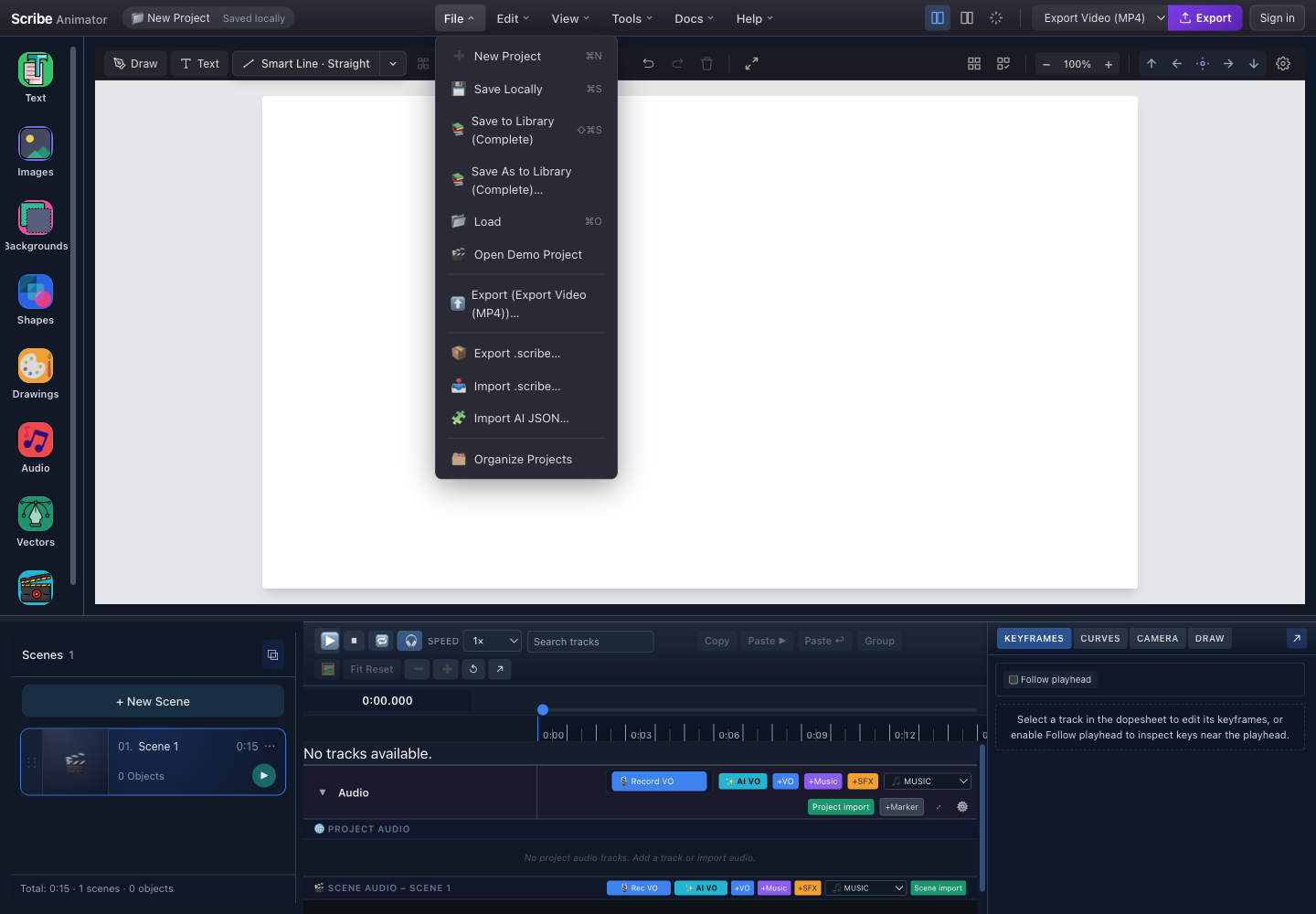
- New ProjectOpens the blank-project and project-template chooser after any unsaved-work confirmation.
- Save to LibrarySaves a complete signed-in library project, including its package and supported media.
- Save As to LibraryCreates a new library target, useful for a named variant or duplicate.
- LoadOpens the signed-in project library and hydrates the selected complete project.
- Example ProjectsReplaces the workspace with prepared demo content for exploration.
- Organize ProjectsOpens folder and project management. Existing-project folder moves are a current limitation.
On Mobile Lite, use the project name menu: New, Open, and Save expose the corresponding compact flows.
2. Create a blank project
From the editor:
- Choose File → New Project.
- If an unsaved-work warning appears, choose Cancel and create a backup unless the current work is disposable.
- In the chooser, select Blank project.
- Wait for one empty scene and a clear timeline.
- Save early so the project receives a meaningful name or checkpoint.
From the welcome screen, Create New Project starts the blank path directly.
Expected result: the header shows New Project, Scene 1 is active, and the canvas contains no inherited objects.
3. Create from a project template
Use a project template when you want prepared project-level structure, rather than merely a single reusable object or scene.
- Choose File → New Project.
- Select a project template.
- Review the replacement confirmation.
- Let Scribe create the project and remap template identifiers.
- Inspect every scene before replacing text, assets, or audio.
- Use Save As to Library (Complete)… so the customized result remains separate from any earlier project.
Templates are starting structures, not backups. A project package preserves the exact editable state; a template is meant to be customized with remapped IDs and reusable slots.
4. Name and save a complete library project
Library saving requires sign-in and network access.
- Choose File → Save to Library (Complete).
- If prompted, sign in and reopen the save action.
- Enter a specific Project name.
- Add an optional description that records audience, purpose, or version.
- Choose a folder for the new project.
- Complete the save and wait for its success notice.
Use names such as Onboarding explainer – Sales – 16:9, not a sequence of New Project entries. Name scenes separately so a project can be diagnosed without opening every card.
The complete save uploads project metadata plus a .scribe representation and promotes supported local audio when possible. If media promotion is incomplete, read the save notice before closing the tab.
5. Open an existing project
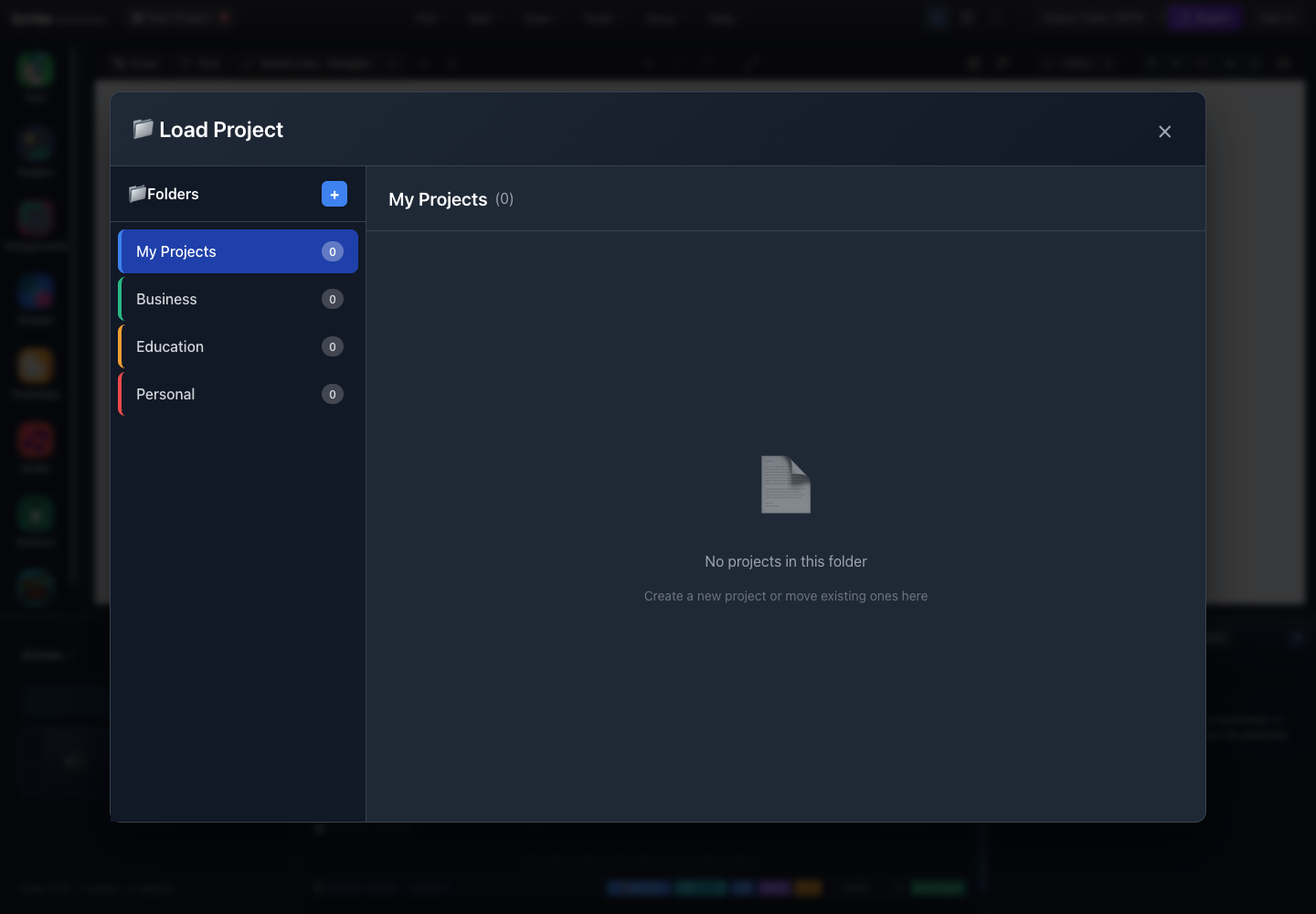
- Folder listSwitches the project collection shown on the right.
- Add folderCreates another library folder for future saves.
- Active folder and countMy Projects (0) confirms which folder is open and how many records it contains.
- Empty stateNo card can be selected until a project has been saved in this folder.
- CloseReturns to the active canvas without loading anything.
- Pause playback.
- Choose File → Load.
- Choose the folder that contains the project.
- Select a project card in the right collection.
- Wait for scenes, canvas objects, reveal originals, and audio to hydrate.
- Confirm the project name and scene count.
- Preview once before making changes.
Scribe prefers the complete .scribe representation for a library project and can fall back to legacy project metadata when required.
If assets are missing, do not immediately overwrite the library project. Export or preserve a package first, then investigate the references.
6. Make a named copy or variant
Use Save As to Library (Complete)… for an independent copy:
- Open the source project.
- Save or export the source before broad changes.
- Choose File → Save As to Library (Complete)….
- Replace the suggested
(Copy)name with a purpose-specific name. - Choose a folder.
- Save and confirm the header now refers to the new target.
This is the current reliable duplicate/rename workflow. Saving As creates a new library identity; it does not rename the source record in place.
Use it before:
- replacing many assets;
- applying a full-project template;
- changing scene structure for a different duration or format;
- converting text or vector content;
- testing a plugin that changes project data; or
- producing client, language, or aspect-ratio variants.
7. Organize and delete library projects
Choose File → Organize Projects to work with folders and project cards.
Current folder choices include My Projects, Business, Education, and Personal, and the manager can create additional folders.
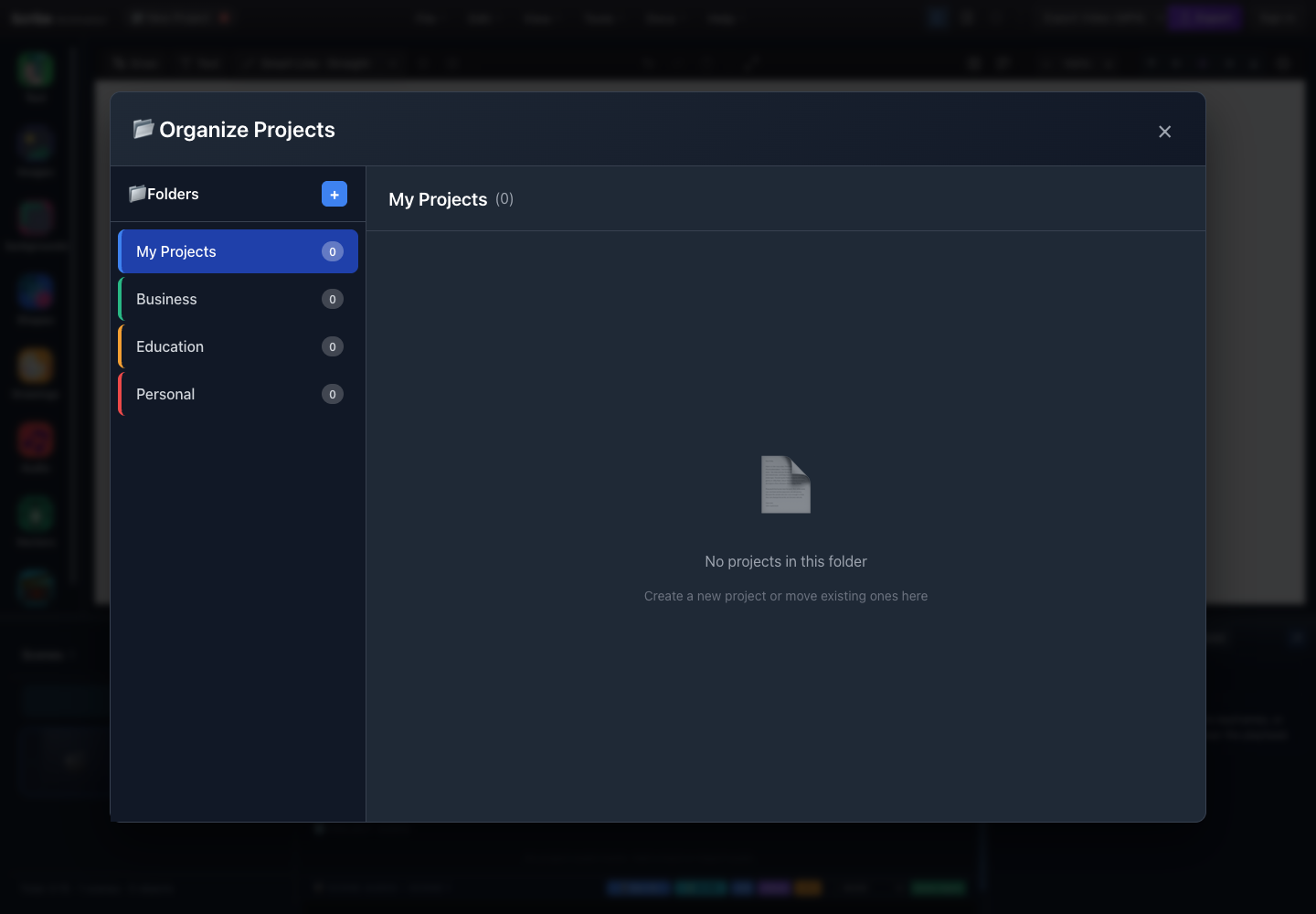
- Add folderCreates a new organizational folder.
- Default foldersMy Projects, Business, Education, and Personal are available as initial destinations.
- Folder countEach badge reports how many saved library projects are currently assigned there.
- Active collectionThe right pane displays project cards for the selected folder.
- No projects in this folderCreate or Save As into this folder; do not assume an existing-project move completed.
For destructive cleanup:
- Verify the project name and thumbnail.
- Export a
.scribebackup if the project may be needed later. - Choose the project's delete action.
- Read the confirmation.
- Confirm deletion only for the exact target.
The current organizer displays folder-oriented project management, but changing the folder of an already-saved project is not fully wired in this build. Choose the desired folder during the initial save or Save As flow instead of assuming an organizer selection moved the record.
8. Understand projects, scenes, templates, and packages
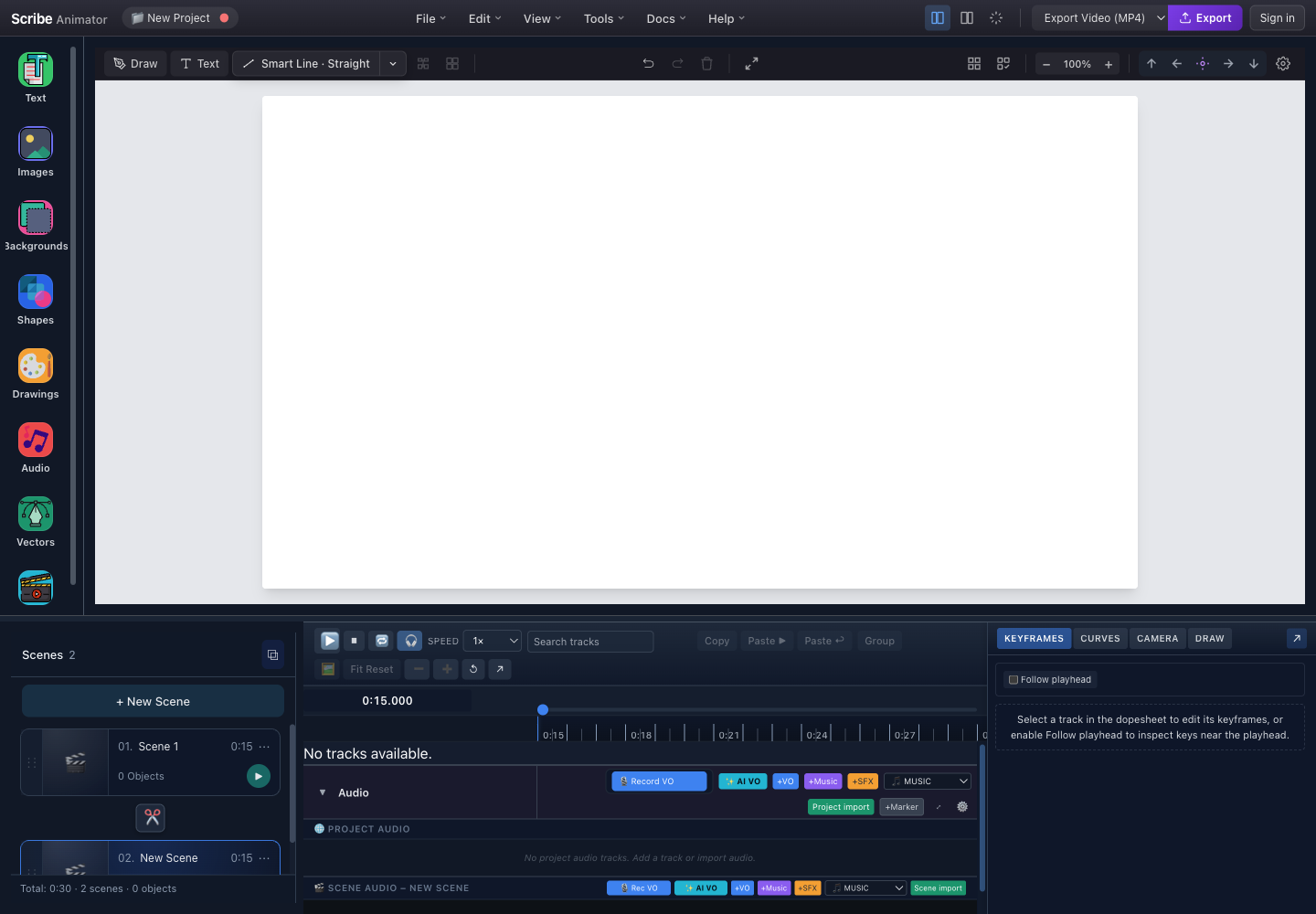
- Active projectThe header name identifies the complete editable project and its dirty state.
- Scene countThe scene manager reports that this one project contains two scenes.
- Scene 1A timed section inside the project; it owns its scene-local objects.
- Scene 2Another shot or beat in the same project, selected independently in the manager.
| Boundary | Use it for | Do not treat it as |
|---|---|---|
| Project | One complete editable production | A single shot |
| Scene | A timed shot or beat inside the project | A separately loadable library project |
| Template | Reusable structure or content to customize | An exact recovery backup |
.scribe package | Portable editable backup or handoff | A synced library record |
| Exported video | Viewing and delivery | Editable project data |
Limitations
- Library load/save and organization require authentication and network access.
- A browser-local checkpoint is not a named cross-device project library.
- Existing-project folder moves are not fully implemented in the organizer.
- There are no separate in-place Rename and Duplicate manager actions in this build; use Save As for a new named target.
- Complete loading may surface warnings for assets that cannot be resolved or promoted.
- Creating, importing, opening an example, and tutorial-starting can replace the active workspace.
- Mobile Lite condenses project actions into sheets and menus.
Troubleshooting and recovery
The library asks you to sign in
Library persistence is account-scoped. Sign in, then repeat Load, Save to Library, or Organize Projects. Use local save and .scribe export when you intentionally want an offline workflow.
A saved project is not in the expected folder
- Check the folder selected during the original save.
- Use Save As to Library (Complete)… and choose the correct folder for the new target.
- Do not rely on the current existing-project folder selector as proof that a move completed.
A project opens with missing media
- Avoid overwriting the source.
- Preview and inspect audio and visual assets.
- Reopen the source browser/device if it held local-only media.
- Import the latest complete
.scribepackage. - Replace only the unavailable references, then save as a new variant.
You replaced a project accidentally
- Reopen the prior library project with File → Load.
- Import your latest
.scribepackage if it was not in the library. - Accept a recovery prompt only after checking its project name and timestamp.
Keyboard and accessibility notes
Ctrl/Cmd+Screates a local checkpoint.Shift+Ctrl/Cmd+Sstarts a complete library save.Escapecloses the project manager and template chooser where supported.- File and project-menu triggers expose button semantics and expanded state.
- Save fields have visible labels; provide a unique project name before continuing.
- Project thumbnails can be decorative, so verify names and descriptions instead of relying on the image alone.
- Confirmations precede destructive delete and unsaved-project replacement actions.