Record your screen and turn steps into editable scenes
Scribe Animator's Desktop screen recorder captures a software walkthrough and turns it into structured editing material. A recording session can contain several steps. After review, each accepted step becomes one ordinary, editable Video-on-Canvas scene.
See the Screen Recording feature overview for the capture-to-editing story, or continue here for the complete controls, limits, and recovery workflow.
Screen recording is a Desktop web feature. Scribe shows Record screen only when the feature is enabled and the browser provides both display capture and media recording APIs. Native Android and iOS screen capture is not part of this workflow.
What screen recording creates
Screen Recording and Video on Canvas do different jobs:
| Stage | What Scribe does |
|---|---|
| Record | Captures the browser tab, window, or screen selected in the browser's native chooser |
| New Step | Finishes one independently playable clip and immediately starts another without asking for capture permission again |
| Review | Shows the real duration and file size of every valid recorded step |
| Add to project | Creates one scene per step, with one normal video object in each scene |
| Edit | Uses the standard video, timeline, annotation, camera, preview, save, and export tools |
Scribe uses short recording steps because each step becomes an editable scene that can be trimmed, annotated, zoomed, reordered, or explained independently. Think of one step as one task or idea—not as an arbitrary interruption.
Before you start
- Open the project that should receive the recording.
- Save a local checkpoint or
.scribebackup if the current project is important. - Close notifications or private windows that should not appear in the capture.
- Decide whether narration needs the microphone.
- Use a current Chromium desktop browser for the validated baseline.
- Test shared audio with the exact tab, window, or screen source you plan to select.
The browser owns the source chooser and permission. Scribe cannot remember or bypass that permission, and recording starts only after you choose Start recording and approve a source.
1. Open Record screen
Open Video in the Desktop toolbar, then choose Record screen. Upload video remains the path for an existing local file.
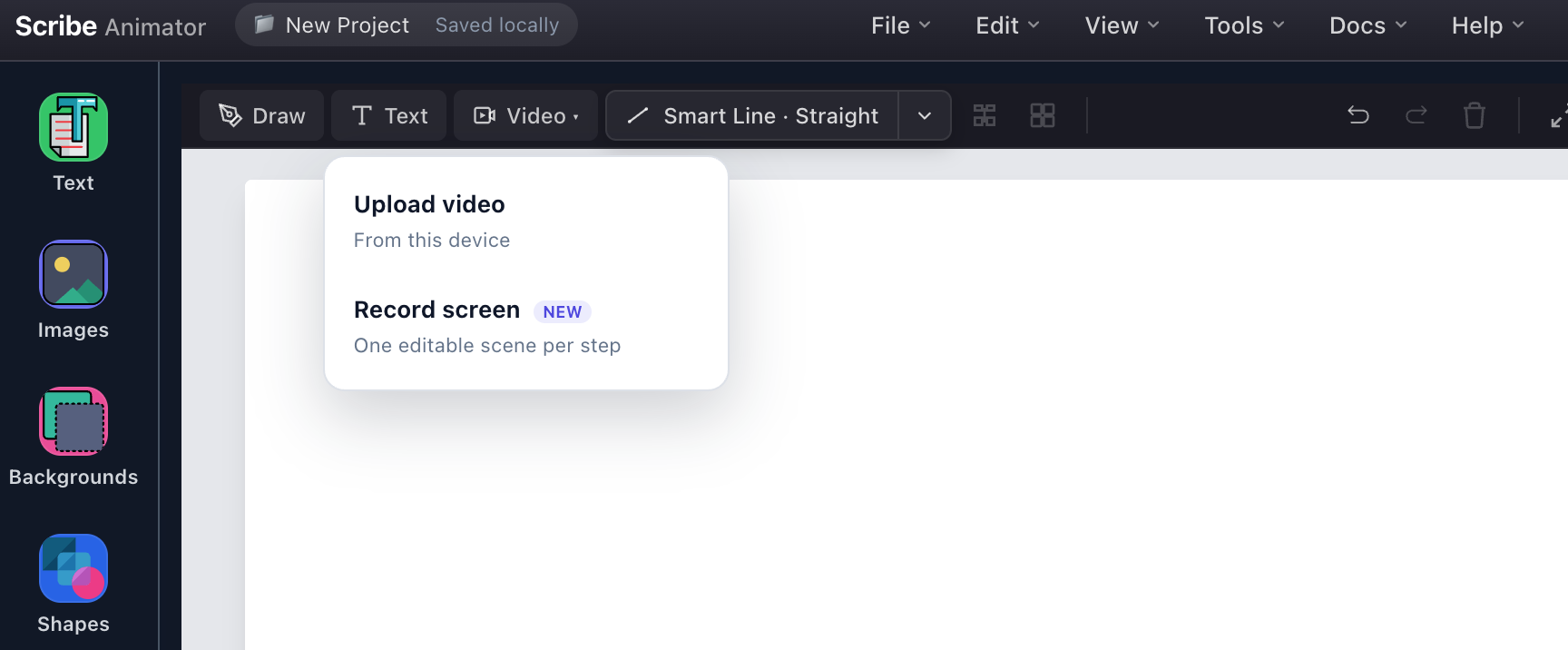
- Upload videoImports an existing local clip through the normal Video-on-Canvas intake.
- Record screenOpens the capture setup without changing the existing upload workflow.
If Record screen is absent, first confirm that you are using the Desktop
web editor, the feature is enabled for the build, and the browser permits
getDisplayMedia and MediaRecorder.
2. Configure the recording
The setup dialog keeps the V1 choices deliberately small:
- Microphone is optional and requested separately from display capture.
- Screen audio is requested, but the selected browser and source decide whether a shared-audio track is supplied.
- Recording requests up to 1920×1080, 30 fps, and about 4 Mbps video; the browser chooses the actual output.
- One step can contain at most 60 seconds of active recording.
- The complete session can contain at most 5 minutes of active recording.
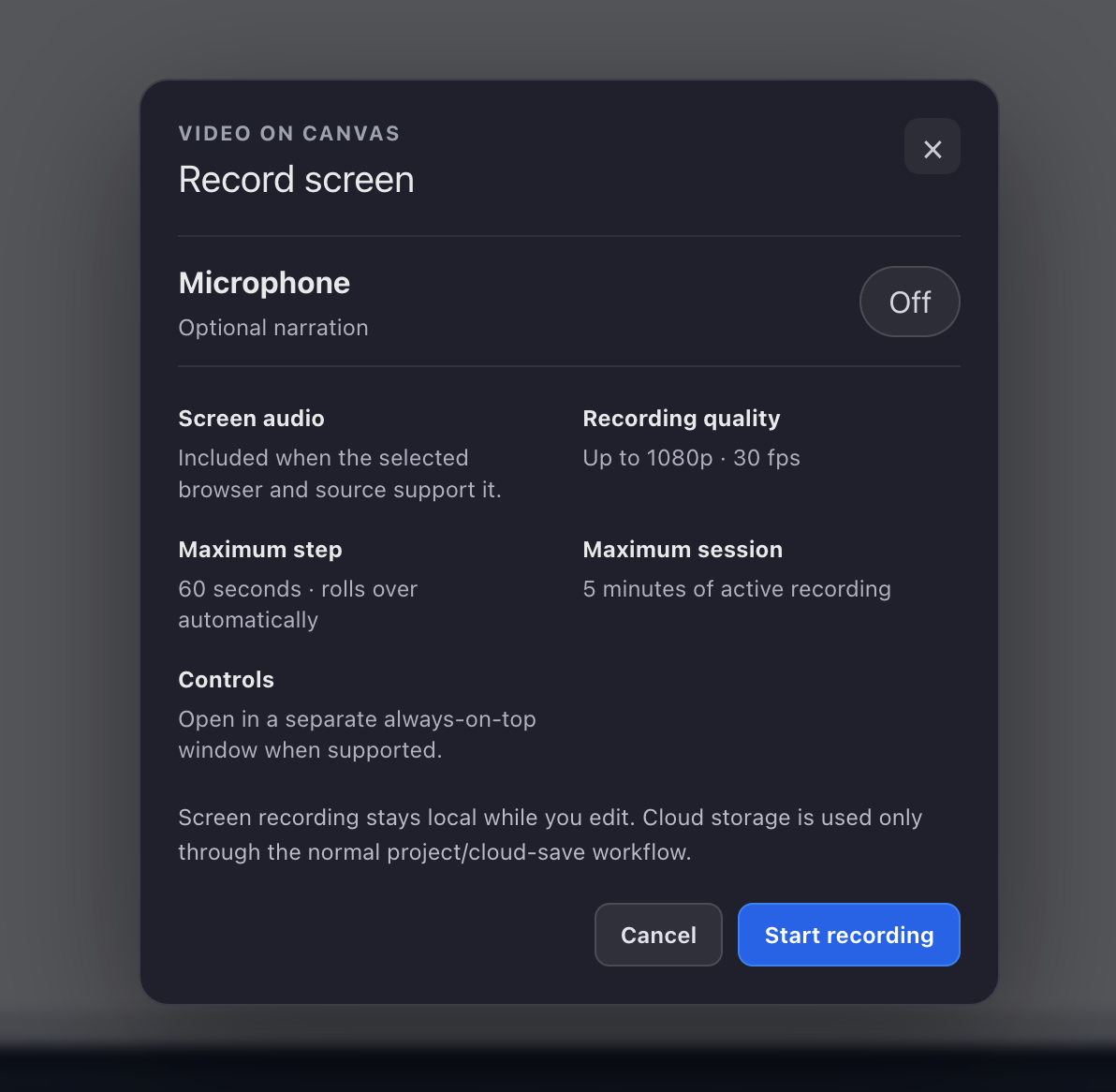
- Optional microphoneEnable narration only when needed; microphone denial does not have to cancel screen-only recording.
- Browser-dependent screen audioA tab may provide shared audio while a window or full screen may not.
- Quality and time limitsThe recorder requests up to 1080p at 30 fps, rolls each step at 60 seconds, and ends the session at five active minutes.
- Detached controls and local-first editingControls detach where supported. Recorded media remains local until the normal project save workflow uses cloud storage.
- Start recordingThis explicit action opens the browser-owned display-source chooser.
Choose Start recording, then select the browser tab, application window, or screen in the browser's native chooser. If the chooser offers an audio option, enable it only when that source should be heard.
3. Record the first step
After a source is selected, Scribe begins Step 1 and opens the compact recording controller. The default is a detached, always-on-top controller when the browser supports Document Picture-in-Picture. This lets you control the session while the editor tab is covered or while another window is active.
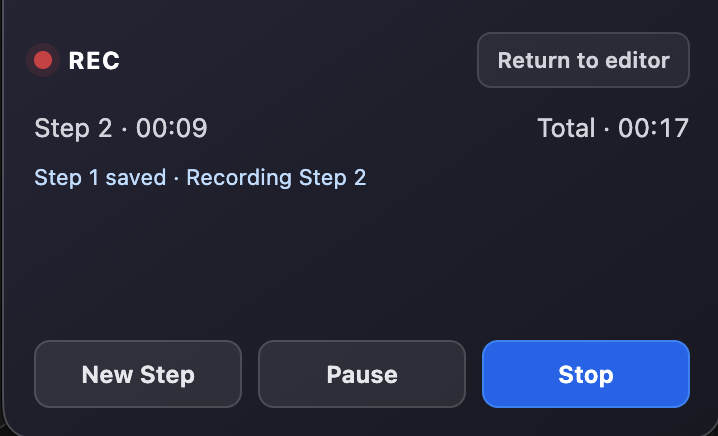
- Current stepThe step number and timer reset whenever a new step begins.
- Session totalTotal counts active recorded time across all steps and excludes paused time.
- New Step, Pause, StopFinish the current step, pause active recording, or finalize the session from the same compact row.
Paused time does not count toward the step or session limit. Choose Resume to continue the same step. The browser's own sharing indicator remains the authority for whether display capture is active.
4. Create a New Step
Choose New Step at the boundary between tasks or ideas. Scribe finalizes the current MediaRecorder segment as an independently inspectable video file and immediately starts the next segment over the same already-authorized display and microphone streams. The browser does not ask you to choose the source again.
Use a new step when:
- the viewer is moving to another screen or task;
- a different annotation or camera focus will be needed;
- a later edit should be reorderable without splitting footage manually; or
- the current explanation has reached a natural 30–45 second boundary.
At about 45 seconds Scribe recommends a new step. At about 55 seconds it warns that rollover is close. At 60 seconds it saves the current valid step and starts the next automatically while screen sharing continues.
5. Stop and review
Choose Stop when the walkthrough is complete. If the browser's Stop sharing action ends the selected display track first, Scribe finalizes the current valid step and ends the session cleanly. At five minutes of active recording, Scribe performs the same finalization automatically.
The review surface does not create another video editor. It reports the actual metadata produced by the browser and inspected by Scribe.
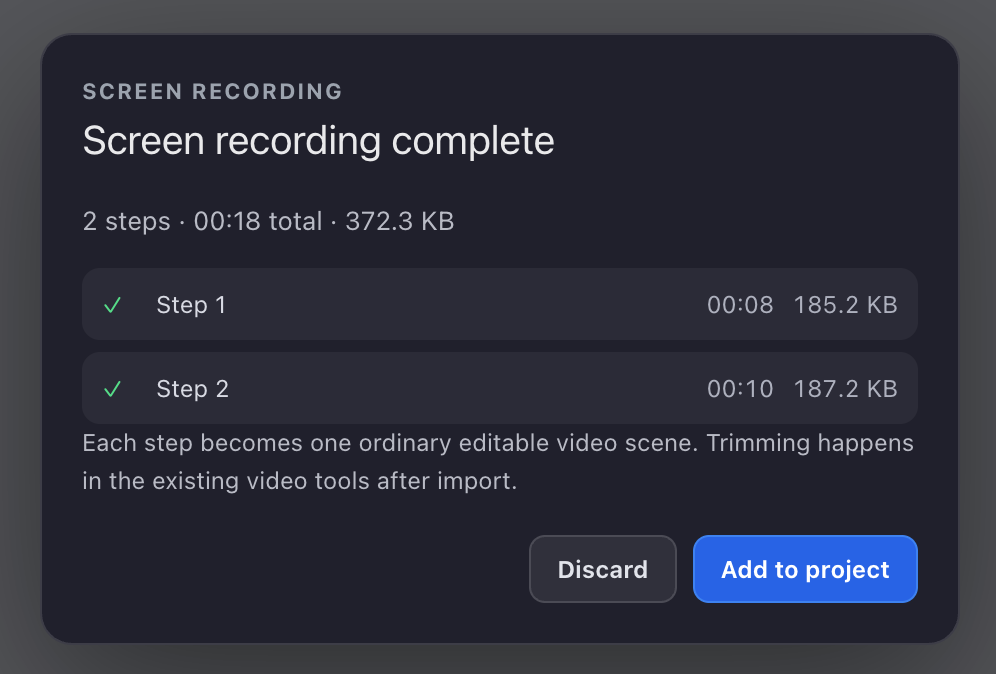
- Real recording summaryStep count, total inspected duration, and cumulative file size are based on completed media files.
- One row per valid stepEach row reports its own duration and actual file size before anything is inserted into the project.
- Add to projectCommits all valid steps as one coherent project action.
Choose Discard to remove the temporary recording-session media. Choose Add to project to accept all valid steps.
6. Add the steps to the project
If the active scene is effectively blank, Scribe can reuse it for Step 1 and append the remaining scenes. If the active scene already contains authored content, recording scenes are inserted after it. Existing work is not replaced.
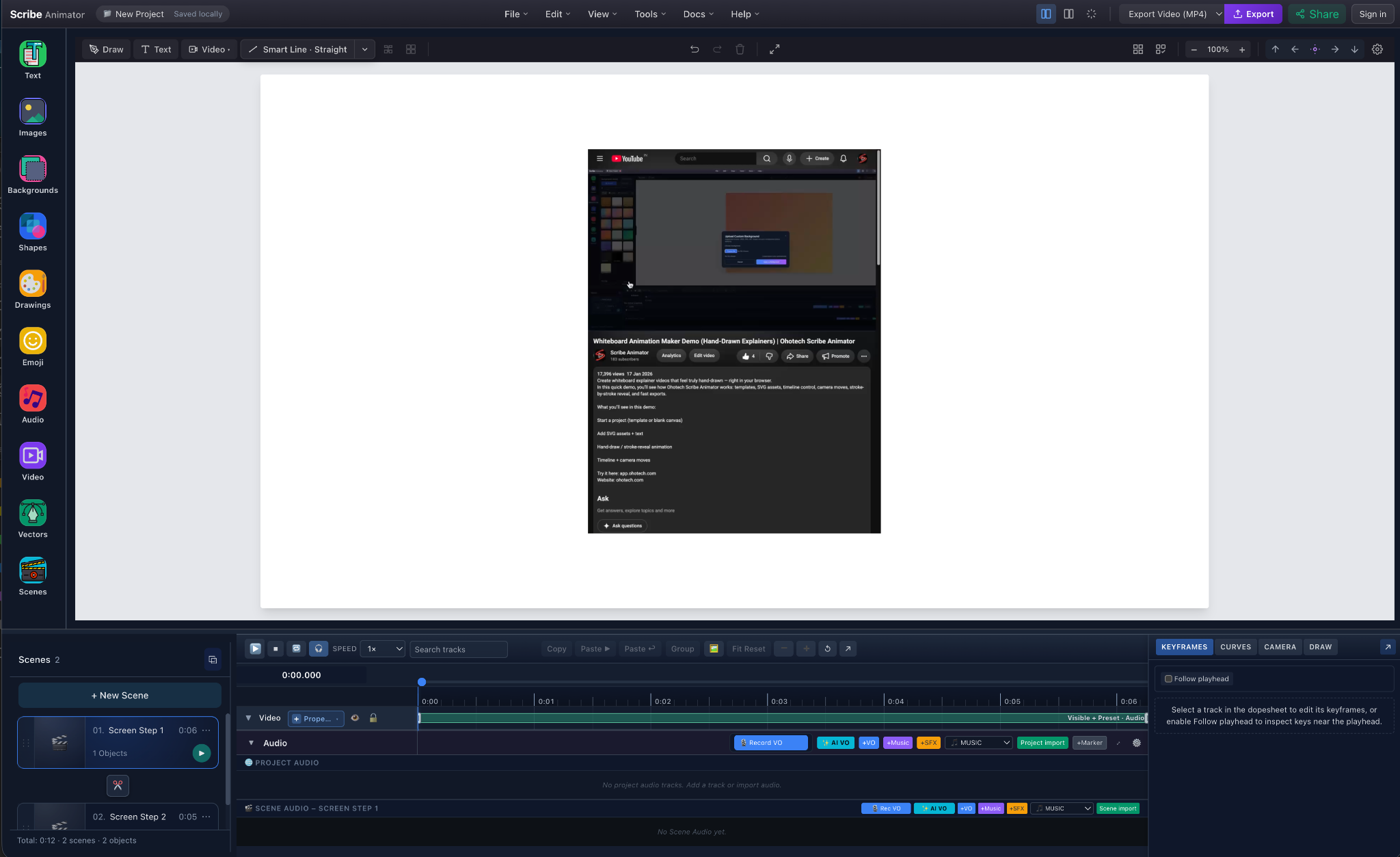
- Separate Screen Step scenesEvery recorded step receives its own generated scene name and position in the normal scene order.
- Normal video objectThe canvas selection has standard transform handles and no recording-specific playback mode.
- Ordinary video timelineThe clip starts at scene-local time zero and uses the existing Video-on-Canvas timing and embedded-audio contract.
Expected result: the scene list shows one Screen Step scene for every accepted step, in recording order. Selecting a scene reveals one object whose type and controls are the same as an imported local video.
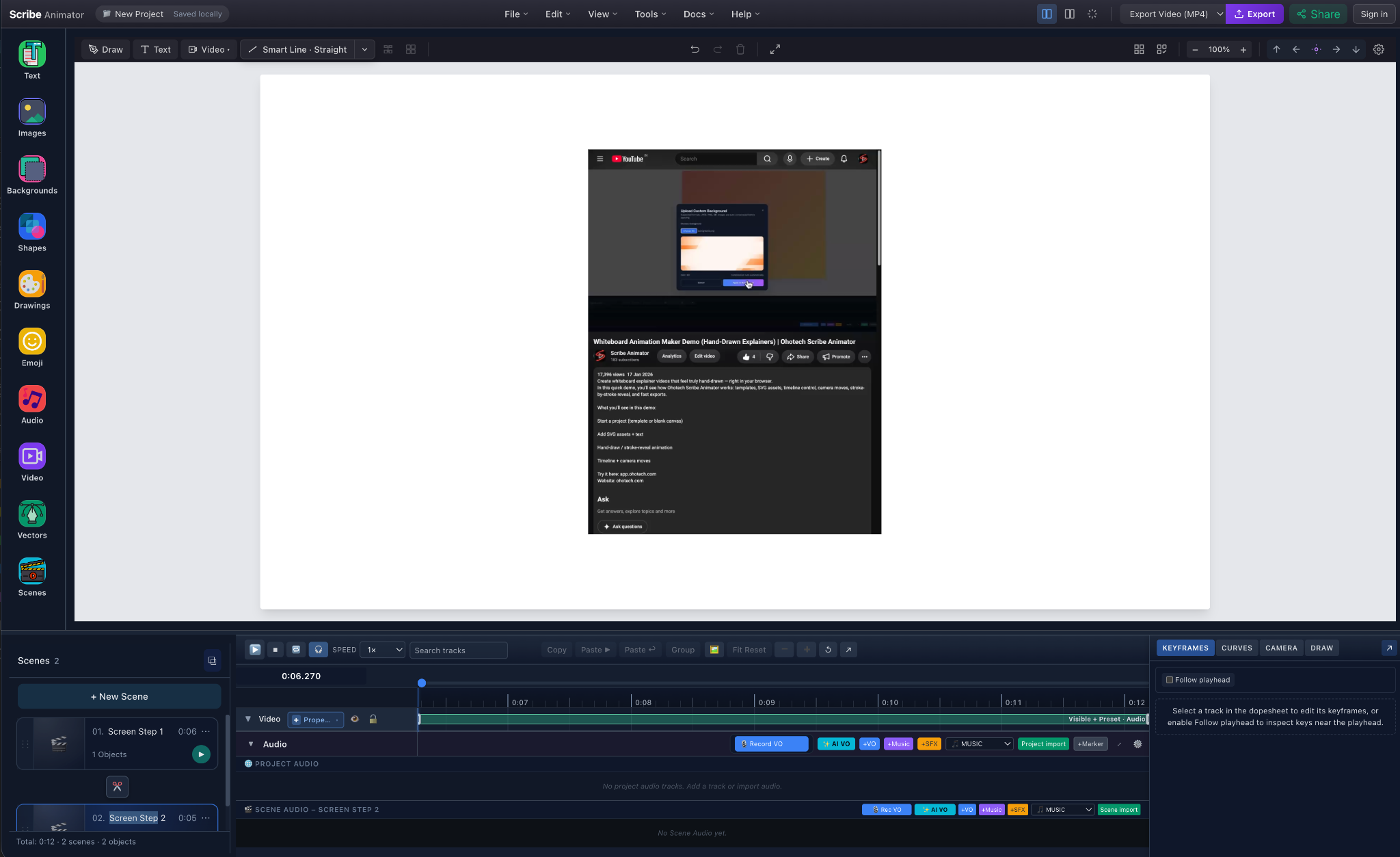
- Selected recorded sceneEach step can be opened, renamed, reordered, duplicated, or removed through normal scene controls.
- Recorded motion on canvasThe video object remains selectable and transformable while its source frame follows the shared playhead.
- Scene-local timingTrim, split, freeze, markers, audio, animation, and camera all evaluate against the normal scene timeline.
Continue with Import and explain video on the canvas to trim footage, split a clip, hold a frame with Freeze and Explain, add an annotation, reveal the video, or choreograph the camera.
Audio behavior
| Available source | Recorded result |
|---|---|
| Shared/display audio only | One video file with the provided shared-audio track |
| Microphone only | One video file with microphone narration |
| Shared audio and microphone | Scribe mixes both through the browser audio graph into one recording audio track |
| No audio | A valid silent video step |
| Microphone permission denied | Screen recording continues without the microphone and reports the fallback |
Shared or system audio is never universal. A browser tab is the most likely source to expose audio; a window, full screen, muted tab, browser policy, or operating-system restriction may provide none. After insertion, recorded audio is ordinary embedded video audio: mute, volume, fades, preview, and browser export use the Video-on-Canvas pipeline. Freeze and Explain silences that audio during the inserted hold, then resumes source playback afterward.
Local-first storage and cloud quota
Completed steps are persisted locally as temporary video assets while the session is active. Visible scenes are not created until Add to project. Discard, capture failure, project change, or abandoned review cleans the temporary session through the existing project-media lifecycle.
Recording itself does not silently upload captured frames. Cloud-backed saves continue to use the normal account/project storage policy. When Scribe can read current quota status, setup or review may warn that the estimated or actual recording size is approaching the remaining allowance. The warning is non-blocking: local recording and editing continue. The current Free plan's 200 MB cloud-storage quota is an account storage limit, not a 200 MB recording allowance.
Browser support and limitations
- A current Chrome or Chromium desktop browser is the validated baseline.
- Display capture requires
navigator.mediaDevices.getDisplayMedia. - Recording requires
window.MediaRecorderand at least one compatible MIME. - Detached controls require Document Picture-in-Picture. Chromium browsers can provide it; Safari does not, so Scribe keeps the controller in the editor when capture itself is available. Firefox commonly uses the same in-editor fallback.
- Screen/shared audio depends on both the browser and selected source.
- The requested 1080p, frame rate, and bitrates are targets, not guaranteed output.
- Each step is capped at 60 seconds; the complete session is capped at five minutes of active recorded media.
- This is not a long-form recorder, webcam recorder, live-streaming tool, or nonlinear video editor.
Troubleshooting and safe recovery
| Problem | What to do |
|---|---|
| Record screen is missing | Use the Desktop web editor, update the browser, confirm capture is allowed by browser/enterprise policy, and check that the feature is enabled |
| The browser chooser closes without recording | Start again and explicitly select a source; cancellation does not create a step |
| Microphone permission is denied | Continue screen-only or enable the microphone in browser/OS settings and start a new session |
| Shared audio is missing | Select a browser tab that is actively producing sound and enable the chooser's audio option; accept that some sources and browsers cannot provide it |
| Detached controls do not appear | Return to the Scribe editor and use the attached controller; Safari does not support the detached Document Picture-in-Picture controller |
| A step rolls over unexpectedly | The 60-second boundary is working; continue recording the next step and reorder or trim after insertion |
| Browser Stop sharing was selected | Review the valid steps already finalized; start a new session if more footage is needed |
| Project changed during capture | Return to the project where recording began and start again; Scribe does not insert temporary clips into a different project |
| Review shows no valid steps | Record long enough for the browser to produce non-zero playable media, then retry |
| Cloud warning appears | Continue locally, then free account storage or upgrade before relying on a complete cloud-backed save |
Result checklist
- Every accepted recording step appears as one scene.
- Every scene contains one selected, transformable video object.
- The video begins at scene-local time zero.
- Motion and available embedded audio play in preview.
- Trimming, Freeze and Explain, annotations, and Object Camera are available.
- Final preview and export keep scene order, video timing, overlays, camera, and audio together.