Import and explain video on the canvas
Video on Canvas turns footage into part of a Scribe explanation. A video is a normal scene-scoped object: move, resize, crop, animate, annotate, frame with the camera, preview, save, and export it alongside the rest of the project.
Video on Canvas is available in the Desktop editor. Mobile Lite support exists for development/testing and explicitly enabled native iOS/Android cohorts, but is not enabled by default in production mobile apps. Browser Mobile Lite remains read-only for video projects. Video objects and asset records are preserved when mobile editing is disabled. Device codec support varies: MP4/H.264/AAC is the portable baseline, and unsupported media is blocked rather than silently omitted. Native mobile screen recording is not available.
Need new footage? Record your screen directly in Scribe. Every accepted recording step enters the same Video-on-Canvas workflow described here.
After the scenes are created, StoryBeats can keep the visuals, drawing reveal, camera, and narration for each explanation idea in context while its timing changes.
What Video on Canvas is for
Use Video on Canvas when the audience should see real motion or interface behavior and then receive a structured explanation around it. It is especially useful for:
- short software demonstrations;
- recorded task steps;
- a product or physical-motion insert inside an animated explainer;
- pausing a precise frame while arrows, text, highlights, or camera movement play; and
- combining embedded source audio with narration, music, and scene timing.
Video on Canvas is not a long-form nonlinear editor. Reverse playback, speed ramps, stabilization, chroma key, transcription, object tracking, and professional color grading are outside the current workflow.
Before you import
- Keep the untouched source file outside browser storage.
- Use a clip no longer than 60 seconds and no larger than 100 MB.
- Prefer MP4/H.264/AAC for broad compatibility; WebM, MOV, and M4V still depend on the current browser's codecs.
- Save the project before replacing a source or reorganizing several clips.
- Plan one short idea or task per scene.
Files above 60 MB receive a large-file warning before the 100 MB hard ceiling. The one-minute duration limit applies to ordinary imported clips as well as recorded steps.
1. Import an existing local video
On Desktop, open Video → Upload video and choose a supported local file. You can also use the existing file-drop and clipboard File intake. Scribe inspects real duration, dimensions, MIME, audio presence, and compatibility; generates project-local media metadata; persists the bytes outside project JSON; and inserts a normal video object into the active scene.
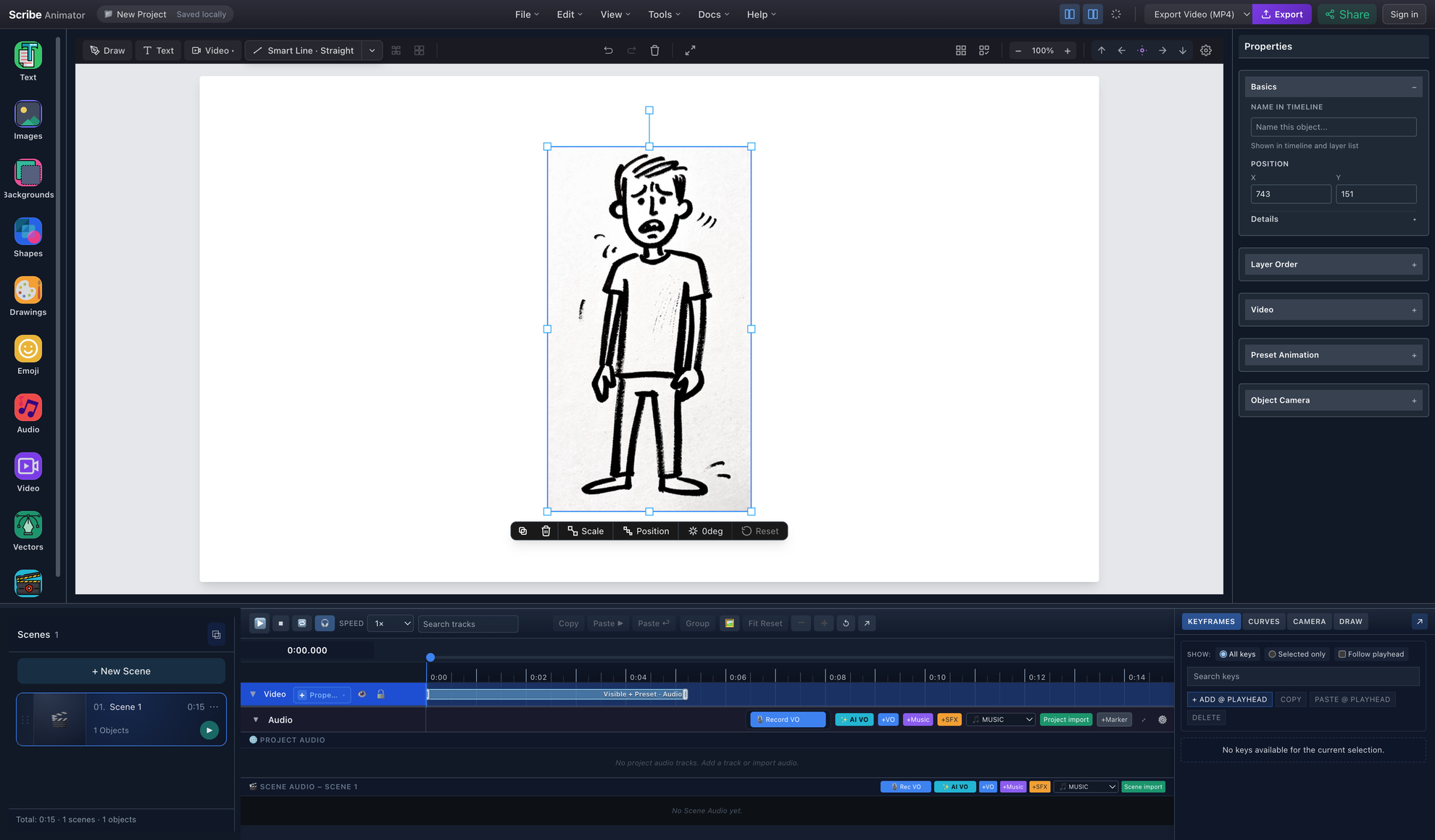
- Selected video objectTransform handles and the floating toolbar provide the same position, scale, rotation, duplicate, delete, and reset actions as other objects.
- Scene-scoped mediaThe video belongs to the active scene and participates in normal scene ordering and duration.
- Video timeline rangeThe track reports visibility, animation, and embedded audio against the shared playhead.
Expected result: the source frame appears on the canvas, the right inspector contains a Video section, and the timeline contains a Video track.
2. Frame, crop, trim, and split
Select the video and expand Properties → Video.
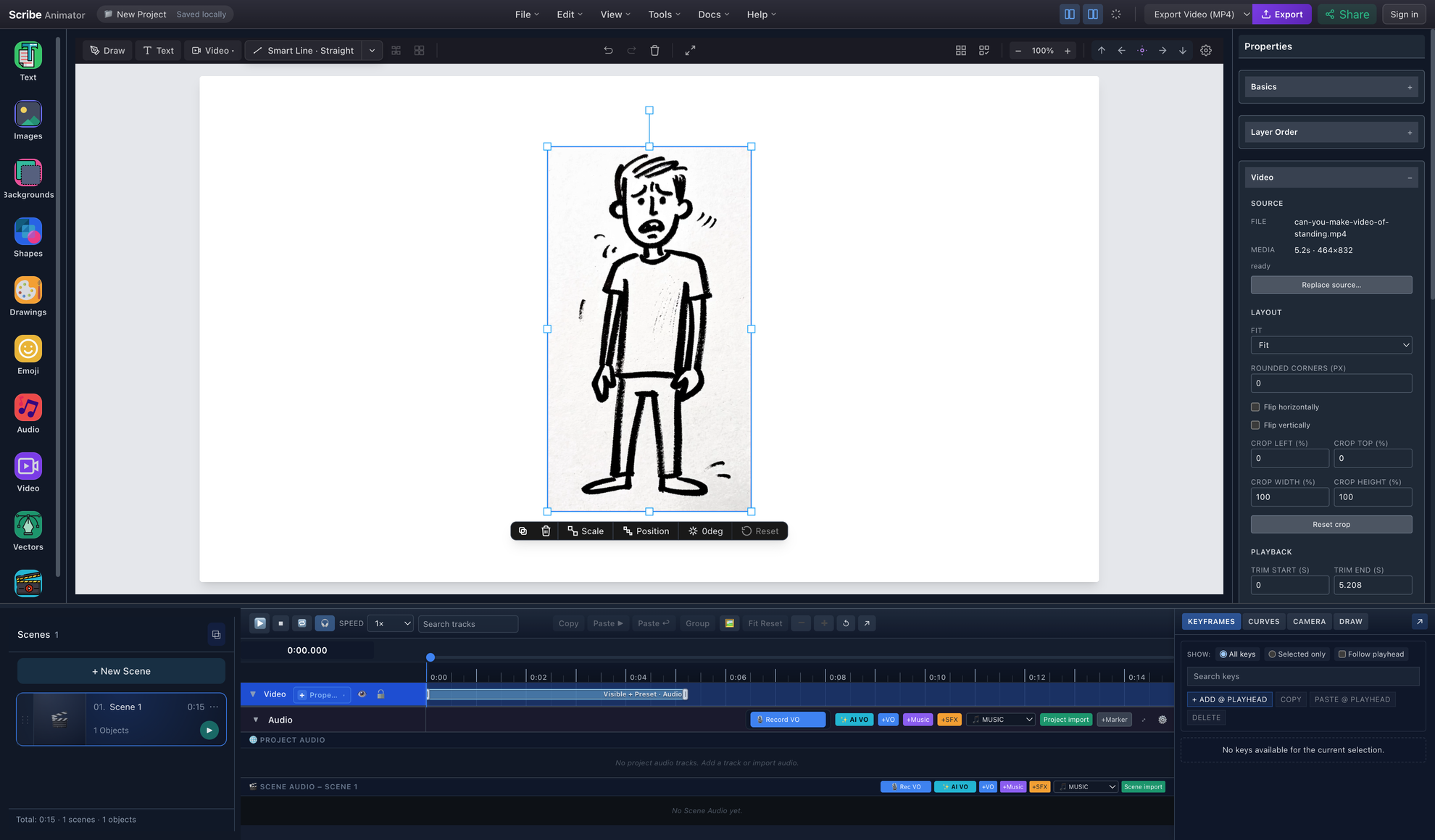
- Source and Replace sourceInspect file name, decoded duration and dimensions, compatibility, or relink the object without rebuilding it.
- Fit and cropChoose Fit, Fill, or Stretch; flip the media; set rounded corners; or crop each source edge.
- Trim boundariesTrim start and end are source-media times. The original project-local source is retained.
- Editable timeline rangeThe right edge can extend beyond media playback so end behavior has a visible tail.
Layout and crop
- Fit contains the complete source inside the object bounds.
- Fill covers the bounds and can crop overflow.
- Stretch fills both dimensions without preserving the source aspect ratio.
- Crop fields remove percentages from the left, top, width, and height of the displayed source.
- Normal canvas transform controls still move, resize, rotate, flip, duplicate, and layer the video.
Trim
Set Trim start and Trim end in seconds. Trimming changes which source frames and embedded-audio range play; it does not rewrite the original bytes. The video object's timeline duration updates from the trim and playback rate.
Split
Move the playhead inside the video and choose Split at playhead. Scribe creates two ordinary video objects at the seam. The first ends at the split; the second resumes from the matching source time. Markers, freezes, audio, and bindings are remapped through the existing video command rather than copied as unrelated metadata.
3. Set playback rate and end behavior
Choose a playback rate from 0.25×, 0.5×, 0.75×, 1×, 1.25×, 1.5×, or 2×. Video timing, markers, freezes, and embedded audio use the same rate mapping. Pitch preservation depends on the available media/export adapter; an export can block when it cannot preserve required embedded audio correctly.
End behavior matters only when the object's visible duration extends beyond the trimmed media duration:
| End behavior | Visual after media ends | Embedded audio |
|---|---|---|
| Freeze last frame | Holds the last decodable frame | Stops at media end |
| Hide | Removes the video visual and pointer target | Stops at media end |
| Loop | Returns to trim start and repeats the media | Repeats with the source loop |
At the object's visible-range end, all three behaviors hide. Extend the right timeline edge or Object visible duration to preview their difference.
4. Use Freeze and Explain
Freeze and Explain inserts explanatory time without corrupting source timing:
- Select the video.
- Place the playhead on the frame to explain.
- Open Properties → Video → Freeze and Explain.
- Choose Freeze at playhead.
- Adjust the hold duration if needed.
- Add text, a smart arrow, shape, drawing, highlight, or camera move during the hold.
- Preview through the hold and into the resumed footage.
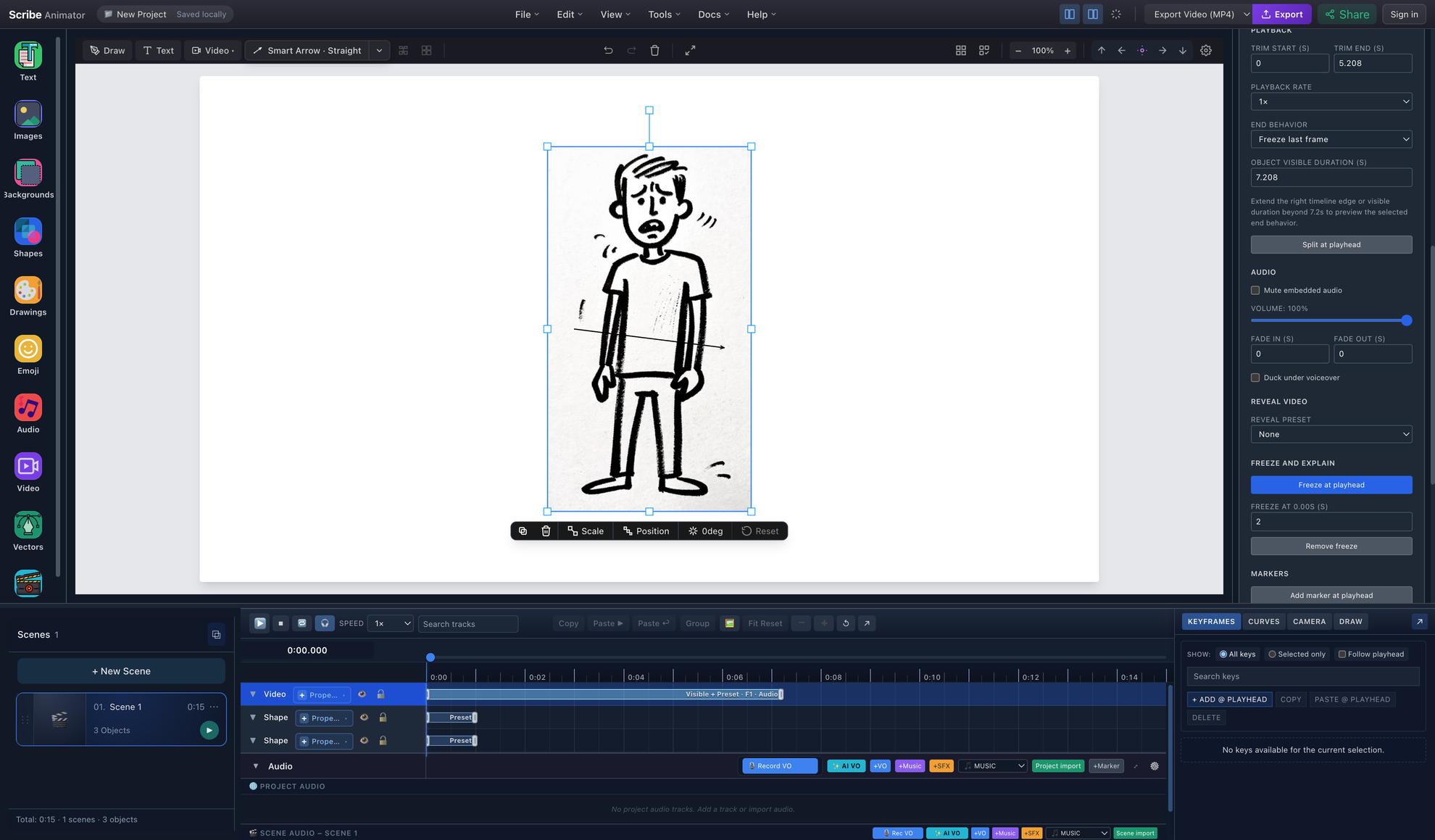
- Ordinary annotation over videoText, arrows, shapes, drawings, and highlights remain separate editable objects—not pixels baked into the source.
- Embedded audio controlsMute, volume, fade in/out, and voiceover ducking stay linked to the selected video.
- Reveal VideoUse a reveal preset for decoded video instead of SVG Draw In.
- Source-anchored holdThe hold keeps the source frame fixed, silences embedded audio, lengthens the object range, and then resumes the next source frame.
- Timeline grows with the holdPreview and export use this same expanded scene-local timing.
During the hold, the displayed frame remains fixed and the video's embedded audio is silent. Other Scribe objects and camera actions continue to evaluate. When the hold ends, source motion and audio resume at the correct next time. If the expanded object reaches the scene boundary, Scribe grows the scene in the same undoable edit.
5. Reveal and animate the video
Video does not use SVG stroke Draw In. Choose Reveal Video instead. Current presets include horizontal and vertical wipes, centre reveal, circle reveal, frame expand, brush reveal, and hand-swipe reveal.
Reveal affects the outer video container. General Preset Animation and property keyframes remain available for position, scale, rotation, opacity, entry, and exit behavior. A source loop does not restart the entrance animation; the video's transform continues according to the object timeline.
6. Add markers and annotation bindings
Move the playhead and choose Add marker at playhead. Marker types include Important moment, Explain here, User click, Action start/end, Camera focus, Scene split, and Voiceover start. Rename markers so the timeline intent remains clear to another editor.
To bind an annotation:
- Add a supported text, image, SVG, shape, drawing, smart line/arrow, or group in the same scene.
- Select the video and open Bindings.
- Choose the annotation.
- Bind it to a source range, marker, or freeze segment.
- Check the active/broken binding status after trimming, changing speed, or splitting.
Scribe remaps supported relationships or marks them for repair instead of silently discarding them.
7. Choreograph Object Camera over video
Object Camera uses the same shared camera track as other Scribe objects:
- Select the video.
- Open Properties → Object Camera.
- Switch the scene from Fixed Scene Camera to Track if prompted.
- Choose Tight, Medium, or Wide framing.
- Set the scene-local start time and move duration.
- Choose Continue or Revert.
- Select Add Camera.
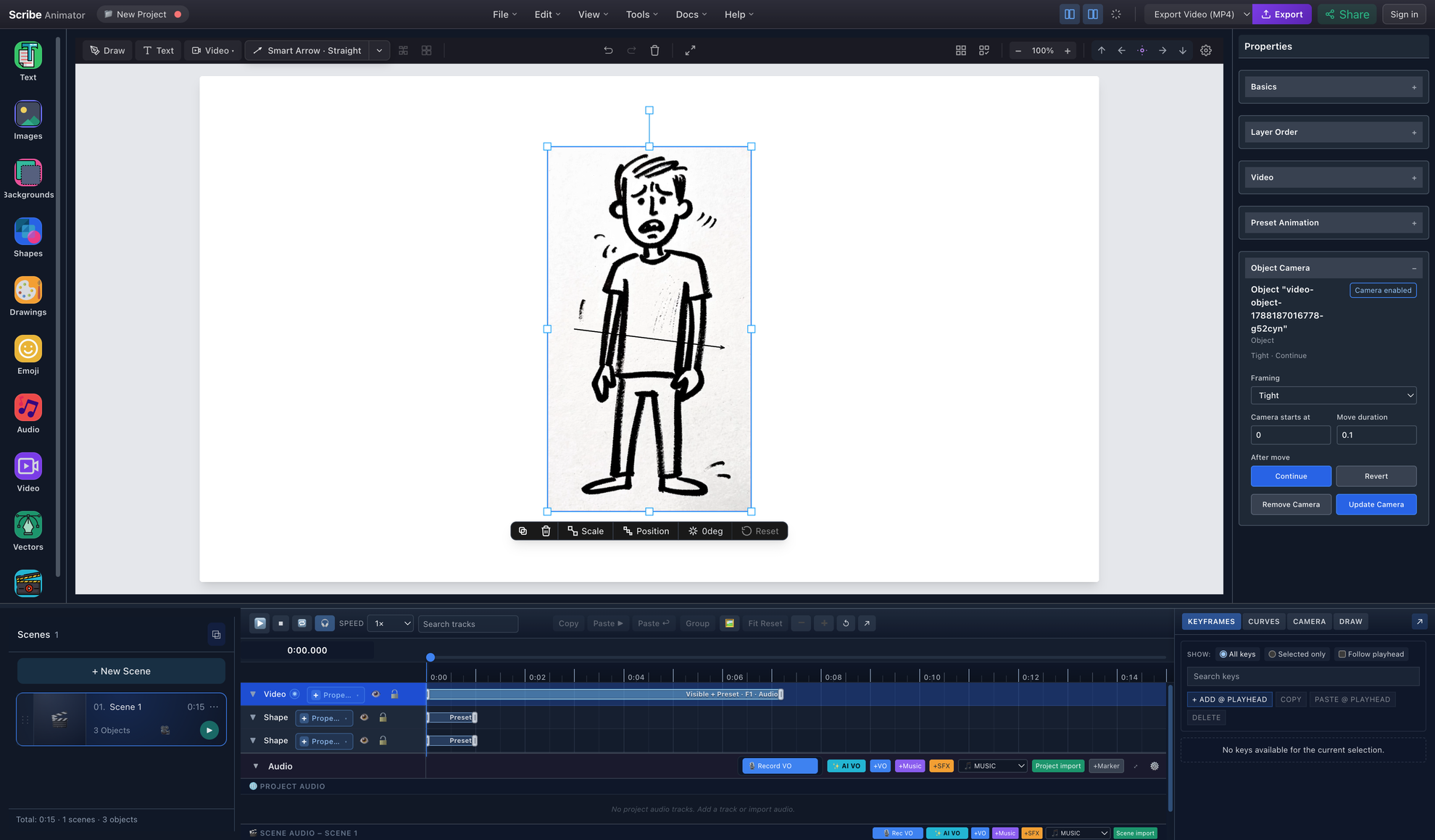
- Video and annotation remain separateCamera choreography can frame the source and its overlay without flattening either object.
- Object Camera enabledFraming, start, duration, Continue/Revert, Update, and Remove use the existing object-camera workflow.
- Shared timeline ownershipThe camera indicator belongs to the normal video track and evaluates in scene-local time.
For manual keys, Follow Hand, Follow Object, draw-step framing, and overlap rules, continue with Frame the story with camera moves and paths.
Embedded synchronized audio
Embedded audio remains linked to the video object by default:
- trim and split preserve the matching source-audio interval;
- move, pause, seek, loop, and playback rate use the same video time mapping;
- Freeze and Explain silences embedded audio only for the inserted hold;
- Mute embedded audio affects the video, not project audio or voiceover;
- Volume, Fade in, and Fade out shape the linked source audio; and
- Duck under voiceover lowers it over derived voiceover ranges.
Do not add a second copy of the same source audio to a normal audio track unless you intentionally want double playback. The initial public workflow does not expose Extract Audio.
Preview and browser export
Preview the complete scene, including the moment before and after every trim, split, freeze, loop, annotation, binding, and camera move. Then use the normal browser video export.
The exporter waits for the required decoded video frame, renders it with the canvas and overlays, and deterministically mixes embedded video audio with project audio and voiceover. Missing or unsupported media is reported; video is not silently skipped.
Expected result: the downloaded MP4 preserves the visible video frame, scene order, annotations, reveal, object animation, camera choreography, freeze timing, and audible embedded source audio exactly once.
Save, reopen, and replace a missing source
Project JSON and undo history store asset references and metadata—not video
Blob bytes. Local media is persisted in the existing project-scoped repository.
Normal Save As, cloud promotion, .scribe packaging, cloning, and orphan
cleanup use that same project-media lifecycle.
If Scribe reports a missing source, select the placeholder and choose Replace source…. Pick the original file or a compatible replacement. Relinking keeps the object and its authored scene/timeline relationships where the replacement can satisfy them.
Troubleshooting and safe recovery
| Problem | What to do |
|---|---|
| File is rejected as too long | Trim it externally to 60 seconds or less, or import separate task clips |
| File is rejected as too large | Use a clip below the 100 MB hard ceiling; convert or shorten it rather than changing project metadata |
| File imports but cannot preview | Convert to MP4/H.264/AAC or another codec decoded by the target browser |
| No sound | Confirm the source actually has audio, Mute embedded audio is off, volume is above zero, and the browser can decode the audio codec |
| End behavior appears unchanged | Extend Object visible duration or the right timeline edge beyond the trimmed media duration |
| Freeze is on the wrong frame | Remove it, place the playhead on the intended source moment, and add Freeze at playhead again |
| Annotation binding needs repair | Open Bindings after trim, rate, or split changes and recreate the reported broken relationship |
| Object Camera is disabled | Switch the scene camera mode to Track, then return to the selected video's Object Camera section |
| Export reports missing/unsupported video | Replace the source or convert it; do not rely on a preview placeholder as final output |
| Audio doubles in export | Remove the duplicate standalone track or mute one intended source; embedded audio is already exported with the video |
Result checklist
- The source appears as a normal selected video object and timeline range.
- Trimmed footage starts and ends on the intended frames.
- Split clips meet at the intended source moment.
- Freeze and Explain holds the frame while annotations or camera motion play.
- Reveal Video and normal object animation play at the intended time.
- Markers and bindings remain active after timing edits.
- Embedded audio is audible once, silent during freezes, and synchronized after resume.
- Preview and the downloaded MP4 match.
Related guides
- Record your screen and turn steps into editable scenes
- Animate with the timeline
- Organize related timing with StoryBeats
- Frame the story with camera moves and paths
- Add voiceover, music, and synchronized audio
- Choose and verify an export
- Supported import and export formats
- Known limitations, offline use, and cloud boundaries