Supported import and export formats
File support has three separate meanings:
- the picker lets you choose a file;
- the current browser or native runtime can decode it; and
- Scribe can preserve the required behavior through save, reopen, preview, and export.
A listed extension confirms the first boundary, not every codec variant or malformed file. The matrices below reflect frontend@2.0.0, with structured import and public export changes reviewed on 7 October 2026.
Project and structured-content input
| Input | Entry point | What it becomes | Important limitation |
|---|---|---|---|
.scribe | File/Project Files → Import .scribe | The active editable project, scenes, timeline, and supported packaged assets | Import replaces the current workspace; back it up first |
Scribe Template v1 .json | File → Import AI JSON | A validated project, scene, or block template | JSON must match or normalize to the current template schema |
.scribe-template | Project-template file picker | A project/scene/block template envelope | It is template JSON, not a .scribe ZIP package |
.scribe-scene | Scene-template file picker | One validated scene template | Apply mode determines whether the current scene is replaced or appended |
| Pasted JSON | AI JSON import | The same validated structured template data | Prototype-pollution keys, excessive depth/size, invalid IDs, and broken references are rejected |
Use .scribe for an editable backup or handoff. Use template JSON for reusable or generated structure. Renaming one format to another does not convert it.
Template JSON can also preserve validated procedural source on a procedural object. It must satisfy the current recipe and relationship contracts; arbitrary generated JSON is not executable drawing code. Follow AI JSON import for validation and procedural drawings for the supported source and component workflow. Inspect import warnings and the resulting objects before replacing a working project.
Visual input
Vector Import
| Format | Current Desktop chooser | Processing path | Notes |
|---|---|---|---|
SVG (.svg) | Yes | Sanitize, parse, normalize, and extract paths | Scripts and SVG animation are removed or rejected |
SVGZ (.svgz) | Not advertised | Lower-level guarded decompression exists | Decompress to plain SVG for the reliable public workflow |
| PNG | Yes | Raster preprocessing and optional tracing | Good for transparency and flat artwork |
| JPEG/JPG | Yes | Raster preprocessing and optional tracing | Good for photographs; no alpha channel |
| WebP | Yes | Raster preprocessing and optional tracing | Browser decode support is required |
| GIF | Yes | Raster preprocessing; supported source bytes can retain animated-image behavior | Test preview and export on the target platform |
| BMP | Yes | Raster preprocessing and optional tracing | Usually larger; convert when intake is slow |
| TIFF/TIF | Yes | Raster preprocessing and optional tracing | Decode support can vary; PNG is a safer fallback |
The image preprocessor does not currently promise HEIC/HEIF or AVIF decode. Convert those files to PNG, JPEG, or WebP before import.
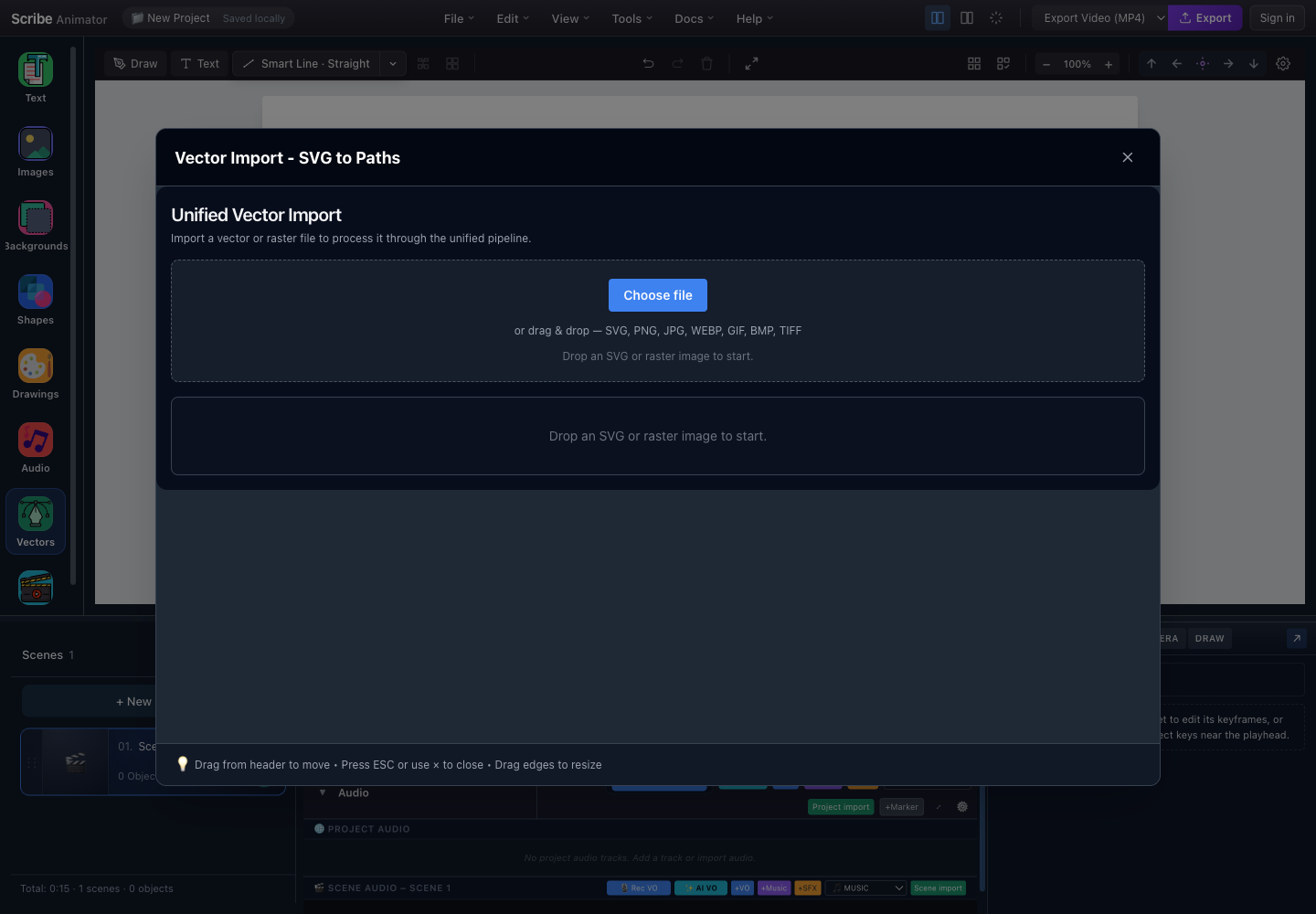
- File intakeChoose or drop one trusted source for sanitization, preprocessing, or tracing.
- Visible format contractThe current chooser explicitly lists SVG, PNG, JPG, WebP, GIF, BMP, and TIFF.
- Validated resultInspect the processed preview, warnings, dimensions, path count, and chosen output before placement.
Normal images and backgrounds
| Surface | File choices shown by that surface |
|---|---|
| Mobile Lite image insertion | PNG, JPEG, WebP, GIF |
| Desktop custom background | JPEG, PNG, GIF |
| Mobile Lite custom background | PNG, JPEG, WebP |
| Desktop custom/image library upload | The individual picker declares its accepted raster formats; use the visible list |
Background and image-object workflows are not interchangeable. A background is not a normal selectable, timed object.
Video input and screen recording
| Input | Current Desktop entry point | What it becomes | Important boundary |
|---|---|---|---|
| MP4 or M4V | Video → Upload video, file drop, or clipboard File | One ordinary scene-scoped video object | Container and codec must decode in the current runtime |
| WebM | Video → Upload video, file drop, or clipboard File | One ordinary scene-scoped video object | Safari and native WebView codec support can vary |
| MOV/QuickTime | Video → Upload video, file drop, or clipboard File | One ordinary scene-scoped video object | HEVC support depends on the Apple/browser environment |
| Browser screen capture | Video → Record screen | One ordinary video scene per accepted recording step | Desktop web only; requires getDisplayMedia and MediaRecorder |
Local video intake warns above 60 MB, rejects one clip above 100 MB, and rejects a clip longer than 60 seconds. Screen recording preserves that one-minute clip architecture: a complete session can contain several steps, but each step is independently recorded and inspected before it can become a scene. The overall recorder stops after five minutes of active captured time.
The recorder negotiates MP4 or WebM output from the formats the current browser actually reports as supported. It does not infer validity from the MIME label: every completed step passes through the same metadata inspection, project-local asset repository, renderer, persistence, and export path as an uploaded file. The resulting recording container is input media; the public final-video output remains MP4/H.264.
See Record your screen and turn steps into editable scenes and Import and explain video on the canvas for the task workflows.
Audio input
The current Mobile Lite audio picker lists:
- MP3;
- M4A and AAC;
- WAV;
- OGG;
- WebM audio;
- FLAC;
- AIFF;
- CAF;
- Opus;
- WMA;
- AMR; and
- MP4 containers that contain decodable audio.
Desktop audio surfaces accept browser-recognized audio/* files. In both cases, the browser, WebView, or native decoder determines whether the codec inside the container is playable.
For the most portable project and export workflow:
| Choice | Recommended use |
|---|---|
| MP3 | Compressed music, narration, or sound effects |
| WAV | Predictable local recording/generation and uncompressed interchange |
| M4A/AAC | Apple/mobile-origin audio after a target-device test |
| OGG/WebM Opus | Browser-origin recording after a cross-platform decode test |
The current media-upload policy limits one account/cloud audio upload to 5 MB. This is an upload boundary, not a claim that every larger local file can or cannot decode.
Direct output
| Output | Current public status | Preserves | Does not preserve |
|---|---|---|---|
| MP4/H.264 video | Active | Rendered scenes, animation, camera, drawing, and mixed audio when supported | Editable Scribe objects and timeline controls |
| Static SVG export | Unavailable | Retained internal implementation only | No download menu or public automation/WebMCP command |
.scribe project package | Active | Editable project snapshot and supported packaged assets | Guaranteed availability of preserved external URLs |
| WAV voiceover | Available from the local voiceover workflow where generation/download is supported | Generated audio waveform | Project scene/timeline structure |
| Locally generated music | Generated and added through Desktop Generate Music | An ordinary project-local audio asset and music clip with generation provenance | Narration, semantic understanding of scene content, or automatic cloud synchronization |
| Template JSON | Available through documented structured template workflows | Reusable project, scene, or block structure | A rendered final video or universal packaged media |
The video exporter clamps requests to MP4 even if an older integration asks for WebM. WebM is not an end-user video output in the current interface.
Scribe does not currently advertise direct GIF, animated SVG, PNG-sequence, or JPEG-still export as a supported public delivery format.
SVG export was withdrawn from both the download menu and public automation
contract. Existing SVG files can still be imported and animated. For an old
workflow that requested SVG output, keep the original artwork separately, use
MP4 for rendered motion, and use .scribe for editable project transfer.
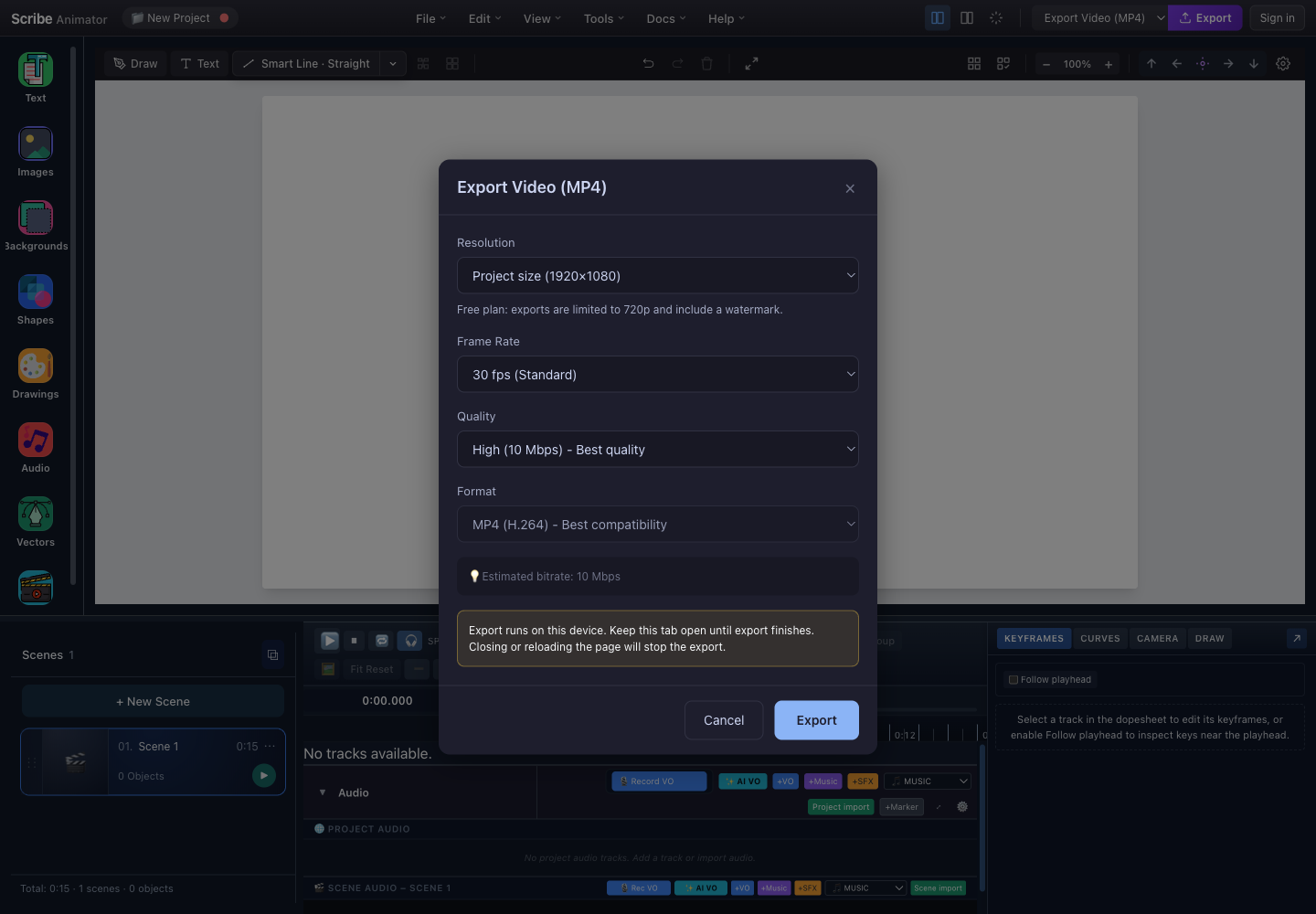
- ResolutionChoose project size, 1080p, 720p, or 480p; the active plan can clamp the effective result.
- Frame rate and quality24, 30, or 60 fps and the selected bitrate change render work and file size.
- MP4 outputThe visible final-video format is MP4 using H.264.
- Local render boundaryKeep the app open and foregrounded until encoding and download finish.
.scribe package limits
The importer validates archive structure before replacing the project. Current hard acceptance ceilings include:
| Boundary | Maximum |
|---|---|
| Package file | 200 MB |
| Files in archive | 10,000 |
| Total uncompressed content | 500 MB |
| One extracted file | 200 MB |
| Manifest JSON | 5 MB |
| Snapshot JSON | 50 MB |
| Project objects | 10,000 |
These are security ceilings, not recommended project sizes. A project close to a ceiling can still exceed device memory or be impractical to edit.
The package exporter applies separate soft and hard embed budgets while collecting assets. If a source cannot be embedded, the manifest can retain a reference and warning. Always reopen an important package in a clean test session.
Format verification checklist
After any import:
- confirm scene count, canvas size, and object count;
- inspect transparent and cropped edges;
- preview animation and audio from the beginning;
- save to a new target;
- close and reopen;
- verify remote or local assets still resolve; and
- retain the untouched source file.
After any export:
- open the downloaded file outside Scribe;
- verify dimensions and duration;
- inspect the first scene, transitions, and last frame;
- listen for missing or drifting audio;
- inspect thin strokes and small text at 100%; and
- keep the
.scribesource separately.