Reproducible examples and product preview
These examples use first-party inputs with no customer data, external media, or unverifiable outcome claims. They are designed to answer a narrower question than a showcase: can another reader repeat the same supported product workflow and inspect the result?
Download the deterministic project example
Download scribe-first-party-workflow.json
| Property | Value |
|---|---|
| Format | Scribe Template v1 project JSON |
| Schema version | 1 |
| Timing semantics | scene-local-v1 |
| Canvas | 1280 × 720 |
| Frame rate | 30 fps |
| Scenes | 2 × 5 seconds |
| External assets | None |
| Object types | Text and shapes |
| Animation | Fade, scale, and slide presets |
| Intended import | Import AI JSON → Project |
This JSON is intentionally readable before import. It is not a .scribe package and must not be renamed to .scribe.
Applying a project JSON can replace the active workspace. Save locally and export a .scribe backup before continuing.
Worked example: a two-scene explainer
Communication goal
Build a ten-second sequence that makes one recommendation and then shows a three-item verification checklist.
Why the example is structured this way
| Decision | Reason |
|---|---|
| Two scenes | Separates the idea from the action checklist |
| Asset-free | Removes network, CORS, font-file, and media packaging variables |
| 1280 × 720 | Keeps a common 16:9 review frame without demanding a high-resolution source |
| Preset animation only | Makes timing inspectable without requiring custom keys or Draw Steps |
| Five seconds per scene | Leaves enough reading time while keeping the verification run short |
| Explicit source IDs | Preserve source relationships; imported runtime object IDs are remapped to prevent collisions |
1. Inspect the source
- Download the JSON.
- Open it in a trusted text editor.
- Confirm
schemaVersionis1. - Confirm
meta.typeisproject. - Confirm
requiredAssetsis an empty array. - Confirm the two scene IDs are
scene-introandscene-check. - Do not add scripts, remote URLs, credentials, or private content.
2. Import through the real product boundary
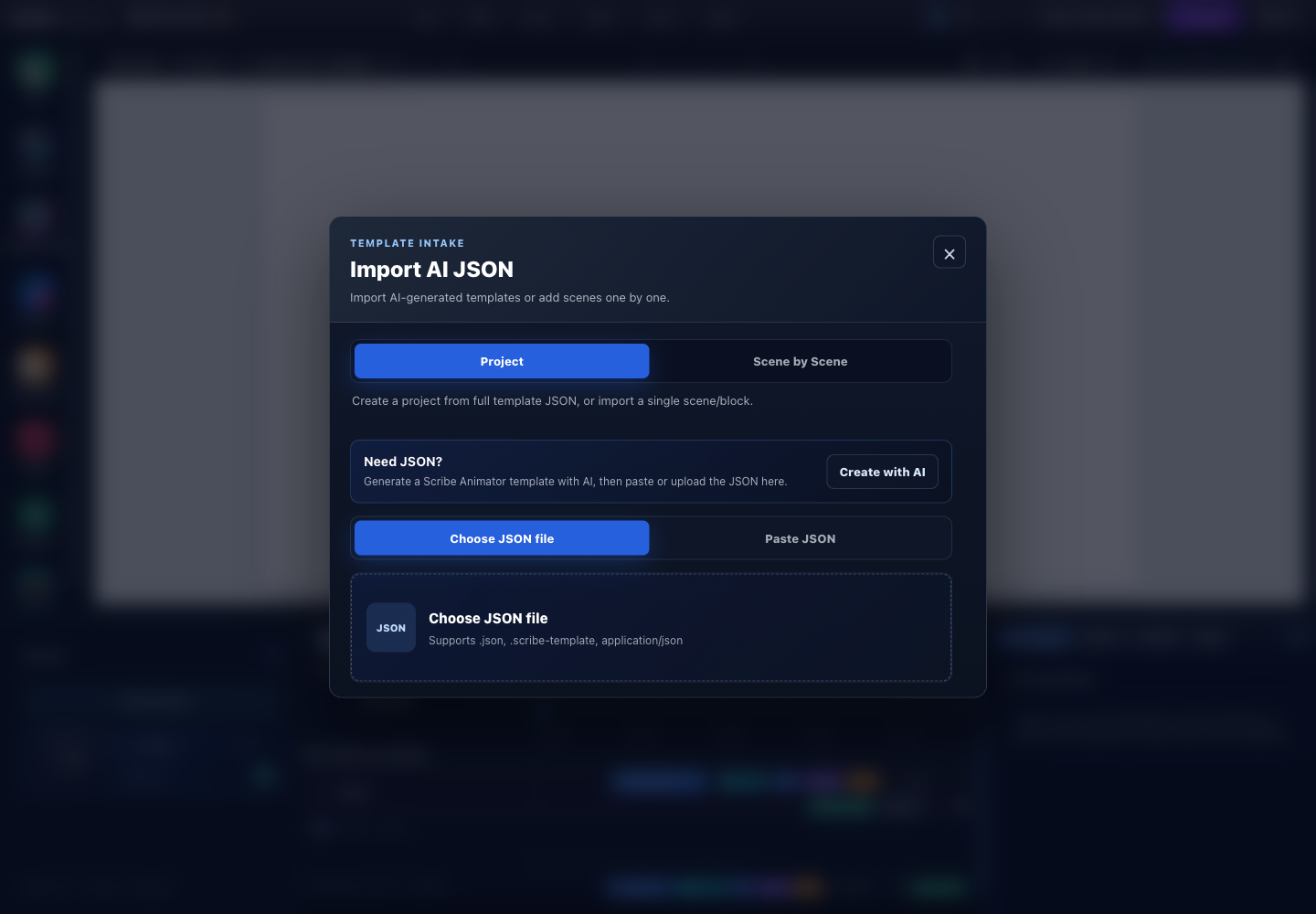
- Project modeApplies a complete project-shaped template rather than one scene or block.
- Choose JSON fileSelect the downloaded first-party JSON from the current device.
- Validated intakeThe current picker accepts JSON and project-template input before showing the review/apply action.
- Open the Scribe editor.
- Save the current project.
- Open File → Import AI JSON.
- Select Project.
- Select Choose JSON file.
- Choose
scribe-first-party-workflow.json. - Read the validation summary.
- Apply it only when the type, dimensions, scene count, object count, and warnings match your expectation.
Expected result: the active project is named Scribe First-Party Workflow, has a 1280 × 720 canvas, two scenes, and ten seconds total duration.
3. Verify scene structure
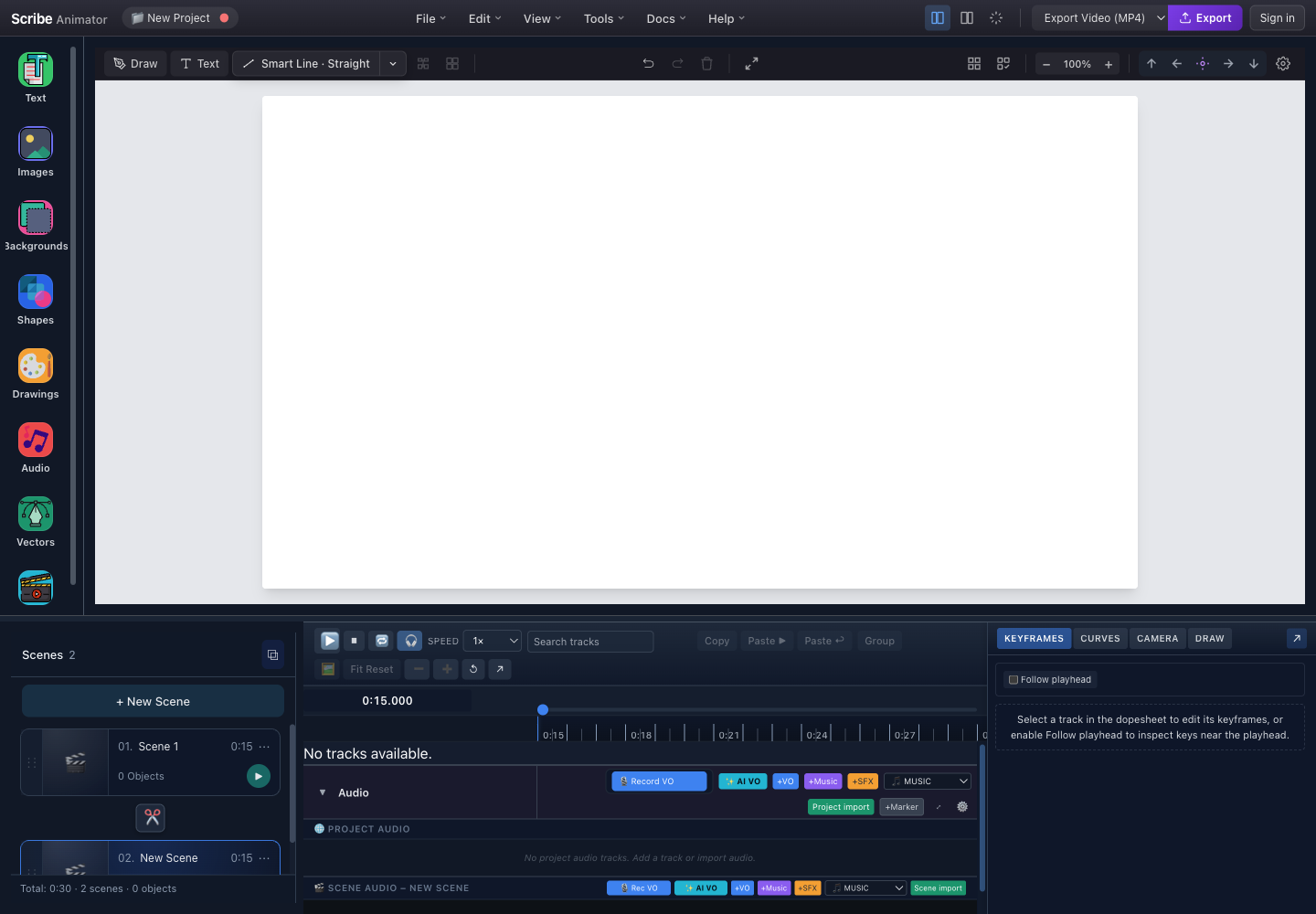
- Scene countThe left manager reports two scenes after a complete project import.
- First sceneOpen Scene 1 and verify the recommendation title, supporting copy, and accent.
- Second sceneOpen Scene 2 and verify the review card, heading, and three checklist lines.
- Shared timelineThe playhead advances across both scene-local five-second windows.
For Scene 1, verify:
- warm off-white background;
- amber vertical accent;
- heading “Explain one idea at a time”;
- one supporting sentence; and
- scale, fade, and slide entrances beginning within the scene.
For Scene 2, verify:
- pale green project frame and white review card;
- heading “Verify before you export”;
- three numbered checklist lines; and
- each line entering after the previous line.
4. Preview and inspect timing
- Seek to
0:00. - Play through the scene boundary at five seconds.
- Confirm no object starts after its scene ends.
- Confirm the second scene replaces the first rather than layering over it.
- Pause and select each text object.
- Check that its preset timing matches the JSON.
- Change one text string and preview again.
Expected result: the example behaves like a normal editable project. The JSON does not create a separate viewer or simulated canvas.
5. Save and transfer
- Choose a new local or library target instead of overwriting unrelated work.
- Export a
.scribepackage. - Reopen the package in a second test session.
- Verify both scenes and animations again.
- Make a short MP4 export at 720p/30 fps.
The JSON proves structured import. The exported .scribe copy proves the project/package boundary on your current build.
Download the verified .scribe runtime example
Download scribe-smart-connectors-v1.scribe
| Property | Value |
|---|---|
| Package schema | Scribe manifest v1 and project snapshot v1 |
| Canvas | 1280 × 720 |
| Frame rate | 30 fps |
| Duration | 12 seconds |
| Scenes | 3 |
| Objects | 9 |
| Packaged assets | None |
| External references | None |
| SHA-256 | af98150d0a9e62ad2ea25f4fba8348ff4492af9f06346fdde6a67c173a7443e0 |
This deterministic technical example covers:
- an animated endpoint with an attached connector;
- a path-following target with a connector; and
- a single-endpoint connector with animated opacity.
The product test suite imports the exact checksum-pinned package, checks that it emits no import warnings, verifies its scene, timeline, connector, and path-follow metadata, evaluates each scene at multiple timestamps, and confirms that evaluation does not mutate saved project state.
To inspect it yourself:
- save the active project and download the package;
- optionally compare the downloaded SHA-256 value with the published checksum;
- choose File → Import
.scribe; - confirm the project is named Smart Connector Runtime QA and contains three four-second scenes;
- preview all 12 seconds and inspect connector endpoints as their targets move; and
- reset or reopen your original project after the test.
The file is intentionally small and asset-free. It verifies project loading and selected runtime behavior; it is not a polished template or a performance benchmark.
Real product preview
The following 12-second MP4 is the muted product preview used by OHO Tech's public Scribe Animator marketing site. Its media file contains an H.264 video stream and no audio stream.
Visual transcript
Because the source is silent, this is a visual transcript, not a speech transcript.
| Time | Visible action |
|---|---|
0:00–0:03 | A realistic hand holding a black pen enters a whiteboard frame while black sketch marks and the first outlined letter strokes appear |
0:03–0:06 | The outlined “OHO TECH” wordmark becomes readable; “Whiteboard animation studio” appears below it |
0:06–0:09 | The pen moves across the wordmark, reinforcing interior letter strokes while surrounding doodles remain visible |
0:09–0:12 | The hand leaves; the complete wordmark, subtitle, surrounding sketch accents, and the displayed line “YOUR STORY BEGIN HERE.” remain on screen |
What this preview proves—and does not prove
It proves that OHO Tech publishes a real, silent whiteboard-style product preview showing a hand-led draw reveal. It does not prove:
- a specific render duration on every device;
- voiceover or audio synchronization;
- a customer conversion or learning outcome;
- that the preview source project is available as a public template; or
- that every drawing uses the same hand, tool, stroke plan, or camera settings.
Reproducibility checklist
- Use the exact downloadable JSON before modifying it.
- Record platform and app/browser version.
- Keep the input and exported
.scribecopy. - Verify counts, timing, and visible text—not only that the import “worked.”
- Make one short MP4 and inspect it outside the editor.
- Report deviations with a minimal project that contains no private media.