Platforms and system requirements
Scribe Animator is a local-rendering editor with optional account and cloud services. Basic editing and a full video export place more demand on the current device than reading a normal web page, so platform compatibility depends on both the operating environment and the features you use.
This matrix reflects the frontend@2.0.0 application and native project configuration, with export routing reviewed on 9 October 2026 and agent authoring boundaries reviewed on 7 October 2026. The installed app and its available tools remain authoritative.
Supported surfaces
| Surface | Current baseline | Best use | Important qualification |
|---|---|---|---|
| Desktop web | A current stable Chrome, Edge, Firefox, or Safari release | Full multi-panel editing, precise timing, long-form projects | Exact older-browser minimums are not published; use an updated browser |
| Mobile web | A current mobile browser that exposes the required storage and media APIs | Touch-oriented Mobile Lite editing and review | File, microphone, download, and encoder support follow the browser and OS |
| iPhone and iPad app | Native project deployment target: iOS/iPadOS 17.6 or later | Mobile Lite with native file, share, orientation, and video integration | App Store device eligibility and the installed build remain authoritative |
| Android app | Android API 24 or later, equivalent to Android 7.0+ | Mobile Lite with native file and video integration | Codec and memory behavior still varies by device |
Scribe does not publish a fixed CPU, RAM, storage, or GPU minimum in the current product metadata. A device that opens the editor can still be unsuitable for a long 1080p/60 fps export, a very detailed vector trace, or a large local voice model.
Browser capability requirements
| Capability | Used for | If unavailable or restricted |
|---|---|---|
| JavaScript modules and Web Workers | Editor code, vector processing, image preprocessing, and lazy-loaded features | The relevant editor or worker workflow cannot start |
| Canvas 2D | Canvas rendering, selection, preview, and frame generation | The core visual editor cannot render correctly |
| IndexedDB and local storage | Projects, checkpoints, preferences, audio/reveal state, and tutorial progress | Local persistence becomes unavailable or best-effort |
| Blob URLs and file APIs | Local image, audio, SVG, and package intake | Local sources may not load or survive a new session |
| WebAssembly | Vector/image utilities, some font and media paths, and fallback encoding | The affected processing or export path can fail |
| MediaRecorder and microphone APIs | Voice recording, screen-capture encoding, and selected media fallbacks | The relevant recording workflow is unavailable; microphone denial does not block screen-only capture |
getDisplayMedia | Desktop browser screen, window, or tab capture | Record screen remains unavailable; normal video upload still works |
| Document Picture-in-Picture | Optional detached screen-recording controller | Scribe keeps the controls inside the editor instead |
| WebCodecs or an available fallback/native encoder | MP4 frame encoding and audio/video assembly | Video export can be rejected or routed through a slower/different path |
| Service workers and Cache Storage | Best-effort application asset caching for repeat and offline use | Editing can still work online, but offline reopening is less reliable |
| File downloads or native share/save | .scribe, video, WAV, template JSON, and other supported local outputs | The render can finish without a usable delivery destination |
Enterprise browser policies, privacy extensions, content blockers, private browsing, and restricted embedded browsers can disable these capabilities even on a supported operating system.
Browser-specific video behavior
The public output is MP4/H.264, but implementation differs:
| Runtime | Current video path |
|---|---|
| Chrome or Edge desktop | WebCodecs where available, with the current audio encoding path |
| Firefox desktop | WebCodecs video with a WebAssembly media path for audio/muxing where available |
| Safari 17+ on macOS | WebCodecs video with a WebAssembly WAV-to-AAC and muxing path |
| iOS/iPadOS native app | Native encoder when available, otherwise the supported WebView fallback |
| Android native app | Auto prefers a supported native encoder. The native path prefers hardware Surface processing with an ordered, bounded frame queue; a supported browser fallback depends on the input and device |
Saved explicit Android encoding-method preferences remain in effect. This table describes routing, not identical performance. Make a short representative export on the destination device before committing to a long final render.
Agent authoring and local music
The motion authoring and procedural drawing capabilities are Desktop editor authoring contracts. A compatible WebMCP client can discover them through Site tools when that client and app build expose the contract. Mobile Lite does not gain the same authoring controls merely because a project contains these objects. Validate reopened playback and export on the target device before handoff.
Generate Music is a Desktop Audio-panel workflow. It runs a bounded local composer and audio worker, rather than downloading an AI voice model. Generated audio still needs enough device memory and a working audio runtime. This review does not establish a Mobile Lite music-generator entry point or certify every native device.
Desktop screen-recording boundary
Screen recording is a Desktop web feature. It requires both
navigator.mediaDevices.getDisplayMedia and MediaRecorder, and the dedicated
feature flag must be enabled. The browser's native chooser remains responsible
for selecting and authorizing a tab, window, or screen.
Current Chrome/Chromium releases are the validated baseline for the complete capture workflow. When Document Picture-in-Picture is available, Scribe opens the detached recording controller by default; otherwise it uses the in-editor controller. Safari does not currently provide the Document Picture-in-Picture API used by that detached controller, so the separate floating control window is unavailable there. This does not imply that every Safari screen-capture or MediaRecorder combination is validated. Firefox and other browsers likewise use the in-editor fallback when the detached-window API is absent.
Shared or system audio depends on both the browser and selected source. A tab may provide audio while a window or full display provides none. Microphone permission is requested separately, and denial leaves screen-only recording available. Native iOS ReplayKit and Android MediaProjection capture are not part of this Desktop feature.
Permissions by task
| Permission | Needed when | Safe response |
|---|---|---|
| Files or photos | Importing local media or a .scribe package | Grant access only to the item or folder you intend to use |
| Screen sharing | Recording a browser tab, window, or screen | Choose only the source you intend to capture; use the browser's Stop Sharing action to end capture |
| Microphone | Recording voiceover or optional screen-recording narration | Test a short take; screen recording can continue without it |
| Downloads or storage | Saving video, WAV, JSON, or .scribe output | Allow the verified Scribe origin/app, then check the saved file |
| Network | Account, cloud libraries, uploads, billing, first-time remote assets, and model acquisition | Save local work before retrying a failed service |
| External links | Opening support, legal, payment, or store destinations | Confirm the destination belongs to OHO Tech or the expected provider |
Camera permission is not required for the authored Scribe camera system. That camera changes the animated viewport; it does not record the device camera.
Practical device guidance
Use a desktop or a high-memory tablet when the project has:
- many scenes or thousands of objects;
- large raster sources or detailed vector traces;
- several audio tracks;
- local AI voice generation;
- high-resolution or 60 fps video delivery; or
- long preview/export durations.
Use Mobile Lite for focused creation and revisions. Move to Desktop when you need several panels visible at once, dense keyframe editing, prolonged pointer precision, or easier comparison across scenes.
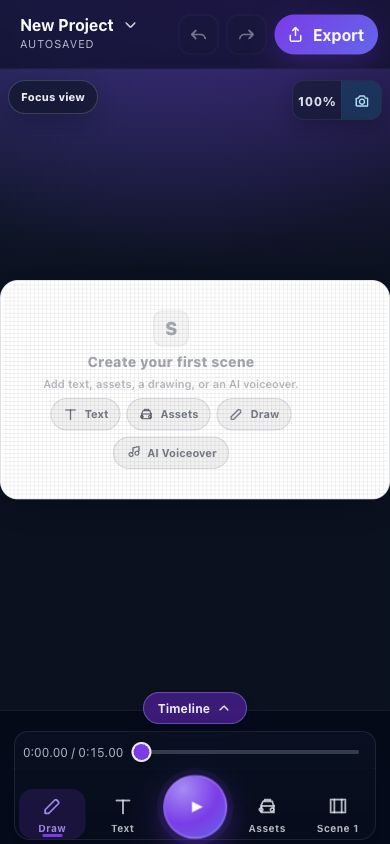
- Project stateSave and project-file actions remain important before device cleanup or a large import.
- Touch canvasThe viewport adapts to a narrow screen while the underlying scene remains a normal Scribe project.
- Expandable timelineExpand timing only when needed to preserve canvas space.
- Mobile exportThe native or browser encoder still depends on device capability and available storage.
Storage and network checklist
Before a long session:
- use a normal browser profile rather than private/incognito mode;
- confirm that site/app storage is not near its OS quota;
- keep enough free device space for source media and the final export;
- open the app online once so required application assets can populate their caches;
- acquire any chosen voice model before going offline;
- export an editable
.scribebackup; and - keep remote-only assets out of an offline-critical project unless they are packaged.
Verify your environment in five minutes
- Create a blank project.
- Add text and move it on the canvas.
- Save locally, reload, and confirm recovery.
- Import one small PNG or SVG.
- Record or import a short audio clip only if that workflow matters.
- Export five seconds at 720p/30 fps.
- Download a
.scribepackage and reopen a copy.
If one step fails, troubleshoot that capability before building a production project.