Animate with the timeline
The timeline answers two questions: what changes and when it changes. Use a preset for a quick entrance or exit; use property keyframes when position, scale, rotation, opacity, or another property must change at exact moments.
The Desktop controls and screenshot callouts in this guide were checked against the real local editor through 9 August 2026. The screenshots show the production canvas, properties inspector, timeline, and drawer UI—not a documentation playground.
When to use each timing tool
| Need | Best starting point | Why |
|---|---|---|
| Make an object appear, move, or leave quickly | Preset Animation | One control creates a reusable timing range |
| Coordinate several exact property values | KEYFRAMES drawer | Keys preserve explicit values at explicit times |
| Refine acceleration or deceleration | CURVES drawer | The curve exposes interpolation between keys |
| Reveal vector artwork stroke by stroke | DRAW drawer | Draw steps, not ordinary property keys, own reveal timing |
| Change framing | CAMERA drawer | Camera state remains separate from object geometry |
| Align narration or music | Audio lane | Waveforms and scene/project tracks provide the timing reference |
Do not add keyframes merely because the timeline is available. A simple preset is easier to maintain when it already produces the intended result.
Before you start
- Open a project with at least one scene and one object.
- Stop playback before changing scene structure or timing.
- Select the scene and object you intend to animate.
- Confirm that the object is unlocked.
- Export a
.scribebackup before reorganizing many keys or shortening scenes.
Mobile Lite exposes the same project timing through a compact timeline and the Animate sheet. Dense curve and multi-track work is easier on Desktop.
Timeline and inspector anatomy
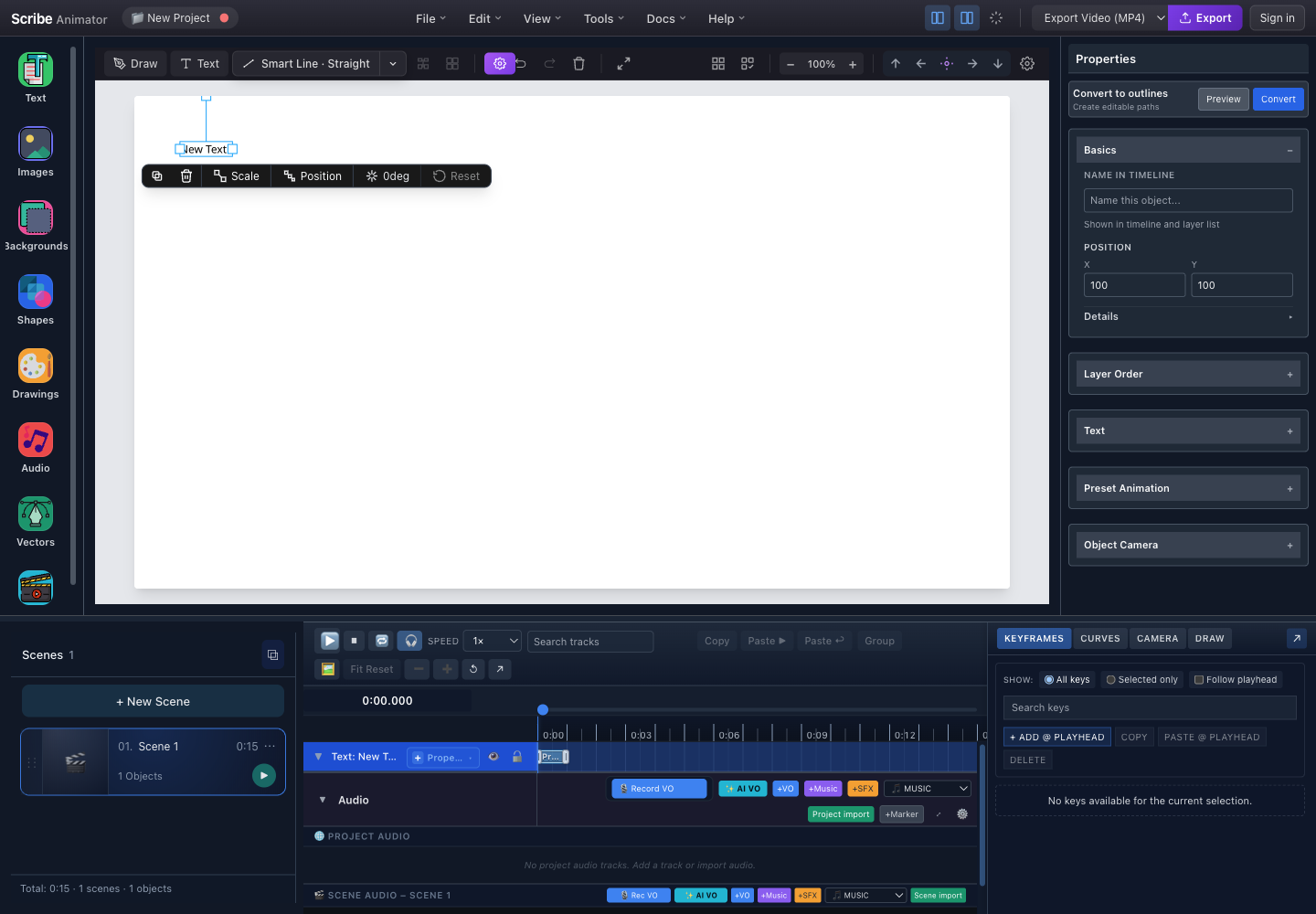
- Selected object and transform barThe canvas selection decides which inspector sections and selected-only tracks are available.
- Properties inspectorBasics, layer order, type-specific properties, preset animation, and object camera live here.
- Transport and timeline toolsPlay, stop, loop, speed, search, editing actions, fit, zoom, and pop-out controls.
- Object track and time rulerThe horizontal lane shows the object timing range; the ruler and playhead establish time.
- KEYFRAMES, CURVES, CAMERA, and DRAWOpen the domain-specific editor without leaving the shared timeline.
Visible controls
| Area | Control | What it does |
|---|---|---|
| Canvas transform bar | Duplicate and delete icons | Copies or removes the selected object |
| Canvas transform bar | Scale, Position, 0deg, Reset | Changes the active transform mode or restores the transform |
| Inspector | Basics | Names the timeline item and provides exact position and details |
| Inspector | Layer Order | Changes stacking relative to other scene objects |
| Inspector | Type-specific section, such as Text | Edits content-specific properties |
| Inspector | Preset Animation | Sets animation type, start, duration, and easing |
| Inspector | Object Camera | Configures eligible object-follow camera behavior |
| Transport | Play, stop, loop, and speed | Controls preview without changing the authored values |
| Transport | Search tracks | Filters a large track list |
| Transport | Copy, paste, group, fit/reset, zoom, and pop-out controls | Edits or changes the timeline view; disabled controls require a compatible selection |
| Drawer tabs | KEYFRAMES, CURVES, CAMERA, DRAW | Switches the right-side editor |
| KEYFRAMES filter | All keys, Selected only, Follow playhead | Controls which keys appear and whether the inspector follows time |
| KEYFRAMES actions | + ADD @ PLAYHEAD, COPY, PASTE @ PLAYHEAD, DELETE | Creates or edits the current key selection |
Need the complete keyframe workflow?
The outcome tutorial How to use keyframes for position, scale, rotation, opacity, drawing, and more uses the real Desktop editor to cover both authoring surfaces:
- exact Time, Value, Interpolation, Easing, and eligible Clamp controls in the KEYFRAMES drawer;
- empty-lane and key right-click menus in the timeline;
- pointer-time Add Key versus playhead-time double-click insertion;
- Shift/Cmd/Ctrl and marquee selection;
- grouping keys across property tracks, synchronized drag, Undo/Redo, Save/Restore, and ungrouping;
- a tested property matrix for Text, Image, drawable SVG/vector, and Smart Arrow objects.
Use that tutorial to build and export one complete motion example. Keep this page as the reference for timing-source ownership and conflict resolution.
Tutorial 1: apply a preset animation
Use this for a straightforward entrance, emphasis, or exit.
- Select an object on the canvas or its track.
- In the right inspector, expand Preset Animation.
- Set Start Time (seconds). This is scene-relative for the selected object's preset timing.
- Set Duration (seconds).
- Choose an Animation Type.
- Choose Easing:
- use a simple ease for natural starts and stops;
- use linear motion for constant-speed technical movement;
- avoid a dramatic easing curve when precise synchronization matters.
- Move the playhead to just before the start.
- Press Play and watch through the end of the range.
Expected result: the object track shows an authored timing range, and the canvas preview changes only inside that range.
The inspector can report that timing is controlled by Draw Steps, property keyframes, an audio-bound segment, or multiple sources. Edit the owning source instead of forcing preset start and duration fields.
Tutorial 2: create property keyframes
Use keys when the object must reach exact values at exact times.
- Select the object.
- Open KEYFRAMES.
- Move the playhead to the first time.
- Choose + ADD @ PLAYHEAD and select or create the supported property track.
- Set the initial value in the key editor or inspector.
- Move the playhead to the second time.
- Change the property and add or update the second key.
- Repeat only for meaningful changes.
- Select a key to edit its time or value.
- Use COPY and PASTE @ PLAYHEAD to reuse a key at a new time.
- Use DELETE only after confirming the selected key or keys.
Expected result: the time ruler shows keys on the object's property track, and scrubbing interpolates between compatible values.
Selection and navigation rules
- All keys is best for understanding the complete scene.
- Selected only reduces noise when several objects have keys.
- Follow playhead is useful during inspection, but turn it off if automatic focus interrupts manual editing.
- Zoom in before moving short or closely spaced keys.
- Copying a key copies its property value; pasting at the playhead changes its time.
- A locked object can remain visible while its authoring controls are unavailable.
Tutorial 3: refine easing with curves
- Create at least two compatible property keys.
- Select their track or keys.
- Open CURVES.
- Choose the property curve.
- Adjust interpolation or handles gradually.
- Hold Space while dragging when the curve editor uses pan mode.
- Use X or Y constraints when the active curve interaction supports them.
- Press Escape to cancel an in-progress drag.
- Preview the motion at normal speed.
Expected result: the start and end values remain the same while the speed between them changes.
Avoid extreme handles that create overshoot, abrupt reversals, or a value outside the object's valid range.
Timing-source combinations
One object can carry a preset, property keyframes, draw-progress keyframes, Draw Steps, and a visible range at the same time. These sources are not averaged together. Each source owns a different part of the result, and a higher-authority source can replace a lower-authority value.
The Mixed timing-source badge means that more than one timing domain contributes to the object, commonly property keyframes plus Draw Steps. It does not mean Scribe blends every animation into a new effect.
What each source owns
| Source | What it owns | Important boundary |
|---|---|---|
| Preset Animation | One object-level effect, start, duration, and easing | An object has one preset slot. Choosing Fade In, Scale In, Slide In, or Draw In replaces the previous preset type |
| Draw In | Preset-driven reveal progress for an eligible path-backed object | It is a Preset Animation type; selecting it does not create Draw Steps |
draw.progress keyframes | Explicit reveal progress at exact times | They replace preset-driven reveal progress unless a targeted Draw Step is active |
| Draw Steps | Scene-local reveal order, start, duration, hand/tool choice, and optional step camera | A targeted Draw Step has final authority over reveal progress |
| Property keyframes | Exact values such as position, scale, rotation, or opacity | A keyframe overrides the preset only for the same property; unrelated properties still combine |
| Explicit or audio-bound visible range | The outer interval used to constrain and fit the object's authored timing | It is not an automatic exit animation and does not hide the object at the range end by itself |
At each preview time, Scribe evaluates the object in this order:
- Calculate the selected preset.
- Apply property keyframes. A matching keyed property replaces the preset's value for that property.
- Resolve draw progress from Draw In or a
draw.progresstrack. - If the scene Draw plan targets the object, use the Draw Step progress instead.
- Apply the explicit or audio-bound visible-range constraint and any required timing rebase.
Audio binding does not add another visual animation layer. It fits or constrains the existing sources. See Audio binding for the action-specific rules.
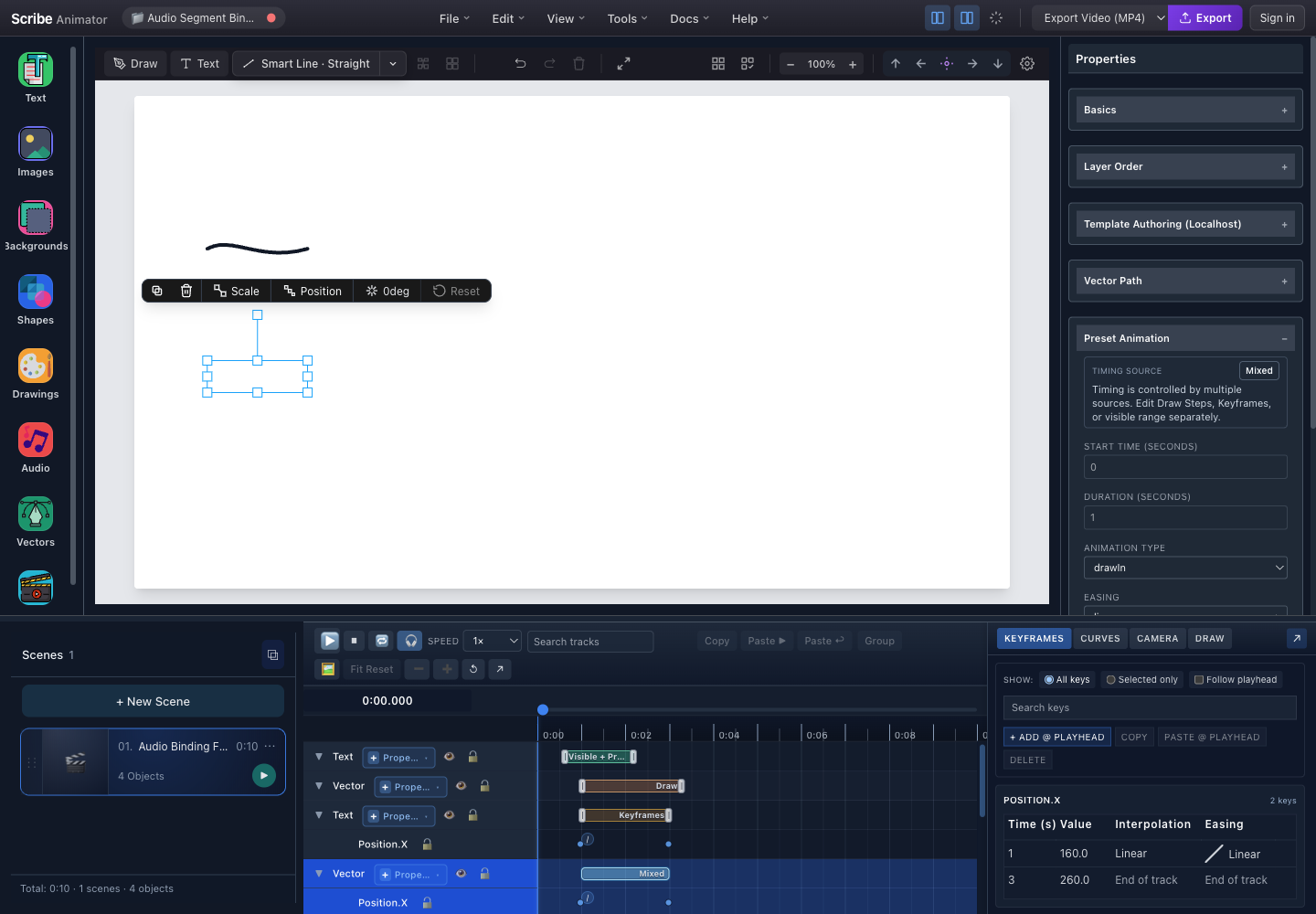
- The same selected vectorThe canvas, inspector, object track, and drawer all refer to this one object.
- Timing Source: MixedRead this message before editing disabled or apparently ineffective preset timing fields.
- Draw In is the active presetChoosing another preset replaces Draw In in the single preset slot; it does not remove stored keys or Draw Steps.
- Mixed object rangeThe object range summarizes the active timing domains instead of extending every source to the same duration.
- Position.X remains independently keyedThe two keys own horizontal position while the reveal source owns draw progress.
Same-object combination matrix
| Combination | Runtime result | Timing to edit |
|---|---|---|
| Preset only | The preset controls its effect for its start and duration | Preset Animation |
| Draw In only | Preset timing drives reveal from 0% to 100% | Preset Animation |
| Fade In + opacity keys | Opacity keys win; the preset's opacity curve is replaced | Opacity property track |
| Fade In + position/scale keys | Fade opacity and the unrelated keyed transform combine | Preset for fade; property tracks for transforms |
| Scale In + scale keys | Scale keys win over preset scale | Scale property track |
| Scale In + opacity/position keys | Preset scale combines with the unrelated keyed properties | Both sources independently |
| Slide In + X/Y keys | A keyed axis wins; any unkeyed slide axis can remain | Position tracks for keyed axes |
Draw In + draw.progress keys | The keys drive reveal instead of preset progress | Draw-progress property track |
| Draw In + Draw Steps | Draw Steps drive reveal; preset start/duration no longer own the draw schedule | DRAW drawer or Draw range |
Draw In + Draw Steps + draw.progress keys | Draw Steps win while they target the object; stored draw-progress keys become active again if those steps are removed | DRAW first, then the draw-progress track |
| Draw In + transform/opacity keys | Reveal and unrelated property motion combine | DRAW or Draw In for reveal; property tracks for motion |
| Draw Steps + Fade/Slide/Scale | Step timing remains stored, but the eligible vector stroke renderer requires Draw In for a true stroke reveal | Choose Draw In when reveal is intended; otherwise review whether the steps should remain |
| Property keys + Draw Steps | The badge reports Mixed; keys control their properties and steps control reveal | Edit each owning drawer separately |
| Any source + explicit/audio-bound visible range | Existing timing is constrained or fitted inside the outer range | Visible-range owner or the bound script segment |
Draw Steps are sampled linearly. Current Draw Steps do not have their own easing field; add property keys only when you need an independently eased property, not to imitate step progress.
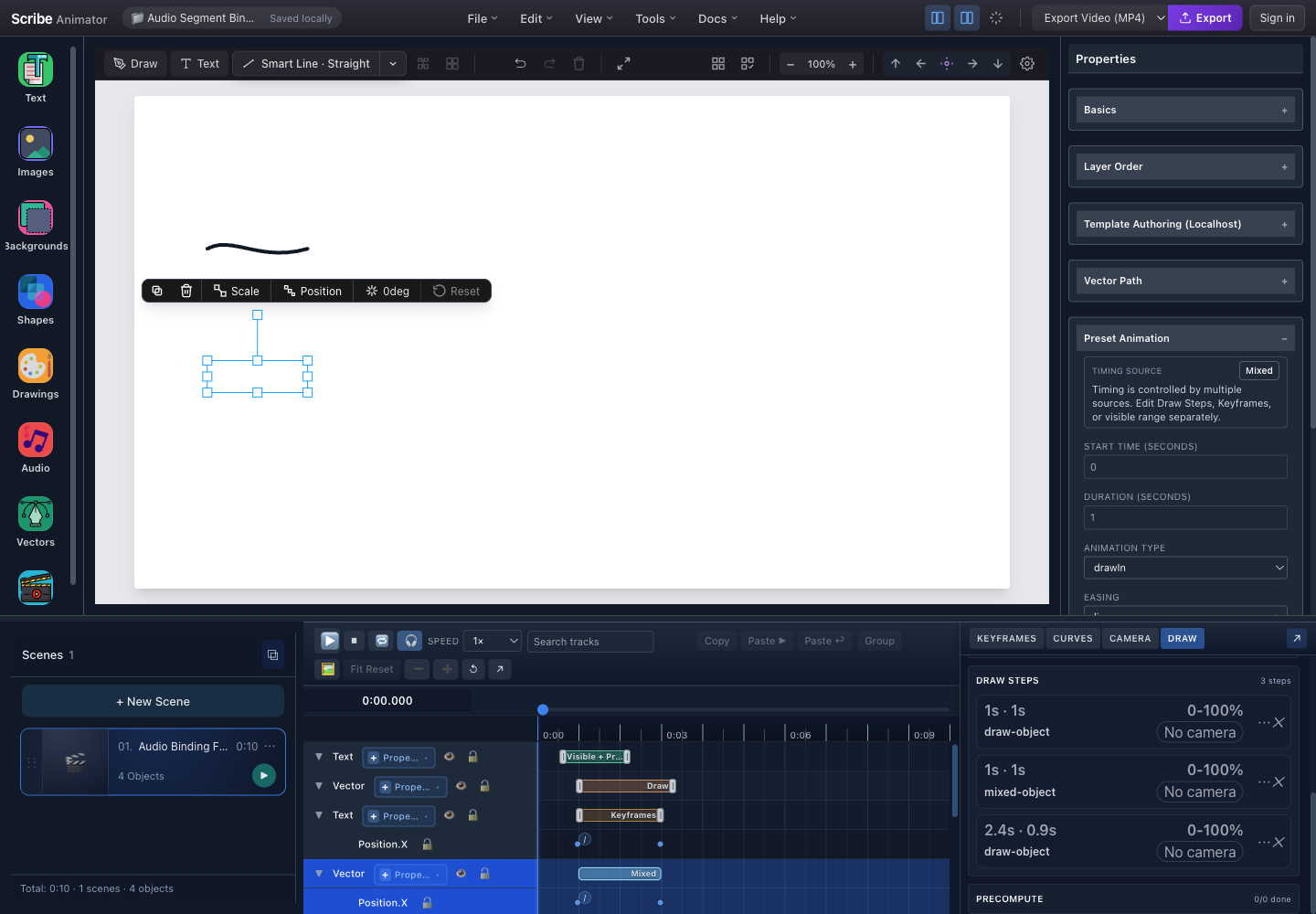
- Mixed source remains visibleThe inspector warns that no single preset range owns the complete object timing.
- Draw In enables stroke revealThe preset supplies drawable rendering behavior; the targeted step supplies authoritative progress.
- Mixed timeline rangeThe range represents the keyframe and Draw Step domains associated with the selected object.
- Draw Steps are the reveal authoritySteps are ordered by their authored start times; the active step interpolates and completed steps hold their final progress.
Build a deliberate combination
- Select one object and decide the intended visual result before adding timing sources.
- Choose one Preset Animation. If the object must be drawn, use Draw In on a supported path-backed vector, drawing, Smart Line, or Smart Arrow.
- Add property keys only for values that the preset does not already control—or intentionally replace the preset property with keys.
- For ordered drawing, create or Auto-plan Draw Steps in DRAW. Draw In does not create them automatically.
- Re-select the object and read Timing Source in the inspector.
- Inspect the owning ranges in KEYFRAMES and DRAW. Do not assume the preset Start and Duration fields own a Mixed range.
- Scrub before, inside, and after every source boundary, then preview at normal speed.
- If audio binding is required, bind only after the visual timing is stable; then verify which sources the binding action fitted.
Diagnose an unexpected mixed result
- Temporarily inspect one source at a time; do not delete anything yet.
- If opacity, scale, or position differs from the preset, look for a matching property track.
- If stroke progress differs from Draw In, look first for targeted Draw Steps, then for a
draw.progresstrack. - If timing fields are disabled, read the timing-source message and edit the named owner.
- If a removed Draw Step seems to change the animation again, remember that the stored lower-priority draw-progress keys or preset become active.
- If an audio-bound source cannot move outside a range, inspect or remove the binding. Use Undo immediately when the pre-fit arrangement matters.
- Multiple Draw Steps are ordered by start time and stable ID. They do not create per-step easing.
- The default Draw Auto-plan can keep existing timing instead of changing an incompatible preset. Verify that Draw In is selected when you expect a stroke reveal.
- Typewriter is text-specific. Draw In requires drawable path data.
- The end of a visible range does not create an exit or automatic hide; author an exit/visibility change explicitly when needed.
- SVG export is unavailable; use MP4 for rendered animation and
.scribefor editable timing.
Tutorial 4: coordinate scenes, drawing, camera, and audio
- Set scene durations before detailed synchronization.
- Add narration or the primary audio reference.
- Place object presets and keys inside their intended scene.
- Open DRAW for stroke-reveal timing.
- Open CAMERA for framing and camera keys.
- Preview across the next scene boundary.
- Check that no draw step, camera move, key, or important audio clip is cut off.
- Export a short test before final delivery.
The same time can be represented in different scopes. Scene controls usually show scene-local time; the shared project playhead is global. If an edit lands in the wrong scene, verify which scope the active field expects.
Arrange existing motion with an agent
Timeline composition places existing Draw Steps and property-key ranges in a sequence, in parallel, or at staggered starts. It translates timing: the authored duration, key values, interpolation, and spacing within each range stay intact. Use it when an explanation needs a new order without changing the way each item moves.
Composition and the four indications below are authoring capabilities for compatible agents in the Desktop web editor. This guide does not describe a Composition drawer or indication buttons. Their contracts and regression coverage were reviewed on 7 October 2026; the earlier screenshots illustrate ordinary editor controls. Start with the Site tools quickstart.
- Ask the agent to inspect the intended scene, its Draw Steps, and its property tracks and keys. Keep the returned scene, step, track, and key IDs.
- Choose the items in story order. A property-key range must contain at least two contiguous keys on one property track.
- Discover and inspect
timeline.compose, then execute it throughscribe_execute_capabilitywith the inputs below. - Check the returned
compositionStartMs,compositionEndMs, and each operation's new range. Preview before, during, and after the moved items. - Use Undo to restore the preceding timing if the new pace does not work.
| Input | Meaning |
|---|---|
sceneId | Exact scene containing every item |
mode: "sequence" | Each item begins after the preceding item ends, plus gapMs |
mode: "parallel" | Every item begins at startMs; omit gapMs or use zero |
mode: "stagger" | Item starts are spaced by gapMs, regardless of duration |
startMs | Nonnegative integer time from the scene's beginning |
gapMs | Optional nonnegative integer delay; defaults to zero |
items | Ordered array of 1–100 existing timing items |
| Draw item | {"kind":"draw-step","stepId":"returned-step-id"} |
| Key item | {"kind":"property-key-range","trackId":"returned-track-id","keyIds":["first-key-id","last-key-id"]}; include every intervening key |
For example, two ranges lasting 500 and 800 ms, sequenced at 1000 ms with a 200 ms gap, occupy 1000–1500 and 1700–2500 ms. Parallel placement starts both at 1000 ms. A 200 ms stagger starts them at 1000 and 1200 ms. None of these choices stretches the original motion.
Composition rejects an out-of-scene result, duplicate-time collisions,
locked owners/tracks, direct audio timing ownership, and incompatible
StoryBeat authority or bounds. Include every member of a synchronized key
group and move them by the same delta. Managed animation keys need conversion
to editable keyframes first. Compose Draw Steps when they own a reveal;
competing draw.progress ranges are refused. Draw Steps with generated camera
timing are outside this operation's V1 scope. Extend the scene or resolve the
reported owner before retrying; a rejected operation leaves the timing intact.
Direct attention with temporary indications
An indication adds a short attention cue to content the audience can already see. Select the cue by meaning: a pulse for importance, a small wiggle for attention, an outline for a region, or a highlighter sweep for a passage.
Every call requires sceneId, objectId, and integer startMs. All times are
scene-local milliseconds. Discover the capability and inspect its live schema
before using optional fields.
| Capability | Result | Optional inputs and defaults |
|---|---|---|
indication.emphasize | Editable scale keys pulse and restore the sampled size | durationMs: 700 (200–5000); strength: 1.12 (1.01–2) |
indication.wiggle | Editable rotation keys oscillate around and restore the sampled angle | durationMs: 800 (300–5000); angleDeg: 6 (1–30); oscillations: 2 (1–5) |
indication.circumscribe | One editable drawable annotation surrounds the target, draws on, holds, then hides | durationMs: 1400 (400–10000); drawDurationMs: 450 (150–5000, within lifetime); shape: "auto" (auto, rounded-rect, ellipse); padding: 18 (0–500 px) |
indication.trace_highlight | One temporary translucent highlighter stroke sweeps across the target | durationMs: 1000 (300–5000); drawDurationMs: 650 (150–5000, within lifetime); padding: 12 (0–200 px) |
- Finish the target's entrance or drawing reveal before the cue begins.
- Place the entire indication inside the scene and the target's visible range.
- Add one cue, then inspect its returned track/key IDs or annotation/Draw Step IDs. These are ordinary editable project resources.
- Preview the first frame, peak or draw completion, and final frame. Confirm the original size/angle returns or the temporary annotation disappears.
- Review the next reading hold before adding another cue.
Emphasize and Wiggle change the target, so it and the affected track must be unlocked. Existing keys that intersect or span the cue, generated timing, direct audio bindings, and StoryBeat ownership can block insertion. A preceding cubic key can also block insertion because adding a new endpoint would change its earlier interpolation. Wiggle requires completed Draw Steps and cannot take rotation from Path Follow while Rotate is enabled. Emphasize refuses a scale-owning entrance preset even after its entrance has finished.
Circumscribe and Trace Highlight leave the target untouched, so a locked target can remain eligible. It must stay fully visible and spatially stable throughout the cue, including motion inherited from an anchor source or bound path. The annotation has its own Draw Step and hide timing; changing its reveal alone does not make it a permanent object. Keep the generated lifetime together when retiming it.
For recipe-based scenes, spring motion, Clip Binding, and exact-frame review, continue with Author editable motion with agents.
Limitations and safety
- Preset timing does not replace property keyframes, draw steps, camera tracks, or audio clip timing.
- Use MP4 for rendered animation and
.scribeto preserve editable animation timing. - Closely packed keys can become difficult to select at low timeline zoom.
- Shortening a scene can hide or truncate authored content without deleting its data.
- Property interpolation requires compatible numeric or supported values.
- Playback may intentionally disable structural editing.
- Mobile Lite prioritizes focused object timing and can condense advanced Desktop controls.
- Undo immediately after a risky timing edit; export a package before bulk restructuring.
Troubleshooting
| Problem | What to check |
|---|---|
| No object track appears | Confirm the object belongs to the active scene, is selected, and is not filtered out |
| + ADD @ PLAYHEAD is disabled | Select a compatible object/property and stop playback |
| Animation starts in the wrong scene | Check scene-relative versus global time and the active scene |
| Preset timing fields cannot be edited | Read the timing-source message; Draw, keyframes, or audio may own the range |
| Motion jumps | Look for duplicate-time keys, very short intervals, or extreme easing |
| Key cannot be moved | Unlock the object and check for audio-bound or domain-owned timing |
| Preview differs after a scene edit | Replay across the entire scene boundary and verify camera/draw/audio ranges |
| Timeline feels crowded | Filter to selected tracks, search by object name, and zoom the time scale |