Mobile Lite Timeline
The Mobile Lite timeline is a touch-friendly dock for reviewing and editing scene timing on phones and tablets.
It makes mobile a practical creation surface for quick edits, timing review, and on-the-go updates, while the desktop editor remains the best place for detailed production work.
Visual orientation
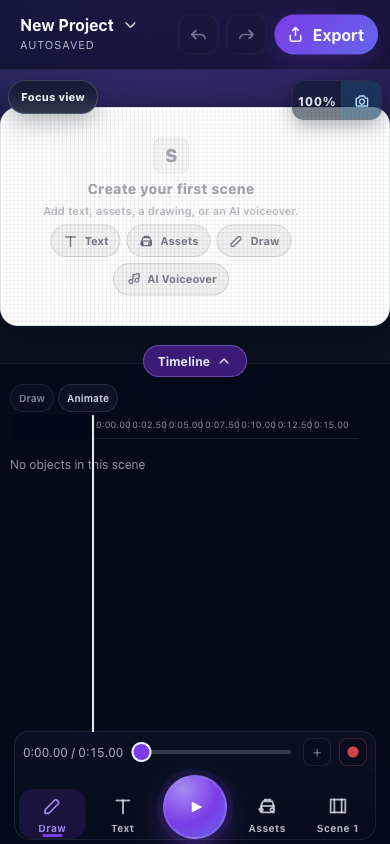
- Timeline dock toggleTap the Timeline pill to expand or collapse the dock.
- Draw and Animate modesSwitch the visible editing context for compatible objects in the active scene.
- Time rulerThe ruler provides scene-time context; object rows appear beneath it when the scene has content.
- Scrubber and current timeDrag the handle to inspect a different moment in the scene.
- Preview playbackPlay or pause the active scene without leaving Mobile Lite.
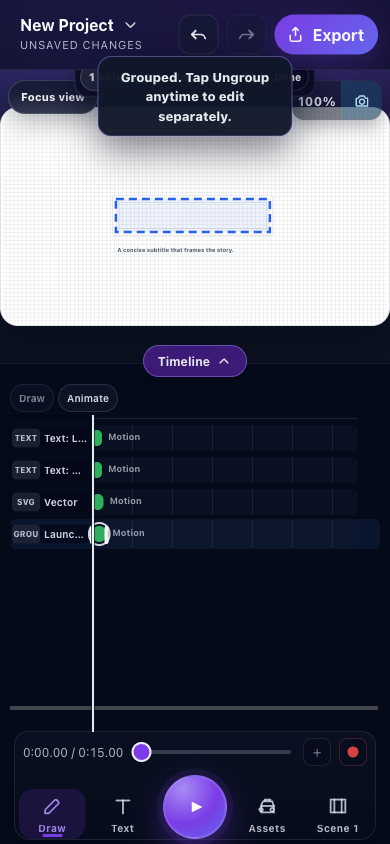
- Canvas selectionThe blue outline identifies the selected object or group whose timeline context you are reviewing.
- Protected group guidanceMobile Lite explains when an object must be ungrouped before it can be edited separately.
- Object rowsText, vector, and group labels identify the project objects represented on the timeline.
- Timing rangesColored range bars show how each object's timing spans the active scene.
- PlayheadThe vertical line connects canvas state, ruler time, and every visible object range.
Both captures and their control locations were checked against the running Mobile Lite editor with browser-based UI review on July 26, 2026. For the task-based mobile workflow, follow Create with Mobile Lite. Use Animate with the timeline for the fuller desktop timing model.
Dock States
The timeline dock has three states:
- Collapsed: keeps the canvas focused while showing scene status and playback controls.
- Peek: reveals more timing context without taking over the screen.
- Expanded: shows object ranges and timeline actions for the active scene.
What You Can Do
- Scrub playback.
- Review active scene timing.
- Select object ranges.
- Open Draw.
- Open Animate.
- Open Camera.
- View scene and audio context while editing.
Mobile Lite can review the resulting audio and object timing, but it does not author script-segment-to-object bindings. Create or change those relationships in Desktop with the Audio binding workflow.
Range Types
Mobile Lite explains timing ranges in user-facing terms:
- Draw range: timing controlled by draw steps.
- Motion range: timing controlled by animation.
- Keyframe range: timing controlled by keyframes.
- Mixed range: timing that combines more than one source.
- Object timing: the object's overall timing in the scene.
When a row reports a mixed range, use the Desktop guide to compare preset, Draw, and keyframe timing.
Locked Objects
Locked objects are protected from accidental edits. If an object is locked, you cannot edit its Draw or Animate settings from the mobile timeline until you unlock it.
Existing motion still plays normally.
Desktop vs Mobile
Use the desktop editor for detailed production, larger layouts, and precise timeline work.
Use Mobile Lite for quick edits, touch-first creation, timing review, object selection, scene checks, and updates while away from your main workstation.