Save, import, and recover projects
Scribe Animator has several persistence paths because no single save type solves every risk. Use browser-local checkpoints for fast recovery, a complete library save for signed-in access, and a .scribe package for portable backup and handoff.
Choose the right save type
| Save type | Best for | Location | Main limitation |
|---|---|---|---|
| Automatic local checkpoint | Recovery from a crash or accidental refresh | Current browser profile | Can be cleared and does not travel |
| Save Locally | An immediate manual recovery point | Current browser profile | Not a named cloud/library save |
| Save to Library (Complete) | Signed-in project access and complete library records | Scribe library | Requires account and network |
| Export .scribe… | Portable editable backup, archive, or handoff | Downloaded file | You must store and manage the file |
| Video export | Viewing, publishing, or delivery | Downloaded media file | Cannot restore editable project state |
For important work, use at least two boundaries: a local checkpoint and a .scribe package or complete library save.
1. Locate the persistence commands
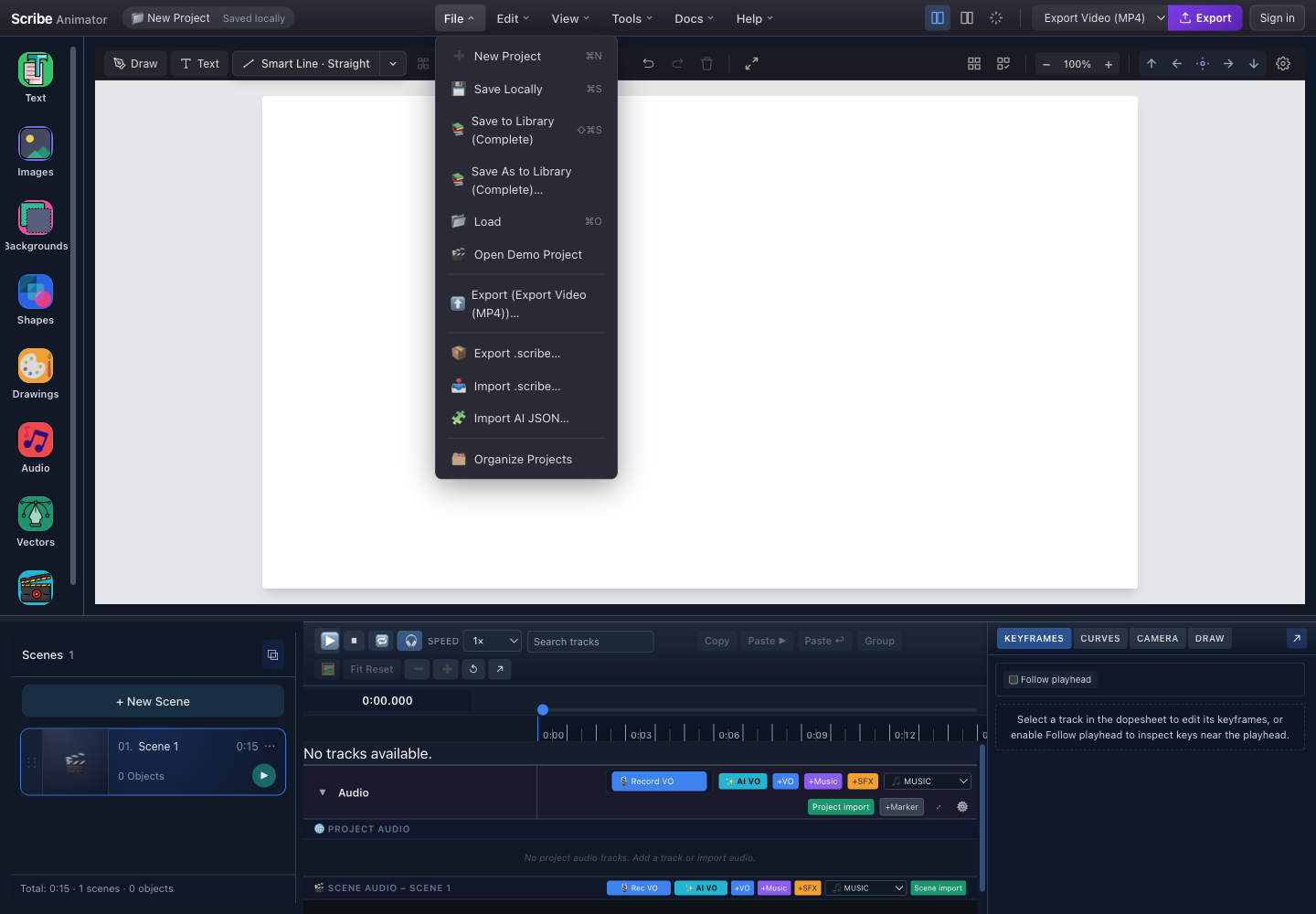
- Save LocallyWrites an immediate checkpoint to isolated browser storage.
- Save to Library (Complete)Creates or updates the signed-in library project with its complete package.
- Save As to LibraryWrites a new complete library target instead of overwriting the current one.
- Export .scribeDownloads a validated portable editable project container.
- Import .scribeValidates and loads a package, replacing the current active project.
On Mobile Lite, use Save in the project menu and the package actions under Project Files.
2. Understand automatic local checkpoints
After the first meaningful project mutation, Scribe schedules a local checkpoint approximately 15 seconds after changes settle. It avoids checkpointing during playback and keeps a bounded history rather than growing browser storage forever.
The current default keeps up to 30 checkpoints per project namespace. A checkpoint can include:
- project and canvas settings;
- scenes and scene-local objects;
- timeline, animation, draw, and camera state;
- supported audio state;
- persisted reveal/original asset data where available; and
- the metadata needed to identify and order recovery entries.
Automatic checkpoints are intentionally browser-local. They are tied to this site, browser profile, and storage state; they do not imply account sync.
When automatic save is not enough
Do not rely on it as the only copy when:
- closing a private/incognito session;
- clearing browser data;
- changing browsers or devices;
- handing a project to another person;
- running browser cleanup tools; or
- making a high-risk structural change.
3. Create an immediate local checkpoint
- Pause playback.
- Choose File → Save Locally or press
Ctrl/Cmd+S. - Wait for the Saved locally confirmation.
- Verify the header no longer shows the unsaved-change indicator.
Manual local save also attempts to persist supported reveal originals and audio state before writing its checkpoint. A success notice confirms the browser write, not a cloud upload or portable download.
Expected result: the current browser profile has a fresh recovery point for this project.
Preserve authored relationships and generated media
Supported native saves and .scribe packages preserve shared scene membership,
scene-local Scene Pose, canonical Path Follow, and authored procedural data.
Procedural geometry caches and compiled schedules are regenerated; the recipe,
seed, material, palette, Drawing Score, tone intent, and retained component source
are the editable source. Generated music also needs its actual audio bytes and
provenance, rather than recipe metadata alone.
After reload or package import, inspect multiple scenes and timestamps, then
play the project. A local checkpoint remains tied to this browser profile.
Template/AI JSON uses portable props and template-local IDs; it is a separate
representation and does not carry every native project relationship. Use
Scene Pose and
procedural import
for those boundaries.
4. Save to the complete project library
Use this when you are signed in and want a named project record.
- Choose File → Save to Library (Complete).
- Sign in if prompted, then repeat the action.
- Enter a project name and optional description.
- Choose a folder.
- Wait for package creation, metadata upload, and supported audio promotion.
- Read the completion notice; it can report media that remained local.
Use Save As to Library (Complete)… when you need a separate target rather than updating the current one.
Library saving can fail or be partial when authentication expires, the network drops, an upload limit is reached, or local media cannot be promoted. Keep the local checkpoint and .scribe package until the library copy has been reopened successfully.
5. Export a portable .scribe backup
- Pause playback.
- Choose File → Export .scribe….
- Let package assembly finish.
- Keep the
.scribeextension. - Move the download to a named backup folder outside temporary browser downloads.
- Record the project name or date in the filename if the browser uses a generic name.
A .scribe file is a ZIP-based project container. It includes a manifest, project snapshot, and supported packaged assets. Assets that cannot be embedded can remain references and produce warnings when loaded elsewhere.
Use a package:
- before importing or replacing broad project content;
- before applying a project template;
- before deleting a library record;
- before browser/device migration;
- after a milestone;
- for an editable handoff; and
- before troubleshooting media resolution.
Do not manually edit the archive unless you are debugging the format and understand its validation rules.
6. Import a .scribe package safely
Import replaces the active workspace.
- Save the active project and export its package first.
- Choose File → Import .scribe….
- Select exactly one
.scribefile. - Wait while Scribe checks archive structure, version, JSON shape, asset references, and safety limits.
- Read all warnings.
- After load, verify project name, scene count, canvas size, and object count.
- Preview from the beginning and inspect audio, reveal artwork, images, and fonts.
- Save as a new local/library target before repairing references.
Expected result: the imported project becomes the active project and its valid packaged assets resolve without depending on the source browser.
Package validation limits
The importer rejects or stops packages that exceed hard safety boundaries. Current upper bounds include:
| Boundary | Current maximum |
|---|---|
| Package file | 200 MB |
| Files in the ZIP | 10,000 |
| Total uncompressed content | 500 MB |
| One extracted file | 200 MB |
| Manifest JSON | 5 MB |
| Snapshot JSON | 50 MB |
| Project objects | 10,000 |
It also validates paths, manifest/version structure, JSON depth and node counts, dangerous object keys, asset pointers, and SVG complexity. These are acceptance ceilings, not recommended project sizes.
External references are preserved according to the current import policy rather than universally blocked. A preserved URL can still fail later because of CORS, expiry, authentication, offline use, or deletion at the source. Package important assets whenever possible.
7. Recover after a crash or interrupted session
When the editor opens into a fresh default or empty project and a newer checkpoint exists, Scribe can offer recovery.
- Check the recovery project's name and checkpoint time.
- Choose Restore if it represents the work you need.
- Wait for project state, reveal assets, and audio to rehydrate.
- Preview the project and inspect media.
- Immediately choose File → Export .scribe….
- Save or Save As after confirming the restored state.
Choose Dismiss only when you intentionally do not need that recovery candidate. The dismissal is remembered locally for that prompt.
Recovery is best-effort for media resources. Project JSON can recover even when an external or browser-temporary asset is no longer reachable.
Exact checkpoint recovery for agents
Desktop agents using Scribe's Automation API or WebMCP can recover historical checkpoints even when the visible prompt shows only the latest candidate. For a complex task, the continuity sequence is:
- inspect
project.get_status; - call
project.save_localand retain itsprojectId,checkpointKey, and revision; - recheck
project.get_statusbefore and after major WebMCP working-set switches; - if the active project identity changes unexpectedly, call
project.recovery.list; - restore the retained exact key with
project.recovery.restore; and - verify the result with
project.getandproject.get_status.
Recovery listing returns only bounded project identity, dimensions, timing, and count metadata—not project objects, media, SVG, URLs, or browser-storage internals. Exact restore requires human confirmation, replaces the active workspace, and attempts to checkpoint meaningful dirty current work first. A missing or malformed exact key fails explicitly; Scribe does not silently choose the latest checkpoint or reconstruct the project. When the requested saved checkpoint exists, restore it instead of rebuilding content.
8. Diagnose missing assets
| Symptom | Likely cause | Recovery |
|---|---|---|
| Image placeholder or missing artwork | Remote URL expired, CORS rejected it, or original was never embedded | Reopen the source environment, replace the asset, then export a new package |
| Reveal/vector animation differs | Original reveal asset was unavailable during save/import | Restore from a checkpoint/package that contains the original |
| Audio track exists but is silent | Blob/local audio did not survive, cloud promotion failed, or playback permission is pending | Re-import audio or reopen the source project and complete the save |
| Font appearance changes | The original font is unavailable in the destination environment | Install/use an available font and verify line wrapping |
| Import warning names a skipped file | File failed a format, size, path, or complexity check | Replace that asset with a safe supported source and repack |
Do not overwrite the only known-good source while investigating. Load/import into a new target whenever possible.
9. Use a practical backup routine
For ordinary work:
- Let automatic checkpoints run.
- Press
Ctrl/Cmd+Safter meaningful milestones. - Export a
.scribepackage at session end. - Keep at least one package outside the active browser/device.
- Reopen a library or package copy occasionally; an untested backup is only an assumption.
For risky work, use Save As first and keep the source unchanged.
Limitations
- Browser storage can be cleared by privacy settings, cleanup tools, profile removal, quota pressure, or private-session closure.
- Automatic checkpointing is debounced; a crash immediately after a change can occur before the next write.
- Checkpoint retention is bounded and older entries are removed.
- Library save requires authentication and connectivity.
- A
.scribefile can preserve only assets available or referenceable during packaging. - Preserved external URLs are not guaranteed to work offline or on another origin.
- Import hard limits reject oversized or structurally unsafe content.
- Recovery offers are conservative and normally appear only when the current workspace is fresh/default rather than overwriting active work.
- Exported video is never an editable backup.
Troubleshooting
Save Locally does not confirm
- Pause playback and retry.
- Confirm browser site storage is allowed.
- Free browser storage if quota is exhausted.
- Export a
.scribefile while the project is still open. - Avoid closing the tab until one persistence path succeeds.
Import stops with a validation error
- Keep the original package unchanged.
- Note whether the message names size, count, manifest, snapshot, path, JSON, or SVG validation.
- Re-export from the source Scribe version if available.
- Remove or replace the offending source asset in the original project.
- Do not bypass the validation by editing limits in production.
No recovery prompt appears
- The current workspace may not be considered fresh or empty.
- The checkpoint may belong to another browser profile, origin, or project namespace.
- Site storage may have been cleared.
- Import your latest
.scribepackage or load the complete library project instead.
Keyboard and accessibility notes
Ctrl/Cmd+Sruns local save.Shift+Ctrl/Cmd+Sstarts a complete library save.- File menu items are keyboard-focusable buttons and expose the menu's expanded state.
- Native file selection handles
.scribechoice; verify the filename before confirming. - Recovery and destructive replacement dialogs require an explicit action.
- Status notices communicate save/import success, warnings, and failures without relying only on the header color.