Publish, share, and embed a read-only project
Scribe Animator can publish the current project as an unlisted, read-only web link or an iframe embed. Anyone who has the URL can play the animation in a browser without signing in. Both presentations use the same published snapshot and the same Scribe Runtime that evaluates the project's scenes, camera, animation, audio, drawings, images, and supported video-on-canvas media.
What a share link is
A share link is a published snapshot, not a live mirror of the editor.
| Action | Public result |
|---|---|
| Create share link | Publishes the current editor state and creates one unlisted URL |
| Copy embed code | Uses that same published URL credential in a website-ready iframe |
| Continue editing | The existing URL keeps showing the last published snapshot |
| Update published version | Publishes a fresh snapshot while preserving the same share and embed URLs |
| Disable link | The current share URL and every embed using it become unavailable immediately |
| Share again after disabling | Creates a new token; the disabled share and embed URLs stay unavailable |
Use this workflow for review, client approval, classroom playback, or sending a finished animation to someone who should not receive editing controls.
Use an exported video instead when the recipient needs a standalone MP4 file,
offline playback, or a file that can be uploaded to another platform. Use a
.scribe package when another Scribe user needs the editable project.
The link is an unlisted bearer link. It is not listed publicly or added to a sitemap, but anyone who receives or forwards the URL can open it. This phase does not provide passwords or expiration dates.
Before you start
You need:
- a signed-in Scribe Animator account;
- an open project;
- a working network connection;
- all required local media available while the snapshot is packaged; and
- a browser or device that supports the project's media formats.
Preview the entire project before publishing. Check scene changes, camera motion, voiceover, embedded video audio, and the final frame. Sharing packages the current editor state, so unresolved or missing source media can also make the published result incomplete.
1. Create the first share link on Desktop
- Open the project you want to publish.
- Preview it from beginning to end.
- Select Share in the top-right editor header.
- If prompted, sign in and reopen Share.
- Select Create share link.
- Keep the editor open until packaging and upload finish.
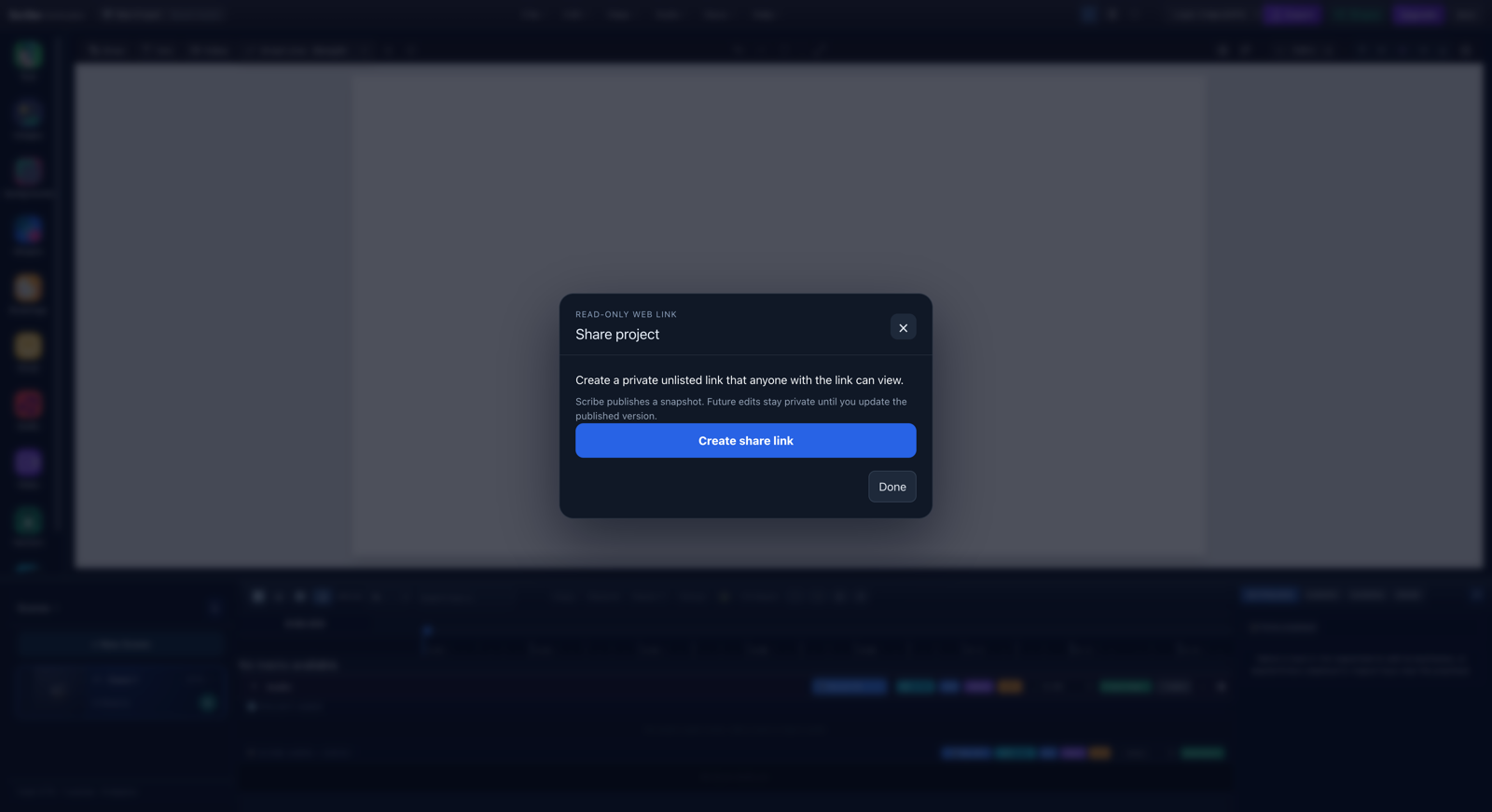
- Read-only web linkThe viewer receives playback permissions, not editing, import, account, or export controls.
- Snapshot noticeFuture edits remain private until Update published version is selected.
- Create share linkPackages the current project, uploads an immutable version, and creates the unlisted URL.
Scribe creates a fresh portable project package from the state currently open in the editor. It uploads that package as an immutable cloud version before the public link is activated. A failed package upload cannot replace an existing published result.
Expected result: the dialog changes to Anyone with the link can view and
shows a URL beginning with https://app.scribeanimator.com/s/.
Links and iframe snippets that were previously published on
https://app.ohotech.com/s/ and https://app.ohotech.com/embed/ remain
supported compatibility URLs. They resolve the same token and published
snapshot; new copies use the app.scribeanimator.com origin.
2. Copy and test the link
After publication:
- Select Copy link.
- Use Share… when the browser or device exposes its system share menu.
- Open a private or incognito browser window.
- Paste the link without signing in.
- Select Play and watch the full animation.
- Test audio, camera movement, scene boundaries, and any video objects.
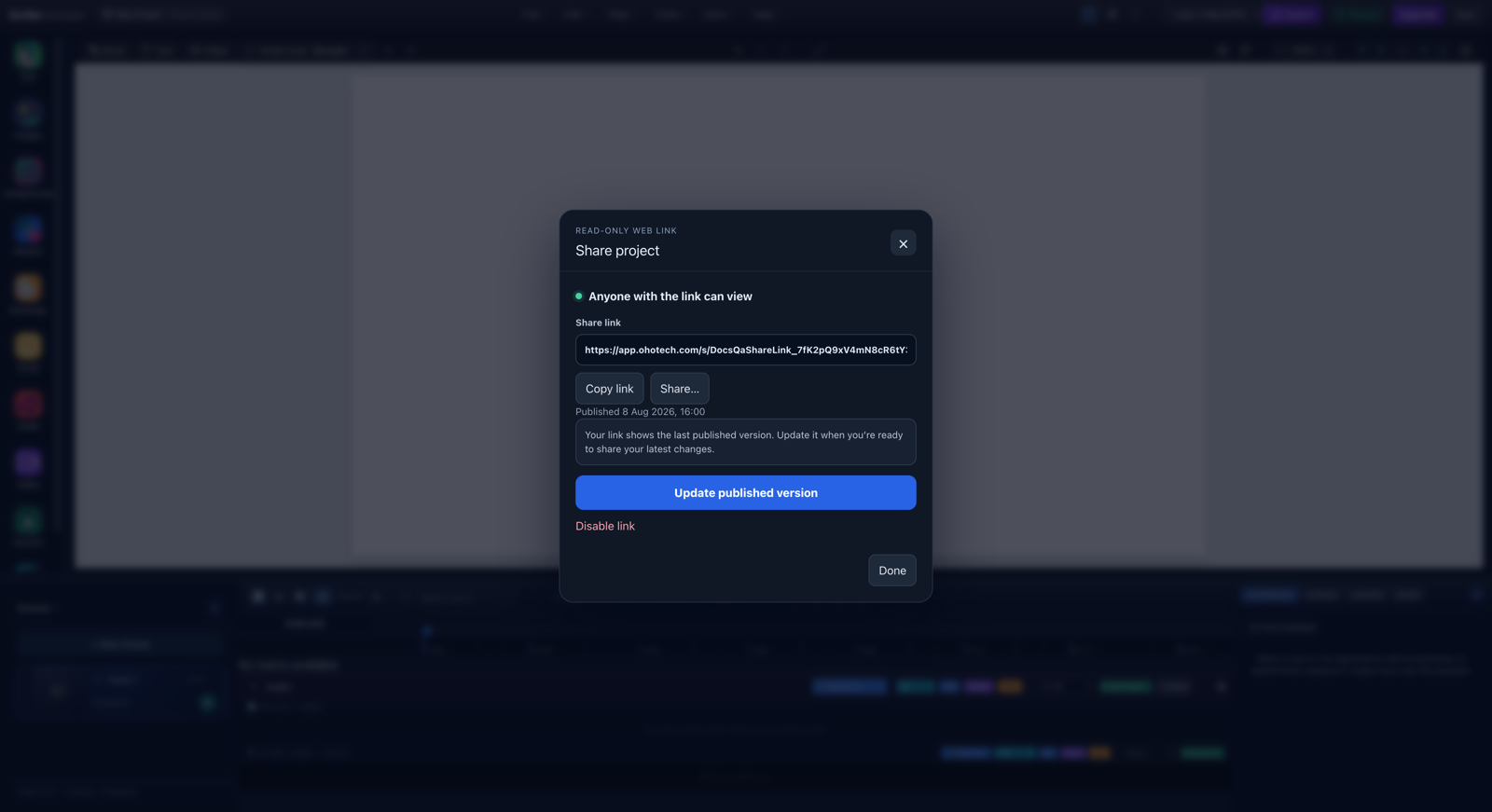
- Active viewer stateThe green indicator confirms that the current bearer URL resolves to a published version.
- Copy or ShareCopy always remains available; Share opens the platform share surface where supported.
- Update published versionCreates a new immutable snapshot and keeps the same active URL.
- Disable linkRevokes this URL after a lightweight confirmation; it does not delete the project.
Do not treat an authenticated editor tab as the final verification. A private window confirms that the public viewer does not depend on your account session.
3. Embed a Scribe project on your website
Embedding is available as soon as the project has an active share link. Scribe does not publish a second package or create a second credential: the share URL and iframe both resolve the same token and immutable published snapshot.
On Desktop:
- Open Share and create a share link if the project has not been published.
- Find Embed this project below the active share link.
- Leave Player controls on unless your layout supplies another clear way for the visitor to start playback.
- Turn on Loop playback only when the animation should restart after it completes.
- Select Copy embed code.
- Paste the code into the HTML or embed block supplied by your website builder.
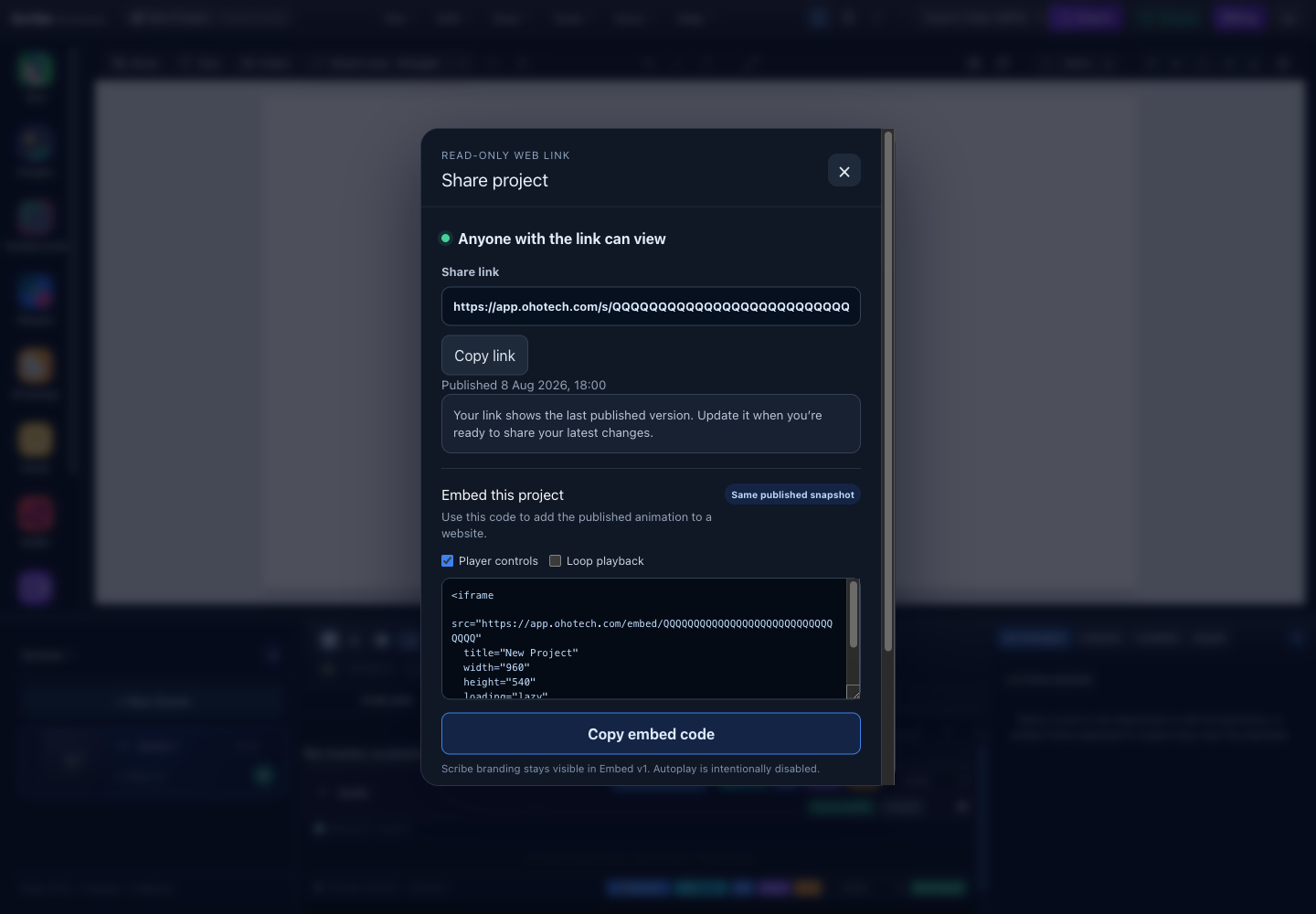
- Same published snapshotShare and Embed resolve the same active token, version, and private packaged media.
- Safe player optionsControls are on and looping is off by default. Embed v1 intentionally does not autoplay.
- Website-ready iframeThe generated markup uses the canonical app.scribeanimator.com embed origin and an escaped project title.
- Copy embed codeCopies the complete iframe element without creating or uploading another project version.
The generated code follows this shape:
<iframe
  src="https://app.scribeanimator.com/embed/<token>"
  title="Scribe Animator project"
  width="960"
  height="540"
  loading="lazy"
  allow="fullscreen"
  allowfullscreen>
</iframe>
Scribe branding remains visible in Embed v1. Autoplay is intentionally not
supported, so the visitor must make an explicit Play gesture before audio can
begin. The supported URL options are limited to controls=0 and loop=1;
arbitrary styling, JavaScript commands, and editor operations are not accepted.
On Mobile Lite, open the project menu, choose Share project, then use Copy embed code in Embed on a website. The compact sheet uses the same canonical helper and same active share token as Desktop.
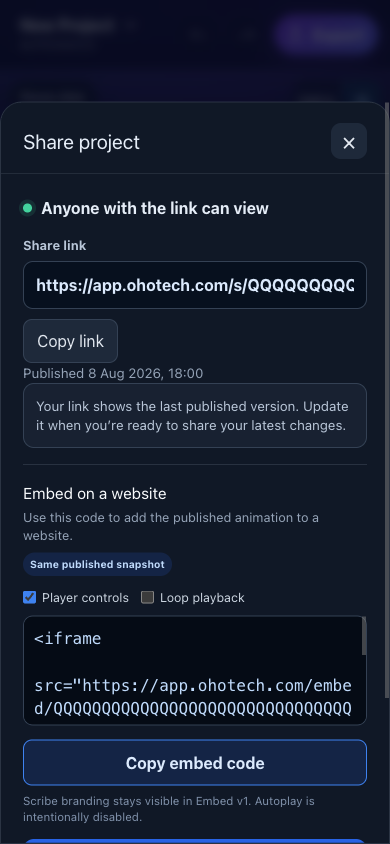
- Embed on a websiteThe mobile sheet exposes the same snapshot and the same controls and loop options as Desktop.
- Copy embed codeCopies canonical production iframe markup even when Scribe runs inside a native mobile shell.
Make the iframe responsive
The iframe's 960 by 540 attributes provide a stable fallback. For a fluid
website layout, place it in a container that follows the project's aspect
ratio. For a 16:9 project:
<div style="width:100%;aspect-ratio:16/9">
  <iframe
    src="https://app.scribeanimator.com/embed/<token>"
    title="Scribe Animator project"
    loading="lazy"
    allow="fullscreen"
    allowfullscreen
    style="width:100%;height:100%;border:0">
  </iframe>
</div>
Use the project's real ratio for portrait, square, or custom canvases. The player observes iframe-size changes and fits the project without recoloring or clipping its canvas.
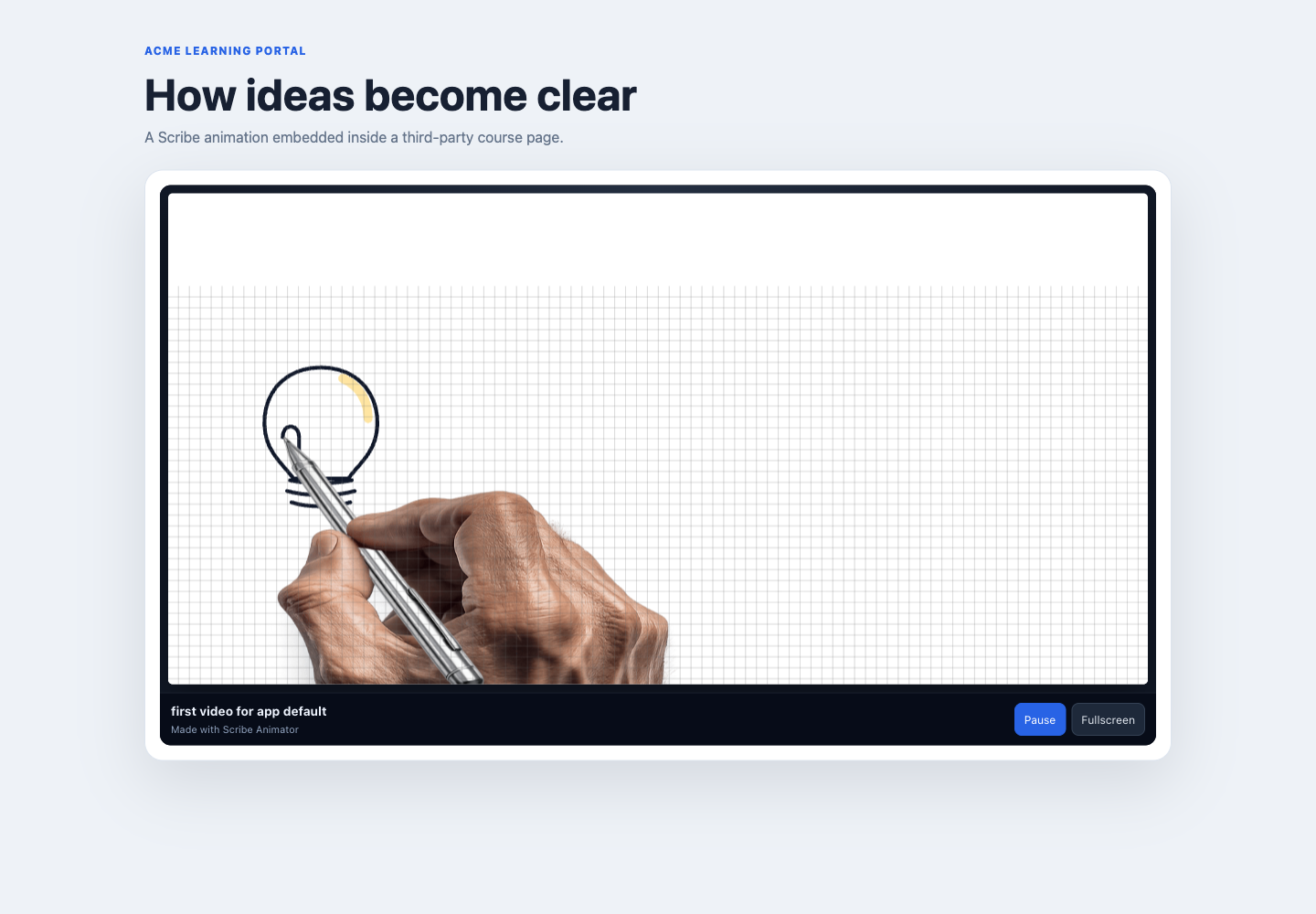
- Real third-party iframeThe Scribe player is hosted inside a separate course page while its package and runtime stay on the Scribe origin.
- Read-only playbackPlay or Pause and Fullscreen are present; editor, account, export, and package-download controls are absent.
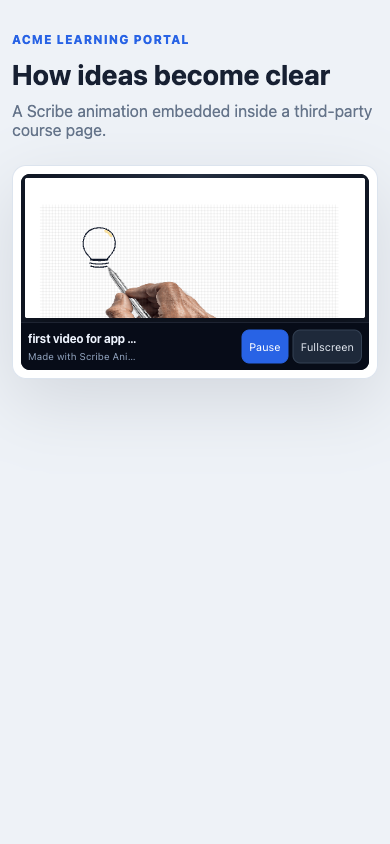
- Responsive playerThe runtime observes the narrow iframe and fits the complete canvas inside it without page-level horizontal overflow.
Update or revoke an embed
- Update published version uploads the latest editor state and repoints the
active token. Reloading either
/s/<token>or/embed/<token>then shows the new snapshot. - Disable link immediately makes the share page and every iframe using that token unavailable.
- Publishing again after disabling creates a new token. Existing websites must replace the old iframe URL; the revoked URL never becomes active again.
An embed is view-only, not DRM. Its bearer token is visible in page source and
the browser receives the package and media needed for playback. Do not embed
confidential projects. Some CMS and site builders remove iframe markup, and the
parent site's security policy must permit frames from app.scribeanimator.com.
Browser media codec support still applies. Test the deployed page on the same desktop and mobile browsers your audience uses, especially when the project contains video-on-canvas media or audio.
4. Understand the shared viewer
The viewer starts paused so audio never begins unexpectedly. It provides only the playback surface and compact viewing controls.
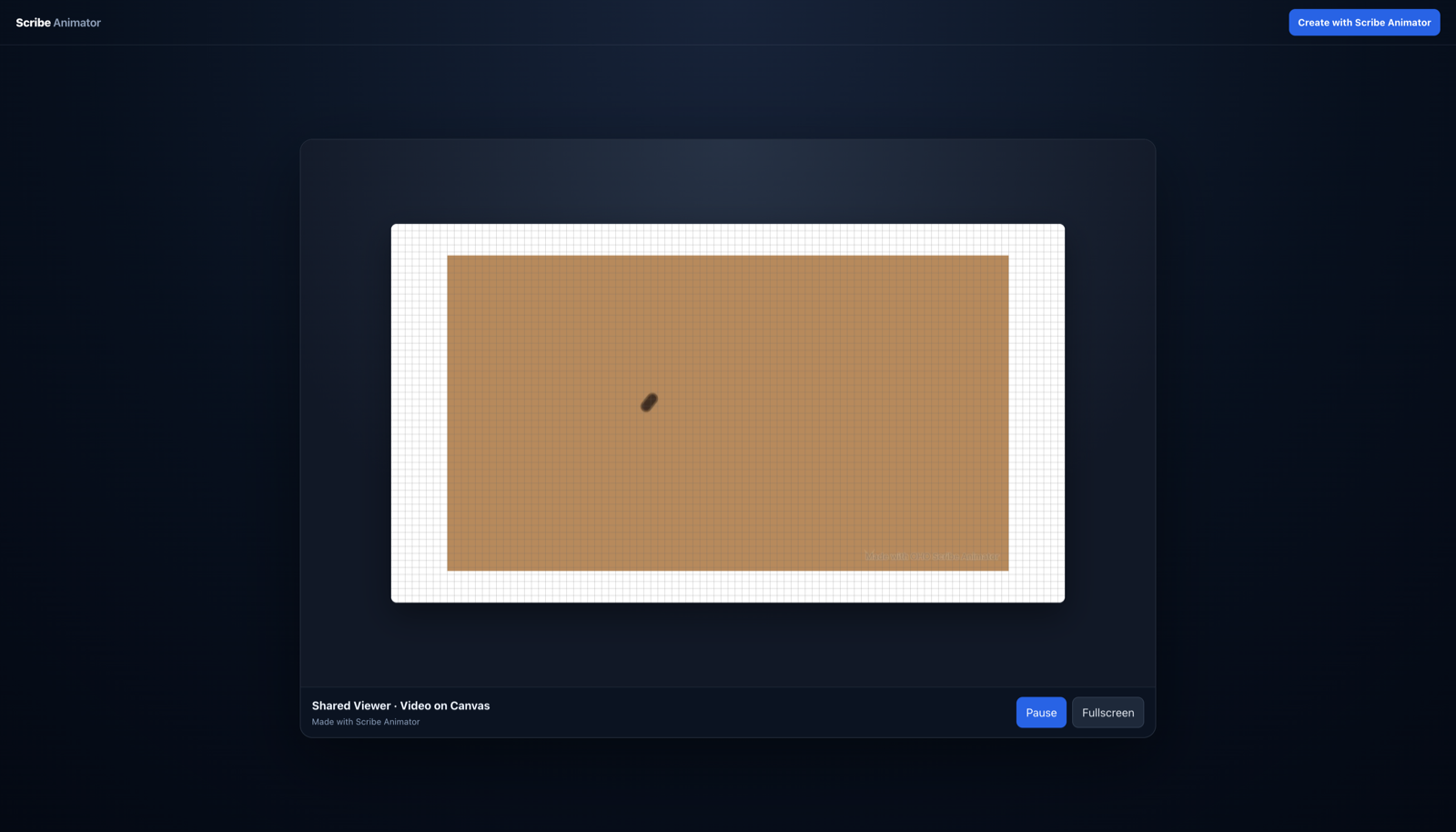
- Runtime canvasThe existing runtime evaluates project time, object transforms, camera, animation, audio, and packaged media.
- Project and Scribe identityThe viewer shows the project name and unobtrusive Made with Scribe Animator attribution.
- Playback controlsPlay or Pause, Replay after completion, and Fullscreen are available without editing commands.
- Create with ScribeReturns an interested viewer to Scribe Animator without exposing the source project's account.
The shared viewer can receive enough packaged project data to play the animation in the browser. It does not expose a visible package-download action, but it is view-only, not DRM. A technically sophisticated viewer can inspect browser network resources. Do not publish confidential source material solely because the editing interface is hidden.
5. Publish later edits without changing the URL
Normal edits, local saves, autosaves, and cloud saves do not silently alter the public snapshot.
- Return to the editor and make the required changes.
- Preview the complete project again.
- Open Share.
- Select Update published version.
- Wait for the package upload and publication update to finish.
- Reload the existing URL in a private window.
The update uploads the new immutable version first. Only after that succeeds does Scribe repoint the active link. If publication fails, the previous public version remains available.
Expected result: the URL is unchanged, while reloading it shows the newly published animation.
6. Disable a link or create a new one
To revoke access:
- Open Share.
- Select Disable link.
- Read the confirmation that the current URL will stop working.
- Confirm Disable link.
- Reload the old URL in a private window and verify the unavailable state.
Disabling does not delete the editable project. If you publish again later, Scribe creates a new token and URL. The old URL stays revoked.
7. Share from Mobile Lite
- Tap the project name at the top of Mobile Lite.
- Choose Share project.
- Create the link or review the active URL.
- Use Copy link or Share….
- Use Update published version after meaningful edits.
- Use Disable link when the URL should stop working.
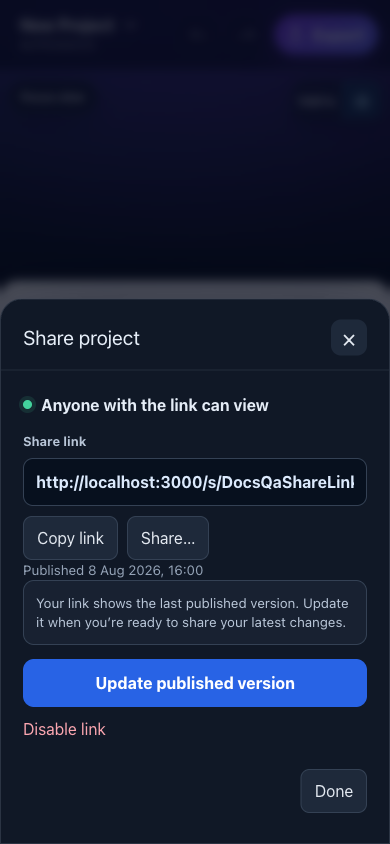
- Current linkThe active URL is readable and selectable without exposing editor controls to its recipients.
- Copy and system ShareThe system share sheet is used where supported, with copy available as the dependable fallback.
- Update snapshotPublishes the current Mobile Lite project state to the same active URL.
- Disable linkRevokes the current bearer URL after confirmation.
What is preserved in a published snapshot?
The shared viewer loads the portable .scribe representation. Supported
project content includes:
- scenes and scene timing;
- vectors, drawings, images, text, shapes, Smart Lines, and arrows;
- explicit animations, keyframes, and drawing reveals;
- camera movement and framing;
- project audio, scene audio, voiceover, fades, and timing;
- video-on-canvas media and supported embedded audio;
- board surfaces, backgrounds, and stroke materials; and
- packaged local assets required by the project.
Always test the exact published result. Browser codec support and missing local source files can still affect media playback.
Privacy, access, and indexing boundaries
- The URL is unlisted and carries the viewing credential.
- Shared and embedded pages request
noindex,nofollow, andnoarchivebehavior. - Share and embed URLs are not added to Scribe documentation or marketing sitemaps.
- The viewer does not show owner email, user ID, billing, library, or account UI.
- Recipients cannot edit, import, delete, upload, export, or persist runtime changes.
- Embed v1 exposes no public JavaScript SDK or unrestricted
postMessagecommand API. - This phase has no password, expiration date, public discovery, comments, or remix workflow.
- Disabling a URL is the correct response if it was sent to the wrong person.
Troubleshooting and safe recovery
Share asks you to sign in
Sharing is account-scoped because Scribe must store an immutable project version. Sign in, return to the same project, and select Share again.
Create or update fails
- Keep the editor tab open.
- Confirm the network connection.
- Check whether local media is still available.
- Verify account storage limits.
- Retry the Share action.
If an update fails, do not disable the old link unless you intend to revoke it. The previous successfully published snapshot remains authoritative.
The viewer says the project is unavailable
The token may be malformed, revoked, missing, or linked to an unavailable package. The same unavailable state appears inside an iframe. Ask the project owner for the current URL. Do not try to repair or guess a token.
A website removes the iframe
Some hosted CMS editors sanitize raw iframe HTML. Use that platform's trusted
HTML/embed block, confirm it permits https://app.scribeanimator.com, or ask the site
administrator to allow the Scribe origin. Do not replace the iframe with a raw
package-download URL.
The link shows an older version
This is expected after normal editing. Open Share, select Update published version, wait for success, and reload the viewer.
Audio or video is missing
- Return to the editor and confirm the source media still resolves.
- Preview the affected timestamp locally.
- Replace a missing file instead of publishing a broken reference.
- Publish a new version, then test in a private window.
- Check whether the recipient's browser supports the media codec.
Copy link fails
Select the URL field and copy it manually. Clipboard access can be restricted by browser permissions or an insecure local development origin.
Accessibility notes
- The Desktop Share surface is a keyboard-focus-trapped dialog and closes with
Escape. - Mobile Lite uses a sheet with touch-sized actions and safe-area spacing.
- Buttons are disabled while package or share mutations are in progress.
- Copy, update, disable, loading, and error states expose readable status text.
- The public viewer requires an intentional Play action, preventing unexpected audio autoplay.
- The embed controls support keyboard Play/Pause, visible focus, Replay, and an accessible Fullscreen label; hidden controls are not left focusable.
Final result checklist
- The owner can copy one active
https://app.scribeanimator.com/s/…URL. - The owner can copy iframe markup using
https://app.scribeanimator.com/embed/…with the same active token. - A private browser opens it without an account.
- A real third-party iframe can open it without an account.
- Share and embed playback include the expected scenes, camera, visuals, audio, and video.
- Editor controls, account UI, and export controls are absent.
- Normal edits do not change the published result.
- Update published version changes both presentations without changing the token.
- Disable link makes the old share and embed URLs unavailable.
- Publishing again after revocation creates a different token for both URLs.