Create text, typography, and equations
Text should usually remain editable while you write, style, position, and time it. Convert text to vector outlines only when you need path geometry—for example, a hand-drawn lettering reveal or a final logo treatment.
Scribe offers three creation routes:
- Text Blocks add a designed, multi-object composition.
- Text Presets add one pre-styled text object.
- Custom text adds or edits your own content and typography.
Desktop also includes a separate Equation editor that turns safe LaTeX into scalable, drawable vector output.
Choose the right text type
| Need | Start with | Why |
|---|---|---|
| A complete title card, callout, lower third, or social layout | Text Block | Inserts a coordinated group of text and supporting objects |
| One quick heading or label | Text Preset | Creates one centered, pre-styled text object |
| Exact wording and manual typography | Custom text | Gives direct control over content, font, weight, alignment, and wrapping |
| Letters appearing in sequence | Editable text + Typewriter | Typewriter is a text-specific animation and keeps the wording editable |
| The hand drawing each letter shape | Text → outlines → drawing workflow | Converts glyphs into vector paths that can be planned and revealed |
| Mathematical notation | Desktop Equation editor | Produces scalable paths from constrained LaTeX instead of inserting a screenshot |
Browse blocks and presets
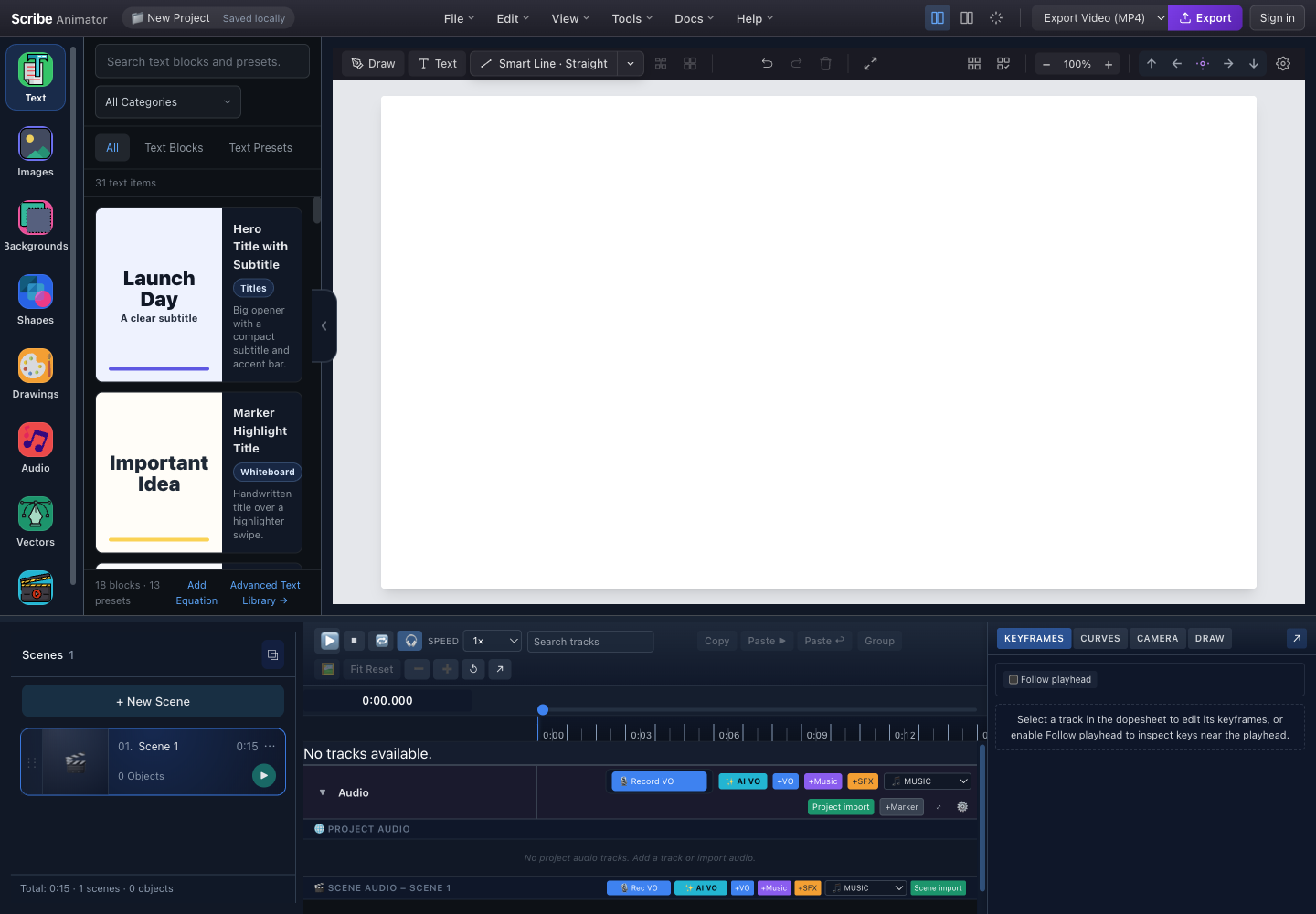
- Text libraryOpens blocks, presets, custom text entry, and the Desktop equation action.
- SearchSearches text blocks and presets by their catalog information.
- CategoryNarrows results to a purpose such as titles, education, business, callouts, or whiteboard.
- All, Text Blocks, Text PresetsUse Blocks for compositions and Presets for a single styled text object.
- Preview cardsEach card previews the visual hierarchy and identifies its category.
- Equation and advanced actionsDesktop exposes Add Equation and Advanced Text Library beneath the current block/preset counts.
The catalog in this screenshot contains 18 blocks and 13 presets. Treat those numbers as a point-in-time count, not a compatibility guarantee.
Block categories
Current block categories cover designed uses such as:
- Titles;
- Social / YouTube;
- Education;
- Business;
- Whiteboard;
- Callouts;
- Lower Thirds; and
- Fun / Comic.
Text presets use related categories, including Basic, Whiteboard, Chalkboard, Corporate, YouTube/Social, Education, and Callouts.
Workflow A: insert a Text Block
Use a block when you want a ready-made composition, not just one line of type.
- Pause playback and select the intended scene.
- Open Text.
- Choose Text Blocks, or remain on All.
- Search or select a category.
- Inspect the card's preview, label, and purpose.
- Select the block.
- Wait for all of its objects to be created.
- Confirm the block's primary object is selected.
- Reposition the composition without accidentally separating supporting elements.
- Replace the sample wording in each text object.
- Preview the scene and verify that all block objects fit its duration.
Expected result: a block can add multiple text and SVG objects, all scoped and timed to the active scene. It is not necessarily one grouped text box.
Workflow B: insert a Text Preset
Use a preset for one styled heading, label, or sentence.
- Open Text → Text Presets.
- Search or filter by category.
- Select a preset.
- Confirm that one centered text object appears and becomes selected.
- Replace its placeholder wording.
- Adjust placement, width/wrapping, and typography.
- Rename the object in Basics if a descriptive timeline label will help later.
Workflow C: create custom text
Desktop provides a direct Text tool in the top canvas toolbar. Mobile Lite provides Library and Custom choices in its text sheet.
- Select the active scene.
- Choose Text or the Custom text route.
- Enter the final or near-final wording.
- Choose a font family.
- Set font size, weight, alignment, wrapping, line height, and any supported decoration or color.
- Add or update the text.
- Position it on the canvas.
- Check the timeline track and scene duration.
The current Desktop text editor constrains font size to 8–72. Canvas scale can make text appear larger, but scale and font size are not equivalent typography decisions.
Understand the inserted result
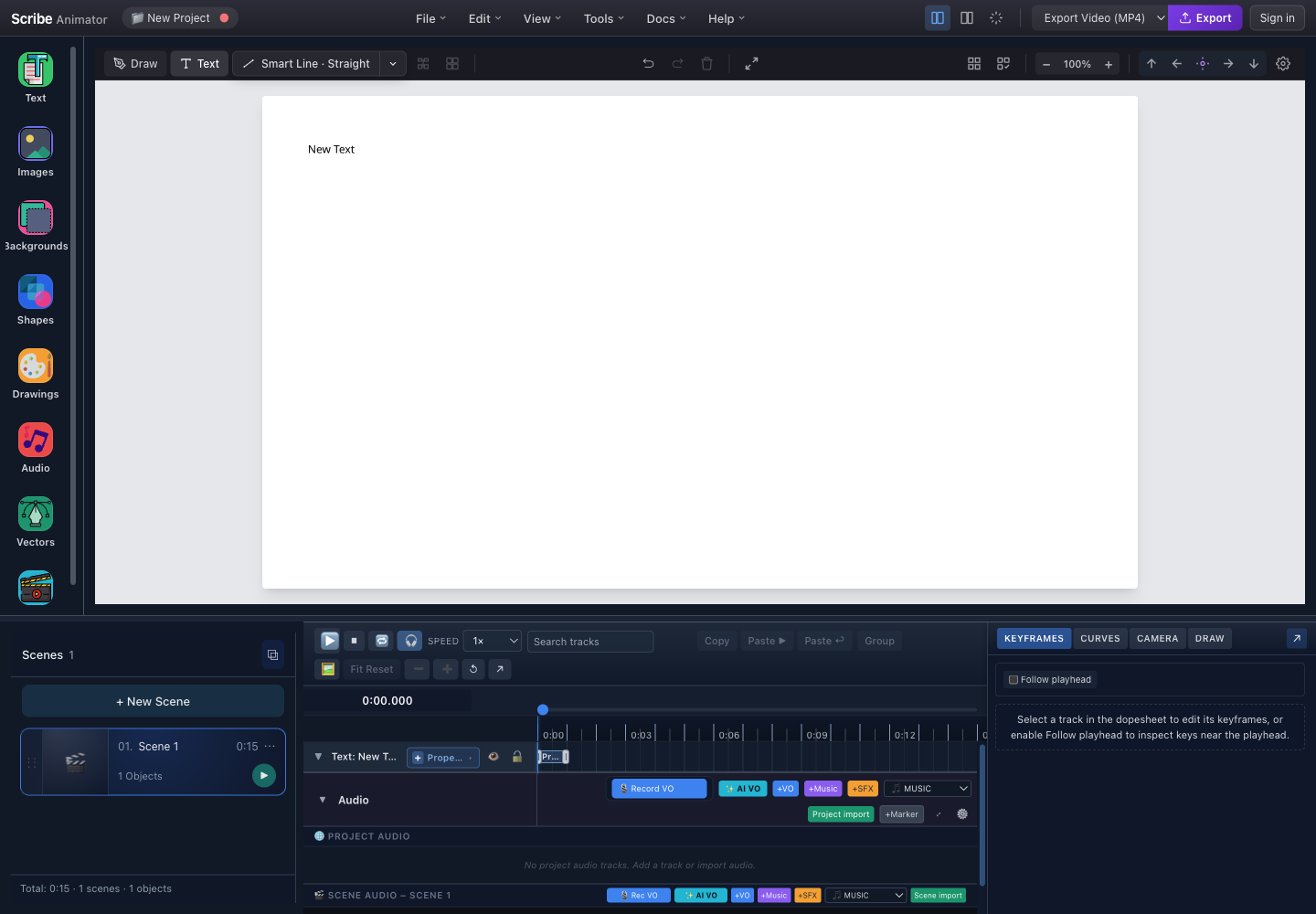
- Canvas textThe text is a real scene object, positioned in project canvas coordinates.
- Text timeline trackThe object has a track that can receive timing, property, and animation changes.
- Active sceneObject creation is scoped to the selected scene, shown in the scene manager.
Edit with the canvas and Properties panel
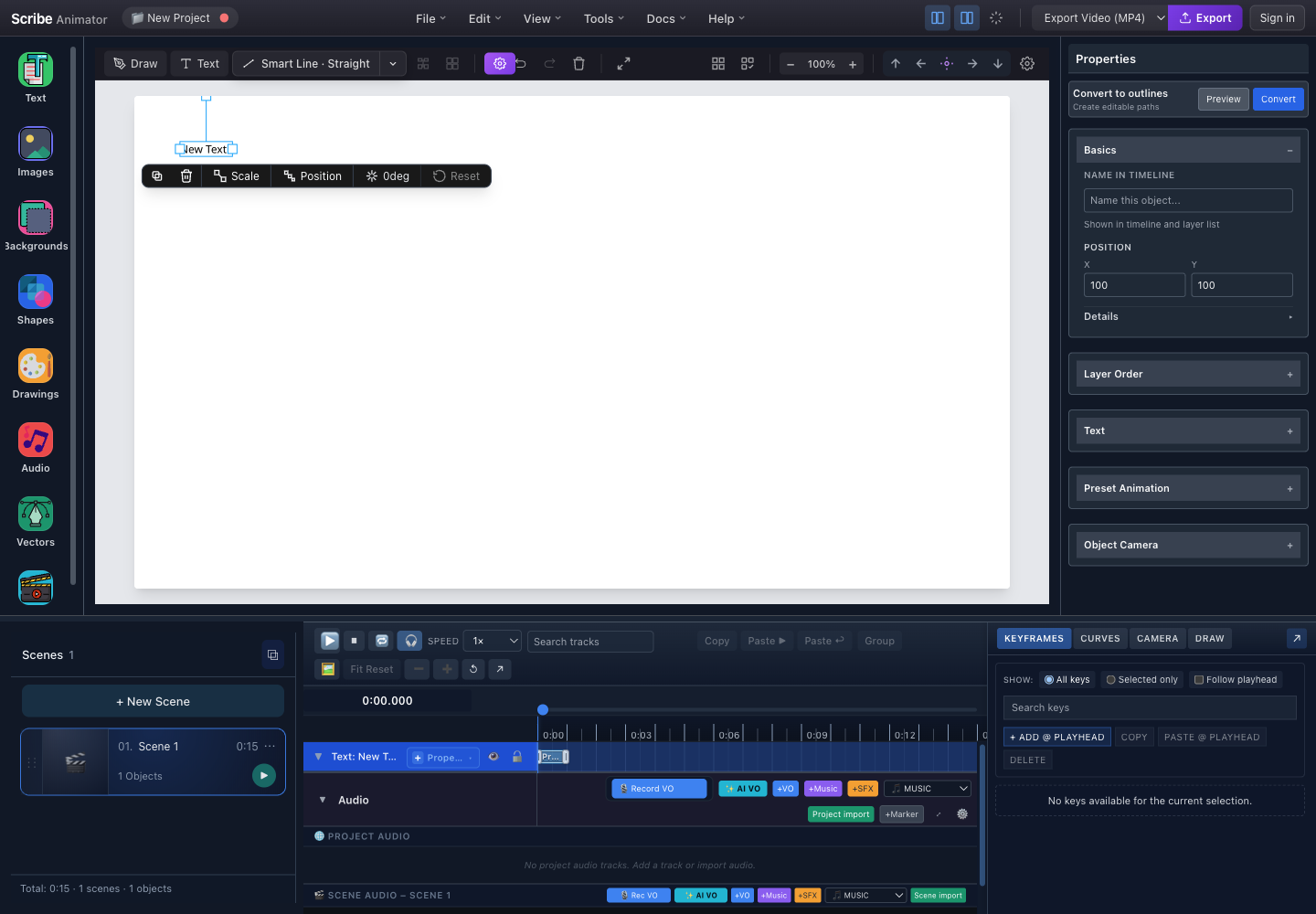
- Selected textSelection exposes object handles and makes its inspector and track active.
- Contextual object toolbarDuplicate, delete, scale, position, rotate, and reset the selected object.
- Convert to outlinesPreview glyph paths first, then convert only when editable text is no longer required.
- BasicsRename the timeline object and edit core placement details.
- Text propertiesExpand Text to edit content and supported typography without converting to paths.
- Preset AnimationApply supported entrance behavior, including text-specific typewriter timing.
- Selected text trackUse the track and Properties control to coordinate object timing with the scene.
Edit wording live
- Select an unlocked native Text object and open Properties → Text.
- Type in Content, whose placeholder is Enter text content. The current project and evaluated canvas update while you type; leaving the field is not required to make the wording visible.
- Check the complete line and its selection box. Clear the field or enter manual line breaks when those are intentional.
- Finish the edit gesture, then use Undo to restore the previous wording or Redo to restore the completed change.
- Preview at the intended export size after editing or changing the font.
Script font assistance still applies during live editing. If the default font cannot represent a supported script, inspect the recommended font and actual glyphs; a successful content edit does not by itself prove outline conversion or animated readability.
Understand automatic and fixed text boxes
Text added with the Desktop canvas Text tool uses automatic content sizing. Copy and typography changes update its canonical width and height, so the selection box, layout bounds, preview, and export refer to the same geometry. It keeps the chosen horizontal and vertical alignment anchor where possible and stays bounded by the project canvas. Font loading can silently refit an automatic box without creating a separate Undo action.
An explicitly resized or authored box uses fixed sizing. Its width and height stay put when the copy changes. Use this for a card label, aligned column, or a title placed in a deliberate text area. Horizontal alignment and vertical alignment apply inside that authored box; they are not instructions to reposition the object on the canvas.
| Situation | Expected sizing behavior |
|---|---|
| New text from the Desktop canvas Text tool | Copy and typography changes can grow or shrink the content box |
| Manual width/height resize of automatic text | The resize fixes its authored box; later copy edits retain that size |
| Older/imported text without an explicit sizing policy | Fixed, preserving the existing layout |
| Agent-created text or motion recipe with authored dimensions | Inspect the returned fixed box and fit the copy to it |
The current Properties workflow does not expose a sizing-policy switch. Do not look for an Auto fit button. If a fixed box clips new copy, resize the box, shorten the text, adjust typography, or use intentional line breaks. If automatic text reaches a canvas edge, move it to provide room and review wrapping instead of assuming unlimited growth.
Live Content edits, automatic sizing, fixed-box preservation, font refresh, and selection/export geometry were reviewed against the current implementation and regression coverage on 7 October 2026. The inspector image above is an existing product capture; it does not show a new sizing switch.
Scale, font size, and wrapping are different
- Font size changes the actual typography.
- Scale transforms the entire text object, including spacing and stroke.
- Wrap width determines where automatic line breaks occur.
- Manual wrap preserves only the line breaks you entered.
- Line height controls vertical distance between lines.
- Letter spacing controls horizontal space between characters.
- Corner resizing changes visual bounds and may not produce the same result as choosing a deliberate font size and wrap width.
For headings, use intentional line breaks and a clear hierarchy. For paragraphs, choose a readable line length instead of shrinking the font until everything fits.
Animate editable text
Use an entrance preset when the whole object should fade, slide, or scale into the scene. Use Typewriter when characters should appear progressively.
- Keep the text editable.
- Select it and expand Preset Animation.
- Choose an animation supported for text.
- Set its timing inside the active scene.
- Preview from before the animation starts.
- Confirm the final line remains on screen long enough to read.
Typewriter applies to text objects. A vector outline is no longer text and therefore uses vector/drawing behavior instead.
Introduce words with Kinetic Text
Kinetic Text animates shaped word runs from one editable native Text object. Use it for a short hero title when separate word entrances help the audience follow the phrase. The text remains one source object; the operation does not create a collection of glyph objects.
This V1 authoring capability is available to compatible agents in the Desktop
web editor. It is distinct from the visible Typewriter preset. Discover
text.kinetic.set, inspect its schema, and execute it through
scribe_execute_capability with these fields:
| Input | Meaning |
|---|---|
objectId, mode: "word" | Existing scene-local native Text object and supported unit |
startMs, durationMs | Scene-local start and duration of each word's entrance |
staggerMs | Optional delay between runs; default 160 ms |
easing | Optional linear, ease-in, ease-out, or ease-in-out; default ease-out |
from | Optional starting offsetX, offsetY, scale, rotation, and opacity |
runOverrides | Optional entries with runIndex and starting rotationFrom or extra delayMs |
Before setting it, clear the Text entrance preset and use one nonempty line
with wrap: "none". V1 accepts at most 512 characters and 32 word runs.
Mixed strong left-to-right and right-to-left text is outside its scope. The
entrance, stagger, and extra delays must fit the scene.
Inspect text.kinetic.get for run count, active overrides, and the calculated
end time. Preview the returned inspection times and leave a readable hold
after the last word settles. Editing the copy preserves the global entrance
intent but removes stale per-run overrides; inspect the run count and timing
again. text.kinetic.clear removes the entrance while keeping the native
text and its layout.
To create a complete title treatment in one operation, use the Kinetic Title recipe. That recipe also checks its authored box and final reading hold.
Supported languages and scripts for outline conversion
Scribe's current text-outline workflow is verified against exact language samples and bundled font binaries. This is content-language coverage: it does not mean the editor menus are localized into every language, and it is separate from local AI voiceover language coverage.
| Verified language coverage | Script lane | Recommended bundled font | Evidence level |
|---|---|---|---|
| English, Spanish, French, German, Italian, Portuguese, Dutch, Catalan, Galician, Danish, Norwegian, Swedish, Finnish, Icelandic, Polish, Czech, Slovak, Slovenian, Croatian, Romanian, Hungarian, Turkish, Vietnamese, Indonesian, Malay, Afrikaans | Latin | Noto Sans | Every stored sample passed glyph and outline checks; Spanish, French, Polish, Turkish, and Vietnamese completed the full Desktop UI and Draw Step workflow |
| Hindi, Marathi, Nepali | Devanagari | Noto Sans Devanagari | Every stored sample passed; Hindi completed the full Desktop UI and Draw Step workflow |
| Arabic, Persian, Urdu | Arabic-family complex shaping | Noto Sans Arabic | Every stored sample completed shaping, outline, Desktop UI, and Draw Step checks |
| Hebrew | Hebrew complex shaping | Noto Sans Hebrew | The stored sample completed shaping, outline, Desktop UI, and Draw Step checks |
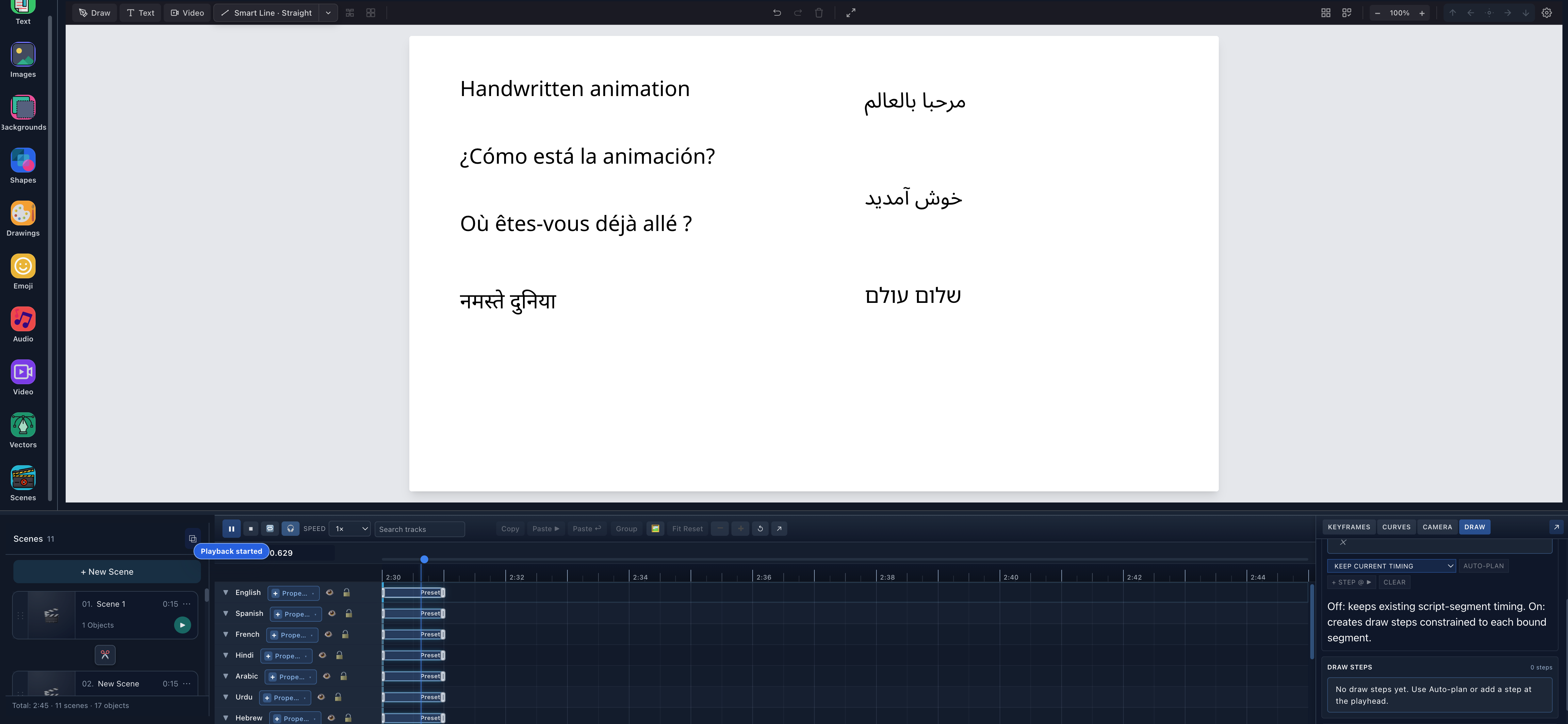
- Latin and Devanagari examplesEnglish, Spanish, French, and Hindi are separate live text objects in the scene.
- RTL examplesArabic, Urdu, and Hebrew render in their real visual direction with the verified fonts.
- Independent text tracksThe timeline retains each language as its own editable object before outlining.
The multilingual handwritten text tutorial provides the exact samples, per-language evidence matrix, Hindi and RTL screenshots, Draw Step workflow, and the current not-verified list. Do not infer Bengali, Tamil, Telugu, Thai, CJK, Cyrillic, Greek, or another script from the Noto brand alone.
Convert text to outlines
Outlining converts font glyphs into vector path geometry. Use it for:
- hand-drawn letter reveals;
- a final, fixed logo treatment;
- path-level editing; or
- a vector result that must not depend on live font rendering.
Do not outline merely to resize text.
- Finish wording, capitalization, punctuation, wrapping, and font choice.
- Duplicate the editable text object as a recovery copy.
- Hide or move the recovery copy if needed.
- Select the final text and choose Preview under Convert to outlines.
- Inspect every glyph, line break, and script.
- Choose Convert.
- Confirm the result contains vector paths.
- If a physical drawing appearance is required, open Vector Path → Stroke Material and choose Solid, Marker, Chalk, Pencil, Crayon, Dry Marker, Ink Brush, or Highlighter.
- Run stroke planning and adjust path order.
- Preview the complete reveal.
Outlined glyphs use the same deterministic material and partial-reveal pipeline as other vector paths. Normal editable text remains clean; it is not automatically textured by a Blackboard, Paper, or Blueprint surface. See Choose board surfaces and stroke materials for pairing and export guidance.
Outlined text is not equivalent to live editable text. Keep the duplicate until the project is approved.
Right-to-left and mixed-script limits
The current outline workflow has explicit complex-script boundaries:
- Arabic, Persian, and Urdu use the approved Noto Sans Arabic path; Hebrew uses Noto Sans Hebrew;
- automatic wrapping is not supported for complex RTL outline conversion;
- authored manual line breaks are supported when each line still fits without automatic wrapping;
- keep the original logical text order—do not reverse Arabic, Persian, Urdu, or Hebrew strings manually; and
- mixed Arabic and Hebrew in one text object is unsupported.
Split mixed-script content into separate objects and preview before conversion.
Add a math equation on Desktop
The Equation editor converts constrained LaTeX into SVG/path content that can be added and drawn. It does not take a screenshot of a web-rendered equation.
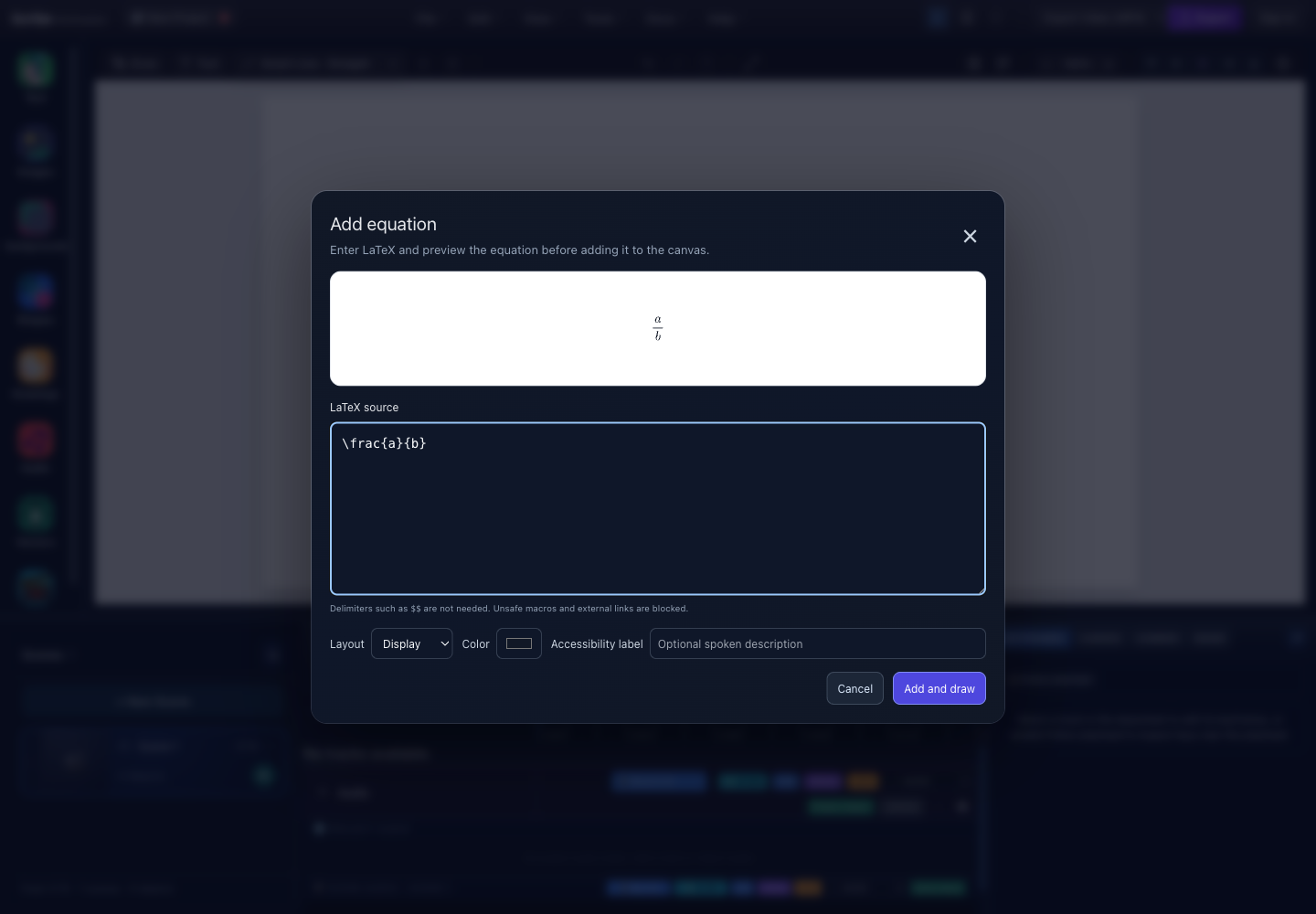
- Live equation previewInspect the rendered symbols and spacing before creating canvas content.
- LaTeX sourceEnter LaTeX without surrounding dollar delimiters. Unsafe macros and external links are blocked.
- LayoutChoose Display for a standalone expression or the compact/inline layout when appropriate.
- ColorSet the vector equation color before insertion.
- Accessibility labelAdd an optional spoken description that communicates the equation meaning.
- Add and drawCommits the validated equation as scalable, drawable canvas content.
- Pause playback.
- Open Text and choose Add Equation.
- Enter LaTeX. The editor accepts LaTeX input rather than a general rich-text equation language.
- Choose display or compact/inline presentation.
- Set the equation color.
- Add an accessibility label when the visual expression needs a spoken description.
- Wait for the live preview; preview rendering is deliberately delayed by about 250 ms while typing.
- Verify symbols, fractions, roots, limits, and line breaks.
- Choose Add and draw.
- Resize proportionally and preview at the target export size.
Equation metadata is retained so a supported equation can be edited later.
Equation safety and limits
- LaTeX input is limited to 4,096 characters.
- Unsafe macros and external links are blocked.
- MathJax is loaded from Scribe's local
/vendor/mathjax/tex-svg.jsruntime. - URL protocols, arbitrary styles, classes, and IDs are disabled in the safe configuration.
- Generated SVG output larger than 5 MB is rejected.
- Equation editing is currently a Desktop feature.
Because the renderer is local, it can work offline after the required MathJax asset is available.
Desktop and Mobile Lite differences
| Task | Desktop | Mobile Lite |
|---|---|---|
| Discover content | Search, category, All/Blocks/Presets | Library search/filter for blocks and presets |
| Custom text | Canvas Text tool and inspector | Custom tab with touch-friendly form |
| Exposed styling | Full inspector sections and object toolbar | Text, font family, font size, weight, left/center/right alignment, manual/auto wrap, wrap width, and line height |
| Advanced object properties | Basics, Layer Order, Text, Preset Animation, Object Camera | Compact editing surfaces designed for touch |
| Equation editor | Available through Add Equation | Not available |
| Outline conversion | Preview/Convert in Properties | Selection-based conversion is surfaced only where supported by the Mobile Lite action set |
Limits and offline behavior
- Basic text editing does not require authentication.
- Bundled fonts and local text rendering can work offline after application assets are available.
- A font that has not loaded cannot be outlined correctly; wait for it or choose a bundled supported font.
- Browser text metrics can differ slightly, especially across rendering engines. Inspect wrapping after changing browser, device, or font.
- Blocks may add several objects and tracks. Check all of them before deleting or moving only the primary object.
- Extremely long text is a poor fit for animated scenes; divide it across scenes or use narration.
- Outlining increases path data and can make selection, planning, and preview more expensive.
- Account/cloud connectivity is unrelated to the core act of creating local text or local equations.
Verify the result
Check that:
- wording and punctuation are final;
- the object belongs to the intended scene;
- line breaks match the target aspect ratio;
- text remains readable against the background;
- the timeline label is descriptive;
- animation finishes before the audience needs to read;
- outlined glyphs match the editable source; and
- equation accessibility text explains meaning rather than merely repeating raw LaTeX.
Troubleshooting and recovery
| Symptom | Likely cause | Recovery |
|---|---|---|
| Nothing is inserted | No current project/scene or playback is active | Open/select a scene, pause, and retry |
| Block looks incomplete | Only one of its multiple objects was moved, hidden, or deleted | Undo, reinsert the block, and inspect all newly added tracks |
| Text wraps unexpectedly | Auto wrap width, font loading, or browser metrics changed | Set an explicit wrap width or use manual line breaks |
| New copy extends beyond a fixed selection box | The box was authored or manually resized | Resize deliberately, shorten the copy, or adjust typography; live editing preserves fixed dimensions |
| Kinetic entrance or run overrides no longer fit | Copy, wrapping, run count, or timing changed | Inspect text.kinetic.get, restore the supported single-line scope, and reauthor timing/overrides |
| Text is blurry or oddly proportioned | The whole object was scaled instead of choosing a suitable font size | Reset scale where appropriate, then set font size and width deliberately |
| Typewriter option is missing | The selected object is an outline/vector, not editable text | Select the editable copy or recreate the text object |
| Outline preview misses glyphs | Font is unavailable or the script/font combination is unsupported | Wait for a bundled font, choose an approved font, and preview again |
| RTL outline wraps incorrectly | Automatic RTL wrapping is unsupported | Insert manual line breaks and use one supported script per object |
| Equation preview shows an error | Invalid/unsupported LaTeX or blocked unsafe input | Reduce to supported LaTeX and remove unsafe macros/links |
| Equation is rejected after rendering | Generated SVG exceeds 5 MB | Simplify the expression or split it into multiple equation objects |
| Text changed after reopening elsewhere | Required font differs or was not available | Use a bundled font, preserve an editable copy, or convert the approved final text to outlines |