SVG Text to Path / Outline - Complete Guide
Convert text to vector outlines for advanced animation, styling control, and font-independent rendering. This guide covers the Text Outliner feature for transforming editable text into SVG paths.
Overview
The Convert to Outlines feature transforms text objects into vector paths. This is essential for:
- Draw-in animations - Hand-drawn text reveal effects
- Font independence - Export without font embedding concerns
- Advanced styling - Apply gradients, patterns, and path effects
- Precision control - Edit individual letter shapes
Current visual orientation
Outline conversion begins from a real selected text object. Preview first: conversion replaces editable text with vector path geometry and remaps compatible timeline references.
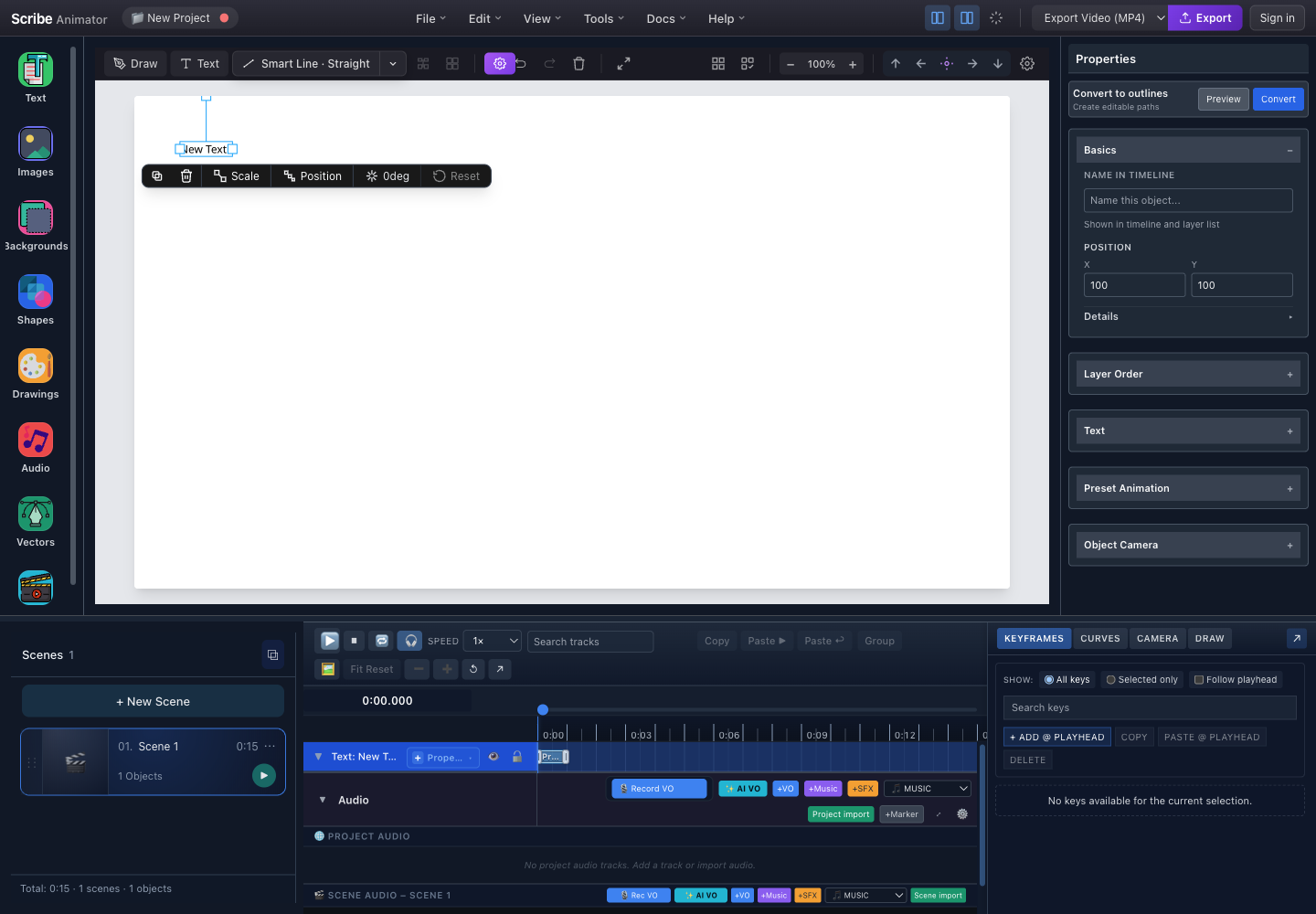
- Selected textOnly editable text objects are eligible; locked or stale selections are rejected.
- Convert to outlinesOpen the conversion controls, preview the glyph paths, then commit when the result is acceptable.
- Editable text propertiesFinish content, theme, font, size, spacing, alignment, and wrapping before conversion.
- Source timeline trackCompatible object and draw timing is remapped from the text ID to the outlined result.
This capture and the marked controls were checked against the running Desktop editor with browser-based UI review on July 26, 2026. The source implementation rejects non-text, locked, changed, or otherwise stale targets, and undo/redo reattaches selection across the replacement. For the end-to-end text workflow and current complex-script boundaries, follow Create text, typography, and equations.
The conversion has three irreversible-in-place stages: an editable text object is validated, the outliner resolves its glyph geometry, and the editor replaces it with vector paths. Undo immediately if the result is not acceptable.
Convert to Outlines Panel
Location
Select a text object → Inspector Panel → Convert to outlines section
Interface
Use the authentic annotated inspector capture above:
- Confirm the intended editable text is selected.
- Open Convert to outlines.
- Choose Preview before committing.
- Choose Convert only after the preview and source properties are correct.
Controls
| Button | Description |
|---|---|
| Preview | Shows outline preview before converting |
| Convert | Converts text to vector paths |
Preview Panel
The preview renders the actual glyph outlines that conversion would create. Check every character, spacing, holes/counters, fill, stroke, and overall bounds. A preview is not a second editable text object and does not guarantee that an unsupported glyph will convert.
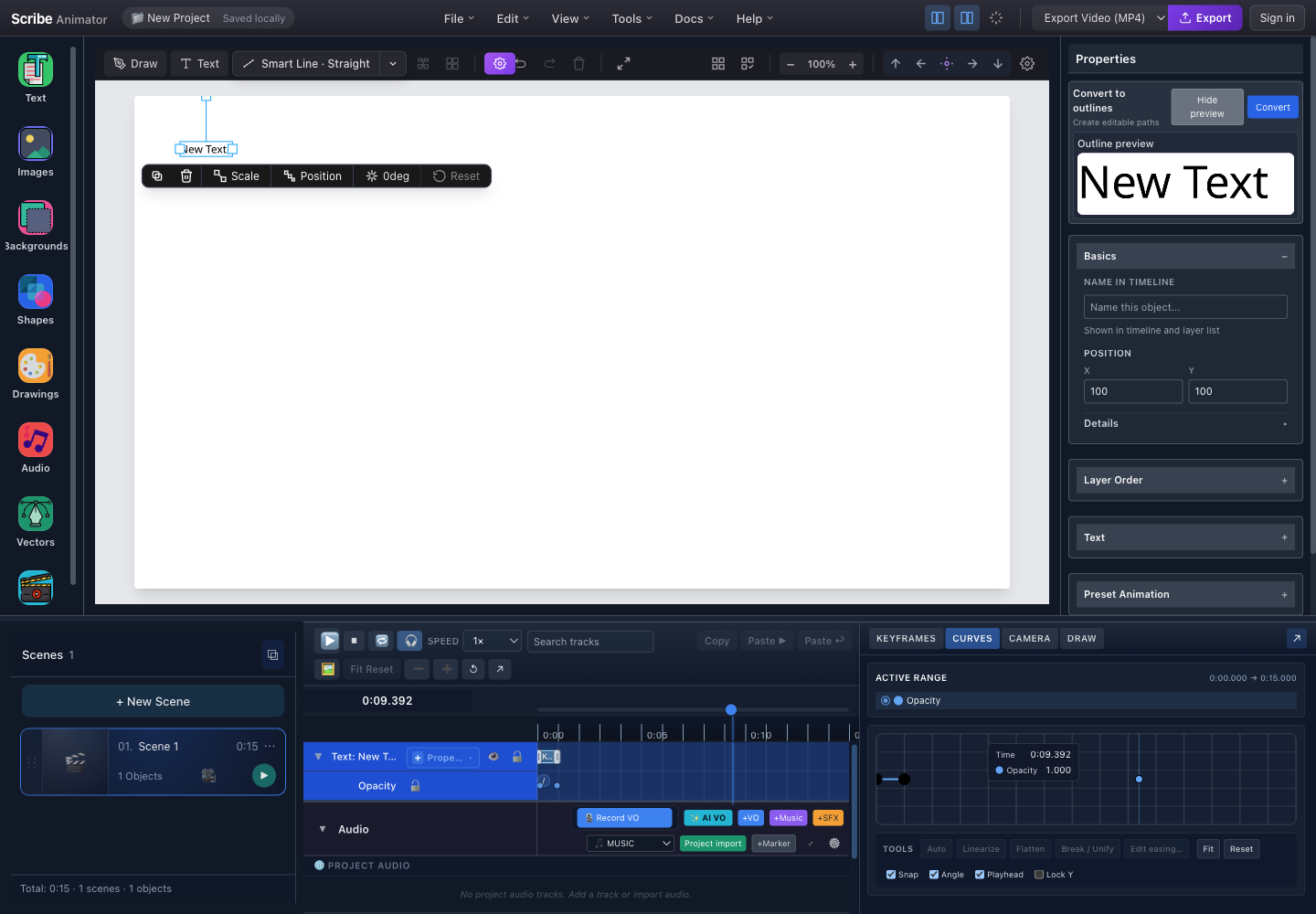
- Source textThe selected canvas object is still editable text while the preview is open.
- Preview and ConvertHide preview to return to the normal inspector, or Convert to replace the source with vector paths.
- Outline previewInspect every glyph, its spacing, counters, and overall bounds before committing.
Conversion Process
Step-by-Step
- Finish the text content, font, size, spacing, alignment, wrapping, fill, and stroke.
- Select the source text and confirm the inspector and timeline refer to the same object.
- Choose Preview and inspect all glyphs.
- Choose Convert. The engine loads the project font, extracts glyph outlines, and creates SVG path geometry.
- Confirm the text was replaced, compatible transforms and colors were preserved, the selection follows the replacement, and compatible timeline references were remapped.
- Test undo and redo before continuing.
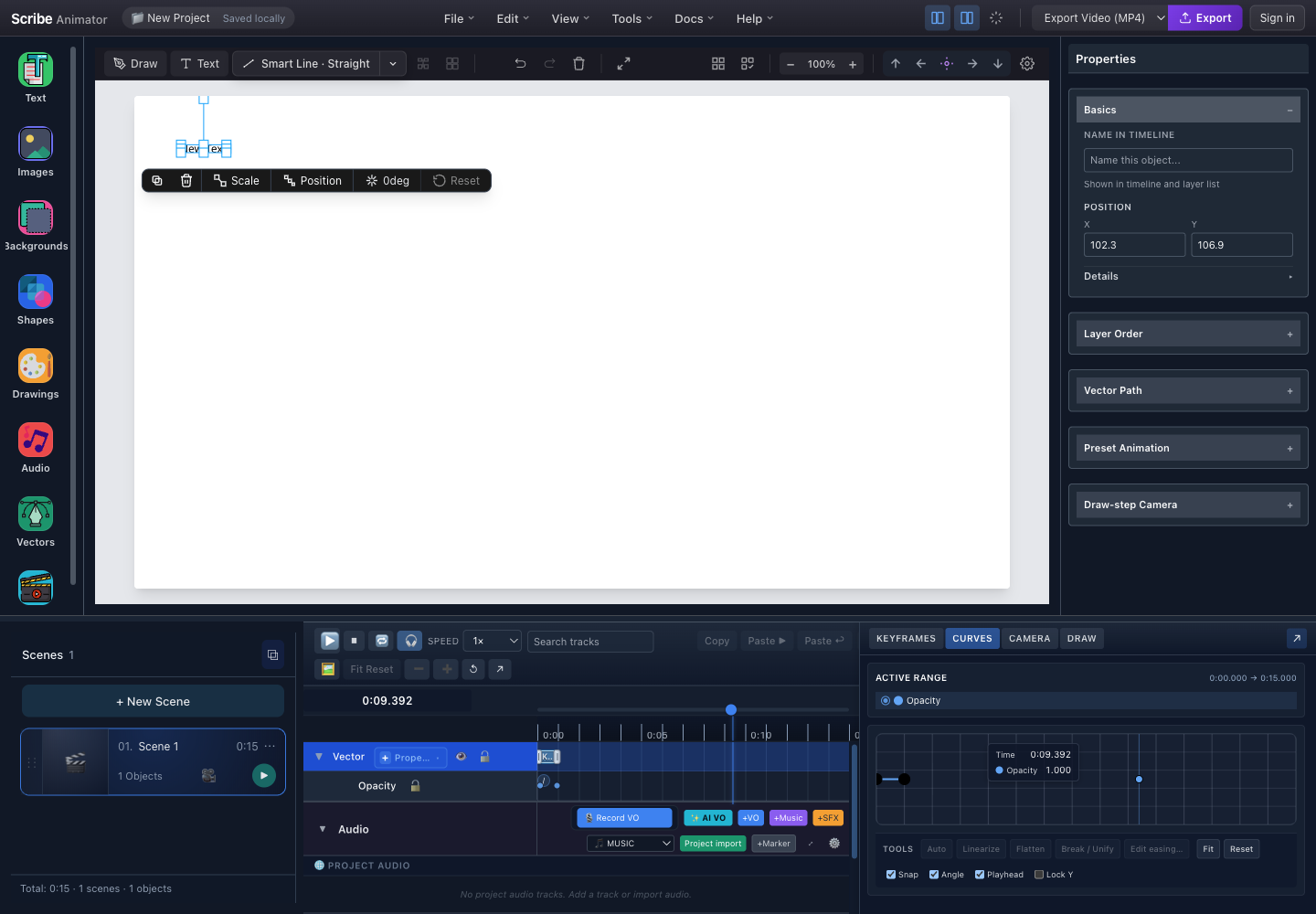
- Converted geometryThe selection follows the replacement, but its letters are now vector geometry rather than editable text.
- Vector PathPath-specific controls are available after conversion; text content and font controls are no longer applicable.
- Draw-step CameraThe outlined result can participate in vector draw and camera workflows supported by the editor.
- Vector timeline trackCompatible timing now belongs to the replacement vector object.
What Happens During Conversion
| Step | Description |
|---|---|
| Font Loading | Required font file loaded from project fonts |
| Text Parsing | Text content, size, weight, style extracted |
| Glyph Tracing | Each character converted to vector path |
| Path Assembly | Paths grouped preserving layout |
| Store Update | Text object replaced with outlined paths |
Supported Fonts
The outliner supports these bundled fonts:
Sans-Serif Fonts
| Font | Weights | Use Case |
|---|---|---|
| Noto Sans | Variable (100-900) | Multi-language support |
| Mukta | ExtraLight, Regular, Medium | Clean modern text |
| Hind | Light, Regular, Bold | UI and body text |
Serif Fonts
| Font | Weights | Use Case |
|---|---|---|
| Noto Serif | Variable (100-900) | Formal documents |
Display/Script Fonts
| Font | Weights | Use Case |
|---|---|---|
| Jumps Winter | Regular | Playful headlines |
| Kalam | Regular, Bold | Handwritten style |
Devanagari Fonts
| Font | Weights | Use Case |
|---|---|---|
| Noto Sans Devanagari | Variable | Hindi/Sanskrit UI |
| Noto Serif Devanagari | Variable | Hindi/Sanskrit formal |
| Tiro Devanagari Hindi | Regular, Italic | Hindi body text |
For best results, use bundled fonts. Custom fonts may not outline correctly if the font file is not available.
What Gets Preserved
Properties Maintained
| Property | After conversion |
|---|---|
| Position, transform, opacity, and layer order | Preserved on the replacement where supported |
| Fill, stroke, and stroke width | Copied into generated path styling |
| Compatible object and draw timing | Remapped from the source object ID |
| Editable text content | Lost; glyphs become fixed geometry |
| Font family and font size controls | No longer applicable; the font shape is embedded in paths |
| Text alignment, wrapping, and character editing | Lost; edit these before conversion |
Path Structure
Each character becomes one or more paths.
| Path field | Purpose |
|---|---|
id | Stable path identity within the replacement |
d | SVG path geometry |
fill, stroke, strokeWidth | Inherited appearance |
fillRule | Defines how overlapping contours create filled regions |
len | Measured path length used by draw animation |
bbox | Local x, y, width, and height bounds |
Use Cases
1. Draw-In Animation
Convert text to paths for a hand-drawn reveal effect:
- Create and finish the editable text.
- Convert it to outlines.
- Apply the supported Draw-In animation to the resulting path object.
- Preview the hand and draw order before export.
2. Gradient Fill
Editable text uses its supported text fills. After outlining, path-compatible styling can apply a gradient across the generated geometry. Preview counters and overlapping contours because the fill rule affects the result.
3. Font-Free Export
Export animations without font embedding issues:
| Without Outlining | With Outlining |
|---|---|
| Font file required | No font required |
| Text may render differently | Always renders correctly |
| Larger file if embedding | Paths self-contained |
Status Messages
Success
The confirmation reads Text converted to outlines. Use Ctrl+Z or
Command+Z immediately if you need the editable text back.
Partial Success
The warning explains that the current outline font does not support one or more characters and that those characters were skipped. Inspect the result for missing glyphs; undo the conversion before trying another font.
Error
If conversion produces no paths, the editor reports Could not convert text to outlines and leaves the source text unchanged. Confirm that the selected object contains text and that its font is available, then try again.
Undo/Redo
Conversion is a single atomic operation:
| Action | Keyboard | Effect |
|---|---|---|
| Undo | Ctrl+Z / ⌘+Z | Restores original editable text |
| Redo | Ctrl+Shift+Z / ⌘+Shift+Z | Re-applies outlined paths |
After undo, your original text is restored exactly as before - all editing capabilities return.
Inspector Badge
After conversion, the inspector identifies the object as an SVG Path and shows an Outlined text badge for the current session. The usual path controls remain available:
| Control | What it changes |
|---|---|
| Mode | The path's animation mode, such as Standard |
| Speed | Whether timing is duration-based and the corresponding value |
| Stroke | The path's stroke color |
| Width | The stroke width |
The "OUTLINED TEXT" badge is runtime-only and helps identify converted text. After project reload, outlined paths appear as regular SVG paths.
Limitations
Selection Rules
| Selection | Convert Available? |
|---|---|
| Single text object | ✅ Yes |
| Multiple text objects | ❌ No (select one at a time) |
| Mixed selection (text + shapes) | ❌ No |
| Non-text object | ❌ No |
Font Support
| Scenario | Behavior |
|---|---|
| Bundled font | ✅ Full outline support |
| Web font (Google Fonts) | ⚠️ Requires font URL access |
| System font | ⚠️ May fallback to sans-serif |
| Custom uploaded font | ⚠️ Depends on font file format |
Character Support
| Characters | Support |
|---|---|
| Latin A-Z, a-z | ✅ Full |
| Numbers 0-9 | ✅ Full |
| Common punctuation | ✅ Full |
| Devanagari (Hindi) | ✅ Full (with Devanagari fonts) |
| Emoji | ⚠️ Limited |
| Complex scripts | ⚠️ Varies by font |
Performance
Guidelines
| Text Length | Expected Time | Notes |
|---|---|---|
| < 50 chars | < 50ms | Instant |
| 50-200 chars | 50-200ms | Fast |
| 200-400 chars | 200-500ms | Acceptable |
| > 400 chars | 500ms+ | Consider splitting text |
For very long text (400+ characters), consider splitting into multiple text objects before converting. Large conversions may cause brief UI lag.
Worker Execution
The outliner runs in a Web Worker to avoid blocking the UI:
| Stage | Responsibility |
|---|---|
| Main thread | Sends the conversion request and keeps the editor interface responsive |
svg-text-to-path worker | Loads and parses the font, then traces the requested glyphs |
| Main thread result handling | Validates the returned path data and replaces the source object only when usable paths are available |
A worker failure is surfaced as a conversion error; it does not expose or send project data to a cloud service.
Technical Details
Data Flow
- The source
SceneObjecthas typetextand supplies its ID, content, font family, font size, font weight, fill, and position. - A
TextToPathRequestcarries those text-node fields to thesvg-text-to-pathengine. - The engine loads the font through
ConfigProvider, parses glyph outlines, and generates SVG path data. TextToPathResponsereportssuccessorpartialSuccess, returns each result'soriginalNodeId,pathData, and bounding box, and includes diagnostics such as glyph count, duration, and worker use.- The editor replaces the source with an
svgPathobject. It preserves the original object ID andx/yposition, stores the generated path fields such asd, fill, and stroke, and adds the session-onlyoutlinedTextmetadata flag.
Error Codes
| Code | Description |
|---|---|
UnsupportedFont | Font file not available or incompatible |
MalformedTextNode | Text content or properties invalid |
ConversionTimeout | Conversion took too long |
WorkerError | Web Worker failed to process |
Best Practices
When to Convert
✅ Convert when:
- You need draw-in animation on text
- Exporting to platforms without font support
- Applying gradient/pattern fills
- Final polish before export
❌ Don't convert when:
- Text may need future edits
- Working on draft content
- Font is already embedded in export
Workflow Tips
- Finalize text first - Edit all content before converting
- Use Preview - Check outline quality before committing
- Keep original - Duplicate layer before converting if unsure
- Batch wisely - Convert text objects one at a time
Troubleshooting
Outlines Look Different from Text
- Check if using a bundled font
- Verify font weight matches (Regular vs Bold)
- Preview before converting to compare
Missing Characters
- Check if font supports the characters
- Use a different font with broader character set
- For Hindi text, use Devanagari fonts
Conversion Fails
- Check if text object is selected (not group)
- Ensure text is not empty
- Try a different font
- Check browser console for errors
Undo Not Working
- Undo immediately after conversion
- Check undo history hasn't been cleared
- Reload project if undo stack corrupted