Camera System
Visual orientation
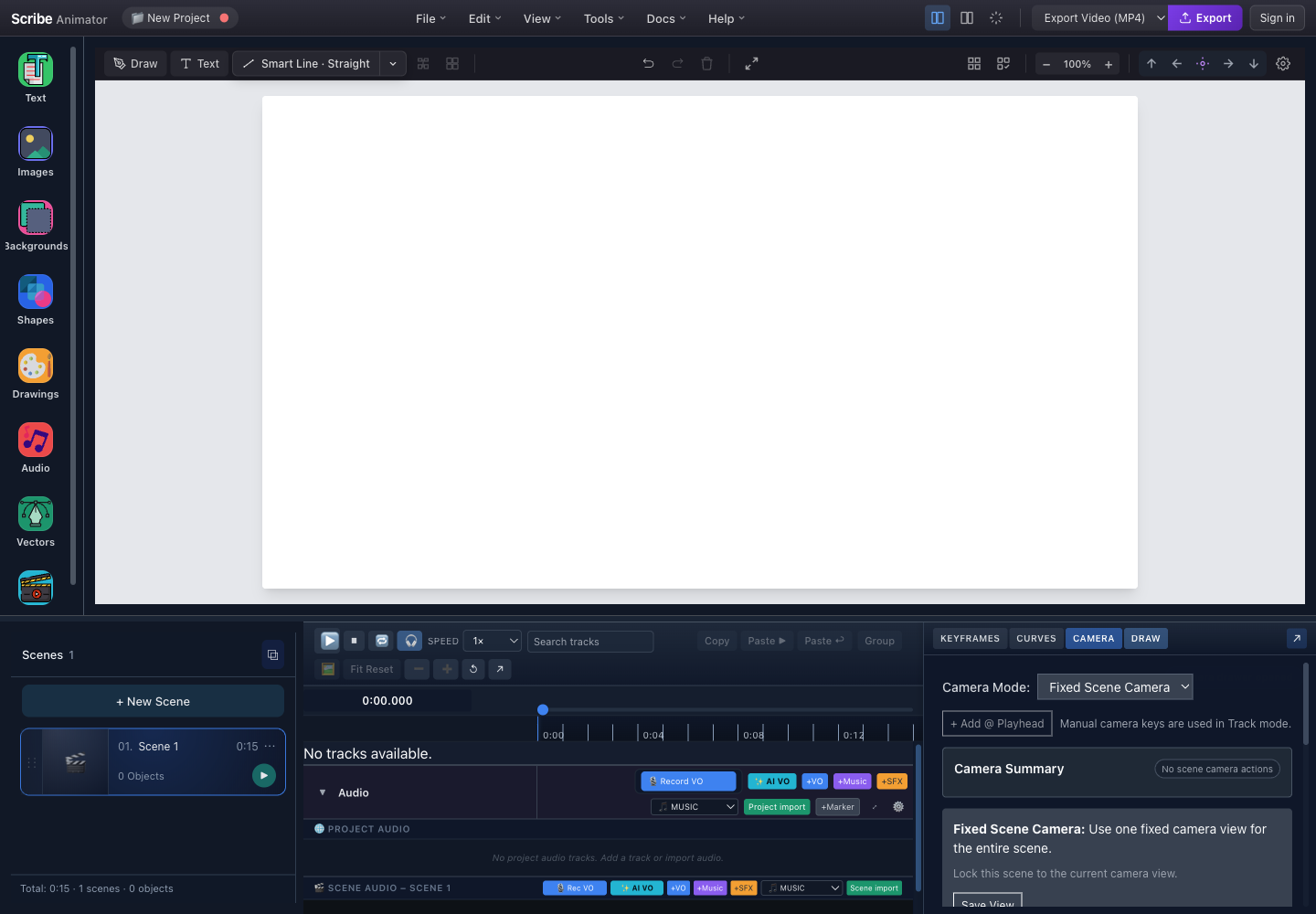
- CAMERA drawerOpens camera authoring beside KEYFRAMES, CURVES, and DRAW.
- Camera ModeChoose Fixed Scene Camera, Track, Follow Hand, or Follow Object.
- Camera SummaryReports active modes, authored actions, overlaps, bookmarks, and transitions.
- Mode-specific controlsFixed mode saves one view; other modes expose keys or follow targets.
- Shared playheadTrack-mode camera keys are captured and inspected at this time.
The camera labels plus the manual/Object/Draw source states and blocking-overlap state were checked in the real local Desktop editor at 1440 × 1000 on 27 July 2026. Mobile Lite uses a focused camera sheet over the same scene data. It is not a documentation-only canvas.
Start with Use camera moves and path following for a task-based workflow, then use this page for the deeper model and reference.
Table of Contents
- Overview
- Camera Modes
- Authoring Surfaces and Precedence
- Camera Pose
- Camera Keyframes
- Camera Bookmarks
- Follow Modes
- Generated Camera Framing
- Scene Transitions
- UI Controls
- Coordinate System
- Best Practices
- Troubleshooting
Overview
The camera system controls what viewers see in your animation. Think of it as a virtual camera pointing at an infinite canvas — you can pan, zoom, and animate the view to guide your audience through the content.
Key Concepts
| Concept | Description |
|---|---|
| World Space | The infinite project-coordinate canvas where objects exist |
| Viewport | Your editing view; it can pan and zoom without automatically changing exported framing |
| Camera | The virtual window that viewers see during playback and export |
| Camera Pose | A snapshot containing X, Y, zoom, and optional rotation |
| Scene Camera | A saved pose used for scene playback/export and authored from the Camera drawer |
| Frame Overlay | The visible export area defined by project dimensions |
| Camera Track | A time-ordered sequence of poses interpolated into animated moves |
| Bookmarks / Camera Shots | Named, reusable poses for consistent framing |
Camera Modes
The camera system supports four distinct modes:
Mode Comparison
| Mode | Movement | Use Case | Requirements |
|---|---|---|---|
| Fixed Scene Camera | None | Title cards, static diagrams | A saved viewport |
| Track | Authored | Manual, Object Camera, and Draw-step Camera actions | One key can hold a pose; two different poses create visible movement |
| Follow Hand | Dynamic | Drawing animations | Active hand follower |
| Follow Object | Dynamic | Character tracking | Target object selected |
Fixed Scene Camera mode
Camera stays fixed for the entire scene duration.
Use it for title cards, static diagrams, single-shot explainers, and scenes whose important content does not move outside one framing.
How to set it:
- Open the timeline's CAMERA drawer.
- Choose Fixed Scene Camera.
- Pan and zoom the editor viewport to the desired framing.
- Choose Save View.
- Use Jump to View to verify the stored pose.
- Choose Update View after changing the framing, or Remove to clear it.
Track Mode
Camera animates between keyframes over time.
For example, a four-key move can start with a wide shot at zoom 0.5, pan to an object near X 500, zoom in to 2.0, and return to zoom 1.0. The runtime interpolates between those authored poses.
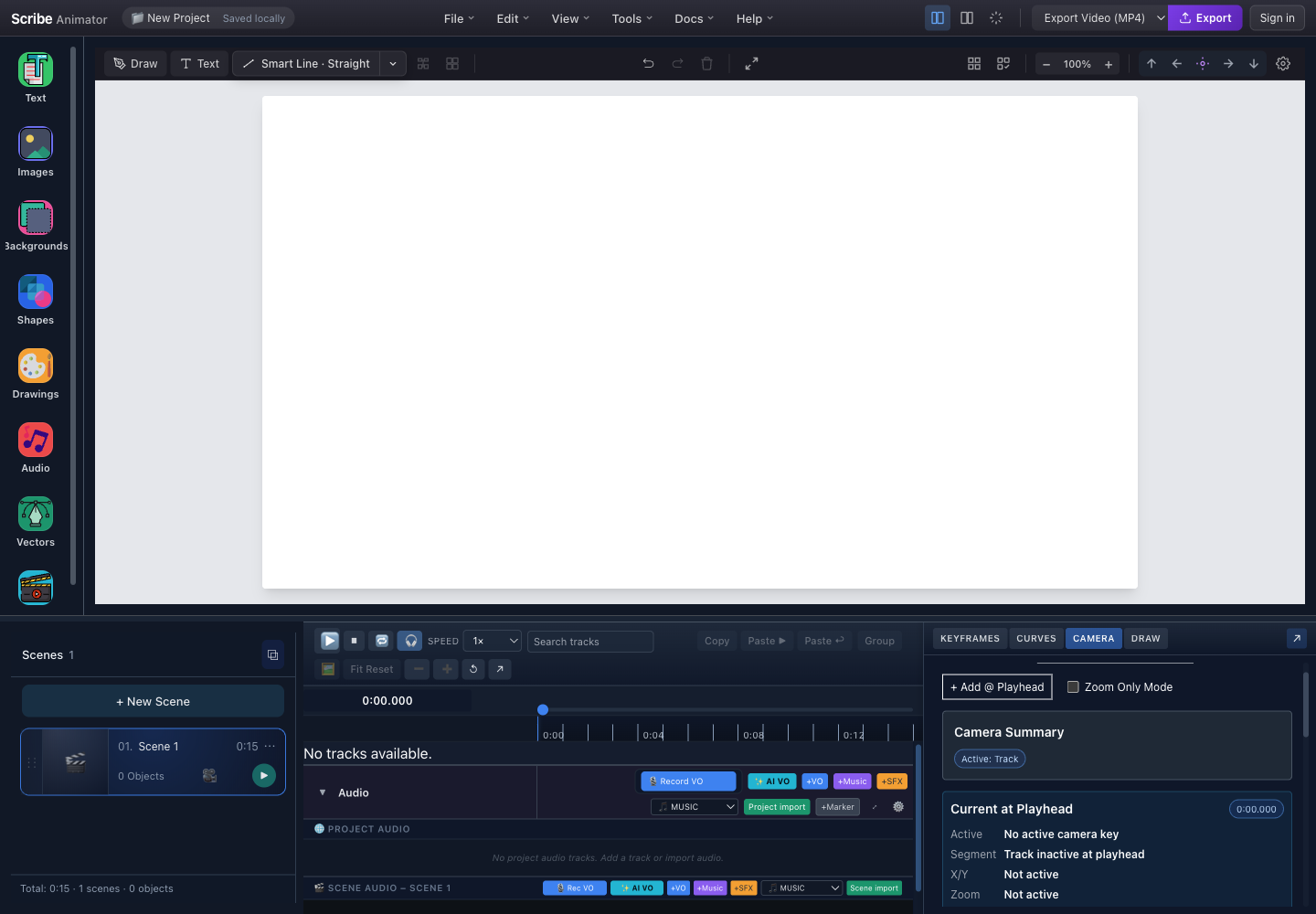
- CAMERA drawerCamera authoring remains attached to the real project timeline.
- Track actionsAdd a pose at the playhead or restrict authoring to zoom-only changes.
- Camera SummaryConfirms that Track is the active mode.
- Current at PlayheadReports the active key, segment, position, and zoom at the sampled time.
How to set it:
- Select Track in Camera Mode.
- Move the playhead to the start time.
- Frame the canvas and choose + Add @ Playhead.
- Move the playhead to the next time.
- Frame it differently and choose + Add @ Playhead again.
- Repeat only for the poses the move needs.
- Play to preview the camera move.
Follow Hand Mode
Camera automatically follows the drawing hand position.
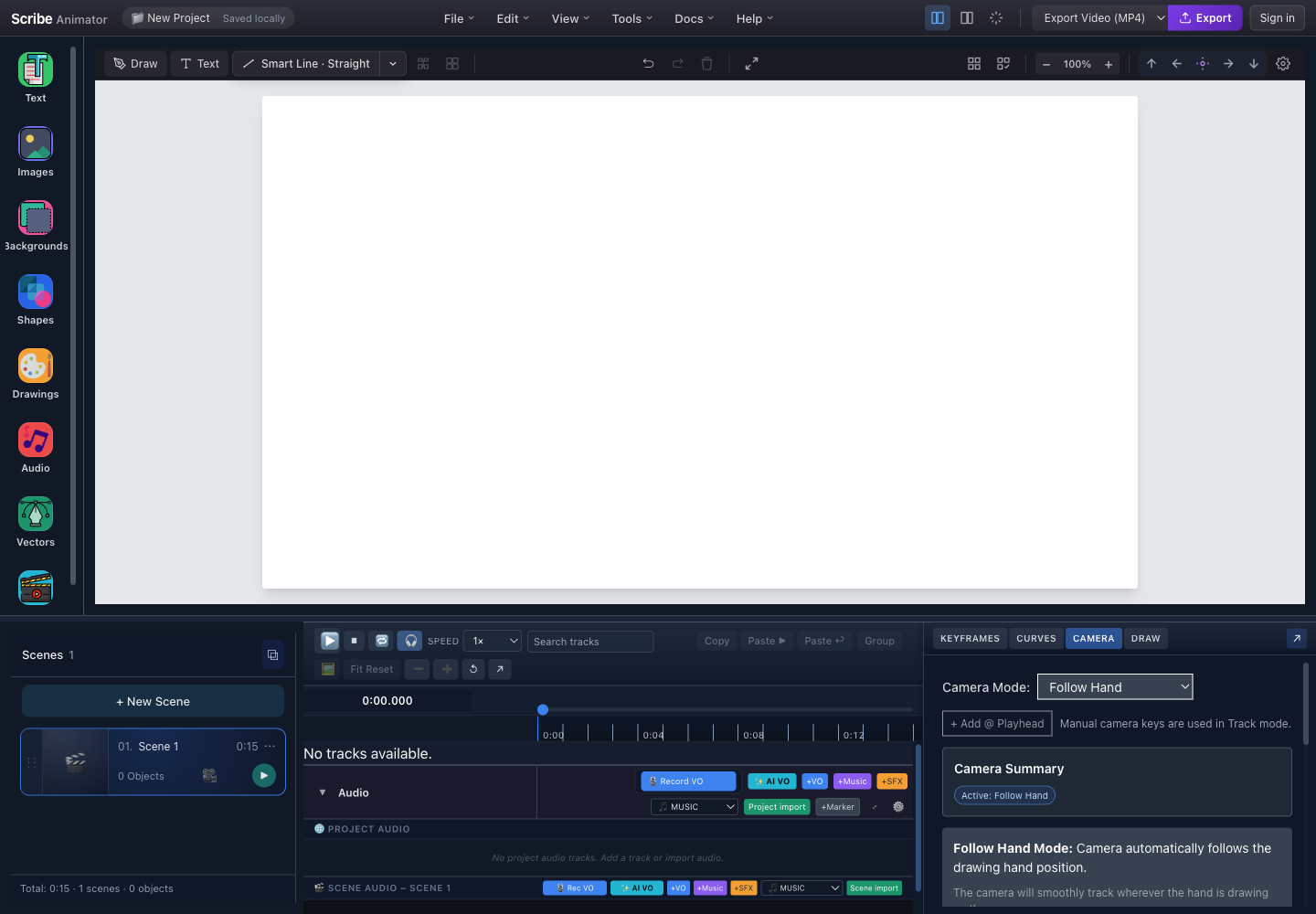
- Camera ModeFollow Hand is selected in the real drawer.
- Active-mode summaryThe summary confirms which camera source will be evaluated.
- Follow behaviorThe drawer explains that the camera samples the drawing hand during playback.
| Requirement | Result |
|---|---|
| A hand follower exists on an active drawable path | The camera can sample the drawing-hand position |
| The hand is actively drawing during playback | The camera follows with built-in smoothing |
| No eligible active hand exists | The camera cannot follow the hand and remains at the fallback scene framing |
Best For:
- Long horizontal/vertical drawings
- Whiteboard reveals
- Flowchart animations
- Educational step-by-step content
Follow Object Mode
Camera tracks a specific object's position.
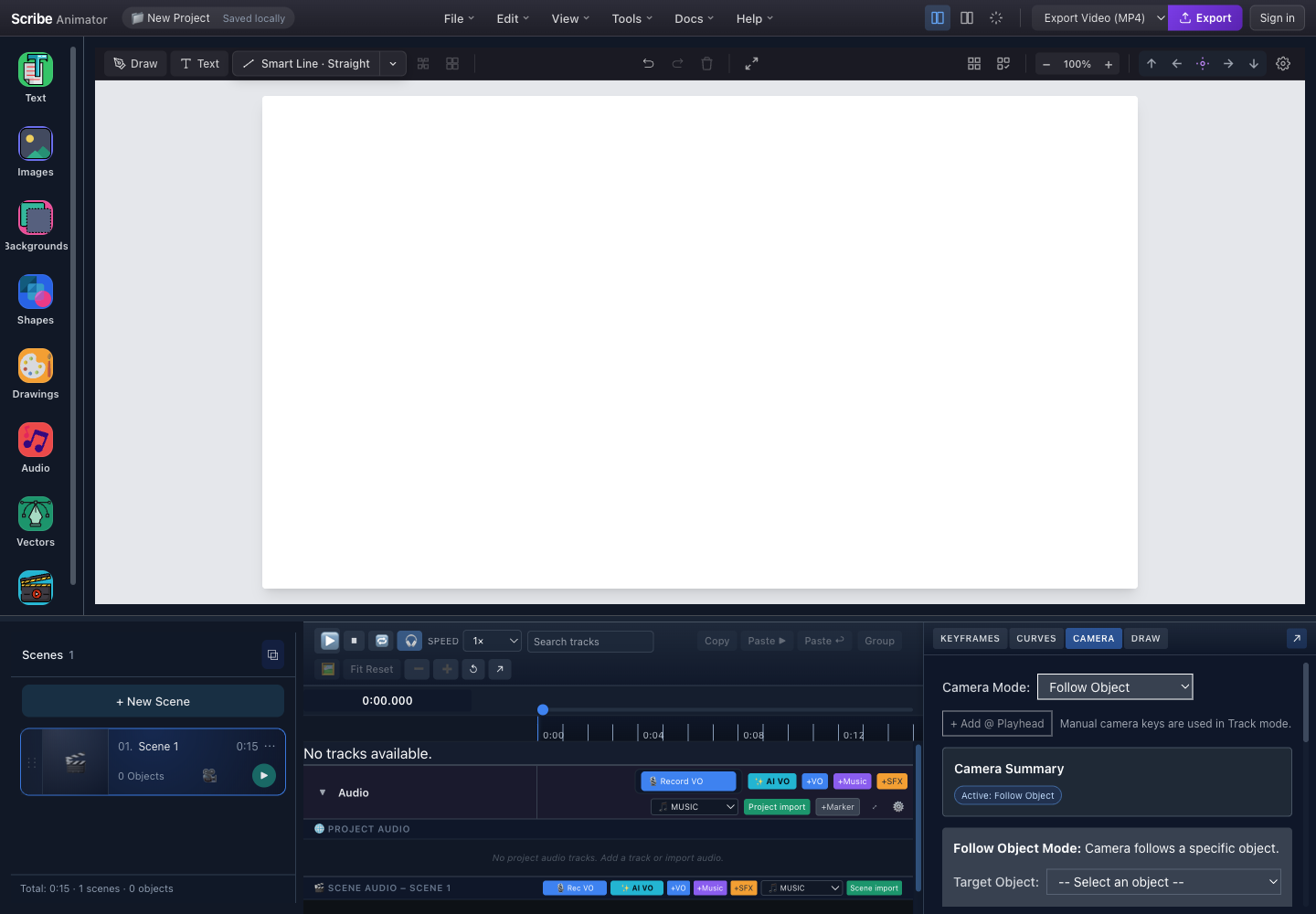
- Camera ModeFollow Object is selected in the real drawer.
- Active-mode summaryThe summary confirms that Follow Object is active.
- Target ObjectChoose a scene object before previewing; an empty scene has no eligible target.
The camera centers on the target's current position, maintains the scene camera zoom, and uses smoothing so movement can lag slightly instead of snapping.
Best For:
- Character following
- Moving object tracking
- Path animations
- Interactive elements
Authoring Surfaces and Precedence
The four options above are the only scene camera modes. Object Camera and Draw-step Camera are generated actions inside Track, not additional modes.
| Authoring surface | Scope | Source editor | Runtime requirement | Key-table badge |
|---|---|---|---|---|
| CAMERA drawer | Whole scene | Timeline → CAMERA | The selected mode decides what runs; manual keys require Track | M for manual keys |
| Object Camera | One eligible non-drawable object | Selected object → Properties → Object Camera | Track | O |
| Draw-step Camera | One configured drawing step | DRAW → expanded step → Camera | Track | D |
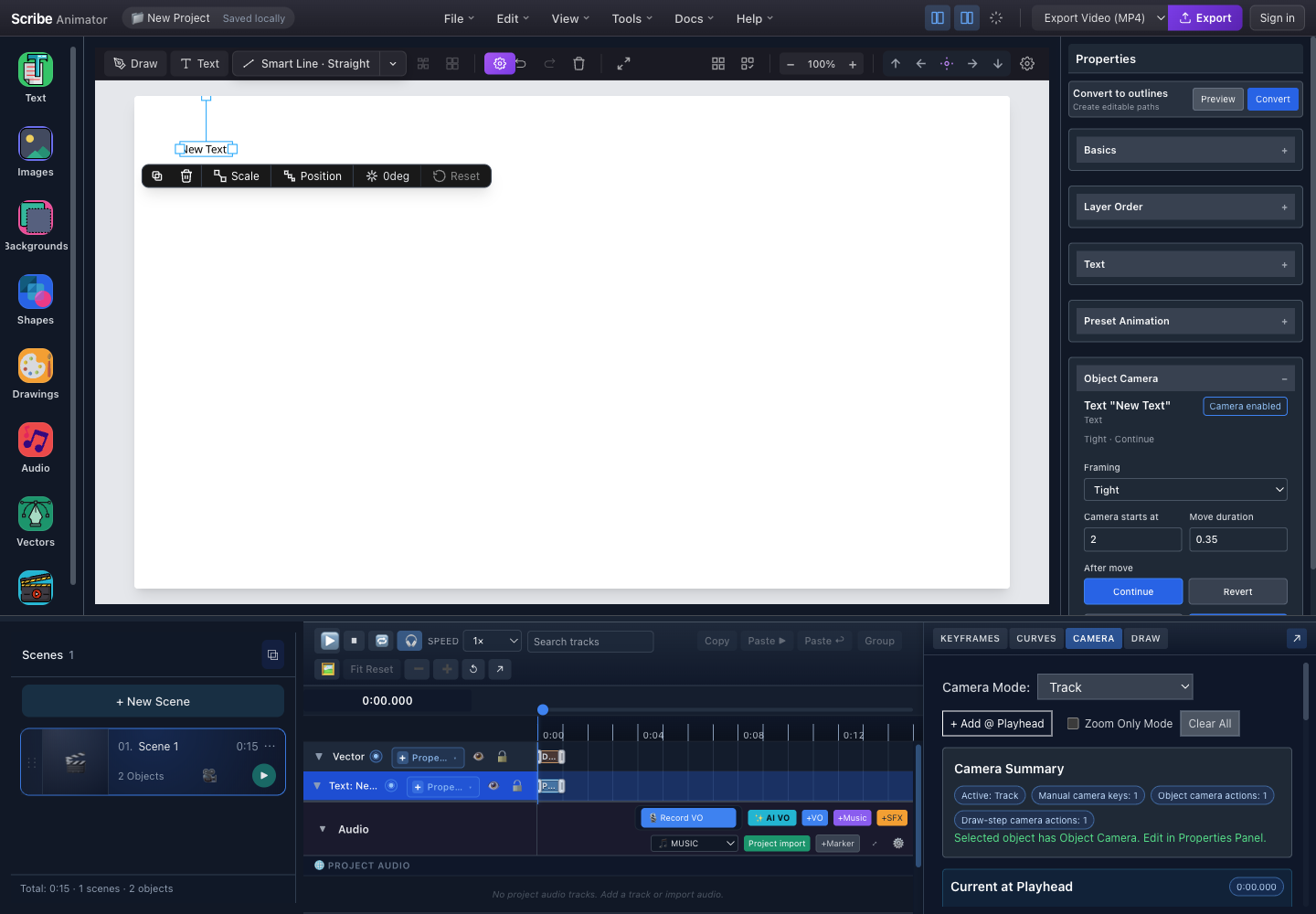
- Object source editorThe selected text owns and edits the Object Camera action in Properties.
- Track modeAll three authored source types run only while Track is the active scene mode.
- Source countsManual, Object Camera, and Draw-step Camera actions are reported separately.
- Shared timelineEvery source resolves against the same scene-local ruler and playhead.
Mode and source precedence
- A scene stores one active
cameraMode. - Fixed Scene Camera uses one saved pose.
- Track samples the shared, time-sorted keys generated by manual, Object Camera, and Draw-step Camera authoring.
- Follow Hand and Follow Object dynamically sample their live targets instead of the saved Track.
- Switching away from Track preserves its actions but marks them inactive.
- When a valid camera transition enters the scene, its opening blend temporarily takes precedence; after that, the active mode resumes.
Within Track, generated Object and Draw-step ranges are not allowed to silently compete:
| Combination | Rule |
|---|---|
| Object Camera + Draw-step Camera overlap | Blocking in either direction; separate timing or remove one action |
| Manual key timestamp inside a generated range | Warning only; the manual key is preserved and can take priority |
| Exact end/start boundary | Allowed; touching boundaries are not an overlap |
| Multiple overlapping Object Camera actions | Can be grouped into a wider union framing |
| Adjacent Draw-step Camera actions | Ordered and constrained by the next configured action |
Generated rows can be recreated from their saved source recipes. Edit O actions in Properties and D actions in the owning DRAW step. Clear All clears the current Track keys, not necessarily those source recipes.
Object Camera is a bounded, timed Track action around captured object bounds. Follow Object is a live scene mode that continuously follows the target's evaluated position. Draw-step Camera frames one drawing step; Follow Hand continuously follows the active hand.
See How the camera systems interact for the complete decision guide, annotated source table, conflict screenshot, and recovery workflows.
Camera Pose
A camera pose defines the exact view configuration:
interface Camera {
  x: number;        // World center X (project coordinates)
  y: number;        // World center Y (project coordinates)
  zoom: number;     // Zoom level: 1 = default, >1 = zoom in, <1 = zoom out
  rotation?: number; // Rotation in degrees, 0 by default
}
Example pose:
| Value | Example | Interpretation |
|---|---|---|
| X | 960 | Horizontal world-space center |
| Y | 540 | Vertical world-space center |
| Zoom | 1.5 | 150% view, zoomed in |
| Rotation | 0 | No camera rotation |
Zoom Levels
| Zoom Value | Meaning | Use Case |
|---|---|---|
| 0.1 | 10% (min) | Extreme wide shot |
| 0.5 | 50% | Wide establishing shot |
| 1.0 | 100% (default) | Normal view |
| 2.0 | 200% | Close-up |
| 5.0 | 500% | Extreme detail |
| 10.0 | 1000% (max) | Maximum zoom |
[!tip] Zoom Limits The camera system enforces zoom limits: min 0.1 (10%) to max 10.0 (1000%). These prevent accidentally losing your content or zooming to unusable levels.
Camera Keyframes
Keyframes define camera poses at specific times in Track mode:
interface CameraKeyframe {
  time: number;              // Scene-local time in milliseconds
  x: number;                 // Camera center X
  y: number;                 // Camera center Y
  zoom: number;              // Zoom level
  rotation?: number;         // Optional rotation (degrees)
  easing?: CameraKeyframeEasing; // Transition curve
}
An example Track sequence:
| Key | Time | X | Y | Zoom | Easing |
|---|---|---|---|---|---|
| 1 | 0 ms | 960 | 540 | 1.0 | linear |
| 2 | 2000 ms | 500 | 300 | 1.5 | ease-in-out |
| 3 | 4000 ms | 1200 | 600 | 0.8 | ease-out |
| 4 | 6000 ms | 960 | 540 | 1.0 | ease-in-out |
Use + Add @ Playhead to capture the current framing and Clear All only when you intend to remove the whole editable camera track.
Easing Functions
| Easing | Description | Best For |
|---|---|---|
linear | Constant speed | Technical movements |
ease-in | Starts slow | Beginning of attention shift |
ease-out | Ends slow | Settling on target |
ease-in-out | Slow both ends | Natural camera moves |
ease-in-cubic | Slower start (cubic) | Dramatic reveals |
ease-out-cubic | Slower end (cubic) | Gentle arrivals |
ease-in-out-cubic | Cubic ease both | Cinematic moves |
Camera Bookmarks
Bookmarks (Camera Shots) let you save and reuse camera poses:
interface CameraBookmark {
  id: string;           // Unique identifier
  name: string;         // User-friendly name
  camera: Camera;       // The saved camera pose
  isHome?: boolean;     // Is this the default/home shot?
  thumbnail?: string;   // Optional preview thumbnail
  createdAt?: number;   // Creation timestamp
}
Each saved shot shows its name and stored pose. A shot can also be marked as the home framing and can carry an optional thumbnail.
| Shot action | Result |
|---|---|
| Apply | Set the scene camera to the saved pose |
| Add as Track key | Insert the saved pose at the current playhead in Track mode |
| Set Home | Make the shot the default scene camera |
| Rename | Give the shot a clearer reusable name |
| Delete | Remove the bookmark without deleting scene objects |
Bookmark Workflow
- Save a Shot: Frame your view, enter name, click + Save Shot
- Apply a Shot: Click Apply to jump camera to saved pose
- Add to Track: Click + KF to add bookmark as keyframe at current time
- Set as Home: Click Set Home to make it the default starting camera
[!tip] Using Bookmarks in Track Mode Bookmarks work great with Track mode! Save key framing positions as bookmarks, then add them as keyframes at specific times to build your camera animation.
Follow Modes
Follow Hand Configuration
- Select Follow Hand.
- Confirm that the status detects a hand follower.
- Verify that an eligible object has hand following enabled on an active drawing path.
- Confirm that the scene contains draw steps at the previewed time.
- Preview the scene. The mode retains the current scene camera zoom and applies built-in smoothing, so the camera can trail the hand slightly.
Follow Object Configuration
- Select Follow Object.
- Choose the intended target from the active scene. Eligible targets can include text, SVG, shape, and SVG-path objects.
- Preview the object's complete movement.
- Confirm that the camera remains centered on the target, retains the scene zoom, and follows with exponential smoothing.
- If the selector is empty, add or select an eligible object in the active scene before retrying.
Generated Camera Framing
Object Camera and Draw-step Camera use the same current framing choices:
| Framing | Bounds padding | Visual result | Typical use |
|---|---|---|---|
| Tight | 12% | Closest generated shot | One label, icon, or small path detail |
| Medium | 28% | Balanced subject plus context | Most explanatory focus moves |
| Wide | 50% | More surrounding scene context | Establishing a region or preparing the next action |
Scribe fits the relevant bounds into the project frame and clamps the generated zoom to a practical 0.25–3.0 range. Aspect ratio, source bounds, edge proximity, and project dimensions still affect the composition, so preview every generated shot.
| Source | Bounds used |
|---|---|
| Object Camera | The selected object's current approximate bounds captured when Add/Update is applied |
| Draw-step Camera | The owning step's path or revealed path range when available, otherwise the drawable object's bounds |
Both editors also expose:
- a scene-local start or step-relative start offset;
- move duration from
0.1to2seconds; - Continue to retain the generated framing until a later Track action;
- Revert to hold and then return toward the prior framing; and
- Add/Update/Remove actions plus Track-mode and overlap validation.
The current UI does not use the legacy Focus, Hero, Side, Detail, or Context buttons.
Scene Transitions
Configure how camera blends between scenes:
interface SceneCameraTransition {
  durationMs: number;        // Transition duration in milliseconds
  easing: CameraKeyframeEasing; // Transition easing
  enabled: boolean;          // Whether transition is active
}
With the transition enabled, Scribe blends from the previous scene's end pose to the next scene's start pose. The reference defaults are 500 ms, ease-in-out, and enabled; always use the values shown in the current scene controls when they differ.
Transition Behavior
| Scenario | Behavior |
|---|---|
| Previous-end and current-start poses both resolve | Camera blends from the previous end pose to the current start pose for the configured opening duration |
| Either endpoint cannot resolve | No entry blend is synthesized; the current scene continues with its active camera mode or fallback |
| Transition duration completes | The current scene's Fixed, Track, Follow Hand, or Follow Object mode resumes full control |
UI Controls
The editor viewport and the authored camera are intentionally separate. Use ordinary canvas pan, zoom, focus, and reset controls to compose the authoring view. Save viewer-facing camera state in the CAMERA drawer.
| Current area | Visible controls and purpose |
|---|---|
| Canvas viewport | Pan, zoom, fit/focus, and reset the editor view without automatically changing project camera data |
| Camera Mode | Choose Fixed Scene Camera, Track, Follow Hand, or Follow Object |
| Camera Summary | Check active sources, manual keys, object/draw-step actions, overlaps, bookmarks, and scene transition state |
| Fixed mode | Save View, Update View, Jump to View, and Remove |
| Track mode | + Add @ Playhead, Zoom Only Mode, current-at-playhead values, M/O/D key provenance, and Clear All |
| Object Camera | Select an eligible non-drawable object, then edit framing and timing in Properties → Object Camera |
| Draw-step Camera | Expand the owning step in DRAW, then edit its Camera area; Properties is read-only |
| Follow modes | Resolve and validate the hand or object target before preview |
| Camera shots | Save a named bookmark, apply it to a scene, add it as a Track key, set a home shot, rename, or delete |
| Scene transition | Enable Camera Transition from Previous Scene, then set duration and easing |
The camera engine accepts zoom values from 0.1 to 10, but usable framing also depends on project dimensions, viewport size, source resolution, and edge clipping. Do not treat an old diagram's percentage range as the current authoring limit.
Coordinate System
Understanding world vs screen coordinates:
| Coordinate space | Origin and units | Camera relationship |
|---|---|---|
| World / project | Project (0, 0) in project pixels | Independent of the current zoom |
| Screen / viewport | Viewport (0, 0) in screen pixels | Changes with camera position and zoom |
screenToWorld(screenX, screenY, camera, viewport) converts a pointer position into project coordinates. worldToScreen(worldX, worldY, camera, viewport) converts a project point into viewport coordinates.
The forward transform is:
screenX = viewportCenterX + (worldX - cameraX) × zoomscreenY = viewportCenterY + (worldY - cameraY) × zoom
World Group Transform
// Used to apply camera to Konva canvas
interface WorldGroupTransform {
  x: number;        // Viewport center X
  y: number;        // Viewport center Y
  offsetX: number;  // Camera center X
  offsetY: number;  // Camera center Y
  scaleX: number;   // Camera zoom
  scaleY: number;   // Camera zoom
  rotation: number; // Camera rotation
}
Best Practices
Camera Animation
| Prefer | Avoid |
|---|---|
| Ease-in-out for natural moves | Linear easing for every move |
| Smooth motion matched to the content | Sudden jumps or mismatched speed |
| Testing on different viewport sizes | Testing only one editor zoom |
| Reusable bookmarks for consistent framing | Recreating every pose by eye |
| Planned keyframes with a clear purpose | Random or redundant camera keys |
| Move | Starting timing guideline |
|---|---|
| Quick pan | 300 to 500 ms |
| Standard move | 500 to 1000 ms |
| Slow reveal | 1500 to 2500 ms |
| Scene transition | 300 to 500 ms |
Avoid changing zoom by more than 2× in one move, keep important content visible throughout the span, and test both zoom extremes before finalizing.
Common Patterns
| Pattern | Mode | Description |
|---|---|---|
| Static Explainer | Fixed Scene Camera | Single framing for entire scene |
| Pan & Zoom | Track | 2-4 keyframes for movement |
| Follow Reveal | Follow Hand | Camera tracks drawing action |
| Object Focus Sequence | Track + Object Camera | Timed generated shots around eligible objects |
| Draw Detail Sequence | Track + Draw-step Camera | Step-owned framing across a drawable |
| Intro → Detail → Outro | Track | Three-shot pattern |
Troubleshooting
Common Issues
| Issue | Checks and recovery |
|---|---|
| Camera does not move during playback | Check Camera Mode and Camera Summary. Fixed mode needs a saved view; Track needs at least two keys; Follow modes need an eligible active target. |
| Saved Object/Draw actions do not run | Switch back to Track. Fixed and Follow modes preserve generated actions but leave them inactive. |
| Object Camera is missing for a selection | Drawable paths use Draw-step Camera instead. For current Properties authoring, select eligible text, image, static SVG, or shape content with usable bounds. |
| Draw-step Camera is read-only in Properties | Expand the owning drawing step in the DRAW drawer; the Properties card is status-only. |
| Add/Update Camera is disabled | Confirm Track mode, valid owner bounds, valid timing, and no blocking Object-versus-Draw-step overlap. |
| Generated keys return after Clear All | Remove the Object Camera recipe in Properties or the Draw-step Camera recipe in DRAW; Clear All only clears the current Track keys. |
| Object Camera does not follow continuously | Use Follow Object. Object Camera is a bounded Track action based on captured bounds. |
| Objects disappear during zoom | Check whether they are outside the camera viewport, reduce extreme zoom, recenter X/Y on the content, then use Fit All to recover the authoring view. |
| Camera movement is jerky | Add only the keys needed to shape the path, use ease-in-out instead of linear where appropriate, remove duplicate-time keys, and reduce the zoom change between adjacent keys. |
| Follow mode does not work | For Follow Hand, verify the scene's active hand follower and draw step. For Follow Object, select an eligible target. In both cases, confirm that the target actually moves during playback. |
| Scene transition looks wrong | Configure both endpoint cameras, lengthen an overly short duration, adjust easing, and verify the previous end pose and next start pose. |
Input and shortcut note
Camera authoring is exposed through visible canvas and CAMERA drawer controls. The current editor does not list camera-specific shortcuts in Help → Keyboard Shortcuts. Pointer gestures can vary by browser, operating system, and active tool, so use the visible pan, zoom, fit, save, jump, and reset actions when a gesture is intercepted.
Summary
| Capability | Purpose |
|---|---|
| Fixed Scene Camera | Hold one saved view for the entire scene |
| Track | Animate camera poses over time |
| Follow Hand | Track the active drawing hand |
| Follow Object | Track a selected scene object |
| Camera pose | Define the exact view with X, Y, zoom, and rotation |
| Keyframes and seven easing functions | Control when and how Track-mode moves interpolate |
| Object Camera | Generate a timed Track shot around one eligible non-drawable object |
| Draw-step Camera | Generate step-owned Track framing from drawable path/reveal bounds |
| Bookmarks / Camera Shots | Save poses, reuse framing, and add poses as Track keys |
| Tight, Medium, and Wide framing | Fit generated Object/Draw-step actions with 12%, 28%, or 50% bounds padding |
| Scene camera transition | Blend framing between adjacent scenes |