Guided learning inside Mobile Lite
Guided learning is an in-product coach-mark system for Mobile Lite. It opens the real sheets and controls, prepares real project objects, and waits for the requested editor action or state change. It is not a separate canvas embedded in this documentation.
What guided learning is for
Use a tutorial when you need a safe first pass through an unfamiliar Mobile Lite workflow. It is especially useful when you know the result you want but do not yet know which sheet or control owns the action.
Guided learning provides:
- a fresh tutorial project with one scene;
- a spotlight and instruction card for the current target;
- completion checks tied to real editor clicks or state;
- module progress stored on the current device; and
- restart, skip, and all-progress reset controls.
It does not create a second simulated editor. The tutorial can add, select, animate, preview, and export through the same Mobile Lite commands used during normal editing.
Before you start: protect current work
Starting a module pauses playback, flushes Mobile Lite recovery state, closes open sheets, and replaces the active workspace with a fresh project named Interactive Tutorial. The previous project is not automatically reopened when the module ends.
Before starting from an important project:
- Pause playback.
- Open the project menu.
- Tap Save.
- For important or transferable work, export a
.scribepackage too. - Remember the project name so you can reopen it after the tutorial.
Treat a tutorial start like switching projects. Recovery is flushed first, but an explicit save and .scribe backup are safer than relying on recovery alone.
1. Recognize the Mobile Lite workspace
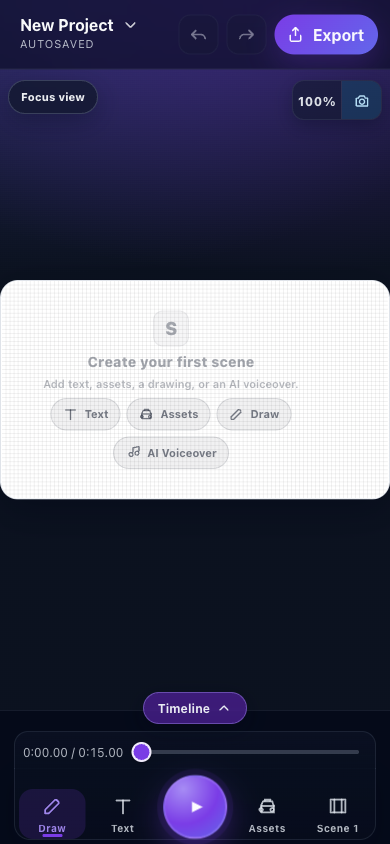
- Project menuTap the project name and chevron to reach Help & Support and the tutorial picker.
- Real project canvasTutorial objects are added to a fresh project through normal Mobile Lite commands.
- TimelineExpand this area when a module teaches timing, animation, camera, or audio.
- Play and PausePreview steps validate real playback start or pause behavior.
- Creation navigationDraw, Text, Assets, and Scene open the same real sheets used outside tutorials.
Expected result: the project name is visible at the top, playback is stopped, and the bottom navigation is available.
2. Open the tutorial picker
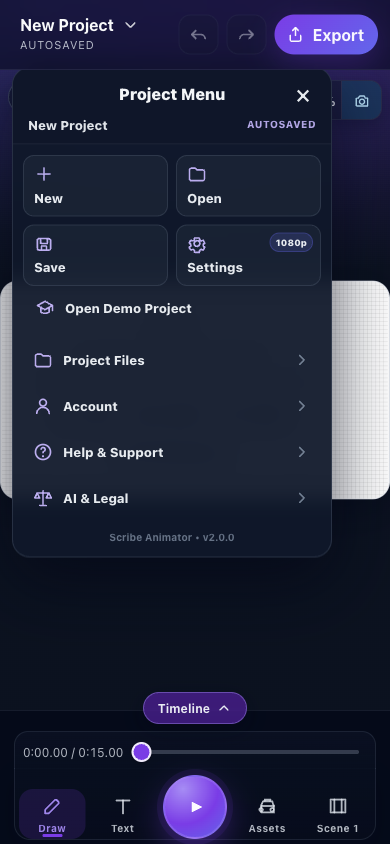
- SaveSave the current project before allowing a tutorial to replace the active workspace.
- OpenUse this after the lesson to reopen a previously saved project.
- Help & SupportExpand this row, then choose Interactive Tutorial.
- Close menuReturns to the canvas without changing the active project.
- Tap the project name and chevron.
- Tap Help & Support.
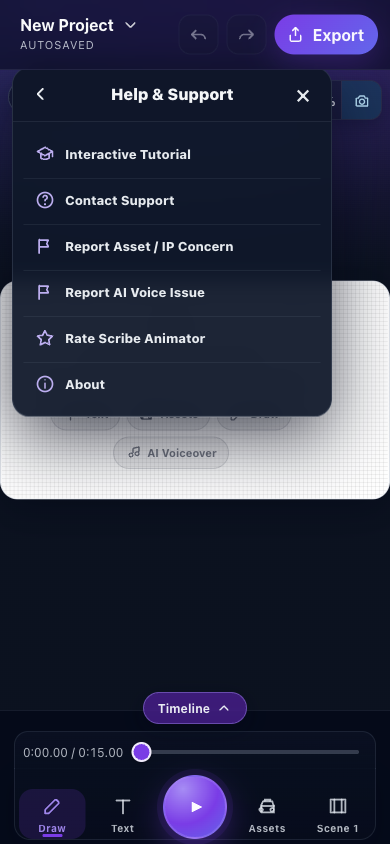
- Interactive TutorialOpens the tutorial picker without requiring you to wait for the first-launch prompt.
- BackReturns to Project Menu while keeping the active project unchanged.
- CloseCloses Help & Support and returns directly to the canvas.
- Tap Interactive Tutorial.
- In Choose a tutorial, select a module.
On first launch, Scribe may instead offer Start Tour and Maybe Later. Choosing Maybe Later only dismisses that offer; the picker remains available through the menu above.
Expected result: the module picker shows each lesson's duration, task count, and progress state.
3. Choose the right module
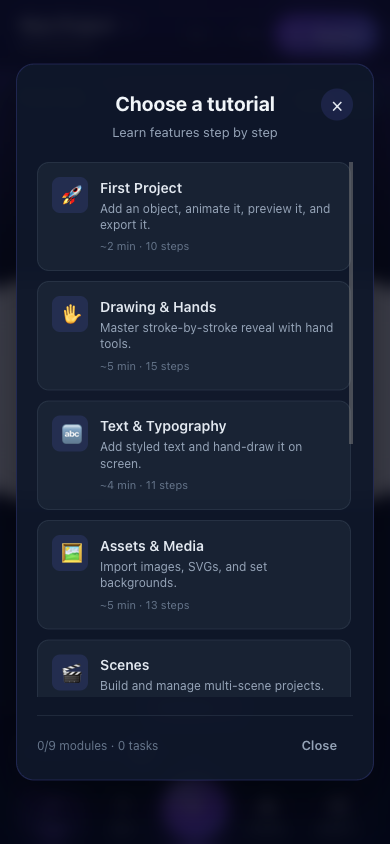
- Module cardTap First Project for the recommended starting lesson; other cards teach focused feature areas.
- Scrollable curriculumScroll this dialog to reach Audio & AI Voice, Camera, Timeline & Animation, and Templates.
- Overall progressReports completed modules and tasks for this browser's isolated tutorial record.
- Close pickerReturns to the current canvas without starting another module.
The current Mobile Lite curriculum is:
| Module | Estimate | Steps | Use it to learn |
|---|---|---|---|
| First Project | 2 min | 10 | Add text, apply basic motion, preview, pause, and open export |
| Drawing & Hands | 5 min | 15 | Add drawable artwork, plan draw steps, preview, and choose a hand/tool |
| Text & Typography | 4 min | 11 | Add and style text through the Mobile Lite text flow |
| Assets & Media | 5 min | 13 | Add supported visual assets through the Assets sheet |
| Scenes | 4 min | 12 | Create and work with multi-scene project structure |
| Audio & AI Voice | 4 min | 12 | Work through the Mobile Lite audio and AI voiceover path |
| Camera | 5 min | 16 | Set up draw/camera behavior and inspect it during playback |
| Timeline & Animation | 5 min | 12 | Select a timed object and work with animation controls |
| Templates | 3 min | 9 | Apply a template and continue through its prepared content |
Start with First Project if this is your first session. Later modules may list it as a prerequisite because they assume you already recognize sheets, selection, Play/Pause, and Export.
Estimates are guidance, not timers. Restarting, reading hints, or testing alternatives can take longer.
4. Follow a coach mark
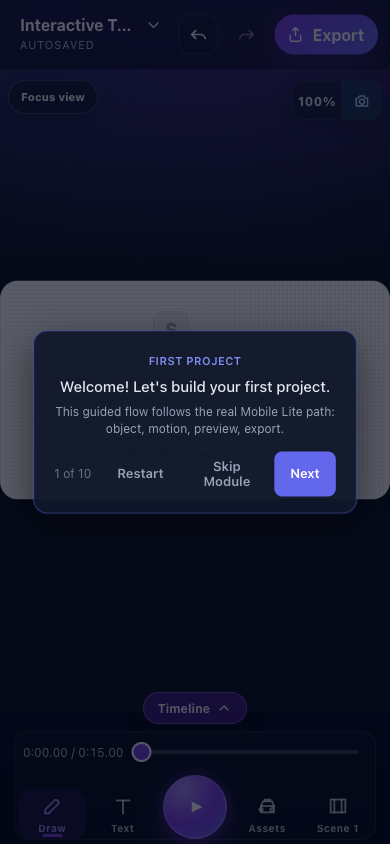
- Instruction and hintNames the current outcome and explains what the real Mobile Lite action will do.
- Step countShows the current position in the selected module.
- RestartResets this module and its prepared tutorial state.
- Skip ModuleEnds the lesson and currently records it as completed.
- NextAppears for this manual information step; validated action steps normally advance themselves.
Each step has an instruction, a current/total step count, and a highlighted target when the target is visible.
- Read the instruction before tapping.
- Use the highlighted real control.
- Wait for the sheet, object, or playback state to settle.
- Continue when the tutorial advances automatically.
- Tap Next only when the step is informational, timer-based, or cannot be validated automatically.
Common completion types include:
- a particular control was tapped;
- a control was tapped and the expected project state appeared;
- a target became visible;
- a runtime state check passed; or
- an informational step was advanced manually.
This distinction matters: tapping a control is not always enough. For example, adding an object must actually create it, and starting preview must put playback into the started state.
If the highlight is centered instead of attached
The tutorial looks for a registered semantic target for about two seconds. If that target is not available, the instruction falls back to a centered card so the module does not trap you.
- Close an unrelated sheet or dialog.
- Read the instruction and open the sheet it expects.
- Use Restart if the tutorial and editor are visibly out of sync.
- Use Skip Module only when you intentionally want to stop that lesson.
5. Understand Restart, Skip, and progress
| Control | What it does | When to use it |
|---|---|---|
| Restart | Resets the active module and its prepared tutorial state | A target is missing, the wrong object was edited, or you want to repeat the lesson |
| Skip Module | Ends the module and records it as completed | You intentionally do not want to finish its remaining tasks |
| Reset Progress | Clears all tutorial completion records after confirmation | You want the picker to behave like a first-time curriculum again |
| Close | Leaves the picker without starting a module | You opened learning accidentally |
Skip Module currently marks the module complete. If you want the progress indicator to represent hands-on completion only, use Restart instead, or use Reset Progress afterward.
Progress is stored best-effort in isolated IndexedDB storage on this browser and device. Clearing site data, using another profile, or switching devices can reset it. Tutorial progress is not the same as saving the tutorial project.
6. Return to your real project
When you finish or leave a module:
- Pause playback.
- Open the project menu.
- Tap Open and select the project you saved before the lesson.
- If it is not available in the library, import the
.scribepackage you exported. - Confirm the project name and scene count before continuing.
Do not keep important production edits inside the Interactive Tutorial project. Its state is designed to be reset by lessons.
Limitations and safety boundaries
- Guided learning is currently integrated with Mobile Lite, not the desktop layout.
- A module starts a new local tutorial project; it does not overlay an existing production project.
- Tutorial progress is device-local and can be cleared with browser site data.
- Missing semantic targets fall back to a centered instruction rather than guessing from CSS selectors or button text.
- Some steps prepare fixture objects or open sheets so the lesson begins in a deterministic state.
- Skip Module is recorded as completion.
- Network-dependent assets, AI voice generation, account features, and export encoders can still be limited by normal permissions, plan, connectivity, or device support.
Troubleshooting and recovery
The tutorial picker does not appear
- Confirm you are in Mobile Lite.
- Close any open project or settings sheet.
- Reopen the project menu.
- Expand Help & Support and choose Interactive Tutorial.
- Reload only after saving current work.
The expected target is missing
- Close unrelated sheets.
- Return to the main canvas.
- Pause playback.
- Wait for the centered fallback instruction.
- Choose Restart if the prepared fixture did not appear.
The step does not advance
- Perform the exact requested action instead of only opening the surrounding sheet.
- Wait for object creation, animation application, or playback state to finish.
- Do not tap Next unless the step presents it.
- Restart the module if state was changed outside the instructed flow.
Your earlier project seems gone
- Open the project menu and tap Open.
- Search for the exact project name.
- If it was not saved to the library, import your most recent
.scribefile. - If Mobile Lite offers a recovery state, restore it before creating more work.
Keyboard and accessibility notes
- Mobile Lite tutorial targets are real buttons and fields with semantic registrations; progress does not depend on pixel coordinates.
- Coach-mark actions are standard buttons and remain available when a visual target cannot be found.
- The spotlight is visual guidance; the instruction text names the action for users who cannot rely on the highlight alone.
- External keyboards can use the normal focused control behavior, but tutorial instructions are written for touch.
- Do not use browser zoom to uncover a hidden target; close sheets or rotate/use a supported viewport instead.