Troubleshoot Scribe Animator
Start by protecting the project. If the editor still responds, pause playback, wait for pending saves, and export a .scribe backup before trying broad recovery actions.
Use the smallest safe recovery
Follow this order and stop as soon as the problem is resolved:
- Pause playback or preview.
- Read the full visible error, warning, disabled-state explanation, and status label.
- Record context: project, scene, selected object, playhead time, active panel, and action.
- Save a local copy or export
.scribeif possible. - Undo once if the problem began immediately after an edit.
- Retry the single failed action once when a Retry action is offered.
- Close only the active modal or sheet and reopen the feature.
- Test a minimal object or demo project to separate project data from environment problems.
- Reload only after a backup and only when narrower steps fail.
- Report a reproducible bug with sanitized evidence.
Do not begin with clearing all storage, deleting the project, reinstalling the app, disabling browser security, or repeatedly submitting the same import/payment.
Recognize a recoverable in-product error
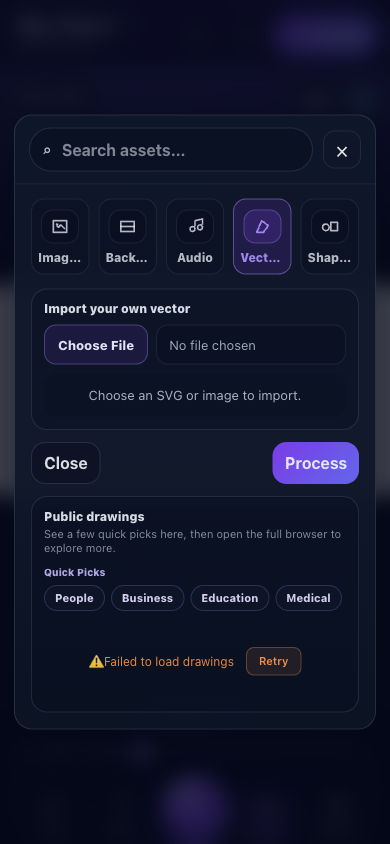
- Failure messageNames the failed surface: the public drawings library.
- RetryRetries only the library request; use it once after checking connectivity.
- Local fallbackA trusted local SVG or image can still use the controlled import path.
- Close safelyClose the sheet and keep editing instead of reloading the whole project.
The error's scope matters. Failed to load drawings concerns that library request; it does not prove that scenes, local files, timeline data, or export are broken.
Diagnose by scope
Ask these questions:
| Question | What it tells you |
|---|---|
| Does the same action fail in the demo or a new blank project? | If yes, suspect device, browser, permissions, connectivity, or a product defect |
| Does only one project fail? | Suspect that project's data, asset, or scene |
| Does only one scene fail? | Inspect scene duration, objects, camera, audio bindings, and scene-specific timeline data |
| Does only one object fail? | Inspect object type, lock/visibility, asset source, selection, transforms, and supported editor |
| Does the problem disappear after closing a sheet/modal? | It was likely focus, overlay, or feature ownership—not project corruption |
| Does playback work but export fail? | Focus on encoder, resolution, memory, page visibility, or exporter-specific asset support |
| Does local content work but a library does not? | Focus on connectivity, authentication, CORS/service availability, or remote asset state |
Project will not open, save, or restore
Open/import fails
- Work from a copy of the source file.
- Confirm the file extension and that it is a supported
.scribepackage or project source for the chosen action. - Confirm the file is not zero bytes or an incomplete download.
- Use the app's project-open/import action rather than dropping it into an unrelated asset picker.
- Read package validation errors; do not bypass them.
- Try the demo project to verify the editor can load a known project.
- Preserve the rejected file for a sanitized bug report.
Save appears stuck
- Stop making new edits for a moment.
- Check the visible save state.
- Use Save project locally.
- Confirm that the browser/device permits downloads or storage.
- Check available device space.
- Export a
.scribecopy under a new filename if the current destination is uncertain.
Autosave, local download, account library save, and .scribe export are distinct operations. Verify the one you need.
Project opens with missing assets
- Keep the original
.scribepackage and source media together. - Confirm that package extraction/loading completed.
- Reconnect a missing local asset only through the supported resolver/import flow.
- Check whether an asset depended on a remote or signed URL that is no longer available.
- Do not overwrite the only good package while diagnosing.
Canvas is blank or objects cannot be edited
Canvas is blank
- Confirm the active scene actually contains objects.
- Stop playback and move the playhead to a time when the object should be visible.
- Use Fit frame or reset zoom.
- Check object visibility, opacity, scale, and position.
- Check whether the camera is framing another area.
- Switch camera mode to Off temporarily.
- Open the scene list and verify you did not create or select a different empty scene.
Object cannot be selected
- Stop preview/playback.
- Activate the Select tool.
- Press Escape once to leave connector, drawing, curve drag, or target-binding mode.
- Select the object from the timeline row if overlapping objects block direct selection.
- Check whether the object is locked or inside a group.
- Use zoom-to-selection when a timeline row is selected but the object is off-screen.
Move, resize, or rotate is wrong
- Confirm whether you selected an object, group, or group member.
- Undo immediately after an unintended transform.
- Check zoom and canvas display mode.
- On touch, make one transform at a time.
- If animation keys exist at the current time, distinguish the base transform from the animated result.
Undo affects audio instead of the canvas
Undo/redo can prioritize audio history while focus is in an audio surface or just after audio interaction. Click the canvas or relevant panel, confirm focus, then use the command. Watch the confirmation toast.
Asset and import problems
| Symptom | Check and recover |
|---|---|
| Public asset library fails | Connectivity, sign-in if required, service availability; Retry once or use packaged/local content |
| File picker shows no selectable file | Category and accepted extension |
| SVG is rejected | Malformed XML, unsafe content, unsupported feature, size/complexity budget |
| SVG looks different | Unsupported filters/fonts, masks, external references, or viewBox; simplify a copy |
| Raster trace is slow | Image dimensions, complexity, trace settings, device memory; use a smaller clean source |
| Imported image is blurry | Source pixel size; enlarging it cannot create missing detail |
| Process appears inactive | Confirm a filename is selected, wait for preprocessing, avoid duplicate taps |
| Upload is rejected | Plan quota, current upload-size policy, authentication, and source type |
Never disable sanitizer or package validation to make an untrusted file load.
Timeline and animation problems
No track or keyframe appears
- Select the intended object.
- Confirm it belongs to the active scene.
- Open Animate and commit a preset or keyframe change.
- Expand the timeline and locate the object's row.
- Make sure you did not animate a containing group while inspecting a member.
Motion starts at the wrong time
- Check whether start mode is At Playhead or explicit Seconds.
- Inspect scene-relative versus project/global time.
- Move the playhead before creating the action if using At Playhead.
- Check duration and easing.
- Preview from before the start, not from the middle of the motion.
Keyframes appear to do nothing
- Ensure at least two useful values differ across time.
- Check that keys are on the correct property track.
- Confirm the playhead crosses their time range.
- Verify a preset, path-follow rule, or group animation is not overriding the expected property.
- Use linear easing temporarily to make the value change easier to diagnose.
Curve editing jumps
- Zoom into the relevant time/value range.
- Hold Space only while panning.
- Use X or Y constraints during the intended drag.
- Press Escape to cancel a bad drag, then retry.
Drawing and hand problems
Shot Planner shows zero steps
- Add/select drawable vector content.
- Confirm the object has supported paths or drawing metadata.
- Ordinary raster images and some text objects are not stroke plans.
- Choose a planning method and select Plan steps.
- Review object-level overrides only after steps exist.
Drawing happens out of order or too fast
- Inspect every draw step start and duration.
- Re-run automatic planning only if you intend to replace/update the plan.
- Check scene duration.
- Check whether steps are bound to audio cues.
- Simplify extreme path counts before making many manual edits.
Hand/tool looks wrong
- Open drawing setup and review hand side, pose/model, tool, scale, and mirror.
- Check selected-object overrides separately from scene defaults.
- Recalibrate through the visible modal where supported; there is no current keyboard shortcut for hand-follower calibration.
Camera and path-follow problems
Camera preview is unavailable
- Off mode has no scene camera movement to preview.
- Choose a valid mode.
- For Track/Follow Object, select or assign an existing object.
- For Follow Hand, confirm drawable steps exist where the hand should be tracked.
- Check scene range and camera action timing.
Camera jumps or frames empty space
- Inspect triggered actions as well as scene camera mode.
- Check target bounds at the action time.
- Reduce zoom/smoothing extremes.
- Remove or retime conflicting camera actions.
- Temporarily set mode to Off to confirm the objects themselves are positioned correctly.
Path-follow does not move the object
- Confirm the selected animation is Path Follow.
- Assign a valid path/connector target.
- Check orientation/reverse/offset flags.
- Confirm the path and moving object remain in the same supported scene context.
- Preview across the complete animation time range.
Audio and voiceover problems
Some audio library controls are account-backed while project/scene track editing can remain local.
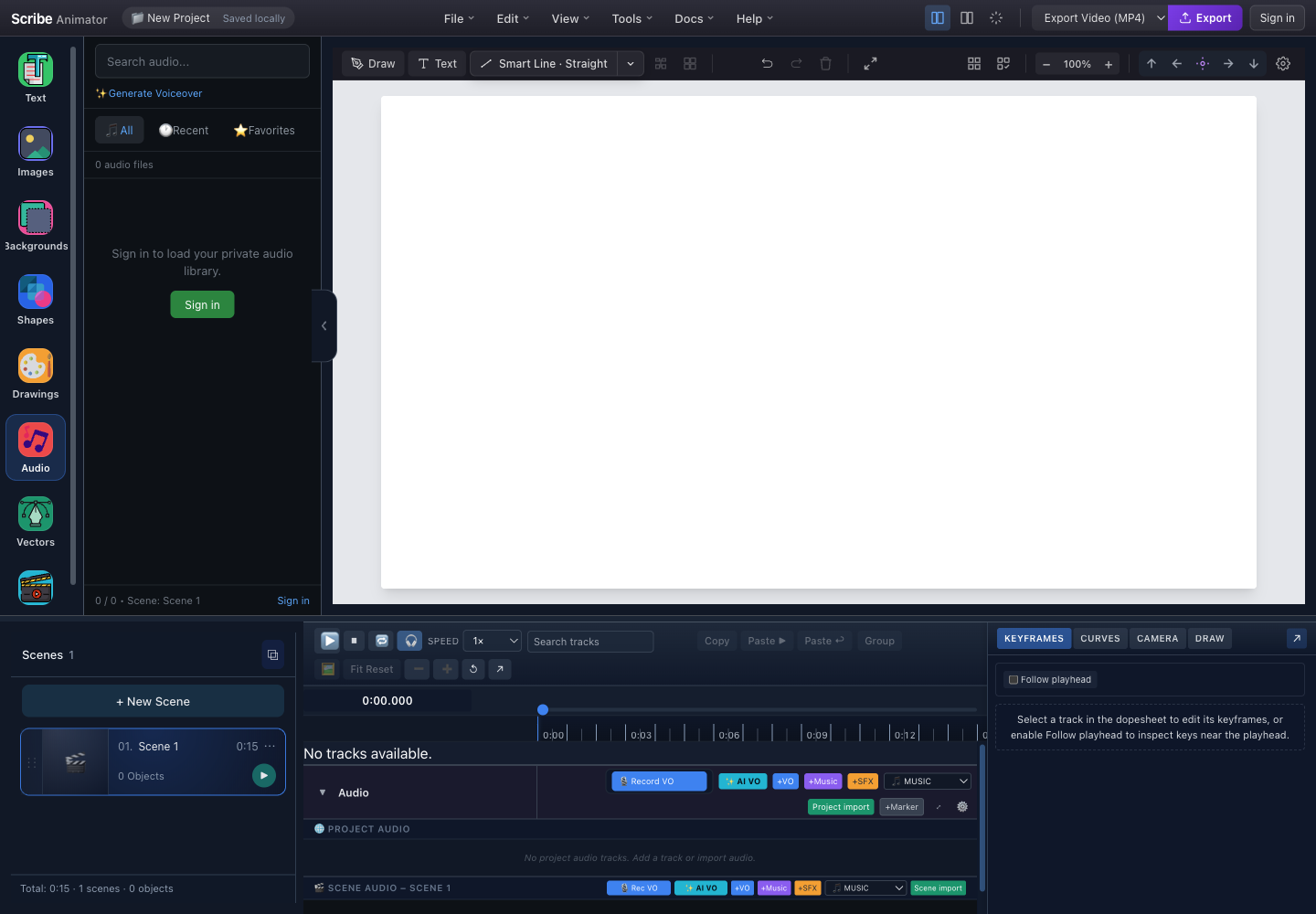
- Private library sign-inSign in only if you need account-backed private audio.
- Generate VoiceoverOpens the configured voice synthesis workflow.
- Project audioProject-wide voiceover, music, effects, import, and marker actions.
- Scene audioScene-bound controls can be used independently for the active scene.
Audio is silent
- Confirm system and browser volume.
- Confirm the track and clip are not muted.
- Check clip gain/volume and start time.
- Ensure playback crosses the clip.
- Interact with the page once if browser autoplay policy blocks audio.
- Confirm the source finished loading/hydrating.
- Test a known local audio file.
Audio is missing after restore
- Keep the original package.
- Reopen it and wait for asset hydration.
- Check whether the source was local, packaged, account-backed, or remote.
- Reconcile missing sources through supported import/resolution.
- Do not record over the only original.
Recording does not start
- Grant microphone access to the correct site/app.
- Check OS-level microphone permission and input device.
- Close another app that owns the microphone.
- Use HTTPS or the supported native context where required.
- Record a short test and listen before a long narration.
AI voiceover cannot generate
- Choose an available provider/model/voice.
- Enter non-empty text.
- Allow required local model assets to finish loading.
- Check device memory and connectivity requirements for the configured provider.
- Shorten the script for a diagnostic test.
- Do not retry rapidly or clone a voice without permission.
Playback and preview problems
| Symptom | Recovery |
|---|---|
| Play does nothing | Close modal, click canvas/timeline, confirm non-zero duration, seek to start |
| Playback starts at end | Stop or seek to 0; completed playback may need a restart |
| Scene changes too early | Check each scene duration and global scene range |
| Visual and audio disagree | Verify project-global vs scene-relative timing and audio bindings |
| Preview is slow | Close heavy tabs, reduce scene complexity, pause background imports/model work |
| Object disappears mid-scene | Check animation opacity/scale/position keys, draw reveal, visibility, and camera |
Export problems
The export dialog explicitly warns that rendering runs on the current device.
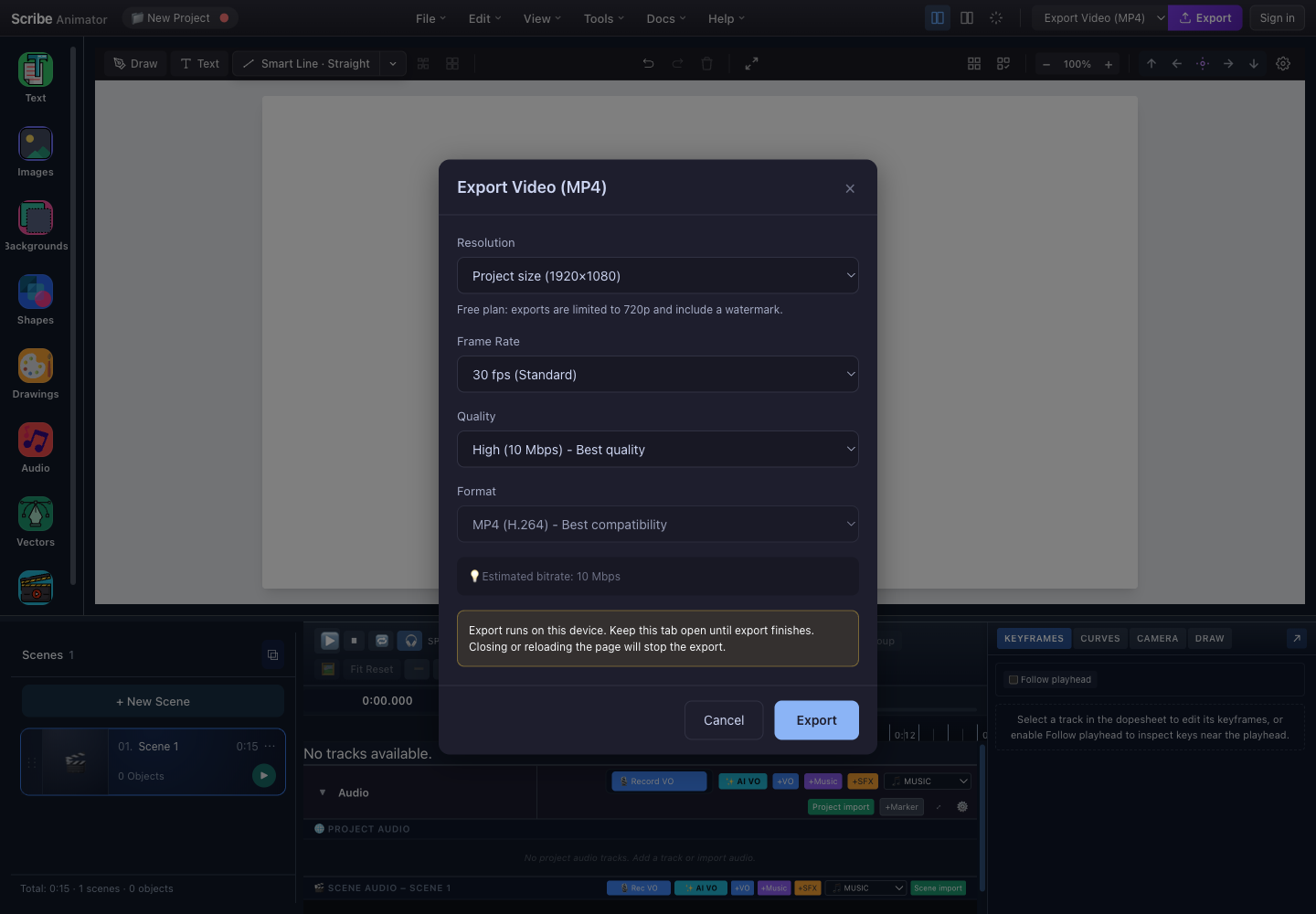
- Plan limitThe free plan can clamp output to 720p and add a watermark.
- Complexity settingsResolution, frame rate, and quality all affect rendering work.
- Keep openClosing or reloading stops the export.
- Cancel or ExportCancel before rendering or start once settings are confirmed.
Export stops or errors
- Keep the app in the foreground.
- Confirm free device storage.
- Retry at 720p, 30 fps, Medium quality.
- Close unrelated heavy tabs/apps.
- Reduce oversized images or extreme vector complexity in a copy.
- Try a short project/scene to isolate the encoder.
- Preserve the error text and progress phase.
Export is blank
- Preview first.
- Check active scene, visibility, and camera framing.
- Confirm the object exists during rendered time.
- Test camera mode Off.
- Verify the chosen exporter matches the intended output.
Export has no audio or drifts
- Confirm audio works in full preview.
- Check mute, clip bounds, scene binding, and total duration.
- Test 30 fps.
- Do not edit or seek during export.
- Review the downloaded file in a second player.
Mobile-specific problems
| Symptom | Recovery |
|---|---|
| A sheet blocks selection | Close with X/system back, select the object, reopen the sheet |
| Timeline is unavailable | Close the active editor/modal; only one focused owner may be active |
| App restarts during import/export | Save, reduce source size/settings, keep foregrounded, free memory |
| Touch transform is imprecise | Zoom in, make one transform at a time, finish precision work on desktop |
| Download cannot be found | Check browser download permission, Files/Downloads, sharing destination, and storage |
| Microphone/file picker does not open | Check OS and browser permissions and whether another modal owns focus |
Account and billing problems
- For OTP failure, use the newest six-digit code, check the address, and respect rate limits.
- For a delayed Pro entitlement, do not pay again; refresh/check activation.
- On iOS/Android, restore with the same store account that owns the subscription.
- A successful redirect alone does not prove backend entitlement activation.
- Cancel an active subscription with its billing provider before deleting an account.
- Never send support an OTP, password, full payment-card data, access token, refresh token, or API key.
Performance and browser environment
- Save the project.
- Stop preview, recording, voice generation, and export.
- Close unused panels and other heavy tabs/apps.
- Test in a currently supported browser or the native app.
- Check free device memory and storage.
- Remove or simplify one suspected large asset in a copy.
- Compare with the demo project.
Avoid private/incognito modes for important long-lived local projects: storage may be temporary. Browser extensions, aggressive privacy policies, enterprise network filtering, and content blockers can interfere with downloads, workers, media, asset hosts, or authentication.
Report a useful bug
Open Help → Report a Bug and include:
- app version from Help → About;
- platform, OS, browser/app version, and device class;
- whether the editor is desktop or Mobile Lite;
- exact steps from a fresh/demo project;
- expected and actual result;
- project/scene/object type and playhead time;
- complete sanitized error text;
- a cropped screenshot or short recording;
- whether the problem survives closing the panel, retrying once, or reloading after backup; and
- whether it occurs in the demo project.
Remove customer names, private audio, email addresses, project secrets, payment information, tokens, signed URLs, and unrelated browser content. Provide the smallest sanitized project that still reproduces the issue.
The library error, signed-out audio state, and local export warning above were captured from the running application with browser-based UI review. They show three different scopes—remote library, account-gated library, and device-local rendering—so recovery should target the failed scope.