Shortcuts and accessible editing
Keyboard shortcuts make repeated desktop editing faster. Accessibility practices make both the editor workflow and the exported animation easier to use. They are related but different: a keyboard-accessible editor does not automatically make the finished video accessible.
Open the current shortcut list
The list inside the running editor is the source of truth for the installed version.
- Open Help in the desktop menu bar.
- Choose Keyboard Shortcuts.
- Scroll the modal to see every section.
- Press Escape, select ×, or select the backdrop to close it.
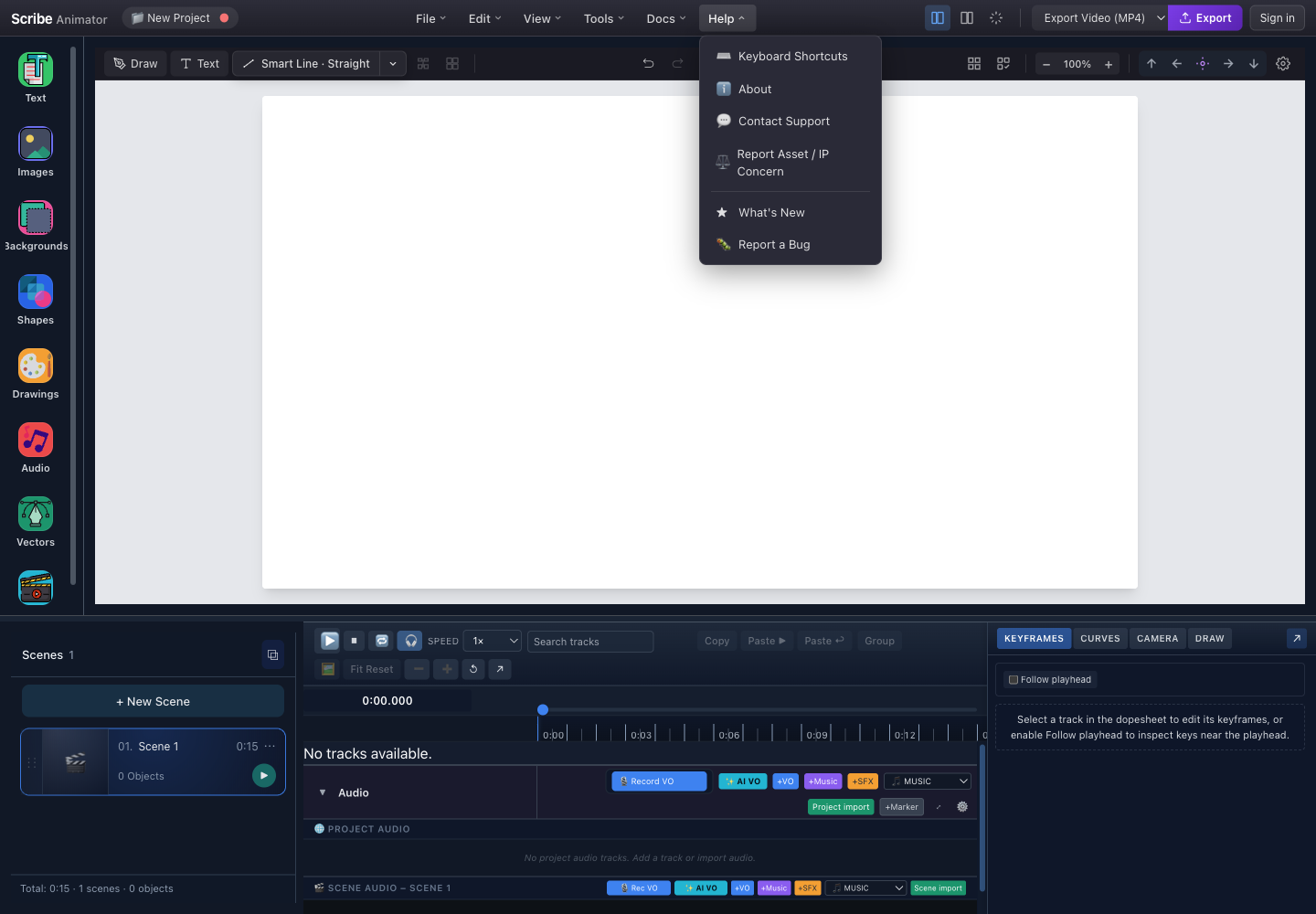
- Keyboard ShortcutsOpens the version-specific shortcut reference.
- AboutShows application identity and version information.
- Contact SupportUse for assistance that is not a reproducible product bug.
- Report Asset or IP ConcernUse for asset provenance, rights, or intellectual-property concerns.
- What is NewReviews product changes that can include shortcut or behavior updates.
- Report a BugStarts the bug-reporting path for a reproducible defect.
Read the shortcut modal
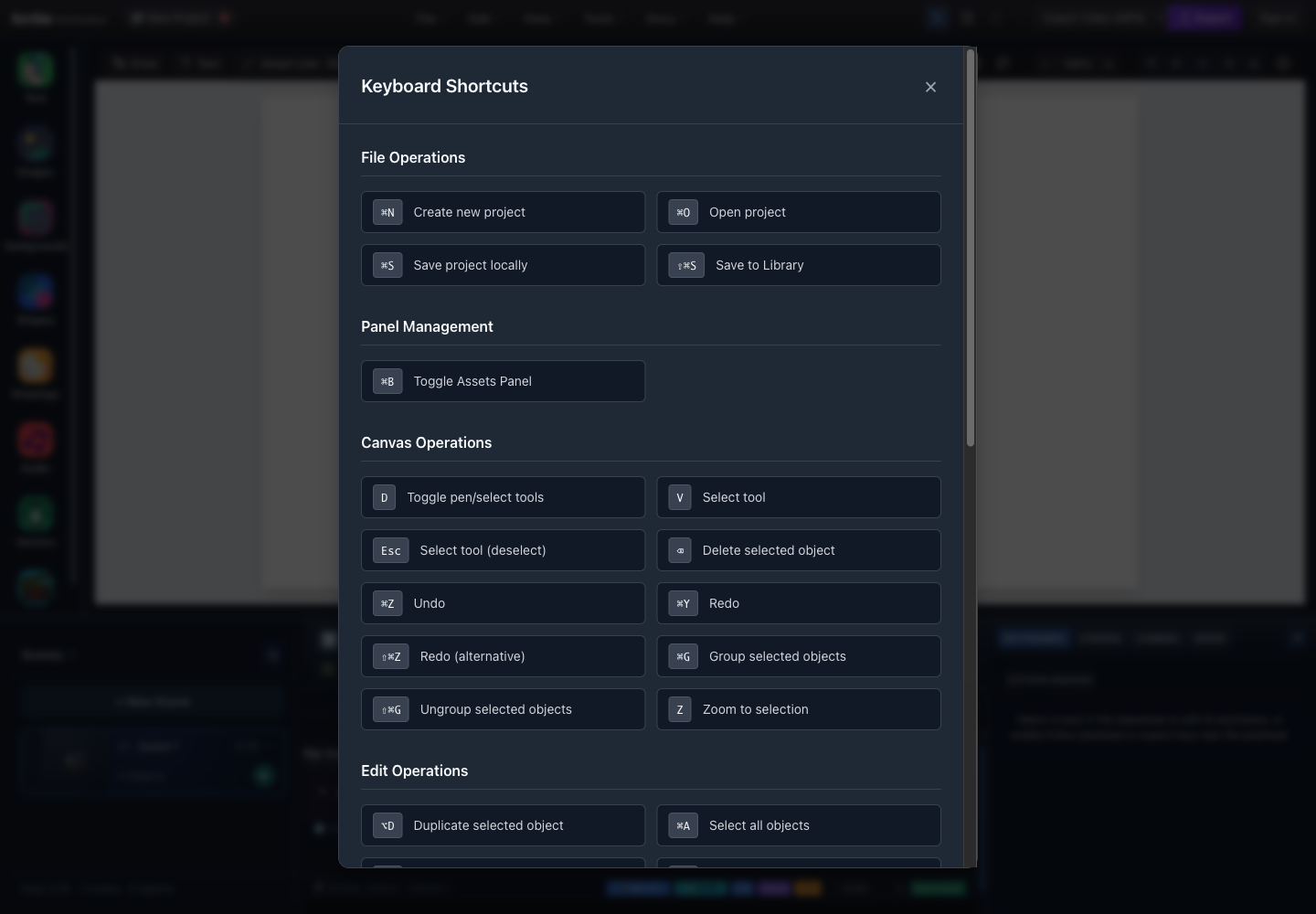
- File OperationsNew, open, local save, and library save.
- Panel ManagementToggle the Assets panel.
- Canvas OperationsTools, selection, delete, history, grouping, and zoom.
- Edit OperationsDuplicate, select all, copy, paste, and clear canvas are below.
- Scroll barScroll to reach timeline, curve, shape, picker, and notes sections.
- CloseCloses the reference without changing the project.
On macOS, the modal displays ⌘ for Command, ⇧ for Shift, ⌥ for Option, and ⌫ for Delete/Backspace. On Windows and Linux, use Ctrl where the list shows Command and Alt where it shows Option.
Complete shortcut reference
File operations
| macOS | Windows/Linux | Action | Use it when |
|---|---|---|---|
⌘ N | Ctrl N | Create new project | You intentionally want a clean project |
⌘ O | Ctrl O | Open project | You want to load a supported local project |
⌘ S | Ctrl S | Save project locally | Before risky edits, imports, or export |
⇧ ⌘ S | Shift Ctrl S | Save to Library | You want the supported account/library save flow |
Protect unsaved work before New or Open. A shortcut does not bypass confirmation or availability rules.
Panel management
| macOS | Windows/Linux | Action |
|---|---|---|
⌘ B | Ctrl B | Toggle the Assets panel |
Use it to reclaim canvas width or quickly reopen assets. It is not a browser bookmark shortcut while the editor owns the command.
Canvas operations
| Shortcut | Action | Safety note |
|---|---|---|
D | Toggle pen/select tools | Check which tool becomes active before dragging |
V | Activate Select | The safest way to leave a drawing/targeting tool |
Escape | Deselect / return to Select | Escape does not delete the object |
Delete or Backspace | Delete selected object(s) | Confirm the canvas/timeline selection first |
⌘/Ctrl Z | Undo | After recent audio interaction, history can apply to audio |
⌘/Ctrl Y | Redo | Only works when a redo entry exists |
Shift ⌘/Ctrl Z | Alternative redo | Same availability rule as redo |
⌘/Ctrl G | Group selected objects | Move/animate them as one unit |
Shift ⌘/Ctrl G | Ungroup selected group | Members become independently editable |
Z | Zoom to selection | Requires a selected object |
Edit operations
| macOS display | Windows/Linux equivalent | Action |
|---|---|---|
⌥ D | Alt D | Duplicate the selected object |
⌘ A | Ctrl A | Select all scene objects |
⌘ C | Ctrl C | Copy selected object |
⌘ V | Ctrl V | Paste copied object |
⇧ ⌘ ⌫ | Shift Ctrl Backspace | Clear the canvas |
Clear canvas is intentionally a complex shortcut because it is broad. Save first and verify the active scene. If duplicate does not fire on your platform, use Edit → Duplicate; platform/browser key ownership can differ.
Timeline controls
| Shortcut | Context | Action |
|---|---|---|
Space | Main timeline | Play or pause |
Hold Space and drag | Timeline curve editor | Temporarily pan the curve view |
X during drag | Timeline curve editor | Constrain movement to the X axis |
Y during drag | Timeline curve editor | Constrain movement to the Y axis |
Escape | Timeline curve editor | Cancel the active drag |
Space does not start playback while a focused text input is accepting a literal space. Click the canvas or timeline first.
Shape library and asset picker
| Shortcut | Context | Action |
|---|---|---|
Escape | Shape library | Deselect the selected shape |
Escape | Asset picker | Clear search first or close the picker |
Enter | Selected audio source | Add the audio source |
Space | Selected audio source | Add the audio source |
The quick asset surface owns some local keys so a delete/backspace or Escape cannot accidentally fall through to an unrelated canvas action.
Focus and command safety
Before a destructive or selection-dependent shortcut:
- Stop playback.
- Click the canvas, timeline, or intended panel.
- Confirm the visible selection outline or selected row.
- Run the shortcut once.
- Check the result and use Undo immediately if it affected the wrong domain.
Editor-wide shortcuts are suppressed while you type in common text inputs, textareas, search fields, and editable text. This prevents a typed D, V, space, or Backspace from changing the canvas. However, browser extensions and operating-system shortcuts can still take precedence.
Undo/redo is context-aware around audio: immediately after an audio interaction or while focus is inside an audio surface, the editor can apply audio history first. Watch the confirmation message.
Camera zoom, pan, fit, and hand-follower calibration are currently available through visible UI controls rather than keyboard shortcuts.
Mobile and touch users
Desktop key combinations do not define the Mobile Lite workflow. Use the explicit top-bar, object toolbar, sheet, timeline, and transport controls. A hardware keyboard connected to a mobile device may still be intercepted by the browser or operating system; do not rely on it for destructive actions.
Limitations and unsupported cases
- Shortcut availability depends on the current selection, focused surface, edit history, operating system, and browser key ownership.
- A shortcut cannot grant a permission, enable a missing plugin, make an unsupported object editable, or bypass an import/export limit.
- Mobile Lite uses visible touch controls; the desktop shortcut table is not a promise of mobile hardware-keyboard parity.
- Camera framing, pan/zoom, fit, and hand-follower calibration currently use visible controls instead of dedicated global shortcuts.
- Browser extensions, assistive technology, IMEs, and operating-system commands can intercept a key before Scribe receives it.
- Editor keyboard access does not automatically add captions, readable contrast, safe motion, or audio descriptions to the exported animation.
When a shortcut and the installed Help → Keyboard Shortcuts modal disagree, follow the installed modal.
Troubleshooting and safe recovery
| Problem | Likely reason | Safe recovery |
|---|---|---|
| A letter shortcut types into a field | A text, search, or editable control still has focus | Finish the edit, click the canvas or intended panel, confirm focus visually, then try once |
Space does not play | A text field owns the space or the curve editor is using temporary pan | Leave the field/editor gesture, click the timeline transport area, then use the visible Play button |
| Delete affects the wrong item | Canvas, timeline, audio, or panel selection was different from what you expected | Stop, use Undo immediately, select the intended outline/row, and prefer the visible Delete action |
| Undo changes audio instead of the canvas | Recent focus or interaction placed history in the audio domain | Inspect the confirmation, redo if safe, click the intended canvas/timeline surface, and use its visible history control |
| The browser handles the shortcut | The browser, extension, OS, or assistive technology reserved that key combination | Use the equivalent Scribe menu/button; do not disable accessibility tools merely to force a shortcut |
| A hardware keyboard behaves differently on mobile | Mobile browser/OS mapping is not desktop parity | Use Mobile Lite's explicit sheet, toolbar, timeline, and transport controls |
If a broad action such as Clear Canvas, New Project, or Open Project ran unexpectedly, stop editing, use Undo only when the action is shown as reversible, and restore the most recent local checkpoint or .scribe backup when necessary.
Make the animation accessible
Text and visual hierarchy
- Use a type size that remains readable at the smallest delivery size.
- Keep essential text away from the frame edges.
- Use strong foreground/background contrast.
- Avoid very thin fonts over detailed imagery.
- Keep headings, labels, and supporting text visually distinct.
- Give the viewer enough time to read each scene.
Color
- Do not communicate success, failure, categories, or sequence through color alone.
- Add text, shape, icon, pattern, or position as a second cue.
- Test common color-vision deficiencies when color carries meaning.
- Check contrast in the exported file, because video compression can soften boundaries.
Motion and camera
- Avoid rapid flashes.
- Prefer short, purposeful transitions over continuous movement.
- Reduce large zooms, rotations, and abrupt camera direction changes.
- Leave a stable pause before and after important movement.
- If motion is decorative, provide a simpler version when your delivery platform supports alternatives.
The editor/documentation may respect the user's reduced-motion preference, but your exported video is independent. You must review the animation itself for motion sensitivity.
Narration, captions, and sound
- Put essential spoken information in captions or on-screen text.
- Keep background music below narration.
- Do not use sound as the only signal that something changed.
- Avoid long uncaptioned pauses that hide whether playback is still progressing.
- Verify pronunciation, caption wording, and timing against the final audio.
Names and collaboration
- Use meaningful project, scene, track, and object names.
- Avoid names that rely only on position such as
thing-left. - Describe purpose:
CTA label,Narration scene 2, orCamera target.
Final accessibility review
- Watch the complete export without sound. All essential meaning should remain understandable.
- Listen without watching. Narration should remain intelligible and not be masked by music.
- Review at the smallest intended display size.
- Pause on every text-heavy scene and check readability.
- Check that color is not the only status cue.
- Check for flashes, disorienting camera moves, or unnecessarily fast animation.
- Confirm captions match the spoken content and stay on screen long enough.
- Verify the first and last frames are not clipped.
The Help menu and shortcut modal above were captured from the running desktop editor with browser-based UI review. Because browser and OS key ownership can vary, use the visible menu action whenever a shortcut is intercepted.