Account, billing, and plan limits
An account identifies you to Scribe Animator services and carries plan entitlements. You can still use local editing workflows without treating the account as a substitute for an editable project backup.
Scribe Animator uses a passwordless email one-time code (OTP). Billing differs by platform: the web flow uses Razorpay, while iOS and Android subscriptions use RevenueCat with the applicable app store.
When you need an account
Sign in when you deliberately need an account-scoped capability such as:
- plan entitlement checks;
- an account-backed project or asset library;
- supported cloud uploads;
- a web or app-store subscription;
- purchase restore or subscription management; or
- account-specific usage information.
Local project editing and a .scribe backup are different concerns. Signing in does not automatically guarantee that every local project or imported asset is stored remotely.
Open the Account dialog
On desktop, select Sign in in the top-right corner. In Mobile Lite, open the project menu and select Account.
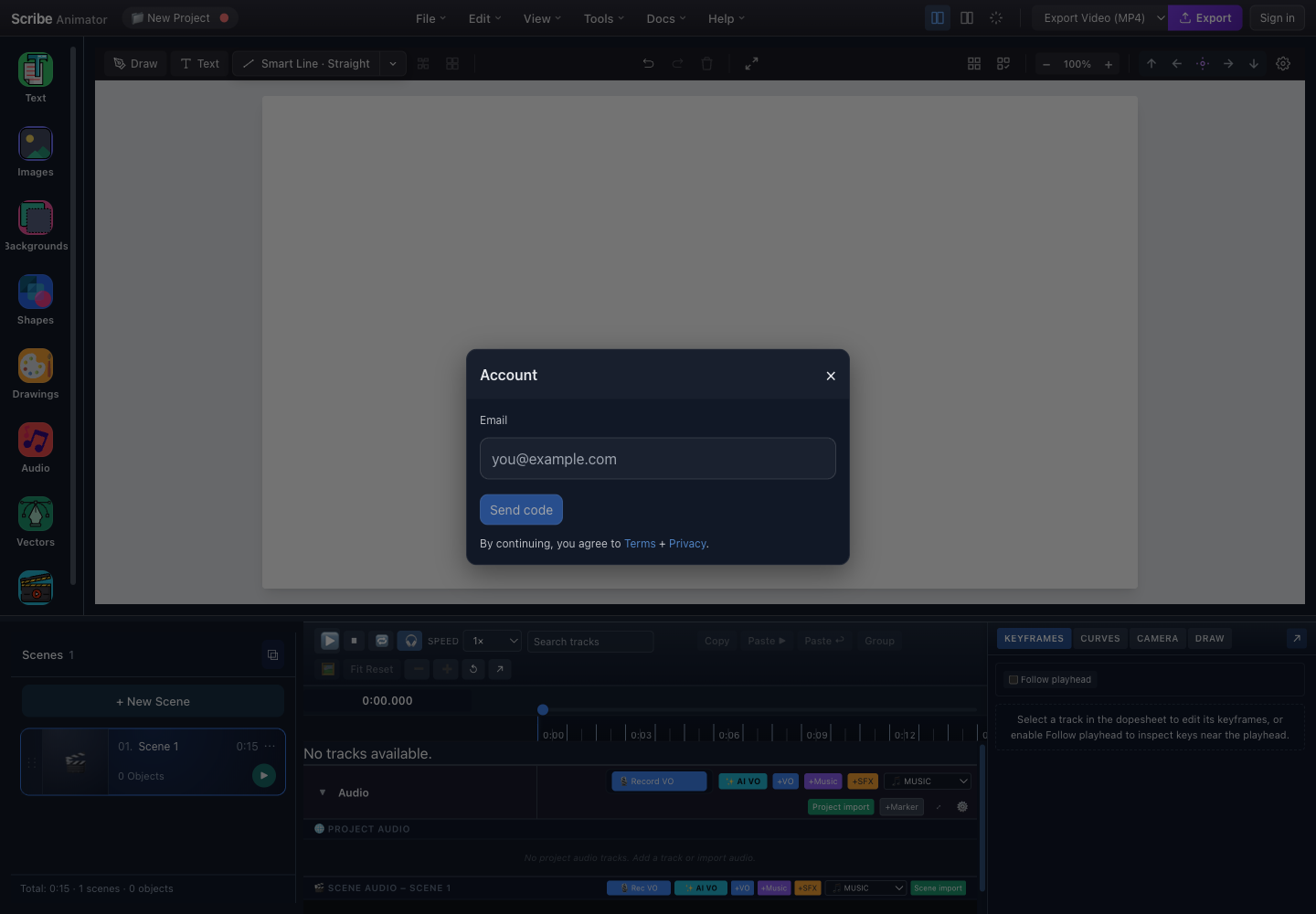
- EmailEnter the mailbox that should own this Scribe Animator account.
- Send codeRequests a one-time verification code after validation and any required safety challenge.
- Terms and PrivacyReview the linked terms before continuing.
- CloseLeaves sign-in without sending or verifying a code.
Sign in step by step
1. Request a code
- Enter the complete email address.
- Check spelling and the mailbox domain.
- Review Terms and Privacy if needed.
- Complete the anti-abuse challenge if the dialog presents one.
- Select Send code once.
The next view confirms the destination and displays a six-digit code field.
2. Find the current email
- Look for the newest Scribe Animator verification email.
- Check spam, promotions, quarantine, or corporate filtering.
- Confirm that the email was addressed to the mailbox shown in the dialog.
- Do not forward the code or paste it into support chat.
Codes are short-lived and OTP requests are rate-limited. Repeatedly requesting a new code can invalidate the older code and can temporarily block more requests.
3. Verify
- Enter the current six-digit code.
- Select Verify.
- Wait for the account dialog to show the signed-in state and plan.
If the email is wrong, use Change email. If the correct message does not arrive after a reasonable wait, use Resend code once and then enter only the newest code.
What success looks like
- The account dialog shows your email.
- A plan value such as Free or Pro appears.
- Usage information loads where that service is available.
- Sign out replaces the sign-in form.
- Paid controls reflect the verified entitlement after refresh.
Understand the signed-in account controls
Depending on platform and plan, the account view can show:
- Plan: the entitlement currently recognized by Scribe services and the editor.
- Usage: consumed and available account storage where supported.
- Refresh: fetches current usage or entitlement status.
- Upgrade to Pro: opens the web or native purchase owner.
- Manage: opens the subscription-management destination for a Pro account.
- Restore purchases: asks the native billing provider to restore purchases associated with the current store account.
- Sign out: ends the Scribe Animator session on the current installation.
- Delete account: begins a destructive account-deletion confirmation.
An account plan and a device's app-store account are related during native purchase restoration but are not interchangeable. Sign in to the intended Scribe account and the intended Apple/Google store account before restoring.
Billing by platform
| Surface | Billing owner | Where to manage it |
|---|---|---|
| Web / desktop browser | Razorpay-backed Scribe billing flow | Scribe billing dialog and the web subscription controls it exposes |
| iOS | RevenueCat entitlement synchronized from Apple | App Store subscription settings |
| Android | RevenueCat entitlement synchronized from Google | Google Play subscription settings |
Do not purchase the same entitlement through multiple platforms merely to fix a delayed refresh.
Upgrade on the web
- Sign in to the intended Scribe account.
- Open Account and select Upgrade to Pro.
- Review plan name, billing interval, currency, amount, renewal terms, and cancellation details.
- Continue to the Razorpay checkout.
- Complete the provider's payment flow.
- Return to Scribe Animator and keep the activation/status view open.
- Wait for the verified subscription status and entitlement refresh.
- Use Refresh or Check activation if offered.
A successful payment redirect is not the source of truth by itself. Scribe waits for verified provider/backend subscription state before unlocking Pro.
Upgrade or restore on iOS and Android
- Sign in to the intended Scribe account.
- Open Upgrade to Pro.
- Review the native store price, renewal interval, and terms.
- Confirm the purchase using the device's store flow.
- Keep Scribe open while the receipt is synchronized.
- If you already own the subscription on that store account, use Restore instead of buying again.
- Use Refresh after the restore completes.
If Manage cannot obtain a subscription-specific URL, the app can fall back to the platform's general subscriptions page.
When purchase succeeded but Pro is not active
- Do not repeat the payment.
- Save the provider receipt or non-sensitive transaction reference.
- Confirm you are signed into the same Scribe account used during purchase.
- On native, confirm the same Apple/Google account is active.
- Open Account and use Refresh.
- Use Restore purchases on iOS/Android.
- Wait briefly for provider webhook/receipt synchronization.
- Close and reopen the account view.
- Sign out and back in only after saving local work and after the provider confirms the purchase.
- Contact support with platform, date/time, Scribe account email, and a redacted receipt/reference.
Never send full card data, OTPs, access/refresh tokens, app-store passwords, or API keys.
Plan limits
The running UI is the source of truth because product policy can change. In the verified build:
- free video export is limited to 720p and includes a watermark;
- paid entitlement affects available export resolution;
- account storage/upload quotas are shown in the account view when available; and
- import or upload workflows can reject files that exceed current limits.
Plan enforcement should appear before the consequential action—for example, the export dialog shows the effective output and watermark note. If a requested setting is clamped, read the effective value before proceeding.
Sign out safely
- Stop playback and wait for pending saves.
- Export a
.scribebackup for any important local-only project. - Open Account.
- Select Sign out.
- Confirm the top bar returns to Sign in.
Signing out clears account session state. It does not necessarily delete locally persisted projects or downloaded files. Likewise, signing into another account does not make local files part of that account automatically.
Delete an account safely
Account deletion is destructive and is separate from subscription cancellation:
- Export any projects or data you are entitled to retain.
- If Pro is active, cancel the subscription with Razorpay, App Store, or Google Play first.
- Wait for the provider to reflect the cancellation state.
- Open the account deletion section.
- Read the impact and complete the explicit confirmation.
Deleting the Scribe account does not automatically cancel an active Apple or Google subscription. Store billing can continue until you cancel it in the store's subscription settings.
Security and privacy boundaries
Scribe support should not ask for an OTP, full payment-card number, CVV, access token, refresh token, store password, or API key.
- Open payment and management pages only from the app or a verified provider destination.
- Do not paste confidential project content into a support ticket.
- Redact other accounts, project names, emails, and transaction details from screenshots.
- Treat downloaded
.scribefiles as project data and store them appropriately. - On a shared device, sign out and remove local downloads you intentionally no longer need.
Troubleshooting
| Symptom | Recovery |
|---|---|
| Send code is disabled | Enter a valid complete email and finish any required anti-abuse check |
| Code does not arrive | Verify the address, check filtered folders, wait, then resend once |
| Code is rejected | Enter the newest six-digit code; older codes may have been invalidated |
| Too many requests | Stop requesting codes and wait for the rate-limit window rather than retrying |
| Plan remains Free after payment | Refresh/check activation; native users should restore; do not pay again |
| Manage opens the wrong store account | Switch to the store account that owns the subscription |
| Usage will not load | Preserve local work, check connectivity, then use Refresh |
| Sign-out fails | Keep a local backup, retry with connectivity, and avoid clearing all site data as a first step |
| Delete is blocked by Pro warning | Cancel the subscription with its billing owner before deleting the account |
The sign-in screenshot above was captured from the running desktop editor with browser-based UI review. Post-sign-in and billing controls are conditional on account state, platform, provider availability, and plan.