Import SVG and vector artwork
Vector Import has two input paths that meet at one preview-and-placement workflow:
- SVG intake sanitizes existing vector markup, resolves its geometry, and extracts drawable paths.
- Raster tracing converts pixels from PNG, JPEG, WebP, GIF, BMP, or TIFF into vector paths.
Use an existing SVG when possible. Trace a raster only when you genuinely need vector geometry or a draw reveal; tracing does not add missing detail, and complex images can create a large number of paths.
Choose the right workflow
| Source and goal | Best workflow | Why |
|---|---|---|
| Clean logo or illustration already supplied as SVG | Import the SVG | Preserves existing vector geometry and usually produces the smallest, cleanest result |
| Flat raster logo or high-contrast line art | Raster trace | Converts clear pixel regions into usable vector paths |
| Photograph that only needs to appear on screen | Add as a normal image | Tracing a photo is slow, visually noisy, and rarely useful for drawing animation |
| Animated GIF that should retain its source reveal behavior | Raster/GIF intake | The import flow retains original GIF bytes for supported reveal playback |
| SVG with SMIL or CSS animation | Export a static SVG first | Animated SVG markup is deliberately rejected |
Compressed .svgz | Decompress to plain .svg | The lower-level intake can recognize SVGZ, but the current visible Desktop chooser does not advertise it |
Orient yourself in Vector Import
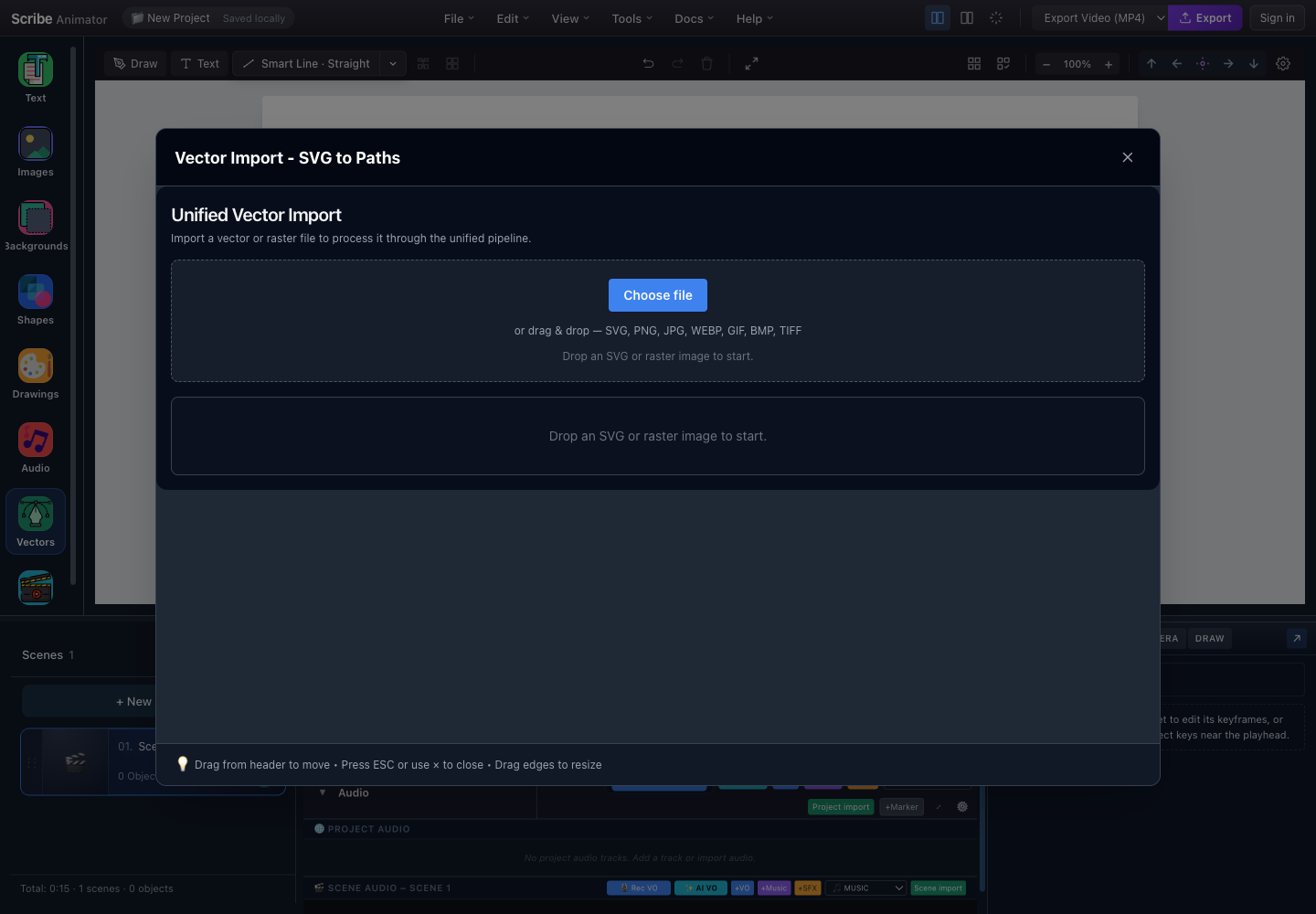
- Vector Import modalA movable and resizable workspace for file intake, processing controls, warnings, and placement.
- Choose file or drop zoneSelect a local file or drag it into the highlighted intake region.
- Current accepted formatsThe UI lists SVG, PNG, JPG, WEBP, GIF, BMP, and TIFF.
- Preview and result areaAfter processing, use this area to inspect visual fidelity, warnings, path statistics, and output choices.
- CloseClose the modal without adding the current result.
Supported inputs and important caveats
The current Desktop chooser explicitly lists:
- SVG;
- PNG;
- JPG/JPEG;
- WebP;
- GIF;
- BMP; and
- TIFF.
SVGZ is a guarded intake capability, not a visible picker promise
The lower-level intake gateway recognizes .svgz and applies safety checks, including a 20 MB expanded-size limit and rejection of multi-member gzip files. The current Desktop Vector Import chooser does not advertise .svgz, and browser support for decompression can vary.
For a reliable end-user workflow:
- decompress the file locally;
- verify that it becomes one plain, static SVG;
- import the
.svg; and - inspect the sanitized preview.
Do not rename .svgz to .svg; that changes only the filename, not the compressed content.
Workflow A: import a static SVG
Use this path for icons, logos, diagrams, line art, or exported illustrations.
- Pause playback.
- Open Vector Import.
- Choose or drop a plain
.svgfile. - Wait for sanitization, parsing, normalization, and path extraction.
- Read every warning.
- Inspect the preview:
- confirm the artwork is not blank or clipped;
- check the aspect ratio;
- verify fills and strokes;
- check whether text was already converted to paths; and
- confirm the number of extracted paths is reasonable.
- Choose the intended output behavior.
- Add the result to the canvas.
- Select the new object and verify its placement in the active scene.
- Preview the scene before saving or exporting.
Expected result: the canvas receives normalized vector object data rather than executing the original SVG document as an interactive webpage.
Static really means static
Vector Import rejects SVG animation expressed through:
- SMIL elements such as
<animate>and<animateTransform>; or - CSS animation rules.
Export one representative frame from the authoring tool and import that static SVG. Recreate motion with Scribe's timeline and animation commands.
Workflow B: trace a raster image
Use a source with:
- a plain or removable background;
- strong contrast;
- large, clearly separated shapes;
- limited texture; and
- enough resolution to define the edges.
Avoid small screenshots, noisy photos, compression artifacts, hairline details, and soft shadows unless those details are essential.
- Open Vector Import and choose a supported raster file.
- Wait for decode and preprocessing. The pipeline can classify the source, resize it, denoise it, remove a background, auto-trim it, and encode an intermediate image.
- Choose a trace mode:
- Monochrome / B&W for signatures, line art, and high-contrast marks;
- Color for flat illustrations with a limited palette.
- Adjust only the controls needed for the source:
- Threshold (0–255) changes which pixels belong to the B&W result;
- Color layers (1–16) controls palette segmentation in color mode;
- Curve fit changes how closely paths follow curves;
- Corner sensitivity preserves or smooths sharp changes; and
- Speckle filtering removes small isolated regions.
- Run or refresh processing.
- Compare the preview with the source at both fit-to-view and a closer scale.
- Read path count and warnings. More paths are not automatically better.
- Select the intended output, including SVG Reveal when the reveal behavior is the goal.
- Add the result to the canvas.
Expected result: one or more vector paths reproduce the important structure of the raster. Fine texture may be intentionally simplified.
Start with the default or balanced settings. Change one value, reprocess, and compare. Moving threshold, speckle, corners, and curve fit together makes it hard to identify what improved—or damaged—the result.
Decide between graphic placement and drawing behavior
A valid vector does not automatically make a good hand-drawn animation.
Use a normal graphic-style placement when:
- exact filled appearance matters more than stroke order;
- the art contains many filled regions;
- reveal timing would be distracting; or
- the path count is high.
Use drawing/reveal behavior when:
- the source is naturally stroke-like;
- the audience benefits from seeing the idea constructed;
- path order can be made meaningful; and
- the full reveal fits inside the scene duration.
After placement:
- select the imported object;
- open its draw or SVG-path controls;
- confirm that drawable paths exist;
- run automatic stroke planning as a starting point;
- remove or reorder unhelpful draw steps;
- select the appropriate hand and tool; and
- preview from before the first draw step through the completed result.
Save to the SVG library—or keep it only in the project
Adding the processed result to the canvas and saving it to the cloud SVG library are separate actions.
- A processed result can be added to the current canvas without being saved to the cloud library.
- Save SVG to cloud library is currently a Pro capability.
- The cloud-library save path enforces a 3 MB SVG limit.
- A result over that library limit can still be added to the canvas when the editor has successfully processed it.
Use cloud save only for artwork you expect to reuse. Avoid filling the library with one-off traces or near-duplicate experiments.
Security model
Imported SVG is treated as untrusted markup.
- Dangerous elements and event attributes are removed during sanitization.
- External scripts are not executed.
- Animated SVG constructs are blocked rather than handed through.
- Geometry is parsed and converted into Scribe object/path data.
- Missing or unusual sizing information can generate warnings; a file that opens in a browser is not automatically a valid editor asset.
This means web-page features embedded in an SVG—scripts, external interactions, or CSS animation—are not preserved. That is intentional.
Limits and offline behavior
- Local SVG sanitization, parsing, raster preprocessing, and bundled worker processing can run without a cloud connection after the required application code and assets are available.
- Cloud-library saving requires its entitlement, authentication, and network service.
- A worker can be unavailable in a restricted browser or environment. The UI reports that failure instead of pretending a trace succeeded.
- SVGZ decompression depends on environment support and is guarded by expanded-size and gzip-structure limits.
- Huge raster dimensions can exhaust browser memory even when the compressed file is small.
- Very detailed traces increase project size, selection cost, render work, stroke-planning work, and preview time.
- Styling that depends on an external stylesheet cannot be relied upon after sanitization. Export self-contained fills, strokes, transforms, and geometry.
Desktop and Mobile Lite differences
| Task | Desktop | Mobile Lite |
|---|---|---|
| Entry point | Movable/resizable Vector Import panel | Assets → Vectors / import flow |
| Current chooser wording | Lists SVG, PNG, JPG, WEBP, GIF, BMP, TIFF | Uses the Mobile Lite vector-import adapter and device picker |
| Place versus draw | Choose output in the import/asset workflow | Explicit Add as Graphic and Add as Drawing actions |
| Advanced inspection | Larger preview and tracing controls | Compact, touch-oriented controls and summaries |
| Cloud SVG save | Pro, max 3 MB | Same Pro cloud-library policy surfaced through Mobile Lite |
| Local processing | Browser pipeline/worker | Same underlying processing bridge through Mobile Lite adapters |
Both surfaces ultimately need a current project and an active scene. Pause playback before inserting or editing imported content.
Verify the result
Before continuing, check:
- the result exists in the intended scene;
- its bounds and aspect ratio match the preview;
- colors and transparency are acceptable;
- the path count is appropriate for the visual;
- the object can be selected and transformed;
- draw steps exist only when you intended a drawing;
- the reveal finishes before the scene ends; and
- closing and reopening the project does not lose required source assets.
Troubleshooting and recovery
| Symptom | Likely cause | Recovery |
|---|---|---|
| File picker does not show SVGZ | The current visible chooser does not advertise compressed SVG | Decompress to one plain .svg and import that |
| “Animated SVG is not supported” | SMIL or CSS animation was detected | Export a static SVG frame, then animate it in Scribe |
| Blank preview | Missing/invalid dimensions, no extractable geometry, unsupported constructs, or all content removed by sanitization | Add a valid viewBox, flatten the artwork, convert text to paths, and export a self-contained static SVG |
| Wrong colors | The file depends on external CSS, inherited styles, or unsupported effects | Expand/flatten appearance in the source tool and use explicit fills/strokes |
| Raster will not decode | Unsupported, mislabeled, or corrupt image data | Re-export as PNG, JPEG, or WebP and retry |
| Worker unavailable | The browser or environment cannot start the processor | Reload once, try a supported modern browser, or import an already prepared SVG |
| Too many paths | Source detail, noise, or too many color layers | Increase speckle filtering, reduce layers, simplify/resize the source, or add it as a graphic |
| Corners look rounded | Curve/corner settings are too smooth | Increase corner preservation and compare again |
| Curves look jagged | Threshold/noise or curve fit is too aggressive | Clean the source, adjust threshold, and use a smoother curve fit |
| Draw order feels random | Visual path order is not narrative stroke order | Re-plan, then manually reorder or remove important steps |
| Save-to-library is disabled | No Pro entitlement, no account/network, or result exceeds 3 MB | Add to canvas only, sign in with the required entitlement, or simplify the SVG |
| Canvas result differs from preview | Placement scale, clipping, or selected output behavior changed | Undo, reopen import, confirm the preview/output, and add again |