File Menu & Header Actions
The desktop header keeps project persistence, editing, workspace layout, specialized tools, documentation, help, and export available without leaving the canvas. This guide explains what every visible control does, when it is available, and how to recover when an action fails.
Header layout
| Area | What it contains | Why it matters |
|---|---|---|
| Left | Scribe Animator brand, project name, and save status | Confirms which project is active and whether recent work is saved |
| Center | File, Edit, View, Tools, Docs, and Help menus | Groups actions by purpose |
| Right | Library and Properties toggles, display controls, export format, Export, and account state | Keeps frequent workspace and output actions one click away |
Project status
| Indicator | Meaning | Recommended response |
|---|---|---|
| Red dot | The project has unsaved changes | Save before reloading, closing, or importing another project |
| Saved locally | The latest checkpoint is in this browser's local storage | Also export a .scribe package for a portable backup |
| Saved to library | The latest complete library save succeeded | Confirm the project appears in Load or Organize Projects |
Clearing site data, using a different browser profile, or losing the device can
remove a local save. Export a .scribe package for important projects and keep
it somewhere you control.
File menu
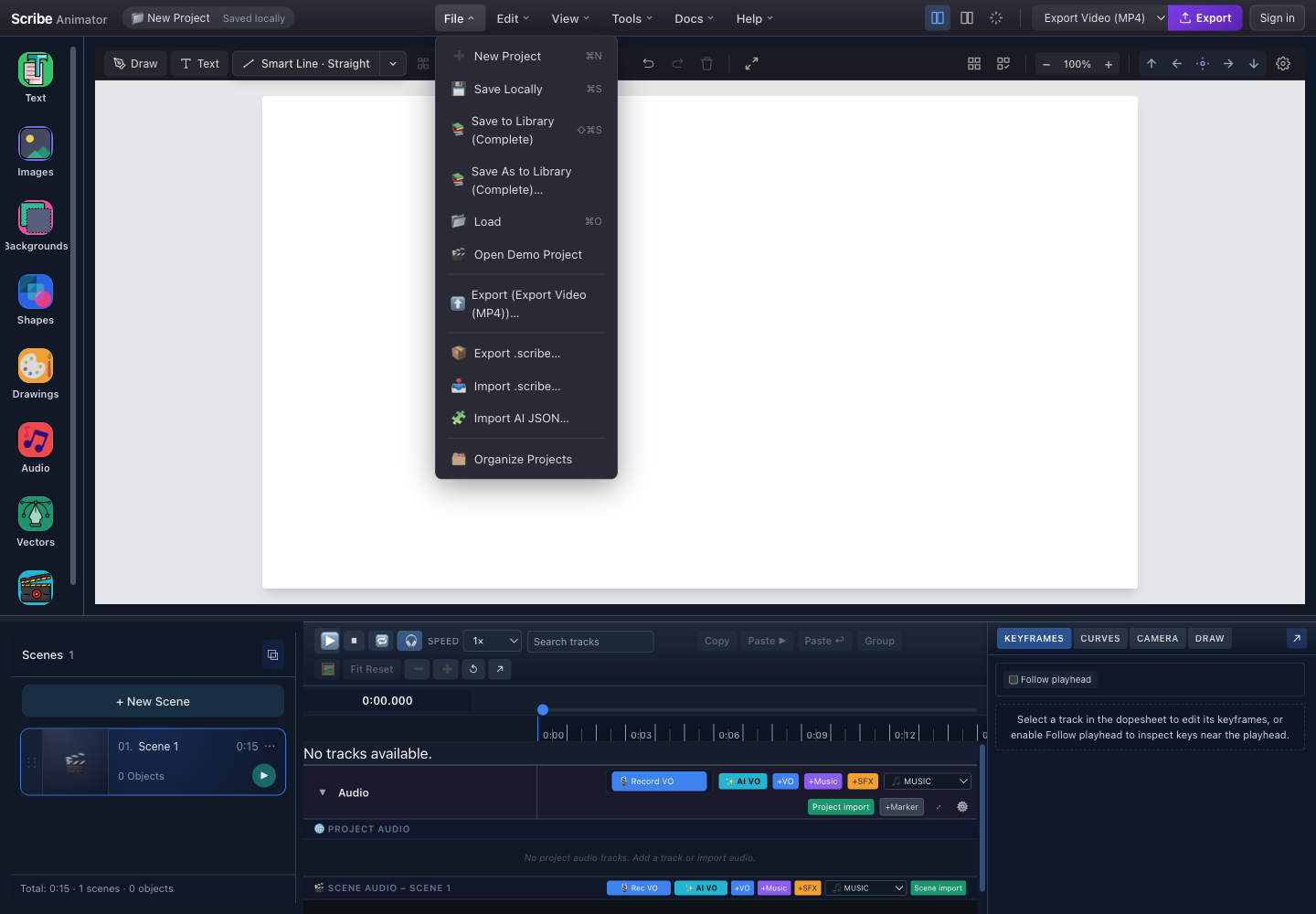
- Project and save statusCheck the active project and whether it is saved before replacing or importing project state.
- Save destinationsSave Locally creates a fast browser checkpoint. Library actions create or update a managed project entry.
- Load or open a demoLoad opens saved projects. Open Demo Project replaces the workspace with deterministic sample content.
- Portable project packageExport or import .scribe when the editable project and packaged assets must move between browsers or devices.
- Organize ProjectsOpen the project-management surface to inspect and organize available saved projects.
File actions
| Action | Mac shortcut | Windows/Linux | What it does | Use it when |
|---|---|---|---|---|
| New Project | Command+N | Ctrl+N | Replaces the current workspace with a blank project | Starting unrelated work after saving the current project |
| Save Locally | Command+S | Ctrl+S | Writes a quick checkpoint to this browser | Saving frequently while editing |
| Save to Library (Complete) | Shift+Command+S | Shift+Ctrl+S | Creates or updates a complete library entry | Keeping a managed project with metadata and assets |
| Save As to Library (Complete) | — | — | Creates a separate library entry under a new name | Making a variation without overwriting the original |
| Load | Command+O | Ctrl+O | Opens the project browser | Reopening a saved project |
| Open Demo Project | — | — | Loads sample project content | Exploring the editor without risking a real project |
| Export | — | — | Opens the selected output exporter's settings | Producing a video or another installed output format |
Export .scribe | — | — | Downloads an editable portable package | Backup, transfer, or handoff |
Import .scribe | — | — | Validates and opens a portable package | Continuing editable work received from another device |
| Import AI JSON | — | — | Validates Scribe template JSON for a project, scene, or block | Applying generated or hand-authored template data |
| Organize Projects | — | — | Opens project management | Finding, renaming, or organizing saved entries supported by the current build |
Actions can be unavailable while a modal is open or when their prerequisites are missing. Save before New Project, Open Demo Project, Load, or import, because each can replace current state.
Choose the correct save or transfer method
| Method | Storage location | Includes | Limitation |
|---|---|---|---|
| Save Locally | Current browser profile | A fast editable checkpoint | Not portable and vulnerable to cleared site data |
| Save to Library | Configured project library | Complete managed project data and metadata | Availability and synchronization depend on the host |
| Save As to Library | New library entry | A separate complete project copy | Creates another entry to manage |
Export .scribe | Downloaded file | Project data plus package-supported assets, audio, and version metadata | Keep the file secure; imported content is still untrusted input |
| Rendered export | Downloaded media | Final visual/audio output | Not an editable project backup |
What a .scribe package contains
A .scribe file is a packaged archive. Its exact internal layout can evolve
with the package version, but it represents the following categories:
| Package data | Purpose |
|---|---|
| Project data | Scenes, objects, timing, and other editable state |
| Assets | Package-supported images and vector sources |
| Audio | Package-supported audio media and references |
| Metadata | Package and application version information used during validation and migration |
To transfer a project:
- Save the current project.
- Choose File → Export .scribe and keep the downloaded file intact.
- On the destination browser, save any project that is already open.
- Choose File → Import .scribe and select the package.
- Review import warnings, confirm scenes and media, then save a new local or library checkpoint.
Import only packages and JSON you trust. Scribe validates supported data, but you should still review the resulting project, external asset references, and warnings before exporting or sharing it.
AI JSON is not a .scribe package
Import AI JSON accepts validated Scribe template JSON. It can create a
project, add or replace a scene, insert a block, or save generated template
data where supported. It does not provide the packaged binary assets of a
.scribe archive. Use explicit approved asset references and inspect the
result before saving.
Edit menu
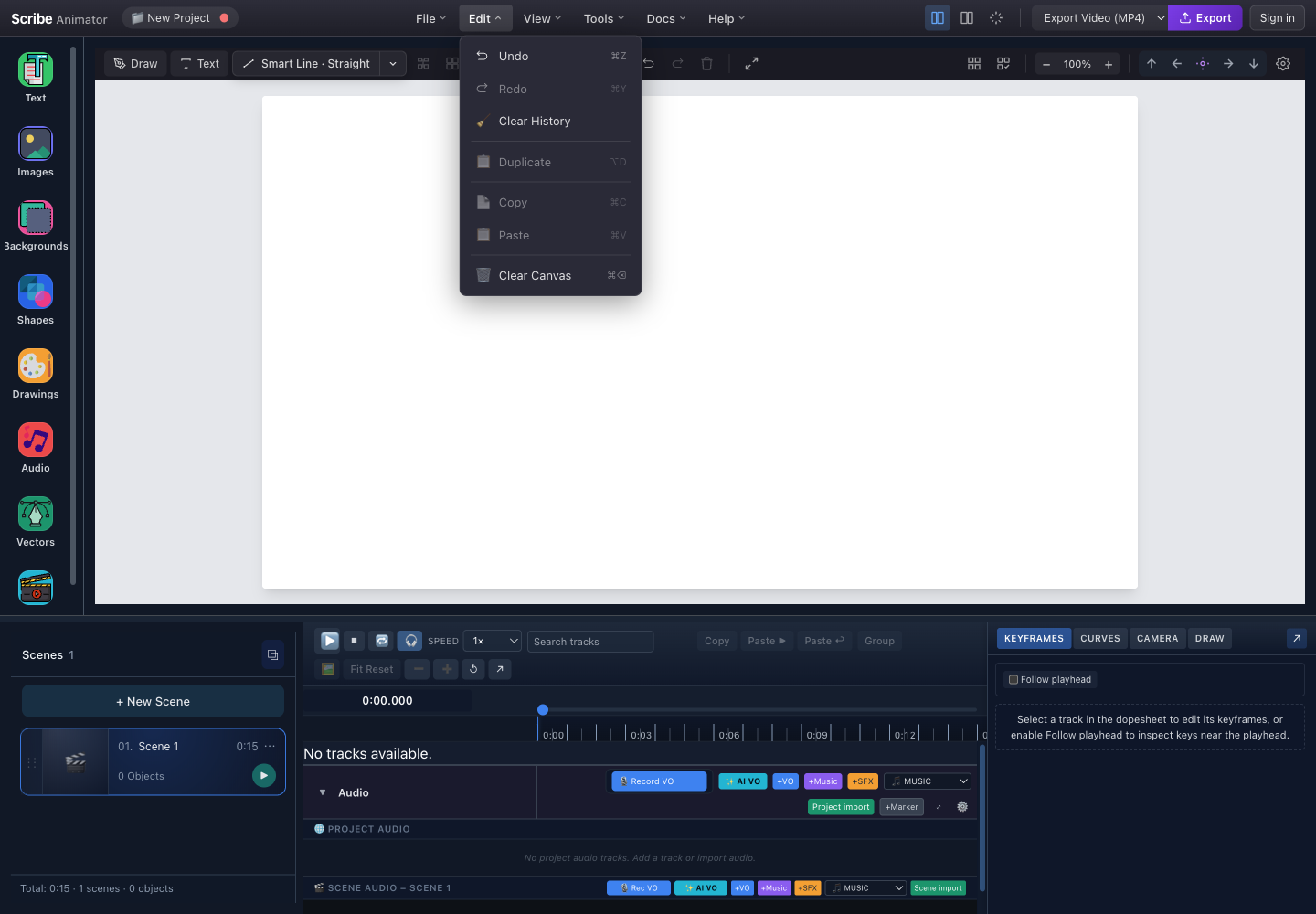
- Undo, Redo, and Clear HistoryUndo or Redo requires matching history. Clear History intentionally removes that recovery path.
- Duplicate, Copy, and PasteDuplicate and Copy require a supported selection; Paste requires compatible clipboard content.
- Clear CanvasRemoves the current scene's objects. Save first and keep history if you may need Undo.
| Action | Mac shortcut | Windows/Linux | Enabled when | Result |
|---|---|---|---|---|
| Undo | Command+Z | Ctrl+Z | Undo history exists | Reverts the last recorded edit |
| Redo | Command+Y | Ctrl+Y | Redo history exists | Reapplies the last undone edit |
| Clear History | — | — | History exists | Permanently empties undo and redo history |
| Duplicate | Option+D | Alt+D | A supported object is selected | Creates a copy in the current scene |
| Copy | Command+C | Ctrl+C | A supported object is selected | Places supported object data on the editor clipboard |
| Paste | Command+V | Ctrl+V | Compatible clipboard data exists | Adds copied content to the current scene |
| Clear Canvas | Command+Delete | Ctrl+Backspace | The scene can be edited | Removes all objects from the current scene |
Locked or otherwise non-editable objects can keep selection actions disabled. Do not clear history until destructive work has been checked.
View menu
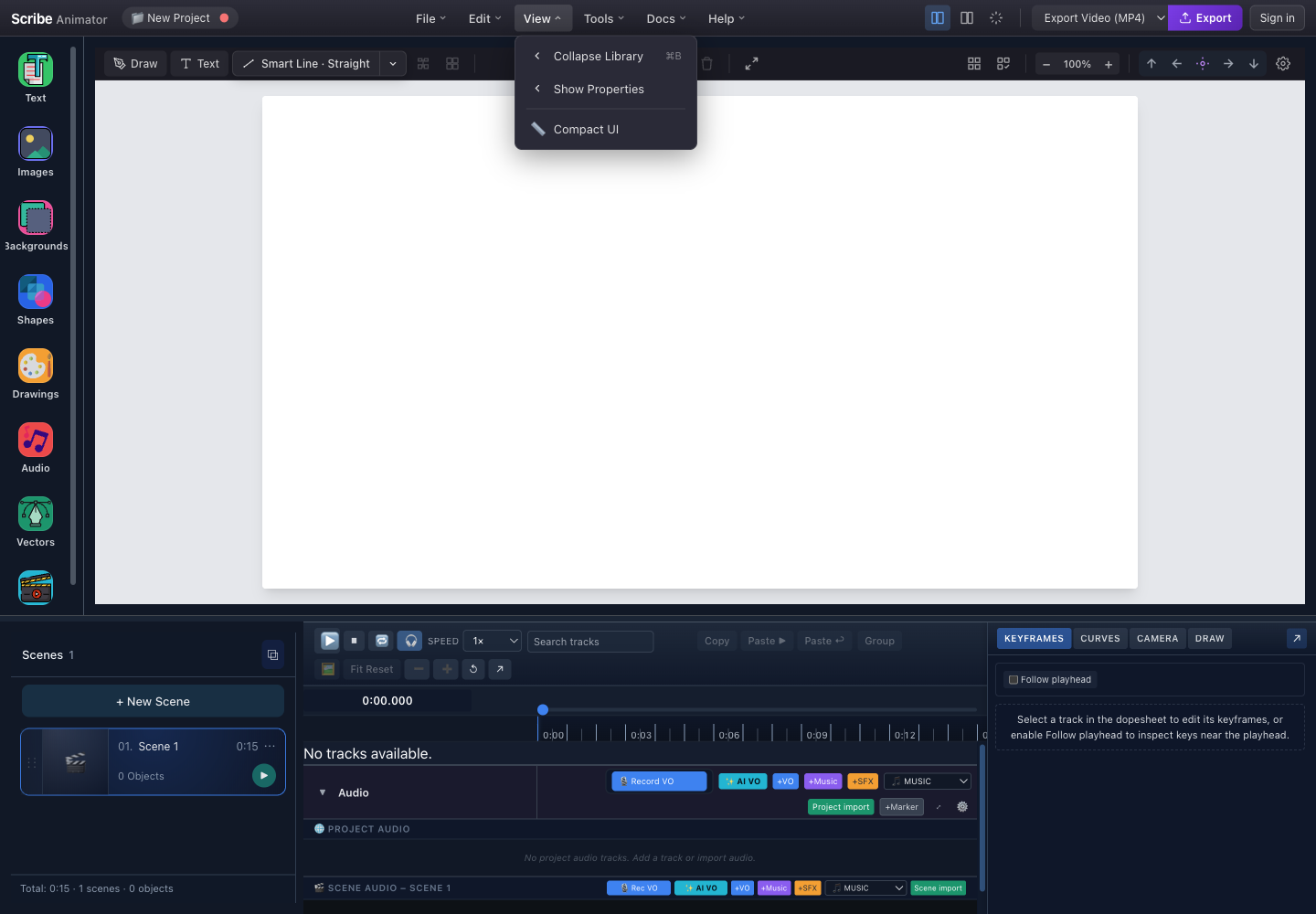
- Library visibilityCollapse or show the left library to give the canvas more horizontal space.
- Properties visibilityShow or hide the right inspector without changing the selected object.
- Compact UISwitch workspace density when more room is needed; this is a presentation preference, not project data.
| Control | Visible label depends on state | Effect |
|---|---|---|
| Library toggle | Collapse Library or the corresponding show action | Hides or restores the left asset library |
| Properties toggle | Show Properties or the corresponding hide action | Restores or hides the inspector |
| Compact UI | Current density state | Uses tighter spacing; switch back when larger targets are easier to operate |
The blue panel buttons on the right side of the header provide the same common library and Properties visibility actions. A highlighted button means the corresponding panel is visible.
Tools menu
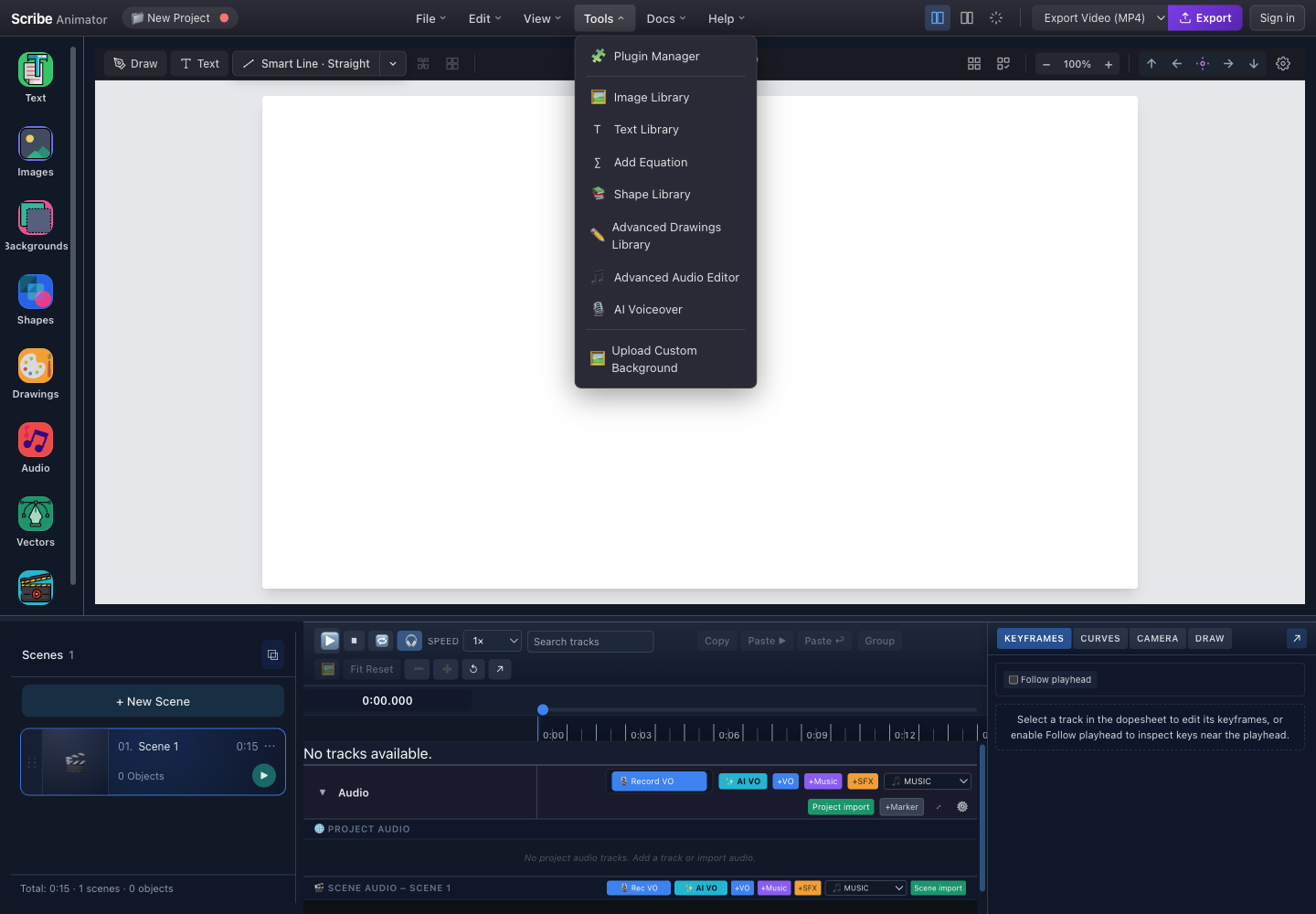
- Plugin ManagerInspect enabled plugins and host-granted capabilities. Availability depends on the build.
- Content librariesOpen Image, Text, Shape, or Advanced Drawings libraries for reusable content.
- Audio toolsOpen the Advanced Audio Editor or AI Voiceover surface when those capabilities are available.
- Upload Custom BackgroundImports a local background through the editor's supported file intake path.
| Tool | Use it for | Important boundary |
|---|---|---|
| Plugin Manager | Inspecting or configuring supported plugins | Plugins and permissions vary by build; do not enable unknown code |
| Image Library | Browsing image assets | Confirm licensing before distribution |
| Text Library | Inserting supported text presets | Final typography remains editable in Properties |
| Add Equation | Creating supported equation content | Verify font and export rendering |
| Shape Library | Inserting reusable shapes | Selection and appearance are edited after insertion |
| Advanced Drawings Library | Browsing detailed drawing content | Complex assets can increase render cost |
| Advanced Audio Editor | Editing tracks and clips | Browser media permissions and codecs still apply |
| AI Voiceover | Generating supported voiceover content | Availability, consent, and provider policy depend on the host |
| Upload Custom Background | Importing a local background | Use trusted files and observe upload-size limits |
Docs menu
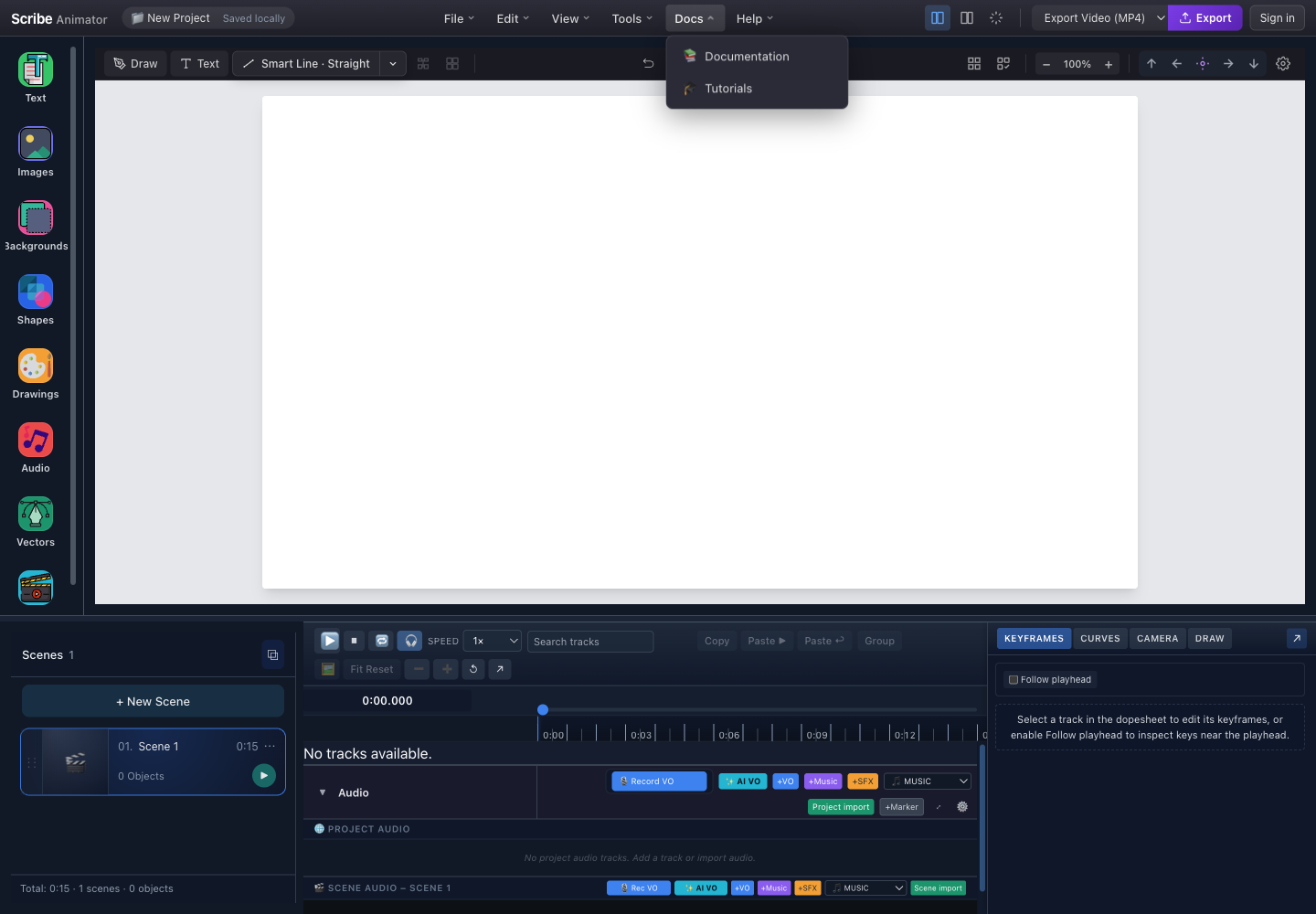
- DocumentationOpens the documentation index for feature guides, concepts, reference material, and troubleshooting.
- TutorialsOpens the step-by-step learning path built from verified product screenshots.
| Link | Destination | When to use it |
|---|---|---|
| Documentation | /docs/ | Looking up a feature, limitation, reference, or recovery procedure |
| Tutorials | /docs/use-scribe/start/quickstart | Learning an end-to-end workflow in order |
These links normally open a new browser tab so the active editor project stays open. If the browser blocks the tab, allow pop-ups for the trusted Scribe host or open the documentation directly.
Help menu
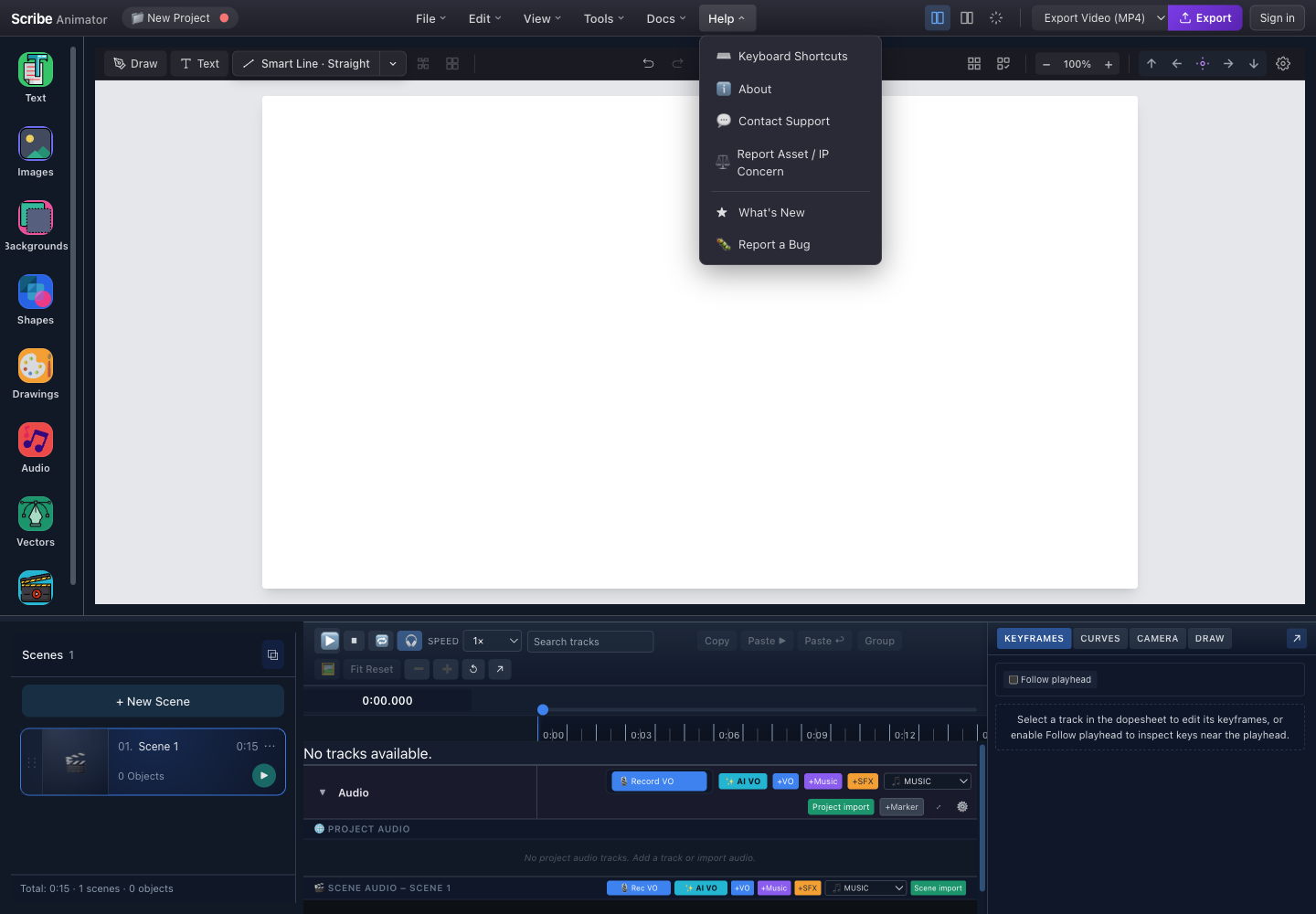
- Shortcuts and AboutOpen the keyboard reference or inspect the current product version and credits.
- Support and rights concernUse Contact Support for product help and Report Asset / IP Concern for ownership or licensing issues.
- What's New and Report a BugReview product changes or submit a reproducible technical problem.
| Action | Opens | Include or check |
|---|---|---|
| Keyboard Shortcuts | Shortcut reference | Current operating system and focused surface |
| About | Version information and credits | Version/build number when reporting a problem |
| Contact Support | Host-provided support flow | Clear description, expected result, and safe reproduction steps |
| Report Asset / IP Concern | Rights-reporting flow | Asset identity, source, and ownership details; do not publish private evidence |
| What's New | Release information | Feature availability for the current build |
| Report a Bug | Bug-report flow | Reproduction steps, version, browser, and sanitized screenshots |
The exact support form is host-provided and may not be available in every build. This guide does not depict a simulated form. Never include passwords, authentication tokens, payment details, private project packages, or confidential customer assets in a support message.
Quick actions
| Header control | State | Behavior |
|---|---|---|
| Library panel button | Highlighted when visible | Hides or restores the left library |
| Properties panel button | Highlighted when visible | Hides or restores the inspector |
| Display control | Depends on current layout | Changes the workspace presentation without editing project data |
| Export format selector | Shows the active exporter | Changes what the adjacent Export button opens |
| Export | Enabled when the selected exporter can run | Opens export settings; it does not automatically create a file |
| Sign in/account | Depends on authentication state | Opens host account functionality, not project editing |
If a quick action and its menu equivalent appear out of sync, close open modals, click the editor once to restore focus, and try the menu action. Reload only after saving or exporting a portable backup.
Export controls
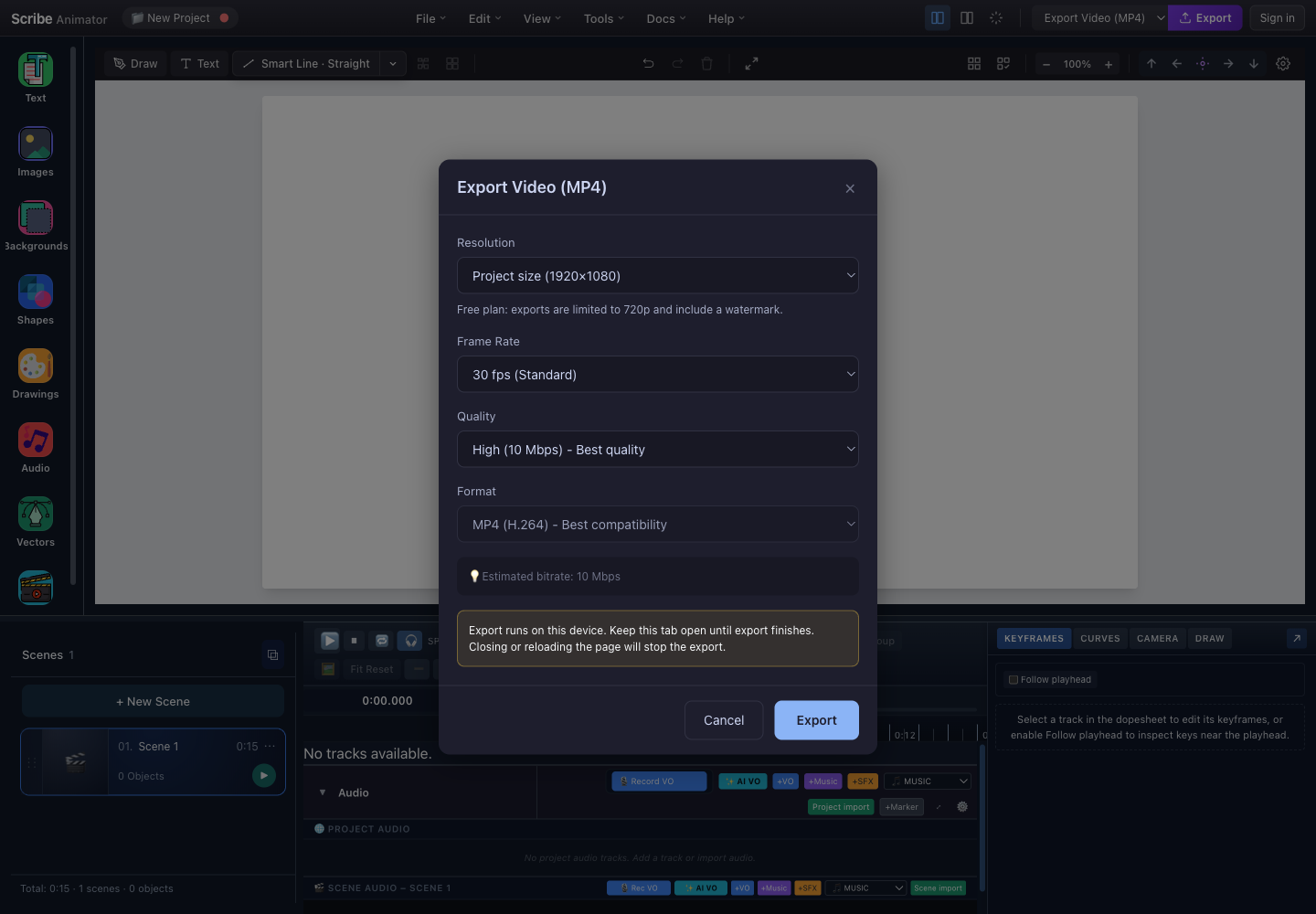
- ResolutionChoose a supported output size. The active plan can clamp resolution and add a watermark.
- Frame rate and qualityHigher values increase processing work and usually increase the output file size.
- Output formatThe current video exporter exposes its supported codec or container choices here.
- Keep this tab openClosing or reloading the page stops the device-local export.
- ExportStart processing only after the settings and plan limitation are acceptable.
To export:
- Save the editable project first.
- Select the desired installed exporter in the header.
- Choose Export.
- Review resolution, frame rate, quality, format, plan limits, estimated bitrate, and the local-render warning.
- Choose Export, keep the tab open, and avoid reloading while processing.
- Confirm the resulting file plays correctly before deleting backups or sharing it.
Available formats depend on installed and enabled exporters. A rendered file is
not a replacement for the editable .scribe project.
Keyboard shortcuts
Shortcuts apply to the focused editor surface and can be intercepted by the browser, operating system, an input field, or an open modal.
| Purpose | Mac | Windows/Linux |
|---|---|---|
| New Project | Command+N | Ctrl+N |
| Save Locally | Command+S | Ctrl+S |
| Save to Library | Shift+Command+S | Shift+Ctrl+S |
| Load Project | Command+O | Ctrl+O |
| Undo | Command+Z | Ctrl+Z |
| Redo | Command+Y | Ctrl+Y |
| Copy | Command+C | Ctrl+C |
| Paste | Command+V | Ctrl+V |
| Duplicate | Option+D | Alt+D |
| Clear Canvas | Command+Delete | Ctrl+Backspace |
| Toggle library panel | Command+B | Ctrl+B |
| Play or pause timeline | Space | Space |
| Previous or next frame | Left Arrow / Right Arrow | Left Arrow / Right Arrow |
| Timeline start or end | Home / End | Home / End |
| Delete selected objects | Delete | Delete or Backspace |
| Deselect | Escape | Escape |
| Zoom in, out, or reset | Command++, Command+-, Command+0 | Ctrl++, Ctrl+-, Ctrl+0 |
Use Help → Keyboard Shortcuts as the authoritative list for the current build because installed plugins and platform conventions can add or change bindings.
Troubleshooting and recovery
| Problem | Likely cause | Recovery |
|---|---|---|
| A menu command is disabled | Missing history, selection, clipboard data, permission, or plugin | Check its prerequisite, unlock/select a supported object, or enable the trusted capability |
| Save Locally fails | Storage quota, blocked storage, or private-mode limitation | Export .scribe, free site storage carefully, then retry in a persistent browser profile |
| Library save fails | Host, authentication, connectivity, quota, or service error | Keep the local checkpoint and .scribe backup; retry without discarding current state |
Export .scribe fails | Large media, serialization error, or blocked download | Save first, inspect project warnings, allow downloads, and retry with known problematic media removed only from a copy |
Import .scribe fails | Corrupt, unsupported, or untrusted package | Keep the original file, verify its source/version, and test in a new saved project |
| Import AI JSON fails | Schema, version, ID, or asset-reference error | Validate against the documented schema and fix reported fields; never bypass validation |
| Shortcut does nothing | Wrong focus or browser/OS interception | Close modals, click the canvas or timeline, and use the menu equivalent |
| Panel does not toggle | Modal/focus issue or stale UI state | Try View, save, then reload only if the state remains stuck |
| Export stops | Tab was closed, reloaded, suspended, or the device ran out of resources | Keep the project saved, reduce output settings if appropriate, and rerun with the tab active |
Before clearing browser data or reinstalling anything, export a .scribe
backup and confirm the download exists. Do not clear undo history while you are
still evaluating a destructive edit.
Summary
| Goal | Use |
|---|---|
| Fast checkpoint in the current browser | File → Save Locally |
| Managed complete save or named variation | Save to Library or Save As to Library |
| Portable editable backup | Export .scribe |
| Generated project, scene, or block data | Import AI JSON after validation |
| Reverse or repeat recent editing | Edit → Undo or Redo |
| Gain canvas space | View or the header panel toggles |
| Open libraries and specialized capabilities | Tools |
| Learn or troubleshoot | Docs and Help |
| Produce final media | Choose an exporter, open Export, review settings, and keep the tab open |