Create and import AI JSON
Import AI JSON turns structured JSON into real Scribe objects, scenes, or projects. AI may draft the envelope, but Scribe's parser, normalizer, validator, apply pipeline, canvas, and preview remain the source of truth.
Use this workflow when structured generation is faster than manual assembly—for example, a repeated scene format, a first-pass storyboard, or a parameterized text layout. Do not use it for arbitrary scripts, confidential source material sent to an unapproved model, or JSON you are unwilling to review.
Before you import
- Save the current project or export a recovery
.scribepackage. - Decide whether the output should be a
block,scene, orproject. - Confirm the target canvas size and aspect ratio.
- Decide whether external assets are allowed.
- Ask for schema version 1 and scene-local millisecond timing.
- Keep model output as plain JSON without Markdown fences or commentary.
AI output is untrusted input even when you wrote the prompt.
Open the real importer
Choose File → Import AI JSON in the Desktop editor.
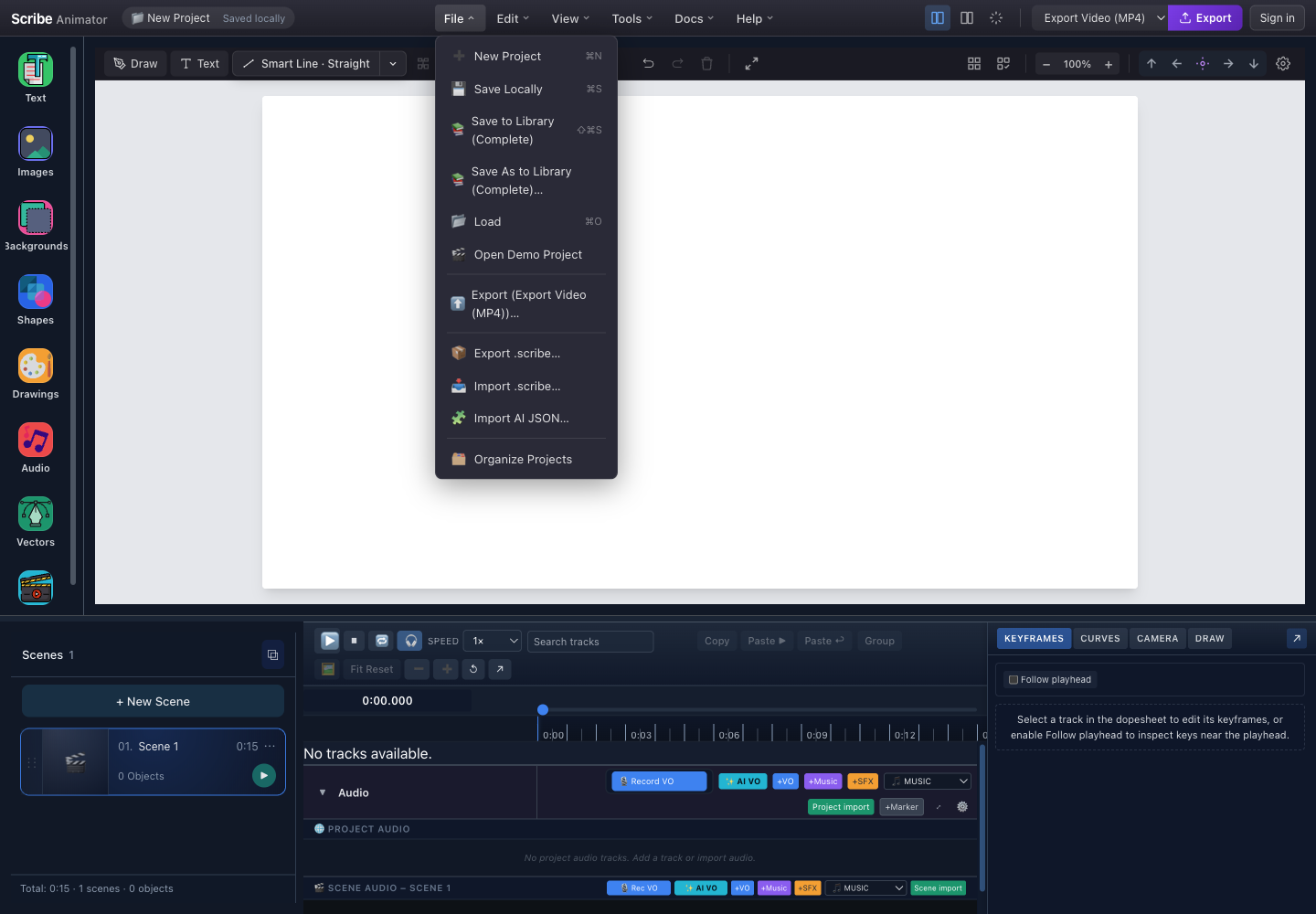
- File menuOpen File from the Desktop header to reach project and import actions.
- Import .scribeUse this for a packaged Scribe project with its asset manifest, not for template JSON.
- Import AI JSONOpens the Project or Scene by Scene JSON validation workflow.
- Recovery optionsSave locally or export a .scribe copy before replacing a scene or project.
Choose the correct import tab
The modal has two review modes:
| Tab | Accepts | Use it when |
|---|---|---|
| Project | Project, scene, or block envelopes | You need all apply actions or are not certain which envelope type was generated |
| Scene by Scene | One scene envelope | You want to approve and add/replace one scene at a time |
The Scene by Scene tab rejects project and block envelopes and directs you to Project. This is an intentional safety boundary, not a parsing bug.
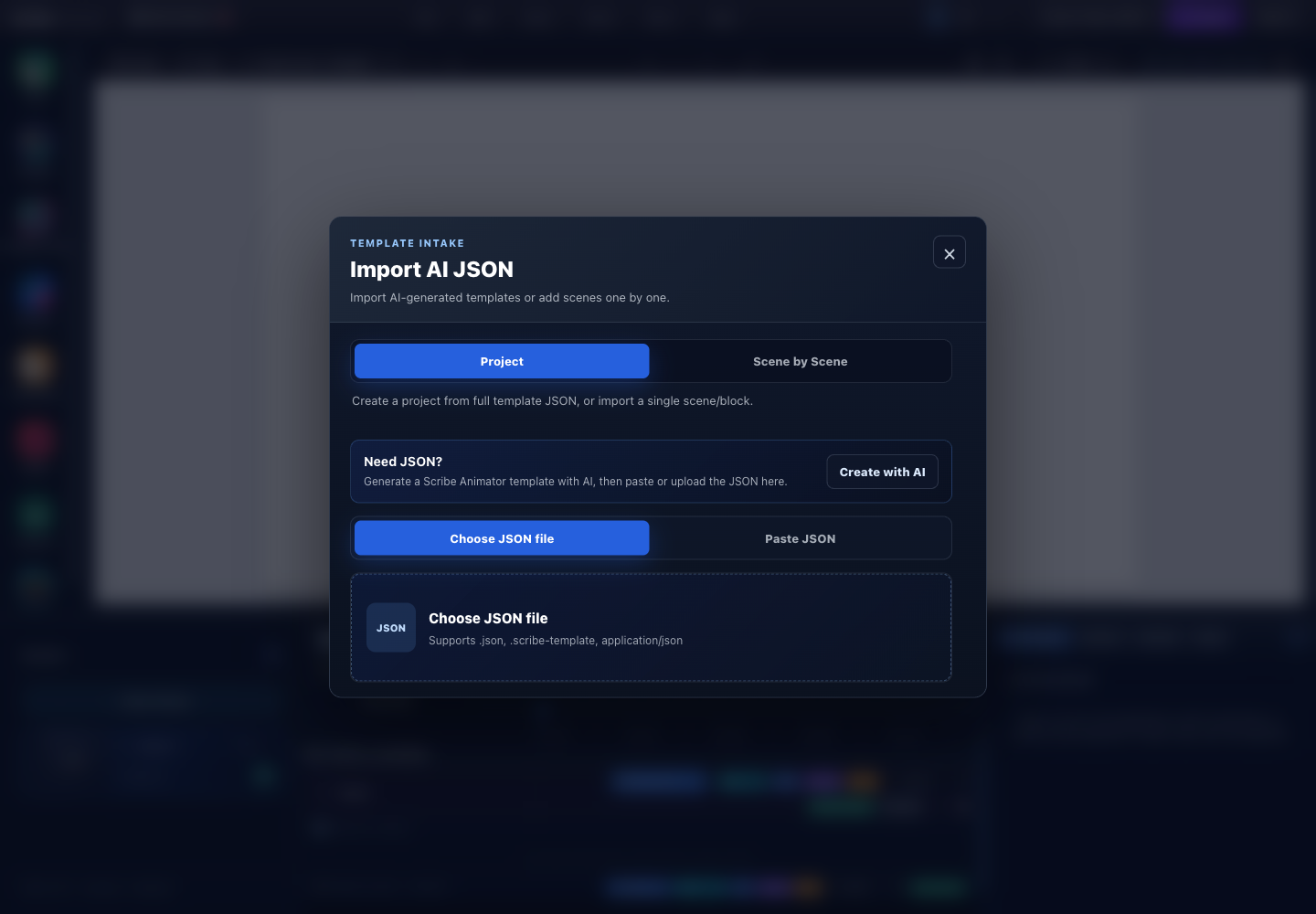
- Project tabAccepts project, scene, or block envelopes and exposes type-appropriate actions.
- Scene by SceneAccepts one scene envelope for incremental add, replace, or save review.
- Create with AIHelps draft JSON; the generated result must still return here for validation.
- File or pasteUpload a supported JSON file or switch to Paste JSON for text copied from a model.
- Input areaThe file mode shows the accepted extensions; paste mode shows the JSON editor and Validate JSON action.
File and paste input
Both tabs support uploading or pasting. Current file filters are:
- Project:
.json,.scribe-template, or JSON MIME; - Scene by Scene:
.json,.scribe-scene, or JSON MIME.
Selecting a file starts validation automatically. Pasted content requires Validate JSON.
Request a compatible envelope
Include these constraints in the generation prompt:
Return JSON only.
Create a Scribe TemplateEnvelopeV1 with schemaVersion 1.
meta.type: scene
meta.timingSemantics: scene-local-v1
Canvas: 1920 x 1080, 16:9
Scene duration: 6000 ms
Use only supported Scribe object and animation types.
All IDs must be unique and all references must remain inside the envelope.
Use finite numeric coordinates.
Do not use external URLs, scripts, event handlers, or Markdown fences.
Keep all object, draw, camera, and keyframe timing inside the scene.
Add the actual narrative, style, text, and accessibility requirements after the structural constraints.
A one-scene envelope is easier to review than a large project. Build and validate the first scene, establish a visual system, then request later scenes against that system.
Static scene example
This compact envelope is useful for understanding the shape expected by the real importer:
{
  "schemaVersion": 1,
  "meta": {
    "id": "scene-ai-json-title",
    "type": "scene",
    "name": "AI JSON title",
    "description": "A reviewable title scene.",
    "tags": ["title", "generated-draft"],
    "createdAt": "2026-07-26T00:00:00.000Z",
    "durationMs": 6000,
    "timingSemantics": "scene-local-v1"
  },
  "payload": {
    "name": "AI JSON title",
    "width": 1920,
    "height": 1080,
    "durationMs": 6000,
    "objects": [
      {
        "id": "title",
        "type": "text",
        "x": 240,
        "y": 420,
        "width": 1440,
        "height": 130,
        "props": {
          "name": "Title",
          "text": "Review before you apply",
          "fontFamily": "Noto Sans, Arial, sans-serif",
          "fontSize": 68,
          "fontWeight": "700",
          "fill": "#111827",
          "align": "center",
          "wrap": "word"
        },
        "animationStart": 400,
        "animationDuration": 700,
        "animationType": "fadeIn",
        "animationEasing": "easeOut"
      }
    ]
  },
  "requiredAssets": []
}
Do not copy timestamps or IDs blindly. IDs must be unique inside the generated envelope, and metadata should describe the actual content.
Validate before applying
- Paste or upload the complete JSON.
- Select Validate JSON when using paste.
- Confirm the detected type.
- Review scene count, object count, and duration.
- Read every error.
- Expand and read all warnings, not only the first four shown initially.
- Inspect the normalized result when the input was not already a full envelope.
- Continue only when the type and impact match your intent.
The importer can normalize some convenient shapes:
{ "scene": ... };- a bare object with
scenes; - a bare scene DTO;
- a bare block DTO; or
- a bare project DTO.
Normalization may add metadata and emits warnings. It does not make unsupported object types or dangling references safe.
Understand every apply action
Available actions depend on the detected type and tab.
| Envelope | Action | Result | Risk |
|---|---|---|---|
| Project | Create New Project | Replaces the working context with the imported project | Existing unsaved work can be displaced |
| Project | Save to My Templates | Stores reusable project content in the user's template store | Does not prove visual correctness |
| Scene | Create New Project from Scene | Creates a project containing the imported scene | Replaces the working context |
| Scene | Add as New Scene | Appends a remapped scene to the current project | Canvas dimensions may require scaling |
| Scene | Replace Current Scene | Replaces the active scene's content | Existing active-scene content is removed |
| Scene | Save Scene Template | Stores reusable scene content | The current project is not changed by saving alone |
| Block | Insert into Current Scene | Adds remapped objects to the active scene | Can overlap existing objects |
| Block | Save to My Templates | Stores reusable block content | No visual change until later application |
In Scene by Scene, a valid scene offers add, replace, and save actions.
What happens when a scene is appended
The real append path:
- generates new IDs to avoid collisions;
- maps source content into the target canvas using contain scaling;
- centers the result;
- moves timing into the new scene;
- remaps timeline and camera references;
- creates the scene state; and
- selects the appended scene.
This preserves structure, but it cannot guarantee that small text remains readable after scaling. Inspect the resulting canvas.
Inspect the real result
After applying:
- Confirm the expected scene is active.
- Compare canvas width, height, and aspect ratio.
- Count the added objects and check their timeline tracks.
- Select several objects and confirm they are editable.
- Check groups, connectors, draw steps, and camera targets.
- Preview from before the first animation.
- Scrub to the final frame and check clipping and reading time.
- Test undo/redo where supported.
- Save, reload, and preview again before treating the import as finished.
A green validation result proves structural acceptance. It does not prove contrast, typography, narrative quality, asset availability, or animation taste.
What validation protects
The importer rejects or reports:
- unsupported schema and timing semantics;
- unsupported object types;
- empty or duplicate object IDs;
- invalid coordinates;
- draw, timeline-key, track, or camera references to missing objects;
- unsafe or oversized SVG content;
- timing that exceeds the scene;
- forbidden object keys such as
__proto__,prototype, andconstructor; and - payloads that exceed structural safety limits.
Current upper bounds include:
| Limit | Current value |
|---|---|
| JSON text | 50 MiB |
| Traversed JSON nodes | 400,000 |
| JSON nesting depth | 100 |
| One string | 2,000,000 characters |
| One array | 200,000 entries |
| Keys on one object | 50,000 |
| Objects in one scene | 10,000 |
| Scenes in one project envelope | 500 |
| Embedded SVG text | 10 MiB |
| Commands in one SVG path | 50,000 |
| Total SVG path commands | 200,000 |
Limits are safety ceilings, not recommended content sizes. A project close to them will not be pleasant to review or edit.
Assets, URLs, and privacy
- Prefer packaged, builtin, or in-memory assets.
- Treat every external URL as a network and privacy decision.
- Validation cannot guarantee that a URL will still exist later.
- A signed URL may expire after the import appears successful.
- Cross-origin servers may block fetching even when a URL opens in another tab.
- Never paste API keys, authentication headers, cookies, personal data, or private source documents into generated JSON.
- Never ask a model to embed scripts or event handlers; the importer is a data format.
If the scene depends on external media, package the final project and verify it offline before distribution.
Troubleshooting and recovery
| Message or symptom | Meaning | Recovery |
|---|---|---|
| “This JSON is not a valid Scribe template” | Malformed JSON, forbidden keys, missing required structure, or invalid semantics | Return to the original generation output and repair the exact field; do not delete structural checks |
| “Unsupported schema version” | The model used a guessed or old schema | Regenerate or convert to schema version 1 |
| “Unsupported object types” | The model invented a type | Replace it with a current supported DTO type |
| Duplicate object ID | Two objects share one local identity | Rename one ID and update every reference to it |
| Invalid draw step / track / key / camera target | A reference points to a missing object or track | Repair the referenced ID graph |
| Timing-adjustment warning | One or more values extend beyond scene duration | Extend the scene or move/shorten the affected timing deliberately |
| Scene is valid but appears tiny | Source and destination canvases have different dimensions | Use a matching canvas or reposition after contain scaling |
| Media is blank | Asset URL is unavailable, blocked, or not portable | Import/package the asset and replace the fragile reference |
| Project or block rejected in Scene by Scene | That tab accepts only one scene | Switch to the Project tab |
| Validation succeeds but playback looks wrong | Structural validation cannot judge visual behavior | Inspect the real timeline, camera, canvas, and preview; then revise JSON |
Related workflows
Verification note
This guide was checked against the current File-menu action, import modal tabs, accepted file types, parser and normalizer, structural limits, template validator, real apply actions, scene append scaling/remapping, template store actions, and the real application screenshot. It contains no editable JSON playground or simulated canvas.