Create with AI JSON
Scribe Animator can import AI-generated template JSON so you can start from a prompt instead of a blank canvas.
AI does not render the final video for you. It helps generate structured Scribe Animator scene, block, or project JSON that the editor can validate and import.
Current visual orientation
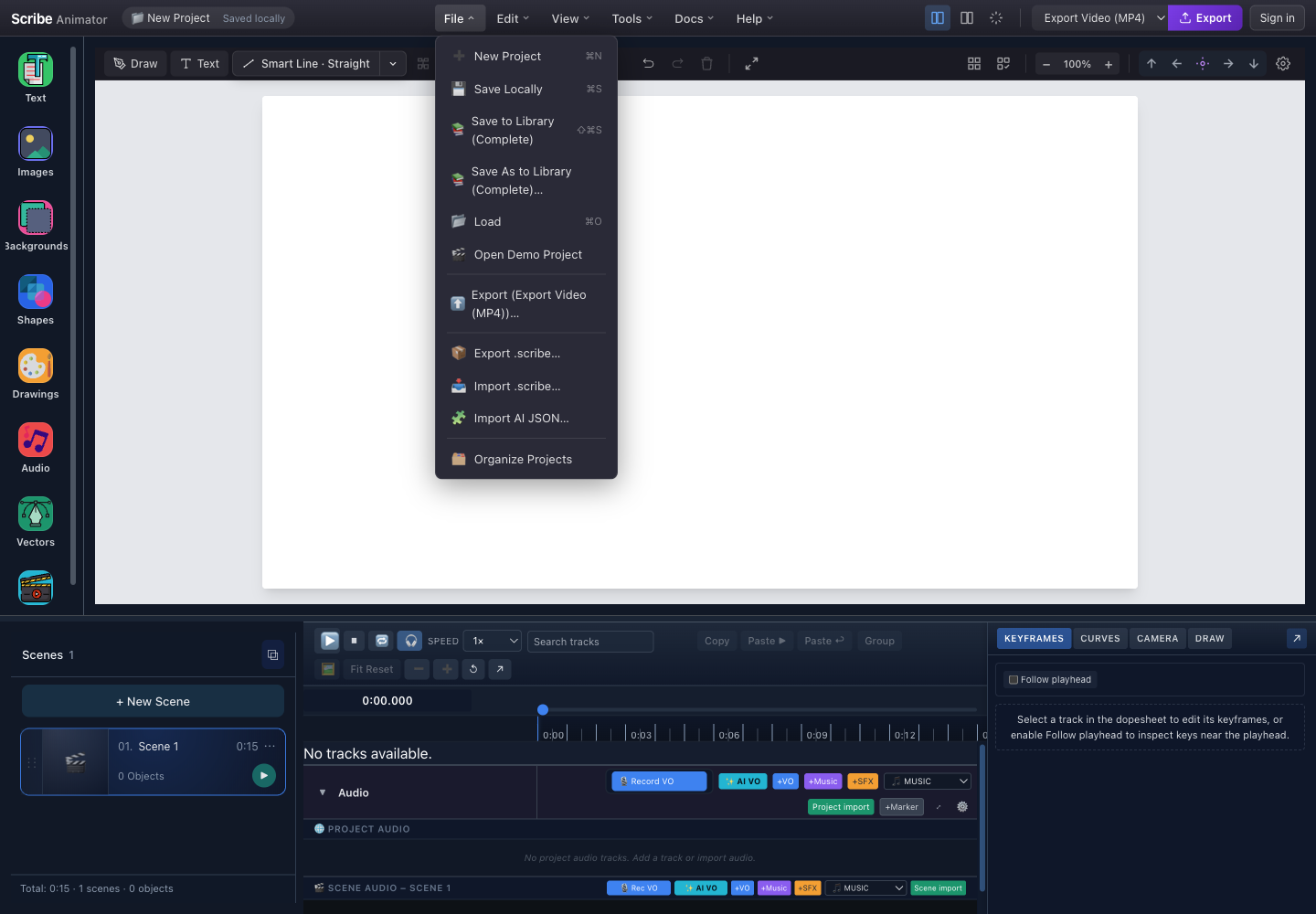
- FileOpen the project and import actions.
- Import AI JSONOpen the validated project, scene, and block importer.
- Import Scribe FileUse this different action for a packaged .scribe project and its assets.
- Current projectAppend, replace, and block actions apply to this real project context after validation.
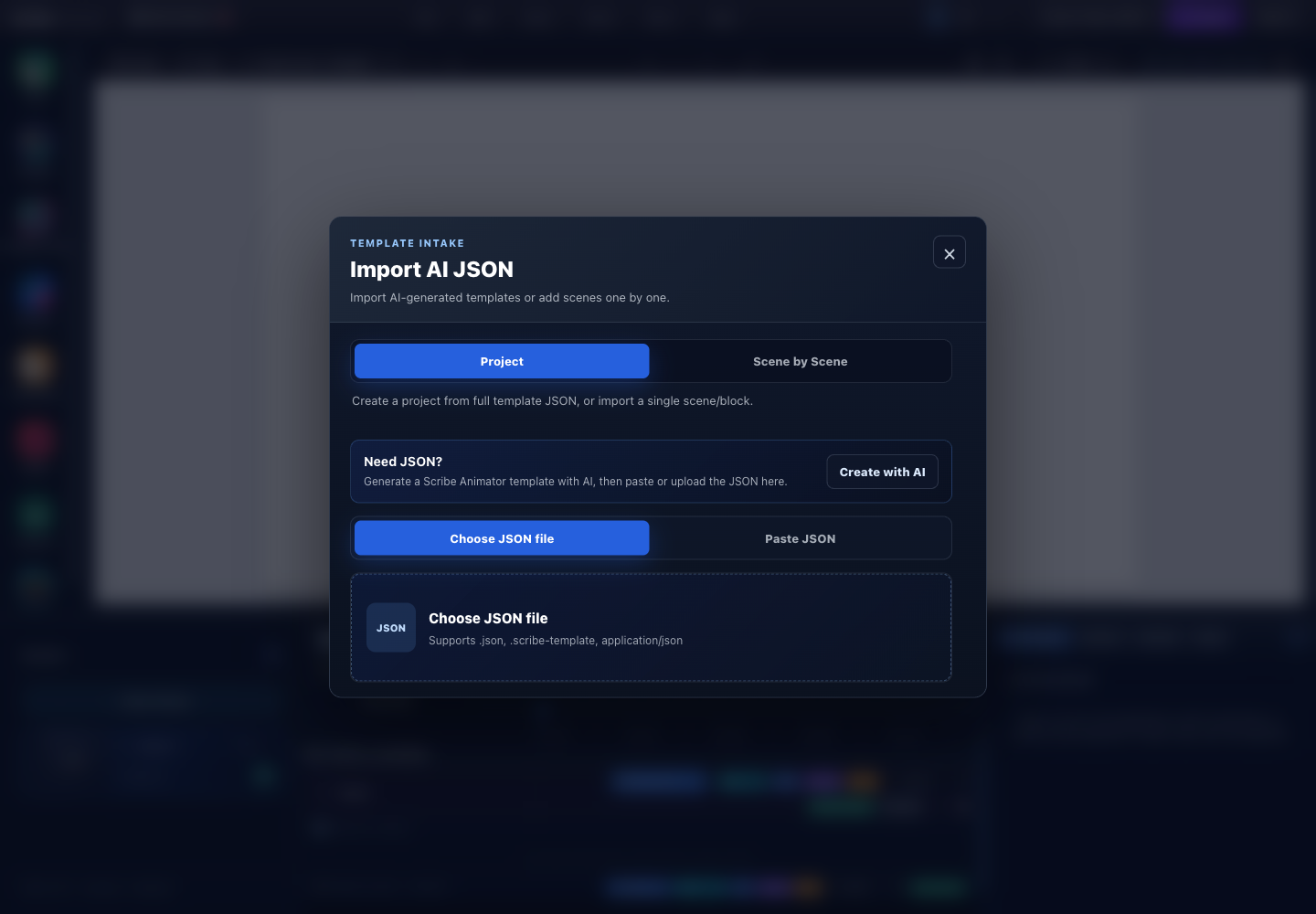
- ProjectAccept a project, scene, or block envelope and expose scope-appropriate apply actions.
- Scene by SceneUse one validated scene at a time for deliberate append or replacement.
- Create with AIOpens the external assistant workflow; AI output still must pass local validation.
- File or pasteChoose a local JSON file or paste text directly.
- Deterministic input areaThe editor reads local text or file data and does not require cloud persistence to validate it.
Both captures and the marked controls were checked against the running Desktop editor with browser-based UI review on July 26, 2026. For envelope examples, exact validation limits, security boundaries, every apply action, failure recovery, and post-import checks, follow Create and import AI JSON.
Basic Workflow
- Open ChatGPT Template Studio or Gemini Template Gem.
- Describe the video, scene, or template you want.
- Copy the generated Scribe Animator JSON.
- In Scribe Animator, open File -> Import AI JSON.
- Choose Project or Scene by Scene.
- Paste JSON or upload a JSON file.
- Select Validate JSON.
- Choose an action: create a project, add a scene, replace a scene, insert a block, or save a template.
Import Tabs
Project
Use the Project tab when the AI generated a full project, a single scene, or a reusable block. This tab can create a new project, create a project from one scene, add or replace a scene, insert a block into the current scene, or save the JSON as a template.
Scene by Scene
Use the Scene by Scene tab when you want to build more carefully. It accepts one scene at a time so you can append the AI-generated scene, replace the current scene, or save the scene template before continuing.
Supported JSON Types
project: a multi-scene Scribe Animator project template.scene: one complete scene with objects, timing, draw steps, and camera data.block: reusable objects that can be inserted into the current scene.
Validation
The Import AI JSON modal validates the template before applying it. The preview shows the template type, scene count, object count, and duration.
Review warnings before importing. Errors must be fixed before Scribe Animator can apply the JSON.
Current intake rejects files above 50 MiB and applies structural limits before an envelope can reach the project. Validation also limits aggregate nodes, nesting depth, large strings and arrays, keys per object, scene count, objects per scene, and SVG path complexity. These are safety limits, not a recommendation to generate JSON anywhere near the ceiling.
Practical Prompts
- "Create a 3-scene SaaS product explainer."
- "Create one onboarding scene for a mobile app."
- "Create a reusable pricing comparison block."
Best Practices
- Ask AI for simple, clean scenes first.
- Keep text short so it fits on screen and animates cleanly.
- Prefer native Smart Line and Smart Arrow objects for arrows and relationships.
- Use Scene by Scene import for safer multi-scene building.
- Save or duplicate important work before a project replacement.
- Inspect scenes, object counts, timeline timing, camera, audio, and missing assets after every import.