<?xml version="1.0" encoding="utf-8"?>
<feed xmlns="http://www.w3.org/2005/Atom">
    <id>https://docs.scribeanimator.com/blog</id>
    <title>Scribe Animator Blog</title>
    <updated>2026-08-22T00:00:00.000Z</updated>
    <generator>https://github.com/jpmonette/feed</generator>
    <link rel="alternate" href="https://docs.scribeanimator.com/blog"/>
    <subtitle>Scribe Animator Blog</subtitle>
    <icon>https://docs.scribeanimator.com/img/favicon.ico</icon>
    <rights>Copyright © 2026 OHO Tech.</rights>
    <entry>
        <title type="html"><![CDATA[Build editable AI explainers with smart connectors]]></title>
        <id>https://docs.scribeanimator.com/blog/ai-generated-explainer-videos-editable-smart-connectors</id>
        <link href="https://docs.scribeanimator.com/blog/ai-generated-explainer-videos-editable-smart-connectors"/>
        <updated>2026-08-22T00:00:00.000Z</updated>
        <summary type="html"><![CDATA[Turn AI-generated TemplateEnvelopeV1 JSON into editable explainer scenes with native Smart Arrows, semantic connectors, Draw In animation, and camera-ready Scribe objects.]]></summary>
        <content type="html"><![CDATA[<p>Most generative-video workflows make the rendered clip the first durable artifact. That is useful when you want pixels immediately, but awkward when a reviewer asks you to move one box, rewrite one label, reroute an arrow, or change the order of two explanations.</p>
<p>Scribe supports a different boundary: an external AI assistant can draft structured <code>TemplateEnvelopeV1</code> JSON, then Scribe validates and imports that structure as native scene objects. The AI proposes the arrangement; Scribe remains the editable authoring, playback, and export environment.</p>
<div class="theme-admonition theme-admonition-info admonition_xJq3 alert alert--info"><div class="admonitionHeading_Gvgb"><span class="admonitionIcon_Rf37"><svg viewBox="0 0 14 16"><path fill-rule="evenodd" d="M7 2.3c3.14 0 5.7 2.56 5.7 5.7s-2.56 5.7-5.7 5.7A5.71 5.71 0 0 1 1.3 8c0-3.14 2.56-5.7 5.7-5.7zM7 1C3.14 1 0 4.14 0 8s3.14 7 7 7 7-3.14 7-7-3.14-7-7-7zm1 3H6v5h2V4zm0 6H6v2h2v-2z"></path></svg></span>Verified on 22 August 2026</div><div class="admonitionContent_BuS1"><p>The canonical scene in this article was imported through <strong>File → Import AI JSON</strong> in the Desktop web editor on macOS with <code>frontend@2.0.0</code>. Its two rectangles remained stationary while the attached Smart Arrow revealed, backward and forward scrubbing stayed stable, and moving either rectangle recomputed the corresponding endpoint. Focused parser, template-remapping, connector-runtime, rotation, anchor, and Authoring API tests also passed. This run verified editable scene behavior; it did not validate a particular encoded video file.</p></div></div>
<h2 class="anchor anchorTargetStickyNavbar_Vzrq" id="structured-animation-changes-the-handoff">Structured animation changes the handoff<a href="https://docs.scribeanimator.com/blog/ai-generated-explainer-videos-editable-smart-connectors#structured-animation-changes-the-handoff" class="hash-link" aria-label="Direct link to Structured animation changes the handoff" title="Direct link to Structured animation changes the handoff" translate="no">​</a></h2>
<p>The important choice is not “AI or manual.” It is what the AI hands to the editor.</p>
<table><thead><tr><th>Stage</th><th>Typical prompt-to-video workflow</th><th>Structured Scribe workflow</th></tr></thead><tbody><tr><td>AI output</td><td>Rendered frames or a video clip</td><td>Candidate <code>TemplateEnvelopeV1</code> JSON</td></tr><tr><td>Product boundary</td><td>The video is already flattened</td><td>Scribe parses, normalizes, and validates the envelope</td></tr><tr><td>Scene content</td><td>Pixels</td><td>Native text, shapes, vectors, paths, and relationship objects</td></tr><tr><td>Revision</td><td>Regenerate, mask, or edit around the clip</td><td>Select and edit individual objects, timing, and attachments</td></tr><tr><td>Motion and framing</td><td>Mostly determined during generation</td><td>Refine animations, Draw Steps, and camera behavior in Scribe</td></tr><tr><td>Delivery</td><td>Exported clip</td><td>Editable project first, supported export second</td></tr></tbody></table>
<p>This is not a claim that Scribe currently runs a fully autonomous public AI video agent. Today, ChatGPT or another approved assistant can generate a candidate structure; the human brings that JSON into Scribe, reviews the validation result, edits the native scene, and decides when it is ready to export.</p>
<p>That distinction matters for explainer work. The text may change after subject-matter review. A cause-and-effect arrow may need a different anchor. The camera may need to hold longer over a diagram. Keeping structure alive makes those normal revisions local instead of requiring a new video generation.</p>
<h2 class="anchor anchorTargetStickyNavbar_Vzrq" id="what-makes-a-smart-connector-different-from-an-svg-arrow">What makes a Smart Connector different from an SVG arrow?<a href="https://docs.scribeanimator.com/blog/ai-generated-explainer-videos-editable-smart-connectors#what-makes-a-smart-connector-different-from-an-svg-arrow" class="hash-link" aria-label="Direct link to What makes a Smart Connector different from an SVG arrow?" title="Direct link to What makes a Smart Connector different from an SVG arrow?" translate="no">​</a></h2>
<p>A flattened SVG arrow describes marks. A Smart Connector also describes a relationship.</p>
<table><thead><tr><th>Layer</th><th>Portable field</th><th>Responsibility</th></tr></thead><tbody><tr><td>Native object</td><td><code>type: "smartArrow"</code></td><td>Tells Scribe this is an editable Smart Stroke with directional meaning</td></tr><tr><td>Semantic geometry</td><td><code>props.smartLine</code></td><td>Stores start, end, route mode, controls, elbow data, route points, and arrowheads</td></tr><tr><td>Attachments</td><td>top-level <code>connector</code></td><td>Binds the start and/or end to another template-local object and anchor</td></tr><tr><td>Drawable geometry</td><td><code>props.paths</code></td><td>Supplies the vector paths rendered on the canvas</td></tr><tr><td>Reveal</td><td><code>animationType: "drawIn"</code> or Draw Progress</td><td>Changes visible progress without moving the semantic attachments</td></tr></tbody></table>
<p>This separation is what allows the line to stay attached after import. When a target really moves or rotates, Scribe resolves the named anchor against the target's evaluated bounds and updates the endpoint. When both targets are stationary, a draw reveal can advance without changing the semantic world start or end.</p>
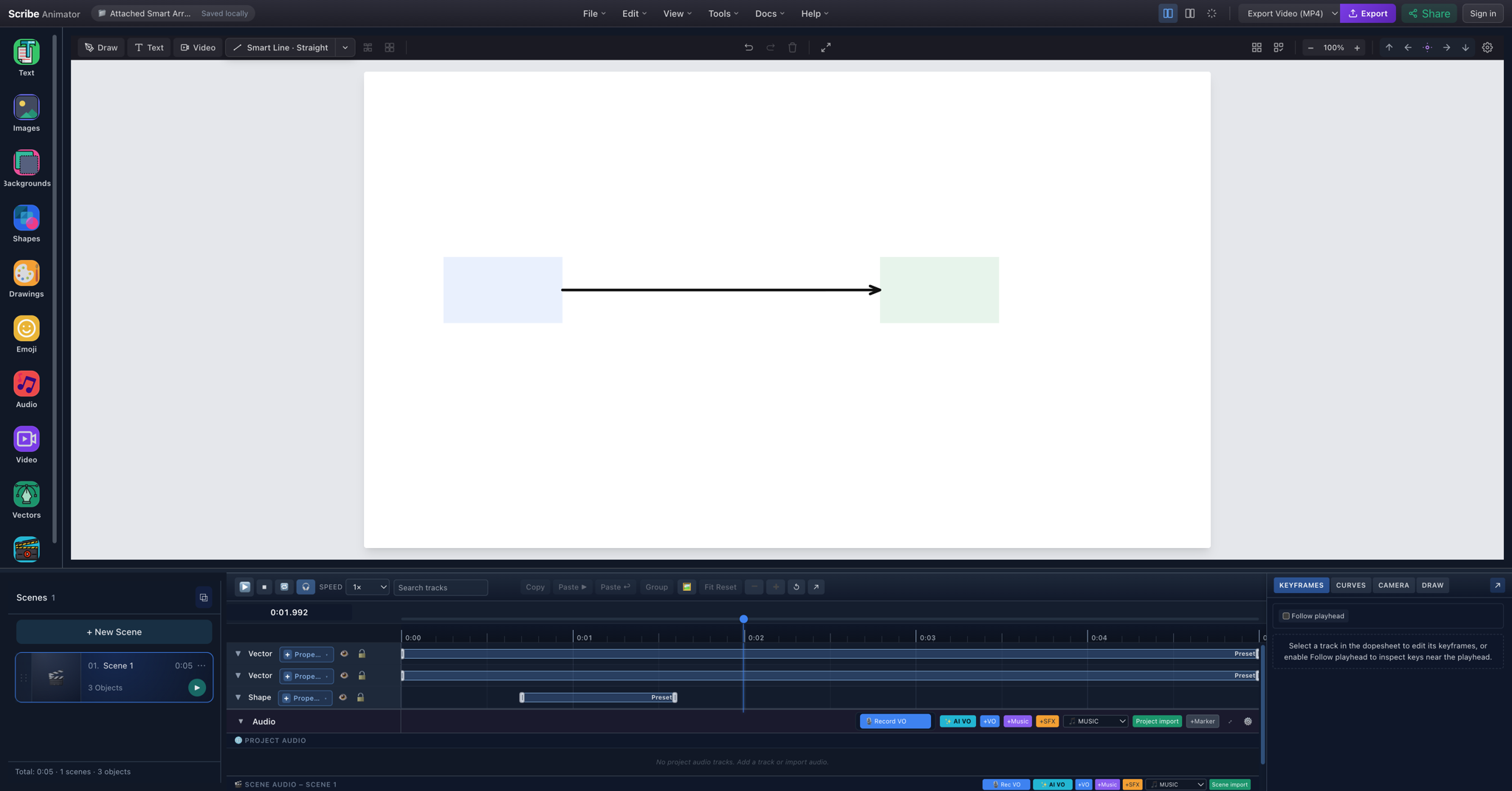
<p><img decoding="async" loading="lazy" alt="The canonical attached Smart Arrow fully revealed between two rectangles in the Scribe Desktop canvas" src="https://docs.scribeanimator.com/assets/images/ai-json-attached-smart-arrow-canvas-880b25b96a6c8118ac322036d279a515.png" width="2048" height="1071" class="img_ev3q"></p>
<p><em>The canonical scene in the Desktop editor at 1.992 seconds. The native arrow resolves from the blue rectangle's right anchor to the green rectangle's left anchor.</em></p>
<h2 class="anchor anchorTargetStickyNavbar_Vzrq" id="start-from-the-canonical-attached-smart-arrow">Start from the canonical attached Smart Arrow<a href="https://docs.scribeanimator.com/blog/ai-generated-explainer-videos-editable-smart-connectors#start-from-the-canonical-attached-smart-arrow" class="hash-link" aria-label="Direct link to Start from the canonical attached Smart Arrow" title="Direct link to Start from the canonical attached Smart Arrow" translate="no">​</a></h2>
<p><a href="https://docs.scribeanimator.com/assets/files/ai-json-attached-smart-arrow-e39772c7bf3d63e4bd2d471d27c8557b.json" target="_blank" class="">Download the complete tested scene JSON</a>. It is an asset-free schema-v1 scene with deterministic IDs, two rectangles, explicit <code>right</code> to <code>left</code> attachments, and one Draw In Smart Arrow.</p>
<p>The following valid JSON fragment is the fixture's <code>payload.objects</code> core. Use the downloadable file for the complete <code>TemplateEnvelopeV1</code> metadata and scene timing:</p>
<div class="language-json codeBlockContainer_Ckt0 theme-code-block" style="--prism-color:#393A34;--prism-background-color:#f6f8fa"><div class="codeBlockContent_QJqH"><pre tabindex="0" class="prism-code language-json codeBlock_bY9V thin-scrollbar" style="color:#393A34;background-color:#f6f8fa"><code class="codeBlockLines_e6Vv"><span class="token-line" style="color:#393A34"><span class="token punctuation" style="color:#393A34">{</span><span class="token plain"></span><br></span><span class="token-line" style="color:#393A34"><span class="token plain">  </span><span class="token property" style="color:#36acaa">"objects"</span><span class="token operator" style="color:#393A34">:</span><span class="token plain"> </span><span class="token punctuation" style="color:#393A34">[</span><span class="token plain"></span><br></span><span class="token-line" style="color:#393A34"><span class="token plain">    </span><span class="token punctuation" style="color:#393A34">{</span><span class="token plain"></span><br></span><span class="token-line" style="color:#393A34"><span class="token plain">      </span><span class="token property" style="color:#36acaa">"id"</span><span class="token operator" style="color:#393A34">:</span><span class="token plain"> </span><span class="token string" style="color:#e3116c">"box-a"</span><span class="token punctuation" style="color:#393A34">,</span><span class="token plain"></span><br></span><span class="token-line" style="color:#393A34"><span class="token plain">      </span><span class="token property" style="color:#36acaa">"type"</span><span class="token operator" style="color:#393A34">:</span><span class="token plain"> </span><span class="token string" style="color:#e3116c">"shape"</span><span class="token punctuation" style="color:#393A34">,</span><span class="token plain"></span><br></span><span class="token-line" style="color:#393A34"><span class="token plain">      </span><span class="token property" style="color:#36acaa">"x"</span><span class="token operator" style="color:#393A34">:</span><span class="token plain"> </span><span class="token number" style="color:#36acaa">120</span><span class="token punctuation" style="color:#393A34">,</span><span class="token plain"></span><br></span><span class="token-line" style="color:#393A34"><span class="token plain">      </span><span class="token property" style="color:#36acaa">"y"</span><span class="token operator" style="color:#393A34">:</span><span class="token plain"> </span><span class="token number" style="color:#36acaa">280</span><span class="token punctuation" style="color:#393A34">,</span><span class="token plain"></span><br></span><span class="token-line" style="color:#393A34"><span class="token plain">      </span><span class="token property" style="color:#36acaa">"width"</span><span class="token operator" style="color:#393A34">:</span><span class="token plain"> </span><span class="token number" style="color:#36acaa">180</span><span class="token punctuation" style="color:#393A34">,</span><span class="token plain"></span><br></span><span class="token-line" style="color:#393A34"><span class="token plain">      </span><span class="token property" style="color:#36acaa">"height"</span><span class="token operator" style="color:#393A34">:</span><span class="token plain"> </span><span class="token number" style="color:#36acaa">100</span><span class="token punctuation" style="color:#393A34">,</span><span class="token plain"></span><br></span><span class="token-line" style="color:#393A34"><span class="token plain">      </span><span class="token property" style="color:#36acaa">"props"</span><span class="token operator" style="color:#393A34">:</span><span class="token plain"> </span><span class="token punctuation" style="color:#393A34">{</span><span class="token property" style="color:#36acaa">"shapeType"</span><span class="token operator" style="color:#393A34">:</span><span class="token plain"> </span><span class="token string" style="color:#e3116c">"rectangle"</span><span class="token punctuation" style="color:#393A34">,</span><span class="token plain"> </span><span class="token property" style="color:#36acaa">"fill"</span><span class="token operator" style="color:#393A34">:</span><span class="token plain"> </span><span class="token string" style="color:#e3116c">"#E8F0FE"</span><span class="token punctuation" style="color:#393A34">}</span><span class="token plain"></span><br></span><span class="token-line" style="color:#393A34"><span class="token plain">    </span><span class="token punctuation" style="color:#393A34">}</span><span class="token punctuation" style="color:#393A34">,</span><span class="token plain"></span><br></span><span class="token-line" style="color:#393A34"><span class="token plain">    </span><span class="token punctuation" style="color:#393A34">{</span><span class="token plain"></span><br></span><span class="token-line" style="color:#393A34"><span class="token plain">      </span><span class="token property" style="color:#36acaa">"id"</span><span class="token operator" style="color:#393A34">:</span><span class="token plain"> </span><span class="token string" style="color:#e3116c">"box-b"</span><span class="token punctuation" style="color:#393A34">,</span><span class="token plain"></span><br></span><span class="token-line" style="color:#393A34"><span class="token plain">      </span><span class="token property" style="color:#36acaa">"type"</span><span class="token operator" style="color:#393A34">:</span><span class="token plain"> </span><span class="token string" style="color:#e3116c">"shape"</span><span class="token punctuation" style="color:#393A34">,</span><span class="token plain"></span><br></span><span class="token-line" style="color:#393A34"><span class="token plain">      </span><span class="token property" style="color:#36acaa">"x"</span><span class="token operator" style="color:#393A34">:</span><span class="token plain"> </span><span class="token number" style="color:#36acaa">780</span><span class="token punctuation" style="color:#393A34">,</span><span class="token plain"></span><br></span><span class="token-line" style="color:#393A34"><span class="token plain">      </span><span class="token property" style="color:#36acaa">"y"</span><span class="token operator" style="color:#393A34">:</span><span class="token plain"> </span><span class="token number" style="color:#36acaa">280</span><span class="token punctuation" style="color:#393A34">,</span><span class="token plain"></span><br></span><span class="token-line" style="color:#393A34"><span class="token plain">      </span><span class="token property" style="color:#36acaa">"width"</span><span class="token operator" style="color:#393A34">:</span><span class="token plain"> </span><span class="token number" style="color:#36acaa">180</span><span class="token punctuation" style="color:#393A34">,</span><span class="token plain"></span><br></span><span class="token-line" style="color:#393A34"><span class="token plain">      </span><span class="token property" style="color:#36acaa">"height"</span><span class="token operator" style="color:#393A34">:</span><span class="token plain"> </span><span class="token number" style="color:#36acaa">100</span><span class="token punctuation" style="color:#393A34">,</span><span class="token plain"></span><br></span><span class="token-line" style="color:#393A34"><span class="token plain">      </span><span class="token property" style="color:#36acaa">"props"</span><span class="token operator" style="color:#393A34">:</span><span class="token plain"> </span><span class="token punctuation" style="color:#393A34">{</span><span class="token property" style="color:#36acaa">"shapeType"</span><span class="token operator" style="color:#393A34">:</span><span class="token plain"> </span><span class="token string" style="color:#e3116c">"rectangle"</span><span class="token punctuation" style="color:#393A34">,</span><span class="token plain"> </span><span class="token property" style="color:#36acaa">"fill"</span><span class="token operator" style="color:#393A34">:</span><span class="token plain"> </span><span class="token string" style="color:#e3116c">"#E6F4EA"</span><span class="token punctuation" style="color:#393A34">}</span><span class="token plain"></span><br></span><span class="token-line" style="color:#393A34"><span class="token plain">    </span><span class="token punctuation" style="color:#393A34">}</span><span class="token punctuation" style="color:#393A34">,</span><span class="token plain"></span><br></span><span class="token-line" style="color:#393A34"><span class="token plain">    </span><span class="token punctuation" style="color:#393A34">{</span><span class="token plain"></span><br></span><span class="token-line" style="color:#393A34"><span class="token plain">      </span><span class="token property" style="color:#36acaa">"id"</span><span class="token operator" style="color:#393A34">:</span><span class="token plain"> </span><span class="token string" style="color:#e3116c">"arrow-a-b"</span><span class="token punctuation" style="color:#393A34">,</span><span class="token plain"></span><br></span><span class="token-line" style="color:#393A34"><span class="token plain">      </span><span class="token property" style="color:#36acaa">"type"</span><span class="token operator" style="color:#393A34">:</span><span class="token plain"> </span><span class="token string" style="color:#e3116c">"smartArrow"</span><span class="token punctuation" style="color:#393A34">,</span><span class="token plain"></span><br></span><span class="token-line" style="color:#393A34"><span class="token plain">      </span><span class="token property" style="color:#36acaa">"x"</span><span class="token operator" style="color:#393A34">:</span><span class="token plain"> </span><span class="token number" style="color:#36acaa">300</span><span class="token punctuation" style="color:#393A34">,</span><span class="token plain"></span><br></span><span class="token-line" style="color:#393A34"><span class="token plain">      </span><span class="token property" style="color:#36acaa">"y"</span><span class="token operator" style="color:#393A34">:</span><span class="token plain"> </span><span class="token number" style="color:#36acaa">330</span><span class="token punctuation" style="color:#393A34">,</span><span class="token plain"></span><br></span><span class="token-line" style="color:#393A34"><span class="token plain">      </span><span class="token property" style="color:#36acaa">"width"</span><span class="token operator" style="color:#393A34">:</span><span class="token plain"> </span><span class="token number" style="color:#36acaa">480</span><span class="token punctuation" style="color:#393A34">,</span><span class="token plain"></span><br></span><span class="token-line" style="color:#393A34"><span class="token plain">      </span><span class="token property" style="color:#36acaa">"height"</span><span class="token operator" style="color:#393A34">:</span><span class="token plain"> </span><span class="token number" style="color:#36acaa">1</span><span class="token punctuation" style="color:#393A34">,</span><span class="token plain"></span><br></span><span class="token-line" style="color:#393A34"><span class="token plain">      </span><span class="token property" style="color:#36acaa">"connector"</span><span class="token operator" style="color:#393A34">:</span><span class="token plain"> </span><span class="token punctuation" style="color:#393A34">{</span><span class="token plain"></span><br></span><span class="token-line" style="color:#393A34"><span class="token plain">        </span><span class="token property" style="color:#36acaa">"start"</span><span class="token operator" style="color:#393A34">:</span><span class="token plain"> </span><span class="token punctuation" style="color:#393A34">{</span><span class="token property" style="color:#36acaa">"targetObjectId"</span><span class="token operator" style="color:#393A34">:</span><span class="token plain"> </span><span class="token string" style="color:#e3116c">"box-a"</span><span class="token punctuation" style="color:#393A34">,</span><span class="token plain"> </span><span class="token property" style="color:#36acaa">"anchor"</span><span class="token operator" style="color:#393A34">:</span><span class="token plain"> </span><span class="token string" style="color:#e3116c">"right"</span><span class="token punctuation" style="color:#393A34">}</span><span class="token punctuation" style="color:#393A34">,</span><span class="token plain"></span><br></span><span class="token-line" style="color:#393A34"><span class="token plain">        </span><span class="token property" style="color:#36acaa">"end"</span><span class="token operator" style="color:#393A34">:</span><span class="token plain"> </span><span class="token punctuation" style="color:#393A34">{</span><span class="token property" style="color:#36acaa">"targetObjectId"</span><span class="token operator" style="color:#393A34">:</span><span class="token plain"> </span><span class="token string" style="color:#e3116c">"box-b"</span><span class="token punctuation" style="color:#393A34">,</span><span class="token plain"> </span><span class="token property" style="color:#36acaa">"anchor"</span><span class="token operator" style="color:#393A34">:</span><span class="token plain"> </span><span class="token string" style="color:#e3116c">"left"</span><span class="token punctuation" style="color:#393A34">}</span><span class="token plain"></span><br></span><span class="token-line" style="color:#393A34"><span class="token plain">      </span><span class="token punctuation" style="color:#393A34">}</span><span class="token punctuation" style="color:#393A34">,</span><span class="token plain"></span><br></span><span class="token-line" style="color:#393A34"><span class="token plain">      </span><span class="token property" style="color:#36acaa">"props"</span><span class="token operator" style="color:#393A34">:</span><span class="token plain"> </span><span class="token punctuation" style="color:#393A34">{</span><span class="token plain"></span><br></span><span class="token-line" style="color:#393A34"><span class="token plain">        </span><span class="token property" style="color:#36acaa">"smartLine"</span><span class="token operator" style="color:#393A34">:</span><span class="token plain"> </span><span class="token punctuation" style="color:#393A34">{</span><span class="token plain"></span><br></span><span class="token-line" style="color:#393A34"><span class="token plain">          </span><span class="token property" style="color:#36acaa">"routeMode"</span><span class="token operator" style="color:#393A34">:</span><span class="token plain"> </span><span class="token string" style="color:#e3116c">"straight"</span><span class="token punctuation" style="color:#393A34">,</span><span class="token plain"></span><br></span><span class="token-line" style="color:#393A34"><span class="token plain">          </span><span class="token property" style="color:#36acaa">"start"</span><span class="token operator" style="color:#393A34">:</span><span class="token plain"> </span><span class="token punctuation" style="color:#393A34">{</span><span class="token property" style="color:#36acaa">"x"</span><span class="token operator" style="color:#393A34">:</span><span class="token plain"> </span><span class="token number" style="color:#36acaa">0</span><span class="token punctuation" style="color:#393A34">,</span><span class="token plain"> </span><span class="token property" style="color:#36acaa">"y"</span><span class="token operator" style="color:#393A34">:</span><span class="token plain"> </span><span class="token number" style="color:#36acaa">0</span><span class="token punctuation" style="color:#393A34">}</span><span class="token punctuation" style="color:#393A34">,</span><span class="token plain"></span><br></span><span class="token-line" style="color:#393A34"><span class="token plain">          </span><span class="token property" style="color:#36acaa">"end"</span><span class="token operator" style="color:#393A34">:</span><span class="token plain"> </span><span class="token punctuation" style="color:#393A34">{</span><span class="token property" style="color:#36acaa">"x"</span><span class="token operator" style="color:#393A34">:</span><span class="token plain"> </span><span class="token number" style="color:#36acaa">480</span><span class="token punctuation" style="color:#393A34">,</span><span class="token plain"> </span><span class="token property" style="color:#36acaa">"y"</span><span class="token operator" style="color:#393A34">:</span><span class="token plain"> </span><span class="token number" style="color:#36acaa">0</span><span class="token punctuation" style="color:#393A34">}</span><span class="token punctuation" style="color:#393A34">,</span><span class="token plain"></span><br></span><span class="token-line" style="color:#393A34"><span class="token plain">          </span><span class="token property" style="color:#36acaa">"endHead"</span><span class="token operator" style="color:#393A34">:</span><span class="token plain"> </span><span class="token punctuation" style="color:#393A34">{</span><span class="token property" style="color:#36acaa">"type"</span><span class="token operator" style="color:#393A34">:</span><span class="token plain"> </span><span class="token string" style="color:#e3116c">"arrow"</span><span class="token punctuation" style="color:#393A34">}</span><span class="token plain"></span><br></span><span class="token-line" style="color:#393A34"><span class="token plain">        </span><span class="token punctuation" style="color:#393A34">}</span><span class="token punctuation" style="color:#393A34">,</span><span class="token plain"></span><br></span><span class="token-line" style="color:#393A34"><span class="token plain">        </span><span class="token property" style="color:#36acaa">"paths"</span><span class="token operator" style="color:#393A34">:</span><span class="token plain"> </span><span class="token punctuation" style="color:#393A34">[</span><span class="token plain"></span><br></span><span class="token-line" style="color:#393A34"><span class="token plain">          </span><span class="token punctuation" style="color:#393A34">{</span><span class="token plain"></span><br></span><span class="token-line" style="color:#393A34"><span class="token plain">            </span><span class="token property" style="color:#36acaa">"id"</span><span class="token operator" style="color:#393A34">:</span><span class="token plain"> </span><span class="token string" style="color:#e3116c">"arrow-a-b-path"</span><span class="token punctuation" style="color:#393A34">,</span><span class="token plain"></span><br></span><span class="token-line" style="color:#393A34"><span class="token plain">            </span><span class="token property" style="color:#36acaa">"d"</span><span class="token operator" style="color:#393A34">:</span><span class="token plain"> </span><span class="token string" style="color:#e3116c">"M0 0 L480 0"</span><span class="token punctuation" style="color:#393A34">,</span><span class="token plain"></span><br></span><span class="token-line" style="color:#393A34"><span class="token plain">            </span><span class="token property" style="color:#36acaa">"stroke"</span><span class="token operator" style="color:#393A34">:</span><span class="token plain"> </span><span class="token string" style="color:#e3116c">"#111111"</span><span class="token punctuation" style="color:#393A34">,</span><span class="token plain"></span><br></span><span class="token-line" style="color:#393A34"><span class="token plain">            </span><span class="token property" style="color:#36acaa">"strokeWidth"</span><span class="token operator" style="color:#393A34">:</span><span class="token plain"> </span><span class="token number" style="color:#36acaa">4</span><span class="token punctuation" style="color:#393A34">,</span><span class="token plain"></span><br></span><span class="token-line" style="color:#393A34"><span class="token plain">            </span><span class="token property" style="color:#36acaa">"fill"</span><span class="token operator" style="color:#393A34">:</span><span class="token plain"> </span><span class="token string" style="color:#e3116c">"none"</span><span class="token plain"></span><br></span><span class="token-line" style="color:#393A34"><span class="token plain">          </span><span class="token punctuation" style="color:#393A34">}</span><span class="token plain"></span><br></span><span class="token-line" style="color:#393A34"><span class="token plain">        </span><span class="token punctuation" style="color:#393A34">]</span><span class="token punctuation" style="color:#393A34">,</span><span class="token plain"></span><br></span><span class="token-line" style="color:#393A34"><span class="token plain">        </span><span class="token property" style="color:#36acaa">"strokeColor"</span><span class="token operator" style="color:#393A34">:</span><span class="token plain"> </span><span class="token string" style="color:#e3116c">"#111111"</span><span class="token punctuation" style="color:#393A34">,</span><span class="token plain"></span><br></span><span class="token-line" style="color:#393A34"><span class="token plain">        </span><span class="token property" style="color:#36acaa">"strokeWidth"</span><span class="token operator" style="color:#393A34">:</span><span class="token plain"> </span><span class="token number" style="color:#36acaa">4</span><span class="token plain"></span><br></span><span class="token-line" style="color:#393A34"><span class="token plain">      </span><span class="token punctuation" style="color:#393A34">}</span><span class="token punctuation" style="color:#393A34">,</span><span class="token plain"></span><br></span><span class="token-line" style="color:#393A34"><span class="token plain">      </span><span class="token property" style="color:#36acaa">"animationStart"</span><span class="token operator" style="color:#393A34">:</span><span class="token plain"> </span><span class="token number" style="color:#36acaa">700</span><span class="token punctuation" style="color:#393A34">,</span><span class="token plain"></span><br></span><span class="token-line" style="color:#393A34"><span class="token plain">      </span><span class="token property" style="color:#36acaa">"animationDuration"</span><span class="token operator" style="color:#393A34">:</span><span class="token plain"> </span><span class="token number" style="color:#36acaa">900</span><span class="token punctuation" style="color:#393A34">,</span><span class="token plain"></span><br></span><span class="token-line" style="color:#393A34"><span class="token plain">      </span><span class="token property" style="color:#36acaa">"animationType"</span><span class="token operator" style="color:#393A34">:</span><span class="token plain"> </span><span class="token string" style="color:#e3116c">"drawIn"</span><span class="token plain"></span><br></span><span class="token-line" style="color:#393A34"><span class="token plain">    </span><span class="token punctuation" style="color:#393A34">}</span><span class="token plain"></span><br></span><span class="token-line" style="color:#393A34"><span class="token plain">  </span><span class="token punctuation" style="color:#393A34">]</span><span class="token plain"></span><br></span><span class="token-line" style="color:#393A34"><span class="token plain"></span><span class="token punctuation" style="color:#393A34">}</span><br></span></code></pre></div></div>
<p>The <code>x</code>, <code>y</code>, and Smart Stroke points agree: the arrow's local line runs from <code>(0, 0)</code> to <code>(480, 0)</code>, while the object's world origin places it between the rectangles. The attachment metadata is still authoritative at runtime, so later target edits can recompute those world endpoints.</p>
<p>Template application remaps <code>box-a</code>, <code>box-b</code>, and <code>arrow-a-b</code> to collision-safe runtime IDs. It also remaps both <code>targetObjectId</code> references as part of the same graph; the imported connector does not retain dangling references to the template-local names.</p>
<h2 class="anchor anchorTargetStickyNavbar_Vzrq" id="choose-anchors-deliberately">Choose anchors deliberately<a href="https://docs.scribeanimator.com/blog/ai-generated-explainer-videos-editable-smart-connectors#choose-anchors-deliberately" class="hash-link" aria-label="Direct link to Choose anchors deliberately" title="Direct link to Choose anchors deliberately" translate="no">​</a></h2>
<p>Every attached endpoint accepts one of six anchors:</p>
<table><thead><tr><th>Anchor</th><th>Resolved point</th></tr></thead><tbody><tr><td><code>auto</code></td><td>Chooses a side from the relative target or opposite endpoint</td></tr><tr><td><code>top</code></td><td>Center of the target's top edge</td></tr><tr><td><code>right</code></td><td>Center of the target's right edge</td></tr><tr><td><code>bottom</code></td><td>Center of the target's bottom edge</td></tr><tr><td><code>left</code></td><td>Center of the target's left edge</td></tr><tr><td><code>center</code></td><td>Target center</td></tr></tbody></table>
<p>Named anchors rotate with the target. Use <code>auto</code> when a generated layout may rearrange and the nearest sensible side should be selected. Use an explicit anchor when the relationship has a stable visual grammar—for example, inputs on the left and outputs on the right.</p>
<p>The canonical attachment is intentionally compact:</p>
<div class="language-json codeBlockContainer_Ckt0 theme-code-block" style="--prism-color:#393A34;--prism-background-color:#f6f8fa"><div class="codeBlockContent_QJqH"><pre tabindex="0" class="prism-code language-json codeBlock_bY9V thin-scrollbar" style="color:#393A34;background-color:#f6f8fa"><code class="codeBlockLines_e6Vv"><span class="token-line" style="color:#393A34"><span class="token property" style="color:#36acaa">"connector"</span><span class="token operator" style="color:#393A34">:</span><span class="token plain"> </span><span class="token punctuation" style="color:#393A34">{</span><span class="token plain"></span><br></span><span class="token-line" style="color:#393A34"><span class="token plain">  </span><span class="token property" style="color:#36acaa">"start"</span><span class="token operator" style="color:#393A34">:</span><span class="token plain"> </span><span class="token punctuation" style="color:#393A34">{</span><span class="token plain"></span><br></span><span class="token-line" style="color:#393A34"><span class="token plain">    </span><span class="token property" style="color:#36acaa">"targetObjectId"</span><span class="token operator" style="color:#393A34">:</span><span class="token plain"> </span><span class="token string" style="color:#e3116c">"box-a"</span><span class="token punctuation" style="color:#393A34">,</span><span class="token plain"></span><br></span><span class="token-line" style="color:#393A34"><span class="token plain">    </span><span class="token property" style="color:#36acaa">"anchor"</span><span class="token operator" style="color:#393A34">:</span><span class="token plain"> </span><span class="token string" style="color:#e3116c">"right"</span><span class="token plain"></span><br></span><span class="token-line" style="color:#393A34"><span class="token plain">  </span><span class="token punctuation" style="color:#393A34">}</span><span class="token punctuation" style="color:#393A34">,</span><span class="token plain"></span><br></span><span class="token-line" style="color:#393A34"><span class="token plain">  </span><span class="token property" style="color:#36acaa">"end"</span><span class="token operator" style="color:#393A34">:</span><span class="token plain"> </span><span class="token punctuation" style="color:#393A34">{</span><span class="token plain"></span><br></span><span class="token-line" style="color:#393A34"><span class="token plain">    </span><span class="token property" style="color:#36acaa">"targetObjectId"</span><span class="token operator" style="color:#393A34">:</span><span class="token plain"> </span><span class="token string" style="color:#e3116c">"box-b"</span><span class="token punctuation" style="color:#393A34">,</span><span class="token plain"></span><br></span><span class="token-line" style="color:#393A34"><span class="token plain">    </span><span class="token property" style="color:#36acaa">"anchor"</span><span class="token operator" style="color:#393A34">:</span><span class="token plain"> </span><span class="token string" style="color:#e3116c">"left"</span><span class="token plain"></span><br></span><span class="token-line" style="color:#393A34"><span class="token plain">  </span><span class="token punctuation" style="color:#393A34">}</span><span class="token plain"></span><br></span><span class="token-line" style="color:#393A34"><span class="token plain"></span><span class="token punctuation" style="color:#393A34">}</span><br></span></code></pre></div></div>
<p>For curved routes, elbow semantics, standalone endpoints, and arrowhead options, keep the deeper <a class="" href="https://docs.scribeanimator.com/docs/create-extend/templates/ai-json-smart-connectors">AI JSON Smart Connector reference</a> and <a class="" href="https://docs.scribeanimator.com/docs/smart-lines-arrows">Smart Lines and Arrows guide</a> beside your generated scene.</p>
<h2 class="anchor anchorTargetStickyNavbar_Vzrq" id="draw-in-reveals-the-relationship-it-does-not-relocate-it">Draw In reveals the relationship; it does not relocate it<a href="https://docs.scribeanimator.com/blog/ai-generated-explainer-videos-editable-smart-connectors#draw-in-reveals-the-relationship-it-does-not-relocate-it" class="hash-link" aria-label="Direct link to Draw In reveals the relationship; it does not relocate it" title="Direct link to Draw In reveals the relationship; it does not relocate it" translate="no">​</a></h2>
<p><code>drawIn</code> is a presentation layer over drawable path progress. It makes the visible draw front advance toward the final endpoint, but it must not rewrite the connector's semantic start or final end.</p>
<p>For stationary targets, these facts should remain true at the beginning, middle, and end of the animation:</p>
<ul>
<li class="">the source anchor resolves to the same world point;</li>
<li class="">the destination anchor resolves to the same world point;</li>
<li class=""><code>props.smartLine</code> keeps the same semantic route;</li>
<li class="">only the visible amount of <code>props.paths</code> changes; and</li>
<li class="">seeking backward and replaying produces the same result.</li>
</ul>
<p>When a rectangle genuinely moves or rotates, the corresponding anchor should move and the connector should follow. Preventing that recomputation would make the connector look stable only by breaking its defining behavior.</p>
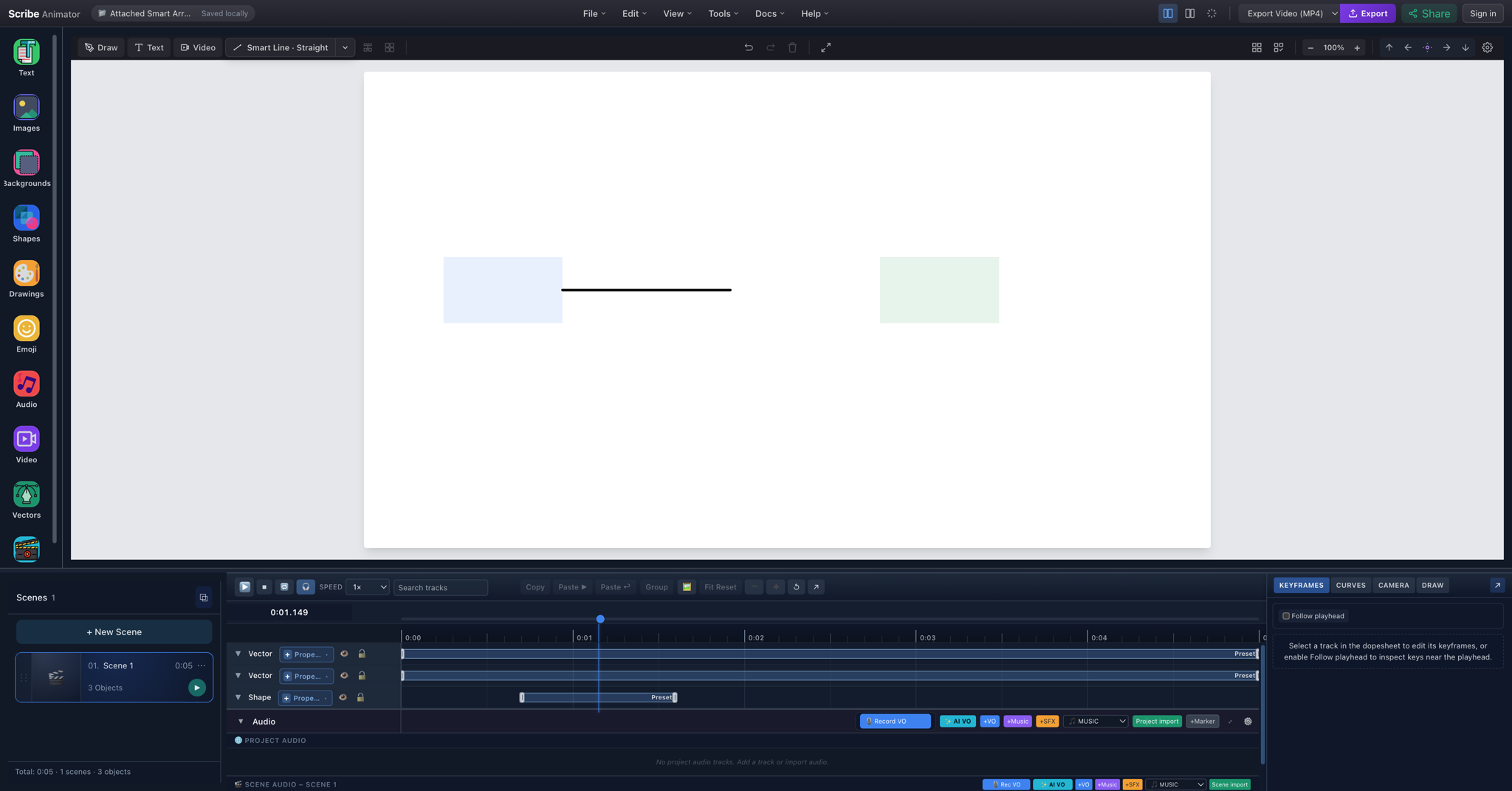
<p><img decoding="async" loading="lazy" alt="The same canonical scene halfway through its Draw In animation, with both target rectangles unchanged" src="https://docs.scribeanimator.com/assets/images/ai-json-attached-smart-arrow-mid-draw-6a0a884022f62efc428dd47a61a231fa.png" width="2048" height="1071" class="img_ev3q"></p>
<p><em>At 1.149 seconds, only part of the path is visible. Compare it with the completed capture above: both target rectangles and the connector's semantic endpoints remain fixed while reveal progress changes.</em></p>
<h2 class="anchor anchorTargetStickyNavbar_Vzrq" id="do-not-paste-a-scribe-runtime-object-into-template-json">Do not paste a <code>.scribe</code> runtime object into Template JSON<a href="https://docs.scribeanimator.com/blog/ai-generated-explainer-videos-editable-smart-connectors#do-not-paste-a-scribe-runtime-object-into-template-json" class="hash-link" aria-label="Direct link to do-not-paste-a-scribe-runtime-object-into-template-json" title="Direct link to do-not-paste-a-scribe-runtime-object-into-template-json" translate="no">​</a></h2>
<p>Portable Template JSON and a saved <code>.scribe</code> project's runtime representation are related, but not interchangeable.</p>
<p>A runtime-shaped object commonly contains:</p>
<div class="language-json codeBlockContainer_Ckt0 theme-code-block" style="--prism-color:#393A34;--prism-background-color:#f6f8fa"><div class="codeBlockContent_QJqH"><pre tabindex="0" class="prism-code language-json codeBlock_bY9V thin-scrollbar" style="color:#393A34;background-color:#f6f8fa"><code class="codeBlockLines_e6Vv"><span class="token-line" style="color:#393A34"><span class="token punctuation" style="color:#393A34">{</span><span class="token plain"></span><br></span><span class="token-line" style="color:#393A34"><span class="token plain">  </span><span class="token property" style="color:#36acaa">"type"</span><span class="token operator" style="color:#393A34">:</span><span class="token plain"> </span><span class="token string" style="color:#e3116c">"smartArrow"</span><span class="token punctuation" style="color:#393A34">,</span><span class="token plain"></span><br></span><span class="token-line" style="color:#393A34"><span class="token plain">  </span><span class="token property" style="color:#36acaa">"properties"</span><span class="token operator" style="color:#393A34">:</span><span class="token plain"> </span><span class="token punctuation" style="color:#393A34">{</span><span class="token property" style="color:#36acaa">"smartLine"</span><span class="token operator" style="color:#393A34">:</span><span class="token plain"> </span><span class="token punctuation" style="color:#393A34">{</span><span class="token punctuation" style="color:#393A34">}</span><span class="token punctuation" style="color:#393A34">}</span><span class="token plain"></span><br></span><span class="token-line" style="color:#393A34"><span class="token plain"></span><span class="token punctuation" style="color:#393A34">}</span><br></span></code></pre></div></div>
<p>A portable <code>TemplateEnvelopeV1</code> <code>ObjectDTO</code> uses:</p>
<div class="language-json codeBlockContainer_Ckt0 theme-code-block" style="--prism-color:#393A34;--prism-background-color:#f6f8fa"><div class="codeBlockContent_QJqH"><pre tabindex="0" class="prism-code language-json codeBlock_bY9V thin-scrollbar" style="color:#393A34;background-color:#f6f8fa"><code class="codeBlockLines_e6Vv"><span class="token-line" style="color:#393A34"><span class="token punctuation" style="color:#393A34">{</span><span class="token plain"></span><br></span><span class="token-line" style="color:#393A34"><span class="token plain">  </span><span class="token property" style="color:#36acaa">"id"</span><span class="token operator" style="color:#393A34">:</span><span class="token plain"> </span><span class="token string" style="color:#e3116c">"portable-arrow"</span><span class="token punctuation" style="color:#393A34">,</span><span class="token plain"></span><br></span><span class="token-line" style="color:#393A34"><span class="token plain">  </span><span class="token property" style="color:#36acaa">"type"</span><span class="token operator" style="color:#393A34">:</span><span class="token plain"> </span><span class="token string" style="color:#e3116c">"smartArrow"</span><span class="token punctuation" style="color:#393A34">,</span><span class="token plain"></span><br></span><span class="token-line" style="color:#393A34"><span class="token plain">  </span><span class="token property" style="color:#36acaa">"x"</span><span class="token operator" style="color:#393A34">:</span><span class="token plain"> </span><span class="token number" style="color:#36acaa">100</span><span class="token punctuation" style="color:#393A34">,</span><span class="token plain"></span><br></span><span class="token-line" style="color:#393A34"><span class="token plain">  </span><span class="token property" style="color:#36acaa">"y"</span><span class="token operator" style="color:#393A34">:</span><span class="token plain"> </span><span class="token number" style="color:#36acaa">100</span><span class="token punctuation" style="color:#393A34">,</span><span class="token plain"></span><br></span><span class="token-line" style="color:#393A34"><span class="token plain">  </span><span class="token property" style="color:#36acaa">"props"</span><span class="token operator" style="color:#393A34">:</span><span class="token plain"> </span><span class="token punctuation" style="color:#393A34">{</span><span class="token property" style="color:#36acaa">"smartLine"</span><span class="token operator" style="color:#393A34">:</span><span class="token plain"> </span><span class="token punctuation" style="color:#393A34">{</span><span class="token punctuation" style="color:#393A34">}</span><span class="token punctuation" style="color:#393A34">}</span><span class="token plain"></span><br></span><span class="token-line" style="color:#393A34"><span class="token plain"></span><span class="token punctuation" style="color:#393A34">}</span><br></span></code></pre></div></div>
<p>The importer does not silently reinterpret arbitrary runtime objects. If a <code>smartLine</code> or <code>smartArrow</code> uses <code>properties</code> without portable <code>props</code>, it now reports an actionable diagnostic explaining the required field and warning against pasting a <code>.scribe</code> runtime object directly.</p>
<h2 class="anchor anchorTargetStickyNavbar_Vzrq" id="run-the-real-ai-json-workflow">Run the real AI JSON workflow<a href="https://docs.scribeanimator.com/blog/ai-generated-explainer-videos-editable-smart-connectors#run-the-real-ai-json-workflow" class="hash-link" aria-label="Direct link to Run the real AI JSON workflow" title="Direct link to Run the real AI JSON workflow" translate="no">​</a></h2>
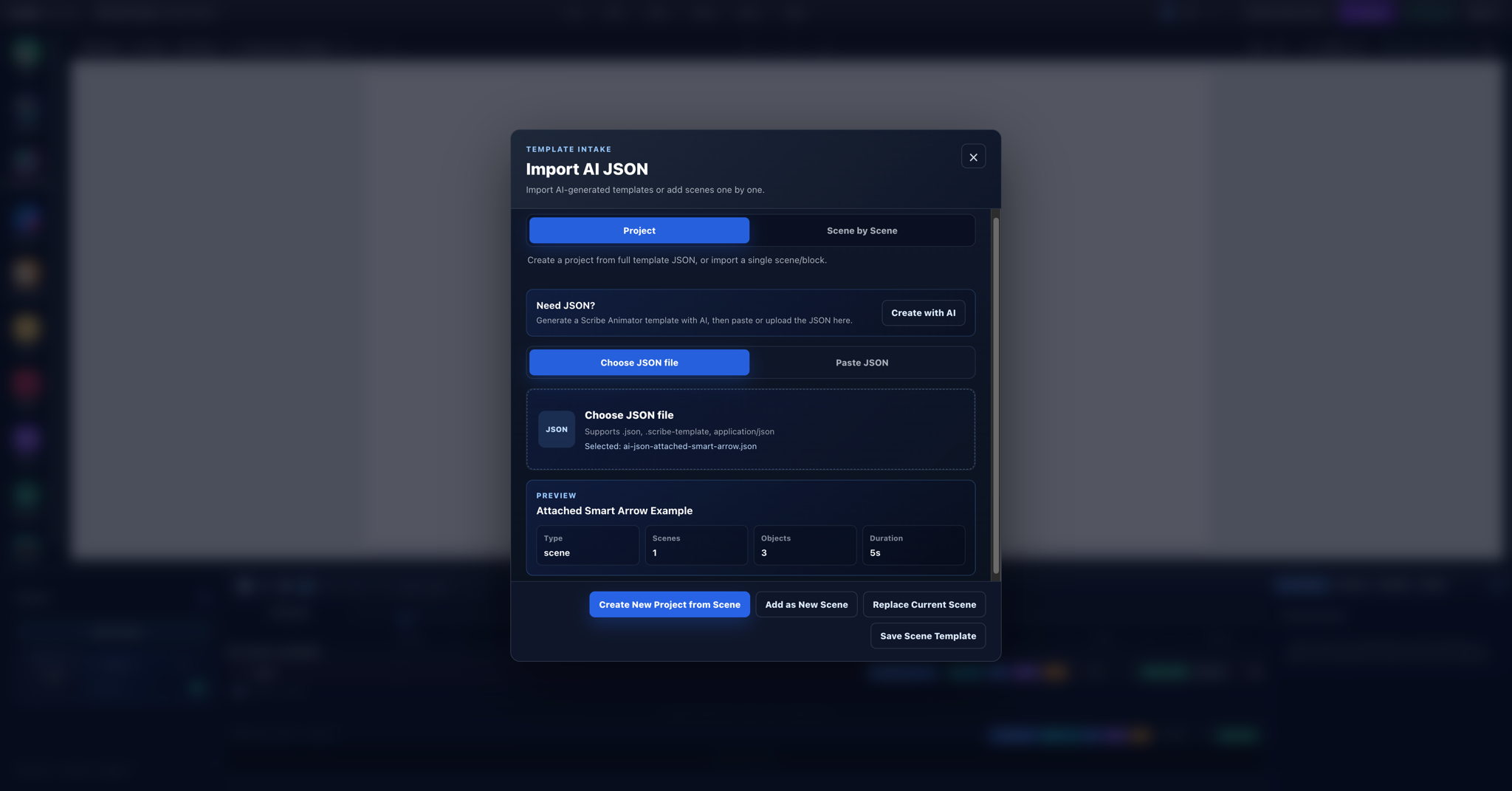
<p><img decoding="async" loading="lazy" alt="Scribe Animator&amp;#39;s Desktop Import AI JSON dialog validating the canonical Attached Smart Arrow Example" src="https://docs.scribeanimator.com/assets/images/ai-json-attached-smart-arrow-validated-8e54e76bed9c790755f33f683f4fe3eb.png" width="2048" height="1071" class="img_ev3q"></p>
<ol>
<li class=""><strong>Plan one explanatory job.</strong> Ask the model for a scene plan before asking for coordinates. Define the claim, labels, relationship direction, duration, and aspect ratio.</li>
<li class=""><strong>Request <code>TemplateEnvelopeV1</code> JSON.</strong> Specify schema version 1, <code>scene-local-v1</code> timing, unique IDs, finite coordinates, supported object types, and JSON-only output.</li>
<li class=""><strong>Keep the first draft narrow.</strong> Start with one scene and no external assets. Add complexity after the first import is legible.</li>
<li class=""><strong>Open File → Import AI JSON.</strong> Use the Desktop editor's file or paste path; do not import the candidate as a <code>.scribe</code> package.</li>
<li class=""><strong>Let Scribe validate it.</strong> Confirm envelope type, scene and object counts, duration, warnings, and reference errors before applying.</li>
<li class=""><strong>Create or insert intentionally.</strong> A project, scene, and block have different replacement and insertion effects. Save current work before choosing an action that replaces context.</li>
<li class=""><strong>Inspect native objects.</strong> Select the rectangles and Smart Arrow, verify both attachments, and confirm the arrowhead and route mode.</li>
<li class=""><strong>Edit the draft.</strong> Improve labels, spacing, colors, connector anchors, and reading order. Structural acceptance does not guarantee good design.</li>
<li class=""><strong>Refine motion and framing.</strong> Add or adjust animations, eligible Draw Steps, and camera behavior, then preview from before the first reveal through the final hold.</li>
<li class=""><strong>Export only after review.</strong> Seek backward and forward, replay, check the final frame, save an editable project, and then choose the supported delivery format.</li>
</ol>
<p>The complete <a class="" href="https://docs.scribeanimator.com/docs/create-extend/templates/ai-json">Create and import AI JSON guide</a> covers normalization, warnings, apply actions, recovery, and the difference between Project and Scene by Scene modes. The <a class="" href="https://docs.scribeanimator.com/docs/template-schema">template schema reference</a> is the field-level source of truth.</p>
<h2 class="anchor anchorTargetStickyNavbar_Vzrq" id="what-can-ai-json-describe-today">What can AI JSON describe today?<a href="https://docs.scribeanimator.com/blog/ai-generated-explainer-videos-editable-smart-connectors#what-can-ai-json-describe-today" class="hash-link" aria-label="Direct link to What can AI JSON describe today?" title="Direct link to What can AI JSON describe today?" translate="no">​</a></h2>
<p>The current importer allowlist supports the following useful building blocks. “Supported” means the parser recognizes the object type; it does not mean every possible property or asset URL is safe, available, or visually successful.</p>
<table><thead><tr><th>Capability</th><th>Portable representation</th><th>Practical note</th></tr></thead><tbody><tr><td>Editable labels</td><td><code>text</code></td><td>Keep copy, bounds, font choice, and contrast reviewable</td></tr><tr><td>Basic boxes and cards</td><td><code>shape</code></td><td>Useful for deterministic first-pass layouts</td></tr><tr><td>Self-contained vector art</td><td><code>svg</code></td><td>SVG content is subject to intake safety and size checks</td></tr><tr><td>Raster art</td><td><code>image</code></td><td>Asset availability and provenance still need review</td></tr><tr><td>Freehand-style content</td><td><code>drawing</code></td><td>Use valid point and stroke data</td></tr><tr><td>Drawable vector routes</td><td><code>svgPath</code></td><td>Eligible geometry can participate in reveals and Draw Steps</td></tr><tr><td>Object collections</td><td><code>group</code></td><td>Nested children must remain valid portable objects</td></tr><tr><td>Relationships</td><td><code>smartLine</code>, <code>smartArrow</code>, top-level <code>connector</code></td><td>Preserves semantic geometry and attachment metadata</td></tr><tr><td>Simple entrances</td><td>object animation fields</td><td>Includes fade, slide, scale, Draw In, path-follow, typewriter, or none where compatible</td></tr><tr><td>Richer timing</td><td>timeline tracks, keys, and draw steps</td><td>All owners and references must resolve inside the envelope</td></tr><tr><td>Framing</td><td>scene camera mode and camera keys</td><td>Preview timing and target references in the actual editor</td></tr></tbody></table>
<p>There is no dedicated <code>emoji</code> or <code>icon</code> <code>ObjectDTO</code> type. An icon is represented as an <code>svg</code> object; vector emoji inserted through Scribe's Twemoji drawing path likewise becomes vector/SVG-backed content. A typed Unicode emoji may remain part of a <code>text</code> object's string and depends on the selected font and platform rendering.</p>
<p>This article intentionally makes no AI JSON video-import promise. The shared template type union and the current import allowlist are not identical: ordinary <code>video</code> is not accepted by the current AI JSON validator. Build the first automated workflow from the types documented and tested here.</p>
<h2 class="anchor anchorTargetStickyNavbar_Vzrq" id="can-this-workflow-be-automated">Can this workflow be automated?<a href="https://docs.scribeanimator.com/blog/ai-generated-explainer-videos-editable-smart-connectors#can-this-workflow-be-automated" class="hash-link" aria-label="Direct link to Can this workflow be automated?" title="Direct link to Can this workflow be automated?" translate="no">​</a></h2>
<p>Yes, within the current boundary—but distinguish architecture from product availability.</p>
<p><strong>Available today:</strong> an AI assistant can produce JSON, a person or controlled tool can submit it to Scribe's validated Desktop importer, and the result remains an editable scene. The codebase also contains programmatic authoring primitives and protected infrastructure used for trusted/internal template automation. Those surfaces demonstrate that the model is automation-friendly.</p>
<p><strong>Not generally available today:</strong> Scribe does not currently advertise an unrestricted public write API or a public MCP server for arbitrary agents. Do not put private authoring credentials in browser code, prompts, public examples, or client-side automations.</p>
<p><strong>Potential future boundary:</strong> a supported agent surface could accept constrained scene plans or template envelopes, validate them through the same contracts, and return editable Scribe content. MCP is a possible transport for that future work, not a currently published capability.</p>
<p>So the practical automation path today remains:</p>
<ol>
<li class="">generate candidate structure with an approved model;</li>
<li class="">validate it through Scribe's importer;</li>
<li class="">keep human review before applying or exporting; and</li>
<li class="">save the editable project as the revision source.</li>
</ol>
<h2 class="anchor anchorTargetStickyNavbar_Vzrq" id="a-useful-first-experiment">A useful first experiment<a href="https://docs.scribeanimator.com/blog/ai-generated-explainer-videos-editable-smart-connectors#a-useful-first-experiment" class="hash-link" aria-label="Direct link to A useful first experiment" title="Direct link to A useful first experiment" translate="no">​</a></h2>
<p>Download the <a href="https://docs.scribeanimator.com/assets/files/ai-json-attached-smart-arrow-e39772c7bf3d63e4bd2d471d27c8557b.json" target="_blank" class="">attached Smart Arrow fixture</a>, open <a href="https://app.scribeanimator.com/" target="_blank" rel="noopener noreferrer" class="">Scribe Animator</a>, and import it through <strong>File → Import AI JSON</strong>. Add text labels, change the rectangle colors, move each target, switch one explicit anchor to <code>auto</code>, and preview the Draw In again.</p>
<p>Once that single scene remains readable and stable, extend it into a second scene rather than asking a model for an entire finished explainer at once. The related <a class="" href="https://docs.scribeanimator.com/blog/ai-whiteboard-animation-editable-scenes">editable AI scenes workflow</a> shows the same structured principle across a two-scene project, while the <a class="" href="https://docs.scribeanimator.com/blog/whiteboard-animation-explainer-video-guide">explainer-video planning guide</a> helps turn the technical pipeline into a coherent story.</p>
<p>AI is most useful here when it accelerates structure without taking editability away from the person responsible for the explanation.</p>]]></content>
        <author>
            <name>Scribe Animator Team</name>
            <uri>https://ohotech.com</uri>
        </author>
        <category label="AI animation" term="AI animation"/>
        <category label="explainer video" term="explainer video"/>
        <category label="Smart Connectors" term="Smart Connectors"/>
        <category label="Scribe JSON" term="Scribe JSON"/>
    </entry>
    <entry>
        <title type="html"><![CDATA[Create camera moves in whiteboard animation]]></title>
        <id>https://docs.scribeanimator.com/blog/whiteboard-animation-camera-pan-zoom-follow</id>
        <link href="https://docs.scribeanimator.com/blog/whiteboard-animation-camera-pan-zoom-follow"/>
        <updated>2026-08-10T00:00:00.000Z</updated>
        <summary type="html"><![CDATA[Deconstruct two real Scribe templates, author camera pan and zoom holds, frame an object or Draw Step, follow a hand or moving subject, and verify the exported result.]]></summary>
        <content type="html"><![CDATA[<p>Good camera choreography is not constant motion. It moves toward the active idea, pauses long enough to read it, and pulls back when the relationship between ideas matters more than any single detail.</p>
<p>This tutorial deconstructs two built-in Scribe Animator templates, then reproduces Fixed, Track, Object Camera, Draw-step Camera, Follow Hand, and Follow Object behavior in the real Desktop editor. The proof includes authored controls, timestamped runtime frames, and H.264 MP4 files exported by Scribe—not a simulated camera animation.</p>
<div class="theme-admonition theme-admonition-info admonition_xJq3 alert alert--info"><div class="admonitionHeading_Gvgb"><span class="admonitionIcon_Rf37"><svg viewBox="0 0 14 16"><path fill-rule="evenodd" d="M7 2.3c3.14 0 5.7 2.56 5.7 5.7s-2.56 5.7-5.7 5.7A5.71 5.71 0 0 1 1.3 8c0-3.14 2.56-5.7 5.7-5.7zM7 1C3.14 1 0 4.14 0 8s3.14 7 7 7 7-3.14 7-7-3.14-7-7-7zm1 3H6v5h2V4zm0 6H6v2h2v-2z"></path></svg></span>Verified on 10 August 2026</div><div class="admonitionContent_BuS1"><p>The workflows below were tested in the Desktop web editor on macOS with <code>frontend@2.0.0</code>. <strong>Cinematic Camera Journey</strong> and <strong>Doodle Friendly Vertical Title Card</strong> were applied from the real Templates UI, previewed at 1×, exported through Scribe, and inspected with <code>ffprobe</code>. Follow Hand and Follow Object were also sampled during evaluated playback.</p></div></div>
<p>For every control and precedence edge case, keep the <a class="" href="https://docs.scribeanimator.com/docs/use-scribe/animation/camera-and-paths">Camera and path following reference</a> open beside this outcome tutorial.</p>
<h2 class="anchor anchorTargetStickyNavbar_Vzrq" id="which-camera-feature-should-you-use">Which camera feature should you use?<a href="https://docs.scribeanimator.com/blog/whiteboard-animation-camera-pan-zoom-follow#which-camera-feature-should-you-use" class="hash-link" aria-label="Direct link to Which camera feature should you use?" title="Direct link to Which camera feature should you use?" translate="no">​</a></h2>
<table><thead><tr><th>Feature</th><th>Meaning</th><th>Best use</th></tr></thead><tbody><tr><td><strong>Fixed Scene Camera</strong></td><td>One saved scene-wide shot</td><td>A readable overview that does not need motion</td></tr><tr><td><strong>Manual Track key</strong></td><td>An exact camera pose at a chosen time</td><td>Deliberate pan, zoom, hold, or pull-back choreography</td></tr><tr><td><strong>Object Camera</strong></td><td>A bounded, timed Track shot generated around one object</td><td>A temporary close-up on a title, image, shape, or static vector</td></tr><tr><td><strong>Draw-step Camera</strong></td><td>A generated Track shot tied to one Draw Step</td><td>Framing a particular drawing phase or reveal region</td></tr><tr><td><strong>Follow Hand</strong></td><td>Continuous runtime tracking of the active drawing hand</td><td>Staying with a long drawing route as the hand travels</td></tr><tr><td><strong>Follow Object</strong></td><td>Continuous runtime tracking of one selected moving object</td><td>Keeping a moving subject framed throughout evaluated motion</td></tr></tbody></table>
<p>Two similar names describe different behavior:</p>
<ul>
<li class=""><strong>Object Camera is not Follow Object.</strong> Object Camera authors a timed shot; Follow Object continuously evaluates the target's current position.</li>
<li class=""><strong>Draw-step Camera is not Follow Hand.</strong> Draw-step Camera creates a bounded Track action; Follow Hand continuously follows active hand data.</li>
</ul>
<h2 class="anchor anchorTargetStickyNavbar_Vzrq" id="case-study-cinematic-camera-journey">Case study: Cinematic Camera Journey<a href="https://docs.scribeanimator.com/blog/whiteboard-animation-camera-pan-zoom-follow#case-study-cinematic-camera-journey" class="hash-link" aria-label="Direct link to Case study: Cinematic Camera Journey" title="Direct link to Case study: Cinematic Camera Journey" translate="no">​</a></h2>
<p>Open <strong>Templates</strong>, search for <strong>Cinematic Camera Journey</strong>, choose <strong>Select</strong>, then <strong>Create from selected</strong> and <strong>Apply Template</strong>. Its first-party definition is the built-in <code>scene-cinematic-camera-journey.json</code> template shipped with Scribe.</p>
<p>The built-in template contains this 12-second Track choreography:</p>
<table><thead><tr><th style="text-align:right">Time</th><th style="text-align:right">X</th><th style="text-align:right">Y</th><th style="text-align:right">Zoom</th><th>Source easing</th></tr></thead><tbody><tr><td style="text-align:right">0.0s</td><td style="text-align:right">960</td><td style="text-align:right">540</td><td style="text-align:right">1.80</td><td>Ease Out (Cubic)</td></tr><tr><td style="text-align:right">2.5s</td><td style="text-align:right">960</td><td style="text-align:right">540</td><td style="text-align:right">1.80</td><td>Ease In-Out (Cubic)</td></tr><tr><td style="text-align:right">5.0s</td><td style="text-align:right">2400</td><td style="text-align:right">400</td><td style="text-align:right">1.60</td><td>Ease In-Out (Cubic)</td></tr><tr><td style="text-align:right">6.5s</td><td style="text-align:right">2400</td><td style="text-align:right">400</td><td style="text-align:right">1.60</td><td>Ease In-Out (Cubic)</td></tr><tr><td style="text-align:right">8.5s</td><td style="text-align:right">2400</td><td style="text-align:right">1200</td><td style="text-align:right">1.60</td><td>Ease In-Out (Cubic)</td></tr><tr><td style="text-align:right">9.5s</td><td style="text-align:right">2400</td><td style="text-align:right">1200</td><td style="text-align:right">1.60</td><td>Ease In-Out</td></tr><tr><td style="text-align:right">11.5s</td><td style="text-align:right">1600</td><td style="text-align:right">700</td><td style="text-align:right">0.65</td><td>Ease In-Out (Cubic)</td></tr></tbody></table>
<p>The storytelling pattern is more useful than the numbers:</p>
<div class="language-text codeBlockContainer_Ckt0 theme-code-block" style="--prism-color:#393A34;--prism-background-color:#f6f8fa"><div class="codeBlockContent_QJqH"><pre tabindex="0" class="prism-code language-text codeBlock_bY9V thin-scrollbar" style="color:#393A34;background-color:#f6f8fa"><code class="codeBlockLines_e6Vv"><span class="token-line" style="color:#393A34"><span class="token plain">CLOSE TITLE → HOLD → PAN TO POINT 1 → HOLD → PAN TO POINT 2 → HOLD → WIDE CONTEXT</span><br></span></code></pre></div></div>
<figure class="figure_ddTC"><div class="media_h9my"><a class="imageLink_rGdw" href="https://docs.scribeanimator.com/img/guides/v2/camera-cinematic-track-keys.png" target="_blank" rel="noreferrer" aria-label="Open full-size image: Scribe Animator Camera drawer showing seven manual Track keys for the Cinematic Camera Journey template"><img src="https://docs.scribeanimator.com/img/guides/v2/camera-cinematic-track-keys.png" width="1800" height="1113" alt="Scribe Animator Camera drawer showing seven manual Track keys for the Cinematic Camera Journey template" loading="lazy" decoding="async"></a><div class="annotationLayer_asgk" aria-hidden="true"><span class="highlight_tEgw" style="--doc-figure-x:73%;--doc-figure-y:74%;--doc-figure-width:25%;--doc-figure-height:8%"></span><span class="highlight_tEgw" style="--doc-figure-x:72%;--doc-figure-y:83%;--doc-figure-width:27%;--doc-figure-height:14%"></span><span class="marker_RQ89" style="--doc-figure-x:86%;--doc-figure-y:78%">1</span><span class="marker_RQ89" style="--doc-figure-x:86%;--doc-figure-y:91%">2</span></div></div><figcaption><div class="caption_vEdV">The real Camera drawer exposes seven M rows. Repeated X, Y, and zoom values at 0/2.5, 5/6.5, and 8.5/9.5 seconds create deliberate reading holds.</div><div class="legend_g7vC" role="group" aria-label="Screenshot annotations"><div class="legendTitle_TM_P">Screenshot callouts</div><ol class="legendList_Zd4x" role="list"><li><span class="legendNumber_U3OV" aria-hidden="true">1</span><div class="legendContent_sjni"><strong>Track mode</strong><div>Manual camera keys run while Track is the active scene camera mode.</div></div></li><li><span class="legendNumber_U3OV" aria-hidden="true">2</span><div class="legendContent_sjni"><strong>Seven M keys</strong><div>M identifies camera poses authored directly in CAMERA.</div></div></li></ol></div></figcaption></figure>
<div class="theme-admonition theme-admonition-caution admonition_xJq3 alert alert--warning"><div class="admonitionHeading_Gvgb"><span class="admonitionIcon_Rf37"><svg viewBox="0 0 16 16"><path fill-rule="evenodd" d="M8.893 1.5c-.183-.31-.52-.5-.887-.5s-.703.19-.886.5L.138 13.499a.98.98 0 0 0 0 1.001c.193.31.53.501.886.501h13.964c.367 0 .704-.19.877-.5a1.03 1.03 0 0 0 .01-1.002L8.893 1.5zm.133 11.497H6.987v-2.003h2.039v2.003zm0-3.004H6.987V5.987h2.039v4.006z"></path></svg></span>Template easing import finding</div><div class="admonitionContent_BuS1"><p>The checked-in JSON retains the cubic easing names shown in the table. In the tested build, applying the template preserved the seven times, positions, and zooms, but normalized the cubic aliases to <strong>Linear</strong> in the Camera drawer; the non-cubic 9.5-second <code>ease-in-out</code> key remained <strong>Ease In-Out</strong>. The video below is the actual result from that imported state. Until template easing normalization is fixed, review imported easing before final export.</p></div></div>
<h3 class="anchor anchorTargetStickyNavbar_Vzrq" id="timestamped-export-evidence">Timestamped export evidence<a href="https://docs.scribeanimator.com/blog/whiteboard-animation-camera-pan-zoom-follow#timestamped-export-evidence" class="hash-link" aria-label="Direct link to Timestamped export evidence" title="Direct link to Timestamped export evidence" translate="no">​</a></h3>
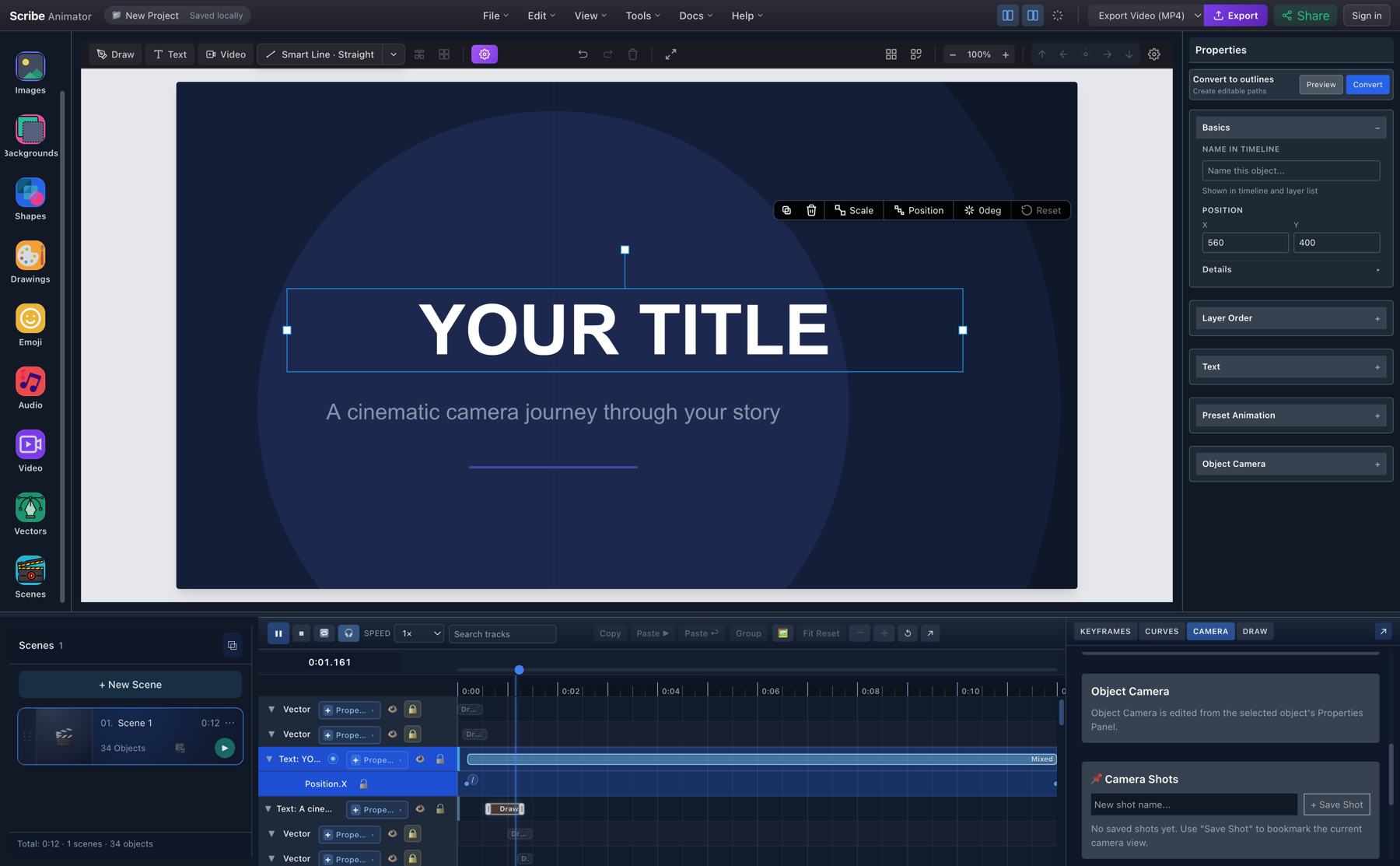
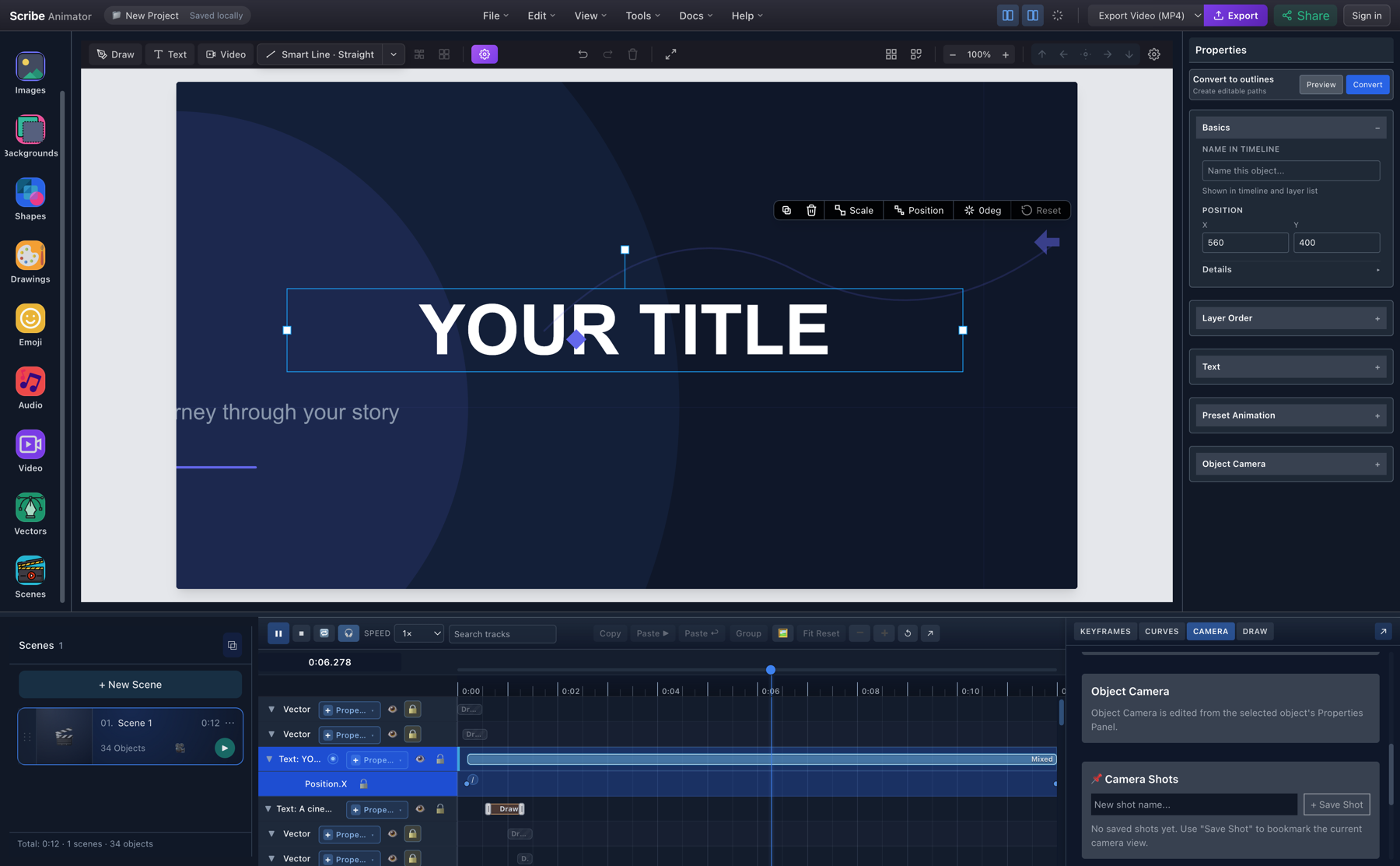
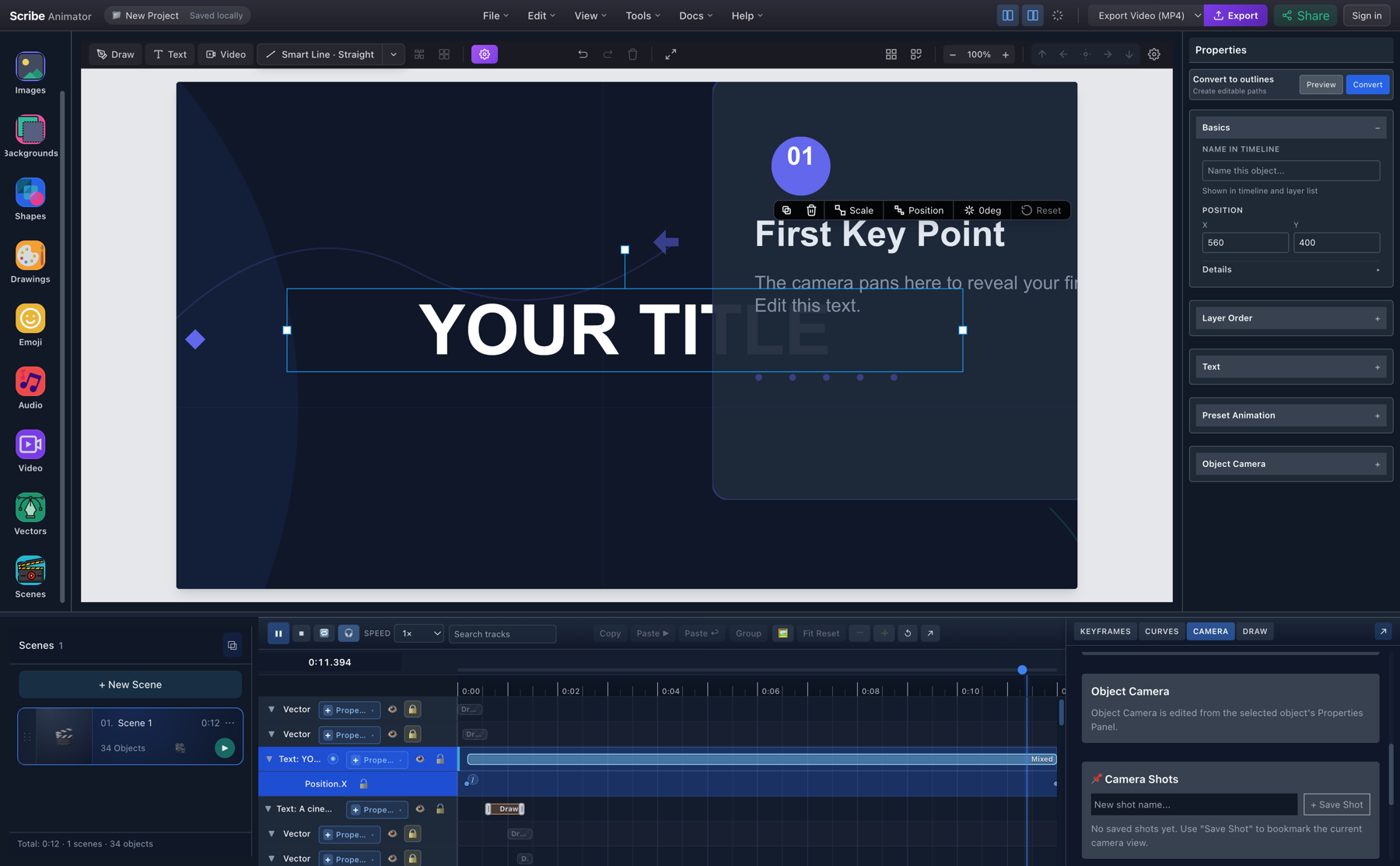
<table><thead><tr><th>0.0s — close opening</th><th>5.0s — first destination</th><th>8.5s — second destination</th><th>11.5s — wide context</th></tr></thead><tbody><tr><td><img decoding="async" loading="lazy" alt="Opening close camera frame from the Scribe export" src="https://docs.scribeanimator.com/assets/images/camera-cinematic-export-frame-0s-69a0949d35785ada886f2ccc0dcd4353.png" width="1280" height="720" class="img_ev3q"></td><td><img decoding="async" loading="lazy" alt="Camera frame at the first destination at five seconds" src="https://docs.scribeanimator.com/assets/images/camera-cinematic-export-frame-5s-f172feda2dadd20e43c001e932881c53.png" width="1280" height="720" class="img_ev3q"></td><td><img decoding="async" loading="lazy" alt="Camera frame at the second destination at eight and a half seconds" src="https://docs.scribeanimator.com/assets/images/camera-cinematic-export-frame-8-5s-da7a6e7d4999f3a19aac3ab886308f45.png" width="1280" height="720" class="img_ev3q"></td><td><img decoding="async" loading="lazy" alt="Final wide camera frame at eleven and a half seconds" src="https://docs.scribeanimator.com/assets/images/camera-cinematic-export-frame-11-5s-6108fbbbeb0bf0f0c3abe0965f365191.png" width="1280" height="720" class="img_ev3q"></td></tr></tbody></table>
<figure class="figure_zwK9"><div class="media_Udt1" style="--doc-video-aspect-ratio:1280 / 720"><video aria-label="Cinematic Camera Journey exported by Scribe Animator" controls="" playsinline="" preload="metadata" poster="/img/guides/v2/camera-cinematic-video-poster.png" width="1280" height="720"><source src="/video/camera/cinematic-camera-journey-scribe-export.mp4" type="video/mp4">Your browser cannot play this video.<!-- --> <a href="https://docs.scribeanimator.com/video/camera/cinematic-camera-journey-scribe-export.mp4">Download the MP4 instead.</a></video></div><figcaption>Raw Scribe export: H.264, 1280 × 720, 30 fps, 12.000 seconds, 360 frames. Controls are user-initiated; the video does not autoplay.</figcaption></figure>
<h2 class="anchor anchorTargetStickyNavbar_Vzrq" id="build-a-manual-camera-move-yourself">Build a manual camera move yourself<a href="https://docs.scribeanimator.com/blog/whiteboard-animation-camera-pan-zoom-follow#build-a-manual-camera-move-yourself" class="hash-link" aria-label="Direct link to Build a manual camera move yourself" title="Direct link to Build a manual camera move yourself" translate="no">​</a></h2>
<ol>
<li class="">Open <strong>CAMERA</strong> and choose <strong>Track</strong>.</li>
<li class="">Move the playhead to the first beat, position the canvas camera, and choose <strong>+ Add @ Playhead</strong>.</li>
<li class="">Move to the next beat, pan or zoom to a genuinely different pose, and add another key.</li>
<li class="">Add a duplicate-position key later when the viewer needs reading time.</li>
<li class="">Edit the exact <strong>Time</strong>, <strong>X</strong>, <strong>Y</strong>, <strong>Zoom</strong>, optional rotation, and <strong>Easing</strong> in the key row.</li>
<li class="">Preview from before the first key. Scrubbing only one pose does not prove the transition.</li>
</ol>
<p>Use a wide shot when relationships matter and a close shot when one detail owns the narration. If the entire scene is reading-heavy, a Fixed Camera is often the better decision.</p>
<h2 class="anchor anchorTargetStickyNavbar_Vzrq" id="why-camera-holds-matter">Why camera holds matter<a href="https://docs.scribeanimator.com/blog/whiteboard-animation-camera-pan-zoom-follow#why-camera-holds-matter" class="hash-link" aria-label="Direct link to Why camera holds matter" title="Direct link to Why camera holds matter" translate="no">​</a></h2>
<p>Two keys with the same pose but different times create a hold. They separate movement time from attention time:</p>
<div class="language-text codeBlockContainer_Ckt0 theme-code-block" style="--prism-color:#393A34;--prism-background-color:#f6f8fa"><div class="codeBlockContent_QJqH"><pre tabindex="0" class="prism-code language-text codeBlock_bY9V thin-scrollbar" style="color:#393A34;background-color:#f6f8fa"><code class="codeBlockLines_e6Vv"><span class="token-line" style="color:#393A34"><span class="token plain">0.0s pose A ───── 2.5s pose A   hold the title</span><br></span><span class="token-line" style="color:#393A34"><span class="token plain">2.5s pose A ───── 5.0s pose B   move to point 1</span><br></span><span class="token-line" style="color:#393A34"><span class="token plain">5.0s pose B ───── 6.5s pose B   let point 1 be read</span><br></span></code></pre></div></div>
<p>Without those duplicate-position keys, the camera can drift while the viewer is still trying to read. Continuous motion is not automatically cinematic.</p>
<h2 class="anchor anchorTargetStickyNavbar_Vzrq" id="case-study-camera-choreography-in-916">Case study: camera choreography in 9:16<a href="https://docs.scribeanimator.com/blog/whiteboard-animation-camera-pan-zoom-follow#case-study-camera-choreography-in-916" class="hash-link" aria-label="Direct link to Case study: camera choreography in 9:16" title="Direct link to Case study: camera choreography in 9:16" translate="no">​</a></h2>
<p>Apply <strong>Doodle Friendly Vertical Title Card</strong> from Templates. Its built-in 11-second camera track is:</p>
<table><thead><tr><th style="text-align:right">Time</th><th style="text-align:right">X</th><th style="text-align:right">Y</th><th style="text-align:right">Zoom</th><th>Easing</th></tr></thead><tbody><tr><td style="text-align:right">0.0s</td><td style="text-align:right">540</td><td style="text-align:right">520</td><td style="text-align:right">1.04</td><td>Ease In-Out</td></tr><tr><td style="text-align:right">2.5s</td><td style="text-align:right">540</td><td style="text-align:right">620</td><td style="text-align:right">1.02</td><td>Ease In-Out</td></tr><tr><td style="text-align:right">5.6s</td><td style="text-align:right">540</td><td style="text-align:right">960</td><td style="text-align:right">1.00</td><td>Ease In-Out</td></tr><tr><td style="text-align:right">8.9s</td><td style="text-align:right">540</td><td style="text-align:right">1450</td><td style="text-align:right">1.03</td><td>Ease In-Out</td></tr><tr><td style="text-align:right">11.0s</td><td style="text-align:right">540</td><td style="text-align:right">960</td><td style="text-align:right">1.00</td><td>Ease In-Out</td></tr></tbody></table>
<figure class="figure_ddTC"><div class="media_h9my"><a class="imageLink_rGdw" href="https://docs.scribeanimator.com/img/guides/v2/camera-doodle-track-keys.png" target="_blank" rel="noreferrer" aria-label="Open full-size image: Scribe Animator Camera drawer showing the five-key vertical Track for Doodle Friendly Vertical Title Card"><img src="https://docs.scribeanimator.com/img/guides/v2/camera-doodle-track-keys.png" width="1800" height="1113" alt="Scribe Animator Camera drawer showing the five-key vertical Track for Doodle Friendly Vertical Title Card" loading="lazy" decoding="async"></a></div><figcaption><div class="caption_vEdV">X stays centered at 540 while Y carries the story from top to middle to bottom, then returns toward an overview. Zoom remains restrained between 1.00 and 1.04.</div></figcaption></figure>
<table><thead><tr><th>0.0s — top</th><th>5.6s — middle</th><th>8.9s — bottom</th><th>11.0s — overview</th></tr></thead><tbody><tr><td><img decoding="async" loading="lazy" alt="Top frame of the vertical Scribe camera export" src="data:image/png;base64,iVBORw0KGgoAAAANSUhEUgAAAZQAAALQCAIAAAA4hhEQAAAACXBIWXMAAAAAAAAAAQCEeRdzAAAABGNJQ1ABAQABlXPCVgAAACBjSFJNAAB6JgAAgIQAAPoAAACA6AAAdTAAAOpgAAA6mAAAF3CculE8AAAABGdBTUEAAMcyx0lwRAAAEABJREFUeJzt3IluLGehhVHe/8kuF1CYxChGMYopIhBEzmn7bnvHRWEfOw6y8d3SkpasPu3qmrr+z1XVnXzl/WeffimXd/8AeHNfES9gkXgBk8QLmCRewCTxAiaJFzBJvIBJ4gVMEi9gkngBk8QLmCRewCTxAiaJFzBJvIBJX3nzNQD4D4gXMEm8gEniBUwSL2CSeAGTxAuYJF7AJPECJokXMEm8gEniBUwSL2CSeAGTxAuYJF7AJPECJokXMEm8gEniBUwSL2CSeAGTxAuYJF7AJPECJokXMEm8gEniBUwSL2CSeAGTxAuYJF7AJPECJokXMEm8gEniBUwSL2CSeAGTxAuYJF7AJPECJokXMEm8gEniBUwSL2CSeAGTxAuYJF7AJPECJokXMEm8gEniBUwSL2CSeAGTxAuYJF7AJPECJokXMEm8gEniBUwSL2CSeAGTxAuYJF7AJPECJokXMEm8gEniBUwSL2CSeAGTxAuYJF7AJPECJokXMEm8gEniBUwSL2CSeAGTxAuYJF7AJPECJokXMEm8gEniBUwSL2CSeAGTxAuYJF7AJPECJokXMEm8gEniBUwSL2CSeAGTxAuYJF7AJPECJokXMEm8gEniBUwSL2CSeAGTxAuYJF7AJPECJokXMEm8gEniBUwSL2CSeAGTxAuYJF7AJPECJokXMEm8gEniBUwSL2CSeAGTxAuYJF7AJPECJokXMEm8gEniBUwSL2CSeAGTxAuYJF7AJPECJokXMEm8gEniBUwSL2CSeAGTxAuYJF7AJPECJokXMEm8gEniBUwSL2CSeAGTxAuYJF7AJPECJokXMEm8gEniBUwSL2CSeAGTxAuYJF7AJPECJokXMEm8gEniBUwSL2CSeAGTxAuYJF7AJPECJokXMEm8gEniBUwSL2CSeAGTxAuYJF7AJPECJokXMEm8gEniBUwSL2CSeAGTxAuYJF7AJPECJokXMEm8gEniBUwSL2CSeAGTxAuYJF7AJPECJokXMEm8gEniBUwSL2CSeAGTxAuYJF7AJPECJokXMEm8gEniBUwSL2CSeAGTxAuYJF7AJPECJokXMEm8gEniBUwSL2CSeAGTxAuYJF7AJPECJokXMEm8gEniBUwSL2CSeAGTxAuYJF7AJPECJokXMEm8gEniBUwSL2CSeAGTxAuYJF7AJPECJokXMEm8gEniBUwSL2CSeAGTxAuYJF7AJPECJokXMEm8gEniBUwSL2CSeAGTxAuYJF7AJPECJokXMEm8gEniBUwSL2CSeAGTxAuYJF7AJPECJokXMEm8gEniBUwSL2CSeAGTxAuYJF7AJPECJokXMEm8gEniBUwSL2CSeAGTxAuYJF7AJPECJokXMEm8gEniBUwSL2CSeAGTxAuYJF7AJPECJokXMEm8gEniBUwSL2CSeAGTxAuYJF7AJPECJokXMEm8gEniBUwSL2CSeAGTxAuYJF7AJPECJokXMEm8gEniBUwSL2CSeAGTxAuYJF7AJPECJokXMEm8gEniBUwSL2CSeAGTxAuYJF7AJPECJokXMEm8gEniBUwSL2CSeAGTxAuYJF7AJPECJokXMEm8gEniBUwSL2CSeAGTxAuYJF7AJPECJokXMEm8gEniBUwSL2CSeAGTxAuYJF7AJPECJokXMEm8gEniBUwSL2CSeAGTxAuYJF7AJPECJokXMEm8gEniBUwSL2CSeAGTxAuYJF7AJPECJokXMEm8gEniBUwSL2CSeAGTxAuYJF7AJPECJokXMEm8gEniBUwSL2CSeAGTxAuYJF7AJPECJokXMEm8gEniBUwSL2CSeAGTxAuYJF7AJPECJokXMEm8gEniBUwSL2CSeAGTxAuYJF7AJPECJokXMEm8gEniBUwSL2CSeAGTxAuYJF7AJPECJokXMEm8gEniBUwSL2CSeAGTxAuYJF7AJPECJokXMEm8gEniBUwSL2CSeAGTxAuYJF7AJPECJokXMEm8gEniBUwSL2CSeAGTxAuYJF7AJPECJokXMEm8gEniBUwSL2CSeAGTxAuYJF7AJPECJokXMEm8gEniBUwSL2CSeAGTxAuYJF7AJPECJokXMEm8gEniBUwSL2CSeAGTxAuYJF7AJPECJokXMEm8gEniBUwSL2CSeAGTxAuYJF7AJPECJokXMEm8gEniBUwSL2CSeAGTxAuYJF7AJPECJokXMEm8gEniBUwSL2CSeAGTxAuYJF7AJPECJokXMEm8gEniBUwSL2CSeAGTxAuYJF7AJPECJokXMEm8gEniBUwSL2CSeAGTxAuYJF7AJPECJokXMEm8gEniBUwSL2CSeAGTxAuYJF7AJPECJokXMEm8gEniBUwSL2CSeAGTxAuYJF7AJPECJokXMEm8gEniBUwSL2CSeAGTxAuYJF7AJPECJokXMEm8gEniBUwSL2CSeAGTxAuYJF7AJPECJokXMEm8gEniBUwSL2CSeAGTxAuYJF7AJPECJokXMEm8gEniBUwSL2CSeAGTxAuYJF7AJPECJokXMEm8gEniBUwSL2CSeAGTxAuYJF7AJPECJokXMEm8gEniBUwSL2CSeAGTxAuYJF7AJPECJokXMEm8gEniBUwSL2CSeAGTxAuYJF7AJPECJokXMEm8gEniBUwSL2CSeAGTxAuYJF7AJPECJokXMEm8gEniBUwSL2CSeAGTxAuYJF7AJPECJokXMEm8gEniBUwSL2CSeAGTxAuYJF7AJPECJokXMEm8gEniBUwSL2CSeAGTxAuYJF7AJPECJokXMEm8gEniBUwSL2CSeAGTxAuYJF7AJPECJokXMEm8gEniBUwSL2CSeAGTxAuYJF7AJPECJokXMEm8gEniBUwSL2CSeAGTxAuYJF7AJPECJokXMEm8gEniBUwSL2CSeAGTxAuYJF7AJPECJokXMEm8gEniBUwSL2CSeAGTxAuYJF7AJPECJokXMEm8gEniBUwSL2CSeAGTxAuYJF7AJPECJokXMEm8gEniBUwSL2CSeAGTxAuYJF7AJPECJokXMEm8gEniBUwSL2CSeAGTxAuYJF7AJPECJokXMEm8gEniBUwSL2CSeAGTxAuYJF7AJPECJokXMEm8gEniBUwSL2CSeAGTxAuYJF7AJPECJokXMEm8gEniBUwSL2CSeAGTxAuYJF7AJPECJokXMEm8gEniBUwSL2CSeAGTxAuYJF7AJPECJokXMEm8gEniBUwSL2CSeAGTxIs38/6zT+89c/X+n68x54cL2vVSu+i1PX+fZ8pj4i/1TokXb6ZHakZjB2T++cTIPKb54EwePnme1bt//v08kzd3Hq5PbOwH/3nsridee/iy78UH1+qD8/nCmX/ZeHWFxYu3lwPx+vJZfn72j7/10Ly+enf8Ks8kKP15PmrzkuvrS3Rs5Oc//v7Xj//8h+O3ncMxq2PIxfX1+0ycl3TOl7uEZQX++eknv/vNLz/5+E+dSSb49G8f91V/+dPvj8cf3JDMNovLqzKTe1HI4s4r8PC1WVCm+fsnfzm/6pjyvO3n0Xts7L3ZZvqblbndCVmZ3/zq543yH3//m27Cvf3/cIn35PnMp+/C8WSeuTxoU/ZhFpef9/ZAVzvbeOzz81bcW//uwM/f5dutuHnX7jbzeGH29jMTJl68ih6Uv/31L77/3W/96Q+/7VHbo/9nP/nhj3/4vQzp45A9juZO1lGdgzg/f/3Ln33vO988nxe0PpdHknEMreNnps/o+u63P8ogz/QZ53/+4+86ceaT1ctKdsw8nFWez2t/+fOfZB0yZfz+t7/621//3AnyZFYvG9WNzWb+6AffzXb1tVncT370/e986xt5VTb5SPC/dtHVuz/87tc/+N63P/r6V/Mz02RZx28fblp3UX9mNX74/e9k0d2EpPle7J5z5pWX/+JnP86iU/B/LeX6/cM9mT2WpWTT8tu86t5KfnBZ5/XP4+yNYyn3rhPP8Tpn9AuJF6+ix2LGWEZ4hlmPzhyaGfkZBnnyr3/5Y6fssXs+XcoIaTjyM8M7E/e3HVc9lfvg3/bLv180ZTwfZz03py1X7/Iz4zCJScIycX6blcm4emwTOrwTvl/94qc5cWtJ87hj9Ryv/DMT5JlsYFapj7OgLC47oZt8b2QmZ3n+5z/9USbOOmSC9Ouxi762qT+PpnSj8sIsIuHr34Anzn3uyUtSrm999LXUubM9zsXu7Yc8k+3qzI/WZOl9X+Lem3K88HiQnZa98dia9ADoH63nXzmKF68lx3r/Yn/7m1/P+MyoyDMZZjkZSc6alUQkIyeHdX5m4p4BZZz0yRzxPevpYZ3RnuGd1+b5812tDMKcPaUCnSy5ic485z7pQibIC7MOmUNO+jJiM5MsLqvUGEWeTCiz6HP78sKm4XKXj8wnW9Rrq8wky228IgvKOncYZ7UThSYya9Xl5tTs2DmZLGcieTK/aiWzenkml8x5edYtc84qZUN6opfXZluyhvmZ33ZXZDXywiw0z2fKPDjWJ/PMHs5qZCW7XQ/foJyvdWemzjfvznV22SeZw09//IO8JL/KpWL+xrTFWW5mGPlt1jN7u1uUx/lV5tC3r5nrCV3W51j5/DPTZJ2zT87rln2bZ3pVnldliZlz/iQ85wATL15Lz5t6cpHDsYM/B3H+meO48UoaMgZy3OdnDuUMlUyWx21KjubjnCW/6tGf0ZInM2BuzjtuR2l+Znj0rKe5+eY3/jdjuC/J2GiksjL5bWbbq7+WJc9nmqxens/jjOdj5SMzzG/bl7YyhUp8sw7ZluQpIzmLzgSZMgMvc+6ZVzez50q9iZORnIk78z6fKTNZXpKlZ1V7B63F7Ab2lC275XI7/vM3INP33lPP2jJlNq1XpmlB5pPHWW5WNTPMk9mBWeHOratxfX11XJtnfTJxVyMzTDfzfLuTn70yzTSZMjPJk3nLstPyZGRxeZuySnlHMmV+G/ltJs5uzG+zwpksj7NFbXce540+3peucNatu6WngV3nc+WfIF68osar10T5Z8Z8DtAcwTl2e/s8h2xv92aaZiIDrJdpvSTJkd149fqxE2cA99wtj3sLJj/zqhz0GRgZJ41Ii5aZZMo8yCJ64zm/zYJ6itSLtcyngTvidbntV1Yys725Yrod+R14GbFZmUyQXyVJ2aIkI49TzPwq88nc8iAj8ziDyzMNQefcq6SerGVleiqavmRxPTltcxu4LCvLzbZkyp4tnuPVe155bR7n+cQoSb3cnlVlJv2w4lzVbEhPG5vILKu7LinpeubMKyvTjz6ywpmm19qZbQubvZRp8mTr1jtZWVwXkbkdH5tkD2TndCWzYlnJvllZn/716px7063rk1994UexB/HiFTVevV+eAzQjJFXKsMyTGQk5xHvplN/2jnj+mWGZwZxR3Xj1oiYPeloR/fvck4WOw47JDKRkKNNnIOVnL386JnsC1XtbrWRvjWcs9fOEnhUe8TouSHuO0PPBy92N56xDb6iiDSgAAAYiSURBVPl3zHfEZk16ApJ/NigZrpe7b2l0ZB7xutx99NYbPWlWlpveJYX9jCJz7ucVvZ5q5rKBx6sar+zJzDmv6oVtT3UznzyfzW9bs1G9ZDs+kezFdZaYDckE3bGZ7OZ68+pdk9Q7Xy1gpu+DPNl45W3Kk+1py943umdebVaXnqC3wr2q7ael2TM3Z2RX7/oBcZaeWWXpeVU2s5/tPufoEi9eRe+89pjOQd+rjBYnLcjwyIjN394cuAlNDtxevPRy7KOvf7VnSZlPTyVyNPcGTW919ezjcvr0PTKf/G3vHZkstxenvRGT8dPzsubyqEDj1U8he+f7iFfHeeOVuXWCXFh1tj25yMpnoB7fYMiyul2979Yc9PwuK5B/nuN1uT0PTSnywn5o2JOXPG5WjvtlmWHvgqVK2Xt9stfOx5nXcZaXnZDXZia9Om4cL7cfTXQpx22ppCQbkj2WtyZT9q9L/1ocny30HDBL6WVjTyq7l7La2TmZSa92j79SebLvYxbX+5stWmbbty9r0s+guz7ZumxXpu9HHD3zEi/eUsd/z1P6vareue999F6L9ZPHjPM8k5Om/knv7aFIazJIek8qM8zEmVWO+wyPDtHe4brc3ko/qtQThMiDLiWPO0Iy/nslmHlmoXk+AykjLWOsqerNr2Ple9aT4ZTXZoT3zLE3dBqFrk+v17qxWYHeIMtSevWaUR15/I2v/U+/RXHsn97qjqxkL6V7YZU59CrymCCLyAyzuH6/pC3LmjeO3UVZSm8h9Z5X5pkXZkdld2WF26DegIvuhF6QXm7/BvSqNi/MFvVjwSyl8Tp/RNsKN/G90O4ZdOvW9ewEWfme9OUljWn+2ZtZPd3OW5AHWWh2b2aSFc4E3XvPPMbEi1fRq5t+9an/zIMcspe7O189a+h3KTJCemJ183HbJScGH+fI7kVNhmImblx6OybPp3THPd1eZfQz/l5Odkj3lnkvkTLDzCoz71r1lvNxqZJFd7KM9vOZ13GWl8VlDXvRmpYd37fKPzP9caaQbenna/1KRz8QzNb1JnovtY79c77T16vmvDYjv893S/tpRi9a+4HdEa+Gsn8V+olhbw7mwfFl2u7846zq6u4/Uej70ivc29PJ63482lOnXm7fXLFev0/d+segfxiSsKxA36x+WtrcHHch26k2NPPv6fbNZePtJ8iZbf+cXO4+f8w5dSboaVo/Nu1NT/e8eEuf36u+vnTE9v70cVD2D36vYnrE90tYvR7sd1k7zHqfpedWl9OXwo/vfB2L65PH98V6VdIv6x9fjLq6+/79+VuRfebq9NXW6mTHN6f6dfmeZPWGVEd4Lz/7TBdaLVpvhx2zupy+lnl8teq4G3V8f+rY3j7ZHXIs/bjv/v7u++i999elH1txfC2rH2scG9JbaZ3V5fQ9u/OX6TrB5x9Q3m7a5e6Lb8fc+unkMcN7e+nq7iu+7x98H/X4Z7+f8f7uP8C4me3t0sWLN3b17/9JUA/xy+1Jx+X2jOl8jB5frbw6f8v09sjup2DHNxh70Ddb59Zcnb7beR6lbcG/cnNXkPN3LN+f/gOmI0bnwXY05XL6gvix9H5Z9N6WHjM/1vCIxVHYOpZ7b0FHr488nVN7zOHfvt97exf889ke/zXVXQrP+/a87eeVuQnKXa2Ol7fRR4Uf7vOjX59/mfY0h+N8sy07XtjNPL4TezT0/A3+p4kXr+J8WJ//+Zw/qvdee37+/M/z3/AnJnv4zMPTq4fz/OA/H3vy3nnlE869uFfAY93unQbeW72HV1UfXO55z3/w+SMZj70F96Z/bFc/zOK9RZ/b9PQl4XOmORMvXsVj8foPXvsiK/PYr75wOD3nyfdP/v8wPrjEpxf6WC+eH6+nt/ryRfF6bD5PTP/Bfl3Eizkr8XrB7f3/NrfX2OovzMpj7514MePh3+E3jBf/NeLFvMfixZaXet9f4xgTL17Fm486XsRLve+vcYyJF6/izUcdL+Kl3vfXOMbEi1fx5qOOF/FS7/trHGPixat481HHi3ir9/05yxIvXsWbjzpexFu9789ZlnjxKt581PEi3up9f86yxItX8eajjhfxVu/7c5b1f7yd76oIfq5VAAAAAElFTkSuQmCC" width="404" height="720" class="img_ev3q"></td><td><img decoding="async" loading="lazy" alt="Middle frame of the vertical Scribe camera export" src="https://docs.scribeanimator.com/assets/images/camera-doodle-export-frame-5-6s-262a22424b3622701cfe5894d7ad84ec.png" width="404" height="720" class="img_ev3q"></td><td><img decoding="async" loading="lazy" alt="Bottom frame of the vertical Scribe camera export" src="https://docs.scribeanimator.com/assets/images/camera-doodle-export-frame-8-9s-5c9cbc34e18f8a65122ab0f85834a649.png" width="404" height="720" class="img_ev3q"></td><td><img decoding="async" loading="lazy" alt="Overview frame of the vertical Scribe camera export" src="https://docs.scribeanimator.com/assets/images/camera-doodle-export-frame-11s-3dd268858c3164e0780b6ae71e3e3d13.png" width="404" height="720" class="img_ev3q"></td></tr></tbody></table>
<p>In 9:16, keep horizontal travel restrained unless the content truly requires it. This template preserves edge safety by holding X at the center, travels mainly on Y, and gives the title, body, and footer distinct attention windows. The Scribe export remained vertical at 404 × 720 under the tested free-plan 720p limit.</p>
<h2 class="anchor anchorTargetStickyNavbar_Vzrq" id="save-a-fixed-scene-camera">Save a Fixed Scene Camera<a href="https://docs.scribeanimator.com/blog/whiteboard-animation-camera-pan-zoom-follow#save-a-fixed-scene-camera" class="hash-link" aria-label="Direct link to Save a Fixed Scene Camera" title="Direct link to Save a Fixed Scene Camera" translate="no">​</a></h2>
<p>Choose <strong>Fixed Scene Camera</strong>, place the viewport, and choose <strong>Save View</strong>. Move the editor viewport elsewhere, then use <strong>Jump to View</strong>. In the controlled test, Jump returned to the saved pose <code>x 960</code>, <code>y 540</code>, <code>zoom 1.80</code>, <code>rotation 0</code>.</p>
<figure class="figure_ddTC"><div class="media_h9my"><a class="imageLink_rGdw" href="https://docs.scribeanimator.com/img/guides/v2/camera-fixed-scene-controls.png" target="_blank" rel="noreferrer" aria-label="Open full-size image: Scribe Animator Fixed Scene Camera controls showing a saved camera pose and Jump to View"><img src="https://docs.scribeanimator.com/img/guides/v2/camera-fixed-scene-controls.png" width="1800" height="1113" alt="Scribe Animator Fixed Scene Camera controls showing a saved camera pose and Jump to View" loading="lazy" decoding="async"></a></div><figcaption><div class="caption_vEdV">Fixed Camera stores the viewer-facing scene frame. Editor pan alone is not the saved shot; Save View makes that intent explicit.</div></figcaption></figure>
<p>Use Fixed Camera for an overview, a dense diagram, or a scene where motion would compete with reading.</p>
<h2 class="anchor anchorTargetStickyNavbar_Vzrq" id="focus-one-object-with-object-camera">Focus one object with Object Camera<a href="https://docs.scribeanimator.com/blog/whiteboard-animation-camera-pan-zoom-follow#focus-one-object-with-object-camera" class="hash-link" aria-label="Direct link to Focus one object with Object Camera" title="Direct link to Focus one object with Object Camera" translate="no">​</a></h2>
<p>Object Camera lives on an eligible object, not in a separate scene mode:</p>
<ol>
<li class="">Switch the scene to <strong>Track</strong>.</li>
<li class="">Select a text, image, shape, or eligible static vector.</li>
<li class="">Open <strong>Properties → Object Camera</strong>.</li>
<li class="">Choose <strong>Tight</strong>, <strong>Medium</strong>, or <strong>Wide</strong> framing.</li>
<li class="">Set the start, move duration, and <strong>Continue</strong> or <strong>Revert</strong> behavior.</li>
<li class="">Choose <strong>Add Camera</strong>.</li>
</ol>
<figure class="figure_ddTC"><div class="media_h9my"><a class="imageLink_rGdw" href="https://docs.scribeanimator.com/img/guides/v2/camera-object-camera-editor.png" target="_blank" rel="noreferrer" aria-label="Open full-size image: Real Scribe Object Camera Properties panel configured for a selected title"><img src="https://docs.scribeanimator.com/img/guides/v2/camera-object-camera-editor.png" width="1800" height="1113" alt="Real Scribe Object Camera Properties panel configured for a selected title" loading="lazy" decoding="async"></a></div><figcaption><div class="caption_vEdV">The tested title generated one Object Camera action from 0.20 to 0.55 seconds with Medium framing and Continue. The object itself did not move because the camera moved.</div></figcaption></figure>
<p>The generated rows carry an <strong>O</strong> source badge. Edit the recipe back in <strong>Properties → Object Camera</strong>, where its target and framing intent live.</p>
<h2 class="anchor anchorTargetStickyNavbar_Vzrq" id="frame-one-drawing-phase-with-draw-step-camera">Frame one drawing phase with Draw-step Camera<a href="https://docs.scribeanimator.com/blog/whiteboard-animation-camera-pan-zoom-follow#frame-one-drawing-phase-with-draw-step-camera" class="hash-link" aria-label="Direct link to Frame one drawing phase with Draw-step Camera" title="Direct link to Frame one drawing phase with Draw-step Camera" translate="no">​</a></h2>
<p>For drawable artwork, open <strong>DRAW</strong>, expand the relevant Draw Step, then open its <strong>Camera</strong> section. Choose framing, start offset, move duration, and Continue or Revert before choosing <strong>Add Camera</strong>.</p>
<figure class="figure_ddTC"><div class="media_h9my"><a class="imageLink_rGdw" href="https://docs.scribeanimator.com/img/guides/v2/camera-draw-step-editor.png" target="_blank" rel="noreferrer" aria-label="Open full-size image: Expanded Scribe Draw Step showing the real Camera controls for framing one drawing phase"><img src="https://docs.scribeanimator.com/img/guides/v2/camera-draw-step-editor.png" width="1800" height="1113" alt="Expanded Scribe Draw Step showing the real Camera controls for framing one drawing phase" loading="lazy" decoding="async"></a></div><figcaption><div class="caption_vEdV">Draw-step Camera belongs to this reveal step. Auto-planning the Draw Steps alone does not create camera actions.</div></figcaption></figure>
<p>The first test generated a <strong>D</strong> action at 6.50 seconds with a 0.35-second move. An existing manual Track segment occupied that interval, so the runtime status correctly reported the manual segment as camera owner. In a clean Track test with no manual keys, the Doodle page-frame step generated D keys at 0.10 and 0.45 seconds. Playback at 0.915 seconds held the second D pose at approximately X 539, Y 958, and 85% zoom while the hand continued drawing.</p>
<figure class="figure_ddTC"><div class="media_h9my"><a class="imageLink_rGdw" href="https://docs.scribeanimator.com/img/guides/v2/camera-doodle-d-only-runtime-1s.png" target="_blank" rel="noreferrer" aria-label="Open full-size image: Scribe Animator playback at 0.915 seconds with two D-source camera keys framing an active Draw Step"><img src="https://docs.scribeanimator.com/img/guides/v2/camera-doodle-d-only-runtime-1s.png" width="1800" height="1113" alt="Scribe Animator playback at 0.915 seconds with two D-source camera keys framing an active Draw Step" loading="lazy" decoding="async"></a></div><figcaption><div class="caption_vEdV">A clean Track with no manual Camera keys proves Draw-step Camera runtime ownership: both generated rows carry D badges, playback is at 0.915 seconds, and the hand is drawing inside the resulting 85% frame.</div></figcaption></figure>
<p>The contrast is intentional: generated camera recipes work when their interval is clear, but you should still check <strong>Camera Summary</strong> rather than assume that the latest-authored recipe owns the final camera.</p>
<h2 class="anchor anchorTargetStickyNavbar_Vzrq" id="understand-m-o-and-d">Understand M, O, and D<a href="https://docs.scribeanimator.com/blog/whiteboard-animation-camera-pan-zoom-follow#understand-m-o-and-d" class="hash-link" aria-label="Direct link to Understand M, O, and D" title="Direct link to Understand M, O, and D" translate="no">​</a></h2>
<figure class="figure_ddTC"><div class="media_h9my"><a class="imageLink_rGdw" href="https://docs.scribeanimator.com/img/guides/v2/camera-mod-combined-track.png" target="_blank" rel="noreferrer" aria-label="Open full-size image: Scribe Camera drawer summarizing manual, Object Camera, and Draw-step Camera sources in one Track"><img src="https://docs.scribeanimator.com/img/guides/v2/camera-mod-combined-track.png" width="1800" height="1113" alt="Scribe Camera drawer summarizing manual, Object Camera, and Draw-step Camera sources in one Track" loading="lazy" decoding="async"></a><div class="annotationLayer_asgk" aria-hidden="true"><span class="highlight_tEgw" style="--doc-figure-x:74%;--doc-figure-y:81%;--doc-figure-width:24%;--doc-figure-height:16%"></span><span class="marker_RQ89" style="--doc-figure-x:83%;--doc-figure-y:68%">1</span><span class="marker_RQ89" style="--doc-figure-x:83%;--doc-figure-y:76%">2</span><span class="marker_RQ89" style="--doc-figure-x:88%;--doc-figure-y:91%">3</span></div></div><figcaption><div class="caption_vEdV">Camera Summary counted seven manual keys, one Object Camera action, and one Draw-step Camera action. They coordinate one final Track; they are not three camera engines.</div><div class="legend_g7vC" role="group" aria-label="Screenshot annotations"><div class="legendTitle_TM_P">Screenshot callouts</div><ol class="legendList_Zd4x" role="list"><li><span class="legendNumber_U3OV" aria-hidden="true">1</span><div class="legendContent_sjni"><strong>M: manual</strong><div>Edit manual poses directly in CAMERA.</div></div></li><li><span class="legendNumber_U3OV" aria-hidden="true">2</span><div class="legendContent_sjni"><strong>O: object</strong><div>Edit the generated shot from Properties → Object Camera.</div></div></li><li><span class="legendNumber_U3OV" aria-hidden="true">3</span><div class="legendContent_sjni"><strong>One summary</strong><div>The drawer reports every authored source and the currently evaluated owner.</div></div></li></ol></div></figcaption></figure>
<table><thead><tr><th>Badge</th><th>Owner</th><th>Edit at</th></tr></thead><tbody><tr><td><strong>M</strong></td><td>Manual camera key</td><td><strong>CAMERA</strong></td></tr><tr><td><strong>O</strong></td><td>Object Camera action</td><td><strong>Properties → Object Camera</strong></td></tr><tr><td><strong>D</strong></td><td>Draw-step Camera action</td><td><strong>DRAW → step → Camera</strong></td></tr></tbody></table>
<h2 class="anchor anchorTargetStickyNavbar_Vzrq" id="follow-the-drawing-hand">Follow the drawing hand<a href="https://docs.scribeanimator.com/blog/whiteboard-animation-camera-pan-zoom-follow#follow-the-drawing-hand" class="hash-link" aria-label="Direct link to Follow the drawing hand" title="Direct link to Follow the drawing hand" translate="no">​</a></h2>
<p>Choose <strong>Follow Hand</strong> when the active hand travels through a large drawing and a fixed shot would make the action too small. It requires real Draw Steps and valid hand-follower data.</p>
<figure class="figure_ddTC"><div class="media_h9my"><a class="imageLink_rGdw" href="https://docs.scribeanimator.com/img/guides/v2/camera-follow-hand-doodle-runtime-5-6s.png" target="_blank" rel="noreferrer" aria-label="Open full-size image: Scribe Animator at 5.862 seconds with Follow Hand active and the camera centered on the visible hand drawing a doodle"><img src="https://docs.scribeanimator.com/img/guides/v2/camera-follow-hand-doodle-runtime-5-6s.png" width="1800" height="1113" alt="Scribe Animator at 5.862 seconds with Follow Hand active and the camera centered on the visible hand drawing a doodle" loading="lazy" decoding="async"></a></div><figcaption><div class="caption_vEdV">At 5.862 seconds, evaluated playback moved the vertical camera with the active pen hand. The Camera Summary identifies Follow Hand as the active mode; saved Track keys are inactive.</div></figcaption></figure>
<figure class="figure_zwK9"><div class="media_Udt1 portrait_ep3T" style="--doc-video-aspect-ratio:404 / 720"><video aria-label="Doodle Friendly Vertical Title Card following the hand in a real Scribe export" controls="" playsinline="" preload="metadata" poster="/img/guides/v2/camera-follow-hand-video-poster.png" width="404" height="720"><source src="/video/camera/doodle-follow-hand-scribe-web.mp4" type="video/mp4">Your browser cannot play this video.<!-- --> <a href="https://docs.scribeanimator.com/video/camera/doodle-follow-hand-scribe-web.mp4">Download the MP4 instead.</a></video></div><figcaption>Mechanically compressed web copy of the real Scribe Follow Hand export. The original is H.264, 404 × 720, 30 fps, 11.000 seconds, 330 frames; timing and choreography are unchanged.</figcaption></figure>
<p>The 1.2- and 5.9-second samples showed different camera regions with the visible hand at each active route. An extracted 5.6-second export frame matched the live preview's pose and hand location.</p>
<h2 class="anchor anchorTargetStickyNavbar_Vzrq" id="follow-a-moving-subject">Follow a moving subject<a href="https://docs.scribeanimator.com/blog/whiteboard-animation-camera-pan-zoom-follow#follow-a-moving-subject" class="hash-link" aria-label="Direct link to Follow a moving subject" title="Direct link to Follow a moving subject" translate="no">​</a></h2>
<p>Follow Object continuously evaluates a selected target. In the controlled test, a title had <code>Position.X</code> keys from <code>560</code> at 0.20 seconds to <code>1600</code> at 12 seconds. <strong>Follow Object</strong> targeted that title, and runtime frames were sampled near 1.1, 6.2, and 11.4 seconds.</p>
<figure class="figure_ddTC"><div class="media_h9my"><a class="imageLink_rGdw" href="https://docs.scribeanimator.com/img/guides/v2/camera-follow-object-target.png" target="_blank" rel="noreferrer" aria-label="Open full-size image: Scribe Camera drawer showing Follow Object mode and the selected title target"><img src="https://docs.scribeanimator.com/img/guides/v2/camera-follow-object-target.png" width="1800" height="1113" alt="Scribe Camera drawer showing Follow Object mode and the selected title target" loading="lazy" decoding="async"></a></div><figcaption><div class="caption_vEdV">Follow Object needs a valid target. Track, Object Camera, and Draw-step actions stay saved but inactive while this mode runs.</div></figcaption></figure>
<table><thead><tr><th>1.1s — start</th><th>6.2s — middle</th><th>11.4s — end</th></tr></thead><tbody><tr><td><img decoding="async" loading="lazy" alt="Follow Object runtime near the title&amp;#39;s starting position" src="https://docs.scribeanimator.com/assets/images/camera-follow-object-runtime-1s-91184b34f9d4b17e99666a1d4e4568e8.png" width="1800" height="1113" class="img_ev3q"></td><td><img decoding="async" loading="lazy" alt="Follow Object runtime as the title moves through its position keys" src="https://docs.scribeanimator.com/assets/images/camera-follow-object-runtime-6s-b49b60e3ae7750533e47dae3d5b48245.png" width="1800" height="1113" class="img_ev3q"></td><td><img decoding="async" loading="lazy" alt="Follow Object runtime near the title&amp;#39;s final keyed position" src="https://docs.scribeanimator.com/assets/images/camera-follow-object-runtime-11s-dc22084e1832940f0910e20d36f2391d.png" width="1800" height="1113" class="img_ev3q"></td></tr></tbody></table>
<p>The title stayed framed while its evaluated X position changed. That is continuous tracking, not a one-time Object Camera shot.</p>
<h2 class="anchor anchorTargetStickyNavbar_Vzrq" id="resolve-camera-ownership-and-overlaps">Resolve camera ownership and overlaps<a href="https://docs.scribeanimator.com/blog/whiteboard-animation-camera-pan-zoom-follow#resolve-camera-ownership-and-overlaps" class="hash-link" aria-label="Direct link to Resolve camera ownership and overlaps" title="Direct link to Resolve camera ownership and overlaps" translate="no">​</a></h2>
<p>Generated Object Camera and Draw-step Camera recipes should not silently fight for incompatible framing. In the clean D-only fixture, an attempted Object Camera from 0.20 to 3.40 seconds intersected the page-frame Draw-step Camera from 0.10 to 2.40 seconds. Scribe blocked the add and named both owners and ranges.</p>
<figure class="figure_ddTC"><div class="media_h9my"><a class="imageLink_rGdw" href="https://docs.scribeanimator.com/img/guides/v2/camera-object-vs-draw-overlap-warning.png" target="_blank" rel="noreferrer" aria-label="Open full-size image: Scribe Object Camera editor showing a blocking overlap with a Draw-step Camera action"><img src="https://docs.scribeanimator.com/img/guides/v2/camera-object-vs-draw-overlap-warning.png" width="1800" height="1113" alt="Scribe Object Camera editor showing a blocking overlap with a Draw-step Camera action" loading="lazy" decoding="async"></a></div><figcaption><div class="caption_vEdV">The real blocking warning identifies the page-frame Draw-step Camera at 0.1–2.4 seconds and the attempted title Object Camera at 0.2–3.4 seconds. No O rows were added while the conflict existed.</div></figcaption></figure>
<p>Moving the Object Camera start to 2.60 seconds put it after the Draw-step interval. <strong>Add Camera</strong> then succeeded and the Camera table contained two D rows followed by two O rows.</p>
<figure class="figure_ddTC"><div class="media_h9my"><a class="imageLink_rGdw" href="https://docs.scribeanimator.com/img/guides/v2/camera-object-vs-draw-overlap-corrected.png" target="_blank" rel="noreferrer" aria-label="Open full-size image: Scribe Camera table showing corrected non-overlapping D and O camera actions"><img src="https://docs.scribeanimator.com/img/guides/v2/camera-object-vs-draw-overlap-corrected.png" width="1800" height="1113" alt="Scribe Camera table showing corrected non-overlapping D and O camera actions" loading="lazy" decoding="async"></a></div><figcaption><div class="caption_vEdV">Recovery is visible in one product state: D keys finish at 0.45 seconds, the Object Camera begins at 2.60 seconds, the warning is gone, and the selected title reports Camera enabled.</div></figcaption></figure>
<p>A manual key inside a generated interval is a different case: the Camera drawer may report manual ownership or a warning rather than the same generated-action block.</p>
<p>The <a class="" href="https://docs.scribeanimator.com/docs/use-scribe/animation/camera-and-paths#conflict-and-precedence-rules">camera conflict and precedence table</a> remains the detailed source for every source combination.</p>
<h2 class="anchor anchorTargetStickyNavbar_Vzrq" id="camera-choreography-checklist">Camera choreography checklist<a href="https://docs.scribeanimator.com/blog/whiteboard-animation-camera-pan-zoom-follow#camera-choreography-checklist" class="hash-link" aria-label="Direct link to Camera choreography checklist" title="Direct link to Camera choreography checklist" translate="no">​</a></h2>
<ul>
<li class="">Start with Fixed Camera. Add movement only when it improves attention.</li>
<li class="">Move toward the active idea, not merely toward empty canvas space.</li>
<li class="">Separate travel time from reading time with deliberate holds.</li>
<li class="">Pull back when relationships matter more than a close detail.</li>
<li class="">Keep 9:16 travel mainly vertical when the composition reads top to bottom.</li>
<li class="">Preview from before the move and through the following hold.</li>
<li class="">Keep generated O and D actions in intentional, non-blocking intervals.</li>
<li class="">Check the Camera Summary instead of assuming which saved source owns runtime.</li>
<li class="">Compare an exported frame with live preview before publishing.</li>
</ul>
<h2 class="anchor anchorTargetStickyNavbar_Vzrq" id="export-and-verify-the-result">Export and verify the result<a href="https://docs.scribeanimator.com/blog/whiteboard-animation-camera-pan-zoom-follow#export-and-verify-the-result" class="hash-link" aria-label="Direct link to Export and verify the result" title="Direct link to Export and verify the result" translate="no">​</a></h2>
<p>The three camera exports used in this audit were:</p>
<table><thead><tr><th>Project/state</th><th>Codec</th><th style="text-align:right">Size</th><th style="text-align:right">FPS</th><th style="text-align:right">Duration</th><th style="text-align:right">Frames</th><th style="text-align:right">Bytes</th></tr></thead><tbody><tr><td>Cinematic Camera Journey, imported Track</td><td>H.264</td><td style="text-align:right">1280 × 720</td><td style="text-align:right">30</td><td style="text-align:right">12.000s</td><td style="text-align:right">360</td><td style="text-align:right">1,686,869</td></tr><tr><td>Doodle Friendly Vertical Title Card, imported Track</td><td>H.264</td><td style="text-align:right">404 × 720</td><td style="text-align:right">30</td><td style="text-align:right">11.000s</td><td style="text-align:right">330</td><td style="text-align:right">5,661,215</td></tr><tr><td>Doodle Friendly Vertical Title Card, Follow Hand</td><td>H.264</td><td style="text-align:right">404 × 720</td><td style="text-align:right">30</td><td style="text-align:right">11.000s</td><td style="text-align:right">330</td><td style="text-align:right">6,933,862</td></tr></tbody></table>
<p>All were created by Scribe's <strong>Export Video (MP4)</strong> workflow and then inspected independently. The embedded Follow Hand copy was recompressed with H.264 CRF 26 and <code>faststart</code>; it remains 404 × 720, 30 fps, 11 seconds, and 330 frames.</p>
<h2 class="anchor anchorTargetStickyNavbar_Vzrq" id="current-limitations">Current limitations<a href="https://docs.scribeanimator.com/blog/whiteboard-animation-camera-pan-zoom-follow#current-limitations" class="hash-link" aria-label="Direct link to Current limitations" title="Direct link to Current limitations" translate="no">​</a></h2>
<ul>
<li class="">A scene has one active mode: Fixed, Track, Follow Hand, or Follow Object.</li>
<li class="">Fixed Camera is static for that scene; editor pan is not automatically the saved view.</li>
<li class="">Track movement needs meaningfully different camera poses. Duplicate poses create holds.</li>
<li class="">Follow Hand needs active drawable hand data. A Draw Step without a valid visible hand cannot prove the mode.</li>
<li class="">Follow Object needs a valid target and follows its evaluated position; deleting the target requires reselection.</li>
<li class="">Object Camera is timed, not continuous. Draw-step Camera depends on the step's timing and bounds.</li>
<li class="">M/O/D actions run in Track mode and remain saved but inactive in Fixed or Follow modes.</li>
<li class="">A manual Track segment can own runtime where a generated action overlaps it; author generated actions in clear intervals and always read Camera Summary.</li>
<li class="">The current template apply path normalized Cinematic's cubic easing aliases to Linear in this tested build.</li>
<li class="">Static SVG export cannot reproduce time-based camera movement. Use video for this result.</li>
<li class="">Dense camera authoring is easier on Desktop; Mobile Lite exposes a more constrained camera workflow.</li>
<li class="">Excessive zoom or nonstop movement reduces readability even when technically valid.</li>
</ul>
<h2 class="anchor anchorTargetStickyNavbar_Vzrq" id="try-these-camera-workflows-in-scribe-animator">Try these camera workflows in Scribe Animator<a href="https://docs.scribeanimator.com/blog/whiteboard-animation-camera-pan-zoom-follow#try-these-camera-workflows-in-scribe-animator" class="hash-link" aria-label="Direct link to Try these camera workflows in Scribe Animator" title="Direct link to Try these camera workflows in Scribe Animator" translate="no">​</a></h2>
<p><a href="https://app.scribeanimator.com/" target="_blank" rel="noopener noreferrer" class="">Open Scribe Animator</a> and search Templates for <strong>Cinematic Camera Journey</strong>. Inspect its holds first, then build one manual move of your own. When you need every control, source rule, bookmark, scene transition, and path-follow edge case, continue with <a class="" href="https://docs.scribeanimator.com/docs/use-scribe/animation/camera-and-paths">Camera and path following</a>.</p>
<p>Related workflows:</p>
<ul>
<li class=""><a class="" href="https://docs.scribeanimator.com/blog/svg-multiple-draw-steps-hands-tools">Animate one SVG in multiple Draw Steps</a></li>
<li class=""><a class="" href="https://docs.scribeanimator.com/docs/use-scribe/animation/drawing-hands">Drawing hands and Draw Steps</a></li>
<li class=""><a class="" href="https://docs.scribeanimator.com/docs/use-scribe/animation/timeline-and-motion">Timeline and motion</a></li>
</ul>]]></content>
        <author>
            <name>Scribe Animator Team</name>
            <uri>https://ohotech.com</uri>
        </author>
        <category label="camera animation" term="camera animation"/>
        <category label="whiteboard animation" term="whiteboard animation"/>
        <category label="pan and zoom" term="pan and zoom"/>
        <category label="Scribe Animator" term="Scribe Animator"/>
    </entry>
    <entry>
        <title type="html"><![CDATA[AI whiteboard animation with editable scenes]]></title>
        <id>https://docs.scribeanimator.com/blog/ai-whiteboard-animation-editable-scenes</id>
        <link href="https://docs.scribeanimator.com/blog/ai-whiteboard-animation-editable-scenes"/>
        <updated>2026-08-09T00:00:00.000Z</updated>
        <summary type="html"><![CDATA[Use an external AI assistant to draft Scribe JSON, validate a real two-scene project, then edit its text, colors, and timing before previewing.]]></summary>
        <content type="html"><![CDATA[<p>Most prompt-to-video tools return pixels: useful for playback, but difficult to revise when one sentence, color, or animation beat changes. A different workflow is to ask an AI assistant for structured Scribe JSON, validate that JSON in Scribe Animator, and apply it as normal project data.</p>
<p>The result is not magically perfect, and Scribe is not the language model. The useful difference is that a valid import can remain editable at the scene and object level instead of becoming one flat rendered clip.</p>
<div class="theme-admonition theme-admonition-info admonition_xJq3 alert alert--info"><div class="admonitionHeading_Gvgb"><span class="admonitionIcon_Rf37"><svg viewBox="0 0 14 16"><path fill-rule="evenodd" d="M7 2.3c3.14 0 5.7 2.56 5.7 5.7s-2.56 5.7-5.7 5.7A5.71 5.71 0 0 1 1.3 8c0-3.14 2.56-5.7 5.7-5.7zM7 1C3.14 1 0 4.14 0 8s3.14 7 7 7 7-3.14 7-7-3.14-7-7-7zm1 3H6v5h2V4zm0 6H6v2h2v-2z"></path></svg></span>Verified workflow</div><div class="admonitionContent_BuS1"><p>This article's downloadable JSON was imported on 9 August 2026 in the desktop web editor on macOS with <code>frontend@2.0.0</code>. Scribe detected a project with two scenes, eight objects, and ten seconds duration. Both scenes previewed; text, fill color, and preset start time were changed after import and previewed again. Mobile import was not used for this run.</p></div></div>
<h2 class="anchor anchorTargetStickyNavbar_Vzrq" id="understand-which-system-does-what">Understand which system does what<a href="https://docs.scribeanimator.com/blog/ai-whiteboard-animation-editable-scenes#understand-which-system-does-what" class="hash-link" aria-label="Direct link to Understand which system does what" title="Direct link to Understand which system does what" translate="no">​</a></h2>
<p>The workflow crosses two separate trust boundaries:</p>
<table><thead><tr><th>Stage</th><th>Responsible system</th><th>What it does</th></tr></thead><tbody><tr><td>Prompt and draft</td><td>ChatGPT, Gemini, or another approved assistant</td><td>Converts your brief and Scribe schema constraints into candidate JSON</td></tr><tr><td>Validation and normalization</td><td>Scribe Animator</td><td>Parses the candidate, checks the envelope and references, reports warnings, and offers type-specific actions</td></tr><tr><td>Editing and preview</td><td>Scribe Animator</td><td>Creates real scenes and objects that use the editor's timeline, properties, canvas, and playback</td></tr><tr><td>Final delivery</td><td>Scribe Animator</td><td>Saves the editable project or exports the supported final format</td></tr></tbody></table>
<p>Scribe's <strong>Create with AI</strong> helper opens public AI-assistant destinations. It does not silently send your project to an in-product LLM or guarantee the assistant's response.</p>
<figure class="figure_ddTC"><div class="media_h9my"><a class="imageLink_rGdw" href="https://docs.scribeanimator.com/img/guides/v2/editable-ai-json-external-assistant-helper.png" target="_blank" rel="noreferrer" aria-label="Open full-size image: Scribe Animator Import AI JSON helper explaining that a public AI assistant creates JSON which is pasted back into Scribe"><img src="https://docs.scribeanimator.com/img/guides/v2/editable-ai-json-external-assistant-helper.png" width="4814" height="2316" alt="Scribe Animator Import AI JSON helper explaining that a public AI assistant creates JSON which is pasted back into Scribe" loading="lazy" decoding="async"></a><div class="annotationLayer_asgk" aria-hidden="true"><span class="highlight_tEgw" style="--doc-figure-x:36%;--doc-figure-y:28%;--doc-figure-width:14%;--doc-figure-height:5%"></span><span class="highlight_tEgw" style="--doc-figure-x:36%;--doc-figure-y:45%;--doc-figure-width:28%;--doc-figure-height:9%"></span><span class="highlight_tEgw" style="--doc-figure-x:36%;--doc-figure-y:61%;--doc-figure-width:27%;--doc-figure-height:6%"></span><span class="highlight_tEgw" style="--doc-figure-x:36%;--doc-figure-y:68%;--doc-figure-width:27%;--doc-figure-height:5%"></span><span class="marker_RQ89" style="--doc-figure-x:43%;--doc-figure-y:30%">1</span><span class="marker_RQ89" style="--doc-figure-x:50%;--doc-figure-y:49%">2</span><span class="marker_RQ89" style="--doc-figure-x:50%;--doc-figure-y:64%">3</span><span class="marker_RQ89" style="--doc-figure-x:50%;--doc-figure-y:70%">4</span></div></div><figcaption><div class="caption_vEdV">The product states the boundary directly: use a public assistant to create candidate JSON, then return to the Scribe importer.</div><div class="legend_g7vC" role="group" aria-label="Screenshot annotations"><div class="legendTitle_TM_P">Screenshot callouts</div><ol class="legendList_Zd4x" role="list"><li><span class="legendNumber_U3OV" aria-hidden="true">1</span><div class="legendContent_sjni"><strong>Import scope</strong><div>Project is selected because the tested envelope contains two complete scenes.</div></div></li><li><span class="legendNumber_U3OV" aria-hidden="true">2</span><div class="legendContent_sjni"><strong>External assistant boundary</strong><div>The helper says to describe the template in a public assistant and paste the generated JSON back into Scribe.</div></div></li><li><span class="legendNumber_U3OV" aria-hidden="true">3</span><div class="legendContent_sjni"><strong>Assistant choices</strong><div>The current helper exposes ChatGPT Template Studio and Gemini Template Gem links; their access and limits are separate from Scribe.</div></div></li><li><span class="legendNumber_U3OV" aria-hidden="true">4</span><div class="legendContent_sjni"><strong>Return JSON here</strong><div>Choose a file or paste text only after reviewing the generated response.</div></div></li></ol></div></figcaption></figure>
<p>Do not put confidential scripts, customer data, credentials, private URLs, or production assets into an assistant that your organization has not approved.</p>
<h2 class="anchor anchorTargetStickyNavbar_Vzrq" id="download-the-exact-tested-project">Download the exact tested project<a href="https://docs.scribeanimator.com/blog/ai-whiteboard-animation-editable-scenes#download-the-exact-tested-project" class="hash-link" aria-label="Direct link to Download the exact tested project" title="Direct link to Download the exact tested project" translate="no">​</a></h2>
<p><a href="https://docs.scribeanimator.com/assets/files/scribe-first-party-workflow-ff413ee46471b75b8ba73b8e11cc83ee.json" target="_blank" class="">Download <code>scribe-first-party-workflow.json</code></a></p>
<p>The sample is deliberately asset-free. Its first five-second scene contains an amber accent, a heading, and supporting copy. Its second five-second scene contains a review card, a heading, and three checklist lines. All eight objects are text or shapes with scene-local preset timing.</p>
<p>This narrow scope makes the import repeatable. It does <strong>not</strong> pretend to verify every field available in Scribe's template schema.</p>
<h2 class="anchor anchorTargetStickyNavbar_Vzrq" id="use-a-constrained-prompt">Use a constrained prompt<a href="https://docs.scribeanimator.com/blog/ai-whiteboard-animation-editable-scenes#use-a-constrained-prompt" class="hash-link" aria-label="Direct link to Use a constrained prompt" title="Direct link to Use a constrained prompt" translate="no">​</a></h2>
<p>The following brief matches the downloadable example's intended result. It has been checked against the sample and the current schema rules. Model responses vary, so the checked-in JSON—not a future raw response—is the artifact verified in this article.</p>
<div class="language-text codeBlockContainer_Ckt0 theme-code-block" style="--prism-color:#393A34;--prism-background-color:#f6f8fa"><div class="codeBlockContent_QJqH"><pre tabindex="0" class="prism-code language-text codeBlock_bY9V thin-scrollbar" style="color:#393A34;background-color:#f6f8fa"><code class="codeBlockLines_e6Vv"><span class="token-line" style="color:#393A34"><span class="token plain">Return JSON only, with no Markdown fences or commentary.</span><br></span><span class="token-line" style="color:#393A34"><span class="token plain" style="display:inline-block"></span><br></span><span class="token-line" style="color:#393A34"><span class="token plain">Create a Scribe TemplateEnvelopeV1 project using:</span><br></span><span class="token-line" style="color:#393A34"><span class="token plain">- schemaVersion: 1</span><br></span><span class="token-line" style="color:#393A34"><span class="token plain">- meta.type: project</span><br></span><span class="token-line" style="color:#393A34"><span class="token plain">- meta.timingSemantics: scene-local-v1</span><br></span><span class="token-line" style="color:#393A34"><span class="token plain">- project name: Scribe First-Party Workflow</span><br></span><span class="token-line" style="color:#393A34"><span class="token plain">- canvas: 1280 x 720 at 30 fps</span><br></span><span class="token-line" style="color:#393A34"><span class="token plain">- two ordered scenes, each exactly 5000 ms</span><br></span><span class="token-line" style="color:#393A34"><span class="token plain">- no external assets, URLs, scripts, event handlers, or data URLs</span><br></span><span class="token-line" style="color:#393A34"><span class="token plain" style="display:inline-block"></span><br></span><span class="token-line" style="color:#393A34"><span class="token plain">Scene 1 should communicate "Explain one idea at a time" with:</span><br></span><span class="token-line" style="color:#393A34"><span class="token plain">- one amber vertical rectangle</span><br></span><span class="token-line" style="color:#393A34"><span class="token plain">- one dark heading</span><br></span><span class="token-line" style="color:#393A34"><span class="token plain">- one supporting sentence</span><br></span><span class="token-line" style="color:#393A34"><span class="token plain">- scaleIn, fadeIn, and slideIn preset entrances</span><br></span><span class="token-line" style="color:#393A34"><span class="token plain" style="display:inline-block"></span><br></span><span class="token-line" style="color:#393A34"><span class="token plain">Scene 2 should communicate "Verify before you export" with:</span><br></span><span class="token-line" style="color:#393A34"><span class="token plain">- one white rounded review card on a pale green background</span><br></span><span class="token-line" style="color:#393A34"><span class="token plain">- one teal heading</span><br></span><span class="token-line" style="color:#393A34"><span class="token plain">- three editable checklist text objects</span><br></span><span class="token-line" style="color:#393A34"><span class="token plain">- staggered preset entrances that all finish within the scene</span><br></span><span class="token-line" style="color:#393A34"><span class="token plain" style="display:inline-block"></span><br></span><span class="token-line" style="color:#393A34"><span class="token plain">Use unique IDs, finite coordinates, supported text/shape object types,</span><br></span><span class="token-line" style="color:#393A34"><span class="token plain">explicit colors, and millisecond scene-local timing. Include requiredAssets: [].</span><br></span></code></pre></div></div>
<p>Ask the model to correct its JSON when it violates a constraint, but do not treat confident prose as validation. Save the response as plain <code>.json</code>, or copy only the JSON object for <strong>Paste JSON</strong>.</p>
<h2 class="anchor anchorTargetStickyNavbar_Vzrq" id="1-validate-before-creating-anything">1. Validate before creating anything<a href="https://docs.scribeanimator.com/blog/ai-whiteboard-animation-editable-scenes#1-validate-before-creating-anything" class="hash-link" aria-label="Direct link to 1. Validate before creating anything" title="Direct link to 1. Validate before creating anything" translate="no">​</a></h2>
<p>Save your current project or export a <code>.scribe</code> recovery copy. Then choose <strong>File → Import AI JSON</strong>, keep <strong>Project</strong> selected, choose the downloaded file, and read the preview.</p>
<figure class="figure_ddTC"><div class="media_h9my"><a class="imageLink_rGdw" href="https://docs.scribeanimator.com/img/guides/v2/editable-ai-json-validated-project.png" target="_blank" rel="noreferrer" aria-label="Open full-size image: Scribe Animator Import AI JSON validation preview for Scribe First-Party Workflow showing project, two scenes, eight objects, and ten seconds"><img src="https://docs.scribeanimator.com/img/guides/v2/editable-ai-json-validated-project.png" width="4814" height="2316" alt="Scribe Animator Import AI JSON validation preview for Scribe First-Party Workflow showing project, two scenes, eight objects, and ten seconds" loading="lazy" decoding="async"></a><div class="annotationLayer_asgk" aria-hidden="true"><span class="highlight_tEgw" style="--doc-figure-x:36%;--doc-figure-y:29%;--doc-figure-width:14%;--doc-figure-height:5%"></span><span class="highlight_tEgw" style="--doc-figure-x:36%;--doc-figure-y:50%;--doc-figure-width:27%;--doc-figure-height:12%"></span><span class="highlight_tEgw" style="--doc-figure-x:36%;--doc-figure-y:63%;--doc-figure-width:27%;--doc-figure-height:12%"></span><span class="highlight_tEgw" style="--doc-figure-x:49%;--doc-figure-y:76%;--doc-figure-width:8%;--doc-figure-height:5%"></span><span class="marker_RQ89" style="--doc-figure-x:43%;--doc-figure-y:31%">1</span><span class="marker_RQ89" style="--doc-figure-x:45%;--doc-figure-y:55%">2</span><span class="marker_RQ89" style="--doc-figure-x:50%;--doc-figure-y:69%">3</span><span class="marker_RQ89" style="--doc-figure-x:53%;--doc-figure-y:79%">4</span></div></div><figcaption><div class="caption_vEdV">The import action appears only after Scribe has parsed the file and produced a reviewable project summary.</div><div class="legend_g7vC" role="group" aria-label="Screenshot annotations"><div class="legendTitle_TM_P">Screenshot callouts</div><ol class="legendList_Zd4x" role="list"><li><span class="legendNumber_U3OV" aria-hidden="true">1</span><div class="legendContent_sjni"><strong>Project mode</strong><div>A project envelope can replace the working context with all of its ordered scenes.</div></div></li><li><span class="legendNumber_U3OV" aria-hidden="true">2</span><div class="legendContent_sjni"><strong>Selected source</strong><div>The exact first-party JSON filename is visible before apply.</div></div></li><li><span class="legendNumber_U3OV" aria-hidden="true">3</span><div class="legendContent_sjni"><strong>Validation summary</strong><div>Type, scene count, object count, and duration match the expected project contract.</div></div></li><li><span class="legendNumber_U3OV" aria-hidden="true">4</span><div class="legendContent_sjni"><strong>Create New Project</strong><div>This replaces the current working context, so a recovery copy matters.</div></div></li></ol></div></figcaption></figure>
<p>For this run, the preview reported:</p>
<ul>
<li class=""><strong>Type:</strong> <code>project</code></li>
<li class=""><strong>Scenes:</strong> <code>2</code></li>
<li class=""><strong>Objects:</strong> <code>8</code></li>
<li class=""><strong>Duration:</strong> <code>10s</code></li>
</ul>
<p>Do not continue if the assistant returned the wrong scope, an implausible object count, missing scenes, warnings you cannot resolve, or external assets you did not request.</p>
<h2 class="anchor anchorTargetStickyNavbar_Vzrq" id="2-create-and-preview-the-structured-project">2. Create and preview the structured project<a href="https://docs.scribeanimator.com/blog/ai-whiteboard-animation-editable-scenes#2-create-and-preview-the-structured-project" class="hash-link" aria-label="Direct link to 2. Create and preview the structured project" title="Direct link to 2. Create and preview the structured project" translate="no">​</a></h2>
<p>Select <strong>Create New Project</strong>. At time zero, preset-animated objects may be invisible because their entrances have not begun. Press Play instead of diagnosing that first frame as a failed import.</p>
<figure class="figure_ddTC"><div class="media_h9my"><a class="imageLink_rGdw" href="https://docs.scribeanimator.com/img/guides/v2/editable-ai-json-project-preview.png" target="_blank" rel="noreferrer" aria-label="Open full-size image: Scribe Animator playing the first imported AI JSON scene with editable text, an amber accent shape, and three preset timing bars"><img src="https://docs.scribeanimator.com/img/guides/v2/editable-ai-json-project-preview.png" width="4814" height="2316" alt="Scribe Animator playing the first imported AI JSON scene with editable text, an amber accent shape, and three preset timing bars" loading="lazy" decoding="async"></a><div class="annotationLayer_asgk" aria-hidden="true"><span class="highlight_tEgw" style="--doc-figure-x:29%;--doc-figure-y:19%;--doc-figure-width:48%;--doc-figure-height:26%"></span><span class="highlight_tEgw" style="--doc-figure-x:0%;--doc-figure-y:73%;--doc-figure-width:14%;--doc-figure-height:26%"></span><span class="highlight_tEgw" style="--doc-figure-x:14%;--doc-figure-y:80%;--doc-figure-width:72%;--doc-figure-height:12%"></span><span class="highlight_tEgw" style="--doc-figure-x:14%;--doc-figure-y:74%;--doc-figure-width:15%;--doc-figure-height:7%"></span><span class="marker_RQ89" style="--doc-figure-x:48%;--doc-figure-y:32%">1</span><span class="marker_RQ89" style="--doc-figure-x:7%;--doc-figure-y:84%">2</span><span class="marker_RQ89" style="--doc-figure-x:37%;--doc-figure-y:86%">3</span><span class="marker_RQ89" style="--doc-figure-x:18%;--doc-figure-y:78%">4</span></div></div><figcaption><div class="caption_vEdV">At 1.806 seconds, all three first-scene objects are visible and their separate preset ranges remain visible in the timeline.</div><div class="legend_g7vC" role="group" aria-label="Screenshot annotations"><div class="legendTitle_TM_P">Screenshot callouts</div><ol class="legendList_Zd4x" role="list"><li><span class="legendNumber_U3OV" aria-hidden="true">1</span><div class="legendContent_sjni"><strong>Normal scene objects</strong><div>The accent, heading, and paragraph are rendered by the Scribe canvas rather than baked into a video frame.</div></div></li><li><span class="legendNumber_U3OV" aria-hidden="true">2</span><div class="legendContent_sjni"><strong>Two-scene project</strong><div>The scene manager shows both imported five-second scenes.</div></div></li><li><span class="legendNumber_U3OV" aria-hidden="true">3</span><div class="legendContent_sjni"><strong>Separate timing</strong><div>Accent, heading, and supporting copy retain independent preset ranges.</div></div></li><li><span class="legendNumber_U3OV" aria-hidden="true">4</span><div class="legendContent_sjni"><strong>Live preview</strong><div>The playhead readout records the actual running state used for verification.</div></div></li></ol></div></figcaption></figure>
<p>Continue across the five-second scene boundary. The second scene should replace the first, reveal its card and title, then stagger the three checklist lines. That full ten-second transition was reproduced for this article.</p>
<h2 class="anchor anchorTargetStickyNavbar_Vzrq" id="3-prove-that-the-result-is-editable">3. Prove that the result is editable<a href="https://docs.scribeanimator.com/blog/ai-whiteboard-animation-editable-scenes#3-prove-that-the-result-is-editable" class="hash-link" aria-label="Direct link to 3. Prove that the result is editable" title="Direct link to 3. Prove that the result is editable" translate="no">​</a></h2>
<p>A structured import earns its value only when revisions work. In the tested second scene, the heading was changed from <strong>Verify before you export</strong> to <strong>Edit every object after import</strong>, its fill changed from <code>#0f766e</code> to <code>#7c3aed</code>, and its preset start changed from <code>0.42</code> to <code>0.75</code> seconds.</p>
<figure class="figure_ddTC"><div class="media_h9my"><a class="imageLink_rGdw" href="https://docs.scribeanimator.com/img/guides/v2/editable-ai-json-preset-timing-edit.png" target="_blank" rel="noreferrer" aria-label="Open full-size image: Scribe Animator imported heading edited to purple with Preset Animation controls showing 0.75 second start, 0.65 second duration, fadeIn, and easeOut"><img src="https://docs.scribeanimator.com/img/guides/v2/editable-ai-json-preset-timing-edit.png" width="4814" height="2316" alt="Scribe Animator imported heading edited to purple with Preset Animation controls showing 0.75 second start, 0.65 second duration, fadeIn, and easeOut" loading="lazy" decoding="async"></a><div class="annotationLayer_asgk" aria-hidden="true"><span class="highlight_tEgw" style="--doc-figure-x:28%;--doc-figure-y:22%;--doc-figure-width:35%;--doc-figure-height:8%"></span><span class="highlight_tEgw" style="--doc-figure-x:89%;--doc-figure-y:30%;--doc-figure-width:9%;--doc-figure-height:8%"></span><span class="highlight_tEgw" style="--doc-figure-x:89%;--doc-figure-y:38%;--doc-figure-width:9%;--doc-figure-height:11%"></span><span class="highlight_tEgw" style="--doc-figure-x:28%;--doc-figure-y:81%;--doc-figure-width:15%;--doc-figure-height:10%"></span><span class="marker_RQ89" style="--doc-figure-x:44%;--doc-figure-y:27%">1</span><span class="marker_RQ89" style="--doc-figure-x:94%;--doc-figure-y:34%">2</span><span class="marker_RQ89" style="--doc-figure-x:94%;--doc-figure-y:42%">3</span><span class="marker_RQ89" style="--doc-figure-x:37%;--doc-figure-y:86%">4</span></div></div><figcaption><div class="caption_vEdV">The imported heading remains a selectable text object with editable content, fill, and timing—not a region inside a rendered video.</div><div class="legend_g7vC" role="group" aria-label="Screenshot annotations"><div class="legendTitle_TM_P">Screenshot callouts</div><ol class="legendList_Zd4x" role="list"><li><span class="legendNumber_U3OV" aria-hidden="true">1</span><div class="legendContent_sjni"><strong>Edited object</strong><div>The new wording and purple fill are visible directly on the canvas.</div></div></li><li><span class="legendNumber_U3OV" aria-hidden="true">2</span><div class="legendContent_sjni"><strong>Preset Animation</strong><div>Scribe identifies the active timing source instead of flattening it into frames.</div></div></li><li><span class="legendNumber_U3OV" aria-hidden="true">3</span><div class="legendContent_sjni"><strong>Changed start time</strong><div>The verified revision moves the heading entrance to 0.75 seconds while retaining a 0.65-second duration.</div></div></li><li><span class="legendNumber_U3OV" aria-hidden="true">4</span><div class="legendContent_sjni"><strong>Editable timeline range</strong><div>The heading's preset bar moved with the property edit and was previewed again.</div></div></li></ol></div></figcaption></figure>
<p>After changing the values, seek before the edited entrance and preview again. Confirm the title appears at the new time and the later checklist items still fit inside their scene.</p>
<h2 class="anchor anchorTargetStickyNavbar_Vzrq" id="what-can-be-representedand-what-this-sample-proves">What can be represented—and what this sample proves<a href="https://docs.scribeanimator.com/blog/ai-whiteboard-animation-editable-scenes#what-can-be-representedand-what-this-sample-proves" class="hash-link" aria-label="Direct link to What can be represented—and what this sample proves" title="Direct link to What can be represented—and what this sample proves" translate="no">​</a></h2>
<p>The Scribe template contract can represent more than this example, but evidence should stay specific:</p>
<table><thead><tr><th>Capability</th><th style="text-align:right">In this tested sample?</th><th>Practical boundary</th></tr></thead><tbody><tr><td>Text and shape objects</td><td style="text-align:right">Yes</td><td>Eight independently selectable objects were imported and previewed</td></tr><tr><td>Colors</td><td style="text-align:right">Yes</td><td>Text fill was changed after import and previewed</td></tr><tr><td>Preset timing</td><td style="text-align:right">Yes</td><td>Start, duration, animation type, and easing remained editable</td></tr><tr><td>Multiple scenes</td><td style="text-align:right">Yes</td><td>Two ordered five-second scenes played across one project timeline</td></tr><tr><td>SVG/vector objects</td><td style="text-align:right">No</td><td>Add only when the JSON contains supported self-contained vector data; use the <a class="" href="https://docs.scribeanimator.com/blog/animate-svg-drawing-by-hand">tested SVG workflow</a> for source preparation</td></tr><tr><td>Draw Steps</td><td style="text-align:right">No</td><td>The sample intentionally uses presets; add Draw Steps only to eligible drawable artwork</td></tr><tr><td>Camera</td><td style="text-align:right">No</td><td>The sample uses fixed framing; camera data can be authored separately and must be previewed against draw timing</td></tr><tr><td>Editable slots</td><td style="text-align:right">No</td><td>Optional authoring metadata can define slots, but this sample proves direct object editing rather than a slot-driven form</td></tr><tr><td>External assets</td><td style="text-align:right">No</td><td><code>requiredAssets</code> is empty so the result has no hydration or CORS dependency</td></tr></tbody></table>
<p>This distinction prevents a common documentation failure: listing every schema feature as though one screenshot proved all of them.</p>
<h2 class="anchor anchorTargetStickyNavbar_Vzrq" id="choose-block-scene-or-project-deliberately">Choose block, scene, or project deliberately<a href="https://docs.scribeanimator.com/blog/ai-whiteboard-animation-editable-scenes#choose-block-scene-or-project-deliberately" class="hash-link" aria-label="Direct link to Choose block, scene, or project deliberately" title="Direct link to Choose block, scene, or project deliberately" translate="no">​</a></h2>
<ul>
<li class="">A <strong>block</strong> inserts a reusable object group into the current scene. It is useful for a callout, diagram fragment, or repeated card.</li>
<li class="">A <strong>scene</strong> carries one complete canvas state and scene-local timing. Use <strong>Scene by Scene</strong> when each generated scene needs separate approval.</li>
<li class="">A <strong>project</strong> carries ordered scenes and project settings. <strong>Create New Project</strong> can displace the active workspace.</li>
</ul>
<p>The outcome-oriented workflow above uses a project. For field-level details, validation rules, references, and optional authoring metadata, read <a class="" href="https://docs.scribeanimator.com/docs/create-extend/templates/ai-json">Create and import AI JSON</a>, the <a class="" href="https://docs.scribeanimator.com/docs/template-schema">template schema reference</a>, and <a class="" href="https://docs.scribeanimator.com/docs/create-extend/templates/authoring">template authoring guidance</a>.</p>
<h2 class="anchor anchorTargetStickyNavbar_Vzrq" id="current-limitations">Current limitations<a href="https://docs.scribeanimator.com/blog/ai-whiteboard-animation-editable-scenes#current-limitations" class="hash-link" aria-label="Direct link to Current limitations" title="Direct link to Current limitations" translate="no">​</a></h2>
<ul>
<li class="">A model can return syntactically valid JSON that is visually poor or semantically wrong.</li>
<li class="">Validation cannot decide whether copy is accurate, readable, or appropriate for the audience.</li>
<li class="">Normalization can repair some envelope shapes; it does not make unsupported object types safe.</li>
<li class="">Imported project, scene, and block actions have different replacement and insertion risks.</li>
<li class="">External assets add availability, licensing, privacy, CORS, and packaging work.</li>
<li class="">Camera, Draw Steps, paths, audio references, and editable slots need their own end-to-end tests when used.</li>
<li class="">Assistant availability, account requirements, model quality, and usage limits are controlled by the external provider.</li>
</ul>
<h2 class="anchor anchorTargetStickyNavbar_Vzrq" id="troubleshooting">Troubleshooting<a href="https://docs.scribeanimator.com/blog/ai-whiteboard-animation-editable-scenes#troubleshooting" class="hash-link" aria-label="Direct link to Troubleshooting" title="Direct link to Troubleshooting" translate="no">​</a></h2>
<table><thead><tr><th>Problem</th><th>Recovery</th></tr></thead><tbody><tr><td>JSON appears inside a Markdown fence</td><td>Copy only the outer JSON object, without backticks or commentary.</td></tr><tr><td>Project JSON is rejected in Scene by Scene</td><td>Switch to <strong>Project</strong>; the narrow tab accepts one scene envelope.</td></tr><tr><td>Counts do not match the brief</td><td>Stop, inspect the payload, and regenerate or correct it before apply.</td></tr><tr><td>Objects are blank at time zero</td><td>Preview past their preset start times before assuming import failed.</td></tr><tr><td>Text overlaps or clips</td><td>Edit object bounds, font size, copy, or scene layout after import.</td></tr><tr><td>A timing edit breaks the sequence</td><td>Check every object against scene duration, then preview through the boundary again.</td></tr><tr><td>An asset is missing</td><td>Resolve the declared asset safely or remove the dependency; do not replace it with an unreviewed URL.</td></tr></tbody></table>
<h2 class="anchor anchorTargetStickyNavbar_Vzrq" id="import-the-sample-json-in-scribe">Import the sample JSON in Scribe<a href="https://docs.scribeanimator.com/blog/ai-whiteboard-animation-editable-scenes#import-the-sample-json-in-scribe" class="hash-link" aria-label="Direct link to Import the sample JSON in Scribe" title="Direct link to Import the sample JSON in Scribe" translate="no">​</a></h2>
<p>Download the checked example, save your current project, then <a href="https://app.scribeanimator.com/" target="_blank" rel="noopener noreferrer" class="">open Scribe Animator</a> and choose <strong>File → Import AI JSON → Project → Choose JSON file</strong>. Treat the imported project as a draft you can inspect and improve—not as a finished video simply because AI helped structure it.</p>
<p>For related strategy, see <a class="" href="https://docs.scribeanimator.com/blog/what-is-scribe-animator">what Scribe Animator is</a> and <a class="" href="https://docs.scribeanimator.com/blog/whiteboard-animation-mistakes">how to avoid common whiteboard production mistakes</a>.</p>]]></content>
        <author>
            <name>Scribe Animator Team</name>
            <uri>https://ohotech.com</uri>
        </author>
        <category label="AI animation" term="AI animation"/>
        <category label="editable scenes" term="editable scenes"/>
        <category label="Scribe JSON" term="Scribe JSON"/>
    </entry>
    <entry>
        <title type="html"><![CDATA[How to animate an SVG like it is being drawn by hand]]></title>
        <id>https://docs.scribeanimator.com/blog/animate-svg-drawing-by-hand</id>
        <link href="https://docs.scribeanimator.com/blog/animate-svg-drawing-by-hand"/>
        <updated>2026-08-09T00:00:00.000Z</updated>
        <summary type="html"><![CDATA[Import a static SVG, verify its drawable paths, plan the reveal, choose a hand and tool, preview the result, and export a tested MP4 in Scribe Animator.]]></summary>
        <content type="html"><![CDATA[<p>The most reliable way to make an SVG look hand-drawn is to start with artwork that already has a sensible path structure, then decide how those paths should reveal over time. Scribe Animator can sanitize a static SVG, turn its geometry into drawable editor data, plan a Draw Step, add a real drawing-hand overlay, preview the motion, and export the result as video.</p>
<p>This tutorial uses a first-party ten-path SVG and records the controls and result from a completed Scribe run. It does <strong>not</strong> assume that every arbitrary SVG has a perfect semantic drawing order.</p>
<div class="theme-admonition theme-admonition-info admonition_xJq3 alert alert--info"><div class="admonitionHeading_Gvgb"><span class="admonitionIcon_Rf37"><svg viewBox="0 0 14 16"><path fill-rule="evenodd" d="M7 2.3c3.14 0 5.7 2.56 5.7 5.7s-2.56 5.7-5.7 5.7A5.71 5.71 0 0 1 1.3 8c0-3.14 2.56-5.7 5.7-5.7zM7 1C3.14 1 0 4.14 0 8s3.14 7 7 7 7-3.14 7-7-3.14-7-7-7zm1 3H6v5h2V4zm0 6H6v2h2v-2z"></path></svg></span>Verified workflow</div><div class="admonitionContent_BuS1"><p>This workflow was reproduced on 9 August 2026 in the desktop web editor on macOS with <code>frontend@2.0.0</code>. The tested scene completed a real 450-frame MP4 export: H.264, 1280 × 720, 30 fps, and 15 seconds. Mobile controls were not used for this article.</p></div></div>
<h2 class="anchor anchorTargetStickyNavbar_Vzrq" id="download-the-practice-svg">Download the practice SVG<a href="https://docs.scribeanimator.com/blog/animate-svg-drawing-by-hand#download-the-practice-svg" class="hash-link" aria-label="Direct link to Download the practice SVG" title="Direct link to Download the practice SVG" translate="no">​</a></h2>
<p><a href="https://docs.scribeanimator.com/assets/files/idea-to-result-practice-50dbfc114706e1fae3aa34c9aff365d3.svg" target="_blank" class="">Download <code>idea-to-result-practice.svg</code></a></p>
<p>The file contains a lightbulb, an arrow, and a checked result. It has:</p>
<ul>
<li class="">a <code>viewBox</code> and explicit dimensions;</li>
<li class="">ten open or stroked paths;</li>
<li class="">no text, embedded bitmap, script, external stylesheet, filter, or animation markup; and</li>
<li class="">round line caps and joins that suit a pen reveal.</li>
</ul>
<p>You can inspect it in a text editor before importing it. Use this deterministic file for a first run, then repeat the process with your own artwork.</p>
<h2 class="anchor anchorTargetStickyNavbar_Vzrq" id="choose-an-svg-that-will-draw-well">Choose an SVG that will draw well<a href="https://docs.scribeanimator.com/blog/animate-svg-drawing-by-hand#choose-an-svg-that-will-draw-well" class="hash-link" aria-label="Direct link to Choose an SVG that will draw well" title="Direct link to Choose an SVG that will draw well" translate="no">​</a></h2>
<p>SVG is a container, not a promise about drawing quality. A browser may display an SVG perfectly even when its internal structure is awkward for a hand-drawn reveal.</p>
<p>Good candidates usually have:</p>
<ul>
<li class="">clear strokes or outline-like paths;</li>
<li class="">a modest path count;</li>
<li class="">a self-contained <code>viewBox</code>;</li>
<li class="">explicit fills, strokes, and transforms;</li>
<li class="">text already converted to outlines when the lettering itself must draw; and</li>
<li class="">path order that roughly follows the way a person would construct the picture.</li>
</ul>
<p>Poor candidates include dense maps, auto-traced photographs, artwork made from hundreds of tiny filled fragments, paths that jump repeatedly across the canvas, or files whose appearance depends on external CSS. Scribe rejects SMIL and CSS animation markup; export a static representative frame and recreate its motion in the timeline instead.</p>
<p>If the source is still editable text rather than an SVG, use the verified <a class="" href="https://docs.scribeanimator.com/blog/multilingual-handwritten-text-animation">multilingual handwritten text workflow</a> to choose a compatible font, preview every glyph, and convert it before planning the reveal.</p>
<h2 class="anchor anchorTargetStickyNavbar_Vzrq" id="1-import-and-inspect-the-sanitized-result">1. Import and inspect the sanitized result<a href="https://docs.scribeanimator.com/blog/animate-svg-drawing-by-hand#1-import-and-inspect-the-sanitized-result" class="hash-link" aria-label="Direct link to 1. Import and inspect the sanitized result" title="Direct link to 1. Import and inspect the sanitized result" translate="no">​</a></h2>
<p>Save your current work, then open <strong>Vectors</strong> and choose the SVG in <strong>Vector Import - SVG to Paths</strong>. Scribe processes the file before it becomes an editor object. That boundary is important: the source document is not executed as a miniature webpage.</p>
<figure class="figure_ddTC"><div class="media_h9my"><a class="imageLink_rGdw" href="https://docs.scribeanimator.com/img/guides/v2/svg-hand-drawn-import-processed.png" target="_blank" rel="noreferrer" aria-label="Open full-size image: Scribe Animator Vector Import panel showing the processed idea-to-result SVG, ten of ten paths, ordering controls, and Add to Canvas"><img src="https://docs.scribeanimator.com/img/guides/v2/svg-hand-drawn-import-processed.png" width="4814" height="2316" alt="Scribe Animator Vector Import panel showing the processed idea-to-result SVG, ten of ten paths, ordering controls, and Add to Canvas" loading="lazy" decoding="async"></a><div class="annotationLayer_asgk" aria-hidden="true"><span class="highlight_tEgw" style="--doc-figure-x:3%;--doc-figure-y:31%;--doc-figure-width:81%;--doc-figure-height:21%"></span><span class="highlight_tEgw" style="--doc-figure-x:85%;--doc-figure-y:31%;--doc-figure-width:12%;--doc-figure-height:17%"></span><span class="highlight_tEgw" style="--doc-figure-x:3%;--doc-figure-y:54%;--doc-figure-width:47%;--doc-figure-height:5%"></span><span class="highlight_tEgw" style="--doc-figure-x:91%;--doc-figure-y:81%;--doc-figure-width:7%;--doc-figure-height:5%"></span><span class="marker_RQ89" style="--doc-figure-x:40%;--doc-figure-y:40%">1</span><span class="marker_RQ89" style="--doc-figure-x:91%;--doc-figure-y:34%">2</span><span class="marker_RQ89" style="--doc-figure-x:26%;--doc-figure-y:57%">3</span><span class="marker_RQ89" style="--doc-figure-x:94%;--doc-figure-y:84%">4</span></div></div><figcaption><div class="caption_vEdV">The real processed practice file reported 10 / 10 paths. Inspect the preview and path summary before adding anything to the scene.</div><div class="legend_g7vC" role="group" aria-label="Screenshot annotations"><div class="legendTitle_TM_P">Screenshot callouts</div><ol class="legendList_Zd4x" role="list"><li><span class="legendNumber_U3OV" aria-hidden="true">1</span><div class="legendContent_sjni"><strong>Processed preview</strong><div>Confirm that the artwork is present, unclipped, and proportioned correctly after sanitization and normalization.</div></div></li><li><span class="legendNumber_U3OV" aria-hidden="true">2</span><div class="legendContent_sjni"><strong>Path evidence</strong><div>This practice file produced ten usable paths; a much larger or unexpected count is a reason to inspect the source.</div></div></li><li><span class="legendNumber_U3OV" aria-hidden="true">3</span><div class="legendContent_sjni"><strong>Document order</strong><div>Original Document Order is a faithful starting point, not an automatic semantic interpretation of the illustration.</div></div></li><li><span class="legendNumber_U3OV" aria-hidden="true">4</span><div class="legendContent_sjni"><strong>Add to Canvas</strong><div>Placement is separate from the optional cloud-library action and works on the current local project.</div></div></li></ol></div></figcaption></figure>
<p>For this run, the panel reported <strong>PATHS 10 / 10</strong>, used <strong>Original Document Order</strong>, and showed no processing warning. Processing time and byte reduction are diagnostic values, not performance promises; they vary with the file and device.</p>
<p>Before selecting <strong>Add to Canvas</strong>, check:</p>
<ol>
<li class="">The entire composition appears in the preview.</li>
<li class="">The path count is believable for the source.</li>
<li class="">Important strokes have not disappeared.</li>
<li class="">The aspect ratio matches the original.</li>
<li class="">There is no warning you do not understand.</li>
</ol>
<p>Read the deeper <a class="" href="https://docs.scribeanimator.com/docs/use-scribe/assets/svg-and-vector-import">SVG and vector import guide</a> for accepted formats, sanitization boundaries, raster tracing, and cloud-library limits.</p>
<h2 class="anchor anchorTargetStickyNavbar_Vzrq" id="2-plan-the-draw-reveal">2. Plan the draw reveal<a href="https://docs.scribeanimator.com/blog/animate-svg-drawing-by-hand#2-plan-the-draw-reveal" class="hash-link" aria-label="Direct link to 2. Plan the draw reveal" title="Direct link to 2. Plan the draw reveal" translate="no">​</a></h2>
<p>Add the vector to the canvas and select it. Open the timeline's <strong>DRAW</strong> drawer, then use <strong>AUTO-PLAN</strong> with the vector selected. Scribe first shows an eligibility summary; only confirm when the selected and eligible counts match what you intended.</p>
<p>In the tested project, Auto-plan reported one selected and one eligible vector, then created one Draw Step from <code>0s</code> to <code>3s</code> covering <code>0–100%</code> of the vector reveal. At the exact start of the scene the object was hidden, and at three seconds it was complete.</p>
<figure class="figure_ddTC"><div class="media_h9my"><a class="imageLink_rGdw" href="https://docs.scribeanimator.com/img/guides/v2/svg-hand-drawn-draw-step-plan.png" target="_blank" rel="noreferrer" aria-label="Open full-size image: Scribe Animator timeline at zero seconds with the selected SVG hidden and a zero-to-three-second Draw Step visible"><img src="https://docs.scribeanimator.com/img/guides/v2/svg-hand-drawn-draw-step-plan.png" width="4814" height="2316" alt="Scribe Animator timeline at zero seconds with the selected SVG hidden and a zero-to-three-second Draw Step visible" loading="lazy" decoding="async"></a><div class="annotationLayer_asgk" aria-hidden="true"><span class="highlight_tEgw" style="--doc-figure-x:35%;--doc-figure-y:28%;--doc-figure-width:22%;--doc-figure-height:23%"></span><span class="highlight_tEgw" style="--doc-figure-x:14%;--doc-figure-y:74%;--doc-figure-width:13%;--doc-figure-height:9%"></span><span class="highlight_tEgw" style="--doc-figure-x:84%;--doc-figure-y:89%;--doc-figure-width:15%;--doc-figure-height:10%"></span><span class="marker_RQ89" style="--doc-figure-x:46%;--doc-figure-y:39%">1</span><span class="marker_RQ89" style="--doc-figure-x:25%;--doc-figure-y:80%">2</span><span class="marker_RQ89" style="--doc-figure-x:92%;--doc-figure-y:94%">3</span></div></div><figcaption><div class="caption_vEdV">A Draw Step that begins at zero correctly hides the unrevealed artwork at the first frame. The selected object's bounds remain visible for editing.</div><div class="legend_g7vC" role="group" aria-label="Screenshot annotations"><div class="legendTitle_TM_P">Screenshot callouts</div><ol class="legendList_Zd4x" role="list"><li><span class="legendNumber_U3OV" aria-hidden="true">1</span><div class="legendContent_sjni"><strong>Unrevealed first frame</strong><div>The canvas is blank inside the selected vector bounds because the reveal is at zero percent.</div></div></li><li><span class="legendNumber_U3OV" aria-hidden="true">2</span><div class="legendContent_sjni"><strong>Playhead at zero</strong><div>The timeline readout confirms that this is the start state rather than a missing-object error.</div></div></li><li><span class="legendNumber_U3OV" aria-hidden="true">3</span><div class="legendContent_sjni"><strong>Planned Draw Step</strong><div>The drawer records one step from 0s to 3s and from 0 to 100 percent reveal.</div></div></li></ol></div></figcaption></figure>
<p>Auto-plan is a starting point. Preview the route rather than assuming document order tells a story. If the hand draws the result before the cause, jumps between distant details, or spends too long on an unimportant contour, return to the source SVG and improve its path order or split the artwork into more purposeful objects and steps. The <a class="" href="https://docs.scribeanimator.com/docs/use-scribe/animation/drawing-hands">Draw Steps and stroke-planning guide</a> explains timing authority and manual refinement.</p>
<p>Need different parts of the <strong>same</strong> SVG to draw at different times or with different hands? Continue with the verified <a class="" href="https://docs.scribeanimator.com/blog/svg-multiple-draw-steps-hands-tools">one-object, multiple Draw Steps tutorial</a>. It keeps one target vector, splits its route into four partial ranges, switches hand/tool presets at runtime, and compares manual boundaries with Round-robin planning.</p>
<p>If you need exact reveal percentages without a hand-led Draw plan, use <a class="" href="https://docs.scribeanimator.com/blog/keyframe-animation-position-scale-rotation-opacity#animate-vector-draw-progress">Draw Progress property keyframes</a>. The keyframe tutorial explains why explicit progress keys and Draw Steps are separate timing authorities.</p>
<h2 class="anchor anchorTargetStickyNavbar_Vzrq" id="3-choose-a-hand-and-tool-that-fit-the-line">3. Choose a hand and tool that fit the line<a href="https://docs.scribeanimator.com/blog/animate-svg-drawing-by-hand#3-choose-a-hand-and-tool-that-fit-the-line" class="hash-link" aria-label="Direct link to 3. Choose a hand and tool that fit the line" title="Direct link to 3. Choose a hand and tool that fit the line" translate="no">​</a></h2>
<p>Open the project hand-and-tool control in the DRAW drawer. For this example, the tested selection was <strong>Right · Photoreal · Medium · Pen</strong> with <strong>Black Pen (Slim)</strong>.</p>
<figure class="figure_ddTC"><div class="media_h9my"><a class="imageLink_rGdw" href="https://docs.scribeanimator.com/img/guides/v2/svg-hand-drawn-hand-tool-selector.png" target="_blank" rel="noreferrer" aria-label="Open full-size image: Scribe Animator Hand and Tool Selector with the right photoreal pen hand and Black Pen Slim selected"><img src="https://docs.scribeanimator.com/img/guides/v2/svg-hand-drawn-hand-tool-selector.png" width="4814" height="2316" alt="Scribe Animator Hand and Tool Selector with the right photoreal pen hand and Black Pen Slim selected" loading="lazy" decoding="async"></a><div class="annotationLayer_asgk" aria-hidden="true"><span class="highlight_tEgw" style="--doc-figure-x:43%;--doc-figure-y:33%;--doc-figure-width:5%;--doc-figure-height:10%"></span><span class="highlight_tEgw" style="--doc-figure-x:43%;--doc-figure-y:54%;--doc-figure-width:5%;--doc-figure-height:9%"></span><span class="highlight_tEgw" style="--doc-figure-x:33%;--doc-figure-y:34%;--doc-figure-width:9%;--doc-figure-height:20%"></span><span class="highlight_tEgw" style="--doc-figure-x:61%;--doc-figure-y:70%;--doc-figure-width:7%;--doc-figure-height:4%"></span><span class="marker_RQ89" style="--doc-figure-x:46%;--doc-figure-y:38%">1</span><span class="marker_RQ89" style="--doc-figure-x:46%;--doc-figure-y:58%">2</span><span class="marker_RQ89" style="--doc-figure-x:37%;--doc-figure-y:45%">3</span><span class="marker_RQ89" style="--doc-figure-x:64%;--doc-figure-y:72%">4</span></div></div><figcaption><div class="caption_vEdV">Choose the hand first and the tool second, then use the preview to check their combined pose before applying the selection.</div><div class="legend_g7vC" role="group" aria-label="Screenshot annotations"><div class="legendTitle_TM_P">Screenshot callouts</div><ol class="legendList_Zd4x" role="list"><li><span class="legendNumber_U3OV" aria-hidden="true">1</span><div class="legendContent_sjni"><strong>Selected hand</strong><div>The blue outline identifies the right photoreal medium pen hand used in this run.</div></div></li><li><span class="legendNumber_U3OV" aria-hidden="true">2</span><div class="legendContent_sjni"><strong>Selected tool</strong><div>The green outline identifies Black Pen (Slim). Tool appearance and calibration can differ by hand asset.</div></div></li><li><span class="legendNumber_U3OV" aria-hidden="true">3</span><div class="legendContent_sjni"><strong>Combined preview</strong><div>Inspect the hand, grip, and visible tool before committing the project default.</div></div></li><li><span class="legendNumber_U3OV" aria-hidden="true">4</span><div class="legendContent_sjni"><strong>Apply Selection</strong><div>This updates the project draw default used by the planned step unless a more specific override applies.</div></div></li></ol></div></figcaption></figure>
<p>A realistic hand can dominate a small drawing. Preview at the actual delivery frame, not only inside the selector. A simpler tool or no hand may be clearer for dense diagrams, very short strokes, or small mobile embeds.</p>
<h2 class="anchor anchorTargetStickyNavbar_Vzrq" id="4-preview-the-complete-motion">4. Preview the complete motion<a href="https://docs.scribeanimator.com/blog/animate-svg-drawing-by-hand#4-preview-the-complete-motion" class="hash-link" aria-label="Direct link to 4. Preview the complete motion" title="Direct link to 4. Preview the complete motion" translate="no">​</a></h2>
<p>Seek to the start and press Play. Watch the route, the hand position, and the final hold—not just whether some lines appear.</p>
<figure class="figure_ddTC"><div class="media_h9my"><a class="imageLink_rGdw" href="https://docs.scribeanimator.com/img/guides/v2/svg-hand-drawn-preview.png" target="_blank" rel="noreferrer" aria-label="Open full-size image: Scribe Animator preview at 1.224 seconds with a real hand drawing the partially revealed lightbulb SVG"><img src="https://docs.scribeanimator.com/img/guides/v2/svg-hand-drawn-preview.png" width="4814" height="2316" alt="Scribe Animator preview at 1.224 seconds with a real hand drawing the partially revealed lightbulb SVG" loading="lazy" decoding="async"></a><div class="annotationLayer_asgk" aria-hidden="true"><span class="highlight_tEgw" style="--doc-figure-x:36%;--doc-figure-y:29%;--doc-figure-width:9%;--doc-figure-height:20%"></span><span class="highlight_tEgw" style="--doc-figure-x:29%;--doc-figure-y:39%;--doc-figure-width:18%;--doc-figure-height:31%"></span><span class="highlight_tEgw" style="--doc-figure-x:14%;--doc-figure-y:74%;--doc-figure-width:18%;--doc-figure-height:7%"></span><span class="highlight_tEgw" style="--doc-figure-x:84%;--doc-figure-y:73%;--doc-figure-width:15%;--doc-figure-height:24%"></span><span class="marker_RQ89" style="--doc-figure-x:40%;--doc-figure-y:34%">1</span><span class="marker_RQ89" style="--doc-figure-x:40%;--doc-figure-y:51%">2</span><span class="marker_RQ89" style="--doc-figure-x:29%;--doc-figure-y:78%">3</span><span class="marker_RQ89" style="--doc-figure-x:91%;--doc-figure-y:84%">4</span></div></div><figcaption><div class="caption_vEdV">At 1.224 seconds, the lightbulb is partially revealed and the selected drawing hand follows the active path.</div><div class="legend_g7vC" role="group" aria-label="Screenshot annotations"><div class="legendTitle_TM_P">Screenshot callouts</div><ol class="legendList_Zd4x" role="list"><li><span class="legendNumber_U3OV" aria-hidden="true">1</span><div class="legendContent_sjni"><strong>Partial SVG reveal</strong><div>Only the portion reached by the Draw Step is visible at this time.</div></div></li><li><span class="legendNumber_U3OV" aria-hidden="true">2</span><div class="legendContent_sjni"><strong>Hand follows the drawing</strong><div>The hand overlay is visible during preview and travels with the active reveal position.</div></div></li><li><span class="legendNumber_U3OV" aria-hidden="true">3</span><div class="legendContent_sjni"><strong>Verified playhead</strong><div>The captured state is a live preview at 1.224 seconds, not a manually assembled mockup.</div></div></li><li><span class="legendNumber_U3OV" aria-hidden="true">4</span><div class="legendContent_sjni"><strong>Draw-step context</strong><div>The active DRAW drawer keeps the project hand and timing context visible while you review.</div></div></li></ol></div></figcaption></figure>
<p>The tested route completed the lightbulb, then the arrow, then the checked result. That order worked because the practice SVG was authored in that sequence. Scribe did not infer the meaning of “idea becomes result.”</p>
<p>If the hand is clipped or blocks the mark, adjust the artwork's scale and placement or the hand calibration. If the reveal starts before the camera reaches the object, delay the Draw Step or give the camera a hold. See <a class="" href="https://docs.scribeanimator.com/docs/use-scribe/animation/camera-and-paths">camera and path workflows</a> before adding motion to a larger canvas.</p>
<h2 class="anchor anchorTargetStickyNavbar_Vzrq" id="5-export-and-verify-the-file">5. Export and verify the file<a href="https://docs.scribeanimator.com/blog/animate-svg-drawing-by-hand#5-export-and-verify-the-file" class="hash-link" aria-label="Direct link to 5. Export and verify the file" title="Direct link to 5. Export and verify the file" translate="no">​</a></h2>
<p>Open <strong>Export Video (MP4)</strong>, review resolution, frame rate, quality, and format, then keep the editor tab open until the progress dialog completes. The export runs on the device; closing or reloading the tab cancels it.</p>
<p>For the verified run, the free-plan policy produced a 1280 × 720 H.264 MP4 at 30 fps. The app reported <strong>450 frames</strong>, <strong>797.9 KB</strong>, and <strong>0:15</strong>. A second media inspection confirmed a 15.000-second H.264 stream. Your size and processing time will depend on the scene and device.</p>
<figure class="figure_ddTC"><div class="media_h9my"><a class="imageLink_rGdw" href="https://docs.scribeanimator.com/img/guides/v2/svg-hand-drawn-export-complete.png" target="_blank" rel="noreferrer" aria-label="Open full-size image: Scribe Animator Export Complete dialog reporting 450 frames, 797.9 kilobytes, and 15 seconds"><img src="https://docs.scribeanimator.com/img/guides/v2/svg-hand-drawn-export-complete.png" width="4814" height="2316" alt="Scribe Animator Export Complete dialog reporting 450 frames, 797.9 kilobytes, and 15 seconds" loading="lazy" decoding="async"></a><div class="annotationLayer_asgk" aria-hidden="true"><span class="highlight_tEgw" style="--doc-figure-x:40%;--doc-figure-y:22%;--doc-figure-width:20%;--doc-figure-height:29%"></span><span class="highlight_tEgw" style="--doc-figure-x:43%;--doc-figure-y:37%;--doc-figure-width:14%;--doc-figure-height:7%"></span><span class="marker_RQ89" style="--doc-figure-x:50%;--doc-figure-y:34%">1</span><span class="marker_RQ89" style="--doc-figure-x:50%;--doc-figure-y:42%">2</span></div></div><figcaption><div class="caption_vEdV">The workflow finished at the product's real export boundary; the downloaded MP4 was then inspected independently for codec, dimensions, frame rate, and duration.</div><div class="legend_g7vC" role="group" aria-label="Screenshot annotations"><div class="legendTitle_TM_P">Screenshot callouts</div><ol class="legendList_Zd4x" role="list"><li><span class="legendNumber_U3OV" aria-hidden="true">1</span><div class="legendContent_sjni"><strong>Successful completion</strong><div>The exporter reached its completion state without closing or reloading the editor tab.</div></div></li><li><span class="legendNumber_U3OV" aria-hidden="true">2</span><div class="legendContent_sjni"><strong>Measured output</strong><div>The app reports the generated frame count, file size, and duration for this exact run.</div></div></li></ol></div></figcaption></figure>
<h2 class="anchor anchorTargetStickyNavbar_Vzrq" id="current-limitations">Current limitations<a href="https://docs.scribeanimator.com/blog/animate-svg-drawing-by-hand#current-limitations" class="hash-link" aria-label="Direct link to Current limitations" title="Direct link to Current limitations" translate="no">​</a></h2>
<ul>
<li class="">Scribe accepts static SVG artwork for this workflow; it does not execute SVG animation markup.</li>
<li class="">Sanitization can remove unsupported or unsafe document features.</li>
<li class="">Automatic planning cannot understand the semantic importance of arbitrary paths.</li>
<li class="">Filled illustrations may reveal like masks or shapes rather than like one continuous pen stroke.</li>
<li class="">Detailed files increase import, editing, planning, preview, and export work.</li>
<li class="">Hand assets can cover small artwork and may need calibration.</li>
<li class="">Export resolution and watermark behavior depend on the current plan shown in the app.</li>
</ul>
<h2 class="anchor anchorTargetStickyNavbar_Vzrq" id="troubleshooting">Troubleshooting<a href="https://docs.scribeanimator.com/blog/animate-svg-drawing-by-hand#troubleshooting" class="hash-link" aria-label="Direct link to Troubleshooting" title="Direct link to Troubleshooting" translate="no">​</a></h2>
<table><thead><tr><th>Problem</th><th>What to check</th></tr></thead><tbody><tr><td>Preview is blank</td><td>Add a valid <code>viewBox</code>, flatten unsupported effects, convert required text to paths, and use explicit styles.</td></tr><tr><td>Path count is unexpectedly high</td><td>Simplify the source and remove invisible, duplicate, clipped, or auto-traced fragments.</td></tr><tr><td>Drawing jumps around</td><td>Reorder paths in the source, split the SVG into purposeful objects, or author separate Draw Steps.</td></tr><tr><td>Object is invisible at the start</td><td>That is expected when a Draw Step begins at zero; seek into the step or press Play.</td></tr><tr><td>Hand is visible but the route feels wrong</td><td>Fix path order and timing; changing the hand does not repair the stroke plan.</td></tr><tr><td>Export stops</td><td>Keep the tab open, reduce output settings if appropriate, and retry after confirming the preview works.</td></tr></tbody></table>
<h2 class="anchor anchorTargetStickyNavbar_Vzrq" id="try-this-svg-workflow-in-scribe">Try this SVG workflow in Scribe<a href="https://docs.scribeanimator.com/blog/animate-svg-drawing-by-hand#try-this-svg-workflow-in-scribe" class="hash-link" aria-label="Direct link to Try this SVG workflow in Scribe" title="Direct link to Try this SVG workflow in Scribe" translate="no">​</a></h2>
<p>Download the practice file, then <a href="https://app.scribeanimator.com/" target="_blank" rel="noopener noreferrer" class="">open Scribe Animator</a> and repeat the same ten-path run. Keep your own SVG simple until its order reads clearly, then add camera movement or narration only when those elements improve the explanation.</p>
<p>For the broader visual-production context, read <a class="" href="https://docs.scribeanimator.com/blog/whiteboard-animation-design-best-practices">whiteboard animation design best practices</a> and <a class="" href="https://docs.scribeanimator.com/blog/whiteboard-animation-mistakes">common workflow mistakes to avoid</a>.</p>]]></content>
        <author>
            <name>Scribe Animator Team</name>
            <uri>https://ohotech.com</uri>
        </author>
        <category label="SVG animation" term="SVG animation"/>
        <category label="drawing animation" term="drawing animation"/>
        <category label="Scribe Animator" term="Scribe Animator"/>
    </entry>
    <entry>
        <title type="html"><![CDATA[How to make animated math explanation videos]]></title>
        <id>https://docs.scribeanimator.com/blog/animated-math-explanation-videos</id>
        <link href="https://docs.scribeanimator.com/blog/animated-math-explanation-videos"/>
        <updated>2026-08-09T00:00:00.000Z</updated>
        <summary type="html"><![CDATA[Build and export a tested Pythagorean-theorem lesson with Scribe Animator's equation editor, vector paths, Chalk material, and sequential Draw Steps.]]></summary>
        <content type="html"><![CDATA[<p>A useful math animation does more than decorate a formula. It controls the order in which the learner sees the diagram, the relationship, and the finished statement. Scribe Animator can keep those parts editable as vector objects and time their reveals independently.</p>
<p>This tutorial builds one concrete mini-lesson: a right triangle draws first, <code>a² + b² = c²</code> draws second, and the completed proof frame holds for reading. Every shown step was reproduced in the running desktop editor, then exported as MP4.</p>
<div class="theme-admonition theme-admonition-info admonition_xJq3 alert alert--info"><div class="admonitionHeading_Gvgb"><span class="admonitionIcon_Rf37"><svg viewBox="0 0 14 16"><path fill-rule="evenodd" d="M7 2.3c3.14 0 5.7 2.56 5.7 5.7s-2.56 5.7-5.7 5.7A5.71 5.71 0 0 1 1.3 8c0-3.14 2.56-5.7 5.7-5.7zM7 1C3.14 1 0 4.14 0 8s3.14 7 7 7 7-3.14 7-7-3.14-7-7-7zm1 3H6v5h2V4zm0 6H6v2h2v-2z"></path></svg></span>Verified workflow</div><div class="admonitionContent_BuS1"><p>Verified on 9 August 2026 in the desktop web editor on macOS with <code>frontend@2.0.0</code>. The test project used one four-path first-party SVG, one equation object, two sequential Draw Steps, fixed framing, and Blackboard + Chalk. It completed a 1280 × 720 H.264 export at 30 fps and 15 seconds. The tested project was silent; narration is discussed as a follow-on, not claimed as part of this export.</p></div></div>
<h2 class="anchor anchorTargetStickyNavbar_Vzrq" id="download-the-exact-geometry">Download the exact geometry<a href="https://docs.scribeanimator.com/blog/animated-math-explanation-videos#download-the-exact-geometry" class="hash-link" aria-label="Direct link to Download the exact geometry" title="Direct link to Download the exact geometry" translate="no">​</a></h2>
<p><a href="https://docs.scribeanimator.com/assets/files/pythagorean-triangle-practice-02c1c651db42abd66f646e284552ea77.svg" target="_blank" class="">Download <code>pythagorean-triangle-practice.svg</code></a></p>
<p>The file is intentionally small: three paths make the sides and one path makes the right-angle mark. It contains no text, script, embedded image, filter, external CSS, or SVG animation markup. The equation is created separately in Scribe so it remains identifiable and independently timed.</p>
<p>This separation mirrors the teaching sequence:</p>
<ol>
<li class="">Establish the right triangle.</li>
<li class="">Let the learner inspect the legs and hypotenuse.</li>
<li class="">Introduce the relationship <code>a² + b² = c²</code>.</li>
<li class="">Hold the complete frame before moving on.</li>
</ol>
<h2 class="anchor anchorTargetStickyNavbar_Vzrq" id="1-establish-the-teaching-surface">1. Establish the teaching surface<a href="https://docs.scribeanimator.com/blog/animated-math-explanation-videos#1-establish-the-teaching-surface" class="hash-link" aria-label="Direct link to 1. Establish the teaching surface" title="Direct link to 1. Establish the teaching surface" translate="no">​</a></h2>
<p>Open <strong>Canvas Settings</strong> and choose <strong>Project → Blackboard → Chalk</strong>. The semantic Blackboard supplies charcoal grain and erased-chalk residue; Chalk supplies the textured deposition on eligible vector paths. A flat dark custom color would not provide both layers.</p>
<p>Use warm white <code>#f5f0dc</code> for this project. It gives both the geometry and equation enough contrast without turning the entire frame into high-intensity white.</p>
<p>The deeper <a class="" href="https://docs.scribeanimator.com/docs/use-scribe/canvas/board-surfaces-and-stroke-materials">board-surface and material guide</a> explains project versus scene scope and the material-precedence rules. The companion <a class="" href="https://docs.scribeanimator.com/blog/chalkboard-animation-real-chalk-effects">real Chalk workflow</a> compares Blackboard, Green Chalkboard, Paper, and Blueprint pairings.</p>
<h2 class="anchor anchorTargetStickyNavbar_Vzrq" id="2-create-the-equation-as-drawable-content">2. Create the equation as drawable content<a href="https://docs.scribeanimator.com/blog/animated-math-explanation-videos#2-create-the-equation-as-drawable-content" class="hash-link" aria-label="Direct link to 2. Create the equation as drawable content" title="Direct link to 2. Create the equation as drawable content" translate="no">​</a></h2>
<p>Choose <strong>Tools → Add Equation</strong> and enter:</p>
<div class="language-text codeBlockContainer_Ckt0 theme-code-block" style="--prism-color:#393A34;--prism-background-color:#f6f8fa"><div class="codeBlockContent_QJqH"><pre tabindex="0" class="prism-code language-text codeBlock_bY9V thin-scrollbar" style="color:#393A34;background-color:#f6f8fa"><code class="codeBlockLines_e6Vv"><span class="token-line" style="color:#393A34"><span class="token plain">a^2 + b^2 = c^2</span><br></span></code></pre></div></div>
<p>Set the color to <code>#f5f0dc</code>. Add the accessibility label <strong>Pythagorean theorem: a squared plus b squared equals c squared</strong>, leave <strong>Display</strong> layout selected, and choose <strong>Add and draw</strong>.</p>
<figure class="figure_ddTC"><div class="media_h9my"><a class="imageLink_rGdw" href="https://docs.scribeanimator.com/img/guides/v2/math-pythagorean-equation-editor.png" target="_blank" rel="noreferrer" aria-label="Open full-size image: Scribe Animator Add equation modal with the Pythagorean theorem source, preview, warm-white color, and accessibility label"><img src="https://docs.scribeanimator.com/img/guides/v2/math-pythagorean-equation-editor.png" width="4814" height="2316" alt="Scribe Animator Add equation modal with the Pythagorean theorem source, preview, warm-white color, and accessibility label" loading="lazy" decoding="async"></a><div class="annotationLayer_asgk" aria-hidden="true"><span class="highlight_tEgw" style="--doc-figure-x:34%;--doc-figure-y:25%;--doc-figure-width:31%;--doc-figure-height:8%"></span><span class="highlight_tEgw" style="--doc-figure-x:34%;--doc-figure-y:36%;--doc-figure-width:31%;--doc-figure-height:7%"></span><span class="highlight_tEgw" style="--doc-figure-x:34%;--doc-figure-y:63%;--doc-figure-width:31%;--doc-figure-height:7%"></span><span class="highlight_tEgw" style="--doc-figure-x:56%;--doc-figure-y:72%;--doc-figure-width:10%;--doc-figure-height:5%"></span><span class="marker_RQ89" style="--doc-figure-x:50%;--doc-figure-y:31%">1</span><span class="marker_RQ89" style="--doc-figure-x:43%;--doc-figure-y:41%">2</span><span class="marker_RQ89" style="--doc-figure-x:49%;--doc-figure-y:67%">3</span><span class="marker_RQ89" style="--doc-figure-x:61%;--doc-figure-y:75%">4</span></div></div><figcaption><div class="caption_vEdV">The tested equation is rendered and validated before it becomes editable vector/path content on the canvas.</div><div class="legend_g7vC" role="group" aria-label="Screenshot annotations"><div class="legendTitle_TM_P">Screenshot callouts</div><ol class="legendList_Zd4x" role="list"><li><span class="legendNumber_U3OV" aria-hidden="true">1</span><div class="legendContent_sjni"><strong>Rendered equation</strong><div>Inspect symbol shape and spacing before adding the result to the lesson.</div></div></li><li><span class="legendNumber_U3OV" aria-hidden="true">2</span><div class="legendContent_sjni"><strong>Tested LaTeX</strong><div>The source is constrained mathematical input, not general HTML or a captured equation webpage.</div></div></li><li><span class="legendNumber_U3OV" aria-hidden="true">3</span><div class="legendContent_sjni"><strong>Spoken meaning</strong><div>The label communicates the equation to readers who cannot infer it visually.</div></div></li><li><span class="legendNumber_U3OV" aria-hidden="true">4</span><div class="legendContent_sjni"><strong>Add and draw</strong><div>The action creates scalable drawable content for the current scene.</div></div></li></ol></div></figcaption></figure>
<p>Position the equation on the right side of the frame. In the tested scene its object position was changed to <code>X 1050</code>, <code>Y 380</code> in the 1920 × 1080 project canvas, leaving a clear region for the diagram.</p>
<p>For supported syntax, size limits, metadata, and later editing behavior, see <a class="" href="https://docs.scribeanimator.com/docs/use-scribe/text/text-and-typography">text, typography, and equations</a>.</p>
<h2 class="anchor anchorTargetStickyNavbar_Vzrq" id="3-import-the-triangle-and-verify-its-paths">3. Import the triangle and verify its paths<a href="https://docs.scribeanimator.com/blog/animated-math-explanation-videos#3-import-the-triangle-and-verify-its-paths" class="hash-link" aria-label="Direct link to 3. Import the triangle and verify its paths" title="Direct link to 3. Import the triangle and verify its paths" translate="no">​</a></h2>
<p>Open <strong>Vectors</strong>, choose the practice SVG in <strong>Vector Import - SVG to Paths</strong>, and inspect the result before adding it.</p>
<figure class="figure_ddTC"><div class="media_h9my"><a class="imageLink_rGdw" href="https://docs.scribeanimator.com/img/guides/v2/math-pythagorean-triangle-import.png" target="_blank" rel="noreferrer" aria-label="Open full-size image: Scribe Animator Vector Import panel showing four of four paths for the Pythagorean right-triangle practice SVG"><img src="https://docs.scribeanimator.com/img/guides/v2/math-pythagorean-triangle-import.png" width="4814" height="2316" alt="Scribe Animator Vector Import panel showing four of four paths for the Pythagorean right-triangle practice SVG" loading="lazy" decoding="async"></a><div class="annotationLayer_asgk" aria-hidden="true"><span class="highlight_tEgw" style="--doc-figure-x:3%;--doc-figure-y:31%;--doc-figure-width:81%;--doc-figure-height:21%"></span><span class="highlight_tEgw" style="--doc-figure-x:85%;--doc-figure-y:31%;--doc-figure-width:12%;--doc-figure-height:17%"></span><span class="highlight_tEgw" style="--doc-figure-x:3%;--doc-figure-y:54%;--doc-figure-width:47%;--doc-figure-height:5%"></span><span class="highlight_tEgw" style="--doc-figure-x:91%;--doc-figure-y:81%;--doc-figure-width:7%;--doc-figure-height:5%"></span><span class="marker_RQ89" style="--doc-figure-x:41%;--doc-figure-y:42%">1</span><span class="marker_RQ89" style="--doc-figure-x:91%;--doc-figure-y:34%">2</span><span class="marker_RQ89" style="--doc-figure-x:26%;--doc-figure-y:57%">3</span><span class="marker_RQ89" style="--doc-figure-x:94%;--doc-figure-y:84%">4</span></div></div><figcaption><div class="caption_vEdV">The deterministic diagram produced 4 / 4 paths in 2.2 ms with Original Document Order selected. Timing and processing values vary by device.</div><div class="legend_g7vC" role="group" aria-label="Screenshot annotations"><div class="legendTitle_TM_P">Screenshot callouts</div><ol class="legendList_Zd4x" role="list"><li><span class="legendNumber_U3OV" aria-hidden="true">1</span><div class="legendContent_sjni"><strong>Processed triangle</strong><div>Confirm that all sides and the right-angle mark remain present after sanitization and normalization.</div></div></li><li><span class="legendNumber_U3OV" aria-hidden="true">2</span><div class="legendContent_sjni"><strong>Four usable paths</strong><div>The reported path count matches the authored source rather than an unexpectedly fragmented trace.</div></div></li><li><span class="legendNumber_U3OV" aria-hidden="true">3</span><div class="legendContent_sjni"><strong>Document order</strong><div>The source paths are already ordered as two legs, hypotenuse, and right-angle mark.</div></div></li><li><span class="legendNumber_U3OV" aria-hidden="true">4</span><div class="legendContent_sjni"><strong>Add to Canvas</strong><div>This places the normalized vector in the current scene without requiring a cloud-library save.</div></div></li></ol></div></figcaption></figure>
<p>The import reported <strong>4 / 4 paths</strong>, 270 B processed from 326 B, and <strong>Original Document Order</strong>. Those measurements describe this file and device; they are not general speed promises.</p>
<p>Choose <strong>Add to Canvas</strong>, close the importer, select the vector, and rename it <strong>Right triangle</strong>. The default placement already left the equation readable in this run.</p>
<p>Read <a class="" href="https://docs.scribeanimator.com/docs/use-scribe/assets/svg-and-vector-import">SVG and vector import</a> before replacing the practice geometry with an exported graph, diagram, or auto-traced image.</p>
<h2 class="anchor anchorTargetStickyNavbar_Vzrq" id="4-apply-chalk-to-both-vector-objects">4. Apply Chalk to both vector objects<a href="https://docs.scribeanimator.com/blog/animated-math-explanation-videos#4-apply-chalk-to-both-vector-objects" class="hash-link" aria-label="Direct link to 4. Apply Chalk to both vector objects" title="Direct link to 4. Apply Chalk to both vector objects" translate="no">​</a></h2>
<p>Selecting a project Drawing Style does not destructively restyle existing objects. The tested equation initially showed <strong>Solid</strong> at object level. Select the equation and triangle in turn, open <strong>Vector Path</strong>, and verify <strong>Stroke Material → Chalk</strong> for each.</p>
<p>Keep the warm-white path color. Material and color solve different problems: Chalk controls edge/deposition texture; the light authored color creates contrast against the dark board.</p>
<p>If only one reveal uses the wrong material, inspect its Draw Step. A step-level override wins over object and project defaults.</p>
<h2 class="anchor anchorTargetStickyNavbar_Vzrq" id="5-make-the-reasoning-sequential-with-draw-steps">5. Make the reasoning sequential with Draw Steps<a href="https://docs.scribeanimator.com/blog/animated-math-explanation-videos#5-make-the-reasoning-sequential-with-draw-steps" class="hash-link" aria-label="Direct link to 5. Make the reasoning sequential with Draw Steps" title="Direct link to 5. Make the reasoning sequential with Draw Steps" translate="no">​</a></h2>
<p>Select <strong>Right triangle</strong>, open the timeline's <strong>DRAW</strong> drawer, and choose <strong>AUTO-PLAN</strong>. Confirm the preview only when it reports one selected and one eligible vector. In this run, the resulting step started at zero and lasted three seconds.</p>
<p>Select <strong>Math equation</strong> from its timeline row and run Auto-plan again. Open that second Draw Step and change <strong>Start time (sec)</strong> from <code>0</code> to <code>3</code>; keep <strong>Duration (sec)</strong> at <code>3</code>.</p>
<p>The final teaching rhythm is:</p>
<table><thead><tr><th style="text-align:right">Time</th><th>Visual event</th><th>Teaching purpose</th></tr></thead><tbody><tr><td style="text-align:right"><code>0–3s</code></td><td>Right triangle draws</td><td>Establish the object before naming a rule</td></tr><tr><td style="text-align:right"><code>3–6s</code></td><td>Equation draws</td><td>Connect the visible geometry to the relationship</td></tr><tr><td style="text-align:right"><code>6–15s</code></td><td>Complete frame holds</td><td>Give the learner time to inspect and discuss</td></tr></tbody></table>
<figure class="figure_ddTC"><div class="media_h9my"><a class="imageLink_rGdw" href="https://docs.scribeanimator.com/img/guides/v2/math-pythagorean-draw-steps-preview.png" target="_blank" rel="noreferrer" aria-label="Open full-size image: Scribe Animator at 5.985 seconds while a drawing hand finishes the Pythagorean equation after the triangle Draw Step"><img src="https://docs.scribeanimator.com/img/guides/v2/math-pythagorean-draw-steps-preview.png" width="4814" height="2316" alt="Scribe Animator at 5.985 seconds while a drawing hand finishes the Pythagorean equation after the triangle Draw Step" loading="lazy" decoding="async"></a><div class="annotationLayer_asgk" aria-hidden="true"><span class="highlight_tEgw" style="--doc-figure-x:34%;--doc-figure-y:22%;--doc-figure-width:28%;--doc-figure-height:33%"></span><span class="highlight_tEgw" style="--doc-figure-x:55%;--doc-figure-y:24%;--doc-figure-width:20%;--doc-figure-height:14%"></span><span class="highlight_tEgw" style="--doc-figure-x:55%;--doc-figure-y:29%;--doc-figure-width:19%;--doc-figure-height:31%"></span><span class="highlight_tEgw" style="--doc-figure-x:84%;--doc-figure-y:73%;--doc-figure-width:15%;--doc-figure-height:24%"></span><span class="marker_RQ89" style="--doc-figure-x:42%;--doc-figure-y:39%">1</span><span class="marker_RQ89" style="--doc-figure-x:64%;--doc-figure-y:30%">2</span><span class="marker_RQ89" style="--doc-figure-x:66%;--doc-figure-y:49%">3</span><span class="marker_RQ89" style="--doc-figure-x:94%;--doc-figure-y:84%">4</span></div></div><figcaption><div class="caption_vEdV">The actual preview at 5.985 seconds: triangle complete, equation still revealing, and both Draw Step timings visible in the drawer.</div><div class="legend_g7vC" role="group" aria-label="Screenshot annotations"><div class="legendTitle_TM_P">Screenshot callouts</div><ol class="legendList_Zd4x" role="list"><li><span class="legendNumber_U3OV" aria-hidden="true">1</span><div class="legendContent_sjni"><strong>First idea complete</strong><div>The diagram is already visible before the rule finishes drawing.</div></div></li><li><span class="legendNumber_U3OV" aria-hidden="true">2</span><div class="legendContent_sjni"><strong>Second idea in progress</strong><div>The equation reveal is close to 100 percent near the end of its three-second step.</div></div></li><li><span class="legendNumber_U3OV" aria-hidden="true">3</span><div class="legendContent_sjni"><strong>Path-following hand</strong><div>The hand follows the active equation path during live preview.</div></div></li><li><span class="legendNumber_U3OV" aria-hidden="true">4</span><div class="legendContent_sjni"><strong>Two-step sequence</strong><div>The DRAW drawer preserves the tested 0-second and 3-second starts.</div></div></li></ol></div></figcaption></figure>
<p>Auto-plan cannot understand the mathematical importance of arbitrary geometry. It worked cleanly here because the SVG has four purposeful paths. Reorder or split source artwork when the hand jumps between unrelated marks.</p>
<h2 class="anchor anchorTargetStickyNavbar_Vzrq" id="6-preview-the-completed-teaching-frame">6. Preview the completed teaching frame<a href="https://docs.scribeanimator.com/blog/animated-math-explanation-videos#6-preview-the-completed-teaching-frame" class="hash-link" aria-label="Direct link to 6. Preview the completed teaching frame" title="Direct link to 6. Preview the completed teaching frame" translate="no">​</a></h2>
<p>Seek slightly beyond six seconds. The hand should disappear, the entire diagram and equation should remain visible, and the frame should hold.</p>
<figure class="figure_ddTC"><div class="media_h9my"><a class="imageLink_rGdw" href="https://docs.scribeanimator.com/img/guides/v2/chalkboard-math-final-scene.png" target="_blank" rel="noreferrer" aria-label="Open full-size image: Completed Scribe Animator Blackboard scene with a Chalk right triangle and the Pythagorean equation visible after both Draw Steps"><img src="https://docs.scribeanimator.com/img/guides/v2/chalkboard-math-final-scene.png" width="4814" height="2316" alt="Completed Scribe Animator Blackboard scene with a Chalk right triangle and the Pythagorean equation visible after both Draw Steps" loading="lazy" decoding="async"></a><div class="annotationLayer_asgk" aria-hidden="true"><span class="highlight_tEgw" style="--doc-figure-x:34%;--doc-figure-y:22%;--doc-figure-width:28%;--doc-figure-height:33%"></span><span class="highlight_tEgw" style="--doc-figure-x:55%;--doc-figure-y:24%;--doc-figure-width:20%;--doc-figure-height:14%"></span><span class="highlight_tEgw" style="--doc-figure-x:14%;--doc-figure-y:74%;--doc-figure-width:73%;--doc-figure-height:10%"></span><span class="marker_RQ89" style="--doc-figure-x:42%;--doc-figure-y:39%">1</span><span class="marker_RQ89" style="--doc-figure-x:65%;--doc-figure-y:30%">2</span><span class="marker_RQ89" style="--doc-figure-x:49%;--doc-figure-y:78%">3</span></div></div><figcaption><div class="caption_vEdV">At 6.497 seconds, both reveals are complete and the fixed frame is ready for explanation or a reading hold.</div><div class="legend_g7vC" role="group" aria-label="Screenshot annotations"><div class="legendTitle_TM_P">Screenshot callouts</div><ol class="legendList_Zd4x" role="list"><li><span class="legendNumber_U3OV" aria-hidden="true">1</span><div class="legendContent_sjni"><strong>Finished diagram</strong><div>All four triangle paths are present, including the right-angle mark.</div></div></li><li><span class="legendNumber_U3OV" aria-hidden="true">2</span><div class="legendContent_sjni"><strong>Finished relationship</strong><div>The equation remains a separate vector object even though it now reads as one lesson frame.</div></div></li><li><span class="legendNumber_U3OV" aria-hidden="true">3</span><div class="legendContent_sjni"><strong>Reading hold</strong><div>The playhead is beyond both six-second reveals while the 15-second scene continues.</div></div></li></ol></div></figcaption></figure>
<p>This lesson intentionally uses fixed framing. Both ideas fit one composition, so camera movement would compete with comparison. For a longer proof spread across the canvas, use <a class="" href="https://docs.scribeanimator.com/docs/use-scribe/animation/camera-and-paths">camera and path workflows</a> and make sure the camera arrives before the next Draw Step begins.</p>
<h2 class="anchor anchorTargetStickyNavbar_Vzrq" id="7-add-narration-only-after-the-visual-timing-works">7. Add narration only after the visual timing works<a href="https://docs.scribeanimator.com/blog/animated-math-explanation-videos#7-add-narration-only-after-the-visual-timing-works" class="hash-link" aria-label="Direct link to 7. Add narration only after the visual timing works" title="Direct link to 7. Add narration only after the visual timing works" translate="no">​</a></h2>
<p>The exported verification project is silent. That is an evidence boundary, not a recommendation that every lesson should be silent.</p>
<p>A concise narration for this sequence could be:</p>
<blockquote>
<p>Start with a right triangle. The squares of the two shorter sides add up to the square of the hypotenuse.</p>
</blockquote>
<p>Record or import narration only after the visual order is stable. Then create meaningful script segments, bind or fit eligible visual timing where appropriate, and preview the mixed timing. Scribe audio binding is not automatic lip-sync and does not generate a mathematical animation from speech. Follow the tested controls in <a class="" href="https://docs.scribeanimator.com/docs/use-scribe/audio/voiceover-and-sync">voiceover and synchronization</a> rather than assuming this silent article proves them.</p>
<h2 class="anchor anchorTargetStickyNavbar_Vzrq" id="8-export-and-inspect-the-mp4">8. Export and inspect the MP4<a href="https://docs.scribeanimator.com/blog/animated-math-explanation-videos#8-export-and-inspect-the-mp4" class="hash-link" aria-label="Direct link to 8. Export and inspect the MP4" title="Direct link to 8. Export and inspect the MP4" translate="no">​</a></h2>
<p>Open <strong>Export Video (MP4)</strong>, choose supported output settings, and keep the tab open. The tested run completed successfully with:</p>
<ul>
<li class=""><strong>450 frames</strong> reported by Scribe;</li>
<li class=""><strong>1.44 MB</strong> reported by the completion dialog;</li>
<li class="">H.264 video;</li>
<li class="">1280 × 720 dimensions;</li>
<li class="">30 fps; and</li>
<li class="">15.000 seconds by independent media inspection.</li>
</ul>
<figure class="figure_ddTC"><div class="media_h9my"><a class="imageLink_rGdw" href="https://docs.scribeanimator.com/img/guides/v2/math-pythagorean-export-complete.png" target="_blank" rel="noreferrer" aria-label="Open full-size image: Scribe Animator Export Complete dialog for the Pythagorean lesson reporting 450 frames, 1.44 megabytes, and 15 seconds"><img src="https://docs.scribeanimator.com/img/guides/v2/math-pythagorean-export-complete.png" width="4814" height="2316" alt="Scribe Animator Export Complete dialog for the Pythagorean lesson reporting 450 frames, 1.44 megabytes, and 15 seconds" loading="lazy" decoding="async"></a><div class="annotationLayer_asgk" aria-hidden="true"><span class="highlight_tEgw" style="--doc-figure-x:40%;--doc-figure-y:22%;--doc-figure-width:20%;--doc-figure-height:29%"></span><span class="highlight_tEgw" style="--doc-figure-x:43%;--doc-figure-y:37%;--doc-figure-width:14%;--doc-figure-height:7%"></span><span class="marker_RQ89" style="--doc-figure-x:50%;--doc-figure-y:34%">1</span><span class="marker_RQ89" style="--doc-figure-x:50%;--doc-figure-y:42%">2</span></div></div><figcaption><div class="caption_vEdV">The tested lesson reached the real product export boundary; the downloaded MP4 stream was inspected independently afterward.</div><div class="legend_g7vC" role="group" aria-label="Screenshot annotations"><div class="legendTitle_TM_P">Screenshot callouts</div><ol class="legendList_Zd4x" role="list"><li><span class="legendNumber_U3OV" aria-hidden="true">1</span><div class="legendContent_sjni"><strong>Completed export</strong><div>The local exporter finished without closing or reloading the app tab.</div></div></li><li><span class="legendNumber_U3OV" aria-hidden="true">2</span><div class="legendContent_sjni"><strong>Measured result</strong><div>The completion dialog records the exact frame count, size, and duration of this run.</div></div></li></ol></div></figcaption></figure>
<h2 class="anchor anchorTargetStickyNavbar_Vzrq" id="current-limitations">Current limitations<a href="https://docs.scribeanimator.com/blog/animated-math-explanation-videos#current-limitations" class="hash-link" aria-label="Direct link to Current limitations" title="Direct link to Current limitations" translate="no">​</a></h2>
<ul>
<li class="">The equation editor accepts constrained LaTeX, not arbitrary packages or a general document renderer.</li>
<li class="">Equation SVG output has a size limit; split very complex expressions into meaningful stages.</li>
<li class="">Auto-plan orders geometry, not mathematical reasoning.</li>
<li class="">Existing objects are not automatically restyled when a project Drawing Style changes.</li>
<li class="">Normal editable text does not automatically receive Chalk path texture.</li>
<li class="">The tested scene uses no labels for <code>a</code>, <code>b</code>, and <code>c</code>; add separate equation/text objects when the lesson requires them.</li>
<li class="">Camera and narration were intentionally absent from this verified export.</li>
<li class="">Desktop equation creation was tested; this article does not claim a matching Mobile Lite control.</li>
</ul>
<h2 class="anchor anchorTargetStickyNavbar_Vzrq" id="troubleshooting">Troubleshooting<a href="https://docs.scribeanimator.com/blog/animated-math-explanation-videos#troubleshooting" class="hash-link" aria-label="Direct link to Troubleshooting" title="Direct link to Troubleshooting" translate="no">​</a></h2>
<table><thead><tr><th>Problem</th><th>Recovery</th></tr></thead><tbody><tr><td>Equation is missing at time zero</td><td>Its reveal has not started; seek into the Draw Step or press Play.</td></tr><tr><td>Equation is rejected</td><td>Simplify unsupported LaTeX or split the expression into smaller equation objects.</td></tr><tr><td>Triangle draws in a confusing order</td><td>Reorder or split the source SVG paths; the practice file's document order is deliberate.</td></tr><tr><td>Chalk is invisible</td><td>Use a high-contrast path color and verify object/Draw Step material precedence.</td></tr><tr><td>Formula overlaps the diagram</td><td>Edit object position and scale before planning detailed timing.</td></tr><tr><td>Hand covers an important symbol</td><td>Change hand/tool, resize or move the content, or turn off hand following where appropriate.</td></tr><tr><td>Learners cannot read the final state</td><td>Add a longer hold before camera movement, scene change, or export end.</td></tr></tbody></table>
<h2 class="anchor anchorTargetStickyNavbar_Vzrq" id="build-this-pythagorean-lesson-in-scribe">Build this Pythagorean lesson in Scribe<a href="https://docs.scribeanimator.com/blog/animated-math-explanation-videos#build-this-pythagorean-lesson-in-scribe" class="hash-link" aria-label="Direct link to Build this Pythagorean lesson in Scribe" title="Direct link to Build this Pythagorean lesson in Scribe" translate="no">​</a></h2>
<p>Download the four-path practice SVG, then <a href="https://app.scribeanimator.com/" target="_blank" rel="noopener noreferrer" class="">open Scribe Animator</a> and reproduce the two-step sequence. Once the silent visual works, add only the narration, labels, or camera moves that improve the explanation.</p>
<p>For related teaching craft, see <a class="" href="https://docs.scribeanimator.com/blog/storyboard-whiteboard-animation">storyboarding a whiteboard animation</a> and <a class="" href="https://docs.scribeanimator.com/blog/voiceover-sound-design-whiteboard-animation">voiceover and sound design</a>.</p>]]></content>
        <author>
            <name>Scribe Animator Team</name>
            <uri>https://ohotech.com</uri>
        </author>
        <category label="math videos" term="math videos"/>
        <category label="education" term="education"/>
        <category label="Scribe Animator" term="Scribe Animator"/>
    </entry>
    <entry>
        <title type="html"><![CDATA[Create chalkboard animations with real chalk effects]]></title>
        <id>https://docs.scribeanimator.com/blog/chalkboard-animation-real-chalk-effects</id>
        <link href="https://docs.scribeanimator.com/blog/chalkboard-animation-real-chalk-effects"/>
        <updated>2026-08-09T00:00:00.000Z</updated>
        <summary type="html"><![CDATA[Use Scribe Animator's semantic Blackboard surface and Chalk stroke material to build, preview, and export a tested classroom-style animation.]]></summary>
        <content type="html"><![CDATA[<p>A dark background does not automatically make an animation behave like chalk on a board. A convincing result needs two independent decisions: a board surface that supplies the classroom texture, and a stroke material that changes how drawable paths are rendered.</p>
<p>This tutorial builds a small Pythagorean-theorem scene with Scribe Animator's real <strong>Blackboard</strong> and <strong>Chalk</strong> controls. The scene was previewed through two sequential Draw Steps and exported as a real MP4.</p>
<div class="theme-admonition theme-admonition-info admonition_xJq3 alert alert--info"><div class="admonitionHeading_Gvgb"><span class="admonitionIcon_Rf37"><svg viewBox="0 0 14 16"><path fill-rule="evenodd" d="M7 2.3c3.14 0 5.7 2.56 5.7 5.7s-2.56 5.7-5.7 5.7A5.71 5.71 0 0 1 1.3 8c0-3.14 2.56-5.7 5.7-5.7zM7 1C3.14 1 0 4.14 0 8s3.14 7 7 7 7-3.14 7-7-3.14-7-7-7zm1 3H6v5h2V4zm0 6H6v2h2v-2z"></path></svg></span>Verified workflow</div><div class="admonitionContent_BuS1"><p>This workflow was reproduced on 9 August 2026 in the desktop web editor on macOS with <code>frontend@2.0.0</code>. The primary Blackboard + Chalk scene was previewed with a drawing hand and exported at 1280 × 720, 30 fps, and 15 seconds. Green Chalkboard + Chalk, Paper + Pencil, and Blueprint + Marker settings were also selected in the running app. Mobile controls were not used.</p></div></div>
<h2 class="anchor anchorTargetStickyNavbar_Vzrq" id="surface-color-and-material-are-different">Surface, color, and material are different<a href="https://docs.scribeanimator.com/blog/chalkboard-animation-real-chalk-effects#surface-color-and-material-are-different" class="hash-link" aria-label="Direct link to Surface, color, and material are different" title="Direct link to Surface, color, and material are different" translate="no">​</a></h2>
<p>Scribe keeps three concepts separate:</p>
<table><thead><tr><th>Choice</th><th>What it changes</th><th>What it does not change</th></tr></thead><tbody><tr><td><strong>Board surface</strong></td><td>The canvas environment: grain, fibers, erased residue, grid, or glass treatment</td><td>The authored colors and material of existing objects</td></tr><tr><td><strong>Background color</strong></td><td>A flat custom color</td><td>The semantic texture and behavior of a named board</td></tr><tr><td><strong>Stroke material</strong></td><td>The deposition and edge treatment of eligible vector paths</td><td>Normal text, photographs, video, and unrelated fills</td></tr></tbody></table>
<p>That separation is useful. A Blackboard can retain clean text or colored diagrams, while only selected drawable paths receive Chalk. It also means that choosing a board is not a one-click restyle of every object already in the project.</p>
<p>Read the reference guide to <a class="" href="https://docs.scribeanimator.com/docs/use-scribe/canvas/board-surfaces-and-stroke-materials">board surfaces and stroke materials</a> when you need the complete precedence and compatibility rules.</p>
<h2 class="anchor anchorTargetStickyNavbar_Vzrq" id="1-choose-blackboard-at-project-scope">1. Choose Blackboard at project scope<a href="https://docs.scribeanimator.com/blog/chalkboard-animation-real-chalk-effects#1-choose-blackboard-at-project-scope" class="hash-link" aria-label="Direct link to 1. Choose Blackboard at project scope" title="Direct link to 1. Choose Blackboard at project scope" translate="no">​</a></h2>
<p>Open <strong>Canvas Settings</strong>, leave <strong>Project</strong> selected, and choose <strong>Blackboard</strong> under Boards. Then choose <strong>Chalk</strong> under Drawing Style.</p>
<figure class="figure_ddTC"><div class="media_h9my"><a class="imageLink_rGdw" href="https://docs.scribeanimator.com/img/guides/v2/chalkboard-blackboard-chalk-settings.png" target="_blank" rel="noreferrer" aria-label="Open full-size image: Scribe Animator Canvas Settings with Project, Blackboard, and Chalk selected over a real Pythagorean theorem scene"><img src="https://docs.scribeanimator.com/img/guides/v2/chalkboard-blackboard-chalk-settings.png" width="4814" height="2316" alt="Scribe Animator Canvas Settings with Project, Blackboard, and Chalk selected over a real Pythagorean theorem scene" loading="lazy" decoding="async"></a><div class="annotationLayer_asgk" aria-hidden="true"><span class="highlight_tEgw" style="--doc-figure-x:84%;--doc-figure-y:39%;--doc-figure-width:13%;--doc-figure-height:5%"></span><span class="highlight_tEgw" style="--doc-figure-x:89%;--doc-figure-y:48%;--doc-figure-width:9%;--doc-figure-height:7%"></span><span class="highlight_tEgw" style="--doc-figure-x:88%;--doc-figure-y:82%;--doc-figure-width:10%;--doc-figure-height:8%"></span><span class="highlight_tEgw" style="--doc-figure-x:18%;--doc-figure-y:8%;--doc-figure-width:55%;--doc-figure-height:54%"></span><span class="marker_RQ89" style="--doc-figure-x:91%;--doc-figure-y:42%">1</span><span class="marker_RQ89" style="--doc-figure-x:91%;--doc-figure-y:52%">2</span><span class="marker_RQ89" style="--doc-figure-x:91%;--doc-figure-y:87%">3</span><span class="marker_RQ89" style="--doc-figure-x:48%;--doc-figure-y:37%">4</span></div></div><figcaption><div class="caption_vEdV">Blackboard supplies the charcoal surface; Chalk is a separate project default for new drawable artwork.</div><div class="legend_g7vC" role="group" aria-label="Screenshot annotations"><div class="legendTitle_TM_P">Screenshot callouts</div><ol class="legendList_Zd4x" role="list"><li><span class="legendNumber_U3OV" aria-hidden="true">1</span><div class="legendContent_sjni"><strong>Project scope</strong><div>The surface becomes the project default unless a scene-level override takes precedence.</div></div></li><li><span class="legendNumber_U3OV" aria-hidden="true">2</span><div class="legendContent_sjni"><strong>Semantic Blackboard</strong><div>The selected named surface adds deterministic charcoal and chalkboard texture rather than only a dark fill.</div></div></li><li><span class="legendNumber_U3OV" aria-hidden="true">3</span><div class="legendContent_sjni"><strong>Chalk default</strong><div>The drawing style applies to new eligible drawings. The panel explicitly says existing artwork is preserved.</div></div></li><li><span class="legendNumber_U3OV" aria-hidden="true">4</span><div class="legendContent_sjni"><strong>Live board result</strong><div>The canvas behind the settings panel is the running Blackboard scene, not a simulated background.</div></div></li></ol></div></figcaption></figure>
<p>For a multi-scene lesson, project scope is a practical starting point. Use <strong>Scene</strong> only when one scene deliberately needs another surface. A scene override wins until it is returned to the project setting.</p>
<h2 class="anchor anchorTargetStickyNavbar_Vzrq" id="2-use-warm-readable-path-colors">2. Use warm, readable path colors<a href="https://docs.scribeanimator.com/blog/chalkboard-animation-real-chalk-effects#2-use-warm-readable-path-colors" class="hash-link" aria-label="Direct link to 2. Use warm, readable path colors" title="Direct link to 2. Use warm, readable path colors" translate="no">​</a></h2>
<p>Pure white can look clinical on a textured dark board. The tested artwork used warm white <code>#f5f0dc</code> for the equation and triangle. It stays readable while letting the material texture remain visible.</p>
<p>Open <strong>Tools → Add Equation</strong>, enter <code>a^2 + b^2 = c^2</code>, choose the warm-white color, and add a meaningful accessibility label. The tested label was <strong>Pythagorean theorem: a squared plus b squared equals c squared</strong>.</p>
<figure class="figure_ddTC"><div class="media_h9my"><a class="imageLink_rGdw" href="https://docs.scribeanimator.com/img/guides/v2/math-pythagorean-equation-editor.png" target="_blank" rel="noreferrer" aria-label="Open full-size image: Scribe Animator Add equation dialog showing a squared plus b squared equals c squared, warm-white color, and an accessibility label"><img src="https://docs.scribeanimator.com/img/guides/v2/math-pythagorean-equation-editor.png" width="4814" height="2316" alt="Scribe Animator Add equation dialog showing a squared plus b squared equals c squared, warm-white color, and an accessibility label" loading="lazy" decoding="async"></a><div class="annotationLayer_asgk" aria-hidden="true"><span class="highlight_tEgw" style="--doc-figure-x:34%;--doc-figure-y:36%;--doc-figure-width:31%;--doc-figure-height:7%"></span><span class="highlight_tEgw" style="--doc-figure-x:34%;--doc-figure-y:53%;--doc-figure-width:15%;--doc-figure-height:6%"></span><span class="highlight_tEgw" style="--doc-figure-x:34%;--doc-figure-y:63%;--doc-figure-width:31%;--doc-figure-height:7%"></span><span class="highlight_tEgw" style="--doc-figure-x:56%;--doc-figure-y:72%;--doc-figure-width:10%;--doc-figure-height:5%"></span><span class="marker_RQ89" style="--doc-figure-x:44%;--doc-figure-y:40%">1</span><span class="marker_RQ89" style="--doc-figure-x:40%;--doc-figure-y:57%">2</span><span class="marker_RQ89" style="--doc-figure-x:50%;--doc-figure-y:67%">3</span><span class="marker_RQ89" style="--doc-figure-x:61%;--doc-figure-y:75%">4</span></div></div><figcaption><div class="caption_vEdV">The equation editor converts constrained LaTeX into scalable drawable vector content; it does not capture a screenshot of a web equation.</div><div class="legend_g7vC" role="group" aria-label="Screenshot annotations"><div class="legendTitle_TM_P">Screenshot callouts</div><ol class="legendList_Zd4x" role="list"><li><span class="legendNumber_U3OV" aria-hidden="true">1</span><div class="legendContent_sjni"><strong>Constrained LaTeX</strong><div>The exact tested source is visible below the rendered equation preview.</div></div></li><li><span class="legendNumber_U3OV" aria-hidden="true">2</span><div class="legendContent_sjni"><strong>Warm-white stroke</strong><div>Use a high-contrast path color that suits the dark surface.</div></div></li><li><span class="legendNumber_U3OV" aria-hidden="true">3</span><div class="legendContent_sjni"><strong>Accessible meaning</strong><div>Describe what the equation means instead of repeating raw LaTeX punctuation.</div></div></li><li><span class="legendNumber_U3OV" aria-hidden="true">4</span><div class="legendContent_sjni"><strong>Add and draw</strong><div>The final action creates editable vector content in the active scene.</div></div></li></ol></div></figcaption></figure>
<p>Normal editable text is intentionally clean. If you need lettering itself to receive path material and reveal behavior, use supported outlined/vector content rather than assuming Blackboard textures every glyph.</p>
<h2 class="anchor anchorTargetStickyNavbar_Vzrq" id="3-confirm-material-on-existing-objects">3. Confirm material on existing objects<a href="https://docs.scribeanimator.com/blog/chalkboard-animation-real-chalk-effects#3-confirm-material-on-existing-objects" class="hash-link" aria-label="Direct link to 3. Confirm material on existing objects" title="Direct link to 3. Confirm material on existing objects" translate="no">​</a></h2>
<p>The tested equation initially reported <strong>Solid</strong> in its object-level <strong>Vector Path</strong> properties even though the project Drawing Style was Chalk. That behavior is deliberate: project defaults do not silently rewrite existing artwork.</p>
<p>Select each existing drawable object, open <strong>Vector Path</strong>, and set <strong>Stroke Material → Chalk</strong> when that is the intended treatment. Draw Steps can also carry their own material override, so inspect the step if only one part of a reveal looks different.</p>
<figure class="figure_ddTC"><div class="media_h9my"><a class="imageLink_rGdw" href="https://docs.scribeanimator.com/img/guides/v2/chalkboard-equation-chalk-material.png" target="_blank" rel="noreferrer" aria-label="Open full-size image: Scribe Animator equation selected on Blackboard with Vector Path Stroke Material set to Chalk and detected warm-white color"><img src="https://docs.scribeanimator.com/img/guides/v2/chalkboard-equation-chalk-material.png" width="4814" height="2316" alt="Scribe Animator equation selected on Blackboard with Vector Path Stroke Material set to Chalk and detected warm-white color" loading="lazy" decoding="async"></a><div class="annotationLayer_asgk" aria-hidden="true"><span class="highlight_tEgw" style="--doc-figure-x:33%;--doc-figure-y:30%;--doc-figure-width:31%;--doc-figure-height:16%"></span><span class="highlight_tEgw" style="--doc-figure-x:89%;--doc-figure-y:39%;--doc-figure-width:9%;--doc-figure-height:7%"></span><span class="highlight_tEgw" style="--doc-figure-x:89%;--doc-figure-y:51%;--doc-figure-width:9%;--doc-figure-height:10%"></span><span class="marker_RQ89" style="--doc-figure-x:48%;--doc-figure-y:39%">1</span><span class="marker_RQ89" style="--doc-figure-x:94%;--doc-figure-y:43%">2</span><span class="marker_RQ89" style="--doc-figure-x:94%;--doc-figure-y:56%">3</span></div></div><figcaption><div class="caption_vEdV">The selected equation explicitly uses Chalk. Board surface, object material, and detected path color remain inspectable separately.</div><div class="legend_g7vC" role="group" aria-label="Screenshot annotations"><div class="legendTitle_TM_P">Screenshot callouts</div><ol class="legendList_Zd4x" role="list"><li><span class="legendNumber_U3OV" aria-hidden="true">1</span><div class="legendContent_sjni"><strong>Drawable equation</strong><div>The equation is a selected vector object, not a flattened bitmap.</div></div></li><li><span class="legendNumber_U3OV" aria-hidden="true">2</span><div class="legendContent_sjni"><strong>Object-level Chalk</strong><div>This verified selection affects the equation's drawable path rendering.</div></div></li><li><span class="legendNumber_U3OV" aria-hidden="true">3</span><div class="legendContent_sjni"><strong>Detected color</strong><div>The warm-white path color remains independent from the material.</div></div></li></ol></div></figcaption></figure>
<h2 class="anchor anchorTargetStickyNavbar_Vzrq" id="4-plan-and-preview-the-reveal">4. Plan and preview the reveal<a href="https://docs.scribeanimator.com/blog/chalkboard-animation-real-chalk-effects#4-plan-and-preview-the-reveal" class="hash-link" aria-label="Direct link to 4. Plan and preview the reveal" title="Direct link to 4. Plan and preview the reveal" translate="no">​</a></h2>
<p>The example uses two sequential Draw Steps:</p>
<ol>
<li class="">The four-path right triangle reveals from <code>0s</code> for <code>3s</code>.</li>
<li class="">The equation starts at <code>3s</code> and reveals for <code>3s</code>.</li>
<li class="">The completed scene holds from <code>6s</code> to the 15-second scene end.</li>
</ol>
<p>The drawing hand is independent from Chalk material. In this run, the project hand still held a fountain pen while the vector paths rendered with Chalk. Selecting Chalk does not invent or force a chalk-stick sprite.</p>
<figure class="figure_ddTC"><div class="media_h9my"><a class="imageLink_rGdw" href="https://docs.scribeanimator.com/img/guides/v2/math-pythagorean-draw-steps-preview.png" target="_blank" rel="noreferrer" aria-label="Open full-size image: Scribe Animator preview at 5.985 seconds with a hand completing a chalk equation after drawing a right triangle"><img src="https://docs.scribeanimator.com/img/guides/v2/math-pythagorean-draw-steps-preview.png" width="4814" height="2316" alt="Scribe Animator preview at 5.985 seconds with a hand completing a chalk equation after drawing a right triangle" loading="lazy" decoding="async"></a><div class="annotationLayer_asgk" aria-hidden="true"><span class="highlight_tEgw" style="--doc-figure-x:34%;--doc-figure-y:22%;--doc-figure-width:28%;--doc-figure-height:33%"></span><span class="highlight_tEgw" style="--doc-figure-x:55%;--doc-figure-y:29%;--doc-figure-width:19%;--doc-figure-height:31%"></span><span class="highlight_tEgw" style="--doc-figure-x:84%;--doc-figure-y:73%;--doc-figure-width:15%;--doc-figure-height:24%"></span><span class="marker_RQ89" style="--doc-figure-x:42%;--doc-figure-y:39%">1</span><span class="marker_RQ89" style="--doc-figure-x:67%;--doc-figure-y:47%">2</span><span class="marker_RQ89" style="--doc-figure-x:94%;--doc-figure-y:83%">3</span></div></div><figcaption><div class="caption_vEdV">The live preview proves the material and timing together: textured triangle complete, equation nearly complete, and two sequential Draw Steps visible.</div><div class="legend_g7vC" role="group" aria-label="Screenshot annotations"><div class="legendTitle_TM_P">Screenshot callouts</div><ol class="legendList_Zd4x" role="list"><li><span class="legendNumber_U3OV" aria-hidden="true">1</span><div class="legendContent_sjni"><strong>Completed Chalk geometry</strong><div>The grain and small gaps belong to the stroke material rather than a filter placed over the whole canvas.</div></div></li><li><span class="legendNumber_U3OV" aria-hidden="true">2</span><div class="legendContent_sjni"><strong>Live path follower</strong><div>The hand follows the active equation path near the end of the second Draw Step.</div></div></li><li><span class="legendNumber_U3OV" aria-hidden="true">3</span><div class="legendContent_sjni"><strong>Sequential steps</strong><div>The drawer records triangle 0–3 seconds and equation start 3 seconds with a 3-second duration.</div></div></li></ol></div></figcaption></figure>
<p>When the equation finishes, hold the frame long enough to read it. Camera motion was intentionally omitted here: the whole proof fits one frame, so a pan or zoom would add movement without improving understanding.</p>
<h2 class="anchor anchorTargetStickyNavbar_Vzrq" id="tested-pairings-and-what-they-mean">Tested pairings and what they mean<a href="https://docs.scribeanimator.com/blog/chalkboard-animation-real-chalk-effects#tested-pairings-and-what-they-mean" class="hash-link" aria-label="Direct link to Tested pairings and what they mean" title="Direct link to Tested pairings and what they mean" translate="no">​</a></h2>
<p>The following pairs were selected in the running <strong>Canvas Settings</strong> panel:</p>
<table><thead><tr><th>Pair</th><th>Useful for</th><th>Verified caveat</th></tr></thead><tbody><tr><td><strong>Blackboard + Chalk</strong></td><td>Mathematics, science, classroom proofs</td><td>Existing dark artwork may need a lighter authored color</td></tr><tr><td><strong>Green Chalkboard + Chalk</strong></td><td>Traditional classroom and language lessons</td><td>Green foreground accents can lose contrast</td></tr><tr><td><strong>Paper + Pencil</strong></td><td>Sketch notes, planning, rough derivations</td><td>Selecting the default preserves existing Chalk objects</td></tr><tr><td><strong>Blueprint + Marker</strong></td><td>Technical diagrams and process layouts</td><td>Use a light, high-contrast marker color on the blue grid</td></tr></tbody></table>
<figure class="figure_ddTC"><div class="media_h9my"><a class="imageLink_rGdw" href="https://docs.scribeanimator.com/img/guides/v2/chalkboard-paper-pencil-settings.png" target="_blank" rel="noreferrer" aria-label="Open full-size image: Scribe Animator Canvas Settings with the Paper surface and Pencil drawing style selected"><img src="https://docs.scribeanimator.com/img/guides/v2/chalkboard-paper-pencil-settings.png" width="4814" height="2316" alt="Scribe Animator Canvas Settings with the Paper surface and Pencil drawing style selected" loading="lazy" decoding="async"></a><div class="annotationLayer_asgk" aria-hidden="true"><span class="highlight_tEgw" style="--doc-figure-x:80%;--doc-figure-y:53%;--doc-figure-width:9%;--doc-figure-height:7%"></span><span class="highlight_tEgw" style="--doc-figure-x:90%;--doc-figure-y:71%;--doc-figure-width:8%;--doc-figure-height:7%"></span><span class="marker_RQ89" style="--doc-figure-x:86%;--doc-figure-y:58%">1</span><span class="marker_RQ89" style="--doc-figure-x:94%;--doc-figure-y:75%">2</span></div></div><figcaption><div class="caption_vEdV">Paper + Pencil was selected in the same running project. The UI warns that this default applies to new drawings while existing artwork is preserved.</div><div class="legend_g7vC" role="group" aria-label="Screenshot annotations"><div class="legendTitle_TM_P">Screenshot callouts</div><ol class="legendList_Zd4x" role="list"><li><span class="legendNumber_U3OV" aria-hidden="true">1</span><div class="legendContent_sjni"><strong>Paper surface</strong><div>The semantic board supplies warm fine fibers instead of a plain off-white fill.</div></div></li><li><span class="legendNumber_U3OV" aria-hidden="true">2</span><div class="legendContent_sjni"><strong>Pencil default</strong><div>The selected material is a default for new eligible drawings, not a destructive batch conversion.</div></div></li></ol></div></figcaption></figure>
<h2 class="anchor anchorTargetStickyNavbar_Vzrq" id="export-and-verify-the-result">Export and verify the result<a href="https://docs.scribeanimator.com/blog/chalkboard-animation-real-chalk-effects#export-and-verify-the-result" class="hash-link" aria-label="Direct link to Export and verify the result" title="Direct link to Export and verify the result" translate="no">​</a></h2>
<p>Open <strong>Export Video (MP4)</strong> and keep the tab open. The tested scene completed 450 frames and the app reported <strong>1.44 MB</strong> and <strong>0:15</strong>. Independent media inspection reported H.264, 1280 × 720, 30 fps, and 15.000 seconds.</p>
<h2 class="anchor anchorTargetStickyNavbar_Vzrq" id="current-limitations">Current limitations<a href="https://docs.scribeanimator.com/blog/chalkboard-animation-real-chalk-effects#current-limitations" class="hash-link" aria-label="Direct link to Current limitations" title="Direct link to Current limitations" translate="no">​</a></h2>
<ul>
<li class="">Named boards do not recolor existing paths, fills, text, images, or video.</li>
<li class="">Drawing Style is a default for new eligible artwork; object and Draw Step overrides can take precedence.</li>
<li class="">Normal editable text stays clean rather than automatically gaining Chalk texture.</li>
<li class="">The material changes rendering, not the semantic stroke order of an imported SVG.</li>
<li class="">A Chalk material does not select a chalk hand/tool asset.</li>
<li class="">Fine light strokes can disappear against textured boards at small output sizes.</li>
<li class="">Desktop and Mobile Lite share stored board/material values, but this article only verifies the desktop controls.</li>
</ul>
<h2 class="anchor anchorTargetStickyNavbar_Vzrq" id="troubleshooting">Troubleshooting<a href="https://docs.scribeanimator.com/blog/chalkboard-animation-real-chalk-effects#troubleshooting" class="hash-link" aria-label="Direct link to Troubleshooting" title="Direct link to Troubleshooting" translate="no">​</a></h2>
<table><thead><tr><th>Problem</th><th>What to inspect</th></tr></thead><tbody><tr><td>Blackboard selected but another surface remains</td><td>Check the <strong>Scene</strong> scope for an override and return it to the project surface.</td></tr><tr><td>Existing vector still looks solid</td><td>Select it and inspect <strong>Vector Path → Stroke Material</strong>, then inspect Draw Step overrides.</td></tr><tr><td>Chalk is difficult to read</td><td>Use a high-contrast authored path color and preview at the delivery size.</td></tr><tr><td>Text does not look chalky</td><td>Use supported outlined/vector lettering when the glyph itself must receive a path material.</td></tr><tr><td>Material changes only during one reveal</td><td>A Draw Step override is probably winning; choose <strong>Inherit</strong> where appropriate.</td></tr><tr><td>Hand looks like a pen</td><td>Hand/tool assets are separate from material; choose the visual hand deliberately.</td></tr></tbody></table>
<h2 class="anchor anchorTargetStickyNavbar_Vzrq" id="create-this-blackboard--chalk-scene-in-scribe">Create this Blackboard + Chalk scene in Scribe<a href="https://docs.scribeanimator.com/blog/chalkboard-animation-real-chalk-effects#create-this-blackboard--chalk-scene-in-scribe" class="hash-link" aria-label="Direct link to Create this Blackboard + Chalk scene in Scribe" title="Direct link to Create this Blackboard + Chalk scene in Scribe" translate="no">​</a></h2>
<p><a href="https://app.scribeanimator.com/" target="_blank" rel="noopener noreferrer" class="">Open Scribe Animator</a>, select <strong>Canvas Settings → Project → Blackboard</strong>, and use Chalk only on the drawable paths that need it. For the complete educational build, continue with <a class="" href="https://docs.scribeanimator.com/blog/animated-math-explanation-videos">the tested animated math lesson</a> or review <a class="" href="https://docs.scribeanimator.com/docs/use-scribe/animation/drawing-hands">how drawing hands and Draw Steps work</a>.</p>]]></content>
        <author>
            <name>Scribe Animator Team</name>
            <uri>https://ohotech.com</uri>
        </author>
        <category label="chalkboard animation" term="chalkboard animation"/>
        <category label="drawing effects" term="drawing effects"/>
        <category label="Scribe Animator" term="Scribe Animator"/>
    </entry>
    <entry>
        <title type="html"><![CDATA[Animate motion and opacity with keyframes]]></title>
        <id>https://docs.scribeanimator.com/blog/keyframe-animation-position-scale-rotation-opacity</id>
        <link href="https://docs.scribeanimator.com/blog/keyframe-animation-position-scale-rotation-opacity"/>
        <updated>2026-08-09T00:00:00.000Z</updated>
        <summary type="html"><![CDATA[Use Scribe Animator's Keyframes Drawer and direct timeline to add, edit, group, move, ease, preview, and export real property animation.]]></summary>
        <content type="html"><![CDATA[<p>A keyframe stores an exact property value at an exact time. Put an image at <code>Position.X = 220</code> at one second and <code>Position.X = 1200</code> at seven seconds, and Scribe Animator calculates the positions between them. Add Scale, Rotation, and Opacity tracks and the same object can move, emphasize, turn, and fade without being duplicated.</p>
<p>This tutorial proves both authoring surfaces in the current Desktop editor: the <strong>KEYFRAMES</strong> drawer for exact values and the timeline/dopesheet for fast visual timing, multi-selection, and grouped moves. Both edit the same underlying property tracks and keys.</p>
<div class="theme-admonition theme-admonition-info admonition_xJq3 alert alert--info"><div class="admonitionHeading_Gvgb"><span class="admonitionIcon_Rf37"><svg viewBox="0 0 14 16"><path fill-rule="evenodd" d="M7 2.3c3.14 0 5.7 2.56 5.7 5.7s-2.56 5.7-5.7 5.7A5.71 5.71 0 0 1 1.3 8c0-3.14 2.56-5.7 5.7-5.7zM7 1C3.14 1 0 4.14 0 8s3.14 7 7 7 7-3.14 7-7-3.14-7-7-7zm1 3H6v5h2V4zm0 6H6v2h2v-2z"></path></svg></span>Verified workflow</div><div class="admonitionContent_BuS1"><p>This workflow was reproduced on 9 August 2026 in the Desktop web editor on macOS with <code>frontend@2.0.0</code>. The test scene used real Text, Image, SVG/vector, and Smart Arrow objects. Key insertion, editing, dragging, selection, grouping, Undo/Redo, Save/Restore persistence, playback, and H.264 export were checked in the running product.</p></div></div>
<h2 class="anchor anchorTargetStickyNavbar_Vzrq" id="keyframes-drawer-vs-direct-timeline-editing">Keyframes Drawer vs direct timeline editing<a href="https://docs.scribeanimator.com/blog/keyframe-animation-position-scale-rotation-opacity#keyframes-drawer-vs-direct-timeline-editing" class="hash-link" aria-label="Direct link to Keyframes Drawer vs direct timeline editing" title="Direct link to Keyframes Drawer vs direct timeline editing" translate="no">​</a></h2>
<p>Scribe does not have two competing keyframe engines. It has one property-keyframe system with two editing surfaces:</p>
<div class="language-text codeBlockContainer_Ckt0 theme-code-block" style="--prism-color:#393A34;--prism-background-color:#f6f8fa"><div class="codeBlockContent_QJqH"><pre tabindex="0" class="prism-code language-text codeBlock_bY9V thin-scrollbar" style="color:#393A34;background-color:#f6f8fa"><code class="codeBlockLines_e6Vv"><span class="token-line" style="color:#393A34"><span class="token plain">                         PROPERTY KEYFRAMES</span><br></span><span class="token-line" style="color:#393A34"><span class="token plain" style="display:inline-block"></span><br></span><span class="token-line" style="color:#393A34"><span class="token plain">                  same underlying track + keys</span><br></span><span class="token-line" style="color:#393A34"><span class="token plain">                           /           \</span><br></span><span class="token-line" style="color:#393A34"><span class="token plain">                          /             \</span><br></span><span class="token-line" style="color:#393A34"><span class="token plain">                         /               \</span><br></span><span class="token-line" style="color:#393A34"><span class="token plain">             KEYFRAMES DRAWER          TIMELINE / DOPESHEET</span><br></span><span class="token-line" style="color:#393A34"><span class="token plain">             exact editing             fast visual editing</span><br></span><span class="token-line" style="color:#393A34"><span class="token plain" style="display:inline-block"></span><br></span><span class="token-line" style="color:#393A34"><span class="token plain">             + ADD @ PLAYHEAD          right-click empty lane</span><br></span><span class="token-line" style="color:#393A34"><span class="token plain">             exact time/value          double-click at playhead</span><br></span><span class="token-line" style="color:#393A34"><span class="token plain">             interpolation             drag keys in time</span><br></span><span class="token-line" style="color:#393A34"><span class="token plain">             easing                    Shift/Cmd/Ctrl selection</span><br></span><span class="token-line" style="color:#393A34"><span class="token plain">             filters                   marquee selection</span><br></span><span class="token-line" style="color:#393A34"><span class="token plain">             copy/paste/delete         group and ungroup</span><br></span></code></pre></div></div>
<p>Use the drawer when a value must be exact. Use the timeline when the relationship between several keys matters more than typing a number. It is normal to switch between them during one animation.</p>
<h2 class="anchor anchorTargetStickyNavbar_Vzrq" id="build-the-practice-scene">Build the practice scene<a href="https://docs.scribeanimator.com/blog/keyframe-animation-position-scale-rotation-opacity#build-the-practice-scene" class="hash-link" aria-label="Direct link to Build the practice scene" title="Direct link to Build the practice scene" translate="no">​</a></h2>
<p>The verified 15-second scene contains four objects:</p>
<ol>
<li class="">a Text object named <strong>Motion title</strong>;</li>
<li class="">a first-party local Image named <strong>Local Scribe image</strong>;</li>
<li class="">one drawable SVG/vector named <strong>Keyframe vector diagram</strong>;</li>
<li class="">one <strong>Smart Arrow</strong> named <strong>Keyframe smart arrow</strong>.</li>
</ol>
<p>The image was first selected through the real Images library. After Save/Restore, that temporary asset reference no longer rendered, so the final deterministic project uses Scribe's same-origin first-party app image instead. The keyframe behavior and Image property menu are unchanged.</p>
<figure class="figure_ddTC"><div class="media_h9my"><a class="imageLink_rGdw" href="https://docs.scribeanimator.com/img/guides/v2/keyframes-demo-scene.png" target="_blank" rel="noreferrer" aria-label="Open full-size image: Scribe Animator Desktop practice scene with text, an image, a drawable idea-to-result vector, and a Smart Arrow above the expanded timeline"><img src="https://docs.scribeanimator.com/img/guides/v2/keyframes-demo-scene.png" width="4800" height="2216" alt="Scribe Animator Desktop practice scene with text, an image, a drawable idea-to-result vector, and a Smart Arrow above the expanded timeline" loading="lazy" decoding="async"></a><div class="annotationLayer_asgk" aria-hidden="true"><span class="highlight_tEgw" style="--doc-figure-x:28.94%;--doc-figure-y:6.98%;--doc-figure-width:39.11%;--doc-figure-height:36.58%"></span><span class="highlight_tEgw" style="--doc-figure-x:13.9%;--doc-figure-y:66.56%;--doc-figure-width:72.21%;--doc-figure-height:32.4%"></span><span class="highlight_tEgw" style="--doc-figure-x:86.11%;--doc-figure-y:66.56%;--doc-figure-width:13.04%;--doc-figure-height:32.4%"></span><span class="marker_RQ89" style="--doc-figure-x:49%;--doc-figure-y:29.98%">1</span><span class="marker_RQ89" style="--doc-figure-x:50%;--doc-figure-y:77.01%">2</span><span class="marker_RQ89" style="--doc-figure-x:89.11%;--doc-figure-y:73.87%">3</span></div></div><figcaption><div class="caption_vEdV">The real practice scene provides four object capabilities without turning the canvas into a crowded demo reel.</div><div class="legend_g7vC" role="group" aria-label="Screenshot annotations"><div class="legendTitle_TM_P">Screenshot callouts</div><ol class="legendList_Zd4x" role="list"><li><span class="legendNumber_U3OV" aria-hidden="true">1</span><div class="legendContent_sjni"><strong>Four object types</strong><div>Text, image, vector, and Smart Arrow are separate selectable objects in one scene.</div></div></li><li><span class="legendNumber_U3OV" aria-hidden="true">2</span><div class="legendContent_sjni"><strong>One shared timeline</strong><div>Each object expands into only the property tracks that its capability supports.</div></div></li><li><span class="legendNumber_U3OV" aria-hidden="true">3</span><div class="legendContent_sjni"><strong>Keyframes Drawer</strong><div>The exact editor remains connected to the selected timeline property.</div></div></li></ol></div></figcaption></figure>
<h2 class="anchor anchorTargetStickyNavbar_Vzrq" id="which-properties-can-each-object-animate">Which properties can each object animate?<a href="https://docs.scribeanimator.com/blog/keyframe-animation-position-scale-rotation-opacity#which-properties-can-each-object-animate" class="hash-link" aria-label="Direct link to Which properties can each object animate?" title="Direct link to Which properties can each object animate?" translate="no">​</a></h2>
<p>Scribe derives the <strong>+ Property</strong> menu from the selected object's capability. That is why a photo does not offer Draw Progress and ordinary editable text does not offer Stroke Width.</p>
<table><thead><tr><th>Object type</th><th>Opacity</th><th>Position</th><th>Rotation</th><th>Scale</th><th>Visibility</th><th>Draw Progress</th><th>Stroke Width</th><th>Typewriter</th><th>Path Follower</th></tr></thead><tbody><tr><td>Text</td><td>Supported</td><td>X and Y</td><td>Supported</td><td>Supported</td><td>Supported</td><td>Not available</td><td>Not available</td><td>Supported</td><td>Supported</td></tr><tr><td>Image</td><td>Supported</td><td>X and Y</td><td>Supported</td><td>Supported</td><td>Supported</td><td>Not available</td><td>Not available</td><td>Not available</td><td>Supported</td></tr><tr><td>Drawable SVG/vector</td><td>Supported</td><td>X and Y</td><td>Supported</td><td>Supported</td><td>Supported</td><td>Supported</td><td>Supported</td><td>Not available</td><td>Supported</td></tr><tr><td>Smart Arrow</td><td>Supported</td><td>X and Y</td><td>Supported</td><td>Supported</td><td>Supported</td><td>Supported</td><td>Supported</td><td>Not available</td><td>Not available</td></tr></tbody></table>
<p>“Supported” means the property appeared in the real <strong>+ Property</strong> menu and shared capability implementation. The properties used in the practice scene were also previewed at real timeline times. Path Follower was inventoried but was not part of the public motion example.</p>
<figure class="figure_ddTC"><div class="media_h9my"><a class="imageLink_rGdw" href="https://docs.scribeanimator.com/img/guides/v2/keyframes-text-property-menu.png" target="_blank" rel="noreferrer" aria-label="Open full-size image: Scribe Animator Add Property menu for a text object showing transform, opacity, visibility, Path Follower, and Typewriter Progress choices"><img src="https://docs.scribeanimator.com/img/guides/v2/keyframes-text-property-menu.png" width="4800" height="2216" alt="Scribe Animator Add Property menu for a text object showing transform, opacity, visibility, Path Follower, and Typewriter Progress choices" loading="lazy" decoding="async"></a><div class="annotationLayer_asgk" aria-hidden="true"><span class="highlight_tEgw" style="--doc-figure-x:18.91%;--doc-figure-y:65.51%;--doc-figure-width:18.05%;--doc-figure-height:17.77%"></span><span class="marker_RQ89" style="--doc-figure-x:28.94%;--doc-figure-y:75.96%">1</span></div></div><figcaption><div class="caption_vEdV">Text adds Typewriter Progress but does not claim drawable-vector Stroke Width or Draw Progress.</div><div class="legend_g7vC" role="group" aria-label="Screenshot annotations"><div class="legendTitle_TM_P">Screenshot callouts</div><ol class="legendList_Zd4x" role="list"><li><span class="legendNumber_U3OV" aria-hidden="true">1</span><div class="legendContent_sjni"><strong>Typewriter Progress</strong><div>This 0-to-1 progress property reveals editable text characters.</div></div></li></ol></div></figcaption></figure>
<figure class="figure_ddTC"><div class="media_h9my"><a class="imageLink_rGdw" href="https://docs.scribeanimator.com/img/guides/v2/keyframes-vector-property-menu.png" target="_blank" rel="noreferrer" aria-label="Open full-size image: Scribe Animator Add Property menu for a drawable SVG vector showing Stroke Width, Draw Progress, transforms, visibility, and Path Follower"><img src="https://docs.scribeanimator.com/img/guides/v2/keyframes-vector-property-menu.png" width="4800" height="2216" alt="Scribe Animator Add Property menu for a drawable SVG vector showing Stroke Width, Draw Progress, transforms, visibility, and Path Follower" loading="lazy" decoding="async"></a><div class="annotationLayer_asgk" aria-hidden="true"><span class="highlight_tEgw" style="--doc-figure-x:17.91%;--doc-figure-y:62.38%;--doc-figure-width:19.06%;--doc-figure-height:19.86%"></span><span class="marker_RQ89" style="--doc-figure-x:26.93%;--doc-figure-y:73.87%">1</span></div></div><figcaption><div class="caption_vEdV">The path-backed vector exposes Draw Progress and Stroke Width in addition to the common transform and style tracks.</div><div class="legend_g7vC" role="group" aria-label="Screenshot annotations"><div class="legendTitle_TM_P">Screenshot callouts</div><ol class="legendList_Zd4x" role="list"><li><span class="legendNumber_U3OV" aria-hidden="true">1</span><div class="legendContent_sjni"><strong>Path-specific properties</strong><div>Draw Progress controls partial reveal; Stroke Width controls eligible path weight.</div></div></li></ol></div></figcaption></figure>
<details class="details_lb9f alert alert--info details_b_Ee" data-collapsed="true"><summary>See the Image and Smart Arrow menus</summary><div><div class="collapsibleContent_i85q"><figure class="figure_ddTC"><div class="media_h9my"><a class="imageLink_rGdw" href="https://docs.scribeanimator.com/img/guides/v2/keyframes-image-property-menu.png" target="_blank" rel="noreferrer" aria-label="Open full-size image: Scribe Animator Add Property menu for an image showing opacity, position, rotation, scale, visibility, and Path Follower"><img src="https://docs.scribeanimator.com/img/guides/v2/keyframes-image-property-menu.png" width="4800" height="2216" alt="Scribe Animator Add Property menu for an image showing opacity, position, rotation, scale, visibility, and Path Follower" loading="lazy" decoding="async"></a></div><figcaption><div class="caption_vEdV">An Image animates its outer visual container. It does not become a drawable path merely because it has transform keyframes.</div></figcaption></figure><figure class="figure_ddTC"><div class="media_h9my"><a class="imageLink_rGdw" href="https://docs.scribeanimator.com/img/guides/v2/keyframes-smart-arrow-property-menu.png" target="_blank" rel="noreferrer" aria-label="Open full-size image: Scribe Animator Add Property menu for a Smart Arrow showing opacity, transforms, Stroke Width, visibility, and Draw Progress"><img src="https://docs.scribeanimator.com/img/guides/v2/keyframes-smart-arrow-property-menu.png" width="4800" height="2216" alt="Scribe Animator Add Property menu for a Smart Arrow showing opacity, transforms, Stroke Width, visibility, and Draw Progress" loading="lazy" decoding="async"></a></div><figcaption><div class="caption_vEdV">The tested Smart Arrow exposes Draw Progress and Stroke Width, but not Path Follower in its current property menu.</div></figcaption></figure></div></div></details>
<h2 class="anchor anchorTargetStickyNavbar_Vzrq" id="add-your-first-property-track">Add your first property track<a href="https://docs.scribeanimator.com/blog/keyframe-animation-position-scale-rotation-opacity#add-your-first-property-track" class="hash-link" aria-label="Direct link to Add your first property track" title="Direct link to Add your first property track" translate="no">​</a></h2>
<ol>
<li class="">Select the object on the canvas or its object row.</li>
<li class="">Expand that object in the timeline.</li>
<li class="">Choose <strong>+ Property</strong>.</li>
<li class="">Choose a property that appears for that object, such as <strong>Position.X</strong>.</li>
<li class="">Select the new property row before adding or editing its keys.</li>
</ol>
<p>Position is currently split into <strong>Position.X</strong> and <strong>Position.Y</strong> tracks. This lets you retime horizontal and vertical motion independently—or group their keys when one animation beat should stay synchronized.</p>
<h2 class="anchor anchorTargetStickyNavbar_Vzrq" id="method-1-create-keys-in-the-keyframes-drawer">Method 1: create keys in the Keyframes Drawer<a href="https://docs.scribeanimator.com/blog/keyframe-animation-position-scale-rotation-opacity#method-1-create-keys-in-the-keyframes-drawer" class="hash-link" aria-label="Direct link to Method 1: create keys in the Keyframes Drawer" title="Direct link to Method 1: create keys in the Keyframes Drawer" translate="no">​</a></h2>
<p>Select the property row and open <strong>KEYFRAMES</strong>. The verified drawer exposes:</p>
<ul>
<li class="">filters: <strong>All keys</strong>, <strong>Selected only</strong>, and <strong>Follow playhead</strong>;</li>
<li class="">actions: <strong>+ ADD @ PLAYHEAD</strong>, <strong>COPY</strong>, <strong>PASTE @ PLAYHEAD</strong>, and <strong>DELETE</strong>;</li>
<li class="">exact columns: <strong>Time (s)</strong>, <strong>Value</strong>, <strong>Interpolation</strong>, <strong>Easing</strong>, plus <strong>Clamp</strong> on eligible bounded spans and a group badge when assigned.</li>
</ul>
<p>Move the playhead, choose <strong>+ ADD @ PLAYHEAD</strong>, and edit the new key's Time and Value. Add at least two keys before judging the motion; interpolation exists between keys, not after a final key with no outgoing span.</p>
<figure class="figure_ddTC"><div class="media_h9my"><a class="imageLink_rGdw" href="https://docs.scribeanimator.com/img/guides/v2/keyframes-drawer-populated.png" target="_blank" rel="noreferrer" aria-label="Open full-size image: Scribe Animator Keyframes Drawer showing three Position.X keys with Time, Value, Interpolation, Easing, and group information"><img src="https://docs.scribeanimator.com/img/guides/v2/keyframes-drawer-populated.png" width="4800" height="2216" alt="Scribe Animator Keyframes Drawer showing three Position.X keys with Time, Value, Interpolation, Easing, and group information" loading="lazy" decoding="async"></a><div class="annotationLayer_asgk" aria-hidden="true"><span class="highlight_tEgw" style="--doc-figure-x:86.11%;--doc-figure-y:60.29%;--doc-figure-width:13.04%;--doc-figure-height:6.27%"></span><span class="highlight_tEgw" style="--doc-figure-x:86.11%;--doc-figure-y:69.69%;--doc-figure-width:13.04%;--doc-figure-height:22.99%"></span><span class="marker_RQ89" style="--doc-figure-x:91.12%;--doc-figure-y:64.47%">1</span><span class="marker_RQ89" style="--doc-figure-x:92.12%;--doc-figure-y:77.01%">2</span></div></div><figcaption><div class="caption_vEdV">The drawer and timeline show the same three Position.X keys at 1, 4, and 7 seconds.</div><div class="legend_g7vC" role="group" aria-label="Screenshot annotations"><div class="legendTitle_TM_P">Screenshot callouts</div><ol class="legendList_Zd4x" role="list"><li><span class="legendNumber_U3OV" aria-hidden="true">1</span><div class="legendContent_sjni"><strong>Inspection filters</strong><div>Selected only reduced the verified drawer to one selected row; All keys restored the complete property table.</div></div></li><li><span class="legendNumber_U3OV" aria-hidden="true">2</span><div class="legendContent_sjni"><strong>Exact key data</strong><div>Time and value are stored per key; interpolation and easing describe the outgoing span.</div></div></li></ol></div></figcaption></figure>
<p>Click a Time or Value cell to type an exact number. In the live test, the middle Position.X key was temporarily changed from <code>4.000s</code> to <code>4.200s</code>; the timeline marker moved at the same time, and the value stayed <code>700</code>.</p>
<figure class="figure_ddTC"><div class="media_h9my"><a class="imageLink_rGdw" href="https://docs.scribeanimator.com/img/guides/v2/keyframes-drawer-exact-edit.png" target="_blank" rel="noreferrer" aria-label="Open full-size image: Scribe Animator Keyframes Drawer with the middle Position.X time field actively edited"><img src="https://docs.scribeanimator.com/img/guides/v2/keyframes-drawer-exact-edit.png" width="4800" height="2216" alt="Scribe Animator Keyframes Drawer with the middle Position.X time field actively edited" loading="lazy" decoding="async"></a><div class="annotationLayer_asgk" aria-hidden="true"><span class="highlight_tEgw" style="--doc-figure-x:86.11%;--doc-figure-y:79.1%;--doc-figure-width:5.01%;--doc-figure-height:5.23%"></span><span class="marker_RQ89" style="--doc-figure-x:88.11%;--doc-figure-y:83.28%">1</span></div></div><figcaption><div class="caption_vEdV">Exact drawer editing changes the same key that appears in the dopesheet; it does not create a second copy.</div><div class="legend_g7vC" role="group" aria-label="Screenshot annotations"><div class="legendTitle_TM_P">Screenshot callouts</div><ol class="legendList_Zd4x" role="list"><li><span class="legendNumber_U3OV" aria-hidden="true">1</span><div class="legendContent_sjni"><strong>Exact time input</strong><div>Use seconds for deterministic timing instead of estimating the marker position.</div></div></li></ol></div></figcaption></figure>
<div class="theme-admonition theme-admonition-note admonition_xJq3 alert alert--secondary"><div class="admonitionHeading_Gvgb"><span class="admonitionIcon_Rf37"><svg viewBox="0 0 14 16"><path fill-rule="evenodd" d="M6.3 5.69a.942.942 0 0 1-.28-.7c0-.28.09-.52.28-.7.19-.18.42-.28.7-.28.28 0 .52.09.7.28.18.19.28.42.28.7 0 .28-.09.52-.28.7a1 1 0 0 1-.7.3c-.28 0-.52-.11-.7-.3zM8 7.99c-.02-.25-.11-.48-.31-.69-.2-.19-.42-.3-.69-.31H6c-.27.02-.48.13-.69.31-.2.2-.3.44-.31.69h1v3c.02.27.11.5.31.69.2.2.42.31.69.31h1c.27 0 .48-.11.69-.31.2-.19.3-.42.31-.69H8V7.98v.01zM7 2.3c-3.14 0-5.7 2.54-5.7 5.68 0 3.14 2.56 5.7 5.7 5.7s5.7-2.55 5.7-5.7c0-3.15-2.56-5.69-5.7-5.69v.01zM7 .98c3.86 0 7 3.14 7 7s-3.14 7-7 7-7-3.12-7-7 3.14-7 7-7z"></path></svg></span>Verified Add-at-playhead targeting</div><div class="admonitionContent_BuS1"><p>With a child property selected, <strong>+ ADD @ PLAYHEAD</strong> adds one key to that property even when its owner row is also part of the timeline selection. In the post-fix browser check, Position.X increased from two keys to three while the parent-object row stayed at zero keys.</p></div></div>
<h2 class="anchor anchorTargetStickyNavbar_Vzrq" id="method-2-add-keys-directly-on-the-timeline">Method 2: add keys directly on the timeline<a href="https://docs.scribeanimator.com/blog/keyframe-animation-position-scale-rotation-opacity#method-2-add-keys-directly-on-the-timeline" class="hash-link" aria-label="Direct link to Method 2: add keys directly on the timeline" title="Direct link to Method 2: add keys directly on the timeline" translate="no">​</a></h2>
<p>You can author without keeping the drawer open.</p>
<h3 class="anchor anchorTargetStickyNavbar_Vzrq" id="right-click-an-empty-lane">Right-click an empty lane<a href="https://docs.scribeanimator.com/blog/keyframe-animation-position-scale-rotation-opacity#right-click-an-empty-lane" class="hash-link" aria-label="Direct link to Right-click an empty lane" title="Direct link to Right-click an empty lane" translate="no">​</a></h3>
<p>Right-click a property lane at the intended time. The current menu contains <strong>Add Key</strong>, <strong>Paste Here</strong>, <strong>Paste at Playhead</strong>, <strong>Paste In Place</strong>, and <strong>Remove Track</strong>.</p>
<p>The live result matters: <strong>Add Key uses the pointer time</strong>. In the test, the playhead was at <code>3.969s</code>, but right-clicking near <code>9.499s</code> inserted the key near <code>9.499s</code>.</p>
<figure class="figure_ddTC"><div class="media_h9my"><a class="imageLink_rGdw" href="https://docs.scribeanimator.com/img/guides/v2/keyframes-empty-lane-context-menu.png" target="_blank" rel="noreferrer" aria-label="Open full-size image: Scribe Animator empty property lane context menu with Add Key and three paste destinations"><img src="https://docs.scribeanimator.com/img/guides/v2/keyframes-empty-lane-context-menu.png" width="4800" height="2216" alt="Scribe Animator empty property lane context menu with Add Key and three paste destinations" loading="lazy" decoding="async"></a><div class="annotationLayer_asgk" aria-hidden="true"><span class="highlight_tEgw" style="--doc-figure-x:50%;--doc-figure-y:67.6%;--doc-figure-width:10.03%;--doc-figure-height:5.23%"></span><span class="highlight_tEgw" style="--doc-figure-x:50%;--doc-figure-y:72.83%;--doc-figure-width:10.03%;--doc-figure-height:13.59%"></span><span class="marker_RQ89" style="--doc-figure-x:54.01%;--doc-figure-y:73.87%">1</span><span class="marker_RQ89" style="--doc-figure-x:54.01%;--doc-figure-y:81.19%">2</span></div></div><figcaption><div class="caption_vEdV">Right-click Add Key uses the lane pointer time. Paste at Playhead is a separate, explicit destination.</div><div class="legend_g7vC" role="group" aria-label="Screenshot annotations"><div class="legendTitle_TM_P">Screenshot callouts</div><ol class="legendList_Zd4x" role="list"><li><span class="legendNumber_U3OV" aria-hidden="true">1</span><div class="legendContent_sjni"><strong>Add Key at pointer</strong><div>The context position decides the new key time.</div></div></li><li><span class="legendNumber_U3OV" aria-hidden="true">2</span><div class="legendContent_sjni"><strong>Three paste meanings</strong><div>Here, playhead, and in-place are intentionally different timing operations.</div></div></li></ol></div></figcaption></figure>
<h3 class="anchor anchorTargetStickyNavbar_Vzrq" id="double-click-an-empty-lane">Double-click an empty lane<a href="https://docs.scribeanimator.com/blog/keyframe-animation-position-scale-rotation-opacity#double-click-an-empty-lane" class="hash-link" aria-label="Direct link to Double-click an empty lane" title="Direct link to Double-click an empty lane" translate="no">​</a></h3>
<p>Double-click also adds a key, but the verified behavior is different: it adds at the <strong>current playhead</strong>, not at the double-click pointer. This makes double-click useful when the playhead is already your timing reference. It is not a pointer-time shortcut.</p>
<h3 class="anchor anchorTargetStickyNavbar_Vzrq" id="right-click-an-existing-key">Right-click an existing key<a href="https://docs.scribeanimator.com/blog/keyframe-animation-position-scale-rotation-opacity#right-click-an-existing-key" class="hash-link" aria-label="Direct link to Right-click an existing key" title="Direct link to Right-click an existing key" translate="no">​</a></h3>
<p>The current key menu is grouped under <strong>Interpolation</strong>, <strong>Easing</strong>, <strong>Tangents</strong>, and <strong>Selection</strong>. For one editable key, <strong>Selection</strong> exposes <strong>Delete Key</strong>, <strong>Copy Key</strong>, <strong>Edit Value…</strong>, and <strong>Clamp Overshoot</strong> when the key/property is eligible.</p>
<figure class="figure_ddTC"><div class="media_h9my"><a class="imageLink_rGdw" href="https://docs.scribeanimator.com/img/guides/v2/keyframes-single-key-context-menu.png" target="_blank" rel="noreferrer" aria-label="Open full-size image: Scribe Animator single key context menu with Selection submenu showing Delete Key, Copy Key, Edit Value, and Clamp Overshoot"><img src="https://docs.scribeanimator.com/img/guides/v2/keyframes-single-key-context-menu.png" width="4800" height="2216" alt="Scribe Animator single key context menu with Selection submenu showing Delete Key, Copy Key, Edit Value, and Clamp Overshoot" loading="lazy" decoding="async"></a><div class="annotationLayer_asgk" aria-hidden="true"><span class="highlight_tEgw" style="--doc-figure-x:54.01%;--doc-figure-y:70.74%;--doc-figure-width:17.05%;--doc-figure-height:18.81%"></span><span class="marker_RQ89" style="--doc-figure-x:58.02%;--doc-figure-y:78.05%">1</span></div></div><figcaption><div class="caption_vEdV">The real single-key menu does not expose a standalone Duplicate command. Duplicate by copying, then choose the intended paste destination.</div><div class="legend_g7vC" role="group" aria-label="Screenshot annotations"><div class="legendTitle_TM_P">Screenshot callouts</div><ol class="legendList_Zd4x" role="list"><li><span class="legendNumber_U3OV" aria-hidden="true">1</span><div class="legendContent_sjni"><strong>Single-key actions</strong><div>Copy and paste replaces an ambiguous Duplicate action with an explicit destination time.</div></div></li></ol></div></figcaption></figure>
<h2 class="anchor anchorTargetStickyNavbar_Vzrq" id="move-a-key-by-dragging-it">Move a key by dragging it<a href="https://docs.scribeanimator.com/blog/keyframe-animation-position-scale-rotation-opacity#move-a-key-by-dragging-it" class="hash-link" aria-label="Direct link to Move a key by dragging it" title="Direct link to Move a key by dragging it" translate="no">​</a></h2>
<p>Drag a key horizontally to change its time. The live Rotation key moved from <code>7.000s</code> to <code>7.497s</code>; its stored value remained <code>0</code>. Scribe did not treat vertical pointer motion as a value editor in this timeline workflow.</p>
<p>Undo and Redo operate on the timing edit. For precise final placement, drag visually and then type the final Time in the drawer.</p>
<h2 class="anchor anchorTargetStickyNavbar_Vzrq" id="select-several-keyframes">Select several keyframes<a href="https://docs.scribeanimator.com/blog/keyframe-animation-position-scale-rotation-opacity#select-several-keyframes" class="hash-link" aria-label="Direct link to Select several keyframes" title="Direct link to Select several keyframes" translate="no">​</a></h2>
<p>The tested Desktop selection methods are:</p>
<ul>
<li class=""><strong>Shift-click</strong> to extend a settled selection;</li>
<li class=""><strong>Command-click</strong> on macOS or <strong>Ctrl-click</strong> on Windows/Linux to toggle individual keys;</li>
<li class="">drag a <strong>marquee</strong> across visible lane markers.</li>
</ul>
<p><code>Cmd/Ctrl + A</code> is not wired as a Desktop key-selection shortcut in the current keyframe shortcut hook, so this tutorial does not claim it.</p>
<figure class="figure_ddTC"><div class="media_h9my"><a class="imageLink_rGdw" href="https://docs.scribeanimator.com/img/guides/v2/keyframes-marquee-selection.png" target="_blank" rel="noreferrer" aria-label="Open full-size image: Scribe Animator timeline with a marquee rectangle selecting Position.X, Scale, and Rotation keys at the same animation beat"><img src="https://docs.scribeanimator.com/img/guides/v2/keyframes-marquee-selection.png" width="4800" height="2216" alt="Scribe Animator timeline with a marquee rectangle selecting Position.X, Scale, and Rotation keys at the same animation beat" loading="lazy" decoding="async"></a><div class="annotationLayer_asgk" aria-hidden="true"><span class="highlight_tEgw" style="--doc-figure-x:41.98%;--doc-figure-y:72.83%;--doc-figure-width:11.03%;--doc-figure-height:15.68%"></span><span class="marker_RQ89" style="--doc-figure-x:47.99%;--doc-figure-y:78.05%">1</span></div></div><figcaption><div class="caption_vEdV">The marquee intersects three keys on different tracks. Each selected marker remains on its own property lane.</div><div class="legend_g7vC" role="group" aria-label="Screenshot annotations"><div class="legendTitle_TM_P">Screenshot callouts</div><ol class="legendList_Zd4x" role="list"><li><span class="legendNumber_U3OV" aria-hidden="true">1</span><div class="legendContent_sjni"><strong>Three-track marquee</strong><div>The temporary rectangle selects the second Position.X, Scale, and Rotation keys together.</div></div></li></ol></div></figcaption></figure>
<h2 class="anchor anchorTargetStickyNavbar_Vzrq" id="group-keyframes-and-move-an-animation-beat-together">Group keyframes and move an animation beat together<a href="https://docs.scribeanimator.com/blog/keyframe-animation-position-scale-rotation-opacity#group-keyframes-and-move-an-animation-beat-together" class="hash-link" aria-label="Direct link to Group keyframes and move an animation beat together" title="Direct link to Group keyframes and move an animation beat together" translate="no">​</a></h2>
<p>Grouping binds independent keys <strong>in time</strong>. It does not merge their values or tracks.</p>
<p>The practice image uses:</p>
<div class="language-text codeBlockContainer_Ckt0 theme-code-block" style="--prism-color:#393A34;--prism-background-color:#f6f8fa"><div class="codeBlockContent_QJqH"><pre tabindex="0" class="prism-code language-text codeBlock_bY9V thin-scrollbar" style="color:#393A34;background-color:#f6f8fa"><code class="codeBlockLines_e6Vv"><span class="token-line" style="color:#393A34"><span class="token plain">Position.X       ◆            ◆            ◆</span><br></span><span class="token-line" style="color:#393A34"><span class="token plain">Scale            ◆            ◆            ◆</span><br></span><span class="token-line" style="color:#393A34"><span class="token plain">Rotation         ◆            ◆            ◆</span><br></span><span class="token-line" style="color:#393A34"><span class="token plain">                 1s           4s           7s</span><br></span></code></pre></div></div>
<p>Select the three <code>4s</code> keys, right-click one selected marker, open <strong>Selection</strong>, and choose <strong>Group Keys</strong>.</p>
<figure class="figure_ddTC"><div class="media_h9my"><a class="imageLink_rGdw" href="https://docs.scribeanimator.com/img/guides/v2/keyframes-group-keys-context-menu.png" target="_blank" rel="noreferrer" aria-label="Open full-size image: Scribe Animator multi-key context menu showing Group Keys for selected Position.X, Scale, and Rotation keys"><img src="https://docs.scribeanimator.com/img/guides/v2/keyframes-group-keys-context-menu.png" width="4800" height="2216" alt="Scribe Animator multi-key context menu showing Group Keys for selected Position.X, Scale, and Rotation keys" loading="lazy" decoding="async"></a><div class="annotationLayer_asgk" aria-hidden="true"><span class="highlight_tEgw" style="--doc-figure-x:54.01%;--doc-figure-y:81.19%;--doc-figure-width:15.04%;--doc-figure-height:5.23%"></span><span class="marker_RQ89" style="--doc-figure-x:57.02%;--doc-figure-y:85.37%">1</span></div></div><figcaption><div class="caption_vEdV">Group Keys appears only for an eligible ungrouped multi-selection.</div><div class="legend_g7vC" role="group" aria-label="Screenshot annotations"><div class="legendTitle_TM_P">Screenshot callouts</div><ol class="legendList_Zd4x" role="list"><li><span class="legendNumber_U3OV" aria-hidden="true">1</span><div class="legendContent_sjni"><strong>Group the beat</strong><div>The command assigns one group ID to the three selected keys.</div></div></li></ol></div></figcaption></figure>
<p>The drawer then displayed a shared group badge, while the keys stayed on Position.X, Scale, and Rotation.</p>
<figure class="figure_ddTC"><div class="media_h9my"><a class="imageLink_rGdw" href="https://docs.scribeanimator.com/img/guides/v2/keyframes-grouped-keys.png" target="_blank" rel="noreferrer" aria-label="Open full-size image: Scribe Animator timeline with three grouped image keys at four seconds and a shared group badge in the Keyframes Drawer"><img src="https://docs.scribeanimator.com/img/guides/v2/keyframes-grouped-keys.png" width="4800" height="2216" alt="Scribe Animator timeline with three grouped image keys at four seconds and a shared group badge in the Keyframes Drawer" loading="lazy" decoding="async"></a><div class="annotationLayer_asgk" aria-hidden="true"><span class="highlight_tEgw" style="--doc-figure-x:39.97%;--doc-figure-y:75.96%;--doc-figure-width:9.03%;--doc-figure-height:11.5%"></span><span class="highlight_tEgw" style="--doc-figure-x:95.13%;--doc-figure-y:80.14%;--doc-figure-width:4.01%;--doc-figure-height:10.45%"></span><span class="marker_RQ89" style="--doc-figure-x:43.98%;--doc-figure-y:81.19%">1</span><span class="marker_RQ89" style="--doc-figure-x:97.14%;--doc-figure-y:85.37%">2</span></div></div><figcaption><div class="caption_vEdV">One group connects the timing of three property keys without combining their values.</div><div class="legend_g7vC" role="group" aria-label="Screenshot annotations"><div class="legendTitle_TM_P">Screenshot callouts</div><ol class="legendList_Zd4x" role="list"><li><span class="legendNumber_U3OV" aria-hidden="true">1</span><div class="legendContent_sjni"><strong>Grouped 4-second beat</strong><div>Three selected markers share one time while remaining on separate property rows.</div></div></li><li><span class="legendNumber_U3OV" aria-hidden="true">2</span><div class="legendContent_sjni"><strong>Shared group ID</strong><div>The exact drawer row exposes the assigned group rather than hiding the relationship.</div></div></li></ol></div></figcaption></figure>
<p>Drag any member horizontally. All three members move by the same delta. In the first visual run, the beat moved from <code>4.000s</code> to <code>4.746s</code>. In a second verification run, it moved from <code>4.746s</code> to <code>5.492s</code>; one Undo restored all three to <code>4.746s</code>, and one Redo restored all three to <code>5.492s</code>.</p>
<figure class="figure_ddTC"><div class="media_h9my"><a class="imageLink_rGdw" href="https://docs.scribeanimator.com/img/guides/v2/keyframes-grouped-move.png" target="_blank" rel="noreferrer" aria-label="Open full-size image: Scribe Animator timeline after grouped Position.X, Scale, and Rotation keys moved together to 4.746 seconds"><img src="https://docs.scribeanimator.com/img/guides/v2/keyframes-grouped-move.png" width="4800" height="2216" alt="Scribe Animator timeline after grouped Position.X, Scale, and Rotation keys moved together to 4.746 seconds" loading="lazy" decoding="async"></a><div class="annotationLayer_asgk" aria-hidden="true"><span class="highlight_tEgw" style="--doc-figure-x:41.98%;--doc-figure-y:74.92%;--doc-figure-width:7.02%;--doc-figure-height:12.54%"></span><span class="highlight_tEgw" style="--doc-figure-x:86.11%;--doc-figure-y:79.1%;--doc-figure-width:13.04%;--doc-figure-height:10.45%"></span><span class="marker_RQ89" style="--doc-figure-x:44.99%;--doc-figure-y:79.1%">1</span><span class="marker_RQ89" style="--doc-figure-x:90.12%;--doc-figure-y:83.28%">2</span></div></div><figcaption><div class="caption_vEdV">The synchronized move changes timing only. Position, scale, and rotation values remain independent.</div><div class="legend_g7vC" role="group" aria-label="Screenshot annotations"><div class="legendTitle_TM_P">Screenshot callouts</div><ol class="legendList_Zd4x" role="list"><li><span class="legendNumber_U3OV" aria-hidden="true">1</span><div class="legendContent_sjni"><strong>Same delta</strong><div>All three grouped markers moved from four seconds to 4.746 seconds.</div></div></li><li><span class="legendNumber_U3OV" aria-hidden="true">2</span><div class="legendContent_sjni"><strong>4.746 seconds</strong><div>The drawer confirms the exact time after the visual drag.</div></div></li></ol></div></figcaption></figure>
<h3 class="anchor anchorTargetStickyNavbar_Vzrq" id="save-and-restore-the-group">Save and restore the group<a href="https://docs.scribeanimator.com/blog/keyframe-animation-position-scale-rotation-opacity#save-and-restore-the-group" class="hash-link" aria-label="Direct link to Save and restore the group" title="Direct link to Save and restore the group" translate="no">​</a></h3>
<p>Choose <strong>File → Save Locally</strong>, reload the editor, and choose <strong>Restore</strong>. The three keys retained the same group ID. Moving a member after Restore still moved the complete group.</p>
<h3 class="anchor anchorTargetStickyNavbar_Vzrq" id="ungroup-keys">Ungroup keys<a href="https://docs.scribeanimator.com/blog/keyframe-animation-position-scale-rotation-opacity#ungroup-keys" class="hash-link" aria-label="Direct link to Ungroup keys" title="Direct link to Ungroup keys" translate="no">​</a></h3>
<p>Right-click a grouped member and open <strong>Selection</strong>. The current choices are <strong>Ungroup Selected</strong> and <strong>Ungroup Entire Group</strong>. The test used <strong>Ungroup Entire Group</strong>; after that, Position.X moved from <code>4.000s</code> to <code>4.497s</code> while Scale and Rotation remained at <code>4.000s</code>. Undo restored Position.X.</p>
<h2 class="anchor anchorTargetStickyNavbar_Vzrq" id="copy-paste-duplicate-and-delete">Copy, paste, duplicate, and delete<a href="https://docs.scribeanimator.com/blog/keyframe-animation-position-scale-rotation-opacity#copy-paste-duplicate-and-delete" class="hash-link" aria-label="Direct link to Copy, paste, duplicate, and delete" title="Direct link to Copy, paste, duplicate, and delete" translate="no">​</a></h2>
<p>The tested duplication workflow is explicit:</p>
<ol>
<li class="">Right-click a key and choose <strong>Selection → Copy Key</strong>, or select several and choose <strong>Copy Keys</strong>.</li>
<li class="">Move the playhead and choose <strong>Paste ▶</strong> / <strong>PASTE @ PLAYHEAD</strong>, or right-click a lane and choose <strong>Paste Here</strong>, <strong>Paste at Playhead</strong>, or <strong>Paste In Place</strong>.</li>
<li class="">Confirm the new marker time.</li>
</ol>
<p>The live test copied the grouped image Position.X key and pasted a new key at <code>10.525s</code>. It then used <strong>Selection → Delete Key</strong>, and the new marker disappeared while the original <code>1s</code>, <code>4s</code>, and <code>7s</code> keys remained.</p>
<p>There is no standalone <strong>Duplicate Keyframe</strong> action in the tested context menu. Copy plus an explicit paste destination is the current way to duplicate.</p>
<h2 class="anchor anchorTargetStickyNavbar_Vzrq" id="property-value-interpolation-easing-and-group">Property, value, interpolation, easing, and group<a href="https://docs.scribeanimator.com/blog/keyframe-animation-position-scale-rotation-opacity#property-value-interpolation-easing-and-group" class="hash-link" aria-label="Direct link to Property, value, interpolation, easing, and group" title="Direct link to Property, value, interpolation, easing, and group" translate="no">​</a></h2>
<p>These terms describe different decisions:</p>
<h3 class="anchor anchorTargetStickyNavbar_Vzrq" id="property">Property<a href="https://docs.scribeanimator.com/blog/keyframe-animation-position-scale-rotation-opacity#property" class="hash-link" aria-label="Direct link to Property" title="Direct link to Property" translate="no">​</a></h3>
<p>What changes: Position.X, Scale, Opacity, Draw Progress, and so on.</p>
<h3 class="anchor anchorTargetStickyNavbar_Vzrq" id="key-value">Key value<a href="https://docs.scribeanimator.com/blog/keyframe-animation-position-scale-rotation-opacity#key-value" class="hash-link" aria-label="Direct link to Key value" title="Direct link to Key value" translate="no">​</a></h3>
<p>What value should that property have at this time?</p>
<h3 class="anchor anchorTargetStickyNavbar_Vzrq" id="interpolation">Interpolation<a href="https://docs.scribeanimator.com/blog/keyframe-animation-position-scale-rotation-opacity#interpolation" class="hash-link" aria-label="Direct link to Interpolation" title="Direct link to Interpolation" translate="no">​</a></h3>
<p>How are two stored values connected mathematically? The current options are:</p>
<ul>
<li class=""><strong>Linear</strong> — a straight numeric connection;</li>
<li class=""><strong>Step</strong> — hold one value until the next key;</li>
<li class=""><strong>Cubic (Spline)</strong> — a smooth curve with tangent behavior.</li>
</ul>
<h3 class="anchor anchorTargetStickyNavbar_Vzrq" id="easing">Easing<a href="https://docs.scribeanimator.com/blog/keyframe-animation-position-scale-rotation-opacity#easing" class="hash-link" aria-label="Direct link to Easing" title="Direct link to Easing" translate="no">​</a></h3>
<p>How quickly does progress move through an eligible continuous span? The current drawer offers <strong>Linear</strong>, <strong>Ease-in</strong>, <strong>Ease-out</strong>, <strong>Ease-in-out</strong>, <strong>Anticipate</strong>, <strong>Back</strong>, <strong>Bounce</strong>, <strong>Elastic</strong>, and <strong>Custom…</strong>.</p>
<h3 class="anchor anchorTargetStickyNavbar_Vzrq" id="group">Group<a href="https://docs.scribeanimator.com/blog/keyframe-animation-position-scale-rotation-opacity#group" class="hash-link" aria-label="Direct link to Group" title="Direct link to Group" translate="no">​</a></h3>
<p>Which otherwise independent keys should move together in time?</p>
<p>Interpolation shapes values; easing remaps time through that span. They are related, but they are not the same control. A Step visibility track does not become a fade by choosing a dramatic easing—use Opacity for a continuous fade.</p>
<h2 class="anchor anchorTargetStickyNavbar_Vzrq" id="custom-easing-and-advanced-tangents">Custom easing and advanced tangents<a href="https://docs.scribeanimator.com/blog/keyframe-animation-position-scale-rotation-opacity#custom-easing-and-advanced-tangents" class="hash-link" aria-label="Direct link to Custom easing and advanced tangents" title="Direct link to Custom easing and advanced tangents" translate="no">​</a></h2>
<p>Choose <strong>Custom…</strong> on an eligible outgoing numeric span to open the real custom easing editor. It exposes X1, Y1, X2, and Y2 control points plus presets including <strong>LINEARIZE</strong>, <strong>EASE</strong>, <strong>EASE-IN</strong>, <strong>EASE-OUT</strong>, <strong>EASE-IN-OUT</strong>, <strong>S-CURVE</strong>, and <strong>OVERSHOOT</strong>.</p>
<p>The verified Position.X span applied:</p>
<div class="language-text codeBlockContainer_Ckt0 theme-code-block" style="--prism-color:#393A34;--prism-background-color:#f6f8fa"><div class="codeBlockContent_QJqH"><pre tabindex="0" class="prism-code language-text codeBlock_bY9V thin-scrollbar" style="color:#393A34;background-color:#f6f8fa"><code class="codeBlockLines_e6Vv"><span class="token-line" style="color:#393A34"><span class="token plain">cubic-bezier(0.340, 1.560, 0.640, 1.000)</span><br></span></code></pre></div></div>
<figure class="figure_ddTC"><div class="media_h9my"><a class="imageLink_rGdw" href="https://docs.scribeanimator.com/img/guides/v2/keyframes-custom-easing-editor.png" target="_blank" rel="noreferrer" aria-label="Open full-size image: Scribe Animator Custom easing editor showing bezier control points and the Overshoot preset for one Position.X segment"><img src="https://docs.scribeanimator.com/img/guides/v2/keyframes-custom-easing-editor.png" width="4800" height="2216" alt="Scribe Animator Custom easing editor showing bezier control points and the Overshoot preset for one Position.X segment" loading="lazy" decoding="async"></a><div class="annotationLayer_asgk" aria-hidden="true"><span class="highlight_tEgw" style="--doc-figure-x:37.96%;--doc-figure-y:23.71%;--doc-figure-width:25.07%;--doc-figure-height:37.62%"></span><span class="highlight_tEgw" style="--doc-figure-x:42.98%;--doc-figure-y:64.47%;--doc-figure-width:19.06%;--doc-figure-height:8.36%"></span><span class="marker_RQ89" style="--doc-figure-x:51%;--doc-figure-y:45.65%">1</span><span class="marker_RQ89" style="--doc-figure-x:56.02%;--doc-figure-y:68.65%">2</span></div></div><figcaption><div class="caption_vEdV">Custom easing remaps progress for the selected continuous segment; it does not change either endpoint value.</div><div class="legend_g7vC" role="group" aria-label="Screenshot annotations"><div class="legendTitle_TM_P">Screenshot callouts</div><ol class="legendList_Zd4x" role="list"><li><span class="legendNumber_U3OV" aria-hidden="true">1</span><div class="legendContent_sjni"><strong>Bezier controls</strong><div>The graph and X1/Y1/X2/Y2 values define the selected segment easing.</div></div></li><li><span class="legendNumber_U3OV" aria-hidden="true">2</span><div class="legendContent_sjni"><strong>Apply to one segment</strong><div>The editor states the affected segment count before applying.</div></div></li></ol></div></figcaption></figure>
<p>For Cubic keys, the right-click <strong>Tangents</strong> submenu currently exposes <strong>Auto</strong>, <strong>Linearize</strong>, <strong>Flatten</strong>, and <strong>Break / Unify</strong>. The practice key successfully stored Auto tangent data. Use the <strong>CURVES</strong> drawer when you need a visual tangent workflow; this tutorial introduces the controls but does not replace the curve reference.</p>
<h2 class="anchor anchorTargetStickyNavbar_Vzrq" id="bounded-properties-and-clamp">Bounded properties and Clamp<a href="https://docs.scribeanimator.com/blog/keyframe-animation-position-scale-rotation-opacity#bounded-properties-and-clamp" class="hash-link" aria-label="Direct link to Bounded properties and Clamp" title="Direct link to Bounded properties and Clamp" translate="no">​</a></h2>
<p>Opacity, Draw Progress, Typewriter Progress, and Path Follower use a <code>0–1</code> range. Scale has a positive minimum, and Stroke Width cannot be negative. Scribe's runtime evaluates bounded tracks inside their declared bounds.</p>
<p>Eligible outgoing bounded spans show a <strong>Clamp</strong> column in the drawer. The tested Draw Progress keys displayed <strong>Off</strong>, <strong>Off</strong>, then <strong>End of track</strong>; toggling the first row changed it to <strong>On</strong> in the current editor session.</p>
<figure class="figure_ddTC"><div class="media_h9my"><a class="imageLink_rGdw" href="https://docs.scribeanimator.com/img/guides/v2/keyframes-bounded-clamp-enabled.png" target="_blank" rel="noreferrer" aria-label="Open full-size image: Scribe Animator Keyframes Drawer showing Draw Progress keys with the first outgoing span Clamp control enabled"><img src="https://docs.scribeanimator.com/img/guides/v2/keyframes-bounded-clamp-enabled.png" width="4800" height="2216" alt="Scribe Animator Keyframes Drawer showing Draw Progress keys with the first outgoing span Clamp control enabled" loading="lazy" decoding="async"></a><div class="annotationLayer_asgk" aria-hidden="true"><span class="highlight_tEgw" style="--doc-figure-x:86.11%;--doc-figure-y:74.92%;--doc-figure-width:6.02%;--doc-figure-height:15.68%"></span><span class="highlight_tEgw" style="--doc-figure-x:95.13%;--doc-figure-y:75.96%;--doc-figure-width:4.01%;--doc-figure-height:6.27%"></span><span class="marker_RQ89" style="--doc-figure-x:89.11%;--doc-figure-y:82.23%">1</span><span class="marker_RQ89" style="--doc-figure-x:97.14%;--doc-figure-y:81.19%">2</span></div></div><figcaption><div class="caption_vEdV">Clamp is shown only for an eligible outgoing bounded span; the final key has no following span to clamp.</div><div class="legend_g7vC" role="group" aria-label="Screenshot annotations"><div class="legendTitle_TM_P">Screenshot callouts</div><ol class="legendList_Zd4x" role="list"><li><span class="legendNumber_U3OV" aria-hidden="true">1</span><div class="legendContent_sjni"><strong>0 to 1 values</strong><div>Draw Progress uses normalized progress values.</div></div></li><li><span class="legendNumber_U3OV" aria-hidden="true">2</span><div class="legendContent_sjni"><strong>Clamp On</strong><div>The current session toggle applies to this outgoing key span.</div></div></li></ol></div></figcaption></figure>
<div class="theme-admonition theme-admonition-warning admonition_xJq3 alert alert--warning"><div class="admonitionHeading_Gvgb"><span class="admonitionIcon_Rf37"><svg viewBox="0 0 16 16"><path fill-rule="evenodd" d="M8.893 1.5c-.183-.31-.52-.5-.887-.5s-.703.19-.886.5L.138 13.499a.98.98 0 0 0 0 1.001c.193.31.53.501.886.501h13.964c.367 0 .704-.19.877-.5a1.03 1.03 0 0 0 .01-1.002L8.893 1.5zm.133 11.497H6.987v-2.003h2.039v2.003zm0-3.004H6.987V5.987h2.039v4.006z"></path></svg></span>Clamp persistence boundary</div><div class="admonitionContent_BuS1"><p>The current Clamp toggle reset to <strong>Off</strong> after <strong>Save Locally → reload → Restore</strong> and is not stored as project key data in this build. Treat it as editor-session state, not durable project metadata. The article therefore does not promise a saved overshoot-toggle workflow.</p></div></div>
<h2 class="anchor anchorTargetStickyNavbar_Vzrq" id="animate-position-scale-rotation-and-opacity">Animate position, scale, rotation, and opacity<a href="https://docs.scribeanimator.com/blog/keyframe-animation-position-scale-rotation-opacity#animate-position-scale-rotation-and-opacity" class="hash-link" aria-label="Direct link to Animate position, scale, rotation, and opacity" title="Direct link to Animate position, scale, rotation, and opacity" translate="no">​</a></h2>
<p>The image example uses these real keys:</p>
<table><thead><tr><th>Property</th><th style="text-align:right">Key 1</th><th style="text-align:right">Key 2</th><th style="text-align:right">Key 3</th><th>Result</th></tr></thead><tbody><tr><td>Position.X</td><td style="text-align:right"><code>1s → 220</code></td><td style="text-align:right"><code>4s → 700</code></td><td style="text-align:right"><code>7s → 1200</code></td><td>moves across the scene</td></tr><tr><td>Scale</td><td style="text-align:right"><code>1s → 0.8</code></td><td style="text-align:right"><code>4s → 1.1</code></td><td style="text-align:right"><code>7s → 1.0</code></td><td>emphasizes the middle beat</td></tr><tr><td>Rotation</td><td style="text-align:right"><code>1s → -8°</code></td><td style="text-align:right"><code>4s → 8°</code></td><td style="text-align:right"><code>7s → 0°</code></td><td>adds a restrained turn</td></tr><tr><td>Opacity</td><td style="text-align:right"><code>1s → 0</code></td><td style="text-align:right"><code>2s → 1</code></td><td style="text-align:right">—</td><td>fades in</td></tr></tbody></table>
<p>The <code>4s</code> Position.X, Scale, and Rotation keys are grouped because they describe one visual beat. The Opacity keys remain independent because the fade finishes earlier.</p>
<h2 class="anchor anchorTargetStickyNavbar_Vzrq" id="animate-text-with-typewriter-progress">Animate text with Typewriter Progress<a href="https://docs.scribeanimator.com/blog/keyframe-animation-position-scale-rotation-opacity#animate-text-with-typewriter-progress" class="hash-link" aria-label="Direct link to Animate text with Typewriter Progress" title="Direct link to Animate text with Typewriter Progress" translate="no">​</a></h2>
<p>The Text object uses:</p>
<div class="language-text codeBlockContainer_Ckt0 theme-code-block" style="--prism-color:#393A34;--prism-background-color:#f6f8fa"><div class="codeBlockContent_QJqH"><pre tabindex="0" class="prism-code language-text codeBlock_bY9V thin-scrollbar" style="color:#393A34;background-color:#f6f8fa"><code class="codeBlockLines_e6Vv"><span class="token-line" style="color:#393A34"><span class="token plain">1.0s → 0</span><br></span><span class="token-line" style="color:#393A34"><span class="token plain">3.5s → 0.5</span><br></span><span class="token-line" style="color:#393A34"><span class="token plain">6.0s → 1</span><br></span></code></pre></div></div>
<p>At about four seconds, the live canvas showed only part of <strong>KEYFRAME MOTION LAB</strong>. At six seconds, the complete text was visible.</p>
<p>Typewriter Progress keyframes are explicit progress values on a property track. A Typewriter preset is an object-level preset. They may produce a similar reveal, but they are not the same authoring source.</p>
<h2 class="anchor anchorTargetStickyNavbar_Vzrq" id="animate-vector-draw-progress">Animate vector Draw Progress<a href="https://docs.scribeanimator.com/blog/keyframe-animation-position-scale-rotation-opacity#animate-vector-draw-progress" class="hash-link" aria-label="Direct link to Animate vector Draw Progress" title="Direct link to Animate vector Draw Progress" translate="no">​</a></h2>
<p>The path-backed vector uses Draw In with no Draw Steps and explicit Draw Progress keys:</p>
<div class="language-text codeBlockContainer_Ckt0 theme-code-block" style="--prism-color:#393A34;--prism-background-color:#f6f8fa"><div class="codeBlockContent_QJqH"><pre tabindex="0" class="prism-code language-text codeBlock_bY9V thin-scrollbar" style="color:#393A34;background-color:#f6f8fa"><code class="codeBlockLines_e6Vv"><span class="token-line" style="color:#393A34"><span class="token plain">1s → 0</span><br></span><span class="token-line" style="color:#393A34"><span class="token plain">4s → 0.5</span><br></span><span class="token-line" style="color:#393A34"><span class="token plain">7s → 1</span><br></span></code></pre></div></div>
<p>At the middle key, only part of the real vector route was visible. This is keyframe-driven normalized reveal; it does not choose a drawing hand or semantic stroke order.</p>
<h2 class="anchor anchorTargetStickyNavbar_Vzrq" id="animate-stroke-width-on-supported-objects">Animate Stroke Width on supported objects<a href="https://docs.scribeanimator.com/blog/keyframe-animation-position-scale-rotation-opacity#animate-stroke-width-on-supported-objects" class="hash-link" aria-label="Direct link to Animate Stroke Width on supported objects" title="Direct link to Animate Stroke Width on supported objects" translate="no">​</a></h2>
<p>The vector uses <code>8 → 14 → 10</code>. The Smart Arrow uses <code>2 → 8 → 3</code>. Both changes were visible in the real canvas because these objects expose an eligible stroke path.</p>
<p>An Image and editable Text object do not offer Stroke Width in the current property menu. The support matrix is more reliable than assuming every visible outline is a keyframable stroke.</p>
<h2 class="anchor anchorTargetStickyNavbar_Vzrq" id="visibility-is-different-from-opacity">Visibility is different from opacity<a href="https://docs.scribeanimator.com/blog/keyframe-animation-position-scale-rotation-opacity#visibility-is-different-from-opacity" class="hash-link" aria-label="Direct link to Visibility is different from opacity" title="Direct link to Visibility is different from opacity" translate="no">​</a></h2>
<p>The image Visibility track uses Step keys:</p>
<div class="language-text codeBlockContainer_Ckt0 theme-code-block" style="--prism-color:#393A34;--prism-background-color:#f6f8fa"><div class="codeBlockContent_QJqH"><pre tabindex="0" class="prism-code language-text codeBlock_bY9V thin-scrollbar" style="color:#393A34;background-color:#f6f8fa"><code class="codeBlockLines_e6Vv"><span class="token-line" style="color:#393A34"><span class="token plain">0s → 0</span><br></span><span class="token-line" style="color:#393A34"><span class="token plain">1s → 1</span><br></span><span class="token-line" style="color:#393A34"><span class="token plain">8s → 0</span><br></span></code></pre></div></div>
<p>The value holds, then switches. It does not smoothly fade. Use Opacity when the transition itself should be visible.</p>
<h2 class="anchor anchorTargetStickyNavbar_Vzrq" id="preview-the-combined-result">Preview the combined result<a href="https://docs.scribeanimator.com/blog/keyframe-animation-position-scale-rotation-opacity#preview-the-combined-result" class="hash-link" aria-label="Direct link to Preview the combined result" title="Direct link to Preview the combined result" translate="no">​</a></h2>
<p>Press Stop to return to scene start, confirm <strong>1×</strong>, then Play. The authentic playback capture below was taken at <code>4.183s</code> while playback was still running:</p>
<figure class="figure_ddTC"><div class="media_h9my"><a class="imageLink_rGdw" href="https://docs.scribeanimator.com/img/guides/v2/keyframes-live-playback.png" target="_blank" rel="noreferrer" aria-label="Open full-size image: Scribe Animator live 1x playback at about 4.18 seconds with partial typewriter text, a moving scaled image, half-drawn vector, and animated arrow stroke"><img src="https://docs.scribeanimator.com/img/guides/v2/keyframes-live-playback.png" width="4800" height="2216" alt="Scribe Animator live 1x playback at about 4.18 seconds with partial typewriter text, a moving scaled image, half-drawn vector, and animated arrow stroke" loading="lazy" decoding="async"></a><div class="annotationLayer_asgk" aria-hidden="true"><span class="highlight_tEgw" style="--doc-figure-x:28.94%;--doc-figure-y:18.48%;--doc-figure-width:13.04%;--doc-figure-height:8.36%"></span><span class="highlight_tEgw" style="--doc-figure-x:39.97%;--doc-figure-y:22.66%;--doc-figure-width:13.04%;--doc-figure-height:18.81%"></span><span class="highlight_tEgw" style="--doc-figure-x:47.99%;--doc-figure-y:18.48%;--doc-figure-width:12.03%;--doc-figure-height:20.9%"></span><span class="highlight_tEgw" style="--doc-figure-x:13.9%;--doc-figure-y:46.7%;--doc-figure-width:29.08%;--doc-figure-height:6.27%"></span><span class="marker_RQ89" style="--doc-figure-x:36.96%;--doc-figure-y:23.71%">1</span><span class="marker_RQ89" style="--doc-figure-x:46.99%;--doc-figure-y:33.11%">2</span><span class="marker_RQ89" style="--doc-figure-x:53.01%;--doc-figure-y:28.93%">3</span><span class="marker_RQ89" style="--doc-figure-x:15.9%;--doc-figure-y:48.79%">4</span></div></div><figcaption><div class="caption_vEdV">One real playback frame proves several supported property tracks are sampled together at the current time.</div><div class="legend_g7vC" role="group" aria-label="Screenshot annotations"><div class="legendTitle_TM_P">Screenshot callouts</div><ol class="legendList_Zd4x" role="list"><li><span class="legendNumber_U3OV" aria-hidden="true">1</span><div class="legendContent_sjni"><strong>Partial text</strong><div>Typewriter Progress is between its half and final keys.</div></div></li><li><span class="legendNumber_U3OV" aria-hidden="true">2</span><div class="legendContent_sjni"><strong>Image transform</strong><div>Position, scale, rotation, and opacity are sampled together.</div></div></li><li><span class="legendNumber_U3OV" aria-hidden="true">3</span><div class="legendContent_sjni"><strong>Partial vector route</strong><div>Draw Progress is near the verified midpoint.</div></div></li><li><span class="legendNumber_U3OV" aria-hidden="true">4</span><div class="legendContent_sjni"><strong>Playback is running</strong><div>The transport shows Pause while the playhead advances at 1x.</div></div></li></ol></div></figcaption></figure>
<p>Scrub before the first key, between the keys, and after the final key as well. A final key owns a value at and after its time, but it has no following interpolation or easing span; the drawer correctly reports <strong>End of track</strong>.</p>
<h2 class="anchor anchorTargetStickyNavbar_Vzrq" id="what-happens-when-presets-and-keyframes-overlap">What happens when presets and keyframes overlap?<a href="https://docs.scribeanimator.com/blog/keyframe-animation-position-scale-rotation-opacity#what-happens-when-presets-and-keyframes-overlap" class="hash-link" aria-label="Direct link to What happens when presets and keyframes overlap?" title="Direct link to What happens when presets and keyframes overlap?" translate="no">​</a></h2>
<p>Property keys replace a preset only for the same property. Unrelated sources can coexist:</p>
<table><thead><tr><th>Combination</th><th>Verified rule</th></tr></thead><tbody><tr><td>Fade In + Position.X keys</td><td>Preset opacity and keyed position can combine</td></tr><tr><td>Fade In + Opacity keys</td><td>Opacity keys own opacity</td></tr><tr><td>Scale In + Scale keys</td><td>Scale keys own scale</td></tr><tr><td>Draw In + Draw Progress keys</td><td>Explicit progress keys own reveal unless targeted Draw Steps take authority</td></tr><tr><td>Draw Steps + transform keys</td><td>Draw Steps own targeted reveal; transform keys can still move the object</td></tr></tbody></table>
<p><strong>Mixed</strong> means several timing sources contribute to the object. It does not mean Scribe averages arbitrary animations together. Use the full <a class="" href="https://docs.scribeanimator.com/docs/use-scribe/animation/timeline-and-motion#timing-source-combinations">timing-source matrix</a> when an inspector field reports Preset, Keyframes, Draw Steps, Audio-bound, or Mixed.</p>
<p>For hand-led drawing order, use <a class="" href="https://docs.scribeanimator.com/blog/svg-multiple-draw-steps-hands-tools">one SVG with several Draw Steps</a> or the <a class="" href="https://docs.scribeanimator.com/docs/use-scribe/animation/drawing-hands">Drawing hands reference</a>. Draw Steps and Draw Progress keys are related reveal tools, but they are not interchangeable.</p>
<h2 class="anchor anchorTargetStickyNavbar_Vzrq" id="export-and-verify">Export and verify<a href="https://docs.scribeanimator.com/blog/keyframe-animation-position-scale-rotation-opacity#export-and-verify" class="hash-link" aria-label="Direct link to Export and verify" title="Direct link to Export and verify" translate="no">​</a></h2>
<p>Choose <strong>Export Video (MP4)</strong>, then use:</p>
<ul>
<li class=""><strong>720p (1280×720)</strong>;</li>
<li class=""><strong>30 fps (Standard)</strong>;</li>
<li class=""><strong>High (10 Mbps)</strong>;</li>
<li class=""><strong>MP4 (H.264)</strong>.</li>
</ul>
<p>The real export completed at 450 frames. Independent <code>ffprobe</code> inspection reported:</p>
<div class="language-text codeBlockContainer_Ckt0 theme-code-block" style="--prism-color:#393A34;--prism-background-color:#f6f8fa"><div class="codeBlockContent_QJqH"><pre tabindex="0" class="prism-code language-text codeBlock_bY9V thin-scrollbar" style="color:#393A34;background-color:#f6f8fa"><code class="codeBlockLines_e6Vv"><span class="token-line" style="color:#393A34"><span class="token plain">codec:      h264</span><br></span><span class="token-line" style="color:#393A34"><span class="token plain">resolution: 1280 × 720</span><br></span><span class="token-line" style="color:#393A34"><span class="token plain">frame rate: 30/1</span><br></span><span class="token-line" style="color:#393A34"><span class="token plain">duration:   15.000 seconds</span><br></span><span class="token-line" style="color:#393A34"><span class="token plain">frames:     450</span><br></span><span class="token-line" style="color:#393A34"><span class="token plain">bytes:      1,903,899</span><br></span></code></pre></div></div>
<figure class="figure_ddTC"><div class="media_h9my"><a class="imageLink_rGdw" href="https://docs.scribeanimator.com/img/guides/v2/keyframes-export-complete.png" target="_blank" rel="noreferrer" aria-label="Open full-size image: Scribe Animator Export Complete dialog for the 15-second keyframe practice scene showing 450 frames and 1.82 MB"><img src="https://docs.scribeanimator.com/img/guides/v2/keyframes-export-complete.png" width="4800" height="2216" alt="Scribe Animator Export Complete dialog for the 15-second keyframe practice scene showing 450 frames and 1.82 MB" loading="lazy" decoding="async"></a><div class="annotationLayer_asgk" aria-hidden="true"><span class="highlight_tEgw" style="--doc-figure-x:40.97%;--doc-figure-y:34.16%;--doc-figure-width:18.05%;--doc-figure-height:20.9%"></span><span class="marker_RQ89" style="--doc-figure-x:50%;--doc-figure-y:44.61%">1</span></div></div><figcaption><div class="caption_vEdV">The application reported completion, and the downloaded MP4 was separately inspected instead of trusting the dialog alone.</div><div class="legend_g7vC" role="group" aria-label="Screenshot annotations"><div class="legendTitle_TM_P">Screenshot callouts</div><ol class="legendList_Zd4x" role="list"><li><span class="legendNumber_U3OV" aria-hidden="true">1</span><div class="legendContent_sjni"><strong>450-frame completion</strong><div>The app reports the expected 15 seconds at 30 fps.</div></div></li></ol></div></figcaption></figure>
<h2 class="anchor anchorTargetStickyNavbar_Vzrq" id="when-to-use-each-authoring-surface">When to use each authoring surface<a href="https://docs.scribeanimator.com/blog/keyframe-animation-position-scale-rotation-opacity#when-to-use-each-authoring-surface" class="hash-link" aria-label="Direct link to When to use each authoring surface" title="Direct link to When to use each authoring surface" translate="no">​</a></h2>
<p>Use the <strong>Keyframes Drawer</strong> for:</p>
<ul>
<li class="">exact Time and Value edits;</li>
<li class="">checking interpolation and easing;</li>
<li class="">applying Custom easing;</li>
<li class="">filtering to selected keys;</li>
<li class="">seeing group membership and bounded Clamp eligibility.</li>
</ul>
<p>Use the <strong>timeline/dopesheet</strong> for:</p>
<ul>
<li class="">judging timing visually;</li>
<li class="">right-click or double-click insertion;</li>
<li class="">horizontal key dragging;</li>
<li class="">Shift/Cmd/Ctrl and marquee selection;</li>
<li class="">grouping an animation beat across several property tracks;</li>
<li class="">moving, copying, pasting, or deleting several keys quickly.</li>
</ul>
<h2 class="anchor anchorTargetStickyNavbar_Vzrq" id="current-limitations-and-recovery">Current limitations and recovery<a href="https://docs.scribeanimator.com/blog/keyframe-animation-position-scale-rotation-opacity#current-limitations-and-recovery" class="hash-link" aria-label="Direct link to Current limitations and recovery" title="Direct link to Current limitations and recovery" translate="no">​</a></h2>
<ul>
<li class="">Not every property is available for every object. Use the selected object's <strong>+ Property</strong> menu.</li>
<li class="">Visibility is discrete. Use Opacity for a fade.</li>
<li class="">Progress properties use bounded <code>0–1</code> values; Scale and Stroke Width also have lower bounds.</li>
<li class="">The final key owns no outgoing interpolation span.</li>
<li class="">Step interpolation does not use continuous easing like a numeric Linear or Cubic span.</li>
<li class="">Grouping binds key times, not values; members stay on their original tracks.</li>
<li class="">Locked objects or property tracks reject edits.</li>
<li class="">Dense multi-track selection and right-click work are easier on Desktop.</li>
<li class="">Mobile Lite has a touch-oriented <strong>Animate</strong> workflow; this tutorial does not claim Desktop menu parity.</li>
<li class="">Custom easing applies only to an eligible continuous span.</li>
<li class="">Targeted Draw Steps take authority over Draw Progress; changing transform or opacity keys does not change that reveal ownership.</li>
<li class="">The current Clamp toggle is session-only after reload/Restore.</li>
<li class="">A temporary Images-library reference did not survive Save/Restore in the test project, so the deterministic image example uses a same-origin first-party app asset.</li>
</ul>
<h2 class="anchor anchorTargetStickyNavbar_Vzrq" id="try-keyframe-animation-in-scribe-animator">Try keyframe animation in Scribe Animator<a href="https://docs.scribeanimator.com/blog/keyframe-animation-position-scale-rotation-opacity#try-keyframe-animation-in-scribe-animator" class="hash-link" aria-label="Direct link to Try keyframe animation in Scribe Animator" title="Direct link to Try keyframe animation in Scribe Animator" translate="no">​</a></h2>
<p><a href="https://app.scribeanimator.com/" target="_blank" rel="noopener noreferrer" class="">Open Scribe Animator</a>, add one Image, and make only three tracks: Position.X, Scale, and Opacity. Verify that small motion first. Then group one Position/Scale beat, preview at 1×, and add Typewriter or Draw Progress only when the selected object actually exposes it.</p>
<p>For reference tables and timing authority, continue with <a class="" href="https://docs.scribeanimator.com/docs/use-scribe/animation/timeline-and-motion">Animate with the timeline</a> and the <a class="" href="https://docs.scribeanimator.com/docs/timeline-guide">Timeline complete guide</a>.</p>]]></content>
        <author>
            <name>Scribe Animator Team</name>
            <uri>https://ohotech.com</uri>
        </author>
        <category label="keyframe animation" term="keyframe animation"/>
        <category label="timeline" term="timeline"/>
        <category label="easing" term="easing"/>
        <category label="Scribe Animator" term="Scribe Animator"/>
    </entry>
    <entry>
        <title type="html"><![CDATA[Multilingual handwritten text animation]]></title>
        <id>https://docs.scribeanimator.com/blog/multilingual-handwritten-text-animation</id>
        <link href="https://docs.scribeanimator.com/blog/multilingual-handwritten-text-animation"/>
        <updated>2026-08-09T00:00:00.000Z</updated>
        <summary type="html"><![CDATA[Turn verified multilingual text into vector outlines and a hand-drawn reveal in Scribe, with tested fonts, RTL limits, screenshots, and a language matrix.]]></summary>
        <content type="html"><![CDATA[<p>To animate words in your own language as if a hand is drawing them, keep the wording editable until it is final, choose a bundled font with the required glyphs, convert the text to vector outlines, and give the resulting vector a Draw Step. The hand then follows the revealed glyph geometry.</p>
<p>This is a <strong>handwriting-style reveal</strong>, not a reconstruction of the natural calligraphic stroke order a fluent writer would use. The distinction matters for Hindi, Arabic, Urdu, Hebrew, and even connected Latin script fonts: Scribe can draw the verified vector lettering, but the outline route may still need planning when human penmanship semantics are important.</p>
<div class="theme-admonition theme-admonition-info admonition_xJq3 alert alert--info"><div class="admonitionHeading_Gvgb"><span class="admonitionIcon_Rf37"><svg viewBox="0 0 14 16"><path fill-rule="evenodd" d="M7 2.3c3.14 0 5.7 2.56 5.7 5.7s-2.56 5.7-5.7 5.7A5.71 5.71 0 0 1 1.3 8c0-3.14 2.56-5.7 5.7-5.7zM7 1C3.14 1 0 4.14 0 8s3.14 7 7 7 7-3.14 7-7-3.14-7-7-7zm1 3H6v5h2V4zm0 6H6v2h2v-2z"></path></svg></span>Verified in the current product</div><div class="admonitionContent_BuS1"><p>The language samples and screenshots on this page were reviewed on <strong>9 August 2026</strong> with <code>frontend@2.0.0</code> in the Desktop web editor on macOS. Every language in the verified table passed its exact bundled-font glyph check and outline converter check. Hindi, Spanish, French, Arabic, Persian, Urdu, Hebrew, Polish, Turkish, and Vietnamese also completed the visible Preview → Convert → Draw Step → hand-following workflow.</p></div></div>
<figure class="figure_ddTC"><div class="media_h9my"><a class="imageLink_rGdw" href="https://docs.scribeanimator.com/img/guides/v2/multilingual-editable-text-scene.png" target="_blank" rel="noreferrer" aria-label="Open full-size image: Scribe Animator scene containing editable English, Spanish, French, Hindi, Arabic, Urdu, and Hebrew text objects"><img src="https://docs.scribeanimator.com/img/guides/v2/multilingual-editable-text-scene.png" width="4800" height="2216" alt="Scribe Animator scene containing editable English, Spanish, French, Hindi, Arabic, Urdu, and Hebrew text objects" loading="lazy" decoding="async"></a><div class="annotationLayer_asgk" aria-hidden="true"><span class="highlight_tEgw" style="--doc-figure-x:26.93%;--doc-figure-y:8.03%;--doc-figure-width:25.07%;--doc-figure-height:37.62%"></span><span class="highlight_tEgw" style="--doc-figure-x:54.01%;--doc-figure-y:8.03%;--doc-figure-width:17.05%;--doc-figure-height:38.67%"></span><span class="highlight_tEgw" style="--doc-figure-x:12.89%;--doc-figure-y:77.01%;--doc-figure-width:12.03%;--doc-figure-height:20.9%"></span><span class="marker_RQ89" style="--doc-figure-x:37.96%;--doc-figure-y:23.71%">1</span><span class="marker_RQ89" style="--doc-figure-x:62.03%;--doc-figure-y:25.8%">2</span><span class="marker_RQ89" style="--doc-figure-x:17.91%;--doc-figure-y:85.37%">3</span></div></div><figcaption><div class="caption_vEdV">One real Scribe scene can contain separate editable text objects from multiple verified language lanes; the timeline names confirm that these are text objects, not a flattened image.</div><div class="legend_g7vC" role="group" aria-label="Screenshot annotations"><div class="legendTitle_TM_P">Screenshot callouts</div><ol class="legendList_Zd4x" role="list"><li><span class="legendNumber_U3OV" aria-hidden="true">1</span><div class="legendContent_sjni"><strong>Latin and Hindi text</strong><div>English, Spanish, French, and Hindi remain separate editable objects on the left side of the scene.</div></div></li><li><span class="legendNumber_U3OV" aria-hidden="true">2</span><div class="legendContent_sjni"><strong>Arabic, Urdu, and Hebrew</strong><div>The right-to-left examples use their real visual order and approved bundled fonts.</div></div></li><li><span class="legendNumber_U3OV" aria-hidden="true">3</span><div class="legendContent_sjni"><strong>Editable text tracks</strong><div>Language names on the timeline identify the seven independent source text objects before outlining.</div></div></li></ol></div></figcaption></figure>
<h2 class="anchor anchorTargetStickyNavbar_Vzrq" id="what-makes-multilingual-handwriting-animation-possible">What makes multilingual handwriting animation possible?<a href="https://docs.scribeanimator.com/blog/multilingual-handwritten-text-animation#what-makes-multilingual-handwriting-animation-possible" class="hash-link" aria-label="Direct link to What makes multilingual handwriting animation possible?" title="Direct link to What makes multilingual handwriting animation possible?" translate="no">​</a></h2>
<p>Editable text and drawable vectors solve different parts of the job:</p>
<ol>
<li class="">An editable text object stores characters, a font family, size, spacing, wrapping, alignment, and color.</li>
<li class=""><strong>Convert to outlines → Preview</strong> asks the active outliner to resolve those characters through the selected font.</li>
<li class=""><strong>Convert</strong> replaces the text object with fixed vector/path geometry.</li>
<li class="">Stroke planning gives that geometry a reveal order and a Draw Step.</li>
<li class="">During playback, a selected hand or tool can follow the partial vector reveal.</li>
</ol>
<p>The font binary is the first boundary. A font called “Noto” does not automatically contain every Noto script. The current app bundles separate files for <strong>Noto Sans</strong>, <strong>Noto Sans Devanagari</strong>, <strong>Noto Sans Arabic</strong>, and <strong>Noto Sans Hebrew</strong>, and the outliner routes complex Arabic-family and Hebrew text through its shaping path. That is why this page names verified languages and exact fonts instead of promising universal Unicode support.</p>
<p>For the complete control reference, see <a class="" href="https://docs.scribeanimator.com/docs/use-scribe/text/text-and-typography">Create text, typography, and equations</a> and <a class="" href="https://docs.scribeanimator.com/docs/svg-text-to-path">SVG Text to Path / Outline</a>.</p>
<p>If the wording must remain editable and a character-by-character reveal is sufficient, use <a class="" href="https://docs.scribeanimator.com/blog/keyframe-animation-position-scale-rotation-opacity#animate-text-with-typewriter-progress">Typewriter Progress keyframes</a> instead of converting to outlines. Typewriter Progress reveals editable text; outline conversion plus a Draw Step makes a hand follow fixed glyph geometry.</p>
<h2 class="anchor anchorTargetStickyNavbar_Vzrq" id="which-languages-can-scribe-animate-as-handwritten-text">Which languages can Scribe animate as handwritten text?<a href="https://docs.scribeanimator.com/blog/multilingual-handwritten-text-animation#which-languages-can-scribe-animate-as-handwritten-text" class="hash-link" aria-label="Direct link to Which languages can Scribe animate as handwritten text?" title="Direct link to Which languages can Scribe animate as handwritten text?" translate="no">​</a></h2>
<p>“Full UI workflow” means the exact sample was typed in Scribe, previewed, converted, planned into a Draw Step, and watched with the hand follower. “Verified shared lane” means the exact sample passed the bundled-font binary and real converter checks, while a representative language using that same font/script lane completed the full visible workflow.</p>
<p>This matrix describes <strong>text-outline coverage</strong>, not the language of Scribe's editor interface and not AI voice availability.</p>
<table><thead><tr><th>Language</th><th>Script</th><th>Verified bundled font</th><th>Evidence</th><th>Hand-drawn reveal note</th></tr></thead><tbody><tr><td>English</td><td>Latin</td><td>Noto Sans</td><td>Verified shared lane</td><td>Editable example shown in the multilingual scene</td></tr><tr><td>Spanish</td><td>Latin</td><td>Noto Sans</td><td>Full UI workflow</td><td>Inverted punctuation and accented vowels retained</td></tr><tr><td>French</td><td>Latin</td><td>Noto Sans</td><td>Full UI workflow</td><td>Grave and acute accents retained</td></tr><tr><td>German</td><td>Latin</td><td>Noto Sans</td><td>Verified shared lane</td><td>Umlauts and ß passed</td></tr><tr><td>Italian</td><td>Latin</td><td>Noto Sans</td><td>Verified shared lane</td><td>Accented vowels and curly apostrophe passed</td></tr><tr><td>Portuguese</td><td>Latin</td><td>Noto Sans</td><td>Verified shared lane</td><td>Acute accent and cedilla passed</td></tr><tr><td>Dutch</td><td>Latin</td><td>Noto Sans</td><td>Verified shared lane</td><td>Acute accents and diaeresis passed</td></tr><tr><td>Catalan</td><td>Latin</td><td>Noto Sans</td><td>Verified shared lane</td><td>Accents and curly apostrophe passed</td></tr><tr><td>Galician</td><td>Latin</td><td>Noto Sans</td><td>Verified shared lane</td><td>Accented sample passed</td></tr><tr><td>Danish</td><td>Latin</td><td>Noto Sans</td><td>Verified shared lane</td><td>ø passed</td></tr><tr><td>Norwegian</td><td>Latin</td><td>Noto Sans</td><td>Verified shared lane</td><td>å, æ, and é passed</td></tr><tr><td>Swedish</td><td>Latin</td><td>Noto Sans</td><td>Verified shared lane</td><td>ä, ö, and å passed</td></tr><tr><td>Finnish</td><td>Latin</td><td>Noto Sans</td><td>Verified shared lane</td><td>ä and ö passed</td></tr><tr><td>Icelandic</td><td>Latin</td><td>Noto Sans</td><td>Verified shared lane</td><td>Þ, æ, and accented vowels passed</td></tr><tr><td>Polish</td><td>Latin</td><td>Noto Sans</td><td>Full UI workflow</td><td>Pangram diacritics retained through drawing</td></tr><tr><td>Czech</td><td>Latin</td><td>Noto Sans</td><td>Verified shared lane</td><td>Carons and accented characters passed</td></tr><tr><td>Slovak</td><td>Latin</td><td>Noto Sans</td><td>Verified shared lane</td><td>Acute marks, carons, and circumflex passed</td></tr><tr><td>Slovenian</td><td>Latin</td><td>Noto Sans</td><td>Verified shared lane</td><td>č, š, and ž passed</td></tr><tr><td>Croatian</td><td>Latin</td><td>Noto Sans</td><td>Verified shared lane</td><td>č, ć, ž, and dž passed</td></tr><tr><td>Romanian</td><td>Latin</td><td>Noto Sans</td><td>Verified shared lane</td><td>Comma-below characters and circumflex passed</td></tr><tr><td>Hungarian</td><td>Latin</td><td>Noto Sans</td><td>Verified shared lane</td><td>Double-accent vowels passed</td></tr><tr><td>Turkish</td><td>Latin</td><td>Noto Sans</td><td>Full UI workflow</td><td>ç, ğ, dotless ı, dotted i, and ş retained</td></tr><tr><td>Vietnamese</td><td>Latin</td><td>Noto Sans</td><td>Full UI workflow</td><td>Tone marks and stacked diacritics retained</td></tr><tr><td>Indonesian</td><td>Latin</td><td>Noto Sans</td><td>Verified shared lane</td><td>Exact sample passed the shared Latin lane</td></tr><tr><td>Malay</td><td>Latin</td><td>Noto Sans</td><td>Verified shared lane</td><td>Exact sample passed the shared Latin lane</td></tr><tr><td>Afrikaans</td><td>Latin</td><td>Noto Sans</td><td>Verified shared lane</td><td>Diaeresis and circumflex passed</td></tr><tr><td>Hindi</td><td>Devanagari</td><td>Noto Sans Devanagari</td><td>Full UI workflow</td><td>Conjuncts and matras inspected through drawing</td></tr><tr><td>Marathi</td><td>Devanagari</td><td>Noto Sans Devanagari</td><td>Verified shared lane</td><td>Exact Marathi sample passed the Hindi-tested lane</td></tr><tr><td>Nepali</td><td>Devanagari</td><td>Noto Sans Devanagari</td><td>Verified shared lane</td><td>Exact Nepali sample passed the Hindi-tested lane</td></tr><tr><td>Arabic</td><td>Arabic</td><td>Noto Sans Arabic</td><td>Full UI workflow</td><td>Joined RTL shaping and draw result inspected</td></tr><tr><td>Persian</td><td>Arabic</td><td>Noto Sans Arabic</td><td>Full UI workflow</td><td>Joined RTL shaping and draw result inspected</td></tr><tr><td>Urdu</td><td>Arabic</td><td>Noto Sans Arabic</td><td>Full UI workflow</td><td>Joined RTL shaping and draw result inspected</td></tr><tr><td>Hebrew</td><td>Hebrew</td><td>Noto Sans Hebrew</td><td>Full UI workflow</td><td>RTL preview, conversion, and drawing inspected</td></tr></tbody></table>
<p>This is a tested sample matrix, not a statement that every possible character used by every regional orthography is present. If your sentence contains names, historical symbols, specialist marks, or another font, always use <strong>Preview</strong> and inspect every glyph.</p>
<h2 class="anchor anchorTargetStickyNavbar_Vzrq" id="hindi-handwriting-animation">Hindi handwriting animation<a href="https://docs.scribeanimator.com/blog/multilingual-handwritten-text-animation#hindi-handwriting-animation" class="hash-link" aria-label="Direct link to Hindi handwriting animation" title="Direct link to Hindi handwriting animation" translate="no">​</a></h2>
<p>The verified Hindi sample is:</p>
<p lang="hi">नमस्ते दुनिया</p>
<p>Scribe's font assist selected <strong>Noto Sans Devanagari</strong>. We set the font size to 72 px, chose <strong>No auto wrap</strong>, and opened <strong>Convert to outlines → Preview</strong>. The preview retained the conjunct and matra placement before any replacement occurred.</p>
<figure class="figure_ddTC"><div class="media_h9my"><a class="imageLink_rGdw" href="https://docs.scribeanimator.com/img/guides/v2/multilingual-hindi-outline-preview.png" target="_blank" rel="noreferrer" aria-label="Open full-size image: Scribe Animator outline preview for the Hindi text नमस्ते दुनिया using Noto Sans Devanagari"><img src="https://docs.scribeanimator.com/img/guides/v2/multilingual-hindi-outline-preview.png" width="4800" height="2216" alt="Scribe Animator outline preview for the Hindi text नमस्ते दुनिया using Noto Sans Devanagari" loading="lazy" decoding="async"></a><div class="annotationLayer_asgk" aria-hidden="true"><span class="highlight_tEgw" style="--doc-figure-x:47.99%;--doc-figure-y:16.39%;--doc-figure-width:24.07%;--doc-figure-height:10.45%"></span><span class="highlight_tEgw" style="--doc-figure-x:88.11%;--doc-figure-y:2.8%;--doc-figure-width:11.03%;--doc-figure-height:11.5%"></span><span class="highlight_tEgw" style="--doc-figure-x:12.89%;--doc-figure-y:79.1%;--doc-figure-width:12.03%;--doc-figure-height:6.27%"></span><span class="marker_RQ89" style="--doc-figure-x:55.01%;--doc-figure-y:23.71%">1</span><span class="marker_RQ89" style="--doc-figure-x:94.13%;--doc-figure-y:10.12%">2</span><span class="marker_RQ89" style="--doc-figure-x:18.91%;--doc-figure-y:82.23%">3</span></div></div><figcaption><div class="caption_vEdV">The source is still editable Hindi text while the real outline preview exposes the exact Devanagari geometry that conversion will create.</div><div class="legend_g7vC" role="group" aria-label="Screenshot annotations"><div class="legendTitle_TM_P">Screenshot callouts</div><ol class="legendList_Zd4x" role="list"><li><span class="legendNumber_U3OV" aria-hidden="true">1</span><div class="legendContent_sjni"><strong>Hindi source text</strong><div>The selected object still displays नमस्ते दुनिया as live text before conversion.</div></div></li><li><span class="legendNumber_U3OV" aria-hidden="true">2</span><div class="legendContent_sjni"><strong>Outline preview</strong><div>Preview renders the candidate glyph paths without replacing the editable object.</div></div></li><li><span class="legendNumber_U3OV" aria-hidden="true">3</span><div class="legendContent_sjni"><strong>Text track</strong><div>The timeline still identifies the selected source as Text at this stage.</div></div></li></ol></div></figcaption></figure>
<p>After <strong>Convert</strong>, the word remained visually complete, but the Properties panel changed from text controls to <strong>Vector Path</strong>, and the timeline track became <strong>Vector</strong>. That state change is the proof that the letters are no longer editable text.</p>
<figure class="figure_ddTC"><div class="media_h9my"><a class="imageLink_rGdw" href="https://docs.scribeanimator.com/img/guides/v2/multilingual-hindi-converted-vector.png" target="_blank" rel="noreferrer" aria-label="Open full-size image: Scribe Animator showing Hindi lettering after conversion into a selected Vector Path object"><img src="https://docs.scribeanimator.com/img/guides/v2/multilingual-hindi-converted-vector.png" width="4800" height="2216" alt="Scribe Animator showing Hindi lettering after conversion into a selected Vector Path object" loading="lazy" decoding="async"></a><div class="annotationLayer_asgk" aria-hidden="true"><span class="highlight_tEgw" style="--doc-figure-x:47.99%;--doc-figure-y:16.39%;--doc-figure-width:11.03%;--doc-figure-height:10.45%"></span><span class="highlight_tEgw" style="--doc-figure-x:88.11%;--doc-figure-y:29.98%;--doc-figure-width:11.03%;--doc-figure-height:7.32%"></span><span class="highlight_tEgw" style="--doc-figure-x:12.89%;--doc-figure-y:79.1%;--doc-figure-width:12.03%;--doc-figure-height:6.27%"></span><span class="marker_RQ89" style="--doc-figure-x:54.01%;--doc-figure-y:23.71%">1</span><span class="marker_RQ89" style="--doc-figure-x:93.13%;--doc-figure-y:34.16%">2</span><span class="marker_RQ89" style="--doc-figure-x:17.91%;--doc-figure-y:82.23%">3</span></div></div><figcaption><div class="caption_vEdV">The same Hindi wording is now fixed vector geometry; the selection, Vector Path controls, timeline label, and conversion toast all refer to the replacement.</div><div class="legend_g7vC" role="group" aria-label="Screenshot annotations"><div class="legendTitle_TM_P">Screenshot callouts</div><ol class="legendList_Zd4x" role="list"><li><span class="legendNumber_U3OV" aria-hidden="true">1</span><div class="legendContent_sjni"><strong>Converted lettering</strong><div>The complete Hindi result is selected as one vector object after conversion.</div></div></li><li><span class="legendNumber_U3OV" aria-hidden="true">2</span><div class="legendContent_sjni"><strong>Vector Path controls</strong><div>Text content and font controls have been replaced by path-specific properties.</div></div></li><li><span class="legendNumber_U3OV" aria-hidden="true">3</span><div class="legendContent_sjni"><strong>Vector track</strong><div>The timeline now identifies the replacement geometry as Vector.</div></div></li></ol></div></figcaption></figure>
<p>Open <strong>DRAW</strong>, choose <strong>AUTO-PLAN</strong>, and plan the selected vector. The tested run created one Draw Step from 0 to 1 second. During playback, the hand followed the partial Devanagari outline and the complete sentence was visible at the end.</p>
<figure class="figure_ddTC"><div class="media_h9my"><a class="imageLink_rGdw" href="https://docs.scribeanimator.com/img/guides/v2/multilingual-hindi-hand-drawing-preview.png" target="_blank" rel="noreferrer" aria-label="Open full-size image: Scribe Animator playback with a real hand following the partially revealed Hindi vector lettering"><img src="https://docs.scribeanimator.com/img/guides/v2/multilingual-hindi-hand-drawing-preview.png" width="4800" height="2216" alt="Scribe Animator playback with a real hand following the partially revealed Hindi vector lettering" loading="lazy" decoding="async"></a><div class="annotationLayer_asgk" aria-hidden="true"><span class="highlight_tEgw" style="--doc-figure-x:47.99%;--doc-figure-y:16.39%;--doc-figure-width:11.03%;--doc-figure-height:10.45%"></span><span class="highlight_tEgw" style="--doc-figure-x:30.94%;--doc-figure-y:27.89%;--doc-figure-width:24.07%;--doc-figure-height:38.67%"></span><span class="highlight_tEgw" style="--doc-figure-x:84.1%;--doc-figure-y:87.46%;--doc-figure-width:15.04%;--doc-figure-height:11.5%"></span><span class="marker_RQ89" style="--doc-figure-x:54.01%;--doc-figure-y:22.66%">1</span><span class="marker_RQ89" style="--doc-figure-x:42.98%;--doc-figure-y:42.52%">2</span><span class="marker_RQ89" style="--doc-figure-x:93.13%;--doc-figure-y:92.68%">3</span></div></div><figcaption><div class="caption_vEdV">At 0.458 seconds, the hand follows the actual converted Devanagari geometry inside the tested one-second Draw Step.</div><div class="legend_g7vC" role="group" aria-label="Screenshot annotations"><div class="legendTitle_TM_P">Screenshot callouts</div><ol class="legendList_Zd4x" role="list"><li><span class="legendNumber_U3OV" aria-hidden="true">1</span><div class="legendContent_sjni"><strong>Partial Hindi reveal</strong><div>Only the geometry reached by the active Draw Step is visible at this instant.</div></div></li><li><span class="legendNumber_U3OV" aria-hidden="true">2</span><div class="legendContent_sjni"><strong>Real hand follower</strong><div>The selected hand asset tracks the active point on the vector reveal.</div></div></li><li><span class="legendNumber_U3OV" aria-hidden="true">3</span><div class="legendContent_sjni"><strong>0–1 second Draw Step</strong><div>The DRAW drawer records the vector-owned step used for this playback proof.</div></div></li></ol></div></figcaption></figure>
<h2 class="anchor anchorTargetStickyNavbar_Vzrq" id="spanish-and-french-handwriting-animation">Spanish and French handwriting animation<a href="https://docs.scribeanimator.com/blog/multilingual-handwritten-text-animation#spanish-and-french-handwriting-animation" class="hash-link" aria-label="Direct link to Spanish and French handwriting animation" title="Direct link to Spanish and French handwriting animation" translate="no">​</a></h2>
<p>Spanish and French use the shared Noto Sans Latin outline lane, but the verification strings deliberately include punctuation and accents that a basic ASCII test would miss:</p>
<ul>
<li class="">Spanish: <code>¿Cómo está la animación?</code></li>
<li class="">French: <code>Où êtes-vous déjà allé ?</code></li>
</ul>
<p>Both completed the full visible workflow. The font binary contained every required glyph, Preview displayed every accent, conversion returned finite non-empty paths with no missed characters, and playback completed the sentence. Polish, Turkish, and Vietnamese were also exercised end to end to cover a denser range of Latin diacritics.</p>
<figure class="figure_ddTC"><div class="media_h9my"><a class="imageLink_rGdw" href="https://docs.scribeanimator.com/img/guides/v2/multilingual-accented-latin-outline-preview.png" target="_blank" rel="noreferrer" aria-label="Open full-size image: Scribe Animator outline preview for the Polish text Zażółć gęślą jaźń using Noto Sans"><img src="https://docs.scribeanimator.com/img/guides/v2/multilingual-accented-latin-outline-preview.png" width="4800" height="2216" alt="Scribe Animator outline preview for the Polish text Zażółć gęślą jaźń using Noto Sans" loading="lazy" decoding="async"></a><div class="annotationLayer_asgk" aria-hidden="true"><span class="highlight_tEgw" style="--doc-figure-x:21.92%;--doc-figure-y:9.07%;--doc-figure-width:16.05%;--doc-figure-height:8.36%"></span><span class="highlight_tEgw" style="--doc-figure-x:88.11%;--doc-figure-y:9.07%;--doc-figure-width:11.03%;--doc-figure-height:20.9%"></span><span class="highlight_tEgw" style="--doc-figure-x:88.11%;--doc-figure-y:64.47%;--doc-figure-width:11.03%;--doc-figure-height:7.32%"></span><span class="marker_RQ89" style="--doc-figure-x:29.94%;--doc-figure-y:14.3%">1</span><span class="marker_RQ89" style="--doc-figure-x:93.13%;--doc-figure-y:18.48%">2</span><span class="marker_RQ89" style="--doc-figure-x:93.13%;--doc-figure-y:68.65%">3</span></div></div><figcaption><div class="caption_vEdV">The accented-Latin proof uses the Polish pangram so multiple distinct diacritics are visible in both the source and actual outline preview.</div><div class="legend_g7vC" role="group" aria-label="Screenshot annotations"><div class="legendTitle_TM_P">Screenshot callouts</div><ol class="legendList_Zd4x" role="list"><li><span class="legendNumber_U3OV" aria-hidden="true">1</span><div class="legendContent_sjni"><strong>Accented source text</strong><div>The editable Polish pangram contains ż, ó, ł, ć, ę, ś, ą, ź, and ń.</div></div></li><li><span class="legendNumber_U3OV" aria-hidden="true">2</span><div class="legendContent_sjni"><strong>Glyph outline preview</strong><div>The preview gives a close inspection surface for every accent before conversion.</div></div></li><li><span class="legendNumber_U3OV" aria-hidden="true">3</span><div class="legendContent_sjni"><strong>Noto Sans</strong><div>The selected bundled font is visible in Properties for this verified sample.</div></div></li></ol></div></figcaption></figure>
<h2 class="anchor anchorTargetStickyNavbar_Vzrq" id="german-portuguese-and-other-verified-latin-languages">German, Portuguese, and other verified Latin languages<a href="https://docs.scribeanimator.com/blog/multilingual-handwritten-text-animation#german-portuguese-and-other-verified-latin-languages" class="hash-link" aria-label="Direct link to German, Portuguese, and other verified Latin languages" title="Direct link to German, Portuguese, and other verified Latin languages" translate="no">​</a></h2>
<p>The same binary/converter checks passed real samples for German, Italian, Portuguese, Dutch, Catalan, Galician, Danish, Norwegian, Swedish, Finnish, Icelandic, Czech, Slovak, Slovenian, Croatian, Romanian, Hungarian, Indonesian, Malay, and Afrikaans. These names are not inferred merely because they use Latin letters: each row in the matrix corresponds to a stored sample and a complete code-point check against the current <code>NotoSans-Regular.ttf</code>, followed by the same outline conversion path.</p>
<p>If you switch to a decorative font, repeat Preview. Glyph coverage belongs to the exact font file, not to the language name or to the Noto brand in general.</p>
<h2 class="anchor anchorTargetStickyNavbar_Vzrq" id="arabic-handwriting-animation">Arabic handwriting animation<a href="https://docs.scribeanimator.com/blog/multilingual-handwritten-text-animation#arabic-handwriting-animation" class="hash-link" aria-label="Direct link to Arabic handwriting animation" title="Direct link to Arabic handwriting animation" translate="no">​</a></h2>
<p>The verified Arabic sample is:</p>
<p dir="rtl" lang="ar">مرحبا بالعالم</p>
<p>Scribe selected <strong>Noto Sans Arabic</strong>, kept the text in its correct right-to-left visual order, and produced joined Arabic-family shapes through the complex text lane. It did not reverse the string. The editable source and the outline preview matched before conversion.</p>
<figure class="figure_ddTC"><div class="media_h9my"><a class="imageLink_rGdw" href="https://docs.scribeanimator.com/img/guides/v2/multilingual-arabic-outline-preview.png" target="_blank" rel="noreferrer" aria-label="Open full-size image: Scribe Animator Arabic text properties and joined outline preview for مرحبا بالعالم using Noto Sans Arabic"><img src="https://docs.scribeanimator.com/img/guides/v2/multilingual-arabic-outline-preview.png" width="4800" height="2216" alt="Scribe Animator Arabic text properties and joined outline preview for مرحبا بالعالم using Noto Sans Arabic" loading="lazy" decoding="async"></a><div class="annotationLayer_asgk" aria-hidden="true"><span class="highlight_tEgw" style="--doc-figure-x:21.92%;--doc-figure-y:8.03%;--doc-figure-width:11.03%;--doc-figure-height:10.45%"></span><span class="highlight_tEgw" style="--doc-figure-x:39.97%;--doc-figure-y:23.71%;--doc-figure-width:8.02%;--doc-figure-height:7.32%"></span><span class="highlight_tEgw" style="--doc-figure-x:39.97%;--doc-figure-y:39.38%;--doc-figure-width:8.02%;--doc-figure-height:7.32%"></span><span class="highlight_tEgw" style="--doc-figure-x:88.11%;--doc-figure-y:8.03%;--doc-figure-width:11.03%;--doc-figure-height:9.41%"></span><span class="marker_RQ89" style="--doc-figure-x:27.94%;--doc-figure-y:14.3%">1</span><span class="marker_RQ89" style="--doc-figure-x:43.98%;--doc-figure-y:27.89%">2</span><span class="marker_RQ89" style="--doc-figure-x:43.98%;--doc-figure-y:43.56%">3</span><span class="marker_RQ89" style="--doc-figure-x:94.13%;--doc-figure-y:13.25%">4</span></div></div><figcaption><div class="caption_vEdV">The real Arabic preview retains joining and RTL presentation while the source is still editable and No auto wrap is selected.</div><div class="legend_g7vC" role="group" aria-label="Screenshot annotations"><div class="legendTitle_TM_P">Screenshot callouts</div><ol class="legendList_Zd4x" role="list"><li><span class="legendNumber_U3OV" aria-hidden="true">1</span><div class="legendContent_sjni"><strong>Joined Arabic source</strong><div>The selected editable text displays مرحبا بالعالم in its real visual order.</div></div></li><li><span class="legendNumber_U3OV" aria-hidden="true">2</span><div class="legendContent_sjni"><strong>Noto Sans Arabic</strong><div>The approved Arabic-family outline font is selected in Text Properties.</div></div></li><li><span class="legendNumber_U3OV" aria-hidden="true">3</span><div class="legendContent_sjni"><strong>No auto wrap</strong><div>Complex outline conversion supports authored manual lines, not automatic wrapped lines.</div></div></li><li><span class="legendNumber_U3OV" aria-hidden="true">4</span><div class="legendContent_sjni"><strong>RTL outline preview</strong><div>The preview shows joined candidate geometry before the irreversible-in-place replacement.</div></div></li></ol></div></figcaption></figure>
<p>The Draw Step then revealed the converted shape with the hand at the active path position. Because this is an outline animation, the route follows glyph contours; it is not a promise of native Arabic calligraphic stroke order.</p>
<figure class="figure_ddTC"><div class="media_h9my"><a class="imageLink_rGdw" href="https://docs.scribeanimator.com/img/guides/v2/multilingual-arabic-hand-drawing-preview.png" target="_blank" rel="noreferrer" aria-label="Open full-size image: Scribe Animator hand-drawing preview partway through the converted Arabic text مرحبا بالعالم"><img src="https://docs.scribeanimator.com/img/guides/v2/multilingual-arabic-hand-drawing-preview.png" width="4800" height="2216" alt="Scribe Animator hand-drawing preview partway through the converted Arabic text مرحبا بالعالم" loading="lazy" decoding="async"></a><div class="annotationLayer_asgk" aria-hidden="true"><span class="highlight_tEgw" style="--doc-figure-x:21.92%;--doc-figure-y:8.03%;--doc-figure-width:11.03%;--doc-figure-height:10.45%"></span><span class="highlight_tEgw" style="--doc-figure-x:18.91%;--doc-figure-y:14.3%;--doc-figure-width:14.04%;--doc-figure-height:36.58%"></span><span class="highlight_tEgw" style="--doc-figure-x:84.1%;--doc-figure-y:87.46%;--doc-figure-width:15.04%;--doc-figure-height:11.5%"></span><span class="marker_RQ89" style="--doc-figure-x:27.94%;--doc-figure-y:14.3%">1</span><span class="marker_RQ89" style="--doc-figure-x:23.92%;--doc-figure-y:33.11%">2</span><span class="marker_RQ89" style="--doc-figure-x:93.13%;--doc-figure-y:92.68%">3</span></div></div><figcaption><div class="caption_vEdV">The Arabic screenshot is a live mid-Draw-Step state: partial joined lettering, the hand follower, the Vector track, and the active step are visible together.</div><div class="legend_g7vC" role="group" aria-label="Screenshot annotations"><div class="legendTitle_TM_P">Screenshot callouts</div><ol class="legendList_Zd4x" role="list"><li><span class="legendNumber_U3OV" aria-hidden="true">1</span><div class="legendContent_sjni"><strong>Partial Arabic reveal</strong><div>The visible glyph contours correspond to the current position inside the Draw Step.</div></div></li><li><span class="legendNumber_U3OV" aria-hidden="true">2</span><div class="legendContent_sjni"><strong>Hand follows geometry</strong><div>The hand overlay tracks the active vector point without reversing the authored text.</div></div></li><li><span class="legendNumber_U3OV" aria-hidden="true">3</span><div class="legendContent_sjni"><strong>Vector-owned Draw Step</strong><div>The tested reveal uses one planned step on the converted object.</div></div></li></ol></div></figcaption></figure>
<h2 class="anchor anchorTargetStickyNavbar_Vzrq" id="persian-and-urdu-handwriting-animation">Persian and Urdu handwriting animation<a href="https://docs.scribeanimator.com/blog/multilingual-handwritten-text-animation#persian-and-urdu-handwriting-animation" class="hash-link" aria-label="Direct link to Persian and Urdu handwriting animation" title="Direct link to Persian and Urdu handwriting animation" translate="no">​</a></h2>
<p>Persian <code>سلام دنیا</code> and Urdu <code>خوش آمدید</code> each completed their own visible workflow with <strong>Noto Sans Arabic</strong>. Both retained joined Arabic-script shaping in Preview, converted into non-empty vector paths, drew under a planned step, and finished with the complete phrase visible.</p>
<p>The current approved Urdu route uses Noto Sans Arabic, not a Nastaliq font. That makes “Urdu text can follow the verified outline workflow” accurate; “Scribe recreates natural Nastaliq handwriting” would not be.</p>
<h2 class="anchor anchorTargetStickyNavbar_Vzrq" id="hebrew-handwriting-animation">Hebrew handwriting animation<a href="https://docs.scribeanimator.com/blog/multilingual-handwritten-text-animation#hebrew-handwriting-animation" class="hash-link" aria-label="Direct link to Hebrew handwriting animation" title="Direct link to Hebrew handwriting animation" translate="no">​</a></h2>
<p>The verified Hebrew sample is:</p>
<p dir="rtl" lang="he">שלום עולם</p>
<p>The workflow requires <strong>Noto Sans Hebrew</strong>. Preview and conversion kept the correct RTL result, and the hand followed the generated vector geometry. Arabic-family text and Hebrew should remain in separate text objects; a single mixed Arabic + Hebrew text object is not supported by the current outline lane.</p>
<figure class="figure_ddTC"><div class="media_h9my"><a class="imageLink_rGdw" href="https://docs.scribeanimator.com/img/guides/v2/multilingual-hebrew-hand-drawing-preview.png" target="_blank" rel="noreferrer" aria-label="Open full-size image: Scribe Animator hand follower drawing converted Hebrew text שלום עולם in a Vector Draw Step"><img src="https://docs.scribeanimator.com/img/guides/v2/multilingual-hebrew-hand-drawing-preview.png" width="4800" height="2216" alt="Scribe Animator hand follower drawing converted Hebrew text שלום עולם in a Vector Draw Step" loading="lazy" decoding="async"></a><div class="annotationLayer_asgk" aria-hidden="true"><span class="highlight_tEgw" style="--doc-figure-x:21.92%;--doc-figure-y:8.03%;--doc-figure-width:11.03%;--doc-figure-height:10.45%"></span><span class="highlight_tEgw" style="--doc-figure-x:18.91%;--doc-figure-y:14.3%;--doc-figure-width:12.03%;--doc-figure-height:35.53%"></span><span class="highlight_tEgw" style="--doc-figure-x:12.89%;--doc-figure-y:79.1%;--doc-figure-width:12.03%;--doc-figure-height:6.27%"></span><span class="marker_RQ89" style="--doc-figure-x:29.94%;--doc-figure-y:14.3%">1</span><span class="marker_RQ89" style="--doc-figure-x:21.92%;--doc-figure-y:28.93%">2</span><span class="marker_RQ89" style="--doc-figure-x:17.91%;--doc-figure-y:82.23%">3</span></div></div><figcaption><div class="caption_vEdV">The Hebrew proof shows the real partial lettering and hand follower after Noto Sans Hebrew text was previewed and converted.</div><div class="legend_g7vC" role="group" aria-label="Screenshot annotations"><div class="legendTitle_TM_P">Screenshot callouts</div><ol class="legendList_Zd4x" role="list"><li><span class="legendNumber_U3OV" aria-hidden="true">1</span><div class="legendContent_sjni"><strong>Partial Hebrew result</strong><div>The converted Hebrew geometry is visible at an intermediate point in playback.</div></div></li><li><span class="legendNumber_U3OV" aria-hidden="true">2</span><div class="legendContent_sjni"><strong>Hand follower</strong><div>The hand follows the vector reveal rather than a live editable text cursor.</div></div></li><li><span class="legendNumber_U3OV" aria-hidden="true">3</span><div class="legendContent_sjni"><strong>Vector track</strong><div>The timeline identifies the converted result as Vector during playback.</div></div></li></ol></div></figcaption></figure>
<h2 class="anchor anchorTargetStickyNavbar_Vzrq" id="convert-text-into-vector-outlines">Convert text into vector outlines<a href="https://docs.scribeanimator.com/blog/multilingual-handwritten-text-animation#convert-text-into-vector-outlines" class="hash-link" aria-label="Direct link to Convert text into vector outlines" title="Direct link to Convert text into vector outlines" translate="no">​</a></h2>
<p>Use this repeatable workflow for any language in the verified table:</p>
<ol>
<li class="">Create a clean text object and enter the final sentence.</li>
<li class="">Confirm the recommended bundled font. Use Noto Sans for the tested Latin samples, Noto Sans Devanagari for Hindi/Marathi/Nepali, Noto Sans Arabic for Arabic/Persian/Urdu, and Noto Sans Hebrew for Hebrew.</li>
<li class="">Inspect editable rendering. For complex RTL content, choose <strong>No auto wrap</strong> or enter deliberate manual line breaks.</li>
<li class="">Duplicate the editable object as a recovery copy and hide or move that copy.</li>
<li class="">Open <strong>Convert to outlines</strong> and select <strong>Preview</strong>.</li>
<li class="">Compare every letter, diacritic, joining form, punctuation mark, space, and manual newline with the source.</li>
<li class="">Select <strong>Convert</strong> only when Preview is complete.</li>
<li class="">Confirm <strong>Text</strong> controls have been replaced by <strong>Vector Path</strong> controls and the timeline track says <strong>Vector</strong>.</li>
</ol>
<p>Conversion preserves the object's placement and compatible timing references, but the wording and font controls are gone. Undo immediately or return to the duplicate if a glyph is missing.</p>
<h2 class="anchor anchorTargetStickyNavbar_Vzrq" id="make-the-hand-draw-the-outlined-letters">Make the hand draw the outlined letters<a href="https://docs.scribeanimator.com/blog/multilingual-handwritten-text-animation#make-the-hand-draw-the-outlined-letters" class="hash-link" aria-label="Direct link to Make the hand draw the outlined letters" title="Direct link to Make the hand draw the outlined letters" translate="no">​</a></h2>
<ol>
<li class="">Keep the converted vector selected.</li>
<li class="">Open <strong>DRAW</strong> and choose <strong>AUTO-PLAN</strong>, or author a step manually.</li>
<li class="">Inspect the generated duration and path range.</li>
<li class="">Select the project hand/tool that suits the lettering.</li>
<li class="">Start playback before the Draw Step.</li>
<li class="">Pause partway through and confirm the hand sits on the active glyph geometry.</li>
<li class="">Continue past the end and confirm the entire sentence remains visible.</li>
<li class="">If the route jumps between distant contours, split the lettering into separate objects or adjust the path/step plan.</li>
</ol>
<p>Outlined font glyphs commonly contain an outer contour, counters, dots, marks, and disconnected accents. A path planner can order that geometry, but it cannot infer how a human writer of every script would naturally move a pen.</p>
<h2 class="anchor anchorTargetStickyNavbar_Vzrq" id="languages-not-currently-verified">Languages not currently verified<a href="https://docs.scribeanimator.com/blog/multilingual-handwritten-text-animation#languages-not-currently-verified" class="hash-link" aria-label="Direct link to Languages not currently verified" title="Direct link to Languages not currently verified" translate="no">​</a></h2>
<p>The current public text-outline matrix does <strong>not</strong> claim Bengali, Tamil, Telugu, Thai, Chinese, Japanese, or Korean. Their representative samples failed the required glyph check against the tested bundled font and did not proceed to a public UI claim.</p>
<p>Russian and Greek samples were present in the Noto Sans binary and produced paths in the low-level probe, but Cyrillic and Greek are currently classified as unhandled by script font assist and did not complete the required visible UI/Draw Step review. They therefore remain <strong>not currently verified</strong>, not “supported because the glyph exists.”</p>
<p>The absence of a language from the verified table is a boundary, not evidence that no future font or engine update can support it. Preview is still the authority for the exact text and font in your project.</p>
<h2 class="anchor anchorTargetStickyNavbar_Vzrq" id="current-limitations">Current limitations<a href="https://docs.scribeanimator.com/blog/multilingual-handwritten-text-animation#current-limitations" class="hash-link" aria-label="Direct link to Current limitations" title="Direct link to Current limitations" translate="no">​</a></h2>
<ul>
<li class=""><strong>Outlining removes editability.</strong> Keep a hidden or off-canvas editable copy until approval.</li>
<li class=""><strong>Approved bundled fonts matter.</strong> A different font can have different glyph coverage even for a verified language.</li>
<li class=""><strong>Automatic wrapping is unavailable for the current complex RTL outline lane.</strong> Use authored manual line breaks and inspect each line.</li>
<li class=""><strong>Do not mix Arabic and Hebrew inside one text object.</strong> Use separate objects.</li>
<li class=""><strong>Outlined text can create many paths.</strong> Long passages cost more to select, plan, preview, and export.</li>
<li class=""><strong>The reveal follows glyph outlines.</strong> It does not reconstruct native calligraphic stroke order or one continuous human pen route.</li>
<li class=""><strong>Desktop was visually verified.</strong> Mobile Lite exposes a selection-based outliner adapter where supported, but these complete language workflows and screenshots were not reproduced on Mobile Lite.</li>
</ul>
<h2 class="anchor anchorTargetStickyNavbar_Vzrq" id="troubleshooting">Troubleshooting<a href="https://docs.scribeanimator.com/blog/multilingual-handwritten-text-animation#troubleshooting" class="hash-link" aria-label="Direct link to Troubleshooting" title="Direct link to Troubleshooting" translate="no">​</a></h2>
<table><thead><tr><th>Problem</th><th>What to check</th></tr></thead><tbody><tr><td>A character disappears in Preview</td><td>Switch to the verified bundled font for that lane; do not convert a partial result.</td></tr><tr><td>Arabic, Persian, or Urdu letters are disconnected</td><td>Confirm <strong>Noto Sans Arabic</strong>, avoid automatic wrapping, and keep the original logical string order.</td></tr><tr><td>Hebrew conversion is unavailable</td><td>Confirm <strong>Noto Sans Hebrew</strong> and keep Arabic-family text in a separate object.</td></tr><tr><td>A complex line wraps unexpectedly</td><td>Choose <strong>No auto wrap</strong> or author explicit manual line breaks that fit the object width.</td></tr><tr><td>Text controls disappeared</td><td>That is expected after conversion; undo or restore the editable duplicate to change wording.</td></tr><tr><td>Hand movement looks unlike natural writing</td><td>Re-plan, split the text, or accept the result as an outline reveal rather than semantic handwriting.</td></tr><tr><td>Diacritics draw far from their letters</td><td>Inspect path order and separate the phrase into smaller objects/steps when needed.</td></tr></tbody></table>
<h2 class="anchor anchorTargetStickyNavbar_Vzrq" id="text-language-editor-language-and-voice-language-are-separate">Text language, editor language, and voice language are separate<a href="https://docs.scribeanimator.com/blog/multilingual-handwritten-text-animation#text-language-editor-language-and-voice-language-are-separate" class="hash-link" aria-label="Direct link to Text language, editor language, and voice language are separate" title="Direct link to Text language, editor language, and voice language are separate" translate="no">​</a></h2>
<p><strong>Editor UI localization</strong> controls the language of menus and buttons. Typed text language is the content you place on the canvas. <strong>Text-outline support</strong> determines whether a selected font and converter can turn that content into paths. AI voiceover has its own model and language matrix.</p>
<p>A language can therefore work for text drawing without being available in every voice engine, and vice versa. Review <a class="" href="https://docs.scribeanimator.com/docs/use-scribe/audio/voiceover-and-sync">voiceover and synchronization</a> separately; this article does not reuse or redefine its voice-language count.</p>
<h2 class="anchor anchorTargetStickyNavbar_Vzrq" id="try-multilingual-handwriting-animation-in-scribe">Try multilingual handwriting animation in Scribe<a href="https://docs.scribeanimator.com/blog/multilingual-handwritten-text-animation#try-multilingual-handwriting-animation-in-scribe" class="hash-link" aria-label="Direct link to Try multilingual handwriting animation in Scribe" title="Direct link to Try multilingual handwriting animation in Scribe" translate="no">​</a></h2>
<p><a href="https://app.scribeanimator.com/" target="_blank" rel="noopener noreferrer" class="">Open Scribe Animator</a>, create one short phrase from the verified table, keep an editable copy, and complete Preview → Convert → AUTO-PLAN → playback before building a longer scene. The smallest successful phrase gives you a trustworthy font and path baseline for the rest of the project.</p>
<p>For adjacent workflows, learn <a class="" href="https://docs.scribeanimator.com/blog/animate-svg-drawing-by-hand">how to animate an imported SVG by hand</a> or <a class="" href="https://docs.scribeanimator.com/blog/png-jpg-hand-drawn-animation">how to turn a PNG or JPG into a hand-drawn animation</a>.</p>]]></content>
        <author>
            <name>Scribe Animator Team</name>
            <uri>https://ohotech.com</uri>
        </author>
        <category label="multilingual animation" term="multilingual animation"/>
        <category label="handwritten text" term="handwritten text"/>
        <category label="text outlines" term="text outlines"/>
        <category label="Scribe Animator" term="Scribe Animator"/>
    </entry>
    <entry>
        <title type="html"><![CDATA[How to turn a PNG or JPG into a hand-drawn animation]]></title>
        <id>https://docs.scribeanimator.com/blog/png-jpg-hand-drawn-animation</id>
        <link href="https://docs.scribeanimator.com/blog/png-jpg-hand-drawn-animation"/>
        <updated>2026-08-09T00:00:00.000Z</updated>
        <summary type="html"><![CDATA[Trace a high-contrast raster image into editable vector paths, clean up the result, plan a Draw Step, preview the hand, and export a tested MP4.]]></summary>
        <content type="html"><![CDATA[<p>A PNG or JPG has pixels, not drawable vector paths. To make a hand follow its contours, the image first has to be traced into geometry. That conversion works best when the source already looks like line art; it cannot reconstruct detail or drawing intent that the pixels never contained.</p>
<p>This tutorial uses a first-party 1000 × 1000 mountain-and-sun PNG, traces it in Scribe Animator, fixes a device-budget warning, plans a three-second Draw Step, previews the actual hand follower, and exports a verified MP4.</p>
<div class="theme-admonition theme-admonition-info admonition_xJq3 alert alert--info"><div class="admonitionHeading_Gvgb"><span class="admonitionIcon_Rf37"><svg viewBox="0 0 14 16"><path fill-rule="evenodd" d="M7 2.3c3.14 0 5.7 2.56 5.7 5.7s-2.56 5.7-5.7 5.7A5.71 5.71 0 0 1 1.3 8c0-3.14 2.56-5.7 5.7-5.7zM7 1C3.14 1 0 4.14 0 8s3.14 7 7 7 7-3.14 7-7-3.14-7-7-7zm1 3H6v5h2V4zm0 6H6v2h2v-2z"></path></svg></span>Verified workflow</div><div class="admonitionContent_BuS1"><p>Verified on 9 August 2026 in the desktop web editor on macOS with <code>frontend@2.0.0</code>. The practice PNG traced to two drawable paths, was previewed at 1.450 seconds with a real drawing hand, and completed a 450-frame export. Independent inspection reported H.264, 1280 × 720, 30 fps, 15.000 seconds, and 602,506 bytes. Mobile tracing was not used.</p></div></div>
<h2 class="anchor anchorTargetStickyNavbar_Vzrq" id="download-the-exact-tested-png">Download the exact tested PNG<a href="https://docs.scribeanimator.com/blog/png-jpg-hand-drawn-animation#download-the-exact-tested-png" class="hash-link" aria-label="Direct link to Download the exact tested PNG" title="Direct link to Download the exact tested PNG" translate="no">​</a></h2>
<p><a href="https://docs.scribeanimator.com/assets/files/raster-tracing-practice-a5691fe1f3789721757260811ed26a02.png" target="_blank" class="">Download <code>raster-tracing-practice.png</code></a></p>
<p>The practice image has four properties that make it suitable for tracing:</p>
<ul>
<li class="">high contrast between dark marks and a white background;</li>
<li class="">large, clean contours;</li>
<li class="">no gradients, shadows, texture, compression noise, or photographic detail; and</li>
<li class="">enough empty space to keep separate forms recognizable.</li>
</ul>
<p>Use it for the first run. When you replace it with your own image, choose artwork you own or are allowed to transform and publish.</p>
<h2 class="anchor anchorTargetStickyNavbar_Vzrq" id="what-traces-welland-what-does-not">What traces well—and what does not<a href="https://docs.scribeanimator.com/blog/png-jpg-hand-drawn-animation#what-traces-welland-what-does-not" class="hash-link" aria-label="Direct link to What traces well—and what does not" title="Direct link to What traces well—and what does not" translate="no">​</a></h2>
<p>Good candidates include:</p>
<ul>
<li class="">simple black-and-white icons;</li>
<li class="">scanned line drawings with a clean background;</li>
<li class="">diagrams with thick, separated marks;</li>
<li class="">legally usable logos with uncomplicated silhouettes; and</li>
<li class="">high-contrast educational shapes.</li>
</ul>
<p>Poor candidates include photographs, hair and foliage, noisy paper scans, soft shadows, subtle gradients, low-resolution screenshots, and detailed logos whose identity depends on color blending. A trace approximates visible pixel regions. It does not recover the original vector file, hidden detail, font, layer names, centerline strokes, or a human drawing order.</p>
<p>For a source that is already vector, skip tracing and use the <a class="" href="https://docs.scribeanimator.com/blog/animate-svg-drawing-by-hand">tested SVG drawing workflow</a>.</p>
<h2 class="anchor anchorTargetStickyNavbar_Vzrq" id="1-import-the-raster-into-the-vector-pipeline">1. Import the raster into the vector pipeline<a href="https://docs.scribeanimator.com/blog/png-jpg-hand-drawn-animation#1-import-the-raster-into-the-vector-pipeline" class="hash-link" aria-label="Direct link to 1. Import the raster into the vector pipeline" title="Direct link to 1. Import the raster into the vector pipeline" translate="no">​</a></h2>
<p>Open <strong>Vectors</strong>, choose <strong>Vector Import - SVG to Paths</strong>, and select the PNG or JPG. The same panel accepts vector and raster sources, but raster input exposes trace controls.</p>
<figure class="figure_ddTC"><div class="media_h9my"><a class="imageLink_rGdw" href="https://docs.scribeanimator.com/img/guides/v2/raster-line-art-trace-settings.png" target="_blank" rel="noreferrer" aria-label="Open full-size image: Scribe Animator Vector Import panel tracing the mountain line-art PNG with two of two paths and Monochrome trace settings"><img src="https://docs.scribeanimator.com/img/guides/v2/raster-line-art-trace-settings.png" width="4814" height="2316" alt="Scribe Animator Vector Import panel tracing the mountain line-art PNG with two of two paths and Monochrome trace settings" loading="lazy" decoding="async"></a><div class="annotationLayer_asgk" aria-hidden="true"><span class="highlight_tEgw" style="--doc-figure-x:3%;--doc-figure-y:29%;--doc-figure-width:81%;--doc-figure-height:24%"></span><span class="highlight_tEgw" style="--doc-figure-x:85%;--doc-figure-y:31%;--doc-figure-width:12%;--doc-figure-height:17%"></span><span class="highlight_tEgw" style="--doc-figure-x:3%;--doc-figure-y:53%;--doc-figure-width:46%;--doc-figure-height:11%"></span><span class="highlight_tEgw" style="--doc-figure-x:65%;--doc-figure-y:53%;--doc-figure-width:31%;--doc-figure-height:11%"></span><span class="marker_RQ89" style="--doc-figure-x:42%;--doc-figure-y:38%">1</span><span class="marker_RQ89" style="--doc-figure-x:91%;--doc-figure-y:34%">2</span><span class="marker_RQ89" style="--doc-figure-x:25%;--doc-figure-y:58%">3</span><span class="marker_RQ89" style="--doc-figure-x:82%;--doc-figure-y:59%">4</span></div></div><figcaption><div class="caption_vEdV">The real practice PNG produced 2 / 2 paths. Inspect the traced preview and settings before adding it to the scene.</div><div class="legend_g7vC" role="group" aria-label="Screenshot annotations"><div class="legendTitle_TM_P">Screenshot callouts</div><ol class="legendList_Zd4x" role="list"><li><span class="legendNumber_U3OV" aria-hidden="true">1</span><div class="legendContent_sjni"><strong>Traced preview</strong><div>Compare the result with the source and look for missing marks, merged regions, or excessive fragments.</div></div></li><li><span class="legendNumber_U3OV" aria-hidden="true">2</span><div class="legendContent_sjni"><strong>Two traced paths</strong><div>The path count is plausible for this intentionally simple source; a noisy image can produce far more geometry.</div></div></li><li><span class="legendNumber_U3OV" aria-hidden="true">3</span><div class="legendContent_sjni"><strong>Monochrome trace</strong><div>Monochrome suits the dark-on-white practice file. Color tracing is a separate choice and can create more layers and paths.</div></div></li><li><span class="legendNumber_U3OV" aria-hidden="true">4</span><div class="legendContent_sjni"><strong>Spline fit</strong><div>Spline keeps the sun and mountain contours smooth; Polygon is better for intentionally sharp, faceted artwork.</div></div></li></ol></div></figcaption></figure>
<p>The first run reported:</p>
<ul>
<li class=""><strong>PATHS:</strong> <code>2 / 2</code>;</li>
<li class=""><strong>SIZE:</strong> <code>9.2 KB / 9.3 KB</code>;</li>
<li class=""><strong>TIME:</strong> <code>4.0 ms</code> on this device;</li>
<li class=""><strong>TRACE:</strong> Monochrome;</li>
<li class=""><strong>LAYERS:</strong> <code>6</code>;</li>
<li class=""><strong>MIN SEGMENT:</strong> <code>0 px</code>;</li>
<li class=""><strong>FIT STYLE:</strong> Spline;</li>
<li class=""><strong>CORNER ANGLE:</strong> <code>60</code>;</li>
<li class=""><strong>SPECKLE FILTER:</strong> <code>6</code>; and</li>
<li class=""><strong>ORDERING:</strong> Longest Paths First.</li>
</ul>
<p>Processing time, device budget, and output size depend on the source and device. They are diagnostic results, not performance guarantees.</p>
<h2 class="anchor anchorTargetStickyNavbar_Vzrq" id="2-clean-up-the-trace-before-adding-it">2. Clean up the trace before adding it<a href="https://docs.scribeanimator.com/blog/png-jpg-hand-drawn-animation#2-clean-up-the-trace-before-adding-it" class="hash-link" aria-label="Direct link to 2. Clean up the trace before adding it" title="Direct link to 2. Clean up the trace before adding it" translate="no">​</a></h2>
<p>Use the preview as the decision boundary. Check:</p>
<ol>
<li class="">The silhouette still matches the source.</li>
<li class="">Important holes remain open—the sun is a ring, not a disk.</li>
<li class="">Tiny noise has not become dozens of paths.</li>
<li class="">Curved marks are smooth enough for the intended output size.</li>
<li class="">The path count fits the complexity you expected.</li>
</ol>
<p>On the first <strong>Apply Changes</strong> in this test, Scribe warned that the Top-K budget of <code>1000</code> exceeded the current device limit, which fluctuated around <code>981–983</code>. The field was lowered to <code>900</code> and changes were applied again. The warning cleared and the result remained two paths.</p>
<figure class="figure_ddTC"><div class="media_h9my"><a class="imageLink_rGdw" href="https://docs.scribeanimator.com/img/guides/v2/raster-line-art-trace-applied.png" target="_blank" rel="noreferrer" aria-label="Open full-size image: Scribe Animator raster trace after applying a Top-K value of 900 with two paths and no device-budget warning"><img src="https://docs.scribeanimator.com/img/guides/v2/raster-line-art-trace-applied.png" width="4814" height="2316" alt="Scribe Animator raster trace after applying a Top-K value of 900 with two paths and no device-budget warning" loading="lazy" decoding="async"></a><div class="annotationLayer_asgk" aria-hidden="true"><span class="highlight_tEgw" style="--doc-figure-x:3%;--doc-figure-y:25%;--doc-figure-width:81%;--doc-figure-height:27%"></span><span class="highlight_tEgw" style="--doc-figure-x:50%;--doc-figure-y:58%;--doc-figure-width:46%;--doc-figure-height:8%"></span><span class="highlight_tEgw" style="--doc-figure-x:3%;--doc-figure-y:84%;--doc-figure-width:8%;--doc-figure-height:5%"></span><span class="highlight_tEgw" style="--doc-figure-x:91%;--doc-figure-y:84%;--doc-figure-width:7%;--doc-figure-height:5%"></span><span class="marker_RQ89" style="--doc-figure-x:43%;--doc-figure-y:31%">1</span><span class="marker_RQ89" style="--doc-figure-x:71%;--doc-figure-y:63%">2</span><span class="marker_RQ89" style="--doc-figure-x:6%;--doc-figure-y:87%">3</span><span class="marker_RQ89" style="--doc-figure-x:94%;--doc-figure-y:87%">4</span></div></div><figcaption><div class="caption_vEdV">A successful cleanup keeps the intended two-path result while respecting the device's reported budget.</div><div class="legend_g7vC" role="group" aria-label="Screenshot annotations"><div class="legendTitle_TM_P">Screenshot callouts</div><ol class="legendList_Zd4x" role="list"><li><span class="legendNumber_U3OV" aria-hidden="true">1</span><div class="legendContent_sjni"><strong>Clean two-path result</strong><div>The preview still contains the mountain and sun after the budget adjustment.</div></div></li><li><span class="legendNumber_U3OV" aria-hidden="true">2</span><div class="legendContent_sjni"><strong>Top-K 900</strong><div>The tested cap stays below the device limit that the app reported during this session.</div></div></li><li><span class="legendNumber_U3OV" aria-hidden="true">3</span><div class="legendContent_sjni"><strong>Apply Changes</strong><div>Re-run the trace after a setting change and re-inspect the result before placement.</div></div></li><li><span class="legendNumber_U3OV" aria-hidden="true">4</span><div class="legendContent_sjni"><strong>Add to Canvas</strong><div>Only add the normalized result after the preview and warnings are acceptable.</div></div></li></ol></div></figcaption></figure>
<p>Do not raise every cleanup setting merely to reduce path count. Heavy speckle filtering or a large minimum segment can remove real details. The correct result is the simplest trace that still communicates the original mark.</p>
<p>Read <a class="" href="https://docs.scribeanimator.com/docs/use-scribe/assets/svg-and-vector-import">SVG and vector import</a> for the supported raster formats, pipeline boundary, cloud-library limits, and current safety behavior.</p>
<h2 class="anchor anchorTargetStickyNavbar_Vzrq" id="3-add-the-traced-geometry-and-plan-the-reveal">3. Add the traced geometry and plan the reveal<a href="https://docs.scribeanimator.com/blog/png-jpg-hand-drawn-animation#3-add-the-traced-geometry-and-plan-the-reveal" class="hash-link" aria-label="Direct link to 3. Add the traced geometry and plan the reveal" title="Direct link to 3. Add the traced geometry and plan the reveal" translate="no">​</a></h2>
<p>Choose <strong>Add to Canvas</strong>, close the importer, and select the resulting vector. Rename it so the timeline remains understandable; this run used <strong>Traced mountain line art</strong>.</p>
<p>Open the timeline's <strong>DRAW</strong> drawer and choose <strong>AUTO-PLAN</strong> with only that object selected. The eligibility dialog reported one selected and one eligible vector. Confirming it produced one Draw Step from <code>0s</code> for <code>3s</code>, covering <code>0–100%</code>.</p>
<figure class="figure_ddTC"><div class="media_h9my"><a class="imageLink_rGdw" href="https://docs.scribeanimator.com/img/guides/v2/raster-line-art-draw-step.png" target="_blank" rel="noreferrer" aria-label="Open full-size image: Scribe Animator traced mountain object at zero seconds with one three-second Draw Step in the DRAW drawer"><img src="https://docs.scribeanimator.com/img/guides/v2/raster-line-art-draw-step.png" width="4814" height="2316" alt="Scribe Animator traced mountain object at zero seconds with one three-second Draw Step in the DRAW drawer" loading="lazy" decoding="async"></a><div class="annotationLayer_asgk" aria-hidden="true"><span class="highlight_tEgw" style="--doc-figure-x:35%;--doc-figure-y:22%;--doc-figure-width:24%;--doc-figure-height:36%"></span><span class="highlight_tEgw" style="--doc-figure-x:14%;--doc-figure-y:77%;--doc-figure-width:28%;--doc-figure-height:11%"></span><span class="highlight_tEgw" style="--doc-figure-x:84%;--doc-figure-y:84%;--doc-figure-width:15%;--doc-figure-height:14%"></span><span class="marker_RQ89" style="--doc-figure-x:47%;--doc-figure-y:39%">1</span><span class="marker_RQ89" style="--doc-figure-x:34%;--doc-figure-y:83%">2</span><span class="marker_RQ89" style="--doc-figure-x:94%;--doc-figure-y:91%">3</span></div></div><figcaption><div class="caption_vEdV">The traced result behaves like editor vector data: it can be named, selected, and assigned a real Draw Step.</div><div class="legend_g7vC" role="group" aria-label="Screenshot annotations"><div class="legendTitle_TM_P">Screenshot callouts</div><ol class="legendList_Zd4x" role="list"><li><span class="legendNumber_U3OV" aria-hidden="true">1</span><div class="legendContent_sjni"><strong>Editable vector bounds</strong><div>At zero reveal the selection bounds remain available even though the traced paths have not drawn yet.</div></div></li><li><span class="legendNumber_U3OV" aria-hidden="true">2</span><div class="legendContent_sjni"><strong>Named vector track</strong><div>The traced artwork is not a flat video clip; its object track remains editable.</div></div></li><li><span class="legendNumber_U3OV" aria-hidden="true">3</span><div class="legendContent_sjni"><strong>Three-second Draw Step</strong><div>The drawer records one 0–3 second, 0–100 percent reveal for the traced vector.</div></div></li></ol></div></figcaption></figure>
<p>The tracer produced compound filled geometry rather than reconstructing the original SVG's authored centerline strokes. That is expected: the PNG only contained pixels. Preview the route and appearance before deciding that the trace is suitable.</p>
<h2 class="anchor anchorTargetStickyNavbar_Vzrq" id="4-preview-the-hand-following-result">4. Preview the hand-following result<a href="https://docs.scribeanimator.com/blog/png-jpg-hand-drawn-animation#4-preview-the-hand-following-result" class="hash-link" aria-label="Direct link to 4. Preview the hand-following result" title="Direct link to 4. Preview the hand-following result" translate="no">​</a></h2>
<p>Seek to the start and press Play, or scrub inside the Draw Step. At <code>1.450s</code> in the tested run, the mountain path was partially revealed and the project drawing hand followed the active contour.</p>
<figure class="figure_ddTC"><div class="media_h9my"><a class="imageLink_rGdw" href="https://docs.scribeanimator.com/img/guides/v2/raster-line-art-preview.png" target="_blank" rel="noreferrer" aria-label="Open full-size image: Scribe Animator preview at 1.450 seconds with a hand drawing the partially revealed traced mountain PNG"><img src="https://docs.scribeanimator.com/img/guides/v2/raster-line-art-preview.png" width="4814" height="2316" alt="Scribe Animator preview at 1.450 seconds with a hand drawing the partially revealed traced mountain PNG" loading="lazy" decoding="async"></a><div class="annotationLayer_asgk" aria-hidden="true"><span class="highlight_tEgw" style="--doc-figure-x:35%;--doc-figure-y:22%;--doc-figure-width:24%;--doc-figure-height:36%"></span><span class="highlight_tEgw" style="--doc-figure-x:24%;--doc-figure-y:37%;--doc-figure-width:17%;--doc-figure-height:23%"></span><span class="highlight_tEgw" style="--doc-figure-x:14%;--doc-figure-y:74%;--doc-figure-width:15%;--doc-figure-height:7%"></span><span class="highlight_tEgw" style="--doc-figure-x:84%;--doc-figure-y:84%;--doc-figure-width:15%;--doc-figure-height:14%"></span><span class="marker_RQ89" style="--doc-figure-x:46%;--doc-figure-y:41%">1</span><span class="marker_RQ89" style="--doc-figure-x:36%;--doc-figure-y:52%">2</span><span class="marker_RQ89" style="--doc-figure-x:20%;--doc-figure-y:78%">3</span><span class="marker_RQ89" style="--doc-figure-x:94%;--doc-figure-y:91%">4</span></div></div><figcaption><div class="caption_vEdV">The real mid-reveal state proves the complete conversion: source pixels became traced geometry that drives a Draw Step and hand follower.</div><div class="legend_g7vC" role="group" aria-label="Screenshot annotations"><div class="legendTitle_TM_P">Screenshot callouts</div><ol class="legendList_Zd4x" role="list"><li><span class="legendNumber_U3OV" aria-hidden="true">1</span><div class="legendContent_sjni"><strong>Partial traced reveal</strong><div>Only the portion reached at 1.450 seconds is visible; the sun is scheduled later in the same step.</div></div></li><li><span class="legendNumber_U3OV" aria-hidden="true">2</span><div class="legendContent_sjni"><strong>Hand follows geometry</strong><div>The hand overlay follows the active traced contour during preview.</div></div></li><li><span class="legendNumber_U3OV" aria-hidden="true">3</span><div class="legendContent_sjni"><strong>Verified playhead</strong><div>The timeline records the captured running state at 1.450 seconds.</div></div></li><li><span class="legendNumber_U3OV" aria-hidden="true">4</span><div class="legendContent_sjni"><strong>Active Draw Step</strong><div>The same 0–3 second step is visible while the route is inspected.</div></div></li></ol></div></figcaption></figure>
<p>If the hand circles a thick outline twice or follows an unexpected contour, that is a tracing result—not proof that the input had a human-authored stroke route. Simplify the source or use a real SVG with purposeful path order when precise handwriting behavior matters.</p>
<h2 class="anchor anchorTargetStickyNavbar_Vzrq" id="5-export-and-inspect-the-final-file">5. Export and inspect the final file<a href="https://docs.scribeanimator.com/blog/png-jpg-hand-drawn-animation#5-export-and-inspect-the-final-file" class="hash-link" aria-label="Direct link to 5. Export and inspect the final file" title="Direct link to 5. Export and inspect the final file" translate="no">​</a></h2>
<p>Open <strong>Export Video (MP4)</strong>, choose settings supported by your plan, and keep the editor tab open. The tested raster-tracing scene completed with <strong>450 frames</strong>, <strong>588.4 KB</strong>, and <strong>0:15</strong> in Scribe's dialog. Independent inspection of the downloaded stream reported H.264, 1280 × 720, 30 fps, 15.000 seconds, and 602,506 bytes.</p>
<figure class="figure_ddTC"><div class="media_h9my"><a class="imageLink_rGdw" href="https://docs.scribeanimator.com/img/guides/v2/raster-line-art-export-complete.png" target="_blank" rel="noreferrer" aria-label="Open full-size image: Scribe Animator Export Complete dialog for the traced PNG reporting 450 frames, 588.4 kilobytes, and 15 seconds"><img src="https://docs.scribeanimator.com/img/guides/v2/raster-line-art-export-complete.png" width="4814" height="2316" alt="Scribe Animator Export Complete dialog for the traced PNG reporting 450 frames, 588.4 kilobytes, and 15 seconds" loading="lazy" decoding="async"></a><div class="annotationLayer_asgk" aria-hidden="true"><span class="highlight_tEgw" style="--doc-figure-x:40%;--doc-figure-y:22%;--doc-figure-width:20%;--doc-figure-height:29%"></span><span class="highlight_tEgw" style="--doc-figure-x:43%;--doc-figure-y:37%;--doc-figure-width:14%;--doc-figure-height:7%"></span><span class="marker_RQ89" style="--doc-figure-x:50%;--doc-figure-y:34%">1</span><span class="marker_RQ89" style="--doc-figure-x:50%;--doc-figure-y:42%">2</span></div></div><figcaption><div class="caption_vEdV">The traced-raster workflow reached a real MP4 result; preview alone was not treated as proof of a successful export.</div><div class="legend_g7vC" role="group" aria-label="Screenshot annotations"><div class="legendTitle_TM_P">Screenshot callouts</div><ol class="legendList_Zd4x" role="list"><li><span class="legendNumber_U3OV" aria-hidden="true">1</span><div class="legendContent_sjni"><strong>Successful export</strong><div>The device-side exporter finished without closing or reloading the tab.</div></div></li><li><span class="legendNumber_U3OV" aria-hidden="true">2</span><div class="legendContent_sjni"><strong>Measured output</strong><div>The dialog records the frame count, app-reported size, and duration of this exact run.</div></div></li></ol></div></figcaption></figure>
<h2 class="anchor anchorTargetStickyNavbar_Vzrq" id="current-limitations">Current limitations<a href="https://docs.scribeanimator.com/blog/png-jpg-hand-drawn-animation#current-limitations" class="hash-link" aria-label="Direct link to Current limitations" title="Direct link to Current limitations" translate="no">​</a></h2>
<ul>
<li class="">Tracing approximates visible pixels; it does not restore original vector semantics or missing detail.</li>
<li class="">Photographs and noisy gradients usually produce too much or unhelpful geometry for a pen-like route.</li>
<li class="">Thick raster lines can become filled outline regions rather than one centerline stroke.</li>
<li class="">Color tracing can increase layers, paths, cleanup work, preview cost, and export cost.</li>
<li class="">Auto-plan cannot understand which traced contour is narratively important.</li>
<li class="">Device Top-K limits can change with available runtime resources.</li>
<li class="">A hand can cover small artwork, and changing the hand does not repair poor tracing.</li>
<li class="">This article verifies a PNG; JPG uses the same raster intake but was not separately published as a screenshot claim.</li>
</ul>
<h2 class="anchor anchorTargetStickyNavbar_Vzrq" id="troubleshooting">Troubleshooting<a href="https://docs.scribeanimator.com/blog/png-jpg-hand-drawn-animation#troubleshooting" class="hash-link" aria-label="Direct link to Troubleshooting" title="Direct link to Troubleshooting" translate="no">​</a></h2>
<table><thead><tr><th>Problem</th><th>What to change</th></tr></thead><tbody><tr><td>Hundreds of tiny paths</td><td>Clean the source background, increase speckle filtering carefully, simplify the art, or use a better source.</td></tr><tr><td>Important small detail disappears</td><td>Reduce speckle/minimum-segment filtering and compare the preview again.</td></tr><tr><td>Curves look faceted</td><td>Use Spline fit; choose Polygon only when sharp segments are intentional.</td></tr><tr><td>Device-budget warning appears</td><td>Lower Top-K below the reported current limit, apply again, and confirm important paths remain.</td></tr><tr><td>Hand follows an outline strangely</td><td>The trace produced compound geometry; simplify the raster or obtain a purpose-built SVG.</td></tr><tr><td>Photograph looks like noise</td><td>Do not imply tracing can reconstruct it; use a simpler line-art source or a different visual treatment.</td></tr><tr><td>First frame is blank</td><td>A Draw Step beginning at zero has zero-percent reveal; seek into the step or press Play.</td></tr></tbody></table>
<h2 class="anchor anchorTargetStickyNavbar_Vzrq" id="trace-this-practice-png-in-scribe">Trace this practice PNG in Scribe<a href="https://docs.scribeanimator.com/blog/png-jpg-hand-drawn-animation#trace-this-practice-png-in-scribe" class="hash-link" aria-label="Direct link to Trace this practice PNG in Scribe" title="Direct link to Trace this practice PNG in Scribe" translate="no">​</a></h2>
<p>Download the first-party image, then <a href="https://app.scribeanimator.com/" target="_blank" rel="noopener noreferrer" class="">open Scribe Animator</a> and reproduce the two-path trace before trying a more complex source. Keep the preview simple enough that you can explain every path the hand will follow.</p>
<p>For related workflows, continue with <a class="" href="https://docs.scribeanimator.com/blog/animate-svg-drawing-by-hand">animating a real SVG by hand</a> and <a class="" href="https://docs.scribeanimator.com/docs/use-scribe/animation/drawing-hands">drawing hands and Draw Steps</a>.</p>]]></content>
        <author>
            <name>Scribe Animator Team</name>
            <uri>https://ohotech.com</uri>
        </author>
        <category label="image tracing" term="image tracing"/>
        <category label="drawing animation" term="drawing animation"/>
        <category label="Scribe Animator" term="Scribe Animator"/>
    </entry>
    <entry>
        <title type="html"><![CDATA[Animate one SVG in multiple steps]]></title>
        <id>https://docs.scribeanimator.com/blog/svg-multiple-draw-steps-hands-tools</id>
        <link href="https://docs.scribeanimator.com/blog/svg-multiple-draw-steps-hands-tools"/>
        <updated>2026-08-09T00:00:00.000Z</updated>
        <summary type="html"><![CDATA[Split one SVG into sequential partial reveals, give each Draw Step its own hand, tool, material, and timing, then preview and export the verified result.]]></summary>
        <content type="html"><![CDATA[<p>One vector does not need to be copied four times just because its parts should draw at different moments. In Scribe Animator, several Draw Steps can target the same object. Each step can own a different reveal range, start time, duration, hand and tool preset, and stroke material while the completed parts remain visible.</p>
<p>This tutorial builds one four-part SVG—idea, connection, process, result—and reveals it in four contiguous sections. The percentages were chosen after inspecting the real drawable route; Scribe did not guess what the shapes meant.</p>
<div class="theme-admonition theme-admonition-info admonition_xJq3 alert alert--info"><div class="admonitionHeading_Gvgb"><span class="admonitionIcon_Rf37"><svg viewBox="0 0 14 16"><path fill-rule="evenodd" d="M7 2.3c3.14 0 5.7 2.56 5.7 5.7s-2.56 5.7-5.7 5.7A5.71 5.71 0 0 1 1.3 8c0-3.14 2.56-5.7 5.7-5.7zM7 1C3.14 1 0 4.14 0 8s3.14 7 7 7 7-3.14 7-7-3.14-7-7-7zm1 3H6v5h2V4zm0 6H6v2h2v-2z"></path></svg></span>Verified workflow</div><div class="admonitionContent_BuS1"><p>This workflow was reproduced on 9 August 2026 in the Desktop web editor on macOS with <code>frontend@2.0.0</code>. One object ID was shared by all four Draw Steps. Live playback switched hands at the step boundaries without a stale previous hand, and the completed scene was exported and independently inspected as H.264, 1280 × 720, 30 fps, and 15.000 seconds.</p></div></div>
<h2 class="anchor anchorTargetStickyNavbar_Vzrq" id="the-key-idea-one-object-several-draw-steps">The key idea: one object, several Draw Steps<a href="https://docs.scribeanimator.com/blog/svg-multiple-draw-steps-hands-tools#the-key-idea-one-object-several-draw-steps" class="hash-link" aria-label="Direct link to The key idea: one object, several Draw Steps" title="Direct link to The key idea: one object, several Draw Steps" translate="no">​</a></h2>
<p>A Draw Step does not create another copy of the artwork. It tells the timeline which normalized portion of an existing drawable object should reveal during a time range.</p>
<p>The tested scene contained one vector object named <strong>Idea to result drawing</strong> and four Draw Steps with the same internal <code>targetObjectId</code>:</p>
<table><thead><tr><th>Step</th><th style="text-align:right">Time</th><th style="text-align:right">Reveal</th><th>Visual region</th></tr></thead><tbody><tr><td>1</td><td style="text-align:right">0–2s</td><td style="text-align:right"><code>0.00 → 0.42</code></td><td>Lightbulb / idea</td></tr><tr><td>2</td><td style="text-align:right">2–4s</td><td style="text-align:right"><code>0.42 → 0.54</code></td><td>Connection / arrow</td></tr><tr><td>3</td><td style="text-align:right">4–6s</td><td style="text-align:right"><code>0.54 → 0.77</code></td><td>Process / chart</td></tr><tr><td>4</td><td style="text-align:right">6–8s</td><td style="text-align:right"><code>0.77 → 1.00</code></td><td>Result / check</td></tr></tbody></table>
<p>The step-specific presentation was:</p>
<ul>
<li class=""><strong>Step 1:</strong> inherited Left photoreal pen hand + Black Fountain Pen; Solid material.</li>
<li class=""><strong>Step 2:</strong> Right photoreal marker hand + White Marker (Black Cap); Marker material.</li>
<li class=""><strong>Step 3:</strong> Left photoreal pen hand + Yellow Pencil (Standard); Pencil material.</li>
<li class=""><strong>Step 4:</strong> Right photoreal full hand + Silver Ballpoint Pen; Ink Brush material.</li>
</ul>
<p>The scene holds the completed image after eight seconds. No duplicate SVG object is needed.</p>
<figure class="figure_ddTC"><div class="media_h9my"><a class="imageLink_rGdw" href="https://docs.scribeanimator.com/img/guides/v2/multi-step-four-draw-steps.png" target="_blank" rel="noreferrer" aria-label="Open full-size image: Scribe Animator Draw drawer showing four sequential Draw Steps for the same Idea to result drawing target with 0-42, 42-54, 54-77, and 77-100 percent ranges"><img src="https://docs.scribeanimator.com/img/guides/v2/multi-step-four-draw-steps.png" width="4800" height="2216" alt="Scribe Animator Draw drawer showing four sequential Draw Steps for the same Idea to result drawing target with 0-42, 42-54, 54-77, and 77-100 percent ranges" loading="lazy" decoding="async"></a><div class="annotationLayer_asgk" aria-hidden="true"><span class="highlight_tEgw" style="--doc-figure-x:38.97%;--doc-figure-y:51.92%;--doc-figure-width:25.07%;--doc-figure-height:21.95%"></span><span class="highlight_tEgw" style="--doc-figure-x:57.02%;--doc-figure-y:51.92%;--doc-figure-width:7.02%;--doc-figure-height:21.95%"></span><span class="highlight_tEgw" style="--doc-figure-x:13.9%;--doc-figure-y:72.83%;--doc-figure-width:45.13%;--doc-figure-height:8.36%"></span><span class="marker_RQ89" style="--doc-figure-x:53.01%;--doc-figure-y:61.33%">1</span><span class="marker_RQ89" style="--doc-figure-x:61.03%;--doc-figure-y:61.33%">2</span><span class="marker_RQ89" style="--doc-figure-x:24.93%;--doc-figure-y:78.05%">3</span></div></div><figcaption><div class="caption_vEdV">All four rows repeat the same target name. Their contiguous ranges progressively reveal one object instead of restarting four copies.</div><div class="legend_g7vC" role="group" aria-label="Screenshot annotations"><div class="legendTitle_TM_P">Screenshot callouts</div><ol class="legendList_Zd4x" role="list"><li><span class="legendNumber_U3OV" aria-hidden="true">1</span><div class="legendContent_sjni"><strong>Same target</strong><div>Idea to result drawing is repeated on every row because every step points to the same vector object.</div></div></li><li><span class="legendNumber_U3OV" aria-hidden="true">2</span><div class="legendContent_sjni"><strong>Contiguous reveal</strong><div>The ranges end where the next begins: 42, 54, 77, then 100 percent.</div></div></li><li><span class="legendNumber_U3OV" aria-hidden="true">3</span><div class="legendContent_sjni"><strong>One timeline object</strong><div>The project contains one relevant object row, not four duplicated vectors.</div></div></li></ol></div></figcaption></figure>
<h2 class="anchor anchorTargetStickyNavbar_Vzrq" id="download-the-practice-svg">Download the practice SVG<a href="https://docs.scribeanimator.com/blog/svg-multiple-draw-steps-hands-tools#download-the-practice-svg" class="hash-link" aria-label="Direct link to Download the practice SVG" title="Direct link to Download the practice SVG" translate="no">​</a></h2>
<p><a href="https://docs.scribeanimator.com/assets/files/multi-step-hands-practice-f01a6f9967d2d358216cb4dd9a9dae7a.svg" target="_blank" class="">Download <code>multi-step-hands-practice.svg</code></a></p>
<p>This first-party file contains 15 ordered paths and four recognizable regions. It has no script, external CSS, animation markup, embedded raster image, or third-party artwork. Its path order is deliberately suitable for this exercise.</p>
<p>The approximate cumulative drawable-route boundaries are:</p>
<div class="language-text codeBlockContainer_Ckt0 theme-code-block" style="--prism-color:#393A34;--prism-background-color:#f6f8fa"><div class="codeBlockContent_QJqH"><pre tabindex="0" class="prism-code language-text codeBlock_bY9V thin-scrollbar" style="color:#393A34;background-color:#f6f8fa"><code class="codeBlockLines_e6Vv"><span class="token-line" style="color:#393A34"><span class="token plain">Lightbulb complete: 0.41532</span><br></span><span class="token-line" style="color:#393A34"><span class="token plain">Arrow complete:     0.53829</span><br></span><span class="token-line" style="color:#393A34"><span class="token plain">Chart complete:     0.76759</span><br></span><span class="token-line" style="color:#393A34"><span class="token plain">Result complete:    1.00000</span><br></span></code></pre></div></div>
<p>The editor values use the clearer rounded boundaries <code>0.42</code>, <code>0.54</code>, and <code>0.77</code>. Those values are specific to this file. Your SVG needs its own inspected boundaries.</p>
<h2 class="anchor anchorTargetStickyNavbar_Vzrq" id="1-import-the-svg-as-one-object">1. Import the SVG as one object<a href="https://docs.scribeanimator.com/blog/svg-multiple-draw-steps-hands-tools#1-import-the-svg-as-one-object" class="hash-link" aria-label="Direct link to 1. Import the SVG as one object" title="Direct link to 1. Import the SVG as one object" translate="no">​</a></h2>
<p>Open <strong>Vectors</strong>, choose the downloaded SVG, and wait for <strong>Vector Import - SVG to Paths</strong> to finish. Inspect the processed preview before adding it to the canvas.</p>
<figure class="figure_ddTC"><div class="media_h9my"><a class="imageLink_rGdw" href="https://docs.scribeanimator.com/img/guides/v2/multi-step-svg-import-processed.png" target="_blank" rel="noreferrer" aria-label="Open full-size image: Scribe Animator Vector Import panel showing the processed multi-step practice SVG with 15 of 15 paths"><img src="https://docs.scribeanimator.com/img/guides/v2/multi-step-svg-import-processed.png" width="3600" height="2226" alt="Scribe Animator Vector Import panel showing the processed multi-step practice SVG with 15 of 15 paths" loading="lazy" decoding="async"></a><div class="annotationLayer_asgk" aria-hidden="true"><span class="highlight_tEgw" style="--doc-figure-x:3.5%;--doc-figure-y:32.8%;--doc-figure-width:77.5%;--doc-figure-height:22%"></span><span class="highlight_tEgw" style="--doc-figure-x:80.3%;--doc-figure-y:32.5%;--doc-figure-width:17.2%;--doc-figure-height:17%"></span><span class="marker_RQ89" style="--doc-figure-x:41%;--doc-figure-y:43%">1</span><span class="marker_RQ89" style="--doc-figure-x:87.5%;--doc-figure-y:36%">2</span></div></div><figcaption><div class="caption_vEdV">The real importer accepted all 15 paths in original document order before the SVG was added as one canvas object.</div><div class="legend_g7vC" role="group" aria-label="Screenshot annotations"><div class="legendTitle_TM_P">Screenshot callouts</div><ol class="legendList_Zd4x" role="list"><li><span class="legendNumber_U3OV" aria-hidden="true">1</span><div class="legendContent_sjni"><strong>Processed artwork</strong><div>Confirm that all four regions are present and unclipped after sanitization and normalization.</div></div></li><li><span class="legendNumber_U3OV" aria-hidden="true">2</span><div class="legendContent_sjni"><strong>15 / 15 paths</strong><div>An unexpected missing-path count is a reason to stop and inspect the source before planning animation.</div></div></li></ol></div></figcaption></figure>
<p>Choose <strong>Add to Canvas</strong>, close the importer, and name the vector <strong>Idea to result drawing</strong> in <strong>Properties → Basics → Name in timeline</strong>. The scene count and timeline should still show one object.</p>
<figure class="figure_ddTC"><div class="media_h9my"><a class="imageLink_rGdw" href="https://docs.scribeanimator.com/img/guides/v2/multi-step-one-object-canvas.png" target="_blank" rel="noreferrer" aria-label="Open full-size image: Scribe Animator canvas with one selected idea-to-result vector and one object listed in the scene timeline"><img src="https://docs.scribeanimator.com/img/guides/v2/multi-step-one-object-canvas.png" width="4800" height="2216" alt="Scribe Animator canvas with one selected idea-to-result vector and one object listed in the scene timeline" loading="lazy" decoding="async"></a><div class="annotationLayer_asgk" aria-hidden="true"><span class="highlight_tEgw" style="--doc-figure-x:34.96%;--doc-figure-y:23.71%;--doc-figure-width:30.09%;--doc-figure-height:30.31%"></span><span class="highlight_tEgw" style="--doc-figure-x:13.9%;--doc-figure-y:72.83%;--doc-figure-width:45.13%;--doc-figure-height:8.36%"></span><span class="marker_RQ89" style="--doc-figure-x:50%;--doc-figure-y:39.38%">1</span><span class="marker_RQ89" style="--doc-figure-x:37.96%;--doc-figure-y:78.05%">2</span></div></div><figcaption><div class="caption_vEdV">The selected composition is one vector object. Naming it clearly makes the repeated target in later Draw Steps easy to audit.</div><div class="legend_g7vC" role="group" aria-label="Screenshot annotations"><div class="legendTitle_TM_P">Screenshot callouts</div><ol class="legendList_Zd4x" role="list"><li><span class="legendNumber_U3OV" aria-hidden="true">1</span><div class="legendContent_sjni"><strong>One selected vector</strong><div>The lightbulb, arrow, chart, and result belong to a single imported object.</div></div></li><li><span class="legendNumber_U3OV" aria-hidden="true">2</span><div class="legendContent_sjni"><strong>One object row</strong><div>The timeline contains one relevant drawable object before Draw Steps are added.</div></div></li></ol></div></figcaption></figure>
<p>For importer limits and sanitization behavior, read <a class="" href="https://docs.scribeanimator.com/docs/use-scribe/assets/svg-and-vector-import">Import SVG and vector artwork</a>.</p>
<h2 class="anchor anchorTargetStickyNavbar_Vzrq" id="2-add-the-first-draw-step">2. Add the first Draw Step<a href="https://docs.scribeanimator.com/blog/svg-multiple-draw-steps-hands-tools#2-add-the-first-draw-step" class="hash-link" aria-label="Direct link to 2. Add the first Draw Step" title="Direct link to 2. Add the first Draw Step" translate="no">​</a></h2>
<p>Open the timeline's <strong>DRAW</strong> drawer. Move the playhead to zero and choose <strong>+ Step @ ▶</strong>. A newly added manual step begins with a full <code>0 → 1</code> reveal, so edit it rather than leaving the default unchanged.</p>
<p>For Step 1, enter:</p>
<ul>
<li class=""><strong>Start time (sec):</strong> <code>0</code></li>
<li class=""><strong>Duration (sec):</strong> <code>2</code></li>
<li class=""><strong>Target:</strong> <code>Idea to result drawing</code></li>
<li class=""><strong>Stroke material:</strong> <code>Solid</code></li>
<li class=""><strong>From:</strong> <code>0</code></li>
<li class=""><strong>To:</strong> <code>0.42</code></li>
</ul>
<figure class="figure_ddTC"><div class="media_h9my"><a class="imageLink_rGdw" href="https://docs.scribeanimator.com/img/guides/v2/multi-step-step-one-expanded.png" target="_blank" rel="noreferrer" aria-label="Open full-size image: Expanded Scribe Animator Draw Step showing start zero, duration two seconds, Idea to result drawing target, Solid material, From zero, and To 0.42"><img src="https://docs.scribeanimator.com/img/guides/v2/multi-step-step-one-expanded.png" width="4800" height="2216" alt="Expanded Scribe Animator Draw Step showing start zero, duration two seconds, Idea to result drawing target, Solid material, From zero, and To 0.42" loading="lazy" decoding="async"></a><div class="annotationLayer_asgk" aria-hidden="true"><span class="highlight_tEgw" style="--doc-figure-x:51%;--doc-figure-y:24.75%;--doc-figure-width:12.03%;--doc-figure-height:6.27%"></span><span class="highlight_tEgw" style="--doc-figure-x:38.97%;--doc-figure-y:35.2%;--doc-figure-width:24.07%;--doc-figure-height:8.36%"></span><span class="highlight_tEgw" style="--doc-figure-x:38.97%;--doc-figure-y:46.7%;--doc-figure-width:24.07%;--doc-figure-height:10.45%"></span><span class="marker_RQ89" style="--doc-figure-x:59.03%;--doc-figure-y:26.84%">1</span><span class="marker_RQ89" style="--doc-figure-x:51%;--doc-figure-y:40.43%">2</span><span class="marker_RQ89" style="--doc-figure-x:50%;--doc-figure-y:52.97%">3</span></div></div><figcaption><div class="caption_vEdV">The first expanded step shows the real timing, target, material, reveal range, project-default inheritance, and the deliberately unused No camera state.</div><div class="legend_g7vC" role="group" aria-label="Screenshot annotations"><div class="legendTitle_TM_P">Screenshot callouts</div><ol class="legendList_Zd4x" role="list"><li><span class="legendNumber_U3OV" aria-hidden="true">1</span><div class="legendContent_sjni"><strong>Inherited preset</strong><div>Step 1 uses the project default because it has no step-specific hand/tool override.</div></div></li><li><span class="legendNumber_U3OV" aria-hidden="true">2</span><div class="legendContent_sjni"><strong>Two-second step</strong><div>Start and duration independently place this partial reveal from zero to two seconds.</div></div></li><li><span class="legendNumber_U3OV" aria-hidden="true">3</span><div class="legendContent_sjni"><strong>First route section</strong><div>From 0 to 0.42 covers the inspected lightbulb region of this practice SVG.</div></div></li></ol></div></figcaption></figure>
<h2 class="anchor anchorTargetStickyNavbar_Vzrq" id="3-split-one-object-into-multiple-reveal-ranges">3. Split one object into multiple reveal ranges<a href="https://docs.scribeanimator.com/blog/svg-multiple-draw-steps-hands-tools#3-split-one-object-into-multiple-reveal-ranges" class="hash-link" aria-label="Direct link to 3. Split one object into multiple reveal ranges" title="Direct link to 3. Split one object into multiple reveal ranges" translate="no">​</a></h2>
<p>Create three more steps, then edit each start, duration, <strong>From</strong>, and <strong>To</strong> value. Keep the same target object.</p>
<p>Normalized reveal progress runs through the object's drawable route. It is not an index of semantic objects. Scribe does not know that <code>0.42</code> means “the lightbulb ends”; that relationship exists only because the source paths were authored in a useful order and the result was previewed.</p>
<h3 class="anchor anchorTargetStickyNavbar_Vzrq" id="how-to-split-reveal-ranges-safely">How to split reveal ranges safely<a href="https://docs.scribeanimator.com/blog/svg-multiple-draw-steps-hands-tools#how-to-split-reveal-ranges-safely" class="hash-link" aria-label="Direct link to How to split reveal ranges safely" title="Direct link to How to split reveal ranges safely" translate="no">​</a></h3>
<p>Contiguous quarters are a good first diagnostic:</p>
<div class="language-text codeBlockContainer_Ckt0 theme-code-block" style="--prism-color:#393A34;--prism-background-color:#f6f8fa"><div class="codeBlockContent_QJqH"><pre tabindex="0" class="prism-code language-text codeBlock_bY9V thin-scrollbar" style="color:#393A34;background-color:#f6f8fa"><code class="codeBlockLines_e6Vv"><span class="token-line" style="color:#393A34"><span class="token plain">0.00 → 0.25</span><br></span><span class="token-line" style="color:#393A34"><span class="token plain">0.25 → 0.50</span><br></span><span class="token-line" style="color:#393A34"><span class="token plain">0.50 → 0.75</span><br></span><span class="token-line" style="color:#393A34"><span class="token plain">0.75 → 1.00</span><br></span></code></pre></div></div>
<p>Unequal ranges are better when they match inspected route boundaries:</p>
<div class="language-text codeBlockContainer_Ckt0 theme-code-block" style="--prism-color:#393A34;--prism-background-color:#f6f8fa"><div class="codeBlockContent_QJqH"><pre tabindex="0" class="prism-code language-text codeBlock_bY9V thin-scrollbar" style="color:#393A34;background-color:#f6f8fa"><code class="codeBlockLines_e6Vv"><span class="token-line" style="color:#393A34"><span class="token plain">0.00 → 0.42</span><br></span><span class="token-line" style="color:#393A34"><span class="token plain">0.42 → 0.54</span><br></span><span class="token-line" style="color:#393A34"><span class="token plain">0.54 → 0.77</span><br></span><span class="token-line" style="color:#393A34"><span class="token plain">0.77 → 1.00</span><br></span></code></pre></div></div>
<p>Avoid accidentally leaving four manual steps at their default:</p>
<div class="language-text codeBlockContainer_Ckt0 theme-code-block" style="--prism-color:#393A34;--prism-background-color:#f6f8fa"><div class="codeBlockContent_QJqH"><pre tabindex="0" class="prism-code language-text codeBlock_bY9V thin-scrollbar" style="color:#393A34;background-color:#f6f8fa"><code class="codeBlockLines_e6Vv"><span class="token-line" style="color:#393A34"><span class="token plain">0 → 1</span><br></span><span class="token-line" style="color:#393A34"><span class="token plain">0 → 1</span><br></span><span class="token-line" style="color:#393A34"><span class="token plain">0 → 1</span><br></span><span class="token-line" style="color:#393A34"><span class="token plain">0 → 1</span><br></span></code></pre></div></div>
<p>That repeats the complete reveal rather than continuing through sections. Gaps can deliberately leave geometry hidden, and overlaps can deliberately redraw a range, but neither should happen by accident.</p>
<h2 class="anchor anchorTargetStickyNavbar_Vzrq" id="4-give-each-draw-step-its-own-hand-and-tool">4. Give each Draw Step its own hand and tool<a href="https://docs.scribeanimator.com/blog/svg-multiple-draw-steps-hands-tools#4-give-each-draw-step-its-own-hand-and-tool" class="hash-link" aria-label="Direct link to 4. Give each Draw Step its own hand and tool" title="Direct link to 4. Give each Draw Step its own hand and tool" translate="no">​</a></h2>
<p>Expand a step and open <strong>Step preset</strong>. Choose a real installed hand, then choose a compatible tool and apply the selection. The Draw Step should report <strong>Custom for this step</strong>.</p>
<figure class="figure_ddTC"><div class="media_h9my"><a class="imageLink_rGdw" href="https://docs.scribeanimator.com/img/guides/v2/multi-step-preset-selector.png" target="_blank" rel="noreferrer" aria-label="Open full-size image: Real Scribe Animator Hand and Tool Selector showing a selected right photoreal full hand and Silver Ballpoint Pen for one Draw Step"><img src="https://docs.scribeanimator.com/img/guides/v2/multi-step-preset-selector.png" width="4800" height="2216" alt="Real Scribe Animator Hand and Tool Selector showing a selected right photoreal full hand and Silver Ballpoint Pen for one Draw Step" loading="lazy" decoding="async"></a><div class="annotationLayer_asgk" aria-hidden="true"><span class="highlight_tEgw" style="--doc-figure-x:53.01%;--doc-figure-y:27.89%;--doc-figure-width:5.01%;--doc-figure-height:10.45%"></span><span class="highlight_tEgw" style="--doc-figure-x:42.98%;--doc-figure-y:59.24%;--doc-figure-width:5.01%;--doc-figure-height:10.45%"></span><span class="highlight_tEgw" style="--doc-figure-x:61.03%;--doc-figure-y:67.6%;--doc-figure-width:7.02%;--doc-figure-height:5.23%"></span><span class="marker_RQ89" style="--doc-figure-x:57.02%;--doc-figure-y:34.16%">1</span><span class="marker_RQ89" style="--doc-figure-x:46.99%;--doc-figure-y:64.47%">2</span><span class="marker_RQ89" style="--doc-figure-x:65.04%;--doc-figure-y:70.74%">3</span></div></div><figcaption><div class="caption_vEdV">The selector changes the presentation preset for one step without changing the target vector or creating another object.</div><div class="legend_g7vC" role="group" aria-label="Screenshot annotations"><div class="legendTitle_TM_P">Screenshot callouts</div><ol class="legendList_Zd4x" role="list"><li><span class="legendNumber_U3OV" aria-hidden="true">1</span><div class="legendContent_sjni"><strong>Step hand</strong><div>This run selected the installed Right photoreal medium Full Hand preset for Step 4.</div></div></li><li><span class="legendNumber_U3OV" aria-hidden="true">2</span><div class="legendContent_sjni"><strong>Step tool</strong><div>Silver Ballpoint Pen was selected independently from the hand asset.</div></div></li><li><span class="legendNumber_U3OV" aria-hidden="true">3</span><div class="legendContent_sjni"><strong>Apply Selection</strong><div>Applying writes the override to this Draw Step only.</div></div></li></ol></div></figcaption></figure>
<p>Step 3 demonstrates another independent combination:</p>
<figure class="figure_ddTC"><div class="media_h9my"><a class="imageLink_rGdw" href="https://docs.scribeanimator.com/img/guides/v2/multi-step-step-three-override.png" target="_blank" rel="noreferrer" aria-label="Open full-size image: Expanded third Draw Step in Scribe Animator showing Custom for this step, a left photoreal pen hand, Yellow Pencil, Pencil material, four-second start, and 0.54 to 0.77 range"><img src="https://docs.scribeanimator.com/img/guides/v2/multi-step-step-three-override.png" width="4800" height="2216" alt="Expanded third Draw Step in Scribe Animator showing Custom for this step, a left photoreal pen hand, Yellow Pencil, Pencil material, four-second start, and 0.54 to 0.77 range" loading="lazy" decoding="async"></a><div class="annotationLayer_asgk" aria-hidden="true"><span class="highlight_tEgw" style="--doc-figure-x:38.97%;--doc-figure-y:24.75%;--doc-figure-width:24.07%;--doc-figure-height:8.36%"></span><span class="highlight_tEgw" style="--doc-figure-x:38.97%;--doc-figure-y:34.16%;--doc-figure-width:24.07%;--doc-figure-height:22.99%"></span><span class="marker_RQ89" style="--doc-figure-x:58.02%;--doc-figure-y:28.93%">1</span><span class="marker_RQ89" style="--doc-figure-x:51%;--doc-figure-y:48.79%">2</span></div></div><figcaption><div class="caption_vEdV">Step 3 owns its Left hand + Yellow Pencil preset, Pencil material, timing, and reveal range while still targeting the same vector.</div><div class="legend_g7vC" role="group" aria-label="Screenshot annotations"><div class="legendTitle_TM_P">Screenshot callouts</div><ol class="legendList_Zd4x" role="list"><li><span class="legendNumber_U3OV" aria-hidden="true">1</span><div class="legendContent_sjni"><strong>Custom for this step</strong><div>The hand/tool source confirms that this step no longer inherits the project preset.</div></div></li><li><span class="legendNumber_U3OV" aria-hidden="true">2</span><div class="legendContent_sjni"><strong>Independent settings</strong><div>The step starts at four seconds, lasts two seconds, uses Pencil material, and reveals 0.54 to 0.77.</div></div></li></ol></div></figcaption></figure>
<h2 class="anchor anchorTargetStickyNavbar_Vzrq" id="5-change-stroke-material-per-step">5. Change stroke material per step<a href="https://docs.scribeanimator.com/blog/svg-multiple-draw-steps-hands-tools#5-change-stroke-material-per-step" class="hash-link" aria-label="Direct link to 5. Change stroke material per step" title="Direct link to 5. Change stroke material per step" translate="no">​</a></h2>
<p>The hand/tool asset and the stroke material are separate settings.</p>
<ul>
<li class="">The <strong>hand/tool preset</strong> controls the visible hand sprite, grip, tool image, scale, and mirror behavior.</li>
<li class=""><strong>Stroke material</strong> controls how the vector mark itself is rendered during that step.</li>
</ul>
<p>A marker sprite does not automatically make the path use Marker material. Set both when they should agree. Current step material choices are <strong>Inherit</strong>, <strong>Solid</strong>, <strong>Marker</strong>, <strong>Chalk</strong>, <strong>Pencil</strong>, <strong>Crayon</strong>, <strong>Dry Marker</strong>, <strong>Ink Brush</strong>, and <strong>Highlighter</strong>.</p>
<p>This exercise used Solid, Marker, Pencil, and Ink Brush to make the scope visible. A restrained production animation may use only two materials. Changing every short step can become visually noisy.</p>
<p>Read <a class="" href="https://docs.scribeanimator.com/docs/use-scribe/canvas/board-surfaces-and-stroke-materials">board surfaces and stroke materials</a> for surface-aware recommendations.</p>
<h2 class="anchor anchorTargetStickyNavbar_Vzrq" id="6-understand-inheritance">6. Understand inheritance<a href="https://docs.scribeanimator.com/blog/svg-multiple-draw-steps-hands-tools#6-understand-inheritance" class="hash-link" aria-label="Direct link to 6. Understand inheritance" title="Direct link to 6. Understand inheritance" translate="no">​</a></h2>
<p>The effective hand and tool resolve from the most specific available scope:</p>
<div class="language-text codeBlockContainer_Ckt0 theme-code-block" style="--prism-color:#393A34;--prism-background-color:#f6f8fa"><div class="codeBlockContent_QJqH"><pre tabindex="0" class="prism-code language-text codeBlock_bY9V thin-scrollbar" style="color:#393A34;background-color:#f6f8fa"><code class="codeBlockLines_e6Vv"><span class="token-line" style="color:#393A34"><span class="token plain">Step → Object → Scene → Project</span><br></span></code></pre></div></div>
<p>The verified project default was <strong>Left · Photoreal · Medium · Pen + Black Fountain Pen</strong>. Step 1 inherited it. Step 2 was changed to a custom marker preset, then <strong>Clear step override</strong> was used; the UI returned to <strong>Inherited from project default</strong>. Reapplying the marker selection returned the source to <strong>Custom for this step</strong>.</p>
<p>This is useful when most of a project should stay consistent: set one project or scene default, then override only the exceptional steps. Clearing an override does not delete the Draw Step or change its reveal range.</p>
<h2 class="anchor anchorTargetStickyNavbar_Vzrq" id="7-preview-the-hand-changes-and-reveal-continuity">7. Preview the hand changes and reveal continuity<a href="https://docs.scribeanimator.com/blog/svg-multiple-draw-steps-hands-tools#7-preview-the-hand-changes-and-reveal-continuity" class="hash-link" aria-label="Direct link to 7. Preview the hand changes and reveal continuity" title="Direct link to 7. Preview the hand changes and reveal continuity" translate="no">​</a></h2>
<p>Play from the scene start instead of judging each row in isolation. At every boundary, verify both the hand and the already completed geometry.</p>
<figure class="figure_ddTC"><div class="media_h9my"><a class="imageLink_rGdw" href="https://docs.scribeanimator.com/img/guides/v2/multi-step-playback-step-one.png" target="_blank" rel="noreferrer" aria-label="Open full-size image: Scribe Animator live playback paused at 0.917 seconds with the inherited fountain-pen hand drawing the first lightbulb range"><img src="https://docs.scribeanimator.com/img/guides/v2/multi-step-playback-step-one.png" width="4800" height="2216" alt="Scribe Animator live playback paused at 0.917 seconds with the inherited fountain-pen hand drawing the first lightbulb range" loading="lazy" decoding="async"></a></div><figcaption><div class="caption_vEdV">At 0.917 seconds, Step 1 uses the inherited fountain-pen hand while only the first route section is partially visible.</div></figcaption></figure>
<figure class="figure_ddTC"><div class="media_h9my"><a class="imageLink_rGdw" href="https://docs.scribeanimator.com/img/guides/v2/multi-step-playback-step-two.png" target="_blank" rel="noreferrer" aria-label="Open full-size image: Scribe Animator live playback paused at 2.783 seconds with the completed lightbulb visible and a different right marker hand drawing the arrow"><img src="https://docs.scribeanimator.com/img/guides/v2/multi-step-playback-step-two.png" width="4800" height="2216" alt="Scribe Animator live playback paused at 2.783 seconds with the completed lightbulb visible and a different right marker hand drawing the arrow" loading="lazy" decoding="async"></a><div class="annotationLayer_asgk" aria-hidden="true"><span class="highlight_tEgw" style="--doc-figure-x:40.97%;--doc-figure-y:23.71%;--doc-figure-width:9.03%;--doc-figure-height:22.99%"></span><span class="highlight_tEgw" style="--doc-figure-x:52.01%;--doc-figure-y:31.02%;--doc-figure-width:19.06%;--doc-figure-height:35.53%"></span><span class="marker_RQ89" style="--doc-figure-x:45.99%;--doc-figure-y:35.2%">1</span><span class="marker_RQ89" style="--doc-figure-x:58.02%;--doc-figure-y:44.61%">2</span></div></div><figcaption><div class="caption_vEdV">At 2.783 seconds, the completed lightbulb remains visible and the marker hand has replaced the prior fountain-pen hand for Step 2.</div><div class="legend_g7vC" role="group" aria-label="Screenshot annotations"><div class="legendTitle_TM_P">Screenshot callouts</div><ol class="legendList_Zd4x" role="list"><li><span class="legendNumber_U3OV" aria-hidden="true">1</span><div class="legendContent_sjni"><strong>Step 1 remains visible</strong><div>The lightbulb does not reset when Step 2 begins.</div></div></li><li><span class="legendNumber_U3OV" aria-hidden="true">2</span><div class="legendContent_sjni"><strong>Step 2 hand and tool</strong><div>The right marker hand is the active step asset; the previous fountain-pen hand is no longer shown.</div></div></li></ol></div></figcaption></figure>
<figure class="figure_ddTC"><div class="media_h9my"><a class="imageLink_rGdw" href="https://docs.scribeanimator.com/img/guides/v2/multi-step-playback-step-three.png" target="_blank" rel="noreferrer" aria-label="Open full-size image: Scribe Animator live playback paused at 4.792 seconds with a left hand and yellow pencil drawing the chart after the retained lightbulb and arrow"><img src="https://docs.scribeanimator.com/img/guides/v2/multi-step-playback-step-three.png" width="4800" height="2216" alt="Scribe Animator live playback paused at 4.792 seconds with a left hand and yellow pencil drawing the chart after the retained lightbulb and arrow" loading="lazy" decoding="async"></a></div><figcaption><div class="caption_vEdV">At 4.792 seconds, Step 3 switches to the left-hand yellow-pencil preset and continues from the previous range.</div></figcaption></figure>
<figure class="figure_ddTC"><div class="media_h9my"><a class="imageLink_rGdw" href="https://docs.scribeanimator.com/img/guides/v2/multi-step-playback-step-four.png" target="_blank" rel="noreferrer" aria-label="Open full-size image: Scribe Animator live playback paused at 6.802 seconds with the full-hand silver ballpoint preset drawing the final result range"><img src="https://docs.scribeanimator.com/img/guides/v2/multi-step-playback-step-four.png" width="4800" height="2216" alt="Scribe Animator live playback paused at 6.802 seconds with the full-hand silver ballpoint preset drawing the final result range" loading="lazy" decoding="async"></a></div><figcaption><div class="caption_vEdV">At 6.802 seconds, the fourth hand/tool combination is active while the three earlier regions remain visible.</div></figcaption></figure>
<figure class="figure_ddTC"><div class="media_h9my"><a class="imageLink_rGdw" href="https://docs.scribeanimator.com/img/guides/v2/multi-step-final-drawing.png" target="_blank" rel="noreferrer" aria-label="Open full-size image: Completed single SVG in Scribe Animator at 8.324 seconds showing the lightbulb, arrow, chart, and checked result"><img src="https://docs.scribeanimator.com/img/guides/v2/multi-step-final-drawing.png" width="4800" height="2216" alt="Completed single SVG in Scribe Animator at 8.324 seconds showing the lightbulb, arrow, chart, and checked result" loading="lazy" decoding="async"></a></div><figcaption><div class="caption_vEdV">After Step 4, the one SVG is complete and the active drawing hand is gone. No range reset or backward reveal occurred.</div></figcaption></figure>
<p>The tested runtime sequence was:</p>
<div class="language-text codeBlockContainer_Ckt0 theme-code-block" style="--prism-color:#393A34;--prism-background-color:#f6f8fa"><div class="codeBlockContent_QJqH"><pre tabindex="0" class="prism-code language-text codeBlock_bY9V thin-scrollbar" style="color:#393A34;background-color:#f6f8fa"><code class="codeBlockLines_e6Vv"><span class="token-line" style="color:#393A34"><span class="token plain">0–2s: inherited fountain-pen hand</span><br></span><span class="token-line" style="color:#393A34"><span class="token plain">2–4s: right marker hand</span><br></span><span class="token-line" style="color:#393A34"><span class="token plain">4–6s: left pen hand with yellow pencil</span><br></span><span class="token-line" style="color:#393A34"><span class="token plain">6–8s: right full hand with silver ballpoint</span><br></span><span class="token-line" style="color:#393A34"><span class="token plain">after 8s: complete object, no active hand</span><br></span></code></pre></div></div>
<h2 class="anchor anchorTargetStickyNavbar_Vzrq" id="8-manual-draw-steps-vs-round-robin">8. Manual Draw Steps vs Round-robin<a href="https://docs.scribeanimator.com/blog/svg-multiple-draw-steps-hands-tools#8-manual-draw-steps-vs-round-robin" class="hash-link" aria-label="Direct link to 8. Manual Draw Steps vs Round-robin" title="Direct link to 8. Manual Draw Steps vs Round-robin" translate="no">​</a></h2>
<p>Draw Steps are the right tool when a hand/tool, material, per-step camera, or authored reveal section matters. If you only need exact reveal percentages on a property track, the <a class="" href="https://docs.scribeanimator.com/blog/keyframe-animation-position-scale-rotation-opacity#animate-vector-draw-progress">complete keyframe tutorial</a> demonstrates <code>draw.progress</code> keys and explains why targeted Draw Steps take final authority over the same reveal.</p>
<p>Manual segmentation is the better choice when each range must correspond to a meaningful story region. You inspect the route, choose boundaries, and deliberately assign timing and step presets.</p>
<p><strong>Round-robin — interleaved</strong> is useful when you need an automatic fractional split. In a separate real run, the same single object was auto-planned with <strong>4</strong> segments and <strong>Start @ ▶</strong> enabled at 8.324 seconds. Scribe generated:</p>
<table><thead><tr><th>Generated step</th><th style="text-align:right">Start</th><th style="text-align:right">Duration</th><th style="text-align:right">Range</th></tr></thead><tbody><tr><td>1</td><td style="text-align:right">8.324s</td><td style="text-align:right">0.75s</td><td style="text-align:right"><code>0.00 → 0.25</code></td></tr><tr><td>2</td><td style="text-align:right">9.074s</td><td style="text-align:right">0.75s</td><td style="text-align:right"><code>0.25 → 0.50</code></td></tr><tr><td>3</td><td style="text-align:right">9.824s</td><td style="text-align:right">0.75s</td><td style="text-align:right"><code>0.50 → 0.75</code></td></tr><tr><td>4</td><td style="text-align:right">10.574s</td><td style="text-align:right">0.75s</td><td style="text-align:right"><code>0.75 → 1.00</code></td></tr></tbody></table>
<figure class="figure_ddTC"><div class="media_h9my"><a class="imageLink_rGdw" href="https://docs.scribeanimator.com/img/guides/v2/multi-step-round-robin-plan.png" target="_blank" rel="noreferrer" aria-label="Open full-size image: Scribe Animator Draw drawer with Round-robin interleaved set to four and four generated steps for the same target at 25 percent intervals"><img src="https://docs.scribeanimator.com/img/guides/v2/multi-step-round-robin-plan.png" width="4800" height="2216" alt="Scribe Animator Draw drawer with Round-robin interleaved set to four and four generated steps for the same target at 25 percent intervals" loading="lazy" decoding="async"></a><div class="annotationLayer_asgk" aria-hidden="true"><span class="highlight_tEgw" style="--doc-figure-x:37.96%;--doc-figure-y:34.16%;--doc-figure-width:15.04%;--doc-figure-height:6.27%"></span><span class="highlight_tEgw" style="--doc-figure-x:38.97%;--doc-figure-y:51.92%;--doc-figure-width:24.07%;--doc-figure-height:24.04%"></span><span class="marker_RQ89" style="--doc-figure-x:44.99%;--doc-figure-y:39.38%">1</span><span class="marker_RQ89" style="--doc-figure-x:61.03%;--doc-figure-y:62.38%">2</span></div></div><figcaption><div class="caption_vEdV">Round-robin produced four equal route fractions for one object. Equal fractions are geometric convenience, not semantic understanding.</div><div class="legend_g7vC" role="group" aria-label="Screenshot annotations"><div class="legendTitle_TM_P">Screenshot callouts</div><ol class="legendList_Zd4x" role="list"><li><span class="legendNumber_U3OV" aria-hidden="true">1</span><div class="legendContent_sjni"><strong>Round-robin, four segments</strong><div>The strategy and segment-count controls used for this separate verification remain visible.</div></div></li><li><span class="legendNumber_U3OV" aria-hidden="true">2</span><div class="legendContent_sjni"><strong>Generated quarters</strong><div>The same target appears in four sequential 25-percent ranges with 0.75-second durations.</div></div></li></ol></div></figcaption></figure>
<p>Use Round-robin as a starting plan when equal segments are acceptable. Use manual ranges when a lightbulb, arrow, equation term, or other visual region needs a purposeful boundary.</p>
<h2 class="anchor anchorTargetStickyNavbar_Vzrq" id="9-leave-draw-step-camera-off-unless-it-helps">9. Leave Draw-step Camera off unless it helps<a href="https://docs.scribeanimator.com/blog/svg-multiple-draw-steps-hands-tools#9-leave-draw-step-camera-off-unless-it-helps" class="hash-link" aria-label="Direct link to 9. Leave Draw-step Camera off unless it helps" title="Direct link to 9. Leave Draw-step Camera off unless it helps" translate="no">​</a></h2>
<p>Expanded steps expose Draw-step Camera controls, but this verified run deliberately kept <strong>No camera</strong>. The complete composition fits one frame, and moving the camera during four short hand changes would add distraction.</p>
<p>If a larger drawing genuinely needs per-step framing, switch the camera to Track mode and use the <a class="" href="https://docs.scribeanimator.com/blog/whiteboard-animation-camera-pan-zoom-follow#frame-one-drawing-phase-with-draw-step-camera">camera choreography tutorial</a>. The <a class="" href="https://docs.scribeanimator.com/docs/use-scribe/animation/camera-and-paths">camera and path documentation</a> remains the complete control and conflict reference. Do not add camera motion merely because the control is available.</p>
<h2 class="anchor anchorTargetStickyNavbar_Vzrq" id="10-export-and-verify">10. Export and verify<a href="https://docs.scribeanimator.com/blog/svg-multiple-draw-steps-hands-tools#10-export-and-verify" class="hash-link" aria-label="Direct link to 10. Export and verify" title="Direct link to 10. Export and verify" translate="no">​</a></h2>
<p>Open <strong>Export Video (MP4)</strong> and choose the delivery settings. This run used 1280 × 720, 30 fps, High quality, and MP4/H.264. Keep the editor tab open until export completes.</p>
<figure class="figure_ddTC"><div class="media_h9my"><a class="imageLink_rGdw" href="https://docs.scribeanimator.com/img/guides/v2/multi-step-export-complete.png" target="_blank" rel="noreferrer" aria-label="Open full-size image: Scribe Animator Export Complete dialog reporting 450 frames, 3.38 megabytes, and 15 seconds for the multi-step SVG scene"><img src="https://docs.scribeanimator.com/img/guides/v2/multi-step-export-complete.png" width="4800" height="2216" alt="Scribe Animator Export Complete dialog reporting 450 frames, 3.38 megabytes, and 15 seconds for the multi-step SVG scene" loading="lazy" decoding="async"></a><div class="annotationLayer_asgk" aria-hidden="true"><span class="highlight_tEgw" style="--doc-figure-x:39.97%;--doc-figure-y:18.48%;--doc-figure-width:20.06%;--doc-figure-height:30.31%"></span><span class="highlight_tEgw" style="--doc-figure-x:43.98%;--doc-figure-y:35.2%;--doc-figure-width:13.04%;--doc-figure-height:6.27%"></span><span class="marker_RQ89" style="--doc-figure-x:50%;--doc-figure-y:33.11%">1</span><span class="marker_RQ89" style="--doc-figure-x:50%;--doc-figure-y:39.38%">2</span></div></div><figcaption><div class="caption_vEdV">The real exporter completed 450 frames. Independent inspection confirmed the downloaded media instead of relying on the dialog alone.</div><div class="legend_g7vC" role="group" aria-label="Screenshot annotations"><div class="legendTitle_TM_P">Screenshot callouts</div><ol class="legendList_Zd4x" role="list"><li><span class="legendNumber_U3OV" aria-hidden="true">1</span><div class="legendContent_sjni"><strong>Export Complete</strong><div>The on-device export reached the completed state without closing or reloading the editor tab.</div></div></li><li><span class="legendNumber_U3OV" aria-hidden="true">2</span><div class="legendContent_sjni"><strong>450 frames · 3.38 MB · 0:15</strong><div>The product summary corresponds to the exact one-object, four-step scene used above.</div></div></li></ol></div></figcaption></figure>
<p><code>ffprobe</code> independently reported:</p>
<div class="language-text codeBlockContainer_Ckt0 theme-code-block" style="--prism-color:#393A34;--prism-background-color:#f6f8fa"><div class="codeBlockContent_QJqH"><pre tabindex="0" class="prism-code language-text codeBlock_bY9V thin-scrollbar" style="color:#393A34;background-color:#f6f8fa"><code class="codeBlockLines_e6Vv"><span class="token-line" style="color:#393A34"><span class="token plain">codec:      h264</span><br></span><span class="token-line" style="color:#393A34"><span class="token plain">resolution: 1280 × 720</span><br></span><span class="token-line" style="color:#393A34"><span class="token plain">frame rate: 30/1</span><br></span><span class="token-line" style="color:#393A34"><span class="token plain">duration:   15.000000 seconds</span><br></span><span class="token-line" style="color:#393A34"><span class="token plain">bytes:      3,545,687</span><br></span></code></pre></div></div>
<p>See <a class="" href="https://docs.scribeanimator.com/docs/use-scribe/export/choose-an-export">Choose and verify an export</a> for format and delivery guidance.</p>
<h2 class="anchor anchorTargetStickyNavbar_Vzrq" id="current-limitations">Current limitations<a href="https://docs.scribeanimator.com/blog/svg-multiple-draw-steps-hands-tools#current-limitations" class="hash-link" aria-label="Direct link to Current limitations" title="Direct link to Current limitations" translate="no">​</a></h2>
<ul>
<li class=""><strong>From</strong> and <strong>To</strong> are normalized progress through drawable geometry, not semantic regions understood by Scribe.</li>
<li class="">Path ordering strongly affects whether percentage boundaries match meaningful visual sections.</li>
<li class=""><strong>+ Step @ ▶</strong> starts a manual step with a full <code>0 → 1</code> reveal; edit the ranges for progressive drawing.</li>
<li class="">Keep sequential ranges contiguous unless a gap or overlap is intentional.</li>
<li class="">Changing a hand, tool, or material does not repair poor SVG stroke ordering.</li>
<li class="">The hand/tool asset and step material are independent settings.</li>
<li class="">Very short steps can make hand switching feel distracting.</li>
<li class="">High path counts increase planning, preview, precompute, and export work.</li>
<li class="">Different hand assets can need calibration before the nib aligns cleanly.</li>
<li class="">Audio binding can constrain the timing available to associated object steps.</li>
<li class="">Locked objects protect their associated steps from editing and bulk clearing.</li>
<li class="">Mobile Lite uses a more compact authoring workflow; this article verifies the Desktop UI only.</li>
<li class="">A hand follows the drawable route. It does not infer the natural human pen order for an arbitrary filled or outlined shape.</li>
</ul>
<h2 class="anchor anchorTargetStickyNavbar_Vzrq" id="troubleshooting">Troubleshooting<a href="https://docs.scribeanimator.com/blog/svg-multiple-draw-steps-hands-tools#troubleshooting" class="hash-link" aria-label="Direct link to Troubleshooting" title="Direct link to Troubleshooting" translate="no">​</a></h2>
<table><thead><tr><th>Problem</th><th>What to check</th></tr></thead><tbody><tr><td>Every step redraws the whole SVG</td><td>Edit the default <code>0 → 1</code> ranges into deliberate partial ranges</td></tr><tr><td>A later step hides an earlier section</td><td>Check for an unintended gap, backward range, or overlapping step on the same target</td></tr><tr><td>The wrong hand appears</td><td>Expand the active step and confirm whether its source is Custom, Object, Scene, or Project</td></tr><tr><td>Tool changes but line appearance does not</td><td>Set <strong>Stroke material</strong> separately; the tool sprite does not choose material automatically</td></tr><tr><td>Percentage boundary cuts through a visual region</td><td>Reorder the source paths or choose a boundary after previewing the drawable route</td></tr><tr><td>Auto-plan replaces deliberate ranges</td><td>Keep a recovery copy and review the confirmation before applying another strategy</td></tr><tr><td>Hand blocks the drawing</td><td>Adjust scale/calibration or use fewer, longer steps</td></tr></tbody></table>
<h2 class="anchor anchorTargetStickyNavbar_Vzrq" id="try-this-multi-step-drawing-workflow-in-scribe">Try this multi-step drawing workflow in Scribe<a href="https://docs.scribeanimator.com/blog/svg-multiple-draw-steps-hands-tools#try-this-multi-step-drawing-workflow-in-scribe" class="hash-link" aria-label="Direct link to Try this multi-step drawing workflow in Scribe" title="Direct link to Try this multi-step drawing workflow in Scribe" translate="no">​</a></h2>
<p><a href="https://docs.scribeanimator.com/assets/files/multi-step-hands-practice-f01a6f9967d2d358216cb4dd9a9dae7a.svg" target="_blank" class="">Download the practice SVG</a>, open <a href="https://app.scribeanimator.com/" target="_blank" rel="noopener noreferrer" class="">Scribe Animator</a>, and build the four ranges on one object. Start with inheritance, then override only the steps whose hand, tool, or material genuinely helps the story.</p>
<p>For adjacent workflows, continue with <a class="" href="https://docs.scribeanimator.com/blog/animate-svg-drawing-by-hand">animating an SVG by hand</a>, <a class="" href="https://docs.scribeanimator.com/docs/use-scribe/animation/drawing-hands">drawing hands and Draw Steps</a>, or the deeper <a class="" href="https://docs.scribeanimator.com/docs/draw-svg-path">Draw &amp; SVG Path reference</a>.</p>]]></content>
        <author>
            <name>Scribe Animator Team</name>
            <uri>https://ohotech.com</uri>
        </author>
        <category label="SVG animation" term="SVG animation"/>
        <category label="Draw Steps" term="Draw Steps"/>
        <category label="drawing hands" term="drawing hands"/>
        <category label="Scribe Animator" term="Scribe Animator"/>
    </entry>
    <entry>
        <title type="html"><![CDATA[Scribe Animator vs. whiteboard animation tools]]></title>
        <id>https://docs.scribeanimator.com/blog/scribe-animator-vs-whiteboard-animation-tools</id>
        <link href="https://docs.scribeanimator.com/blog/scribe-animator-vs-whiteboard-animation-tools"/>
        <updated>2026-07-27T09:30:00.000Z</updated>
        <summary type="html"><![CDATA[Compare Scribe Animator with VideoScribe, Doodly, Vyond, Animaker, Powtoon, Canva, and Renderforest by drawing control, timing, audio, platforms, and production fit.]]></summary>
        <content type="html"><![CDATA[<p>Scribe Animator is the strongest fit in this comparison when the drawing order, object timing, camera behavior, narration relationship, and editable project source all need to remain inspectable. It is not automatically the best choice for a creator who wants the largest stock library, instant character animation, enterprise localization, or a template that can be rendered with minimal editing.</p>
<p>This guide compares Scribe with seven representative alternatives: VideoScribe, Doodly, Vyond, Animaker, Powtoon, Canva, and Renderforest. The useful answer is not a single winner. It is a clear account of what each product is designed to make, how much authoring control it exposes, and what kind of revision will be possible after the first preview.</p>
<p><img decoding="async" loading="lazy" alt="Scribe Animator Desktop showing one selected vector with Draw In, property keyframes, Draw Steps, and a visible Mixed timing-source state" src="https://docs.scribeanimator.com/assets/images/animation-mixed-timing-328bae84092e916af0710758bf5f5455.png" width="1440" height="1000" class="img_ev3q"></p>
<p>The screenshot above shows the part of Scribe that matters most in this comparison. The selected artwork is not a flattened animation. Its preset, property keys, Draw Steps, canvas object, and timeline range remain identifiable. That extra structure is useful when the project must change, but it also asks the author to make more deliberate decisions than a template-first product.</p>
<h2 class="anchor anchorTargetStickyNavbar_Vzrq" id="research-disclosure-and-scope">Research disclosure and scope<a href="https://docs.scribeanimator.com/blog/scribe-animator-vs-whiteboard-animation-tools#research-disclosure-and-scope" class="hash-link" aria-label="Direct link to Research disclosure and scope" title="Direct link to Research disclosure and scope" translate="no">​</a></h2>
<p><strong>Last verified: 27 July 2026.</strong></p>
<p>This comparison is written by the Scribe Animator team. We therefore have a product point of view, and we disclose it rather than presenting the article as an independent laboratory test.</p>
<p>The seven alternatives were selected because their current official product pages overlap meaningfully with whiteboard animation, doodle video, or business explainer production. This is a representative market set, not a complete directory. Competitor claims were checked against official product, help, export, and plan pages linked throughout the article.</p>
<p>The comparison follows four rules:</p>
<ol>
<li class=""><strong>A documented capability is not the same as a hands-on parity test.</strong> We report what a vendor's current official material clearly supports.</li>
<li class=""><strong>“Not documented” is narrow language.</strong> It means the reviewed pages did not establish a capability at Scribe's level of detail; it does not prove that the product cannot perform a related action.</li>
<li class=""><strong>Prices are not copied into the article.</strong> Currency, taxes, billing periods, promotions, and plan limits change. Use the linked official plan pages for a purchase decision.</li>
<li class=""><strong>Scribe is evaluated honestly too.</strong> Missing character animation, limited offline guarantees, current export boundaries, and smaller content breadth are material differences.</li>
</ol>
<h2 class="anchor anchorTargetStickyNavbar_Vzrq" id="quick-comparison">Quick comparison<a href="https://docs.scribeanimator.com/blog/scribe-animator-vs-whiteboard-animation-tools#quick-comparison" class="hash-link" aria-label="Direct link to Quick comparison" title="Direct link to Quick comparison" translate="no">​</a></h2>
<table><thead><tr><th>Product</th><th>Creation model</th><th>Whiteboard or drawing behavior</th><th>Platform model</th><th>Choose it when</th></tr></thead><tbody><tr><td><strong>Scribe Animator</strong></td><td>Editable scenes, canvas objects, timeline tracks, camera, and audio</td><td>Path-backed Draw Steps, explicit order and timing, hand/tool choices, and source-aware camera actions</td><td>Desktop web plus Mobile Lite on mobile web, iOS, and Android</td><td>The explanation needs custom vector artwork and precise, revisable draw, motion, camera, and narration relationships</td></tr><tr><td><strong>VideoScribe</strong></td><td>Drag-and-drop scenes, templates, media library, timeline, and review workflow</td><td>Draw and other one-click animation styles with drawing hands, pens, and erasers</td><td>Modern browsers plus a synchronized Windows/macOS application</td><td>You want a mature, approachable whiteboard workflow with a large supplied library and built-in AI assistance</td></tr><tr><td><strong>Doodly</strong></td><td>Installed drag-and-drop doodle editor</td><td>Automatic drawing for supplied doodles and point-and-click Smart Draw paths for imported images</td><td>Windows and macOS application, bundled with Voomly Cloud services</td><td>You want to produce a classic stock-doodle video quickly with minimal animation setup</td></tr><tr><td><strong>Vyond</strong></td><td>AI prompt generation plus a full business-animation studio</td><td>Broad animated, avatar, and mixed-media production; detailed whiteboard stroke scheduling was not established by the reviewed pages</td><td>Internet-required web studio plus Vyond Mobile</td><td>Character performance, avatars, localization, enterprise security, and team production matter more than path-level drawing</td></tr><tr><td><strong>Animaker</strong></td><td>Online animation suite with dedicated whiteboard features</td><td>Whiteboard characters, actions, expressions, templates, and a large asset catalog</td><td>Online editor plus an iOS application</td><td>You need character variety, templates, AI voice languages, subtitles, or higher-tier team features</td></tr><tr><td><strong>Powtoon</strong></td><td>Templates or blank canvas across presentation, cartoon, realistic, infographic, and whiteboard styles</td><td>Hand-drawn-style graphics and whiteboard templates, with motion and camera features elsewhere in the editor</td><td>Web-oriented creation platform</td><td>A presentation-led team needs whiteboard scenes alongside AI document-to-video, branding, characters, and broad sharing</td></tr><tr><td><strong>Canva</strong></td><td>General design and video editor with apps and templates</td><td>SpeedPaint converts an uploaded image or page into a speed-drawing video</td><td>Web, mobile, and Windows/macOS applications</td><td>Whiteboard animation is one asset inside a broader collaborative design, brand, and social-content workflow</td></tr><tr><td><strong>Renderforest</strong></td><td>Cloud, template, and scene assembly with AI assistance</td><td>Prebuilt whiteboard scene packs rather than a documented manual path scheduler</td><td>Browser platform plus mobile applications</td><td>Speed and template-led output matter more than building a deeply editable animation system</td></tr></tbody></table>
<h2 class="anchor anchorTargetStickyNavbar_Vzrq" id="the-scribe-animator-baseline">The Scribe Animator baseline<a href="https://docs.scribeanimator.com/blog/scribe-animator-vs-whiteboard-animation-tools#the-scribe-animator-baseline" class="hash-link" aria-label="Direct link to The Scribe Animator baseline" title="Direct link to The Scribe Animator baseline" translate="no">​</a></h2>
<p>Before comparing another product with Scribe, it helps to define what Scribe actually is. It is not simply a filter that makes an image look hand drawn.</p>
<p>A Scribe project contains scenes. Scenes contain selectable objects and their timing, drawing, camera, and audio relationships. The canvas, Properties inspector, timeline, Draw drawer, Camera drawer, and audio lanes are different views of the same project state.</p>
<p>For drawing, eligible vector artwork can be divided into Draw Steps. A step can identify which path or revealed range it owns, when it starts, how long it runs, which hand and tool present it, and whether a camera action belongs to that part of the drawing. Preset animation and property keyframes can also affect the same object. Scribe reports that combination as separate timing sources instead of quietly turning it into one opaque effect.</p>
<p>The practical benefit appears during revision. If a narrator pauses before the final branch of a diagram, the author can move or fit the relevant Draw Step. If the object also moves horizontally, its position keys remain a different timing owner. If the camera frames that step, its generated source remains visible in the camera summary.</p>
<p>Scribe also distinguishes delivery from editability:</p>
<ul>
<li class=""><strong>MP4 (H.264)</strong> is the current watchable video output;</li>
<li class=""><strong>Static SVG</strong> exports the visible current-scene vector composition without motion or audio; and</li>
<li class=""><strong><code>.scribe</code></strong> packages preserve supported editable project data and assets for backup or transfer.</li>
</ul>
<p>Read the <a class="" href="https://docs.scribeanimator.com/docs/use-scribe/start/workspace">workspace tour</a>, <a class="" href="https://docs.scribeanimator.com/docs/use-scribe/animation/timeline-and-motion#timing-source-combinations">timing-source guide</a>, and <a class="" href="https://docs.scribeanimator.com/docs/use-scribe/export/choose-an-export">export comparison</a> for the complete product model.</p>
<h2 class="anchor anchorTargetStickyNavbar_Vzrq" id="scribe-animator-vs-videoscribe">Scribe Animator vs. VideoScribe<a href="https://docs.scribeanimator.com/blog/scribe-animator-vs-whiteboard-animation-tools#scribe-animator-vs-videoscribe" class="hash-link" aria-label="Direct link to Scribe Animator vs. VideoScribe" title="Direct link to Scribe Animator vs. VideoScribe" translate="no">​</a></h2>
<p><a href="https://www.videoscribe.co/en/using-videoscribe/" target="_blank" rel="noopener noreferrer" class="">VideoScribe's current workflow guide</a> describes an animated-video maker that runs in modern browsers or as an installed computer application. Authors can start with a template or blank project, use scenes, add supplied or uploaded assets, choose animation styles, set camera positions, record or generate voiceover, adjust audio timing, preview, share a review link, and export in HD.</p>
<p>VideoScribe also documents a large media catalog, quick-start templates, drawing hands, AI script generation, AI image generation, and AI voiceover. Its <a href="https://www.videoscribe.co/download/" target="_blank" rel="noopener noreferrer" class="">download page</a> says the Windows and macOS application is the same product used in the browser, with synchronized projects and support for continuing through a patchy connection. That wording should not be expanded into a promise of unrestricted offline authoring.</p>
<h3 class="anchor anchorTargetStickyNavbar_Vzrq" id="choose-videoscribe-when">Choose VideoScribe when<a href="https://docs.scribeanimator.com/blog/scribe-animator-vs-whiteboard-animation-tools#choose-videoscribe-when" class="hash-link" aria-label="Direct link to Choose VideoScribe when" title="Direct link to Choose VideoScribe when" translate="no">​</a></h3>
<ul>
<li class="">a broad supplied illustration library will save more time than custom asset preparation;</li>
<li class="">script, image, and voice generation should sit in the same straightforward workflow;</li>
<li class="">stakeholders need a built-in review-link path;</li>
<li class="">a familiar drag-and-drop whiteboard process is more important than inspecting several animation authorities on one object; or</li>
<li class="">a synchronized browser and installed-computer experience matches the team's operating model.</li>
</ul>
<h3 class="anchor anchorTargetStickyNavbar_Vzrq" id="choose-scribe-when">Choose Scribe when<a href="https://docs.scribeanimator.com/blog/scribe-animator-vs-whiteboard-animation-tools#choose-scribe-when" class="hash-link" aria-label="Direct link to Choose Scribe when" title="Direct link to Choose Scribe when" translate="no">​</a></h3>
<ul>
<li class="">the reveal order must be authored as explicit Draw Steps;</li>
<li class="">imported SVG or traced artwork should become editable drawing data;</li>
<li class="">property keys and draw progress must coexist without losing their ownership;</li>
<li class="">Object Camera, Draw-step Camera, manual camera keys, and follow modes need visible provenance; or</li>
<li class="">the team needs a portable <code>.scribe</code> backup rather than only an editable cloud project and final video.</li>
</ul>
<p>VideoScribe is the closest dedicated whiteboard comparison in this set. Scribe should not claim a larger media library or simpler first-hour experience. Its advantage is the depth and inspectability of custom production state.</p>
<p>Official references: <a href="https://www.videoscribe.co/en/using-videoscribe/" target="_blank" rel="noopener noreferrer" class="">VideoScribe workflow</a>, <a href="https://www.videoscribe.co/download/" target="_blank" rel="noopener noreferrer" class="">desktop application</a>, and <a href="https://www.videoscribe.co/pricing/" target="_blank" rel="noopener noreferrer" class="">current plans</a>.</p>
<h2 class="anchor anchorTargetStickyNavbar_Vzrq" id="scribe-animator-vs-doodly">Scribe Animator vs. Doodly<a href="https://docs.scribeanimator.com/blog/scribe-animator-vs-whiteboard-animation-tools#scribe-animator-vs-doodly" class="hash-link" aria-label="Direct link to Scribe Animator vs. Doodly" title="Direct link to Scribe Animator vs. Doodly" translate="no">​</a></h2>
<p><a href="https://www.doodly.com/" target="_blank" rel="noopener noreferrer" class="">Doodly's official product page</a> positions it as an installed Mac and PC application for creating whiteboard, blackboard, glassboard, and green-screen doodle videos through drag and drop. Supplied doodles draw automatically. For an imported image, Smart Draw lets the author create point-and-click custom draw paths.</p>
<p>The same page documents multiple hand types, direct voiceover recording, uploaded voiceover, royalty-free music on a timeline, and MP4 export at a range of resolutions, frame rates, and quality settings. Doodly is also sold as part of the wider Voomly Cloud suite.</p>
<h3 class="anchor anchorTargetStickyNavbar_Vzrq" id="choose-doodly-when">Choose Doodly when<a href="https://docs.scribeanimator.com/blog/scribe-animator-vs-whiteboard-animation-tools#choose-doodly-when" class="hash-link" aria-label="Direct link to Choose Doodly when" title="Direct link to Choose Doodly when" translate="no">​</a></h3>
<ul>
<li class="">the desired result is the recognizable classic doodle-video style;</li>
<li class="">a supplied character, pose, prop, hand, and board-style catalog covers most scenes;</li>
<li class="">a creator with little animation experience needs to assemble a video quickly; or</li>
<li class="">an installed Mac/PC workflow is a stronger requirement than phone-based authoring.</li>
</ul>
<h3 class="anchor anchorTargetStickyNavbar_Vzrq" id="choose-scribe-when-1">Choose Scribe when<a href="https://docs.scribeanimator.com/blog/scribe-animator-vs-whiteboard-animation-tools#choose-scribe-when-1" class="hash-link" aria-label="Direct link to Choose Scribe when" title="Direct link to Choose Scribe when" translate="no">​</a></h3>
<ul>
<li class="">the project needs property keyframes, easing curves, scene-aware timing, or several motion types on one object;</li>
<li class="">a large imported vector should reveal in a deliberate narrative order rather than one custom path sequence alone;</li>
<li class="">camera actions need to belong to manual keys, an object, or an individual drawing step;</li>
<li class="">narration segments must explicitly fit keys, Draw Steps, or both; or</li>
<li class="">the project must move into a constrained mobile editor using the same scene and timeline concepts.</li>
</ul>
<p>The reviewed Doodly page does not document Scribe-equivalent timing-source precedence, generated camera-source diagnosis, audio segment binding, or a portable project-package contract. That is a statement about the reviewed source, not a claim that Doodly lacks every related control.</p>
<h2 class="anchor anchorTargetStickyNavbar_Vzrq" id="scribe-animator-vs-vyond">Scribe Animator vs. Vyond<a href="https://docs.scribeanimator.com/blog/scribe-animator-vs-whiteboard-animation-tools#scribe-animator-vs-vyond" class="hash-link" aria-label="Direct link to Scribe Animator vs. Vyond" title="Direct link to Scribe Animator vs. Vyond" translate="no">​</a></h2>
<p><a href="https://www.vyond.com/product/" target="_blank" rel="noopener noreferrer" class="">Vyond's current product page</a> describes two main creation paths: Vyond Go for prompt-driven instant video and Vyond Studio for full editing. Its emphasis is broader business communication rather than a dedicated whiteboard drawing engine. Documented capabilities include AI avatars, mixed media, screen and webcam recording, custom assets, translation, text to speech, and mobile creation.</p>
<p>Vyond's <a href="https://help.vyond.com/hc/en-us/articles/17221426409620-What-are-the-system-requirements-for-Vyond" target="_blank" rel="noopener noreferrer" class="">system requirements</a> state that Studio is web based and requires internet access. Its official <a href="https://help.vyond.com/hc/en-us/articles/17222478489620-What-are-the-technical-specifications-of-Vyond-Studio-s-video-formats" target="_blank" rel="noopener noreferrer" class="">video-format reference</a> documents MP4 downloads in 720p or 1080p.</p>
<h3 class="anchor anchorTargetStickyNavbar_Vzrq" id="choose-vyond-when">Choose Vyond when<a href="https://docs.scribeanimator.com/blog/scribe-animator-vs-whiteboard-animation-tools#choose-vyond-when" class="hash-link" aria-label="Direct link to Choose Vyond when" title="Direct link to Choose Vyond when" translate="no">​</a></h3>
<ul>
<li class="">animated characters, avatars, dialogue, or performance carry the message;</li>
<li class="">an enterprise team needs brand management, advanced collaboration, localization, or security controls;</li>
<li class="">screen and webcam recording need to sit beside generated or animated scenes;</li>
<li class="">rapid prompt-to-video production is more valuable than constructing paths; or</li>
<li class="">the organization needs a mature business-video pipeline across many authors and languages.</li>
</ul>
<h3 class="anchor anchorTargetStickyNavbar_Vzrq" id="choose-scribe-when-2">Choose Scribe when<a href="https://docs.scribeanimator.com/blog/scribe-animator-vs-whiteboard-animation-tools#choose-scribe-when-2" class="hash-link" aria-label="Direct link to Choose Scribe when" title="Direct link to Choose Scribe when" translate="no">​</a></h3>
<ul>
<li class="">the explanation is diagram-, vector-, line-, or hand-reveal-led;</li>
<li class="">path order and drawing time communicate the concept;</li>
<li class="">camera movement should follow a drawing hand, moving object, or authored step;</li>
<li class="">local processing and a downloaded editable project package matter; or</li>
<li class="">a smaller creator wants detailed canvas control without adopting an enterprise character-video system.</li>
</ul>
<p>Scribe does <strong>not</strong> currently offer a skeletal or puppet character-animation system comparable to a character-first platform. Vyond's reviewed product material does not establish manual path-by-path whiteboard scheduling comparable to Scribe Draw Steps. Each is strongest at a different production job.</p>
<p>Official references: <a href="https://www.vyond.com/product/" target="_blank" rel="noopener noreferrer" class="">Vyond products</a>, <a href="https://www.vyond.com/plans/" target="_blank" rel="noopener noreferrer" class="">plans and feature matrix</a>, <a href="https://help.vyond.com/hc/en-us/articles/17221426409620-What-are-the-system-requirements-for-Vyond" target="_blank" rel="noopener noreferrer" class="">requirements</a>, and <a href="https://help.vyond.com/hc/en-us/articles/17222478489620-What-are-the-technical-specifications-of-Vyond-Studio-s-video-formats" target="_blank" rel="noopener noreferrer" class="">video output</a>.</p>
<h2 class="anchor anchorTargetStickyNavbar_Vzrq" id="scribe-animator-vs-animaker">Scribe Animator vs. Animaker<a href="https://docs.scribeanimator.com/blog/scribe-animator-vs-whiteboard-animation-tools#scribe-animator-vs-animaker" class="hash-link" aria-label="Direct link to Scribe Animator vs. Animaker" title="Direct link to Scribe Animator vs. Animaker" translate="no">​</a></h2>
<p><a href="https://www.animaker.com/whiteboard" target="_blank" rel="noopener noreferrer" class="">Animaker's dedicated whiteboard page</a> documents an AI-assisted whiteboard maker with a whiteboard character builder, actions and expressions, a substantial asset catalog, reusable templates, AI voices, and multilingual subtitle support. The broader <a href="https://www.animaker.com/" target="_blank" rel="noopener noreferrer" class="">Animaker platform</a> adds general animation, live video, a character builder, stock media, templates, and video-editing tools.</p>
<p>Animaker is therefore broader than a single doodle editor. It is attractive when a team wants whiteboard scenes to live beside character animation, AI media, subtitle production, and other marketing or training formats.</p>
<h3 class="anchor anchorTargetStickyNavbar_Vzrq" id="choose-animaker-when">Choose Animaker when<a href="https://docs.scribeanimator.com/blog/scribe-animator-vs-whiteboard-animation-tools#choose-animaker-when" class="hash-link" aria-label="Direct link to Choose Animaker when" title="Direct link to Choose Animaker when" translate="no">​</a></h3>
<ul>
<li class="">customizable characters and expressions matter more than custom vector-path behavior;</li>
<li class="">a large template and stock-media catalog must carry production volume;</li>
<li class="">AI voice and subtitle language coverage is a primary requirement;</li>
<li class="">the team wants one online suite for whiteboard, general animation, and video editing; or</li>
<li class="">higher-tier collaboration, shared-library, brand, and enterprise controls justify the workflow.</li>
</ul>
<h3 class="anchor anchorTargetStickyNavbar_Vzrq" id="choose-scribe-when-3">Choose Scribe when<a href="https://docs.scribeanimator.com/blog/scribe-animator-vs-whiteboard-animation-tools#choose-scribe-when-3" class="hash-link" aria-label="Direct link to Choose Scribe when" title="Direct link to Choose Scribe when" translate="no">​</a></h3>
<ul>
<li class="">custom SVG, raster tracing, and drawable paths are central inputs;</li>
<li class="">the author must inspect whether a preset, draw-progress track, Draw Step, keyframe, or audio-bound range owns the result;</li>
<li class="">step-specific hand and camera decisions must stay editable;</li>
<li class="">mobile and Desktop should use the same project concepts rather than selecting a separate animation format; or</li>
<li class="">a <code>.scribe</code> package is part of the backup and handoff routine.</li>
</ul>
<p>Animaker's reviewed whiteboard page clearly establishes assets, characters, templates, voices, and one-click production. It does not explain per-stroke scheduling, timing-source precedence, or Scribe-style camera-source conflict handling. Those controls should be described as Scribe differences, not as proof of a universal quality ranking.</p>
<p>Official references: <a href="https://www.animaker.com/whiteboard" target="_blank" rel="noopener noreferrer" class="">Animaker Whiteboard</a>, <a href="https://www.animaker.com/" target="_blank" rel="noopener noreferrer" class="">Animaker platform</a>, and <a href="https://app.animaker.com/pricing" target="_blank" rel="noopener noreferrer" class="">current plan matrix</a>.</p>
<h2 class="anchor anchorTargetStickyNavbar_Vzrq" id="scribe-animator-vs-powtoon">Scribe Animator vs. Powtoon<a href="https://docs.scribeanimator.com/blog/scribe-animator-vs-whiteboard-animation-tools#scribe-animator-vs-powtoon" class="hash-link" aria-label="Direct link to Scribe Animator vs. Powtoon" title="Direct link to Scribe Animator vs. Powtoon" translate="no">​</a></h2>
<p><a href="https://www.powtoon.com/create/whiteboard-videos" target="_blank" rel="noopener noreferrer" class="">Powtoon's whiteboard maker</a> supports starting from professionally designed whiteboard templates, generated content, or a blank canvas. The documented workflow includes hand-drawn-style graphics, brand colors and fonts, voiceovers, background music, and a large media library.</p>
<p>Powtoon's wider platform adds AI document-to-video, script writing, text to speech, avatars, translations, character tools, screen and camera recording, presentation features, collaboration, and brand controls. Its <a href="https://www.powtoon.com/features/share-export" target="_blank" rel="noopener noreferrer" class="">share and export guide</a> documents HD MP4, animated GIF, presentation output, direct social sharing, and web embedding.</p>
<h3 class="anchor anchorTargetStickyNavbar_Vzrq" id="choose-powtoon-when">Choose Powtoon when<a href="https://docs.scribeanimator.com/blog/scribe-animator-vs-whiteboard-animation-tools#choose-powtoon-when" class="hash-link" aria-label="Direct link to Choose Powtoon when" title="Direct link to Choose Powtoon when" translate="no">​</a></h3>
<ul>
<li class="">the output sits between a presentation, training asset, and animated video;</li>
<li class="">a document or existing presentation should become a first video draft;</li>
<li class="">brand locking, review, collaboration, and enterprise distribution are major requirements;</li>
<li class="">GIF or presentation-file output is essential; or</li>
<li class="">whiteboard is only one visual style in a larger communications program.</li>
</ul>
<h3 class="anchor anchorTargetStickyNavbar_Vzrq" id="choose-scribe-when-4">Choose Scribe when<a href="https://docs.scribeanimator.com/blog/scribe-animator-vs-whiteboard-animation-tools#choose-scribe-when-4" class="hash-link" aria-label="Direct link to Choose Scribe when" title="Direct link to Choose Scribe when" translate="no">​</a></h3>
<ul>
<li class="">the project is primarily a constructed whiteboard or vector explanation;</li>
<li class="">the author needs direct control over stroke order rather than a hand-drawn visual style alone;</li>
<li class="">object motion, draw reveal, camera, and audio timing must be diagnosed separately;</li>
<li class="">an editable project needs to be exported as a portable source package; or</li>
<li class="">Mobile Lite should expose focused editing over the same underlying story structure.</li>
</ul>
<p>Powtoon documents A-to-B motion and camera movement in its broader feature set, but the reviewed whiteboard page does not establish Scribe-equivalent Draw-step ownership or camera-source provenance. Conversely, Scribe does not currently match Powtoon's documented GIF, presentation, enterprise collaboration, character, and AI document-to-video breadth.</p>
<p>Official references: <a href="https://www.powtoon.com/" target="_blank" rel="noopener noreferrer" class="">Powtoon platform</a>, <a href="https://www.powtoon.com/create/whiteboard-videos" target="_blank" rel="noopener noreferrer" class="">whiteboard maker</a>, <a href="https://www.powtoon.com/features/share-export" target="_blank" rel="noopener noreferrer" class="">share and export</a>, and <a href="https://www.powtoon.com/premium/" target="_blank" rel="noopener noreferrer" class="">current plans</a>.</p>
<h2 class="anchor anchorTargetStickyNavbar_Vzrq" id="scribe-animator-vs-canva">Scribe Animator vs. Canva<a href="https://docs.scribeanimator.com/blog/scribe-animator-vs-whiteboard-animation-tools#scribe-animator-vs-canva" class="hash-link" aria-label="Direct link to Scribe Animator vs. Canva" title="Direct link to Scribe Animator vs. Canva" translate="no">​</a></h2>
<p><a href="https://www.canva.com/features/whiteboard-animation/" target="_blank" rel="noopener noreferrer" class="">Canva's current whiteboard-animation feature</a> is built around SpeedPaint. The user uploads an image or page, and the app converts it into a speed-drawing video. The result can then be customized in Canva's general video editor with text, transitions, music, sound effects, AI voiceover, icons, and graphics.</p>
<p>Canva also documents team editing, comments, update tracking, social sharing, presentation embedding, and MP4 download. Its broader <a href="https://www.canva.com/create/explainer-videos/" target="_blank" rel="noopener noreferrer" class="">explainer-video maker</a> emphasizes templates, stock media, drag-and-drop editing, and desktop or mobile access.</p>
<h3 class="anchor anchorTargetStickyNavbar_Vzrq" id="choose-canva-when">Choose Canva when<a href="https://docs.scribeanimator.com/blog/scribe-animator-vs-whiteboard-animation-tools#choose-canva-when" class="hash-link" aria-label="Direct link to Choose Canva when" title="Direct link to Choose Canva when" translate="no">​</a></h3>
<ul>
<li class="">the organization already manages its brand, templates, social content, presentations, and video in Canva;</li>
<li class="">one uploaded image needs a quick speed-drawing treatment;</li>
<li class="">non-specialist collaborators must comment or edit in a familiar design environment;</li>
<li class="">the same assets need to become posts, decks, thumbnails, and videos; or</li>
<li class="">broad template and stock-media access is more useful than a dedicated whiteboard timeline.</li>
</ul>
<h3 class="anchor anchorTargetStickyNavbar_Vzrq" id="choose-scribe-when-5">Choose Scribe when<a href="https://docs.scribeanimator.com/blog/scribe-animator-vs-whiteboard-animation-tools#choose-scribe-when-5" class="hash-link" aria-label="Direct link to Choose Scribe when" title="Direct link to Choose Scribe when" translate="no">​</a></h3>
<ul>
<li class="">the image should become selectable vector paths rather than only an automatically generated drawing clip;</li>
<li class="">path grouping and reveal order need narrative control;</li>
<li class="">several scenes need explicit object, camera, and audio relationships;</li>
<li class="">revision requires changing one Draw Step or timing source without regenerating the treatment; or</li>
<li class="">the project must remain reopenable as structured Scribe data.</li>
</ul>
<p>This distinction is unusually clear: Canva's reviewed page describes automatic image/page conversion, while Scribe documents authored path scheduling. Canva is broader and easier to integrate into a general design workflow. Scribe is narrower and more controllable when the drawing process itself is the production.</p>
<p>Official references: <a href="https://www.canva.com/features/whiteboard-animation/" target="_blank" rel="noopener noreferrer" class="">Canva whiteboard animation</a>, <a href="https://www.canva.com/create/explainer-videos/" target="_blank" rel="noopener noreferrer" class="">explainer videos</a>, <a href="https://www.canva.com/video-editor/" target="_blank" rel="noopener noreferrer" class="">video editor</a>, and <a href="https://www.canva.com/pricing/" target="_blank" rel="noopener noreferrer" class="">current plans</a>.</p>
<h2 class="anchor anchorTargetStickyNavbar_Vzrq" id="scribe-animator-vs-renderforest">Scribe Animator vs. Renderforest<a href="https://docs.scribeanimator.com/blog/scribe-animator-vs-whiteboard-animation-tools#scribe-animator-vs-renderforest" class="hash-link" aria-label="Direct link to Scribe Animator vs. Renderforest" title="Direct link to Scribe Animator vs. Renderforest" translate="no">​</a></h2>
<p><a href="https://www.renderforest.com/whiteboard-animation" target="_blank" rel="noopener noreferrer" class="">Renderforest's whiteboard maker</a> is a cloud-based, browser workflow centered on ready-made scenes and customizable template packs. The vendor documents scene libraries, text, colors, transitions, uploaded artwork, uploaded voiceover, a music library, text to speech, branding, render, download, and social sharing.</p>
<p>The wider <a href="https://www.renderforest.com/" target="_blank" rel="noopener noreferrer" class="">Renderforest platform</a> combines video, AI generation, images, designs, logos, mockups, and websites. Its own FAQ describes the product as best suited to structured and semi-custom content rather than high-end cinematic production.</p>
<h3 class="anchor anchorTargetStickyNavbar_Vzrq" id="choose-renderforest-when">Choose Renderforest when<a href="https://docs.scribeanimator.com/blog/scribe-animator-vs-whiteboard-animation-tools#choose-renderforest-when" class="hash-link" aria-label="Direct link to Choose Renderforest when" title="Direct link to Choose Renderforest when" translate="no">​</a></h3>
<ul>
<li class="">a creator needs a polished template-led result quickly;</li>
<li class="">prebuilt scenes cover the explanation with limited custom drawing work;</li>
<li class="">video, design, logo, mockup, or website assets should come from one subscription;</li>
<li class="">AI-assisted scene generation is more valuable than manual animation construction; or</li>
<li class="">the team wants browser and mobile access without learning a dense timeline.</li>
</ul>
<h3 class="anchor anchorTargetStickyNavbar_Vzrq" id="choose-scribe-when-6">Choose Scribe when<a href="https://docs.scribeanimator.com/blog/scribe-animator-vs-whiteboard-animation-tools#choose-scribe-when-6" class="hash-link" aria-label="Direct link to Choose Scribe when" title="Direct link to Choose Scribe when" translate="no">​</a></h3>
<ul>
<li class="">the composition should be built from custom objects and vector paths;</li>
<li class="">draw order, motion properties, camera actions, and narration need direct revision;</li>
<li class="">imported artwork must remain part of the editable project model;</li>
<li class="">a scene should be exported as SVG as well as rendered in video; or</li>
<li class="">a portable <code>.scribe</code> source is required for recovery and handoff.</li>
</ul>
<p>Renderforest documents a large prebuilt scene workflow. The reviewed page does not document a Scribe-style path scheduler, property-key system, camera-source summary, or audio binding model. Scribe, in turn, should not claim Renderforest's speed, template volume, or broader multi-product creative suite.</p>
<p>Official references: <a href="https://www.renderforest.com/whiteboard-animation" target="_blank" rel="noopener noreferrer" class="">Renderforest whiteboard animation</a>, <a href="https://www.renderforest.com/" target="_blank" rel="noopener noreferrer" class="">Renderforest platform</a>, and <a href="https://www.renderforest.com/subscription" target="_blank" rel="noopener noreferrer" class="">current plans</a>.</p>
<h2 class="anchor anchorTargetStickyNavbar_Vzrq" id="what-is-genuinely-different-about-scribe">What is genuinely different about Scribe<a href="https://docs.scribeanimator.com/blog/scribe-animator-vs-whiteboard-animation-tools#what-is-genuinely-different-about-scribe" class="hash-link" aria-label="Direct link to What is genuinely different about Scribe" title="Direct link to What is genuinely different about Scribe" translate="no">​</a></h2>
<p>The comparison becomes more useful when “more control” is translated into concrete production behavior.</p>
<h3 class="anchor anchorTargetStickyNavbar_Vzrq" id="1-drawing-order-is-project-data">1. Drawing order is project data<a href="https://docs.scribeanimator.com/blog/scribe-animator-vs-whiteboard-animation-tools#1-drawing-order-is-project-data" class="hash-link" aria-label="Direct link to 1. Drawing order is project data" title="Direct link to 1. Drawing order is project data" translate="no">​</a></h3>
<p>Scribe Draw Steps can target eligible path-backed artwork and store order, start, duration, hand/tool presentation, and optional camera behavior. Removing or moving a step changes the editable project rather than requiring a fresh generated clip.</p>
<p><a class="" href="https://docs.scribeanimator.com/docs/use-scribe/animation/drawing-hands">Learn how drawing-hand reveals are planned</a>.</p>
<h3 class="anchor anchorTargetStickyNavbar_Vzrq" id="2-mixed-timing-remains-visible">2. Mixed timing remains visible<a href="https://docs.scribeanimator.com/blog/scribe-animator-vs-whiteboard-animation-tools#2-mixed-timing-remains-visible" class="hash-link" aria-label="Direct link to 2. Mixed timing remains visible" title="Direct link to 2. Mixed timing remains visible" translate="no">​</a></h3>
<p>One object may carry a preset, property keys, a draw-progress track, Draw Steps, and a visible range. Scribe does not average these into a mysterious combined effect. Matching property keys override the same preset property, and targeted Draw Steps own reveal progress. The editor reports the timing-source state so the correct owner can be changed.</p>
<p><a class="" href="https://docs.scribeanimator.com/docs/use-scribe/animation/timeline-and-motion#same-object-combination-matrix">Read the combination matrix</a>.</p>
<h3 class="anchor anchorTargetStickyNavbar_Vzrq" id="3-camera-decisions-retain-provenance">3. Camera decisions retain provenance<a href="https://docs.scribeanimator.com/blog/scribe-animator-vs-whiteboard-animation-tools#3-camera-decisions-retain-provenance" class="hash-link" aria-label="Direct link to 3. Camera decisions retain provenance" title="Direct link to 3. Camera decisions retain provenance" translate="no">​</a></h3>
<p>A scene can use Fixed, Track, Follow Hand, or Follow Object mode. Manual Track keys, Object Camera actions, and Draw-step Camera actions remain distinguishable. Blocking overlaps can therefore be diagnosed at their source instead of being treated as an unexplained playback error.</p>
<p><a class="" href="https://docs.scribeanimator.com/docs/use-scribe/animation/camera-and-paths#how-the-camera-systems-interact">Compare the camera sources</a>.</p>
<h3 class="anchor anchorTargetStickyNavbar_Vzrq" id="4-narration-can-bind-to-existing-timing">4. Narration can bind to existing timing<a href="https://docs.scribeanimator.com/blog/scribe-animator-vs-whiteboard-animation-tools#4-narration-can-bind-to-existing-timing" class="hash-link" aria-label="Direct link to 4. Narration can bind to existing timing" title="Direct link to 4. Narration can bind to existing timing" translate="no">​</a></h3>
<p>Audio binding can use a narration segment as an explicit outer range. Depending on the object's current timing source, Scribe can bind the visible range or fit property keys, Draw Steps, or both. Binding does not manufacture a second visual effect; it retimes the selected existing owners.</p>
<p><a class="" href="https://docs.scribeanimator.com/docs/use-scribe/audio/voiceover-and-sync#audio-binding">Understand audio binding</a>.</p>
<h3 class="anchor anchorTargetStickyNavbar_Vzrq" id="5-editable-transfer-is-separate-from-final-delivery">5. Editable transfer is separate from final delivery<a href="https://docs.scribeanimator.com/blog/scribe-animator-vs-whiteboard-animation-tools#5-editable-transfer-is-separate-from-final-delivery" class="hash-link" aria-label="Direct link to 5. Editable transfer is separate from final delivery" title="Direct link to 5. Editable transfer is separate from final delivery" translate="no">​</a></h3>
<p>The <code>.scribe</code> package exists because an MP4 cannot recover scenes, objects, keys, Draw Steps, camera recipes, and supported source assets. Scribe treats the rendered video, static scene SVG, local checkpoint, cloud library save, and portable package as different boundaries.</p>
<p><a class="" href="https://docs.scribeanimator.com/docs/use-scribe/projects/save-import-recover">Build a safe backup routine</a>.</p>
<h2 class="anchor anchorTargetStickyNavbar_Vzrq" id="honest-scribe-limitations">Honest Scribe limitations<a href="https://docs.scribeanimator.com/blog/scribe-animator-vs-whiteboard-animation-tools#honest-scribe-limitations" class="hash-link" aria-label="Direct link to Honest Scribe limitations" title="Direct link to Honest Scribe limitations" translate="no">​</a></h2>
<p>A fair comparison must preserve the limits that affect a buying or production decision.</p>
<ul>
<li class=""><strong>Character animation:</strong> Scribe does not currently include a skeletal or puppet character-performance system. Vyond or Animaker is a more natural starting point when character acting drives the story.</li>
<li class=""><strong>Catalog scale:</strong> Scribe does not claim the template, character, illustration, stock-video, or music scale published by several alternatives above.</li>
<li class=""><strong>GIF output:</strong> The current product does not expose GIF as a finished export format. Powtoon and Animaker document GIF output in their current product or plan material.</li>
<li class=""><strong>Video formats:</strong> Scribe currently exposes MP4 (H.264) as its video format. Static SVG and <code>.scribe</code> are useful, but they do not replace other rendered-video formats.</li>
<li class=""><strong>Collaboration:</strong> Scribe's current strength is structured authoring and portable project state, not a mature real-time enterprise approval and multi-author system.</li>
<li class=""><strong>Offline guarantee:</strong> Local saves, file intake, SVG sanitization, raster processing, preview, and supported device-oriented work can avoid mandatory cloud writes. Scribe does not yet provide a service-worker-backed promise that the complete application will reopen offline after every visit.</li>
<li class=""><strong>Mobile density:</strong> Mobile Lite uses the same project concepts, but it is intentionally constrained. Dense curves, many simultaneous tracks, and detailed path work remain easier on Desktop.</li>
<li class=""><strong>Speed from a template:</strong> An authored Scribe project can demand more planning than selecting a Renderforest scene pack, a Canva SpeedPaint conversion, or a prepared VideoScribe/Doodly asset.</li>
<li class=""><strong>Audio status:</strong> Import and recording are active, while local AI voice availability varies by provider assets, language, browser or native capability, consent, and device memory.</li>
</ul>
<p>These are not footnotes to hide. They explain when another product will produce a better result with less friction.</p>
<h2 class="anchor anchorTargetStickyNavbar_Vzrq" id="when-to-use-which-product">When to use which product<a href="https://docs.scribeanimator.com/blog/scribe-animator-vs-whiteboard-animation-tools#when-to-use-which-product" class="hash-link" aria-label="Direct link to When to use which product" title="Direct link to When to use which product" translate="no">​</a></h2>
<table><thead><tr><th>Your primary requirement</th><th>Sensible first choice</th><th>Why</th></tr></thead><tbody><tr><td>Custom vector diagram with exact reveal order</td><td><strong>Scribe Animator</strong></td><td>Draw Steps and vector-aware timing remain editable</td></tr><tr><td>Traditional doodle video with a large ready-made library</td><td><strong>VideoScribe or Doodly</strong></td><td>Both center the classic hand-drawn workflow and supplied assets</td></tr><tr><td>Character-led compliance or HR video in many languages</td><td><strong>Vyond</strong></td><td>Character, avatar, localization, screen-recording, and enterprise workflows are the documented center</td></tr><tr><td>Whiteboard characters, many voices, and template volume</td><td><strong>Animaker</strong></td><td>Its whiteboard page emphasizes characters, assets, templates, AI voices, and subtitles</td></tr><tr><td>Animated presentation with team branding and broad export</td><td><strong>Powtoon</strong></td><td>Presentation, whiteboard, character, AI, brand, and distribution tools share one platform</td></tr><tr><td>One speed-drawn asset inside a broader design campaign</td><td><strong>Canva</strong></td><td>SpeedPaint and the general design/video ecosystem minimize handoff</td></tr><tr><td>Fast scene-pack video with light customization</td><td><strong>Renderforest</strong></td><td>Its workflow is explicitly template- and scene-led</td></tr><tr><td>Object motion, Draw Steps, camera provenance, and narration binding in one project</td><td><strong>Scribe Animator</strong></td><td>Those timing relationships are visible and independently editable</td></tr><tr><td>Skeletal character performance</td><td><strong>Vyond or Animaker</strong></td><td>Scribe does not currently implement that animation domain</td></tr><tr><td>Editable project handoff as a downloaded package</td><td><strong>Scribe Animator</strong></td><td><code>.scribe</code> is a distinct portable source boundary</td></tr></tbody></table>
<h2 class="anchor anchorTargetStickyNavbar_Vzrq" id="a-practical-evaluation-before-committing">A practical evaluation before committing<a href="https://docs.scribeanimator.com/blog/scribe-animator-vs-whiteboard-animation-tools#a-practical-evaluation-before-committing" class="hash-link" aria-label="Direct link to A practical evaluation before committing" title="Direct link to A practical evaluation before committing" translate="no">​</a></h2>
<p>Do not decide from a homepage demo alone. Build the same 20- to 30-second proof in the two or three products that match your use case.</p>
<ol>
<li class="">Use one real script paragraph, not placeholder copy.</li>
<li class="">Add one brand font, logo, or representative custom asset.</li>
<li class="">Include the hardest visual: a vector diagram, character scene, stock layout, or imported image.</li>
<li class="">Record or import a short narration clip.</li>
<li class="">Change the narration after the first preview.</li>
<li class="">Reorder one beat or scene.</li>
<li class="">Export at the actual destination's required format and dimensions.</li>
<li class="">Reopen the editable source in a fresh session.</li>
<li class="">Record which revisions were direct edits and which required regeneration or reconstruction.</li>
<li class="">Check the official plan page only after the workflow proves suitable.</li>
</ol>
<p>This test prevents an impressive template from hiding a painful revision path. It also prevents Scribe's control depth from becoming a feature advantage on paper when the real project only needs a quick stock scene.</p>
<p>For a Scribe proof, use the <a class="" href="https://docs.scribeanimator.com/docs/use-scribe/start/quickstart">first-animation tutorial</a>, then import one representative asset through the <a class="" href="https://docs.scribeanimator.com/docs/use-scribe/assets/svg-and-vector-import">SVG and vector workflow</a>.</p>
<h2 class="anchor anchorTargetStickyNavbar_Vzrq" id="frequently-asked-questions">Frequently asked questions<a href="https://docs.scribeanimator.com/blog/scribe-animator-vs-whiteboard-animation-tools#frequently-asked-questions" class="hash-link" aria-label="Direct link to Frequently asked questions" title="Direct link to Frequently asked questions" translate="no">​</a></h2>
<h3 class="anchor anchorTargetStickyNavbar_Vzrq" id="is-scribe-animator-a-videoscribe-or-doodly-clone">Is Scribe Animator a VideoScribe or Doodly clone?<a href="https://docs.scribeanimator.com/blog/scribe-animator-vs-whiteboard-animation-tools#is-scribe-animator-a-videoscribe-or-doodly-clone" class="hash-link" aria-label="Direct link to Is Scribe Animator a VideoScribe or Doodly clone?" title="Direct link to Is Scribe Animator a VideoScribe or Doodly clone?" translate="no">​</a></h3>
<p>No. The products overlap in whiteboard and drawing-hand output, but Scribe's defining model is structured scene/object state with Draw Steps, property keyframes, camera-source provenance, audio binding, and <code>.scribe</code> packaging. VideoScribe and Doodly place greater emphasis on approachable assembly and supplied doodle content.</p>
<h3 class="anchor anchorTargetStickyNavbar_Vzrq" id="which-product-has-the-easiest-route-to-a-first-whiteboard-video">Which product has the easiest route to a first whiteboard video?<a href="https://docs.scribeanimator.com/blog/scribe-animator-vs-whiteboard-animation-tools#which-product-has-the-easiest-route-to-a-first-whiteboard-video" class="hash-link" aria-label="Direct link to Which product has the easiest route to a first whiteboard video?" title="Direct link to Which product has the easiest route to a first whiteboard video?" translate="no">​</a></h3>
<p>That depends on the source material. Doodly, VideoScribe, Renderforest, Canva SpeedPaint, and prepared Powtoon templates can be faster when their supplied content already fits. Scribe becomes more valuable when the first draft is not the finish line and custom draw order or later revision matters.</p>
<h3 class="anchor anchorTargetStickyNavbar_Vzrq" id="does-scribe-have-the-largest-asset-or-template-library">Does Scribe have the largest asset or template library?<a href="https://docs.scribeanimator.com/blog/scribe-animator-vs-whiteboard-animation-tools#does-scribe-have-the-largest-asset-or-template-library" class="hash-link" aria-label="Direct link to Does Scribe have the largest asset or template library?" title="Direct link to Does Scribe have the largest asset or template library?" translate="no">​</a></h3>
<p>No. Several competitors publish substantially broader catalogs. Scribe should be selected for the behavior of its editable project, not a claim of content-library leadership.</p>
<h3 class="anchor anchorTargetStickyNavbar_Vzrq" id="is-canva-a-direct-replacement-for-scribe">Is Canva a direct replacement for Scribe?<a href="https://docs.scribeanimator.com/blog/scribe-animator-vs-whiteboard-animation-tools#is-canva-a-direct-replacement-for-scribe" class="hash-link" aria-label="Direct link to Is Canva a direct replacement for Scribe?" title="Direct link to Is Canva a direct replacement for Scribe?" translate="no">​</a></h3>
<p>Not for every project. Canva's current whiteboard feature converts an image or page into a speed-drawing video inside a broad design ecosystem. Scribe is more appropriate when the author must control individual vector paths, scene timing, camera sources, and narration relationships. Canva is more appropriate when team design reuse and fast cross-format publishing matter more.</p>
<h3 class="anchor anchorTargetStickyNavbar_Vzrq" id="should-a-character-led-explainer-be-made-in-scribe-or-vyond">Should a character-led explainer be made in Scribe or Vyond?<a href="https://docs.scribeanimator.com/blog/scribe-animator-vs-whiteboard-animation-tools#should-a-character-led-explainer-be-made-in-scribe-or-vyond" class="hash-link" aria-label="Direct link to Should a character-led explainer be made in Scribe or Vyond?" title="Direct link to Should a character-led explainer be made in Scribe or Vyond?" translate="no">​</a></h3>
<p>Use Vyond when character acting, avatars, dialogue, translation, and enterprise production are central. Use Scribe when the subject is best explained as a diagram or constructed drawing. A hybrid workflow can combine exported Scribe diagrams with character or recorded sections in a delivery editor.</p>
<h3 class="anchor anchorTargetStickyNavbar_Vzrq" id="can-scribe-work-without-an-account-or-cloud-upload">Can Scribe work without an account or cloud upload?<a href="https://docs.scribeanimator.com/blog/scribe-animator-vs-whiteboard-animation-tools#can-scribe-work-without-an-account-or-cloud-upload" class="hash-link" aria-label="Direct link to Can Scribe work without an account or cloud upload?" title="Direct link to Can Scribe work without an account or cloud upload?" translate="no">​</a></h3>
<p>Many local editing actions, checkpoints, imports, processing steps, previews, and supported exports do not require every asset to be uploaded. Some libraries, account features, and model assets require network access. The complete app is not currently promised as universally offline.</p>
<h3 class="anchor anchorTargetStickyNavbar_Vzrq" id="can-scribe-run-on-a-phone">Can Scribe run on a phone?<a href="https://docs.scribeanimator.com/blog/scribe-animator-vs-whiteboard-animation-tools#can-scribe-run-on-a-phone" class="hash-link" aria-label="Direct link to Can Scribe run on a phone?" title="Direct link to Can Scribe run on a phone?" translate="no">​</a></h3>
<p>Yes. Mobile Lite is available through mobile web and the Scribe applications for iOS and Android. It uses the same project concepts through touch-focused sheets. Desktop remains preferable for dense timeline, curve, and detailed path work.</p>
<h3 class="anchor anchorTargetStickyNavbar_Vzrq" id="why-are-exact-subscription-prices-omitted">Why are exact subscription prices omitted?<a href="https://docs.scribeanimator.com/blog/scribe-animator-vs-whiteboard-animation-tools#why-are-exact-subscription-prices-omitted" class="hash-link" aria-label="Direct link to Why are exact subscription prices omitted?" title="Direct link to Why are exact subscription prices omitted?" translate="no">​</a></h3>
<p>Official pricing can vary by region, tax, currency, billing period, promotion, and plan revision. The linked current plan page is safer than a copied figure that may be wrong when the article is read later.</p>
<h3 class="anchor anchorTargetStickyNavbar_Vzrq" id="what-does-not-documented-mean-in-this-article">What does “not documented” mean in this article?<a href="https://docs.scribeanimator.com/blog/scribe-animator-vs-whiteboard-animation-tools#what-does-not-documented-mean-in-this-article" class="hash-link" aria-label="Direct link to What does “not documented” mean in this article?" title="Direct link to What does “not documented” mean in this article?" translate="no">​</a></h3>
<p>It means the official pages reviewed on 27 July 2026 did not clearly describe the named capability at the compared level of detail. It is not evidence that no related feature exists. Readers evaluating a critical requirement should confirm it in the vendor's current editor, help center, or sales channel.</p>
<h2 class="anchor anchorTargetStickyNavbar_Vzrq" id="continue-researching">Continue researching<a href="https://docs.scribeanimator.com/blog/scribe-animator-vs-whiteboard-animation-tools#continue-researching" class="hash-link" aria-label="Direct link to Continue researching" title="Direct link to Continue researching" translate="no">​</a></h2>
<ul>
<li class=""><a class="" href="https://docs.scribeanimator.com/blog/what-is-scribe-animator">What Scribe Animator is built for</a></li>
<li class=""><a class="" href="https://docs.scribeanimator.com/blog/choose-whiteboard-animation-software">How to choose whiteboard animation software</a></li>
<li class=""><a class="" href="https://docs.scribeanimator.com/blog/whiteboard-animation-vs-traditional-video">Whiteboard animation versus traditional video</a></li>
<li class=""><a class="" href="https://docs.scribeanimator.com/blog/whiteboard-animation-design-best-practices">Design practices for clear whiteboard explainers</a></li>
<li class=""><a class="" href="https://docs.scribeanimator.com/blog/voiceover-sound-design-whiteboard-animation">Voiceover and sound design</a></li>
<li class=""><a class="" href="https://docs.scribeanimator.com/docs/use-scribe">Complete Scribe product documentation</a></li>
</ul>]]></content>
        <author>
            <name>Scribe Animator Team</name>
            <uri>https://ohotech.com</uri>
        </author>
        <category label="scribe-animator" term="scribe-animator"/>
        <category label="whiteboard-animation-software" term="whiteboard-animation-software"/>
        <category label="software-comparison" term="software-comparison"/>
        <category label="explainer-video" term="explainer-video"/>
    </entry>
    <entry>
        <title type="html"><![CDATA[Whiteboard animation apps for Android and iPhone (2026)]]></title>
        <id>https://docs.scribeanimator.com/blog/whiteboard-animation-apps-ios-android</id>
        <link href="https://docs.scribeanimator.com/blog/whiteboard-animation-apps-ios-android"/>
        <updated>2026-07-27T08:30:00.000Z</updated>
        <summary type="html"><![CDATA[Compare Scribe Animator with representative Android and iOS whiteboard, explainer, animation, teaching, and general video apps—and choose by the work you actually need to do.]]></summary>
        <content type="html"><![CDATA[<p>The best mobile animation app depends on what you mean by “whiteboard animation.” You may want a drawing hand to reveal vector artwork, a teacher's live pen strokes recorded with narration, a frame-by-frame cartoon, a character-led explainer, or simply a branded video template with a white background. Those are different production models, even when the finished thumbnails look similar.</p>
<p>This comparison covers a representative set of currently discoverable Android and iOS applications. It focuses on how each app is built to work, where it is a sensible choice, and where Scribe Animator offers more relevant control for a structured hand-drawn explainer.</p>
<p><strong>Last verified: 27 July 2026.</strong></p>
<p><img decoding="async" loading="lazy" alt="Scribe Animator Mobile Lite workspace with the project bar, canvas, quick actions, timeline, transport, and primary creation tools" src="https://docs.scribeanimator.com/assets/images/mobile-lite-overview-v2-77e2e73b4bf602515a8de6d513a9e2ba.png" width="390" height="844" class="img_ev3q"></p>
<h2 class="anchor anchorTargetStickyNavbar_Vzrq" id="how-we-selected-and-checked-the-apps">How we selected and checked the apps<a href="https://docs.scribeanimator.com/blog/whiteboard-animation-apps-ios-android#how-we-selected-and-checked-the-apps" class="hash-link" aria-label="Direct link to How we selected and checked the apps" title="Direct link to How we selected and checked the apps" translate="no">​</a></h2>
<p>This article is written by the Scribe Animator team, so we have an obvious product perspective. We have not hidden that relationship, and we have not designed the comparison so Scribe wins every category. Explain Everything is a stronger fit for a live collaborative classroom board. FlipaClip is a more natural choice for hand-drawn frame-by-frame cartoons. Canva and Adobe Express cover a much broader range of general design work.</p>
<p>We built the comparison from:</p>
<ul>
<li class="">direct searches in Google Play for whiteboard animation and adjacent animation tools;</li>
<li class="">official Apple App Store listings and related-app discovery;</li>
<li class="">official store descriptions for editing, audio, export, device support, and commercial-model claims; and</li>
<li class="">Scribe's current public documentation and editor behavior for its own capabilities and limitations.</li>
</ul>
<p>The result is intentionally <strong>representative, not exhaustive</strong>. App catalogs change by country and device, similarly named apps come and go, and a store description is a vendor's current claim rather than an independent performance test. We link the official listings so you can confirm current compatibility, terms, and availability before committing a project.</p>
<p>We also avoid a numeric price table. Store prices, trials, credit packs, subscriptions, export entitlements, and taxes can vary by region and change faster than an editorial article.</p>
<h2 class="anchor anchorTargetStickyNavbar_Vzrq" id="the-short-comparison">The short comparison<a href="https://docs.scribeanimator.com/blog/whiteboard-animation-apps-ios-android#the-short-comparison" class="hash-link" aria-label="Direct link to The short comparison" title="Direct link to The short comparison" translate="no">​</a></h2>
<table><thead><tr><th>App</th><th>Mobile listings verified</th><th>Best fit</th><th>Main trade-off compared with Scribe</th></tr></thead><tbody><tr><td><strong>Scribe Animator</strong></td><td>Android, iPhone, iPad</td><td>Authored whiteboard explainers with draw order, hands, camera, audio, and editable timing</td><td>More production control also means more decisions than a one-tap template app</td></tr><tr><td><strong>Benime</strong></td><td>Android</td><td>A relatively simple traditional doodle workflow with hands and offline rendering</td><td>Less explicit control over draw-step planning, camera sources, and the shared project timeline</td></tr><tr><td><strong>Whiteboard Animation Creator</strong></td><td>Android</td><td>Basic slide, sticker, text, hand, music, and MP4 creation</td><td>Simpler model with fewer advanced animation and revision controls</td></tr><tr><td><strong>Flixcribir</strong></td><td>iPhone, iPad</td><td>Lightweight iOS whiteboard creation, line conversion, and voice recording</td><td>Narrower project and timing model; its listing was less recently updated than most apps here</td></tr><tr><td><strong>Explain Everything</strong></td><td>Android, iPhone, iPad</td><td>Live teaching, annotation, collaboration, and recorded whiteboard lessons</td><td>Records a whiteboard process rather than authoring automatic path-by-path hand animation</td></tr><tr><td><strong>FlipaClip</strong></td><td>Android, iPhone, iPad</td><td>Frame-by-frame drawing, cartoons, onion skinning, and GIF/PNG output</td><td>Manual animation craft rather than scene-based explainer automation</td></tr><tr><td><strong>Canva</strong></td><td>Android, iPhone, iPad</td><td>Broad design, social video, templates, brand systems, and collaboration</td><td>Not positioned as a dedicated draw-path and drawing-hand editor</td></tr><tr><td><strong>Adobe Express</strong></td><td>Android, iPhone, iPad</td><td>Branded content, quick video editing, captions, resizing, and general creative work</td><td>General clip/template workflow rather than a whiteboard animation engine</td></tr><tr><td><strong>Animaker</strong></td><td>Android, iPhone, iPad</td><td>Character, avatar, prompt-led, template, and stock-based animated videos</td><td>Better aligned with character explainers than path-level whiteboard drawing</td></tr><tr><td><strong>Renderforest</strong></td><td>Android, iPhone</td><td>Fast template-led promos, intros, slideshows, and explainers</td><td>Less fine-grained control over individual drawing paths, hands, and camera timing</td></tr></tbody></table>
<h2 class="anchor anchorTargetStickyNavbar_Vzrq" id="1-scribe-animator-when-the-drawing-plan-is-part-of-the-project">1. Scribe Animator: when the drawing plan is part of the project<a href="https://docs.scribeanimator.com/blog/whiteboard-animation-apps-ios-android#1-scribe-animator-when-the-drawing-plan-is-part-of-the-project" class="hash-link" aria-label="Direct link to 1. Scribe Animator: when the drawing plan is part of the project" title="Direct link to 1. Scribe Animator: when the drawing plan is part of the project" translate="no">​</a></h2>
<p>Official listings: <a href="https://play.google.com/store/apps/details?id=com.ohotech.scribeanimator" target="_blank" rel="noopener noreferrer" class="">Google Play</a> · <a href="https://apps.apple.com/us/app/scribe-animator-whiteboard/id6759390887" target="_blank" rel="noopener noreferrer" class="">Apple App Store</a></p>
<p>Scribe treats a whiteboard video as an editable project rather than a finished drawing captured in one pass. Scenes contain real objects. Drawable vector paths can be scheduled through Draw Steps. A hand and tool can follow those steps. Text, images, shapes, connectors, presets, property keyframes, curves, camera actions, and audio share the same timed project.</p>
<p>That model matters when the script changes. You can revise which object draws first, retime one step, change an object-level hand override, or remove a camera move without recreating the complete video. Raster line art can be traced into drawable paths where the source is suitable; an ordinary image can remain an image when tracing would add complexity without improving the explanation.</p>
<p>Scribe's mobile listing also describes on-device AI voiceover in 31 languages after the required model is downloaded, direct voice recording, imported audio, templates, multi-scene projects, raster tracing, camera movement, motion presets, keyframes, curves, and MP4 export. Projects can be kept locally or associated with an account, and the same project concepts continue into the larger desktop editor.</p>
<p>This makes Scribe a strong fit when:</p>
<ul>
<li class="">stroke order carries meaning;</li>
<li class="">narration and visuals need deliberate synchronization;</li>
<li class="">different objects require different hands, tools, or animation treatments;</li>
<li class="">camera framing must follow a hand, object, manual track, or particular Draw Step;</li>
<li class="">revisions are expected after the first preview; or</li>
<li class="">the editable <code>.scribe</code> project matters as much as the delivered video.</li>
</ul>
<p>It is not automatically the simplest option. Mobile Lite normally shows one focused sheet at a time, touch transforms are less precise than desktop work, and complex SVGs, long timelines, local voice models, or high-frame-rate exports can pressure mobile memory. The free mobile export path is currently limited to 720p with a watermark. Remote asset libraries and cloud projects require a network even though downloaded voice models and local assets support device-oriented workflows.</p>
<p>Read the <a class="" href="https://docs.scribeanimator.com/docs/use-scribe/mobile/mobile-lite">Mobile Lite guide</a>, <a class="" href="https://docs.scribeanimator.com/docs/use-scribe/animation/drawing-hands">drawing and Shot Planner guide</a>, and <a class="" href="https://docs.scribeanimator.com/docs/use-scribe/animation/camera-and-paths#how-the-camera-systems-interact">camera comparison</a> before planning a complex phone-only project.</p>
<h2 class="anchor anchorTargetStickyNavbar_Vzrq" id="2-benime-a-focused-android-doodle-maker">2. Benime: a focused Android doodle maker<a href="https://docs.scribeanimator.com/blog/whiteboard-animation-apps-ios-android#2-benime-a-focused-android-doodle-maker" class="hash-link" aria-label="Direct link to 2. Benime: a focused Android doodle maker" title="Direct link to 2. Benime: a focused Android doodle maker" translate="no">​</a></h2>
<p>Official listing: <a href="https://play.google.com/store/apps/details?id=com.benzveen.doodlify" target="_blank" rel="noopener noreferrer" class="">Benime on Google Play</a></p>
<p>Benime is one of the clearer direct Android alternatives in this set. Its official listing describes a built-in visual library, customizable drawing hands, imported SVGs, GIFs and local images, motion paths, text-to-speech, background music, direct voice recording, instant preview, and offline Full HD rendering. Its AI image and voice features use a credit model, while the application also offers paid feature access.</p>
<p>Choose Benime when you want a traditional doodle-video workflow on Android and prefer a comparatively direct route from assets and audio to a rendered result. Its offline-rendering claim is useful for creators who do not want the final encode to depend on a continuous connection.</p>
<p>Choose Scribe instead when you need the drawing plan to remain inspectable as individual steps, want object and Draw-step Camera sources, need more explicit keyframe/curve control, or expect the same structured project to move between mobile and desktop. Benime's store description is broad, but it does not describe the same combination of Draw Step scheduling, camera-source resolution, and <code>.scribe</code> project transfer.</p>
<h2 class="anchor anchorTargetStickyNavbar_Vzrq" id="3-whiteboard-animation-creator-basic-slides-and-hand-gestures-on-android">3. Whiteboard Animation Creator: basic slides and hand gestures on Android<a href="https://docs.scribeanimator.com/blog/whiteboard-animation-apps-ios-android#3-whiteboard-animation-creator-basic-slides-and-hand-gestures-on-android" class="hash-link" aria-label="Direct link to 3. Whiteboard Animation Creator: basic slides and hand gestures on Android" title="Direct link to 3. Whiteboard Animation Creator: basic slides and hand gestures on Android" translate="no">​</a></h2>
<p>Official listing: <a href="https://play.google.com/store/apps/details?id=com.jsk.whiteboard" target="_blank" rel="noopener noreferrer" class="">Whiteboard Animation Creator on Google Play</a></p>
<p>Whiteboard Animation Creator uses a simpler slide-oriented model. Its listing describes multiple canvas sizes, clip art, gallery images, styled text, slide backgrounds, multiple hand gestures, slide animations, local music, MP4 export, and direct sharing.</p>
<p>That can be enough for a short sequence assembled from stickers and text. A creator who wants to make a basic hand-led video without learning a deep timeline may find the reduced scope appealing.</p>
<p>Scribe is the more appropriate choice when the artwork needs vector-aware stroke reveals, automatic planning, object-level overrides, camera coordination, recorded or generated narration, reusable templates, or detailed motion timing. The difference is not that every simple app should grow a professional timeline. It is that a slide animation and an authored drawing sequence solve different revision problems.</p>
<h2 class="anchor anchorTargetStickyNavbar_Vzrq" id="4-flixcribir-a-lightweight-iphone-and-ipad-whiteboard-option">4. Flixcribir: a lightweight iPhone and iPad whiteboard option<a href="https://docs.scribeanimator.com/blog/whiteboard-animation-apps-ios-android#4-flixcribir-a-lightweight-iphone-and-ipad-whiteboard-option" class="hash-link" aria-label="Direct link to 4. Flixcribir: a lightweight iPhone and iPad whiteboard option" title="Direct link to 4. Flixcribir: a lightweight iPhone and iPad whiteboard option" translate="no">​</a></h2>
<p>Official listing: <a href="https://apps.apple.com/us/app/flixcribir-whiteboard-video/id6444464565" target="_blank" rel="noopener noreferrer" class="">Flixcribir on the Apple App Store</a></p>
<p>Flixcribir is a direct iOS whiteboard-animation app. Its listing describes an infinite canvas, multiple video sizes, automatic conversion of images to line drawings, text and image animation choices, direct voice recording, and 1080p rendering.</p>
<p>It is a practical option when you want a small, dedicated whiteboard tool on an iPhone or iPad and the project does not require a more elaborate scene, camera, and object-timing system. Its official page showed an older update than most products in this review, so verify current device behavior and export terms with a small test before relying on it for a deadline.</p>
<p>Scribe offers the broader production model: templates, drawing libraries, Draw Steps, configurable hands and tools, several camera sources, project files, AI narration, desktop continuation, and a deeper timeline. Flixcribir may still be the faster choice when the job is simply “turn a few images and lines into a narrated whiteboard clip.”</p>
<h2 class="anchor anchorTargetStickyNavbar_Vzrq" id="5-explain-everything-the-better-fit-for-a-live-teaching-whiteboard">5. Explain Everything: the better fit for a live teaching whiteboard<a href="https://docs.scribeanimator.com/blog/whiteboard-animation-apps-ios-android#5-explain-everything-the-better-fit-for-a-live-teaching-whiteboard" class="hash-link" aria-label="Direct link to 5. Explain Everything: the better fit for a live teaching whiteboard" title="Direct link to 5. Explain Everything: the better fit for a live teaching whiteboard" translate="no">​</a></h2>
<p>Official listings: <a href="https://play.google.com/store/apps/details?id=com.explaineverything.explaineverything" target="_blank" rel="noopener noreferrer" class="">Google Play</a> · <a href="https://apps.apple.com/us/app/explain-everything-whiteboard/id1020339980" target="_blank" rel="noopener noreferrer" class="">Apple App Store</a></p>
<p>Explain Everything is an interactive teaching and collaboration surface. It provides an infinite canvas, freehand drawing, document and PDF annotation, sticky notes, imported media, recorded whiteboard lessons, cloud storage, real-time collaboration, and classroom engagement tools. Its iOS listing also highlights Apple Pencil use and project synchronization.</p>
<p>Use it when the valuable event is a teacher or facilitator explaining live, marking a document, collaborating with learners, or preserving the complete board session. In that context, authentic pen input and participation matter more than a pre-authored drawing hand.</p>
<p>Use Scribe when the output should be a repeatable, edited explainer whose drawing order, camera, object motion, and narration remain independent controls. Explain Everything records and shares a board experience; Scribe constructs a timed animation project. A teacher may reasonably use both: Explain Everything during a live lesson and Scribe for the polished reusable concept video.</p>
<h2 class="anchor anchorTargetStickyNavbar_Vzrq" id="6-flipaclip-frame-by-frame-animation-rather-than-explainer-automation">6. FlipaClip: frame-by-frame animation rather than explainer automation<a href="https://docs.scribeanimator.com/blog/whiteboard-animation-apps-ios-android#6-flipaclip-frame-by-frame-animation-rather-than-explainer-automation" class="hash-link" aria-label="Direct link to 6. FlipaClip: frame-by-frame animation rather than explainer automation" title="Direct link to 6. FlipaClip: frame-by-frame animation rather than explainer automation" translate="no">​</a></h2>
<p>Official listings: <a href="https://play.google.com/store/apps/details?id=com.vblast.flipaclip" target="_blank" rel="noopener noreferrer" class="">Google Play</a> · <a href="https://apps.apple.com/us/app/flipaclip-draw-2d-animation/id1101848914" target="_blank" rel="noopener noreferrer" class="">Apple App Store</a></p>
<p>FlipaClip is built for drawing every frame. Its official listings describe brushes, fill and selection tools, pressure-sensitive stylus support, onion skinning, layers, photo or video reference, audio tracks, voice recording, and MP4, GIF, or transparent PNG-sequence export.</p>
<p>Choose FlipaClip for cartoons, anime, drawn loops, expressive character motion, rotoscoping, or the craft of traditional frame-by-frame animation. That manual control can produce motion that a scene-template system cannot.</p>
<p>Choose Scribe for a process diagram, narrated visual lesson, product explanation, or hand-drawn business story where the editor should calculate path progress and let you revise scene timing without redrawing every frame. Scribe does not currently promise FlipaClip's GIF and transparent PNG-sequence mobile outputs, while FlipaClip is not organized around automatic Draw Steps and whiteboard camera behavior.</p>
<h2 class="anchor anchorTargetStickyNavbar_Vzrq" id="7-canva-broad-visual-communication-with-a-lighter-whiteboard-animation-model">7. Canva: broad visual communication with a lighter whiteboard-animation model<a href="https://docs.scribeanimator.com/blog/whiteboard-animation-apps-ios-android#7-canva-broad-visual-communication-with-a-lighter-whiteboard-animation-model" class="hash-link" aria-label="Direct link to 7. Canva: broad visual communication with a lighter whiteboard-animation model" title="Direct link to 7. Canva: broad visual communication with a lighter whiteboard-animation model" translate="no">​</a></h2>
<p>Official listings: <a href="https://play.google.com/store/apps/details?id=com.canva.editor" target="_blank" rel="noopener noreferrer" class="">Google Play</a> · <a href="https://apps.apple.com/us/app/canva-ai-video-photo-editor/id897446215" target="_blank" rel="noopener noreferrer" class="">Apple App Store</a></p>
<p>Canva is a broad creative platform. Its mobile listings emphasize templates, graphic design, photo editing, presentations, social content, general video editing, music and voiceover overlays, brand tools, stock content, AI features, and real-time collaboration.</p>
<p>Use Canva when the assignment spans thumbnails, decks, social posts, flyers, brand assets, and simple videos—and when collaboration and a large general template library matter more than a specialist drawing engine. It can create a visual that looks like a whiteboard explainer, but its current mobile positioning is not based on path-level drawing order, configurable drawing hands, or Draw-step Camera actions.</p>
<p>Use Scribe when “how this drawing is constructed” must remain editable. Use Canva when the whiteboard style is one deliverable inside a much larger brand-content workflow. A sensible combined workflow is to prepare approved brand assets in Canva, export suitable source artwork, then author the timed explanation in Scribe after checking vector compatibility.</p>
<h2 class="anchor anchorTargetStickyNavbar_Vzrq" id="8-adobe-express-fast-branded-video-and-content-repurposing">8. Adobe Express: fast branded video and content repurposing<a href="https://docs.scribeanimator.com/blog/whiteboard-animation-apps-ios-android#8-adobe-express-fast-branded-video-and-content-repurposing" class="hash-link" aria-label="Direct link to 8. Adobe Express: fast branded video and content repurposing" title="Direct link to 8. Adobe Express: fast branded video and content repurposing" translate="no">​</a></h2>
<p>Official listings: <a href="https://play.google.com/store/apps/details?id=com.adobe.spark.post" target="_blank" rel="noopener noreferrer" class="">Google Play</a> · <a href="https://apps.apple.com/us/app/adobe-express-create-anything/id1051937863" target="_blank" rel="noopener noreferrer" class="">Apple App Store</a></p>
<p>Adobe Express is another general creative tool rather than a dedicated whiteboard animation system. Its listings emphasize customizable templates, clip trimming and combination, text, music, transitions, sound effects, automatic captions, social reframing, noise removal, brand kits, photo editing, PDF work, GIF conversion, and a voice-driven character quick action.</p>
<p>Choose Adobe Express when the practical problem is turning existing photos and clips into branded social or business content, adding captions, adapting aspect ratios, or keeping work aligned with a brand kit. Those are valuable delivery tasks that a whiteboard editor does not need to duplicate.</p>
<p>Choose Scribe when drawable vector objects, planned hand movement, scene cameras, and synchronized narration are the central authoring problem. If the final campaign needs several social variants, a team can create the core explainer in Scribe and use an appropriate downstream editor for channel-specific packaging.</p>
<h2 class="anchor anchorTargetStickyNavbar_Vzrq" id="9-animaker-character-and-prompt-led-animated-explainers">9. Animaker: character and prompt-led animated explainers<a href="https://docs.scribeanimator.com/blog/whiteboard-animation-apps-ios-android#9-animaker-character-and-prompt-led-animated-explainers" class="hash-link" aria-label="Direct link to 9. Animaker: character and prompt-led animated explainers" title="Direct link to 9. Animaker: character and prompt-led animated explainers" translate="no">​</a></h2>
<p>Official listings: <a href="https://play.google.com/store/apps/details?id=com.animaker.mobile" target="_blank" rel="noopener noreferrer" class="">Google Play</a> · <a href="https://apps.apple.com/us/app/animaker-ai-animation-maker/id1553029371" target="_blank" rel="noopener noreferrer" class="">Apple App Store</a></p>
<p>Animaker's current mobile positioning varies somewhat by platform. The Android listing emphasizes prompt-generated animated and generative videos, quizzes, infographics, and fast AI output. The iOS listing emphasizes avatars, character customization, animated templates, large stock libraries, music, and a Smart Move tool for object motion.</p>
<p>Use Animaker when animated characters, avatars, stock scenes, or prompt-first generation are the fastest way to express the idea. It is particularly relevant when the desired explainer resembles a character presentation more than a hand-built diagram.</p>
<p>Use Scribe when imported vector art, stroke order, drawing hands, diagram connectors, camera ownership, and a visible shared timeline matter more than avatar variety. Scribe is not a skeletal character-performance system, so pretending it replaces Animaker's character focus would make the recommendation less useful.</p>
<h2 class="anchor anchorTargetStickyNavbar_Vzrq" id="10-renderforest-polished-results-from-templates">10. Renderforest: polished results from templates<a href="https://docs.scribeanimator.com/blog/whiteboard-animation-apps-ios-android#10-renderforest-polished-results-from-templates" class="hash-link" aria-label="Direct link to 10. Renderforest: polished results from templates" title="Direct link to 10. Renderforest: polished results from templates" translate="no">​</a></h2>
<p>Official listings: <a href="https://play.google.com/store/apps/details?id=com.renderforest.videomaker" target="_blank" rel="noopener noreferrer" class="">Google Play</a> · <a href="https://apps.apple.com/us/app/ai-video-maker-renderforest/id1488068233" target="_blank" rel="noopener noreferrer" class="">Apple App Store</a></p>
<p>Renderforest is a template-led general video maker. Its mobile listings describe promo videos, intros and outros, slideshows, music visualizers, animated text, explainers, character animations, voice recording, media editing, previews, and Full HD output. The iOS page states that export can be purchased per product or through a subscription.</p>
<p>Choose Renderforest when speed and a polished template matter more than detailed ownership of every object path. It is well suited to a short promotional asset, logo animation, slideshow, or presentation built around an existing design pattern.</p>
<p>Choose Scribe when a stock template is only the starting point and the team needs to inspect drawing order, change a hand for one object, align a particular step to narration, or diagnose a camera conflict. Renderforest can minimize authoring; Scribe exposes more of the animation system so it can be revised.</p>
<h2 class="anchor anchorTargetStickyNavbar_Vzrq" id="what-about-videoscribe">What about VideoScribe?<a href="https://docs.scribeanimator.com/blog/whiteboard-animation-apps-ios-android#what-about-videoscribe" class="hash-link" aria-label="Direct link to What about VideoScribe?" title="Direct link to What about VideoScribe?" translate="no">​</a></h2>
<p><a href="https://www.videoscribe.co/" target="_blank" rel="noopener noreferrer" class="">VideoScribe</a> remains a relevant whiteboard-animation benchmark for desktop and browser comparisons. During this mobile review, however, we did not locate a current official Sparkol VideoScribe editor listing in Google Play or the Apple App Store.</p>
<p>That does not mean VideoScribe is unavailable on every possible device or will never return to a store. It means this article should not present similarly named “advisor” or unofficial apps as Sparkol products. Compare VideoScribe in a desktop/browser buying decision; compare the verified mobile applications above when native store availability is required.</p>
<h2 class="anchor anchorTargetStickyNavbar_Vzrq" id="when-to-use-which-app">When to use which app<a href="https://docs.scribeanimator.com/blog/whiteboard-animation-apps-ios-android#when-to-use-which-app" class="hash-link" aria-label="Direct link to When to use which app" title="Direct link to When to use which app" translate="no">​</a></h2>
<p>Choose by the production risk you most need the application to manage:</p>
<ul>
<li class=""><strong>Use Scribe Animator</strong> when the drawing sequence, hand, camera, motion, audio, and editable project must stay coordinated.</li>
<li class=""><strong>Use Benime</strong> when you want a simpler Android doodle maker and value its stated offline rendering workflow.</li>
<li class=""><strong>Use Whiteboard Animation Creator</strong> for a basic Android slide-and-sticker sequence with hand gestures and music.</li>
<li class=""><strong>Use Flixcribir</strong> for a lightweight iPhone/iPad line-drawing and voiceover project.</li>
<li class=""><strong>Use Explain Everything</strong> when live teaching, PDF annotation, cloud boards, and participant collaboration are central.</li>
<li class=""><strong>Use FlipaClip</strong> when you want to draw frame by frame and need GIF or transparent PNG-sequence output.</li>
<li class=""><strong>Use Canva</strong> when whiteboard-style video is one part of a broad template, brand, social, and collaboration workflow.</li>
<li class=""><strong>Use Adobe Express</strong> for rapid branded video edits, captions, resizing, photo work, and content repurposing.</li>
<li class=""><strong>Use Animaker</strong> for character, avatar, stock, or prompt-generated animated explainers.</li>
<li class=""><strong>Use Renderforest</strong> for a quick template-driven promo, intro, slideshow, or explainer.</li>
</ul>
<p>The useful reason to favor Scribe is specific: choose it when the <strong>hand-drawn explanation itself</strong> needs to remain editable. If the project is really a live classroom board, traditional cartoon, social montage, or branded template, another app may remove work instead of adding it.</p>
<h2 class="anchor anchorTargetStickyNavbar_Vzrq" id="a-fair-mobile-test-before-you-choose">A fair mobile test before you choose<a href="https://docs.scribeanimator.com/blog/whiteboard-animation-apps-ios-android#a-fair-mobile-test-before-you-choose" class="hash-link" aria-label="Direct link to A fair mobile test before you choose" title="Direct link to A fair mobile test before you choose" translate="no">​</a></h2>
<p>Do not test ten apps with ten unrelated demo projects. Use one 20–30 second proof:</p>
<ol>
<li class="">Add a heading, one representative illustration, and one diagram relationship.</li>
<li class="">Make the illustration appear in the order the narration requires.</li>
<li class="">Record or import a short voiceover.</li>
<li class="">Change the middle sentence and retime the affected visual.</li>
<li class="">Add one framing change without moving the original objects.</li>
<li class="">Preview from before the change.</li>
<li class="">Export using the plan and device you would really use.</li>
<li class="">Close and reopen the editable source.</li>
</ol>
<p>This exposes the differences between a template preview and a maintainable project. If you run the proof in Scribe, start with <a class="" href="https://docs.scribeanimator.com/docs/use-scribe/start/quickstart">Create your first animation</a>, then use the <a class="" href="https://docs.scribeanimator.com/docs/use-scribe/animation/timeline-and-motion">timeline guide</a> and <a class="" href="https://docs.scribeanimator.com/docs/use-scribe/audio/voiceover-and-sync">voiceover synchronization guide</a>.</p>
<h2 class="anchor anchorTargetStickyNavbar_Vzrq" id="frequently-asked-questions">Frequently asked questions<a href="https://docs.scribeanimator.com/blog/whiteboard-animation-apps-ios-android#frequently-asked-questions" class="hash-link" aria-label="Direct link to Frequently asked questions" title="Direct link to Frequently asked questions" translate="no">​</a></h2>
<h3 class="anchor anchorTargetStickyNavbar_Vzrq" id="is-scribe-animator-available-on-android-and-iphone">Is Scribe Animator available on Android and iPhone?<a href="https://docs.scribeanimator.com/blog/whiteboard-animation-apps-ios-android#is-scribe-animator-available-on-android-and-iphone" class="hash-link" aria-label="Direct link to Is Scribe Animator available on Android and iPhone?" title="Direct link to Is Scribe Animator available on Android and iPhone?" translate="no">​</a></h3>
<p>Yes. We verified the current official <a href="https://play.google.com/store/apps/details?id=com.ohotech.scribeanimator" target="_blank" rel="noopener noreferrer" class="">Google Play listing</a> and <a href="https://apps.apple.com/us/app/scribe-animator-whiteboard/id6759390887" target="_blank" rel="noopener noreferrer" class="">Apple App Store listing</a> on 27 July 2026. The Apple listing includes iPhone and iPad compatibility. Always check the listing from your own device because operating-system and regional availability can change.</p>
<h3 class="anchor anchorTargetStickyNavbar_Vzrq" id="does-scribe-animator-work-offline">Does Scribe Animator work offline?<a href="https://docs.scribeanimator.com/blog/whiteboard-animation-apps-ios-android#does-scribe-animator-work-offline" class="hash-link" aria-label="Direct link to Does Scribe Animator work offline?" title="Direct link to Does Scribe Animator work offline?" translate="no">​</a></h3>
<p>Parts of the workflow are device-oriented. The store listings describe on-device AI voiceover after the required model is downloaded, local project saving, and local export. A blanket “fully offline” claim would be misleading: initial model downloads, remote asset libraries, account projects, and cloud synchronization require connectivity.</p>
<h3 class="anchor anchorTargetStickyNavbar_Vzrq" id="is-scribe-animator-better-than-benime">Is Scribe Animator better than Benime?<a href="https://docs.scribeanimator.com/blog/whiteboard-animation-apps-ios-android#is-scribe-animator-better-than-benime" class="hash-link" aria-label="Direct link to Is Scribe Animator better than Benime?" title="Direct link to Is Scribe Animator better than Benime?" translate="no">​</a></h3>
<p>Scribe is the stronger fit when you need explicit Draw Steps, several camera sources, keyframes and curves, vector tracing, structured project transfer, and desktop continuation. Benime may be the better fit when you want a simpler Android doodle workflow and its stated offline Full HD rendering meets the job.</p>
<h3 class="anchor anchorTargetStickyNavbar_Vzrq" id="is-scribe-animator-better-than-canva-for-whiteboard-videos">Is Scribe Animator better than Canva for whiteboard videos?<a href="https://docs.scribeanimator.com/blog/whiteboard-animation-apps-ios-android#is-scribe-animator-better-than-canva-for-whiteboard-videos" class="hash-link" aria-label="Direct link to Is Scribe Animator better than Canva for whiteboard videos?" title="Direct link to Is Scribe Animator better than Canva for whiteboard videos?" translate="no">​</a></h3>
<p>For an authored hand-drawn explainer, Scribe provides more relevant control over vector reveals, drawing hands, timing, camera, and narration. Canva is broader: it is usually the better choice for general design, brand templates, team collaboration, presentations, and social content that only occasionally uses a whiteboard look.</p>
<h3 class="anchor anchorTargetStickyNavbar_Vzrq" id="should-a-teacher-use-scribe-or-explain-everything">Should a teacher use Scribe or Explain Everything?<a href="https://docs.scribeanimator.com/blog/whiteboard-animation-apps-ios-android#should-a-teacher-use-scribe-or-explain-everything" class="hash-link" aria-label="Direct link to Should a teacher use Scribe or Explain Everything?" title="Direct link to Should a teacher use Scribe or Explain Everything?" translate="no">​</a></h3>
<p>Use Explain Everything for a live or collaborative board, document annotation, and recorded classroom explanation. Use Scribe for a polished reusable lesson whose drawing order, camera, objects, and narration should be edited independently. The two tools can serve different stages of the same course.</p>
<h3 class="anchor anchorTargetStickyNavbar_Vzrq" id="which-app-should-i-use-for-frame-by-frame-cartoons">Which app should I use for frame-by-frame cartoons?<a href="https://docs.scribeanimator.com/blog/whiteboard-animation-apps-ios-android#which-app-should-i-use-for-frame-by-frame-cartoons" class="hash-link" aria-label="Direct link to Which app should I use for frame-by-frame cartoons?" title="Direct link to Which app should I use for frame-by-frame cartoons?" translate="no">​</a></h3>
<p>FlipaClip is built around frames, onion skinning, layers, drawing tools, and artist-controlled motion. Scribe is designed around scene objects and whiteboard-explainer timing rather than redrawing each frame.</p>
<h3 class="anchor anchorTargetStickyNavbar_Vzrq" id="can-scribe-export-gif-or-transparent-png-sequences-on-mobile">Can Scribe export GIF or transparent PNG sequences on mobile?<a href="https://docs.scribeanimator.com/blog/whiteboard-animation-apps-ios-android#can-scribe-export-gif-or-transparent-png-sequences-on-mobile" class="hash-link" aria-label="Direct link to Can Scribe export GIF or transparent PNG sequences on mobile?" title="Direct link to Can Scribe export GIF or transparent PNG sequences on mobile?" translate="no">​</a></h3>
<p>The current Scribe mobile surfaces and store descriptions promise MP4 video, not FlipaClip-style GIF and transparent PNG-sequence delivery. Choose the export format required by the destination before building the complete project.</p>
<h2 class="anchor anchorTargetStickyNavbar_Vzrq" id="continue-the-decision">Continue the decision<a href="https://docs.scribeanimator.com/blog/whiteboard-animation-apps-ios-android#continue-the-decision" class="hash-link" aria-label="Direct link to Continue the decision" title="Direct link to Continue the decision" translate="no">​</a></h2>
<ul>
<li class=""><a class="" href="https://docs.scribeanimator.com/blog/what-is-scribe-animator">What Scribe Animator is built for</a></li>
<li class=""><a class="" href="https://docs.scribeanimator.com/blog/choose-whiteboard-animation-software">How to choose whiteboard animation software</a></li>
<li class=""><a class="" href="https://docs.scribeanimator.com/blog/whiteboard-animation-vs-traditional-video">Whiteboard animation versus traditional video</a></li>
<li class=""><a class="" href="https://docs.scribeanimator.com/blog/whiteboard-animation-design-best-practices">Design practices for a clear whiteboard explainer</a></li>
<li class=""><a class="" href="https://docs.scribeanimator.com/docs/use-scribe/mobile/mobile-lite">Complete Mobile Lite documentation</a></li>
</ul>]]></content>
        <author>
            <name>Scribe Animator Team</name>
            <uri>https://ohotech.com</uri>
        </author>
        <category label="whiteboard-animation-apps" term="whiteboard-animation-apps"/>
        <category label="android" term="android"/>
        <category label="ios" term="ios"/>
        <category label="mobile-video" term="mobile-video"/>
        <category label="scribe-animator" term="scribe-animator"/>
    </entry>
    <entry>
        <title type="html"><![CDATA[What is Scribe Animator?]]></title>
        <id>https://docs.scribeanimator.com/blog/what-is-scribe-animator</id>
        <link href="https://docs.scribeanimator.com/blog/what-is-scribe-animator"/>
        <updated>2026-07-27T07:30:00.000Z</updated>
        <summary type="html"><![CDATA[See what Scribe Animator is built for, what its canvas, drawing, timeline, camera, audio, mobile, and export tools offer, and when it is the right production choice.]]></summary>
        <content type="html"><![CDATA[<p>Scribe Animator is a whiteboard animation studio for building visual explanations as editable scenes, objects, drawings, camera decisions, and audio—not as one flattened recording. It is designed for people who want the clarity of a hand-built explainer while keeping enough control to revise the project when the script, timing, artwork, or delivery format changes.</p>
<p>The short version is simple: use Scribe when the audience needs to <em>see an idea develop</em>. A process can appear one stage at a time, a diagram can grow around the narrator's argument, and a camera can move only when the next detail deserves attention.</p>
<p><img decoding="async" loading="lazy" alt="Scribe Animator Desktop workspace with the asset library, canvas, scene manager, timeline, audio lanes, and Properties inspector" src="https://docs.scribeanimator.com/assets/images/workspace-desktop-overview-22d19a8a16a7cf76ea226c20fa4557b1.png" width="1440" height="1000" class="img_ev3q"></p>
<h2 class="anchor anchorTargetStickyNavbar_Vzrq" id="what-scribe-animator-is-built-for">What Scribe Animator is built for<a href="https://docs.scribeanimator.com/blog/what-is-scribe-animator#what-scribe-animator-is-built-for" class="hash-link" aria-label="Direct link to What Scribe Animator is built for" title="Direct link to What Scribe Animator is built for" translate="no">​</a></h2>
<p>Scribe is most useful when order matters. A finished infographic shows every relationship at once. A Scribe project can reveal those relationships in the order the audience needs them.</p>
<p>That production model fits:</p>
<ul>
<li class="">product and service explainers;</li>
<li class="">lessons that build a mental model;</li>
<li class="">onboarding and process training;</li>
<li class="">narrated diagrams and visual essays;</li>
<li class="">internal policy or workflow communication;</li>
<li class="">reusable scene-based content for a course or series; and</li>
<li class="">short social or presentation videos where a drawn explanation is more useful than live footage.</li>
</ul>
<p>A project is divided into scenes. Each scene owns objects, duration, animation state, camera state, and scene-level audio relationships. Project audio can continue across scenes. The result is still a video when exported, but the source remains structured enough to revisit.</p>
<p>This distinction matters on ordinary production days. If legal asks for a label change, you should not have to record a complete drawing again. If narration becomes four seconds longer, you should be able to inspect the affected scene and timing source instead of guessing where a flattened recording drifted.</p>
<h2 class="anchor anchorTargetStickyNavbar_Vzrq" id="what-the-editor-offers">What the editor offers<a href="https://docs.scribeanimator.com/blog/what-is-scribe-animator#what-the-editor-offers" class="hash-link" aria-label="Direct link to What the editor offers" title="Direct link to What the editor offers" translate="no">​</a></h2>
<h3 class="anchor anchorTargetStickyNavbar_Vzrq" id="a-real-object-canvas">A real object canvas<a href="https://docs.scribeanimator.com/blog/what-is-scribe-animator#a-real-object-canvas" class="hash-link" aria-label="Direct link to A real object canvas" title="Direct link to A real object canvas" translate="no">​</a></h3>
<p>Text, shapes, images, vectors, drawings, smart lines, and arrows remain selectable project objects. You can position, resize, rotate, arrange, group, lock, and connect them rather than treating the canvas as a passive slide.</p>
<p>The Desktop workspace keeps the asset library, canvas, scene manager, timeline, audio, and inspector visible together. Mobile Lite presents the same project through focused sheets and touch actions so a phone-sized screen does not pretend to be a compressed desktop monitor.</p>
<p><a class="" href="https://docs.scribeanimator.com/docs/use-scribe/canvas/select-arrange">Learn how selection and arrangement work</a>.</p>
<h3 class="anchor anchorTargetStickyNavbar_Vzrq" id="vector-intake-and-authored-drawing">Vector intake and authored drawing<a href="https://docs.scribeanimator.com/blog/what-is-scribe-animator#vector-intake-and-authored-drawing" class="hash-link" aria-label="Direct link to Vector intake and authored drawing" title="Direct link to Vector intake and authored drawing" translate="no">​</a></h3>
<p>Scribe can import SVG artwork and process supported raster artwork into drawable vector paths. Draw Steps let you decide which paths reveal together, their order, timing, hand or tool, and optional step camera behavior.</p>
<p>That is different from placing a completed illustration on screen and adding a generic wipe. The drawing plan is part of the project. You can revise the order when the narration changes, isolate a meaningful path, or leave detail visible without pretending every object was drawn by hand.</p>
<p><a class="" href="https://docs.scribeanimator.com/docs/use-scribe/assets/svg-and-vector-import">See the SVG and vector workflow</a> and <a class="" href="https://docs.scribeanimator.com/docs/use-scribe/animation/drawing-hands">drawing-hand controls</a>.</p>
<h3 class="anchor anchorTargetStickyNavbar_Vzrq" id="more-than-one-kind-of-motion">More than one kind of motion<a href="https://docs.scribeanimator.com/blog/what-is-scribe-animator#more-than-one-kind-of-motion" class="hash-link" aria-label="Direct link to More than one kind of motion" title="Direct link to More than one kind of motion" translate="no">​</a></h3>
<p>Not every object should use a drawn reveal. Scribe also supports preset animation, Draw In behavior, object timing, and keyframed changes. These systems can share one object, which is powerful but requires a clear timing decision.</p>
<p>The timeline makes that decision inspectable. It provides scene timing, tracks, keyframes, curves, Draw Steps, camera actions, and playback against a shared playhead. A complex object can therefore use a drawn construction for its main artwork, a keyframed move for emphasis, and a preset exit without those controls becoming an invisible automation recipe.</p>
<p><a class="" href="https://docs.scribeanimator.com/docs/use-scribe/animation/timeline-and-motion#timing-source-combinations">Understand timing-source combinations</a>.</p>
<h3 class="anchor anchorTargetStickyNavbar_Vzrq" id="camera-choices-tied-to-the-explanation">Camera choices tied to the explanation<a href="https://docs.scribeanimator.com/blog/what-is-scribe-animator#camera-choices-tied-to-the-explanation" class="hash-link" aria-label="Direct link to Camera choices tied to the explanation" title="Direct link to Camera choices tied to the explanation" translate="no">​</a></h3>
<p>Scribe's camera is not only a pan-and-zoom effect added after editing. You can author a fixed view, manual camera track, hand follow, object follow, object-owned camera action, or Draw-step Camera action.</p>
<p>Those choices resolve through one scene camera during preview and export. The camera drawer reports where actions came from so overlapping manual, object, and draw-step decisions can be corrected rather than silently fighting.</p>
<p>Use a fixed view when the composition already reads clearly. Use Track for deliberate reframing, Follow Hand when the drawing motion is the subject, Follow Object when a moving object must remain visible, and Draw-step Camera when one part of a vector deserves a temporary close view.</p>
<p><a class="" href="https://docs.scribeanimator.com/docs/use-scribe/animation/camera-and-paths#how-the-camera-systems-interact">Compare every camera source</a>.</p>
<h3 class="anchor anchorTargetStickyNavbar_Vzrq" id="narration-music-effects-and-binding">Narration, music, effects, and binding<a href="https://docs.scribeanimator.com/blog/what-is-scribe-animator#narration-music-effects-and-binding" class="hash-link" aria-label="Direct link to Narration, music, effects, and binding" title="Direct link to Narration, music, effects, and binding" translate="no">​</a></h3>
<p>Audio is part of the editing model. Scribe separates project and scene audio, and provides track roles for voiceover, music, sound effects, and general audio. Narration can become the reference around which scene duration and object timing are planned.</p>
<p>Audio binding can connect a segment of a clip to an object timing strategy. It does not merely place a sound under the video; it creates an explicit relationship that can be reviewed when Draw Steps, presets, or keyframes change.</p>
<p><a class="" href="https://docs.scribeanimator.com/docs/use-scribe/audio/voiceover-and-sync#audio-binding">Plan voiceover and audio binding</a>.</p>
<h3 class="anchor anchorTargetStickyNavbar_Vzrq" id="scenes-and-reusable-templates">Scenes and reusable templates<a href="https://docs.scribeanimator.com/blog/what-is-scribe-animator#scenes-and-reusable-templates" class="hash-link" aria-label="Direct link to Scenes and reusable templates" title="Direct link to Scenes and reusable templates" translate="no">​</a></h3>
<p>Scenes keep one project from becoming an endless canvas. They can be reordered, duplicated, timed, and combined into a larger explanation. Templates can preserve useful object, scene, or project structures for repeated production.</p>
<p>This is especially valuable for a course, product series, or organization with a recurring visual language. A title scene, comparison scene, process scene, and closing scene can remain editable building blocks instead of reference screenshots that every author must imitate.</p>
<p><a class="" href="https://docs.scribeanimator.com/docs/use-scribe/scenes/scenes-and-templates">Work with scenes and templates</a>.</p>
<h3 class="anchor anchorTargetStickyNavbar_Vzrq" id="editable-project-packages-and-final-exports">Editable project packages and final exports<a href="https://docs.scribeanimator.com/blog/what-is-scribe-animator#editable-project-packages-and-final-exports" class="hash-link" aria-label="Direct link to Editable project packages and final exports" title="Direct link to Editable project packages and final exports" translate="no">​</a></h3>
<p>A rendered video is for watching; a <code>.scribe</code> package is for continuing the work. Scribe keeps those outputs separate. Save or package the editable project before relying on a final export.</p>
<p>Video export includes supported scene motion, drawing, camera, and mixed audio. Static SVG is appropriate when you need the current visual composition rather than animation. Export capabilities and encoding paths vary by platform, so the final check should happen on the target device.</p>
<p><a class="" href="https://docs.scribeanimator.com/docs/use-scribe/export/choose-an-export">Choose and verify an export</a> and <a class="" href="https://docs.scribeanimator.com/docs/use-scribe/projects/save-import-recover">protect the editable project</a>.</p>
<h2 class="anchor anchorTargetStickyNavbar_Vzrq" id="desktop-mobile-web-ios-and-android">Desktop, mobile web, iOS, and Android<a href="https://docs.scribeanimator.com/blog/what-is-scribe-animator#desktop-mobile-web-ios-and-android" class="hash-link" aria-label="Direct link to Desktop, mobile web, iOS, and Android" title="Direct link to Desktop, mobile web, iOS, and Android" translate="no">​</a></h2>
<p>Scribe has a full Desktop editing composition and a constrained Mobile Lite composition. Mobile Lite is not a separate animation domain: it operates on the same kinds of project, scene, object, timeline, audio, and camera state through touch-oriented sheets and adapters.</p>
<p>The mobile experience is useful for creating or revising a focused project, recording or importing media, arranging scenes, previewing, and exporting on a device. Desktop remains the better choice for dense timeline work, detailed path planning, advanced inspector controls, and long sessions where several panels need to stay visible.</p>
<p>Scribe Animator is available through its <a href="https://app.scribeanimator.com/" target="_blank" rel="noopener noreferrer" class="">web application</a>, the <a href="https://apps.apple.com/us/app/scribe-animator-whiteboard/id6759390887" target="_blank" rel="noopener noreferrer" class="">Apple App Store</a>, and <a href="https://play.google.com/store/apps/details?id=com.ohotech.scribeanimator" target="_blank" rel="noopener noreferrer" class="">Google Play</a>.</p>
<p><a class="" href="https://docs.scribeanimator.com/docs/use-scribe/mobile/mobile-lite">Review the exact Mobile Lite controls and differences</a>.</p>
<h2 class="anchor anchorTargetStickyNavbar_Vzrq" id="how-scribe-is-different">How Scribe is different<a href="https://docs.scribeanimator.com/blog/what-is-scribe-animator#how-scribe-is-different" class="hash-link" aria-label="Direct link to How Scribe is different" title="Direct link to How Scribe is different" translate="no">​</a></h2>
<p>The useful differences are not a claim that one application should replace every video tool. They come from Scribe's editing model.</p>
<table><thead><tr><th>Difference</th><th>Why it matters in production</th></tr></thead><tbody><tr><td>Draw Steps are authored project data</td><td>You can revise vector reveal order, grouping, timing, hand behavior, and step cameras</td></tr><tr><td>Canvas, timeline, camera, and audio share scene state</td><td>A timing change can be inspected across the systems that will actually play it</td></tr><tr><td>Camera actions keep their source identity</td><td>Manual, object, and draw-step camera decisions are easier to diagnose</td></tr><tr><td><code>.scribe</code> packages preserve editability</td><td>Delivery video and recoverable project source have different jobs</td></tr><tr><td>Desktop and Mobile Lite use the same project concepts</td><td>Mobile is a focused surface, not an unrelated template generator</td></tr><tr><td>Local workflows do not require every action to become a cloud upload</td><td>Local files, processing, saves, preview, and supported export can remain device-oriented</td></tr><tr><td>Creator surfaces extend beyond finished videos</td><td>Templates, structured AI JSON intake, plugins, and reusable processing pipelines support repeatable systems</td></tr></tbody></table>
<p>Some competitors prioritize instant templates, avatar-led presentations, broad social-video libraries, or automatic generation. Those can be the right choice when speed and stock content matter more than path-level drawing control. Scribe's advantage is strongest when the visual explanation itself needs to remain inspectable.</p>
<h2 class="anchor anchorTargetStickyNavbar_Vzrq" id="when-scribe-is-the-right-choice">When Scribe is the right choice<a href="https://docs.scribeanimator.com/blog/what-is-scribe-animator#when-scribe-is-the-right-choice" class="hash-link" aria-label="Direct link to When Scribe is the right choice" title="Direct link to When Scribe is the right choice" translate="no">​</a></h2>
<p>Choose Scribe when:</p>
<ul>
<li class="">the drawing order carries meaning;</li>
<li class="">narration, object motion, camera, and draw timing must stay coordinated;</li>
<li class="">the team expects revisions after the first preview;</li>
<li class="">imported SVG or custom artwork should remain part of the visual language;</li>
<li class="">you need both a watchable export and an editable project package;</li>
<li class="">the same project may move between a large and small editing surface; or</li>
<li class="">reusable scenes and templates matter more than producing one disposable clip.</li>
</ul>
<p>Choose another format or use Scribe as one part of a larger workflow when:</p>
<ul>
<li class="">human performance or physical product footage is the evidence;</li>
<li class="">the lesson must reproduce exact interface clicks, where a short Scribe screen-recording step or imported recording is clearer;</li>
<li class="">you need skeletal character animation or a character-performance system;</li>
<li class="">real-time multi-author collaboration is the central requirement; or</li>
<li class="">a single prebuilt social template is sufficient and deeper editing would add no value.</li>
</ul>
<p>An honest tool choice starts with the communication job. Scribe can sit beside a camera recording, screen capture, audio editor, or publishing platform rather than competing with every one of them.</p>
<h2 class="anchor anchorTargetStickyNavbar_Vzrq" id="a-practical-first-project">A practical first project<a href="https://docs.scribeanimator.com/blog/what-is-scribe-animator#a-practical-first-project" class="hash-link" aria-label="Direct link to A practical first project" title="Direct link to A practical first project" translate="no">​</a></h2>
<ol>
<li class="">Write one outcome the viewer should understand.</li>
<li class="">Divide the script into scene-sized beats.</li>
<li class="">Build a representative finished frame before adding motion.</li>
<li class="">Import or create only the objects required for that beat.</li>
<li class="">Choose Draw Steps, preset motion, or keyframes according to the object's job.</li>
<li class="">Place narration and adjust scene timing around the spoken result.</li>
<li class="">Add camera movement only where the frame truly needs help.</li>
<li class="">Preview across scene boundaries, save a <code>.scribe</code> package, and test the final export.</li>
</ol>
<p>The <a class="" href="https://docs.scribeanimator.com/docs/use-scribe/start/quickstart">Create your first animation guide</a> walks through that sequence with the real editor.</p>
<h2 class="anchor anchorTargetStickyNavbar_Vzrq" id="frequently-asked-questions">Frequently asked questions<a href="https://docs.scribeanimator.com/blog/what-is-scribe-animator#frequently-asked-questions" class="hash-link" aria-label="Direct link to Frequently asked questions" title="Direct link to Frequently asked questions" translate="no">​</a></h2>
<h3 class="anchor anchorTargetStickyNavbar_Vzrq" id="is-scribe-animator-only-for-the-classic-drawing-hand-look">Is Scribe Animator only for the classic drawing-hand look?<a href="https://docs.scribeanimator.com/blog/what-is-scribe-animator#is-scribe-animator-only-for-the-classic-drawing-hand-look" class="hash-link" aria-label="Direct link to Is Scribe Animator only for the classic drawing-hand look?" title="Direct link to Is Scribe Animator only for the classic drawing-hand look?" translate="no">​</a></h3>
<p>No. Drawing hands and Draw Steps are important, but text, images, shapes, connectors, presets, keyframes, camera moves, and audio can carry parts of the story that should not look hand-drawn.</p>
<h3 class="anchor anchorTargetStickyNavbar_Vzrq" id="is-mobile-lite-a-viewer-or-an-editor">Is Mobile Lite a viewer or an editor?<a href="https://docs.scribeanimator.com/blog/what-is-scribe-animator#is-mobile-lite-a-viewer-or-an-editor" class="hash-link" aria-label="Direct link to Is Mobile Lite a viewer or an editor?" title="Direct link to Is Mobile Lite a viewer or an editor?" translate="no">​</a></h3>
<p>It is a constrained editor composition. It exposes real project actions through touch-friendly sheets, while some detailed Desktop controls remain richer on a larger screen.</p>
<h3 class="anchor anchorTargetStickyNavbar_Vzrq" id="does-ai-create-the-complete-finished-animation">Does AI create the complete finished animation?<a href="https://docs.scribeanimator.com/blog/what-is-scribe-animator#does-ai-create-the-complete-finished-animation" class="hash-link" aria-label="Direct link to Does AI create the complete finished animation?" title="Direct link to Does AI create the complete finished animation?" translate="no">​</a></h3>
<p>Scribe can accept structured AI JSON through a validated import path and includes local AI voiceover capabilities where supported. The project model, editor, preview, and export remain the authority. Generated input still needs human review.</p>
<h3 class="anchor anchorTargetStickyNavbar_Vzrq" id="can-a-rendered-video-be-edited-later">Can a rendered video be edited later?<a href="https://docs.scribeanimator.com/blog/what-is-scribe-animator#can-a-rendered-video-be-edited-later" class="hash-link" aria-label="Direct link to Can a rendered video be edited later?" title="Direct link to Can a rendered video be edited later?" translate="no">​</a></h3>
<p>Not as Scribe objects. Keep or export the <code>.scribe</code> package when continued editing matters.</p>
<h3 class="anchor anchorTargetStickyNavbar_Vzrq" id="does-scribe-replace-live-action-and-general-screen-recording-software">Does Scribe replace live-action and general screen-recording software?<a href="https://docs.scribeanimator.com/blog/what-is-scribe-animator#does-scribe-replace-live-action-and-general-screen-recording-software" class="hash-link" aria-label="Direct link to Does Scribe replace live-action and general screen-recording software?" title="Direct link to Does Scribe replace live-action and general screen-recording software?" translate="no">​</a></h3>
<p>Not in general. Scribe can <a class="" href="https://docs.scribeanimator.com/docs/use-scribe/video/screen-recording">record supported Desktop screens into short editable steps</a>, but it is not a long-form recorder or nonlinear video editor. Use live action for human or physical evidence, use Scribe's structured recording for concise software steps, and <a class="" href="https://docs.scribeanimator.com/docs/use-scribe/video/video-on-canvas">import existing footage</a> when the story needs another capture workflow.</p>
<h2 class="anchor anchorTargetStickyNavbar_Vzrq" id="continue-exploring">Continue exploring<a href="https://docs.scribeanimator.com/blog/what-is-scribe-animator#continue-exploring" class="hash-link" aria-label="Direct link to Continue exploring" title="Direct link to Continue exploring" translate="no">​</a></h2>
<ul>
<li class=""><a class="" href="https://docs.scribeanimator.com/blog/whiteboard-animation-explainer-video-guide">Whiteboard animation explainer guide</a></li>
<li class=""><a class="" href="https://docs.scribeanimator.com/blog/whiteboard-animation-design-best-practices">Design practices for clearer Scribe projects</a></li>
<li class=""><a class="" href="https://docs.scribeanimator.com/blog/voiceover-sound-design-whiteboard-animation">Voiceover and sound design</a></li>
<li class=""><a class="" href="https://docs.scribeanimator.com/docs/use-scribe">Complete product documentation</a></li>
</ul>]]></content>
        <author>
            <name>Scribe Animator Team</name>
            <uri>https://ohotech.com</uri>
        </author>
        <category label="scribe-animator" term="scribe-animator"/>
        <category label="whiteboard-animation" term="whiteboard-animation"/>
        <category label="product-guide" term="product-guide"/>
        <category label="visual-storytelling" term="visual-storytelling"/>
    </entry>
    <entry>
        <title type="html"><![CDATA[Choose whiteboard animation software for a real project]]></title>
        <id>https://docs.scribeanimator.com/blog/choose-whiteboard-animation-software</id>
        <link href="https://docs.scribeanimator.com/blog/choose-whiteboard-animation-software"/>
        <updated>2026-07-27T00:00:00.000Z</updated>
        <summary type="html"><![CDATA[Evaluate whiteboard animation tools by workflow, asset handling, timing, audio, export, and revision needs, then build a first proof in Scribe Animator.]]></summary>
        <content type="html"><![CDATA[<p>The right whiteboard animation software is the one that preserves the part of the project you expect to revise. A tool can produce an attractive first preview and still become painful when narration changes, a scene moves, or one imported asset needs to be replaced.</p>
<p>Do not choose from a feature-count screenshot alone. Start with your actual production path: script, storyboard, assets, animation, audio, review, export, and future updates. Then test the risky parts using a small representative project.</p>
<p><img decoding="async" loading="lazy" alt="Scribe Animator Vector Import modal showing file intake and the processing preview area" src="https://docs.scribeanimator.com/assets/images/vector-import-panel-bb9b178a413f198fbf1daa31c91189f0.png" width="1440" height="1000" class="img_ev3q"></p>
<h2 class="anchor anchorTargetStickyNavbar_Vzrq" id="think-in-tool-roles-not-one-magic-application">Think in tool roles, not one magic application<a href="https://docs.scribeanimator.com/blog/choose-whiteboard-animation-software#think-in-tool-roles-not-one-magic-application" class="hash-link" aria-label="Direct link to Think in tool roles, not one magic application" title="Direct link to Think in tool roles, not one magic application" translate="no">​</a></h2>
<p>A whiteboard production usually touches several kinds of tools:</p>
<ul>
<li class="">a writing or collaboration surface for script approval;</li>
<li class="">a storyboard method, which may be cards, a table, or rough sketches;</li>
<li class="">an asset editor for cleaning logos and vector illustrations;</li>
<li class="">the animation editor where scenes, objects, timing, and drawing behavior live;</li>
<li class="">recording equipment and an audio editor when narration needs cleanup;</li>
<li class="">a review channel for comments and approvals; and</li>
<li class="">a publishing or learning platform that owns delivery and measurement.</li>
</ul>
<p>Scribe Animator is the animation editor in that chain. It can also handle text, vector intake, scene planning, voiceover placement, camera behavior, preview, and supported exports, but it does not remove the need for content approval or distribution planning.</p>
<h2 class="anchor anchorTargetStickyNavbar_Vzrq" id="evaluate-the-features-that-affect-revisions">Evaluate the features that affect revisions<a href="https://docs.scribeanimator.com/blog/choose-whiteboard-animation-software#evaluate-the-features-that-affect-revisions" class="hash-link" aria-label="Direct link to Evaluate the features that affect revisions" title="Direct link to Evaluate the features that affect revisions" translate="no">​</a></h2>
<h3 class="anchor anchorTargetStickyNavbar_Vzrq" id="project-and-scene-structure">Project and scene structure<a href="https://docs.scribeanimator.com/blog/choose-whiteboard-animation-software#project-and-scene-structure" class="hash-link" aria-label="Direct link to Project and scene structure" title="Direct link to Project and scene structure" translate="no">​</a></h3>
<p>Ask whether the project is a single long canvas or a sequence of independent beats. Scribe uses ordered scenes on a global timeline. A scene carries its own objects, duration, timing, camera state, background override, and audio relationships. That makes it possible to move or duplicate a narrative beat, but changing an earlier duration also moves later global start times.</p>
<h3 class="anchor anchorTargetStickyNavbar_Vzrq" id="asset-intake">Asset intake<a href="https://docs.scribeanimator.com/blog/choose-whiteboard-animation-software#asset-intake" class="hash-link" aria-label="Direct link to Asset intake" title="Direct link to Asset intake" translate="no">​</a></h3>
<p>List what you really receive: editable text, SVG logos, diagrams, photos, screenshots, or raster line art. Scribe can sanitize and import static SVG, trace supported raster formats into vector paths, and place ordinary images without tracing.</p>
<p>The distinction matters. A photograph that only needs to appear should remain an image. A clean SVG is preferable when the art must scale or reveal along paths. Test a difficult real asset before committing to a workflow; the <a class="" href="https://docs.scribeanimator.com/docs/use-scribe/assets/svg-and-vector-import">vector import guide</a> explains supported paths and caveats.</p>
<h3 class="anchor anchorTargetStickyNavbar_Vzrq" id="drawing-and-animation-control">Drawing and animation control<a href="https://docs.scribeanimator.com/blog/choose-whiteboard-animation-software#drawing-and-animation-control" class="hash-link" aria-label="Direct link to Drawing and animation control" title="Direct link to Drawing and animation control" translate="no">​</a></h3>
<p>Look beyond “hand drawing available.” Can you choose meaningful stroke order? Can one object use ordinary motion while another reveals as a path? Can the drawing hand change at project, scene, or step scope?</p>
<p>In Scribe, Draw Steps own reveal targets and timing. Property keyframes own values such as position, scale, rotation, and opacity. A preset provides a quick object-level effect. These systems can coexist, but they do not simply blend into one anonymous animation. If your sample depends on several timing sources, test that combination early with the <a class="" href="https://docs.scribeanimator.com/docs/use-scribe/animation/timeline-and-motion">timeline and motion guide</a>.</p>
<h3 class="anchor anchorTargetStickyNavbar_Vzrq" id="audio-workflow">Audio workflow<a href="https://docs.scribeanimator.com/blog/choose-whiteboard-animation-software#audio-workflow" class="hash-link" aria-label="Direct link to Audio workflow" title="Direct link to Audio workflow" translate="no">​</a></h3>
<p>Verify more than import. Check project-level versus scene-level tracks, recording permissions, clip placement, gain, mute, waveform readiness, markers, and the way narration edits affect visual timing.</p>
<p>Scribe supports project and scene audio roles including voiceover, music, and effects. Object-to-segment audio binding is explicit; importing a clip alone does not bind artwork. Read <a class="" href="https://docs.scribeanimator.com/docs/use-scribe/audio/voiceover-and-sync">voiceover and sync</a> before choosing audio as the master clock for a large project.</p>
<h3 class="anchor anchorTargetStickyNavbar_Vzrq" id="export-and-editable-transfer">Export and editable transfer<a href="https://docs.scribeanimator.com/blog/choose-whiteboard-animation-software#export-and-editable-transfer" class="hash-link" aria-label="Direct link to Export and editable transfer" title="Direct link to Export and editable transfer" translate="no">​</a></h3>
<p>Decide what the recipient needs:</p>
<ul>
<li class="">a rendered video for viewing;</li>
<li class="">a static SVG from one scene;</li>
<li class="">or an editable <code>.scribe</code> package for backup and transfer.</li>
</ul>
<p>These outputs are not interchangeable. A video does not preserve editable objects; a static SVG cannot carry multi-scene motion or audio; a project package is not a public player. Verify supported settings on the device and plan you will actually use.</p>
<h2 class="anchor anchorTargetStickyNavbar_Vzrq" id="compare-cost-without-relying-on-a-stale-price-table">Compare cost without relying on a stale price table<a href="https://docs.scribeanimator.com/blog/choose-whiteboard-animation-software#compare-cost-without-relying-on-a-stale-price-table" class="hash-link" aria-label="Direct link to Compare cost without relying on a stale price table" title="Direct link to Compare cost without relying on a stale price table" translate="no">​</a></h2>
<p>Subscription figures and plan limits change, so confirm current terms in the product's official plan and export surfaces before purchase. More importantly, estimate total production cost:</p>
<ul>
<li class="">time to prepare compatible artwork;</li>
<li class="">voiceover recording and revision;</li>
<li class="">effort required to reorder scenes after feedback;</li>
<li class="">export limits relevant to the destination;</li>
<li class="">storage or collaboration steps outside the editor;</li>
<li class="">training for the people who will update the project; and</li>
<li class="">the cost of rebuilding if the editable source is lost.</li>
</ul>
<p>A low entry price does not help if the critical asset cannot import cleanly. A broad feature list does not help if the team only needs a reliable diagram-and-narration workflow.</p>
<h2 class="anchor anchorTargetStickyNavbar_Vzrq" id="a-practical-selection-scorecard">A practical selection scorecard<a href="https://docs.scribeanimator.com/blog/choose-whiteboard-animation-software#a-practical-selection-scorecard" class="hash-link" aria-label="Direct link to A practical selection scorecard" title="Direct link to A practical selection scorecard" translate="no">​</a></h2>
<p>Score each item against one representative project:</p>
<table><thead><tr><th>Criterion</th><th>Question to test</th></tr></thead><tbody><tr><td>Story structure</td><td>Can we name, duplicate, reorder, and retime beats without flattening them?</td></tr><tr><td>Asset fidelity</td><td>Do our real SVGs, images, and fonts survive intake?</td></tr><tr><td>Draw order</td><td>Can we make the explanation—not file layer order—determine what appears first?</td></tr><tr><td>Timing</td><td>Can we scrub, preview, and edit the required precision?</td></tr><tr><td>Audio</td><td>Can narration be placed and revised at the right scope?</td></tr><tr><td>Camera</td><td>Can framing change without moving the source objects?</td></tr><tr><td>Recovery</td><td>Is there an editable backup and a tested reopen path?</td></tr><tr><td>Delivery</td><td>Does the allowed export match the destination?</td></tr><tr><td>Platform fit</td><td>Can the people doing the work use the required Desktop or Mobile Lite controls?</td></tr></tbody></table>
<p>Weight the criteria. A training team may care more about narration revisions than camera movement. A diagram-heavy product demo may put vector intake first.</p>
<h2 class="anchor anchorTargetStickyNavbar_Vzrq" id="build-a-representative-proof-in-scribe">Build a representative proof in Scribe<a href="https://docs.scribeanimator.com/blog/choose-whiteboard-animation-software#build-a-representative-proof-in-scribe" class="hash-link" aria-label="Direct link to Build a representative proof in Scribe" title="Direct link to Build a representative proof in Scribe" translate="no">​</a></h2>
<p>Use a 20–30 second proof rather than a polished sample that avoids your hard requirements.</p>
<ol>
<li class="">Create a blank project and name the first scene by purpose.</li>
<li class="">Add one editable heading and style it.</li>
<li class="">Import one real SVG or representative line-art asset.</li>
<li class="">Add a second scene and duplicate one visual element to test continuity.</li>
<li class="">Create a simple Draw plan and review its order.</li>
<li class="">Add one ordinary preset or property change to a different object.</li>
<li class="">Place a short temporary narration clip on the intended project or scene scope.</li>
<li class="">Preview across the scene boundary.</li>
<li class="">Export a lightweight test video.</li>
<li class="">Export a <code>.scribe</code> package, reopen a copy, and confirm local assets resolve.</li>
</ol>
<p>The <a class="" href="https://docs.scribeanimator.com/docs/use-scribe/start/quickstart">create your first animation tutorial</a> covers the editor loop. Use the <a class="" href="https://docs.scribeanimator.com/docs/use-scribe/start/workspace">workspace tour</a> if selection, scenes, timeline, and properties are unfamiliar.</p>
<h2 class="anchor anchorTargetStickyNavbar_Vzrq" id="when-scribe-is-a-sensible-fit">When Scribe is a sensible fit<a href="https://docs.scribeanimator.com/blog/choose-whiteboard-animation-software#when-scribe-is-a-sensible-fit" class="hash-link" aria-label="Direct link to When Scribe is a sensible fit" title="Direct link to When Scribe is a sensible fit" translate="no">​</a></h2>
<p>Scribe is a strong candidate when the project depends on editable scenes, vector-based drawing, text and diagram objects, controlled timing, narration alignment, and local export. It is also useful when a creator wants Desktop depth with a constrained Mobile Lite composition surface for supported tasks.</p>
<p>Scribe can <a class="" href="https://docs.scribeanimator.com/docs/use-scribe/video/screen-recording">record supported Desktop screens into short editable steps</a>. Choose another production path—or combine tools—when the core material is live-action footage, advanced 3D, a faithful long-form screen recording, or another medium that the scene-based explainer workflow does not serve. Good tool selection is not loyalty to one interface. It is an honest match between the message, revision path, and delivery format.</p>
<h2 class="anchor anchorTargetStickyNavbar_Vzrq" id="related-reading">Related reading<a href="https://docs.scribeanimator.com/blog/choose-whiteboard-animation-software#related-reading" class="hash-link" aria-label="Direct link to Related reading" title="Direct link to Related reading" translate="no">​</a></h2>
<ul>
<li class=""><a class="" href="https://docs.scribeanimator.com/blog/what-is-scribe-animator">What Scribe Animator offers</a></li>
<li class=""><a class="" href="https://docs.scribeanimator.com/blog/whiteboard-animation-vs-traditional-video">Whiteboard animation or traditional video?</a></li>
</ul>]]></content>
        <author>
            <name>Scribe Animator Team</name>
            <uri>https://ohotech.com</uri>
        </author>
        <category label="whiteboard-animation-software" term="whiteboard-animation-software"/>
        <category label="workflow" term="workflow"/>
        <category label="buying-guide" term="buying-guide"/>
        <category label="scribe-animator" term="scribe-animator"/>
    </entry>
    <entry>
        <title type="html"><![CDATA[Using humor in whiteboard animation]]></title>
        <id>https://docs.scribeanimator.com/blog/humor-in-whiteboard-animation</id>
        <link href="https://docs.scribeanimator.com/blog/humor-in-whiteboard-animation"/>
        <updated>2026-07-27T00:00:00.000Z</updated>
        <summary type="html"><![CDATA[A Scribe Animator approach to writing, drawing, timing, and reviewing humor that supports an explainer instead of distracting from it.]]></summary>
        <content type="html"><![CDATA[<p>Whiteboard animation is naturally suited to a certain kind of humor: a serious statement can be undercut by a tiny visual detail, a diagram can take an unexpected turn, or a drawing can reveal the answer a beat later than the audience expects.</p>
<p>That does not mean every explainer needs jokes. Humor is useful when it lowers resistance, makes a familiar problem recognizable, or gives the viewer a memorable visual shorthand. It is harmful when it delays the answer, targets the audience, or makes an important instruction feel optional.</p>
<h2 class="anchor anchorTargetStickyNavbar_Vzrq" id="decide-what-the-humor-is-doing">Decide what the humor is doing<a href="https://docs.scribeanimator.com/blog/humor-in-whiteboard-animation#decide-what-the-humor-is-doing" class="hash-link" aria-label="Direct link to Decide what the humor is doing" title="Direct link to Decide what the humor is doing" translate="no">​</a></h2>
<p>Before writing a joke, choose its production job:</p>
<ul>
<li class=""><strong>Recognition:</strong> “Yes, that is exactly what this problem feels like.”</li>
<li class=""><strong>Relief:</strong> release tension after a dense explanation.</li>
<li class=""><strong>Contrast:</strong> expose the weakness of one choice beside a better one.</li>
<li class=""><strong>Recall:</strong> attach one visual surprise to the central idea.</li>
<li class=""><strong>Character:</strong> make a narrator or recurring figure feel human.</li>
</ul>
<p>If the joke has no job, it is probably decoration. Decoration increases runtime and adds objects the audience must process.</p>
<p>The safest target is usually the situation, not a person or group. A chaotic pile of forms can be funny; portraying the employee dealing with it as incompetent is less generous and may weaken trust.</p>
<h2 class="anchor anchorTargetStickyNavbar_Vzrq" id="pick-a-form-that-fits-the-whiteboard-medium">Pick a form that fits the whiteboard medium<a href="https://docs.scribeanimator.com/blog/humor-in-whiteboard-animation#pick-a-form-that-fits-the-whiteboard-medium" class="hash-link" aria-label="Direct link to Pick a form that fits the whiteboard medium" title="Direct link to Pick a form that fits the whiteboard medium" translate="no">​</a></h2>
<h3 class="anchor anchorTargetStickyNavbar_Vzrq" id="visual-mismatch">Visual mismatch<a href="https://docs.scribeanimator.com/blog/humor-in-whiteboard-animation#visual-mismatch" class="hash-link" aria-label="Direct link to Visual mismatch" title="Direct link to Visual mismatch" translate="no">​</a></h3>
<p>The narration describes something confidently while the drawing reveals a more complicated reality. For example, “It is a very simple approval process” accompanies a line that keeps branching into more boxes.</p>
<h3 class="anchor anchorTargetStickyNavbar_Vzrq" id="escalation">Escalation<a href="https://docs.scribeanimator.com/blog/humor-in-whiteboard-animation#escalation" class="hash-link" aria-label="Direct link to Escalation" title="Direct link to Escalation" translate="no">​</a></h3>
<p>A repeated object grows or multiplies beyond expectation. Use this sparingly; the third beat should change the pattern rather than merely repeat it.</p>
<h3 class="anchor anchorTargetStickyNavbar_Vzrq" id="delayed-reveal">Delayed reveal<a href="https://docs.scribeanimator.com/blog/humor-in-whiteboard-animation#delayed-reveal" class="hash-link" aria-label="Direct link to Delayed reveal" title="Direct link to Delayed reveal" translate="no">​</a></h3>
<p>The viewer sees most of a familiar shape, pauses, then discovers an unexpected label or final stroke. Scribe's Draw Steps are well suited to controlling that order.</p>
<h3 class="anchor anchorTargetStickyNavbar_Vzrq" id="literal-interpretation">Literal interpretation<a href="https://docs.scribeanimator.com/blog/humor-in-whiteboard-animation#literal-interpretation" class="hash-link" aria-label="Direct link to Literal interpretation" title="Direct link to Literal interpretation" translate="no">​</a></h3>
<p>A phrase is briefly shown as a literal picture before resolving into the intended meaning. Keep the detour short so it does not confuse learners or international audiences.</p>
<h3 class="anchor anchorTargetStickyNavbar_Vzrq" id="callback">Callback<a href="https://docs.scribeanimator.com/blog/humor-in-whiteboard-animation#callback" class="hash-link" aria-label="Direct link to Callback" title="Direct link to Callback" translate="no">​</a></h3>
<p>A small element from an early scene returns near the end with a new purpose. Scene duplication can preserve its visual identity while you change the surrounding composition.</p>
<h2 class="anchor anchorTargetStickyNavbar_Vzrq" id="write-the-explanation-first">Write the explanation first<a href="https://docs.scribeanimator.com/blog/humor-in-whiteboard-animation#write-the-explanation-first" class="hash-link" aria-label="Direct link to Write the explanation first" title="Direct link to Write the explanation first" translate="no">​</a></h2>
<p>Draft a clear version with no humor. Once the logic works, identify one or two places where a visual turn could strengthen attention. This protects the message from becoming dependent on a joke.</p>
<p>Read the line aloud. Most visual humor needs less verbal setup than expected. If the narrator explains why the picture is funny, the reveal has probably arrived too late or is too obscure.</p>
<p>Avoid topical references that may age quickly unless the animation is intentionally short-lived. Also avoid humor that requires detailed cultural context when the audience or language range is broad.</p>
<h2 class="anchor anchorTargetStickyNavbar_Vzrq" id="stage-the-joke-in-scribe-animator">Stage the joke in Scribe Animator<a href="https://docs.scribeanimator.com/blog/humor-in-whiteboard-animation#stage-the-joke-in-scribe-animator" class="hash-link" aria-label="Direct link to Stage the joke in Scribe Animator" title="Direct link to Stage the joke in Scribe Animator" translate="no">​</a></h2>
<p><img decoding="async" loading="lazy" alt="Scribe Animator Desktop drawing library open beside the canvas and timeline" src="https://docs.scribeanimator.com/assets/images/drawings-library-panel-949a1462f9fdc56682c3b9c9f2e3cb67.png" width="1440" height="1000" class="img_ev3q"></p>
<p>Treat the joke as a small sequence of authored actions:</p>
<ol>
<li class="">Establish the normal visual.</li>
<li class="">Hold long enough for recognition.</li>
<li class="">Reveal or move one meaningful element.</li>
<li class="">Pause briefly on the changed state.</li>
<li class="">Return to the explanation.</li>
</ol>
<p>Use the <a class="" href="https://docs.scribeanimator.com/docs/use-scribe/animation/drawing-hands">drawing and hand animation workflow</a> when reveal order creates the surprise. The Draw drawer can plan eligible vector artwork one object at a time, prioritize longer routes, interleave segments, or let you create manual Draw Steps.</p>
<p>Use property keyframes when the humor comes from motion—position, scale, rotation, or opacity at exact times. Use a preset only when a straightforward entrance or exit is enough. The <a class="" href="https://docs.scribeanimator.com/docs/use-scribe/animation/timeline-and-motion">timeline guide</a> explains how presets, keyframes, Draw Steps, and visible ranges can coexist without being blended into one effect.</p>
<h2 class="anchor anchorTargetStickyNavbar_Vzrq" id="timing-is-the-edit">Timing is the edit<a href="https://docs.scribeanimator.com/blog/humor-in-whiteboard-animation#timing-is-the-edit" class="hash-link" aria-label="Direct link to Timing is the edit" title="Direct link to Timing is the edit" translate="no">​</a></h2>
<p>A joke that looks weak on the storyboard may simply be timed badly. In an animation, three intervals matter:</p>
<ul>
<li class=""><strong>setup time:</strong> enough to understand the expected state;</li>
<li class=""><strong>turn time:</strong> short enough to feel connected, long enough to notice; and</li>
<li class=""><strong>reaction time:</strong> a hold that lets the audience register the change.</li>
</ul>
<p>Do not rely on preview speed to fix authored timing. Change the object's start, duration, keys, or Draw Step. If narration controls the beat, place or record the line first and time the reveal against the actual waveform.</p>
<p>A camera move can reinforce a detail, but it should not announce every punchline. A close-up is useful when the joke lives in a small label; a fixed view is better when the contrast depends on the whole diagram. Review camera actions against the <a class="" href="https://docs.scribeanimator.com/docs/use-scribe/animation/camera-and-paths">camera system rules</a>, especially if Object Camera and Draw-step Camera ranges could overlap.</p>
<h2 class="anchor anchorTargetStickyNavbar_Vzrq" id="worked-scribe-scenario-the-quick-review">Worked Scribe scenario: the “quick” review<a href="https://docs.scribeanimator.com/blog/humor-in-whiteboard-animation#worked-scribe-scenario-the-quick-review" class="hash-link" aria-label="Direct link to Worked Scribe scenario: the “quick” review" title="Direct link to Worked Scribe scenario: the “quick” review" translate="no">​</a></h2>
<p>This is a hypothetical Scribe exercise, not a claim about a real organization.</p>
<p>The narrator says, “The old review was quick—once everyone found the latest file.”</p>
<p>The visual sequence:</p>
<ol>
<li class="">Draw one neat document labelled <code>FINAL</code>.</li>
<li class="">Hold for the word “quick.”</li>
<li class="">Reveal three smaller copies: <code>FINAL 2</code>, <code>FINAL NEW</code>, and <code>FINAL USE THIS</code>.</li>
<li class="">Draw one shared project card beside them.</li>
<li class="">Fade the duplicates and leave the shared card visible.</li>
</ol>
<p>Build it with editable text so labels can be refined. Use a manual sequence of Draw Steps for the document outlines, then preset fades or opacity keys for the cleanup. Keep the camera fixed; the comparison needs all copies on screen.</p>
<p>The humor recognizes a familiar problem, but the scene still completes an explanatory job: it moves from version confusion to one shared source.</p>
<h2 class="anchor anchorTargetStickyNavbar_Vzrq" id="design-rules-that-keep-humor-readable">Design rules that keep humor readable<a href="https://docs.scribeanimator.com/blog/humor-in-whiteboard-animation#design-rules-that-keep-humor-readable" class="hash-link" aria-label="Direct link to Design rules that keep humor readable" title="Direct link to Design rules that keep humor readable" translate="no">​</a></h2>
<ul>
<li class="">Use one visual surprise per beat.</li>
<li class="">Keep labels short enough to read during the hold.</li>
<li class="">Preserve strong contrast and a clear focal point.</li>
<li class="">Do not hide required instructions inside a joke.</li>
<li class="">Keep important text editable until wording is approved.</li>
<li class="">Test the frame without narration; the essential action should still be visible.</li>
<li class="">Test the narration without the joke; the explanation should still make sense.</li>
</ul>
<p>Scribe's <a class="" href="https://docs.scribeanimator.com/docs/use-scribe/text/text-and-typography">text and typography tools</a> support presets, custom text, typewriter animation, blocks, and outline conversion. Keep a duplicate editable text object before converting approved lettering to outlines for hand drawing, because outline conversion changes the editing model.</p>
<h2 class="anchor anchorTargetStickyNavbar_Vzrq" id="humor-that-usually-fails">Humor that usually fails<a href="https://docs.scribeanimator.com/blog/humor-in-whiteboard-animation#humor-that-usually-fails" class="hash-link" aria-label="Direct link to Humor that usually fails" title="Direct link to Humor that usually fails" translate="no">​</a></h2>
<p><strong>Too many reaction elements.</strong> Extra motion, sound effects, arrows, and camera moves compete for the same beat.</p>
<p><strong>A punchline longer than the lesson.</strong> If the joke needs a separate scene of setup, compare its value with the video's actual promise.</p>
<p><strong>Mocking the viewer's mistake.</strong> An explainer should help someone recover, not make them reluctant to admit confusion.</p>
<p><strong>Using motion as a laugh track.</strong> Random bouncing and rotation do not make a weak line funnier.</p>
<p><strong>Leaving the funny state on screen too long.</strong> Once the point lands, continue. A long hold can make a crisp aside feel awkward.</p>
<p><strong>Depending on sound alone.</strong> Captions, muted playback, and noisy environments matter. Give the visual turn enough information to work without an effect.</p>
<h2 class="anchor anchorTargetStickyNavbar_Vzrq" id="review-for-taste-and-accessibility">Review for taste and accessibility<a href="https://docs.scribeanimator.com/blog/humor-in-whiteboard-animation#review-for-taste-and-accessibility" class="hash-link" aria-label="Direct link to Review for taste and accessibility" title="Direct link to Review for taste and accessibility" translate="no">​</a></h2>
<p>Ask a reviewer who was not involved in writing to state the main point after one viewing. Then ask what the joke was aimed at. If the answers differ from your intent, revise.</p>
<p>Also review:</p>
<ul>
<li class="">whether translated text would preserve the timing;</li>
<li class="">whether flashing, rapid movement, or abrupt sound is unnecessary;</li>
<li class="">whether the target could feel personal or exclusionary;</li>
<li class="">whether the visual still works at the delivery size; and</li>
<li class="">whether the scene remains understandable with audio muted.</li>
</ul>
<p>Humor in whiteboard animation works best as editorial precision. One well-timed reveal can make a concept feel lighter and more memorable. Ten unrelated gags make the viewer work harder to find the lesson.</p>
<h2 class="anchor anchorTargetStickyNavbar_Vzrq" id="related-reading">Related reading<a href="https://docs.scribeanimator.com/blog/humor-in-whiteboard-animation#related-reading" class="hash-link" aria-label="Direct link to Related reading" title="Direct link to Related reading" translate="no">​</a></h2>
<ul>
<li class=""><a class="" href="https://docs.scribeanimator.com/blog/whiteboard-animation-design-best-practices">Design practices for clearer Scribe projects</a></li>
<li class=""><a class="" href="https://docs.scribeanimator.com/blog/whiteboard-animation-mistakes">Common whiteboard animation mistakes</a></li>
</ul>]]></content>
        <author>
            <name>Scribe Animator Team</name>
            <uri>https://ohotech.com</uri>
        </author>
        <category label="whiteboard animation" term="whiteboard animation"/>
        <category label="humor" term="humor"/>
        <category label="storytelling" term="storytelling"/>
        <category label="Scribe Animator" term="Scribe Animator"/>
    </entry>
    <entry>
        <title type="html"><![CDATA[Storyboard a whiteboard animation before you animate]]></title>
        <id>https://docs.scribeanimator.com/blog/storyboard-whiteboard-animation</id>
        <link href="https://docs.scribeanimator.com/blog/storyboard-whiteboard-animation"/>
        <updated>2026-07-27T00:00:00.000Z</updated>
        <summary type="html"><![CDATA[A practical Scribe Animator workflow for turning a script into clear scenes, purposeful drawings, camera decisions, and production-ready timing.]]></summary>
        <content type="html"><![CDATA[<p>A storyboard is the first honest test of an animation idea. A sentence may sound clear in a script, yet still be difficult to show. A drawing may look attractive on its own, yet add nothing to the explanation. Storyboarding exposes those problems while they are still inexpensive to fix.</p>
<p>For a Scribe Animator project, the storyboard should do more than sketch a sequence of pictures. It should describe the relationship between narration, scenes, objects, draw order, camera framing, and time. That makes it a working production map rather than a decorative approval document.</p>
<h2 class="anchor anchorTargetStickyNavbar_Vzrq" id="start-with-beats-not-illustrations">Start with beats, not illustrations<a href="https://docs.scribeanimator.com/blog/storyboard-whiteboard-animation#start-with-beats-not-illustrations" class="hash-link" aria-label="Direct link to Start with beats, not illustrations" title="Direct link to Start with beats, not illustrations" translate="no">​</a></h2>
<p>Read the script aloud and mark every point at which the audience must understand something new. Each mark is a <strong>beat</strong>. A beat may introduce a problem, show a process, compare two choices, or land a conclusion.</p>
<p>Do not create a new scene for every sentence. Create one when the visual idea, setting, or purpose changes. A useful storyboard row records:</p>
<table><thead><tr><th>Field</th><th>Question to answer</th></tr></thead><tbody><tr><td>Beat</td><td>What changes in the audience's understanding?</td></tr><tr><td>Narration</td><td>What is heard during this beat?</td></tr><tr><td>Visual</td><td>What should be visible, added, or removed?</td></tr><tr><td>Motion</td><td>Is the object drawn, moved, faded, typed, or left still?</td></tr><tr><td>Camera</td><td>Does the whole composition fit, or is a closer view necessary?</td></tr><tr><td>Duration</td><td>How long does speech, drawing, and reading actually need?</td></tr></tbody></table>
<p>This structure prevents a common failure: designing a busy frame first and then trying to force the narration around it.</p>
<h2 class="anchor anchorTargetStickyNavbar_Vzrq" id="map-the-board-to-scribe-scenes">Map the board to Scribe scenes<a href="https://docs.scribeanimator.com/blog/storyboard-whiteboard-animation#map-the-board-to-scribe-scenes" class="hash-link" aria-label="Direct link to Map the board to Scribe scenes" title="Direct link to Map the board to Scribe scenes" translate="no">​</a></h2>
<p>In Scribe Animator, scenes are ordered story units with their own duration, objects, background, camera behavior, draw plan, and scene-scoped audio. Earlier scene durations also determine the global start time of every later scene. Reordering a scene therefore changes more than a thumbnail—it changes where that scene occurs in project time.</p>
<p><img decoding="async" loading="lazy" alt="Scribe Animator scene manager showing two ordered scenes and the global timeline" src="https://docs.scribeanimator.com/assets/images/scene-manager-two-scenes-b590d93f3d3bd9eab9ba97dd8bac35e2.png" width="1440" height="1000" class="img_ev3q"></p>
<p>Use one storyboard card per intended scene, then annotate any smaller changes inside that scene as object actions. This keeps the project readable:</p>
<ul>
<li class="">scene cards describe narrative structure;</li>
<li class="">canvas objects describe the visual composition;</li>
<li class="">the Draw plan describes reveal order;</li>
<li class="">the timeline describes exact timing; and</li>
<li class="">camera actions describe framing.</li>
</ul>
<p>The <a class="" href="https://docs.scribeanimator.com/docs/use-scribe/scenes/scenes-and-templates">Scenes and templates guide</a> explains how scene duration, duplication, order, and transitions behave in the editor.</p>
<h2 class="anchor anchorTargetStickyNavbar_Vzrq" id="a-step-by-step-scribe-storyboard-method">A step-by-step Scribe storyboard method<a href="https://docs.scribeanimator.com/blog/storyboard-whiteboard-animation#a-step-by-step-scribe-storyboard-method" class="hash-link" aria-label="Direct link to A step-by-step Scribe storyboard method" title="Direct link to A step-by-step Scribe storyboard method" translate="no">​</a></h2>
<h3 class="anchor anchorTargetStickyNavbar_Vzrq" id="1-reduce-the-script-to-one-promise">1. Reduce the script to one promise<a href="https://docs.scribeanimator.com/blog/storyboard-whiteboard-animation#1-reduce-the-script-to-one-promise" class="hash-link" aria-label="Direct link to 1. Reduce the script to one promise" title="Direct link to 1. Reduce the script to one promise" translate="no">​</a></h3>
<p>Write the single thing the viewer should know or do at the end. Keep it above the storyboard. When a proposed scene does not support that promise, cut it or move it to another video.</p>
<h3 class="anchor anchorTargetStickyNavbar_Vzrq" id="2-break-the-narration-into-spoken-beats">2. Break the narration into spoken beats<a href="https://docs.scribeanimator.com/blog/storyboard-whiteboard-animation#2-break-the-narration-into-spoken-beats" class="hash-link" aria-label="Direct link to 2. Break the narration into spoken beats" title="Direct link to 2. Break the narration into spoken beats" translate="no">​</a></h3>
<p>Read at a natural pace. Mark pauses, emphasis, and transitions. Avoid estimating timing from word count alone; names, numbers, and unfamiliar terms take longer to hear and understand.</p>
<h3 class="anchor anchorTargetStickyNavbar_Vzrq" id="3-choose-a-visual-job-for-each-beat">3. Choose a visual job for each beat<a href="https://docs.scribeanimator.com/blog/storyboard-whiteboard-animation#3-choose-a-visual-job-for-each-beat" class="hash-link" aria-label="Direct link to 3. Choose a visual job for each beat" title="Direct link to 3. Choose a visual job for each beat" translate="no">​</a></h3>
<p>Give each frame a job such as:</p>
<ul>
<li class="">establish the situation;</li>
<li class="">reveal a cause;</li>
<li class="">show a sequence;</li>
<li class="">contrast two options;</li>
<li class="">label a component;</li>
<li class="">summarize a decision; or</li>
<li class="">present the next action.</li>
</ul>
<p>“Add an icon” is not a visual job. “Show that three disconnected tasks become one workflow” is.</p>
<h3 class="anchor anchorTargetStickyNavbar_Vzrq" id="4-decide-what-persists">4. Decide what persists<a href="https://docs.scribeanimator.com/blog/storyboard-whiteboard-animation#4-decide-what-persists" class="hash-link" aria-label="Direct link to 4. Decide what persists" title="Direct link to 4. Decide what persists" translate="no">​</a></h3>
<p>Whiteboard animation becomes easier to follow when some context remains visible. Mark objects as <strong>enter</strong>, <strong>stay</strong>, <strong>change</strong>, or <strong>leave</strong>. In Scribe, this decision affects whether you keep objects in one scene, duplicate a scene to preserve layout, or begin with a clean scene.</p>
<p>Duplicating a scene is useful when the next beat keeps most of the composition. Scribe creates new object IDs for the copy, so you can edit it without making the original scene share those object identities.</p>
<h3 class="anchor anchorTargetStickyNavbar_Vzrq" id="5-plan-reveal-order">5. Plan reveal order<a href="https://docs.scribeanimator.com/blog/storyboard-whiteboard-animation#5-plan-reveal-order" class="hash-link" aria-label="Direct link to 5. Plan reveal order" title="Direct link to 5. Plan reveal order" translate="no">​</a></h3>
<p>Number drawable elements in the order the audience should notice them. The first visual revealed is not automatically the first item mentioned; sometimes a simple context shape should exist before the key object is drawn.</p>
<p>Use a rough duration beside each reveal. Complex imported vectors can contain many paths, so “draw this logo in two seconds” may be unrealistic. The <a class="" href="https://docs.scribeanimator.com/docs/use-scribe/animation/drawing-hands">drawing and hand animation guide</a> explains eligible artwork, planning strategies, draw steps, and precomputation.</p>
<h3 class="anchor anchorTargetStickyNavbar_Vzrq" id="6-mark-camera-intent-sparingly">6. Mark camera intent sparingly<a href="https://docs.scribeanimator.com/blog/storyboard-whiteboard-animation#6-mark-camera-intent-sparingly" class="hash-link" aria-label="Direct link to 6. Mark camera intent sparingly" title="Direct link to 6. Mark camera intent sparingly" translate="no">​</a></h3>
<p>Add a camera note only when framing changes the explanation. Use:</p>
<ul>
<li class="">a fixed view for one stable composition;</li>
<li class="">a Track move for an exact pan or zoom;</li>
<li class="">Object Camera for one timed shot around an eligible object;</li>
<li class="">Draw-step Camera for a shot owned by a particular drawing step;</li>
<li class="">Follow Hand for continuous drawing-hand coverage; or</li>
<li class="">Follow Object for a continuously moving subject.</li>
</ul>
<p>A storyboard arrow labelled “zoom” is not enough. Record the target, approximate start, and reason for the move. The <a class="" href="https://docs.scribeanimator.com/docs/use-scribe/animation/camera-and-paths">camera and path guide</a> covers how those camera sources interact.</p>
<h3 class="anchor anchorTargetStickyNavbar_Vzrq" id="7-add-timing-and-reading-room">7. Add timing and reading room<a href="https://docs.scribeanimator.com/blog/storyboard-whiteboard-animation#7-add-timing-and-reading-room" class="hash-link" aria-label="Direct link to 7. Add timing and reading room" title="Direct link to 7. Add timing and reading room" translate="no">​</a></h3>
<p>Write three durations for each scene: narration, visual action, and hold. The scene must accommodate the controlling duration, not merely the spoken line. A label that finishes appearing on the final syllable still needs time to be read.</p>
<h3 class="anchor anchorTargetStickyNavbar_Vzrq" id="8-review-the-board-without-animation">8. Review the board without animation<a href="https://docs.scribeanimator.com/blog/storyboard-whiteboard-animation#8-review-the-board-without-animation" class="hash-link" aria-label="Direct link to 8. Review the board without animation" title="Direct link to 8. Review the board without animation" translate="no">​</a></h3>
<p>Show the storyboard panels in order and read the narration aloud. If the idea cannot be followed as still frames, extra motion will not repair it. Simplify the visual logic first.</p>
<h2 class="anchor anchorTargetStickyNavbar_Vzrq" id="worked-scribe-scenario-explaining-a-support-handoff">Worked Scribe scenario: explaining a support handoff<a href="https://docs.scribeanimator.com/blog/storyboard-whiteboard-animation#worked-scribe-scenario-explaining-a-support-handoff" class="hash-link" aria-label="Direct link to Worked Scribe scenario: explaining a support handoff" title="Direct link to Worked Scribe scenario: explaining a support handoff" translate="no">​</a></h2>
<p>This is a hypothetical production exercise, not a customer case study.</p>
<table><thead><tr><th>Scene</th><th>Narration purpose</th><th>Boarded visual</th><th>Scribe plan</th></tr></thead><tbody><tr><td>1</td><td>Establish the problem</td><td>Three request cards scattered around one person</td><td>Draw cards one by one; fixed camera</td></tr><tr><td>2</td><td>Show the handoff</td><td>Cards move into one shared queue</td><td>Duplicate Scene 1, add position keys, use a short Track camera move</td></tr><tr><td>3</td><td>Explain prioritization</td><td>Queue sorts into urgent and routine columns</td><td>Keep the queue, add two labels and arrows</td></tr><tr><td>4</td><td>Land the result</td><td>One resolved request receives a check mark</td><td>Close framing, draw the check last, then hold for reading</td></tr></tbody></table>
<p>The storyboard makes several production decisions early. Scene 2 should be a duplicate rather than a rebuild. Its movement needs property keyframes rather than a drawing reveal. Scene 4 benefits from a close view, but the other scenes do not need constant camera motion.</p>
<h2 class="anchor anchorTargetStickyNavbar_Vzrq" id="tools-that-are-actually-useful">Tools that are actually useful<a href="https://docs.scribeanimator.com/blog/storyboard-whiteboard-animation#tools-that-are-actually-useful" class="hash-link" aria-label="Direct link to Tools that are actually useful" title="Direct link to Tools that are actually useful" translate="no">​</a></h2>
<p>You can storyboard on paper, index cards, a slide deck, or a drawing tablet. The tool matters less than the information captured. Use a format that lets you reorder beats quickly and annotate timing.</p>
<p>For higher-fidelity planning, create rough Scribe scenes with basic shapes and text. Keep them deliberately unfinished. Scene duplication, placeholder labels, and simple presets are enough to test order and pace. Save detailed path work, hand choices, easing curves, and final typography until the sequence holds together.</p>
<h2 class="anchor anchorTargetStickyNavbar_Vzrq" id="keep-the-storyboard-cohesive">Keep the storyboard cohesive<a href="https://docs.scribeanimator.com/blog/storyboard-whiteboard-animation#keep-the-storyboard-cohesive" class="hash-link" aria-label="Direct link to Keep the storyboard cohesive" title="Direct link to Keep the storyboard cohesive" translate="no">​</a></h2>
<p>Use consistent rules across the board:</p>
<ul>
<li class="">one color for persistent context and another for new information;</li>
<li class="">one visual metaphor per concept;</li>
<li class="">stable object placement unless movement carries meaning;</li>
<li class="">repeated labels for repeated ideas;</li>
<li class="">transitions only when they signal a real change; and</li>
<li class="">matching aspect ratio from the first frame onward.</li>
</ul>
<p>If the final delivery is vertical, storyboard vertically. Changing canvas size after layout can create clipping and force substantial repositioning.</p>
<h2 class="anchor anchorTargetStickyNavbar_Vzrq" id="know-what-the-board-cannot-prove">Know what the board cannot prove<a href="https://docs.scribeanimator.com/blog/storyboard-whiteboard-animation#know-what-the-board-cannot-prove" class="hash-link" aria-label="Direct link to Know what the board cannot prove" title="Direct link to Know what the board cannot prove" translate="no">​</a></h2>
<p>A storyboard cannot confirm draw smoothness, audio decoding, font availability, camera interpolation, or export quality. It also cannot reveal every conflict between overlapping animation sources. Treat it as the structural decision point, then build a short animatic in Scribe and preview it at normal speed.</p>
<p>The most useful storyboard is not the prettiest one. It is the one that lets an animator open Scribe Animator and answer, scene by scene: what appears, why it appears, when it changes, and what the viewer should understand next.</p>
<h2 class="anchor anchorTargetStickyNavbar_Vzrq" id="related-reading">Related reading<a href="https://docs.scribeanimator.com/blog/storyboard-whiteboard-animation#related-reading" class="hash-link" aria-label="Direct link to Related reading" title="Direct link to Related reading" translate="no">​</a></h2>
<ul>
<li class=""><a class="" href="https://docs.scribeanimator.com/blog/write-whiteboard-animation-script">Write a scene-ready whiteboard animation script</a></li>
<li class=""><a class="" href="https://docs.scribeanimator.com/blog/whiteboard-animation-explainer-video-guide">Build a complete whiteboard explainer</a></li>
</ul>]]></content>
        <author>
            <name>Scribe Animator Team</name>
            <uri>https://ohotech.com</uri>
        </author>
        <category label="whiteboard animation" term="whiteboard animation"/>
        <category label="storyboarding" term="storyboarding"/>
        <category label="pre-production" term="pre-production"/>
        <category label="Scribe Animator" term="Scribe Animator"/>
    </entry>
    <entry>
        <title type="html"><![CDATA[Voiceover and sound design for whiteboard animation]]></title>
        <id>https://docs.scribeanimator.com/blog/voiceover-sound-design-whiteboard-animation</id>
        <link href="https://docs.scribeanimator.com/blog/voiceover-sound-design-whiteboard-animation"/>
        <updated>2026-07-27T00:00:00.000Z</updated>
        <summary type="html"><![CDATA[Plan, record, place, and synchronize narration, music, and effects in Scribe Animator without letting audio compete with the explanation.]]></summary>
        <content type="html"><![CDATA[<p>In a strong whiteboard animation, sound is not a finishing layer. Narration establishes the pace, drawing directs attention within that pace, and music or effects support the emotional contour without obscuring the message.</p>
<p>That is why recording a voiceover after every visual has been timed often creates unnecessary rework. If speech is the main carrier of information, it should usually become the timing reference before detailed animation begins.</p>
<h2 class="anchor anchorTargetStickyNavbar_Vzrq" id="give-each-part-of-the-soundtrack-one-job">Give each part of the soundtrack one job<a href="https://docs.scribeanimator.com/blog/voiceover-sound-design-whiteboard-animation#give-each-part-of-the-soundtrack-one-job" class="hash-link" aria-label="Direct link to Give each part of the soundtrack one job" title="Direct link to Give each part of the soundtrack one job" translate="no">​</a></h2>
<p>Separate the soundtrack into clear roles:</p>
<ul>
<li class=""><strong>Voiceover</strong> explains, guides, or tells the story.</li>
<li class=""><strong>Music</strong> establishes energy and continuity.</li>
<li class=""><strong>Sound effects</strong> mark a small number of meaningful events.</li>
<li class=""><strong>Silence</strong> gives an important line or visual room to land.</li>
</ul>
<p>Scribe Animator makes these roles explicit with VOICEOVER, MUSIC, SFX, and GENERIC tracks. It also separates <strong>Project Audio</strong>, which can continue across scenes, from <strong>Scene Audio</strong>, which belongs to the active scene.</p>
<p><img decoding="async" loading="lazy" alt="Scribe Animator Audio library with project and scene audio controls below the canvas" src="https://docs.scribeanimator.com/assets/images/audio-library-panel-4af3b2a0ddb4a045ca5a549dccc470fa.png" width="1440" height="1000" class="img_ev3q"></p>
<p>Use project scope for a continuous narration or music bed. Use scene scope for a sound that should travel with one scene when scenes are duplicated, reordered, or removed. Keeping those responsibilities clear makes later edits far less surprising.</p>
<h2 class="anchor anchorTargetStickyNavbar_Vzrq" id="prepare-the-script-for-a-human-voice">Prepare the script for a human voice<a href="https://docs.scribeanimator.com/blog/voiceover-sound-design-whiteboard-animation#prepare-the-script-for-a-human-voice" class="hash-link" aria-label="Direct link to Prepare the script for a human voice" title="Direct link to Prepare the script for a human voice" translate="no">​</a></h2>
<p>A script that reads well silently may still sound awkward. Before recording:</p>
<ol>
<li class="">Replace formal constructions with phrases a person would naturally say.</li>
<li class="">Break long sentences where the visual idea changes.</li>
<li class="">Spell out abbreviations that a speaker could misread.</li>
<li class="">Mark pauses where the viewer needs to inspect the canvas.</li>
<li class="">Read every number, URL, and product name aloud.</li>
<li class="">Cut any line that only repeats what is already obvious on screen.</li>
</ol>
<p>Format the script in short segments rather than one dense paragraph. In Scribe, those segments can become useful synchronization markers and binding targets. Give them stable names such as <code>problem</code>, <code>three-steps</code>, and <code>result</code>, not <code>segment-1-final-final</code>.</p>
<h2 class="anchor anchorTargetStickyNavbar_Vzrq" id="choose-the-voice-and-recording-approach">Choose the voice and recording approach<a href="https://docs.scribeanimator.com/blog/voiceover-sound-design-whiteboard-animation#choose-the-voice-and-recording-approach" class="hash-link" aria-label="Direct link to Choose the voice and recording approach" title="Direct link to Choose the voice and recording approach" translate="no">​</a></h2>
<p>The right voice is the one that fits the audience, language, subject, and desired pace. “Energetic” is not always better. A compliance lesson may need calm precision; a short product introduction may tolerate more lift.</p>
<p>When working with a voice artist, provide:</p>
<ul>
<li class="">the approved script;</li>
<li class="">pronunciation notes;</li>
<li class="">the intended audience;</li>
<li class="">reference pacing;</li>
<li class="">instructions for pauses and emphasis;</li>
<li class="">separate takes for difficult lines; and</li>
<li class="">the delivery format you can reliably decode and import.</li>
</ul>
<p>When recording yourself, use headphones, reduce hard reflective surfaces where practical, keep microphone distance consistent, and record a short test. Listen for room noise, clipping, mouth noise, and changes in level before completing the full script.</p>
<p>Scribe's voiceover recorder requires browser or operating-system microphone permission. Denied permission must be changed at the browser or OS level; repeatedly choosing Record does not bypass it.</p>
<h2 class="anchor anchorTargetStickyNavbar_Vzrq" id="build-the-audio-timeline-in-scribe">Build the audio timeline in Scribe<a href="https://docs.scribeanimator.com/blog/voiceover-sound-design-whiteboard-animation#build-the-audio-timeline-in-scribe" class="hash-link" aria-label="Direct link to Build the audio timeline in Scribe" title="Direct link to Build the audio timeline in Scribe" translate="no">​</a></h2>
<p>The <a class="" href="https://docs.scribeanimator.com/docs/use-scribe/audio/voiceover-and-sync">voiceover and synchronization guide</a> documents the complete controls. A reliable working order is:</p>
<ol>
<li class="">Create or select the correct project or scene Voiceover track.</li>
<li class="">Import, record, or locally generate the narration.</li>
<li class="">Place the clip at the intended playhead position.</li>
<li class="">Trim and move it before doing detailed visual timing.</li>
<li class="">Rename tracks and clips so later revisions remain identifiable.</li>
<li class="">Add markers at major narrative turns.</li>
<li class="">Preview scene boundaries, not only individual clips.</li>
<li class="">Add music and effects after speech timing is stable.</li>
</ol>
<p>An empty track is valid. It becomes audible only when it contains a playable clip. Muting a track is useful for comparison; deleting it removes its placed clips from that track.</p>
<h2 class="anchor anchorTargetStickyNavbar_Vzrq" id="let-narration-drive-the-pictures">Let narration drive the pictures<a href="https://docs.scribeanimator.com/blog/voiceover-sound-design-whiteboard-animation#let-narration-drive-the-pictures" class="hash-link" aria-label="Direct link to Let narration drive the pictures" title="Direct link to Let narration drive the pictures" translate="no">​</a></h2>
<p>Begin each visual action when the corresponding idea is introduced, but do not mechanically draw every noun at the exact instant it is spoken. That can make the viewer split attention between listening and decoding a busy reveal.</p>
<p>Three useful relationships are:</p>
<ul>
<li class=""><strong>anticipation:</strong> a simple context shape appears just before the line;</li>
<li class=""><strong>synchronization:</strong> the key mark lands with an emphasized word; and</li>
<li class=""><strong>response:</strong> a consequence appears just after the statement.</li>
</ul>
<p>Use Scribe markers for editorial reference. Use audio binding when a particular object should be constrained to a script segment.</p>
<h3 class="anchor anchorTargetStickyNavbar_Vzrq" id="what-audio-binding-actually-does">What audio binding actually does<a href="https://docs.scribeanimator.com/blog/voiceover-sound-design-whiteboard-animation#what-audio-binding-actually-does" class="hash-link" aria-label="Direct link to What audio binding actually does" title="Direct link to What audio binding actually does" translate="no">​</a></h3>
<p>Audio binding does not create a new visual animation. It associates an object with a segment and fits or constrains the animation sources the object already has. Depending on the chosen action, Scribe can fit existing timing, create draw steps for drawable artwork, or create a preset for an eligible object.</p>
<p>That distinction matters. If an object already has property keyframes, Draw Steps, or Draw In timing, binding does not blend them into a mystery effect. It changes the permitted timing range according to the selected fit operation. Review the bound-object summary and preview after every binding change.</p>
<h2 class="anchor anchorTargetStickyNavbar_Vzrq" id="add-music-without-losing-the-words">Add music without losing the words<a href="https://docs.scribeanimator.com/blog/voiceover-sound-design-whiteboard-animation#add-music-without-losing-the-words" class="hash-link" aria-label="Direct link to Add music without losing the words" title="Direct link to Add music without losing the words" translate="no">​</a></h2>
<p>Music should survive a simple test: mute it, confirm the explanation still works, then unmute it and ask whether it adds a useful tone or transition. If the music draws attention to itself during a dense line, reduce its gain, simplify the arrangement, or remove it from that section.</p>
<p>Avoid using volume as the only fix. A track with constant mid-range activity can mask speech even when it is not obviously loud. Choose material with space for narration and review on ordinary laptop or phone speakers as well as headphones.</p>
<p>Put a continuous bed in Project Audio. Put a cue that belongs to one beat in Scene Audio. After reordering scenes, review project-level music against the new global timing.</p>
<h2 class="anchor anchorTargetStickyNavbar_Vzrq" id="use-effects-as-punctuation">Use effects as punctuation<a href="https://docs.scribeanimator.com/blog/voiceover-sound-design-whiteboard-animation#use-effects-as-punctuation" class="hash-link" aria-label="Direct link to Use effects as punctuation" title="Direct link to Use effects as punctuation" translate="no">​</a></h2>
<p>Sound effects work best when they clarify an event: a card lands, a connection completes, or a final check appears. A sound on every stroke quickly becomes exhausting and competes with the drawing-hand metaphor.</p>
<p>Place effects only after the main motion is stable. Align the audible transient with the meaningful visual moment, not simply with the start of the object's animation range. Leave room for narration and avoid stacking several effects around the same word.</p>
<h2 class="anchor anchorTargetStickyNavbar_Vzrq" id="worked-scribe-scenario-a-three-step-process">Worked Scribe scenario: a three-step process<a href="https://docs.scribeanimator.com/blog/voiceover-sound-design-whiteboard-animation#worked-scribe-scenario-a-three-step-process" class="hash-link" aria-label="Direct link to Worked Scribe scenario: a three-step process" title="Direct link to Worked Scribe scenario: a three-step process" translate="no">​</a></h2>
<p>This is a hypothetical exercise rather than a published campaign example.</p>
<p>The narration says: “Collect the request. Assign an owner. Confirm the outcome.”</p>
<p>In Scribe:</p>
<ol>
<li class="">Put the complete narration on a Project Audio Voiceover track.</li>
<li class="">Add markers at the beginning of each sentence.</li>
<li class="">Create three scenes or three clearly separated visual beats.</li>
<li class="">Bind each key icon to its corresponding script segment.</li>
<li class="">Use a short drawing reveal for the first two icons and a check-mark Draw Step for the result.</li>
<li class="">Add one restrained effect when the final check completes.</li>
<li class="">Keep the music bed below the speech and remove it briefly if the final line needs emphasis.</li>
</ol>
<p>The soundtrack now has hierarchy: voice carries meaning, drawing organizes attention, and the single effect marks completion.</p>
<h2 class="anchor anchorTargetStickyNavbar_Vzrq" id="review-like-an-editor-not-an-operator">Review like an editor, not an operator<a href="https://docs.scribeanimator.com/blog/voiceover-sound-design-whiteboard-animation#review-like-an-editor-not-an-operator" class="hash-link" aria-label="Direct link to Review like an editor, not an operator" title="Direct link to Review like an editor, not an operator" translate="no">​</a></h2>
<p>Before export, listen once without watching. Are edits audible? Are words clipped at scene boundaries? Does music change unexpectedly? Then watch once with the audio very low. Can the visual sequence still be understood? Finally, review the complete animation at normal speed.</p>
<p>Check that:</p>
<ul>
<li class="">no required track is muted;</li>
<li class="">every source is available and hydrated;</li>
<li class="">scene and project clips begin where intended;</li>
<li class="">visual holds leave reading time;</li>
<li class="">bindings still point to the correct segments;</li>
<li class="">music does not mask speech; and</li>
<li class="">the exported test contains the same audio you heard in preview.</li>
</ul>
<p>Audio capability can vary by browser, native WebView, provider assets, language, permission, memory, and file decoding support. Keep an editable <code>.scribe</code> backup and the original recordings. The goal is not to fill every second with sound; it is to make the explanation easier to follow.</p>
<h2 class="anchor anchorTargetStickyNavbar_Vzrq" id="related-reading">Related reading<a href="https://docs.scribeanimator.com/blog/voiceover-sound-design-whiteboard-animation#related-reading" class="hash-link" aria-label="Direct link to Related reading" title="Direct link to Related reading" translate="no">​</a></h2>
<ul>
<li class=""><a class="" href="https://docs.scribeanimator.com/blog/write-whiteboard-animation-script">Write narration that is easy to animate</a></li>
<li class=""><a class="" href="https://docs.scribeanimator.com/blog/whiteboard-animation-mistakes">Avoid common whiteboard production mistakes</a></li>
</ul>]]></content>
        <author>
            <name>Scribe Animator Team</name>
            <uri>https://ohotech.com</uri>
        </author>
        <category label="whiteboard animation" term="whiteboard animation"/>
        <category label="voiceover" term="voiceover"/>
        <category label="sound design" term="sound design"/>
        <category label="Scribe Animator" term="Scribe Animator"/>
    </entry>
    <entry>
        <title type="html"><![CDATA[Beyond marketing: practical uses for whiteboard animation]]></title>
        <id>https://docs.scribeanimator.com/blog/whiteboard-animation-beyond-marketing</id>
        <link href="https://docs.scribeanimator.com/blog/whiteboard-animation-beyond-marketing"/>
        <updated>2026-07-27T00:00:00.000Z</updated>
        <summary type="html"><![CDATA[Use Scribe Animator for lessons, training, process communication, project handoffs, demonstrations, and reusable visual explanations.]]></summary>
        <content type="html"><![CDATA[<p>Whiteboard animation is often introduced as a marketing format, but its underlying strength is broader: it reveals a visual model in a controlled order. That is useful whenever an audience needs to understand relationships, sequence, or change—not only when it needs to buy something.</p>
<p>Scribe Animator supports that wider role with scenes, reusable templates, editable text and vectors, voiceover tracks, drawing plans, camera controls, and multiple delivery formats. The right combination depends on whether the viewer will simply watch, whether another author must edit the source, and how often the material will change.</p>
<p><img decoding="async" loading="lazy" alt="Scribe Animator template library showing reusable scene templates in the editor" src="https://docs.scribeanimator.com/assets/images/scenes-template-library-87b9fb9d9eb6a119a3b76d0fb46b40d8.png" width="1440" height="1000" class="img_ev3q"></p>
<h2 class="anchor anchorTargetStickyNavbar_Vzrq" id="lessons-that-build-a-mental-model">Lessons that build a mental model<a href="https://docs.scribeanimator.com/blog/whiteboard-animation-beyond-marketing#lessons-that-build-a-mental-model" class="hash-link" aria-label="Direct link to Lessons that build a mental model" title="Direct link to Lessons that build a mental model" translate="no">​</a></h2>
<p>In education, sequential drawing can expose one relationship at a time. A Scribe scene can begin with a stable anchor, reveal two or three components, and then add the relationship that matters.</p>
<p>Useful lesson patterns include:</p>
<ul>
<li class="">a process whose stages are drawn in order;</li>
<li class="">a comparison built in two columns;</li>
<li class="">a map that adds one region or route at a time;</li>
<li class="">an equation paired with a visual interpretation;</li>
<li class="">a vocabulary term followed by examples; and</li>
<li class="">a summary scene that reconstructs the full model.</li>
</ul>
<p>Desktop Scribe includes an equation editor for constrained LaTeX that becomes scalable paths. It is appropriate for approved notation, but keep the explanation in editable text until wording and wrapping are stable. The <a class="" href="https://docs.scribeanimator.com/docs/use-scribe/text/text-and-typography">text and typography guide</a> explains equations, typewriter animation, blocks, presets, and outline conversion.</p>
<p>For accessibility, do not make drawing order the only carrier of meaning. Use narration or captions, sufficient contrast, readable labels, and holds after information is visible.</p>
<h2 class="anchor anchorTargetStickyNavbar_Vzrq" id="procedure-and-safety-training">Procedure and safety training<a href="https://docs.scribeanimator.com/blog/whiteboard-animation-beyond-marketing#procedure-and-safety-training" class="hash-link" aria-label="Direct link to Procedure and safety training" title="Direct link to Procedure and safety training" translate="no">​</a></h2>
<p>Training content benefits from a strict distinction between steps, decisions, and warnings. Give each category a consistent visual treatment. For example:</p>
<ul>
<li class="">numbered shapes for required order;</li>
<li class="">branching connectors for decisions;</li>
<li class="">a stable warning color for hazards; and</li>
<li class="">a final checklist scene for verification.</li>
</ul>
<p>One scene should not carry an entire operating procedure. Break the sequence where the learner must make a decision or confirm a state. Use scene names such as <code>Prepare</code>, <code>Check</code>, <code>Act</code>, and <code>Verify</code>; these are more useful during revision than generic numbering.</p>
<p>Voiceover can be scene-scoped when modules may be reordered. Continuous narration or music belongs more naturally in project scope. After moving a scene, check its visual and project-audio alignment.</p>
<h2 class="anchor anchorTargetStickyNavbar_Vzrq" id="internal-process-communication">Internal process communication<a href="https://docs.scribeanimator.com/blog/whiteboard-animation-beyond-marketing#internal-process-communication" class="hash-link" aria-label="Direct link to Internal process communication" title="Direct link to Internal process communication" translate="no">​</a></h2>
<p>Teams often need to explain how work moves between roles, systems, and checkpoints. Whiteboard animation is effective here because connectors, labels, and timed reveals can show ownership without pretending the process is simpler than it is.</p>
<p>A practical Scribe workflow:</p>
<ol>
<li class="">Draw the current-state flow with simple shapes and arrows.</li>
<li class="">Duplicate the scene.</li>
<li class="">Change the copy into the proposed flow.</li>
<li class="">Use stable colors for roles across both scenes.</li>
<li class="">Add camera movement only if a detailed branch cannot remain legible in the full view.</li>
<li class="">End with the decision or action required from the audience.</li>
</ol>
<p>Smart connectors and arrows should communicate actual relationships. Avoid decorative lines that cross without meaning. Keep important labels as editable text so terminology can change without rebuilding vector outlines.</p>
<h2 class="anchor anchorTargetStickyNavbar_Vzrq" id="product-and-software-walkthroughs">Product and software walkthroughs<a href="https://docs.scribeanimator.com/blog/whiteboard-animation-beyond-marketing#product-and-software-walkthroughs" class="hash-link" aria-label="Direct link to Product and software walkthroughs" title="Direct link to Product and software walkthroughs" translate="no">​</a></h2>
<p>Use simplified interface shapes rather than tracing every control. Show the input, the decision, and the resulting state. When an exact product screen matters, add a screenshot as an image object and animate callouts around it instead of forcing the screenshot through a drawing reveal.</p>
<p>Scribe's image workflow distinguishes between adding a file as a normal graphic and tracing it into drawable paths. Screenshots and photographs should normally remain graphics. The <a class="" href="https://docs.scribeanimator.com/docs/use-scribe/assets/images-and-backgrounds">images and backgrounds guide</a> explains placement, scope, formats, and portability limits.</p>
<h2 class="anchor anchorTargetStickyNavbar_Vzrq" id="project-kickoffs-and-change-explanations">Project kickoffs and change explanations<a href="https://docs.scribeanimator.com/blog/whiteboard-animation-beyond-marketing#project-kickoffs-and-change-explanations" class="hash-link" aria-label="Direct link to Project kickoffs and change explanations" title="Direct link to Project kickoffs and change explanations" translate="no">​</a></h2>
<p>A short animated briefing can establish:</p>
<ul>
<li class="">the starting situation;</li>
<li class="">the constraint;</li>
<li class="">the proposed sequence;</li>
<li class="">team responsibilities; and</li>
<li class="">what will happen next.</li>
</ul>
<p>This does not replace a detailed plan; it gives people a shared model before they open it. Keep volatile figures out of converted outlines so revisions remain straightforward.</p>
<p>When the same structure is used repeatedly, turn it into a block, scene, or project template. A block adds a reusable visual component to an existing scene. A scene template represents one complete beat. A project template provides the multi-scene structure. The <a class="" href="https://docs.scribeanimator.com/docs/use-scribe/scenes/scenes-and-templates">template guide</a> covers the different impact levels and the confirmation required before replacement.</p>
<h2 class="anchor anchorTargetStickyNavbar_Vzrq" id="knowledge-handoffs-and-onboarding">Knowledge handoffs and onboarding<a href="https://docs.scribeanimator.com/blog/whiteboard-animation-beyond-marketing#knowledge-handoffs-and-onboarding" class="hash-link" aria-label="Direct link to Knowledge handoffs and onboarding" title="Direct link to Knowledge handoffs and onboarding" translate="no">​</a></h2>
<p>Give “what exists,” “how it works,” and “what to do when it fails” distinct onboarding scenes rather than hiding recovery inside the happy path.</p>
<p>For a handoff animation:</p>
<ol>
<li class="">introduce the system or responsibility;</li>
<li class="">show the normal operating sequence;</li>
<li class="">identify two or three signals that require attention;</li>
<li class="">explain the first recovery action;</li>
<li class="">link or point to the authoritative detailed resource; and</li>
<li class="">finish with ownership and escalation boundaries.</li>
</ol>
<p>Do not put passwords, tokens, private customer information, or rapidly changing operational data into a reusable animation. Use placeholders and keep sensitive details in the controlled source of truth.</p>
<h2 class="anchor anchorTargetStickyNavbar_Vzrq" id="worked-scribe-scenario-a-short-lab-orientation">Worked Scribe scenario: a short lab orientation<a href="https://docs.scribeanimator.com/blog/whiteboard-animation-beyond-marketing#worked-scribe-scenario-a-short-lab-orientation" class="hash-link" aria-label="Direct link to Worked Scribe scenario: a short lab orientation" title="Direct link to Worked Scribe scenario: a short lab orientation" translate="no">​</a></h2>
<p>This is a hypothetical design exercise, not a real institutional case study.</p>
<p>The animation teaches a four-part arrival routine:</p>
<ol>
<li class=""><strong>Prepare:</strong> draw the required equipment as three labelled objects.</li>
<li class=""><strong>Check:</strong> reveal a simple decision diagram for the readiness check.</li>
<li class=""><strong>Begin:</strong> use a fixed camera and numbered steps for the start procedure.</li>
<li class=""><strong>Close:</strong> show the cleanup checklist and reporting path.</li>
</ol>
<p>Build each part as a separate scene. Put the narration on scene Voiceover tracks so an updated procedure scene can be replaced without re-editing one continuous recording. Use a Draw-step Camera only for the small decision diagram; keep the checklist in a stable full view. Export a short video for the learning platform and retain the <code>.scribe</code> package as the editable source.</p>
<p>The sequence gives the learner a predictable visual grammar and the author four manageable revision units.</p>
<h2 class="anchor anchorTargetStickyNavbar_Vzrq" id="repurpose-without-creating-a-patchwork">Repurpose without creating a patchwork<a href="https://docs.scribeanimator.com/blog/whiteboard-animation-beyond-marketing#repurpose-without-creating-a-patchwork" class="hash-link" aria-label="Direct link to Repurpose without creating a patchwork" title="Direct link to Repurpose without creating a patchwork" translate="no">​</a></h2>
<p>Reusing a whiteboard animation is not the same as cropping the final video for every channel. Start from the editable project:</p>
<ul>
<li class="">duplicate the project or preserve a <code>.scribe</code> milestone;</li>
<li class="">identify which scenes are universal;</li>
<li class="">replace audience-specific examples and terminology;</li>
<li class="">adjust scene duration after narration changes;</li>
<li class="">reframe for the target aspect ratio;</li>
<li class="">review text size at the final display dimensions; and</li>
<li class="">run a fresh complete preview and export test.</li>
</ul>
<p>If only one visual is needed for a slide or web page, export the current scene as static SVG when its content is suitable. Static SVG preserves visible vector geometry, not timing, audio, camera motion, or multi-scene playback. Use video for watch-only delivery and <code>.scribe</code> for an editable handoff. See <a class="" href="https://docs.scribeanimator.com/docs/use-scribe/export/choose-an-export">Choose an export</a> for the boundaries.</p>
<h2 class="anchor anchorTargetStickyNavbar_Vzrq" id="match-the-design-to-the-use-case">Match the design to the use case<a href="https://docs.scribeanimator.com/blog/whiteboard-animation-beyond-marketing#match-the-design-to-the-use-case" class="hash-link" aria-label="Direct link to Match the design to the use case" title="Direct link to Match the design to the use case" translate="no">​</a></h2>
<table><thead><tr><th>Use case</th><th>Emphasize</th><th>Avoid</th></tr></thead><tbody><tr><td>Concept lesson</td><td>progressive disclosure and readable holds</td><td>revealing the complete diagram immediately</td></tr><tr><td>Procedure training</td><td>order, decisions, and verification</td><td>decorative motion between every step</td></tr><tr><td>Process change</td><td>before/after continuity</td><td>changing visual vocabulary between scenes</td></tr><tr><td>Software explanation</td><td>states and consequences</td><td>copying an entire interface without hierarchy</td></tr><tr><td>Onboarding</td><td>ownership and recovery</td><td>hiding exceptions in fast narration</td></tr><tr><td>Presentation insert</td><td>one focused idea</td><td>a long self-contained course inside one clip</td></tr></tbody></table>
<h2 class="anchor anchorTargetStickyNavbar_Vzrq" id="where-the-format-can-go-next">Where the format can go next<a href="https://docs.scribeanimator.com/blog/whiteboard-animation-beyond-marketing#where-the-format-can-go-next" class="hash-link" aria-label="Direct link to Where the format can go next" title="Direct link to Where the format can go next" translate="no">​</a></h2>
<p>The useful future is not arbitrary complexity. It is more portable, reusable explanation: project viewers, embedded playback, template previews, learning-platform modules, and controlled editing surfaces can all benefit from the same authored scene and timing model.</p>
<p>Some scenarios need other formats. Live interaction needs an interactive lesson, subtle physical work may need footage, and a long reference belongs in searchable documentation. Whiteboard animation is strongest when controlled visual sequence is the point.</p>
<p>Treat the Scribe project as an editable communication asset, not just a final video. With clear scenes, portable media, restrained timing, and a suitable export, the same visual model can support a lesson, a handoff, a training module, or a presentation without losing its structure.</p>
<h2 class="anchor anchorTargetStickyNavbar_Vzrq" id="related-reading">Related reading<a href="https://docs.scribeanimator.com/blog/whiteboard-animation-beyond-marketing#related-reading" class="hash-link" aria-label="Direct link to Related reading" title="Direct link to Related reading" translate="no">​</a></h2>
<ul>
<li class=""><a class="" href="https://docs.scribeanimator.com/blog/what-is-scribe-animator">What Scribe Animator is built for</a></li>
<li class=""><a class="" href="https://docs.scribeanimator.com/blog/storyboard-whiteboard-animation">Storyboard a reusable visual explanation</a></li>
</ul>]]></content>
        <author>
            <name>Scribe Animator Team</name>
            <uri>https://ohotech.com</uri>
        </author>
        <category label="whiteboard animation" term="whiteboard animation"/>
        <category label="education" term="education"/>
        <category label="training" term="training"/>
        <category label="visual communication" term="visual communication"/>
        <category label="Scribe Animator" term="Scribe Animator"/>
    </entry>
    <entry>
        <title type="html"><![CDATA[Whiteboard animation design best practices]]></title>
        <id>https://docs.scribeanimator.com/blog/whiteboard-animation-design-best-practices</id>
        <link href="https://docs.scribeanimator.com/blog/whiteboard-animation-design-best-practices"/>
        <updated>2026-07-27T00:00:00.000Z</updated>
        <summary type="html"><![CDATA[Design readable, branded whiteboard explainers in Scribe Animator with practical guidance for hierarchy, drawing order, camera, timing, and review.]]></summary>
        <content type="html"><![CDATA[<p>Good whiteboard design is not a contest to fill the canvas. It is the craft of deciding what the viewer should see now, what should remain as context, and what can wait for the next scene.</p>
<p>Scribe Animator provides a broad visual toolkit—text, shapes, images, vector artwork, smart connectors, Draw Steps, object animation, camera behavior, scenes, backgrounds, and audio. The design improves when those tools share one visual grammar instead of competing for attention.</p>
<p><img decoding="async" loading="lazy" alt="Selected text in Scribe Animator with the canvas, contextual toolbar, Properties inspector, and timeline track visible" src="https://docs.scribeanimator.com/assets/images/text-properties-inspector-bb17e6c54315df68d5b67b91997595e5.png" width="1440" height="1000" class="img_ev3q"></p>
<h2 class="anchor anchorTargetStickyNavbar_Vzrq" id="establish-hierarchy-before-animation">Establish hierarchy before animation<a href="https://docs.scribeanimator.com/blog/whiteboard-animation-design-best-practices#establish-hierarchy-before-animation" class="hash-link" aria-label="Direct link to Establish hierarchy before animation" title="Direct link to Establish hierarchy before animation" translate="no">​</a></h2>
<p>Design one representative finished frame in still form first. Identify:</p>
<ol>
<li class="">the primary statement;</li>
<li class="">the visual that explains it;</li>
<li class="">the labels required to read that visual; and</li>
<li class="">supporting detail that can remain quieter.</li>
</ol>
<p>If everything is large, bold, saturated, and moving, there is no hierarchy. Use size, position, contrast, and timing together. A heading can be visually prominent without flying across the canvas; an important connector can arrive at the precise moment the narration describes a relationship.</p>
<p>Keep objects inside the white canvas. The gray pasteboard is editing space and is not part of the visible output. Use canvas zoom and fit controls to inspect the frame without confusing viewport movement with object movement.</p>
<h2 class="anchor anchorTargetStickyNavbar_Vzrq" id="build-a-small-visual-system">Build a small visual system<a href="https://docs.scribeanimator.com/blog/whiteboard-animation-design-best-practices#build-a-small-visual-system" class="hash-link" aria-label="Direct link to Build a small visual system" title="Direct link to Build a small visual system" translate="no">​</a></h2>
<h3 class="anchor anchorTargetStickyNavbar_Vzrq" id="color">Color<a href="https://docs.scribeanimator.com/blog/whiteboard-animation-design-best-practices#color" class="hash-link" aria-label="Direct link to Color" title="Direct link to Color" translate="no">​</a></h3>
<p>Choose a restrained palette with explicit jobs:</p>
<ul>
<li class="">one primary dark color for core lines and text;</li>
<li class="">one accent for the current idea or completed step;</li>
<li class="">an optional secondary accent for a genuinely different category; and</li>
<li class="">a background that preserves contrast.</li>
</ul>
<p>Do not assign a new color to every object. Reuse color semantically: if blue means “approved” in scene 1, it should not mean “warning” in scene 3.</p>
<p>Scribe separates project canvas settings, scene background overrides, and background assets. Decide which layer owns the appearance before duplicating scenes. The <a class="" href="https://docs.scribeanimator.com/docs/use-scribe/assets/images-and-backgrounds">images and backgrounds guide</a> explains those boundaries.</p>
<h3 class="anchor anchorTargetStickyNavbar_Vzrq" id="typography">Typography<a href="https://docs.scribeanimator.com/blog/whiteboard-animation-design-best-practices#typography" class="hash-link" aria-label="Direct link to Typography" title="Direct link to Typography" translate="no">​</a></h3>
<p>Use a limited set of text roles: title, section heading, label, and supporting line may be enough. Keep text editable while writing and layout are active. Text-box width, font size, and object scale are different controls; changing one does not substitute for the others.</p>
<p>Convert text to outlines only when the lettering must become drawable geometry or receive a final vector treatment. After conversion, it is no longer ordinary editable text. Review <a class="" href="https://docs.scribeanimator.com/docs/use-scribe/text/text-and-typography">text and typography</a> before outlining important copy.</p>
<h3 class="anchor anchorTargetStickyNavbar_Vzrq" id="lines-shapes-and-icons">Lines, shapes, and icons<a href="https://docs.scribeanimator.com/blog/whiteboard-animation-design-best-practices#lines-shapes-and-icons" class="hash-link" aria-label="Direct link to Lines, shapes, and icons" title="Direct link to Lines, shapes, and icons" translate="no">​</a></h3>
<p>Match visual weight. A very thick smart arrow beside delicate line art looks like it belongs to another project. Use connectors when the relationship matters, not as decoration. Scribe's smart lines and arrows can attach to objects so their endpoints update when those objects move, which is safer than manually aligning an ordinary line after every layout revision.</p>
<h2 class="anchor anchorTargetStickyNavbar_Vzrq" id="make-the-reveal-explain-something">Make the reveal explain something<a href="https://docs.scribeanimator.com/blog/whiteboard-animation-design-best-practices#make-the-reveal-explain-something" class="hash-link" aria-label="Direct link to Make the reveal explain something" title="Direct link to Make the reveal explain something" translate="no">​</a></h2>
<p>A draw animation should answer “why this order?”</p>
<ul>
<li class="">Draw the container before the items it organizes.</li>
<li class="">Introduce two nodes before the arrow that relates them.</li>
<li class="">Reveal the exception after the normal path is understood.</li>
<li class="">Finish a label before asking the viewer to compare it.</li>
</ul>
<p>Auto-planning can propose steps based on geometry, route length, or layer order. It cannot know which concept is most important. Inspect the generated list and revise targets, starts, and durations. A decorative flourish should not occupy the moment when the narration introduces the main mechanism.</p>
<p>Use one hand/tool identity at project scope when consistency matters. Add a scene or step override only for a deliberate reason. A thick marker may cover fine vector details; a fine pen can look implausible against broad artwork.</p>
<p>The <a class="" href="https://docs.scribeanimator.com/docs/use-scribe/animation/drawing-hands">Draw Steps guide</a> explains planning strategies, hand inheritance, step editing, and precomputation.</p>
<h2 class="anchor anchorTargetStickyNavbar_Vzrq" id="treat-timing-as-part-of-layout">Treat timing as part of layout<a href="https://docs.scribeanimator.com/blog/whiteboard-animation-design-best-practices#treat-timing-as-part-of-layout" class="hash-link" aria-label="Direct link to Treat timing as part of layout" title="Direct link to Treat timing as part of layout" translate="no">​</a></h2>
<p>The viewer needs time to inspect the completed composition. If the last object finishes at the exact scene boundary, the design technically appears but is never comfortably seen.</p>
<p>Plan three phases:</p>
<ol>
<li class=""><strong>Arrival:</strong> the minimum motion needed to establish the object.</li>
<li class=""><strong>Meaning:</strong> the moment when narration and visual relationship align.</li>
<li class=""><strong>Hold:</strong> enough still time to read the result before the next change.</li>
</ol>
<p>Avoid applying multiple timing systems to the same property without understanding authority. A scale preset and scale keyframes do not average together; matching property keys own the explicit value. Draw Steps can own reveal progress even when a Draw In preset is present. Use the timing-source message in the Properties panel and consult <a class="" href="https://docs.scribeanimator.com/docs/use-scribe/animation/timeline-and-motion#timing-source-combinations">timeline and motion</a>.</p>
<h2 class="anchor anchorTargetStickyNavbar_Vzrq" id="use-camera-movement-to-clarify-not-energize">Use camera movement to clarify, not energize<a href="https://docs.scribeanimator.com/blog/whiteboard-animation-design-best-practices#use-camera-movement-to-clarify-not-energize" class="hash-link" aria-label="Direct link to Use camera movement to clarify, not energize" title="Direct link to Use camera movement to clarify, not energize" translate="no">​</a></h2>
<p>Begin with framing, not motion. If all important content fits legibly in one view, keep the camera stable. Use a track or follow behavior when the explanation travels through a larger diagram, and use a close-up when detail would otherwise be unreadable.</p>
<p>Leave context around a focused object. Repeated jumps between distant areas can make the viewer rebuild the mental map each time. Preview camera behavior alongside Draw Steps and object transforms; all three affect what the viewer perceives even though they edit different state. The <a class="" href="https://docs.scribeanimator.com/docs/use-scribe/animation/camera-and-paths">camera and paths guide</a> compares the available camera sources and their interaction.</p>
<h2 class="anchor anchorTargetStickyNavbar_Vzrq" id="branding-without-turning-the-canvas-into-an-advertisement">Branding without turning the canvas into an advertisement<a href="https://docs.scribeanimator.com/blog/whiteboard-animation-design-best-practices#branding-without-turning-the-canvas-into-an-advertisement" class="hash-link" aria-label="Direct link to Branding without turning the canvas into an advertisement" title="Direct link to Branding without turning the canvas into an advertisement" translate="no">​</a></h2>
<p>Branding works through consistency more than logo size:</p>
<ul>
<li class="">apply approved colors to meaningful roles;</li>
<li class="">use a compatible font system;</li>
<li class="">choose one illustration and line style;</li>
<li class="">keep hand/tool treatment consistent;</li>
<li class="">reserve a small logo placement for frames where it does not compete; and</li>
<li class="">make the call to action sound like the brand's actual voice.</li>
</ul>
<p>Templates can provide repeatable structure, but inspect whether they are a block, scene, or complete project before applying them. A template should accelerate a visual system, not force every story into the same composition.</p>
<h2 class="anchor anchorTargetStickyNavbar_Vzrq" id="dos-and-donts">Dos and don'ts<a href="https://docs.scribeanimator.com/blog/whiteboard-animation-design-best-practices#dos-and-donts" class="hash-link" aria-label="Direct link to Dos and don'ts" title="Direct link to Dos and don'ts" translate="no">​</a></h2>
<table><thead><tr><th>Do</th><th>Don't</th></tr></thead><tbody><tr><td>Name scenes by their narrative purpose</td><td>Leave a long project as generic numbered scenes</td></tr><tr><td>Keep one clear focus per beat</td><td>Reveal unrelated assets simultaneously</td></tr><tr><td>Use vector paths for art that genuinely needs drawing</td><td>Trace photographs merely to force a hand effect</td></tr><tr><td>Hold on the completed diagram</td><td>Cut away as soon as the final stroke appears</td></tr><tr><td>Preview with narration and at normal speed</td><td>Judge timing only by scrubbing</td></tr><tr><td>Save an editable <code>.scribe</code> backup</td><td>Treat the rendered video as the only source</td></tr><tr><td>Check contrast and readable text size</td><td>Depend on color alone to distinguish categories</td></tr></tbody></table>
<h2 class="anchor anchorTargetStickyNavbar_Vzrq" id="three-worked-design-scenarios">Three worked design scenarios<a href="https://docs.scribeanimator.com/blog/whiteboard-animation-design-best-practices#three-worked-design-scenarios" class="hash-link" aria-label="Direct link to Three worked design scenarios" title="Direct link to Three worked design scenarios" translate="no">​</a></h2>
<p>These are <strong>hypothetical Scribe exercises</strong>, not published case studies.</p>
<h3 class="anchor anchorTargetStickyNavbar_Vzrq" id="product-workflow">Product workflow<a href="https://docs.scribeanimator.com/blog/whiteboard-animation-design-best-practices#product-workflow" class="hash-link" aria-label="Direct link to Product workflow" title="Direct link to Product workflow" translate="no">​</a></h3>
<p>Use three nodes, one attached smart arrow sequence, and one accent that follows the active stage. Keep the complete path visible in the final scene. A stable camera makes the relationship easier to retain than a close-up on every node.</p>
<h3 class="anchor anchorTargetStickyNavbar_Vzrq" id="compliance-lesson">Compliance lesson<a href="https://docs.scribeanimator.com/blog/whiteboard-animation-design-best-practices#compliance-lesson" class="hash-link" aria-label="Direct link to Compliance lesson" title="Direct link to Compliance lesson" translate="no">​</a></h3>
<p>Give each scene one decision. Reuse the same “allowed” and “not allowed” colors, but pair them with labels and shapes so color is not the only signal. Hold each completed decision long enough for narration to finish.</p>
<h3 class="anchor anchorTargetStickyNavbar_Vzrq" id="classroom-concept">Classroom concept<a href="https://docs.scribeanimator.com/blog/whiteboard-animation-design-best-practices#classroom-concept" class="hash-link" aria-label="Direct link to Classroom concept" title="Direct link to Classroom concept" translate="no">​</a></h3>
<p>Draw the base diagram, add one relationship, then introduce the exception. Use an equation object when mathematical notation matters and a separate editable text label for explanation. Avoid revealing the final formula before the relationships that justify it.</p>
<h2 class="anchor anchorTargetStickyNavbar_Vzrq" id="the-final-design-review">The final design review<a href="https://docs.scribeanimator.com/blog/whiteboard-animation-design-best-practices#the-final-design-review" class="hash-link" aria-label="Direct link to The final design review" title="Direct link to The final design review" translate="no">​</a></h2>
<p>Watch the export once without sound: the information order should still make sense. Listen once without looking: the narration should still be coherent. Then watch normally and check whether the two channels reinforce rather than duplicate each other.</p>
<p>Finally, inspect the actual exported file at the destination size. Thin lines, small labels, scene transitions, and audio balance can feel different outside the editor. The <a class="" href="https://docs.scribeanimator.com/docs/use-scribe/export/choose-an-export">export verification guide</a> provides a practical final checklist.</p>
<h2 class="anchor anchorTargetStickyNavbar_Vzrq" id="related-reading">Related reading<a href="https://docs.scribeanimator.com/blog/whiteboard-animation-design-best-practices#related-reading" class="hash-link" aria-label="Direct link to Related reading" title="Direct link to Related reading" translate="no">​</a></h2>
<ul>
<li class=""><a class="" href="https://docs.scribeanimator.com/blog/storyboard-whiteboard-animation">Storyboard before you animate</a></li>
<li class=""><a class="" href="https://docs.scribeanimator.com/blog/whiteboard-animation-mistakes">Ten whiteboard animation mistakes to avoid</a></li>
</ul>]]></content>
        <author>
            <name>Scribe Animator Team</name>
            <uri>https://ohotech.com</uri>
        </author>
        <category label="whiteboard-animation" term="whiteboard-animation"/>
        <category label="visual-design" term="visual-design"/>
        <category label="branding" term="branding"/>
        <category label="scribe-animator" term="scribe-animator"/>
    </entry>
    <entry>
        <title type="html"><![CDATA[Whiteboard animation explainer video guide]]></title>
        <id>https://docs.scribeanimator.com/blog/whiteboard-animation-explainer-video-guide</id>
        <link href="https://docs.scribeanimator.com/blog/whiteboard-animation-explainer-video-guide"/>
        <updated>2026-07-27T00:00:00.000Z</updated>
        <summary type="html"><![CDATA[Learn what makes a whiteboard explainer useful, how to build one in Scribe Animator, and how to plan scenes, drawing, narration, and export.]]></summary>
        <content type="html"><![CDATA[<p>A whiteboard explainer works best when the viewer needs to understand how an idea develops, not merely see a list of finished slides. A line appears, a label gives it meaning, and the next visual extends the thought. That sequence is the real technique. The white background and drawing hand are only its most recognizable visual language.</p>
<p>Scribe Animator is built for this kind of construction. A project is divided into scenes; each scene contains editable objects, timing, camera state, and optional audio relationships. Vector artwork can reveal through authored Draw Steps, while text, images, connectors, and ordinary object animation can carry the parts of the story that should not look hand-drawn.</p>
<p><img decoding="async" loading="lazy" alt="Scribe Animator desktop workspace showing the canvas, scene manager, timeline, audio lanes, and editing panels" src="https://docs.scribeanimator.com/assets/images/workspace-desktop-overview-22d19a8a16a7cf76ea226c20fa4557b1.png" width="1440" height="1000" class="img_ev3q"></p>
<h2 class="anchor anchorTargetStickyNavbar_Vzrq" id="why-this-format-earns-its-place">Why this format earns its place<a href="https://docs.scribeanimator.com/blog/whiteboard-animation-explainer-video-guide#why-this-format-earns-its-place" class="hash-link" aria-label="Direct link to Why this format earns its place" title="Direct link to Why this format earns its place" translate="no">​</a></h2>
<p>Whiteboard animation has several practical strengths:</p>
<ul>
<li class=""><strong>Progressive disclosure controls attention.</strong> The audience sees the current idea before the next one arrives.</li>
<li class=""><strong>Abstract processes become spatial.</strong> A workflow can be drawn left to right; a hierarchy can grow from one root; a comparison can occupy two stable sides of the canvas.</li>
<li class=""><strong>Revision remains manageable.</strong> In Scribe, scenes and objects stay editable rather than becoming one flattened recording.</li>
<li class=""><strong>Narration and visuals can share a rhythm.</strong> Audio tracks, markers, object timing, and Draw Steps provide separate but coordinated timing surfaces.</li>
<li class=""><strong>A consistent visual system travels well.</strong> The same background, hand/tool choice, typography, and color accents can be reused across a course or product series.</li>
</ul>
<p>The format is not automatically the right answer. Use live footage when human presence, physical evidence, or an emotional performance is central. Use a screen recording when the exact software interaction is the lesson. Whiteboard animation is strongest when explanation and visual construction are the point.</p>
<h2 class="anchor anchorTargetStickyNavbar_Vzrq" id="how-a-scribe-explainer-is-made">How a Scribe explainer is made<a href="https://docs.scribeanimator.com/blog/whiteboard-animation-explainer-video-guide#how-a-scribe-explainer-is-made" class="hash-link" aria-label="Direct link to How a Scribe explainer is made" title="Direct link to How a Scribe explainer is made" translate="no">​</a></h2>
<h3 class="anchor anchorTargetStickyNavbar_Vzrq" id="1-reduce-the-message-to-one-outcome">1. Reduce the message to one outcome<a href="https://docs.scribeanimator.com/blog/whiteboard-animation-explainer-video-guide#1-reduce-the-message-to-one-outcome" class="hash-link" aria-label="Direct link to 1. Reduce the message to one outcome" title="Direct link to 1. Reduce the message to one outcome" translate="no">​</a></h3>
<p>Write one sentence that describes what the viewer should understand or do after watching. “Understand our platform” is too broad. “Know how to submit an expense and track its approval” is useful because it implies a start, a sequence, and an end state.</p>
<p>That sentence also protects the edit. If an attractive visual does not help deliver the outcome, it probably does not belong in the first version.</p>
<h3 class="anchor anchorTargetStickyNavbar_Vzrq" id="2-turn-the-outcome-into-scene-sized-beats">2. Turn the outcome into scene-sized beats<a href="https://docs.scribeanimator.com/blog/whiteboard-animation-explainer-video-guide#2-turn-the-outcome-into-scene-sized-beats" class="hash-link" aria-label="Direct link to 2. Turn the outcome into scene-sized beats" title="Direct link to 2. Turn the outcome into scene-sized beats" translate="no">​</a></h3>
<p>Create a scene when the narration topic, visual environment, framing strategy, or set of active objects changes. Useful scene names describe purpose: <strong>Problem</strong>, <strong>Three steps</strong>, <strong>Result</strong>, and <strong>Next action</strong> are easier to manage than <code>Scene 1</code> through <code>Scene 4</code>.</p>
<p>Scribe plays scenes in order on one global timeline. Changing an earlier scene's duration moves the global start time of every later scene, so settle the rough narration before polishing transitions. The <a class="" href="https://docs.scribeanimator.com/docs/use-scribe/scenes/scenes-and-templates">scenes and templates guide</a> explains that timing model in detail.</p>
<h3 class="anchor anchorTargetStickyNavbar_Vzrq" id="3-write-narration-and-visual-direction-together">3. Write narration and visual direction together<a href="https://docs.scribeanimator.com/blog/whiteboard-animation-explainer-video-guide#3-write-narration-and-visual-direction-together" class="hash-link" aria-label="Direct link to 3. Write narration and visual direction together" title="Direct link to 3. Write narration and visual direction together" translate="no">​</a></h3>
<p>Use two columns. Put the spoken line on the left and what changes on screen on the right. The visual column should not transcribe every noun. If the voice says, “The request moves from the employee to the manager and then to finance,” the canvas might show three labeled nodes and a connector progressing between them.</p>
<p>Read the script aloud. Natural pauses often identify good draw-step boundaries and reveal where a scene needs more reading time.</p>
<h3 class="anchor anchorTargetStickyNavbar_Vzrq" id="4-choose-the-right-object-for-each-job">4. Choose the right object for each job<a href="https://docs.scribeanimator.com/blog/whiteboard-animation-explainer-video-guide#4-choose-the-right-object-for-each-job" class="hash-link" aria-label="Direct link to 4. Choose the right object for each job" title="Direct link to 4. Choose the right object for each job" translate="no">​</a></h3>
<p>Keep text editable while wording and typography are changing. Import a clean SVG for icons, diagrams, and line art. Use an ordinary image for a photograph; tracing a photo into hundreds of paths rarely improves an explanation.</p>
<p>For lettering that should be visibly drawn, finish the text first and then convert it to outlines. That trade changes editable glyphs into vector geometry, so keep a backup before conversion. See <a class="" href="https://docs.scribeanimator.com/docs/use-scribe/text/text-and-typography">text and typography</a> and <a class="" href="https://docs.scribeanimator.com/docs/use-scribe/assets/svg-and-vector-import">SVG and vector import</a> before preparing a large asset set.</p>
<h3 class="anchor anchorTargetStickyNavbar_Vzrq" id="5-author-drawing-as-story-order">5. Author drawing as story order<a href="https://docs.scribeanimator.com/blog/whiteboard-animation-explainer-video-guide#5-author-drawing-as-story-order" class="hash-link" aria-label="Direct link to 5. Author drawing as story order" title="Direct link to 5. Author drawing as story order" translate="no">​</a></h3>
<p>Choosing a Draw In preset does not create a complete draw plan. In Scribe, <strong>Draw Steps</strong> own the meaningful reveal order, start, duration, target, and optional hand/tool override. Auto-plan is a starting proposal based on geometry—not an understanding of narrative importance.</p>
<p>Review which stroke appears first. A process arrow should not finish before the two ideas it connects. A decorative border should not consume the opening seconds while the core diagram waits. The <a class="" href="https://docs.scribeanimator.com/docs/use-scribe/animation/drawing-hands">drawing hands and Draw Steps guide</a> covers layer-order, longest-first, and round-robin planning strategies.</p>
<h3 class="anchor anchorTargetStickyNavbar_Vzrq" id="6-add-audio-and-camera-with-restraint">6. Add audio and camera with restraint<a href="https://docs.scribeanimator.com/blog/whiteboard-animation-explainer-video-guide#6-add-audio-and-camera-with-restraint" class="hash-link" aria-label="Direct link to 6. Add audio and camera with restraint" title="Direct link to 6. Add audio and camera with restraint" translate="no">​</a></h3>
<p>Create narration on the correct scope: project audio can continue across scenes, while scene audio belongs to one scene's local range. Recording or importing audio does not automatically bind an object to a script segment. Binding is an explicit relationship.</p>
<p>Use camera movement only when the canvas genuinely contains more detail than one frame can communicate. A stable wide view is often clearer than frequent pans. If a close-up is necessary, leave enough surrounding context for the viewer to know where it sits in the larger explanation.</p>
<h3 class="anchor anchorTargetStickyNavbar_Vzrq" id="7-preview-save-and-export">7. Preview, save, and export<a href="https://docs.scribeanimator.com/blog/whiteboard-animation-explainer-video-guide#7-preview-save-and-export" class="hash-link" aria-label="Direct link to 7. Preview, save, and export" title="Direct link to 7. Preview, save, and export" translate="no">​</a></h3>
<p>Preview the complete project—not only each scene in isolation. Check transitions, object entrances, draw order, camera framing, and audio at every scene boundary. Save an editable <code>.scribe</code> package separately from the finished video.</p>
<p>For a typical viewing file, Scribe's video export renders the authored scenes, drawing, camera, and mixed audio. A static SVG preserves a scalable still from the current scene but cannot contain timing or sound. Use <a class="" href="https://docs.scribeanimator.com/docs/use-scribe/export/choose-an-export">Choose and verify an export</a> to pick the right output.</p>
<h2 class="anchor anchorTargetStickyNavbar_Vzrq" id="where-whiteboard-explainers-fit">Where whiteboard explainers fit<a href="https://docs.scribeanimator.com/blog/whiteboard-animation-explainer-video-guide#where-whiteboard-explainers-fit" class="hash-link" aria-label="Direct link to Where whiteboard explainers fit" title="Direct link to Where whiteboard explainers fit" translate="no">​</a></h2>
<p>These are <strong>hypothetical Scribe scenarios</strong>, not customer claims:</p>
<ul>
<li class="">A software team explains a three-stage approval flow with labeled nodes, smart arrows, and a short narrated scene for each role.</li>
<li class="">A teacher builds a math concept one relationship at a time, using editable equations and a camera close-up only for the dense final step.</li>
<li class="">An operations lead turns a safety checklist into one scene per decision, then reuses the project structure for another location.</li>
<li class="">A nonprofit maps how a donation reaches a program, using one accent color for funds and another for outcomes.</li>
<li class="">A product trainer combines drawn principles with short screen-recording steps captured directly in Scribe where supported, or imports existing footage when exact button clicks matter.</li>
</ul>
<p>In each case, success means the viewer can follow the intended sequence and act on it. Visual novelty is secondary.</p>
<h2 class="anchor anchorTargetStickyNavbar_Vzrq" id="a-practical-quality-checklist">A practical quality checklist<a href="https://docs.scribeanimator.com/blog/whiteboard-animation-explainer-video-guide#a-practical-quality-checklist" class="hash-link" aria-label="Direct link to A practical quality checklist" title="Direct link to A practical quality checklist" translate="no">​</a></h2>
<p>Before calling the explainer finished, ask:</p>
<ol>
<li class="">Can someone state the main point after one viewing?</li>
<li class="">Does every scene have one clear job?</li>
<li class="">Are text labels readable before the scene advances?</li>
<li class="">Does the draw order follow the logic of the narration?</li>
<li class="">Are decorative objects quieter than explanatory objects?</li>
<li class="">Does narration remain clear over music and effects?</li>
<li class="">Are camera moves motivated rather than constant?</li>
<li class="">Has the exported file been watched from beginning to end?</li>
<li class="">Is an editable <code>.scribe</code> backup stored separately?</li>
</ol>
<p>Start small if this is your first project: one title, one diagram, two or three scenes, and a short voiceover. The <a class="" href="https://docs.scribeanimator.com/docs/use-scribe/start/quickstart">first-animation tutorial</a> teaches the complete create–preview–save–export loop without hiding the editor concepts you will need later.</p>
<h2 class="anchor anchorTargetStickyNavbar_Vzrq" id="related-reading">Related reading<a href="https://docs.scribeanimator.com/blog/whiteboard-animation-explainer-video-guide#related-reading" class="hash-link" aria-label="Direct link to Related reading" title="Direct link to Related reading" translate="no">​</a></h2>
<ul>
<li class=""><a class="" href="https://docs.scribeanimator.com/blog/what-is-scribe-animator">What Scribe Animator offers</a></li>
<li class=""><a class="" href="https://docs.scribeanimator.com/blog/storyboard-whiteboard-animation">How to storyboard a whiteboard animation</a></li>
</ul>]]></content>
        <author>
            <name>Scribe Animator Team</name>
            <uri>https://ohotech.com</uri>
        </author>
        <category label="whiteboard-animation" term="whiteboard-animation"/>
        <category label="explainer-video" term="explainer-video"/>
        <category label="scribe-animator" term="scribe-animator"/>
        <category label="getting-started" term="getting-started"/>
    </entry>
</feed>